- Scheduling
- Adding Shifts
- Adding a Sleepover or Active Overnight Support
Adding a Sleepover or Active Overnight Support
Overview
Active Overnight and Sleepover supports are scheduled shifts that cross over midnight. These supports are set up in the scheduler in the same way as any other shift, but with the start and end times spanning two different days.
For Sleepovers, these supports may be scheduled in a variety of scenarios, such as:
- In-Home Supports
- Supported Independent Living (SIL) Supports
- Respite
This guide will cover off creating both these types of overnight supports.
Steps to Create an Overnight Support (Active or Sleepover)
- Go to the Scheduler
- Open the Scheduler from the left-hand menu.
- Click Add Shift to create a new shift.
- Set the Time and Date
- Enter the Start Time (e.g. 10:00 PM).
- Enter the End Time (e.g. 6:00 AM the next day).
- Ensure that the start and end dates are not the same, as the shift must cross over midnight.
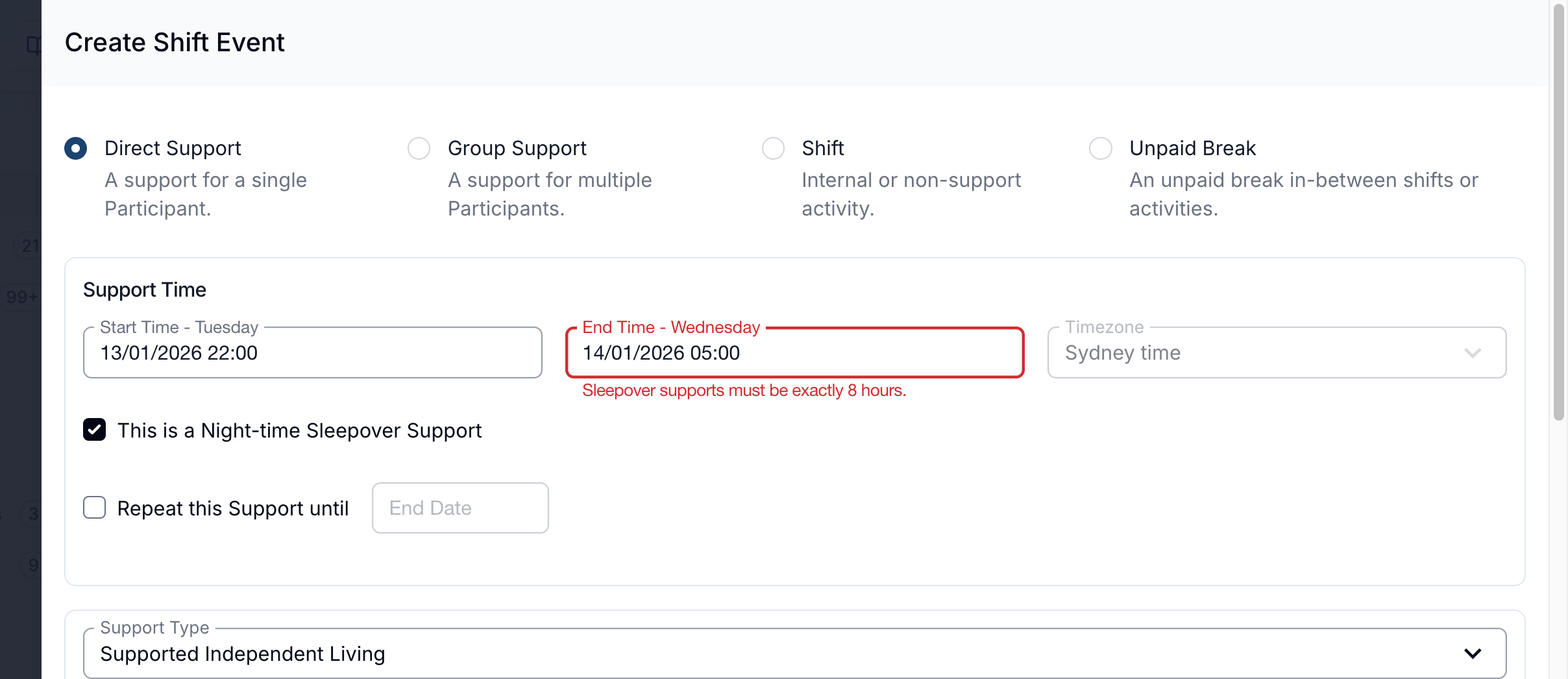
- Sleepovers are required to be 8 hours in duration - e.g. Start 10:00 PM and End 6:00 AM
- Sleepover vs Active Overnight
- If this were a Sleepover Support, tick the Sleepover box.
- For an Active Overnight, leave this box unticked.
- Assign Details
- Select the Support Type (e.g. In-Home Supports, Supported Independent Living, Respite, etc)
- Select the Participant/s
- Select a Support Worker.
- Add any Support Details.
- Add Admin Details if necessary.
- Charges
- For In-home supports, you may wish to use the relevant Charge Item Set so the correct NDIS line items are applied when billing.
- For Respite or SIL supports, you may choose to use Direct Charges instead.
- Create the Shift
- Click Create to finalise the support.
Billing Active Overnight or Sleepover Supports
- For In-home supports, you may wish to use the relevant Charge Item Set so the correct NDIS line items are applied when billing.
- For Respite or SIL supports, you may choose to use Direct Charges instead.
For more information on how to set up and use direct charges, see: Direct Charges Guide
Viewing an Overnight Shift
- In Weekly View, the shift will appear across both days (e.g., 10:00 PM – 6:00 AM).
- In Daily View, navigate to the start date (e.g., 10th) to see the full shift displayed as an active overnight or sleepover.
Sleepover Duration Warning
Astalty shows a warning when a sleepover is not set to an 8-hour duration. This helps catch potential rostering mistakes before the shift is saved.
If the warning appears, simply review the sleepover start and end times to make sure they’re correct. You can adjust the times if needed, or continue if the duration is intentional. This small check helps improve roster accuracy and reduces issues later with billing and payroll.
Converting a Sleepover Shift to an Active Overnight Shift
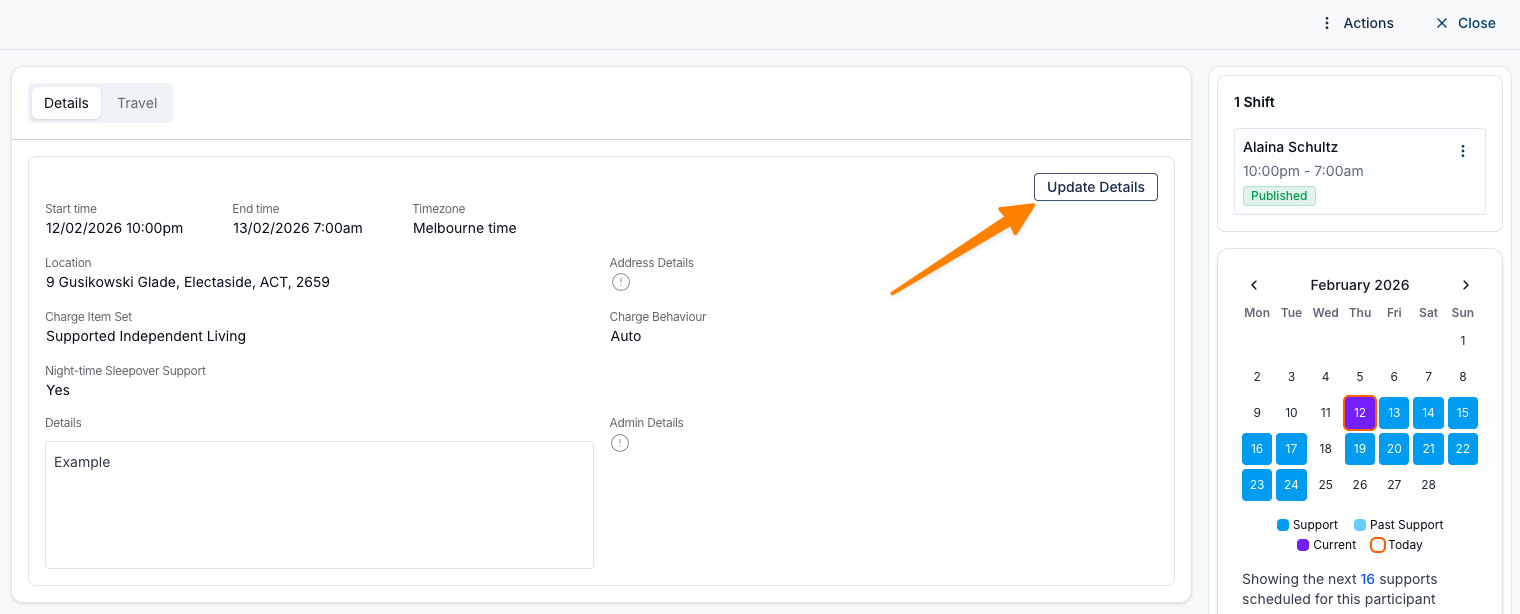
If a Sleepover shift needs to be changed to an Active Overnight shift (for example, where a support worker provided active support for the duration of the shift), this can be updated directly within the Support.
- Open the Support and click Update Details.
- Untick This is a Night-time Sleepover Support.
- Enter a Reason for Change.
- Click Update to save.
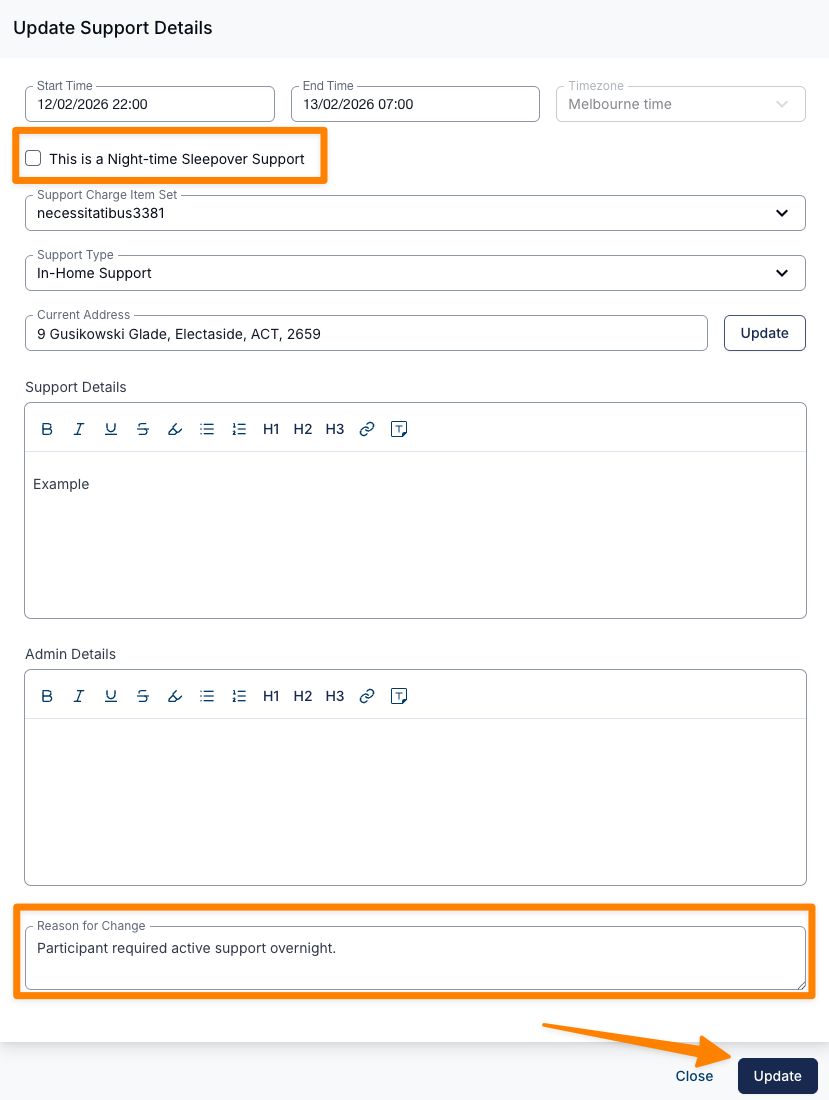
The shift will then be updated in full as an Active Overnight shift.
Managing Active Overnight Periods
Once a sleepover shift has been created, any time a worker is woken during the shift can be recorded as an Active Overnight Period. These periods are handled separately from the standard sleepover allowance.
What are Active Overnight Periods?
Active overnight periods capture time when a worker is awake and providing support during a sleepover.
- The sleepover allowance includes up to 2 hours of active overnight time
- Any time beyond 2 hours is paid as overtime
- Overtime rates apply (e.g. first 2 hours at 1.5x, then 2x)
- Overtime hours are treated separately and do not count toward the 38-hour weekly threshold
Auto-Approval Settings
You can control how active overnight periods are approved:
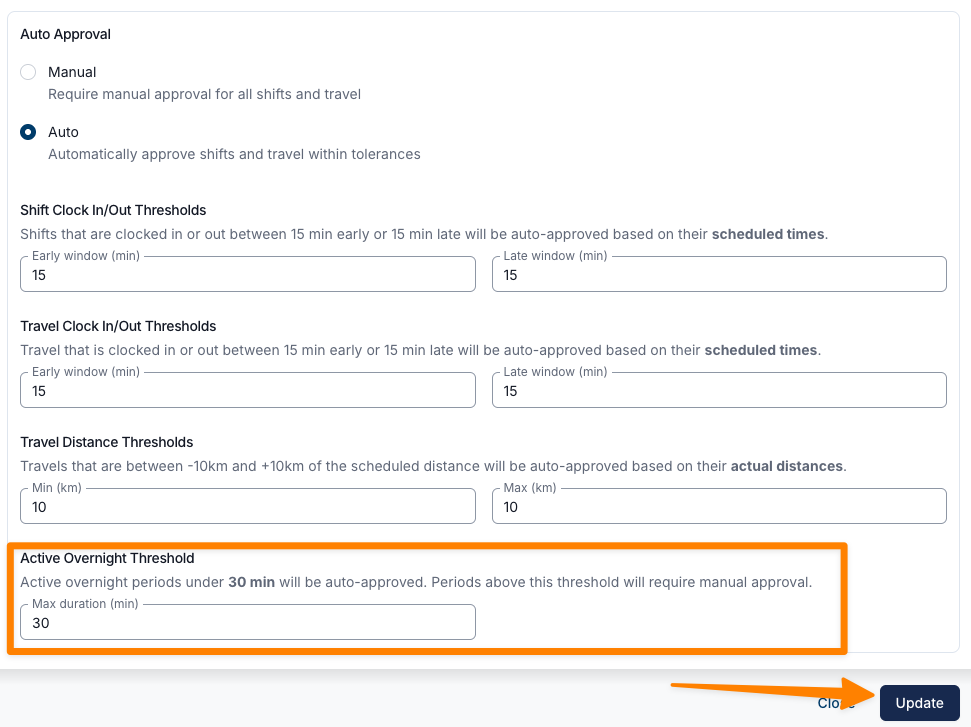
- Go to Scheduling Settings and click Edit
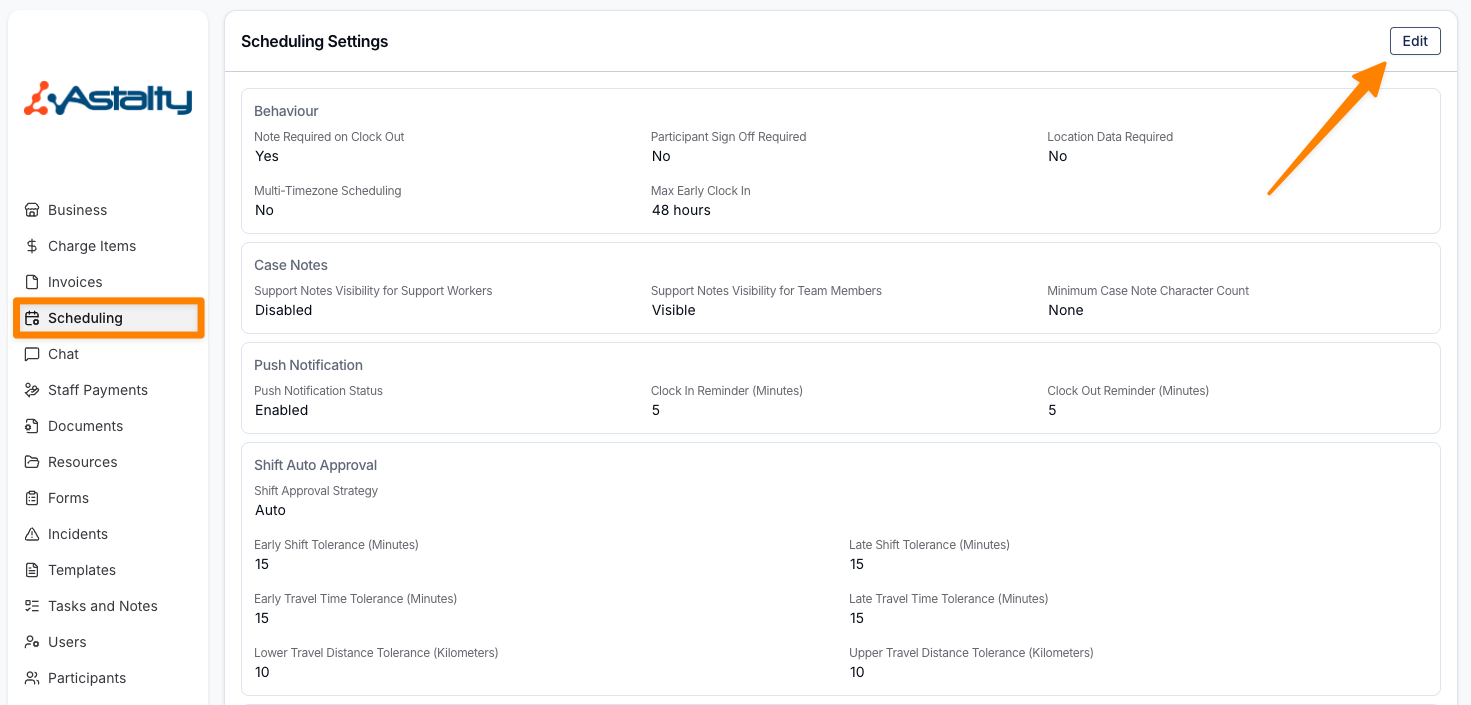
- Scroll to Auto Approval
- Enter a maximum duration for the Active Overnight Threshold. Click Update to save your changes.
How it works:
- 0 minutes — all periods require manual approval
- Above 0 minutes — periods up to the threshold are auto-approved
- Periods beyond the threshold require manual approval
Reviewing & Approving Active Overnight Periods
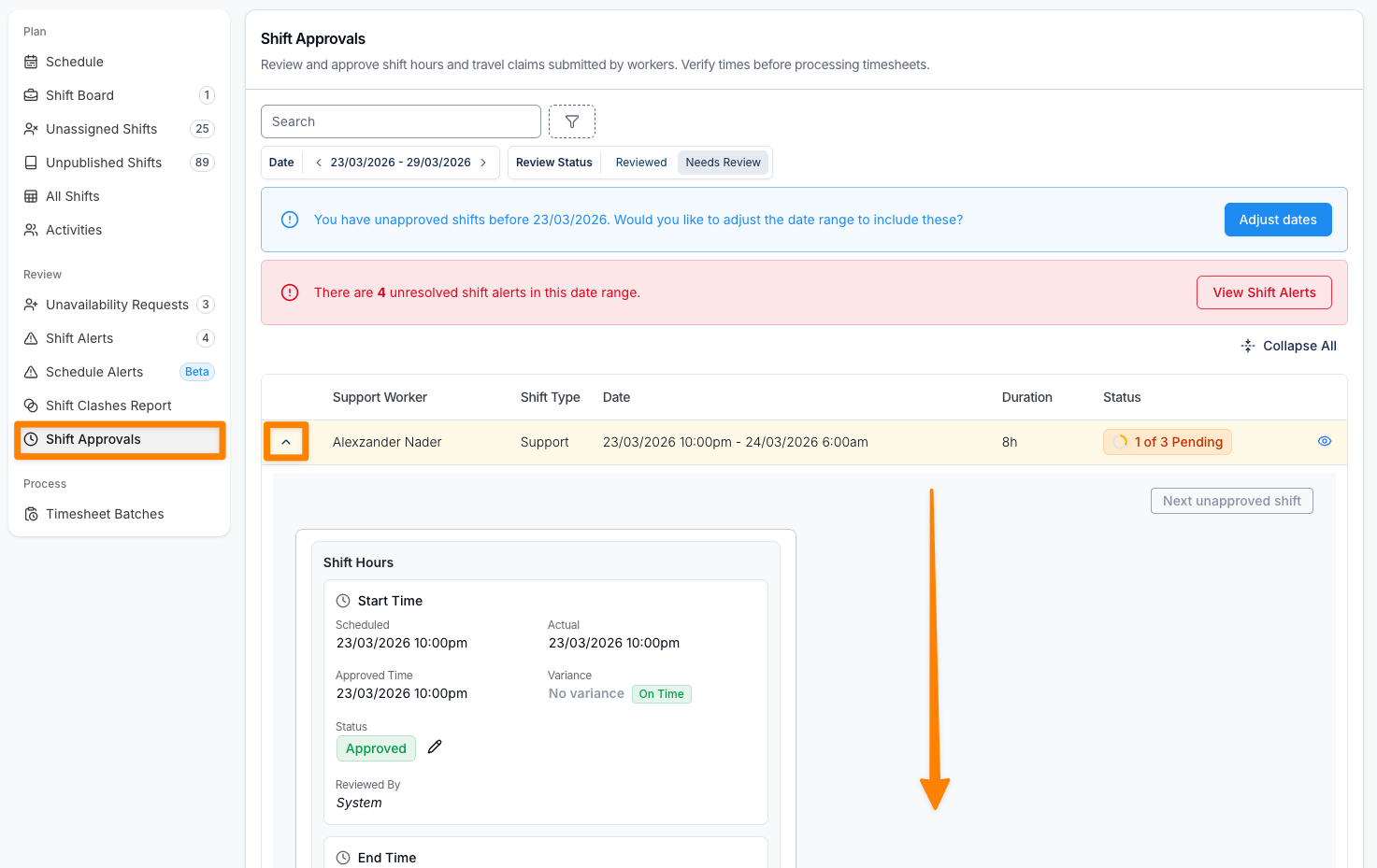
Active overnight periods appear in Shift Approvals:
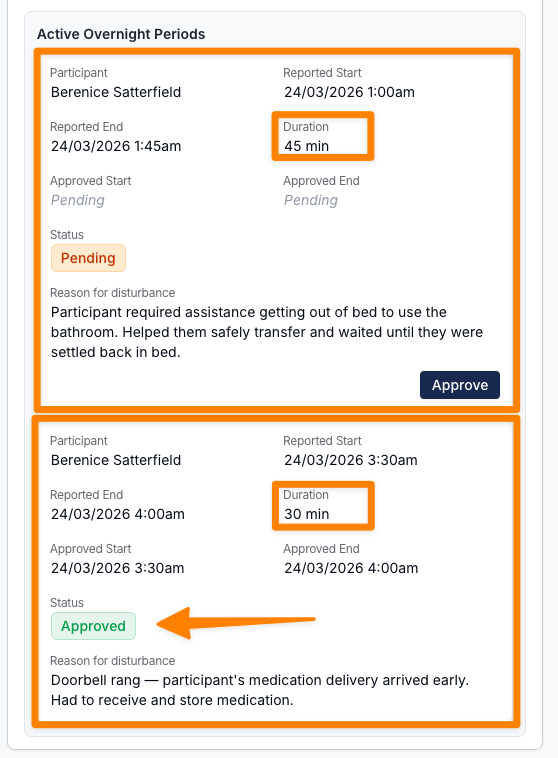
- Select the shift and scroll to Active Overnight Periods
- Status indicators:
- Approved — within auto-approval threshold
- Pending — exceeds threshold and requires review
To review details:
- Click the View Shift icon
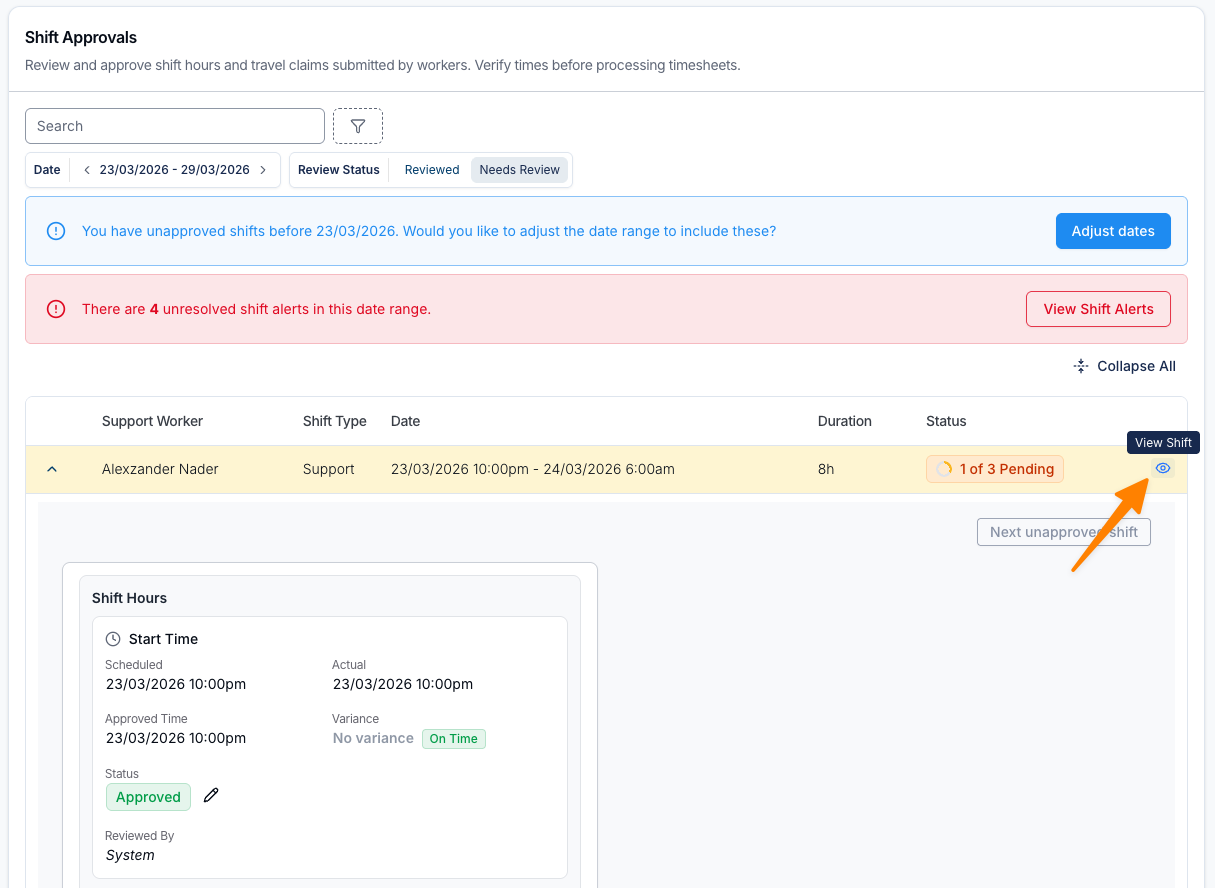
- Open the Active Overnight Periods notification
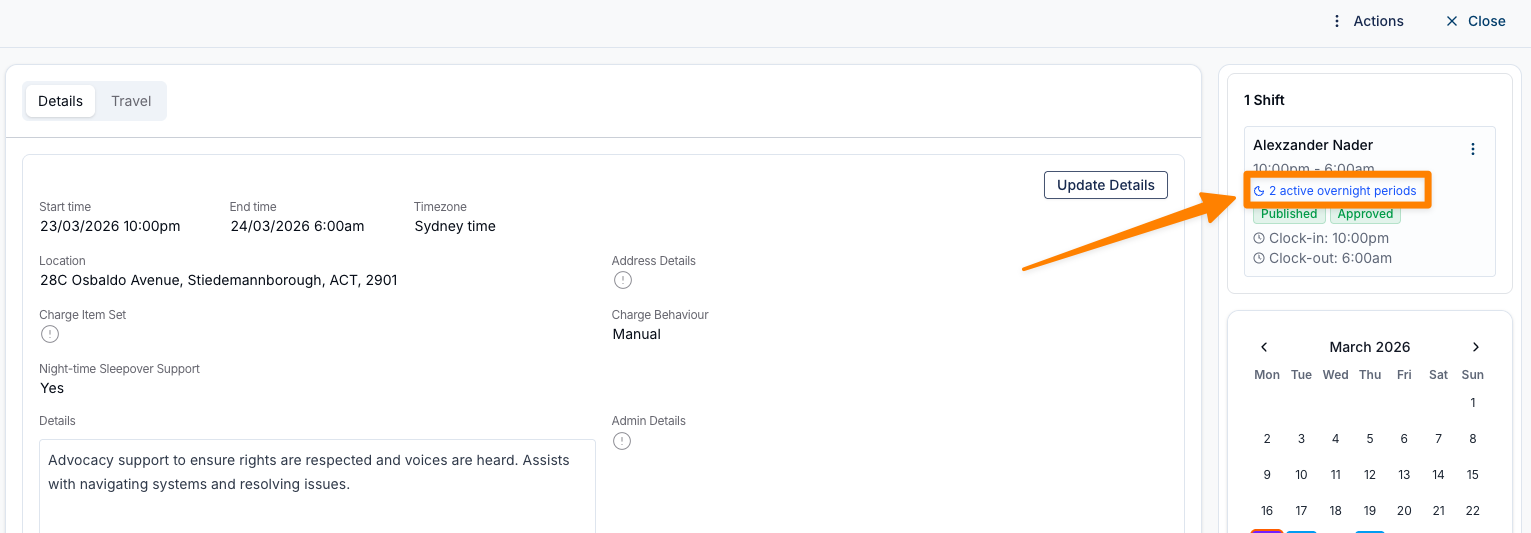
- Review:
- Start and finish times
- Duration
- Reason
- Any supporting evidence (e.g. images)
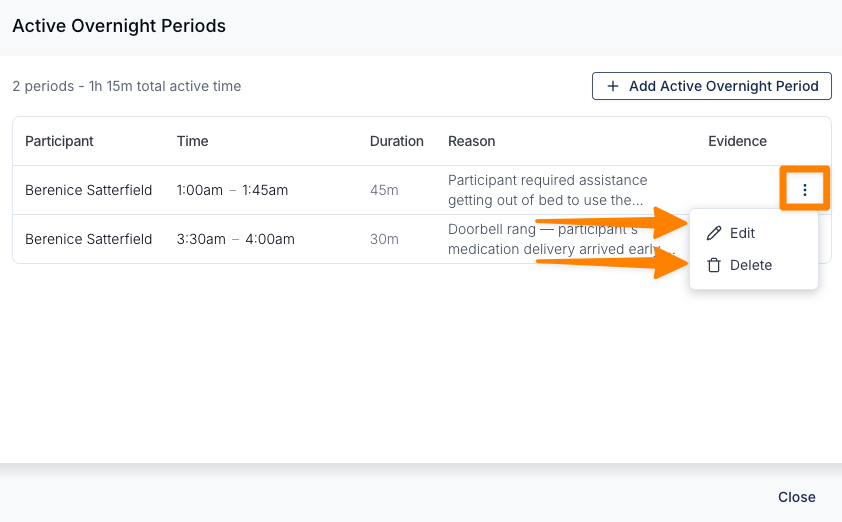
- To make changes, click on the three dots and select Edit, or Delete to remove the Active Overnight Period.
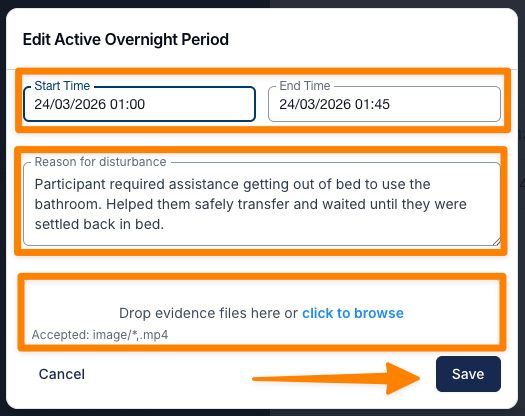
- The Edit function allows you to amend the start and end times of the Active Overnight Period, Reason, and images.
A shift is only considered fully reviewed once all items (hours, travel, and active overnight periods) are approved.
Adding Active Overnight Periods
Schedulers can add active overnight periods in two ways:
From within the shift:
- Open the shift
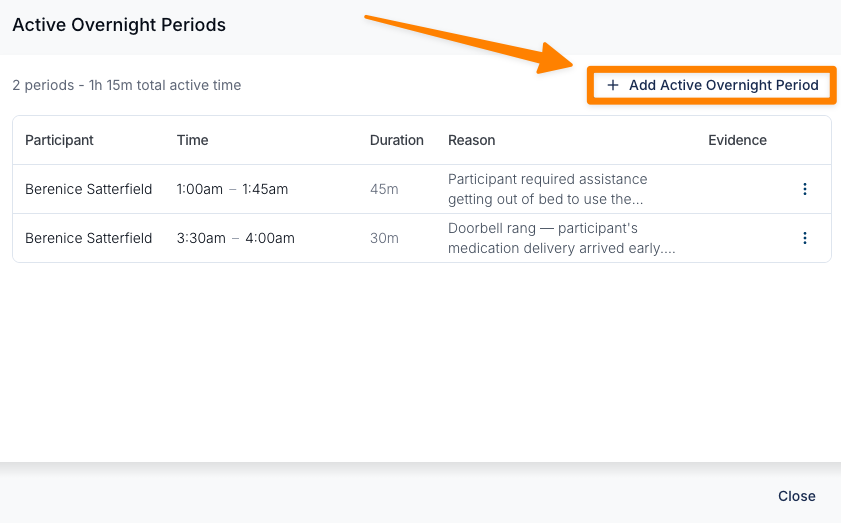
- Select the Active Overnight Periods notification
- Click Add Active Overnight
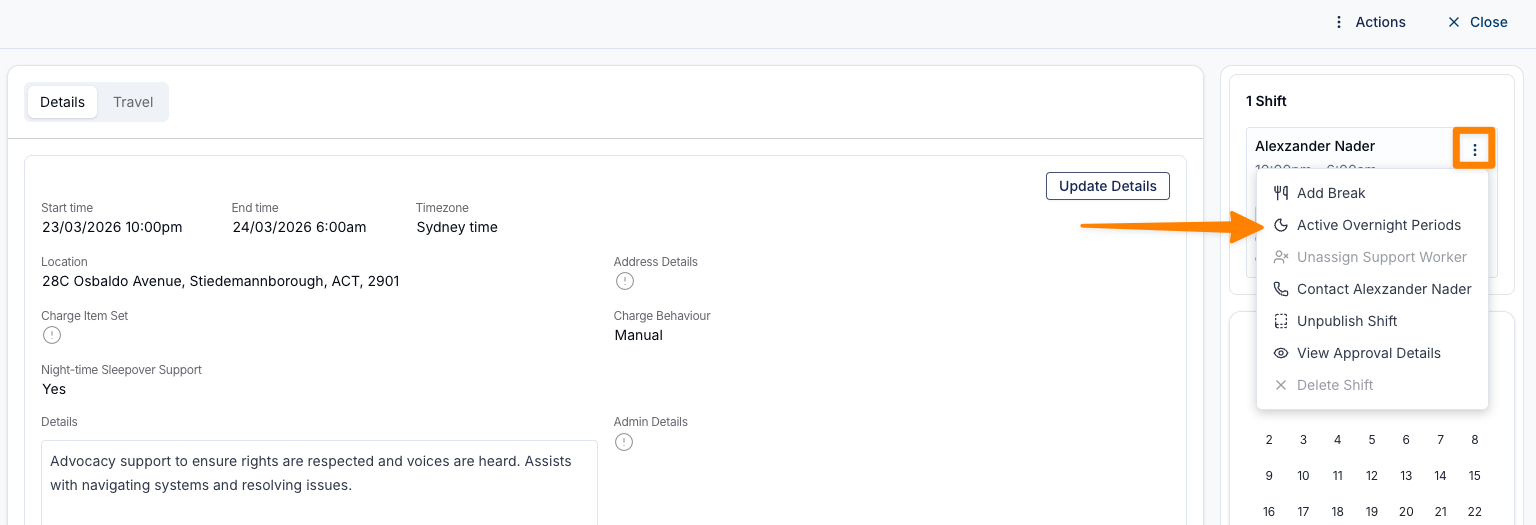
From the shift menu:
- Click the three dots next to the worker’s shift
- Select Active Overnight Periods
Charging vs Paying (Key Difference)
Active overnight periods are handled differently for support worker pay and Participant billing.
Support Worker Pay (SCHADS):
- The first 2 hours of active overnight time are covered by the sleepover allowance
- Any time beyond 2 hours is paid as overtime
- Overtime is paid in line with prescribed rates
Participant Charging (NDIS):
- The first 2 hours (120 minutes) are included in the sleepover allowance
- Any time beyond 2 hours is billed separately
Billing rates for additional time:
- Weekdays (Mon–Fri): charged at the Saturday rate
- Saturday: charged at the Saturday rate
- Sunday: charged at the Sunday rate
- Public Holidays: charged at the Public Holiday rate
To see how Support Workers capture Active Overnight Periods in the app, view the guide here.
Video Overview - Creating an Active Overnight
The following video demonstrates how to set up an Active Overnight.
Video Overview - Creating a Sleepover
The following video provides an overview of how to schedule a sleepover support in Astalty.