- Scheduling
- Schedule & Availability
- Viewing Your Schedule in the Support Worker App
Viewing Your Schedule in the Support Worker App
Overview
The calendar in the Support Worker app allows you to view your upcoming schedule, see which days you have supports, and identify any incomplete shifts that need attention.
Steps to View Your Calendar
- On the bottom menu of the app, tap the middle calendar icon.
- This will open your schedule view.

- Use the arrows at the top of the page to toggle between weeks.
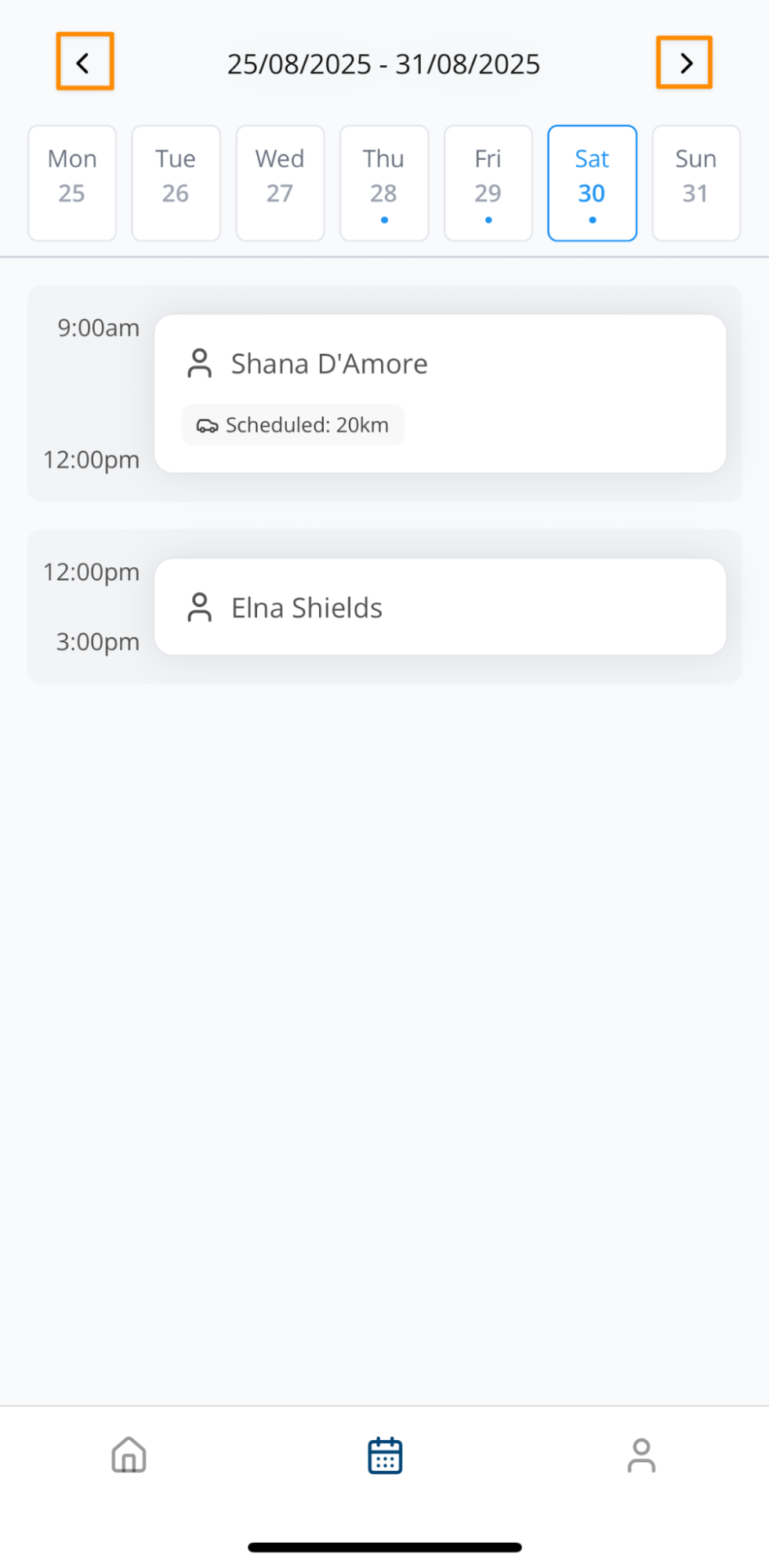
- Select a specific day to view supports scheduled for that date.
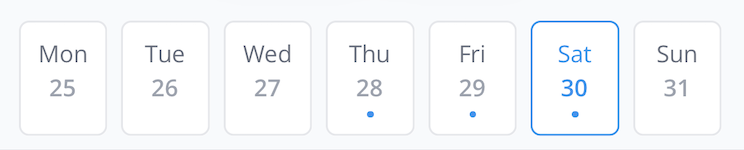
Calendar Indicators
- The current day is highlighted with blue text.
- A dot beneath the date indicates that you have one or more supports scheduled on that day
Additional Access via Home Screen
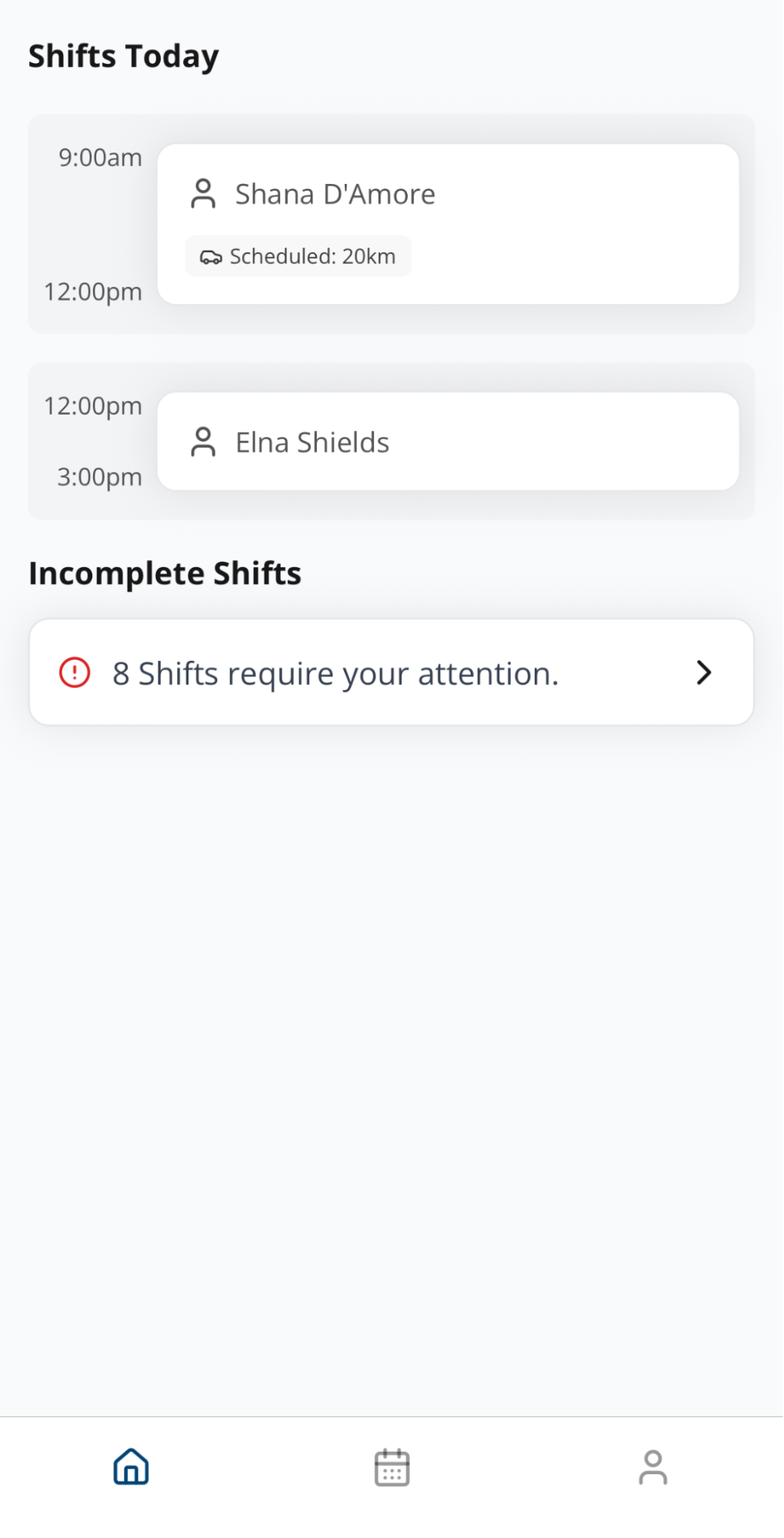
From the Home Screen, you can also see:
- Shifts scheduled for today
- Incomplete Shifts that require action (e.g., you forgot to clock in or out, or you haven’t added a case note).
Changes to your Schedule - Push Notifications
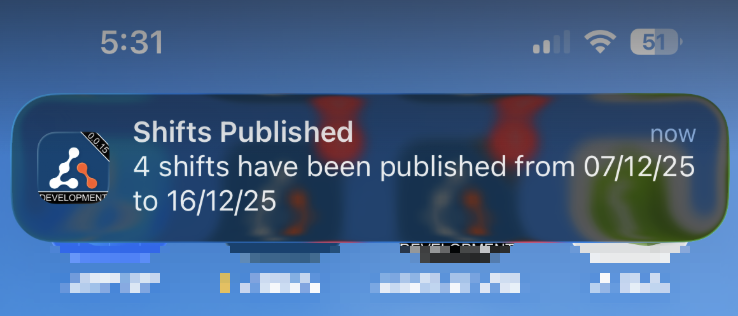
There a different types of notifications that may be pushed to your Astalty App. You may receive notifications for changes to your schedule - Selecting these notifications will navigate you to your Schedule in your Astalty app to view these changes.
If the notification relates to a publishing of multiple shifts at once, you will receive a single message summarising the the shifts you've been assigned to.
To view a full list of App Notifications - click here.