- Administration
- Managing Charge Item Sets
- Creating & Updating Charge Item Sets
Creating & Updating Charge Item Sets
Overview
Creating Charge Item Sets in Astalty is straightforward but if you're unsure what Charge Item Sets are head to our explanation here.
To manage Charge Item Sets, navigate to the Charge Items settings page.
Creating a Charge Item Set
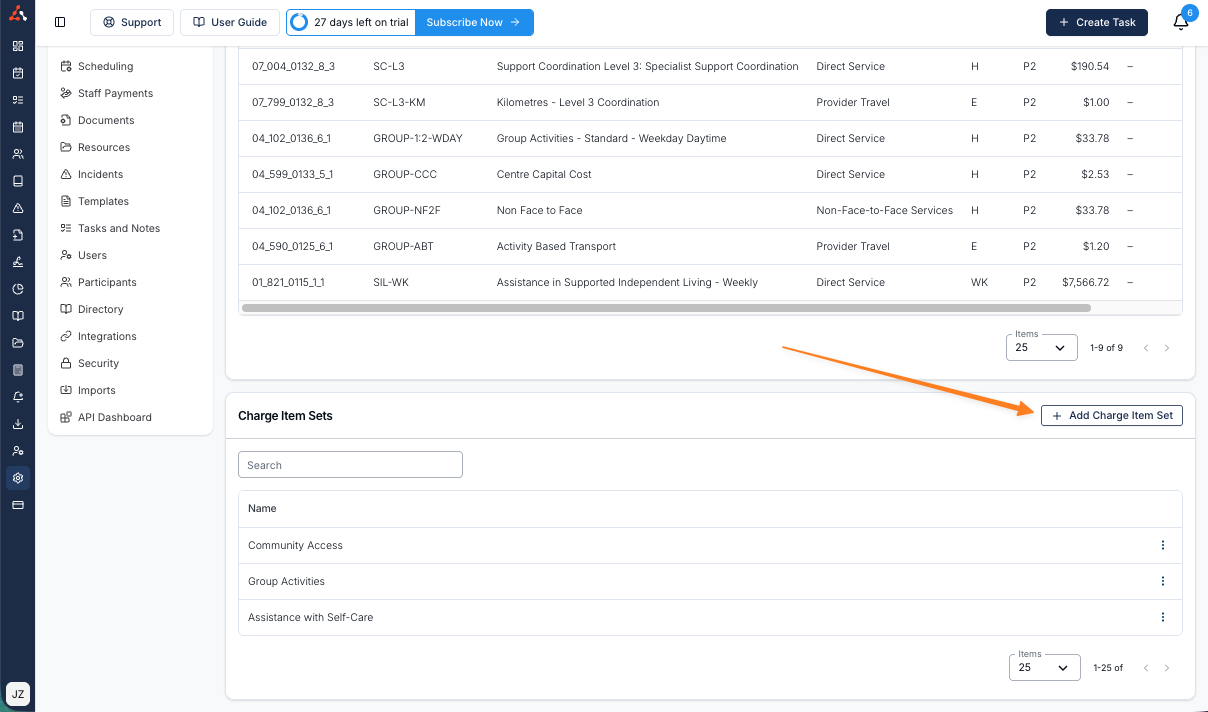
To create a Charge Item Set click Add Charge Item Set towards the top right of the Charge Item Sets table.
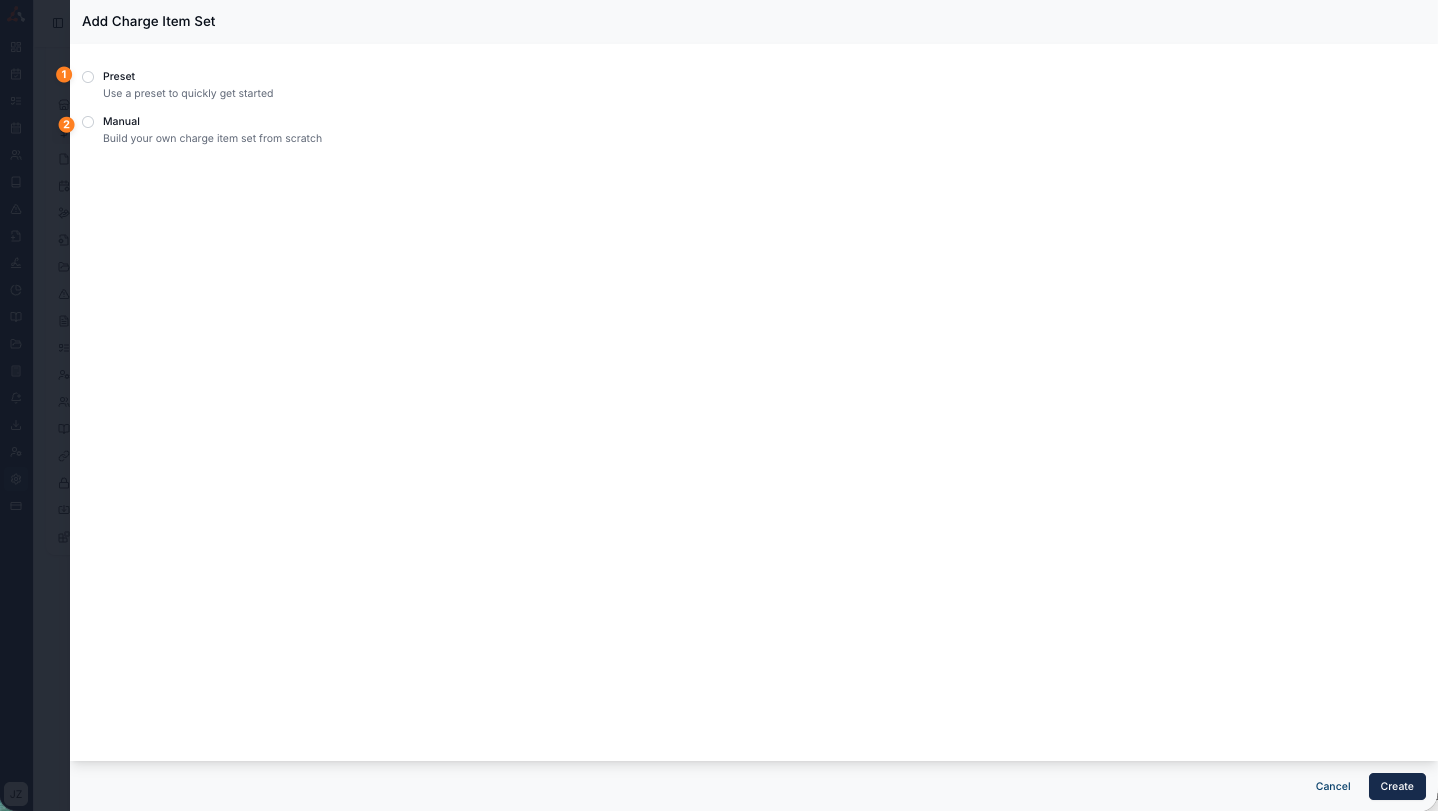
Once you do this you will be presented with two options;
- Preset Charge Item Set - Using a preset that we have created to quickly get started
- Manual Charge Item Set - Build your own Charge Item Set from scratch
Preset
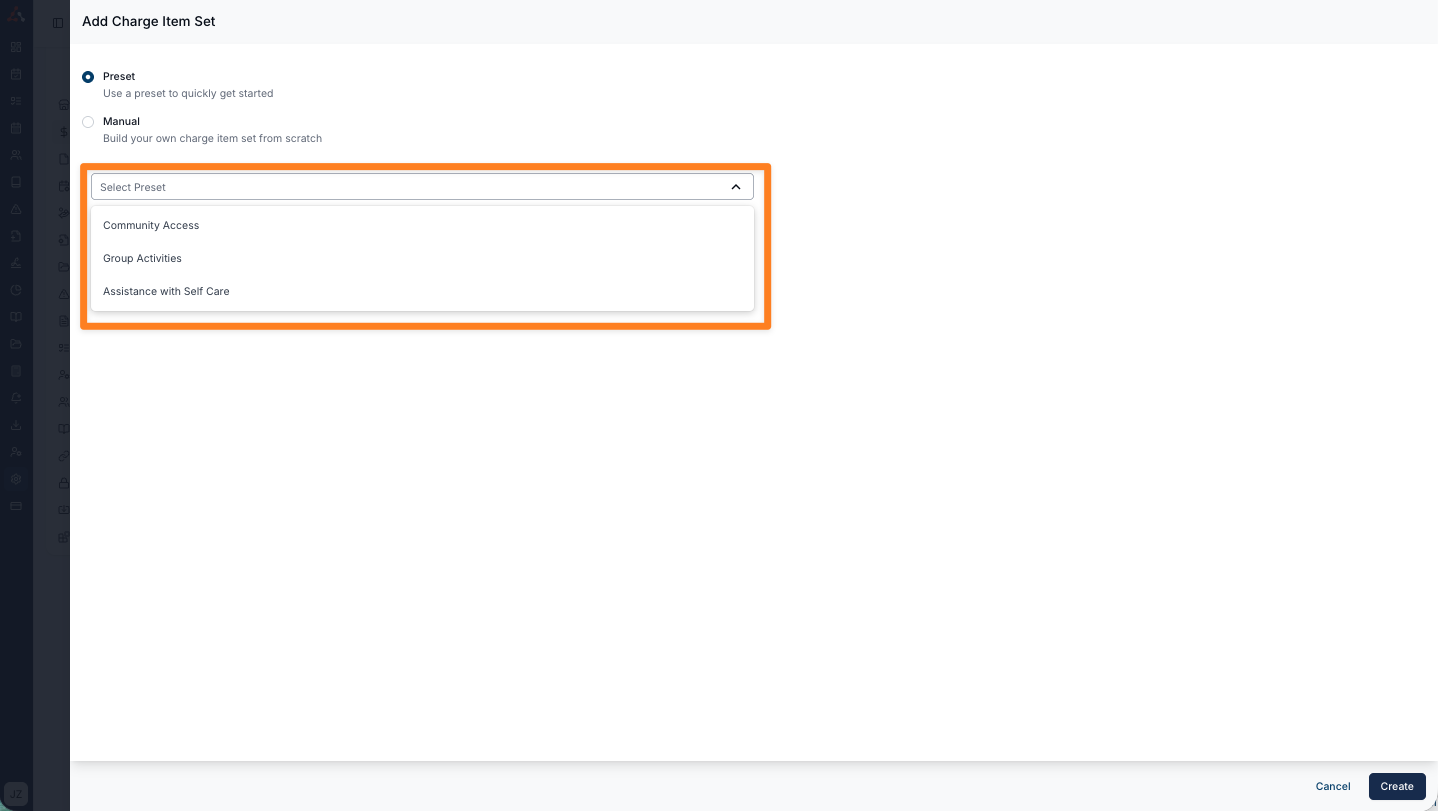
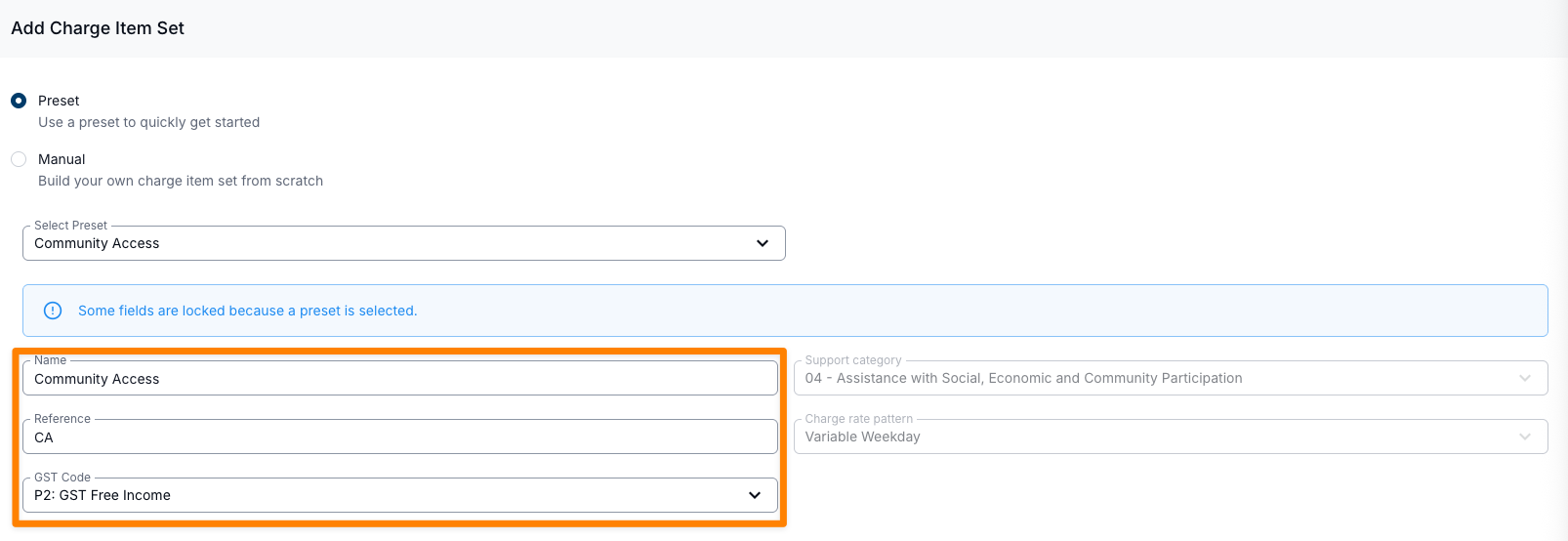
When you select preset you will see a drop down menu appear where you can select from some premade Charge Item Sets. They include the following sets;
- Community Access
- Group Activities
- Assistance with Self Care
By selecting a preset Charge Item Set you will see the Charge Item Set appear prefilled with the associated Charge Items as seen below in the example of the Community Access preset Charge Item Set. Astalty has prefilled the relevant Type with the associated 'Community Access' line item including the;
- Support Category
- Charge Rate Pattern
- Name
- Number
- Price (which is customisable)
- Unit
- GST Code
- Reference
- Notional $1
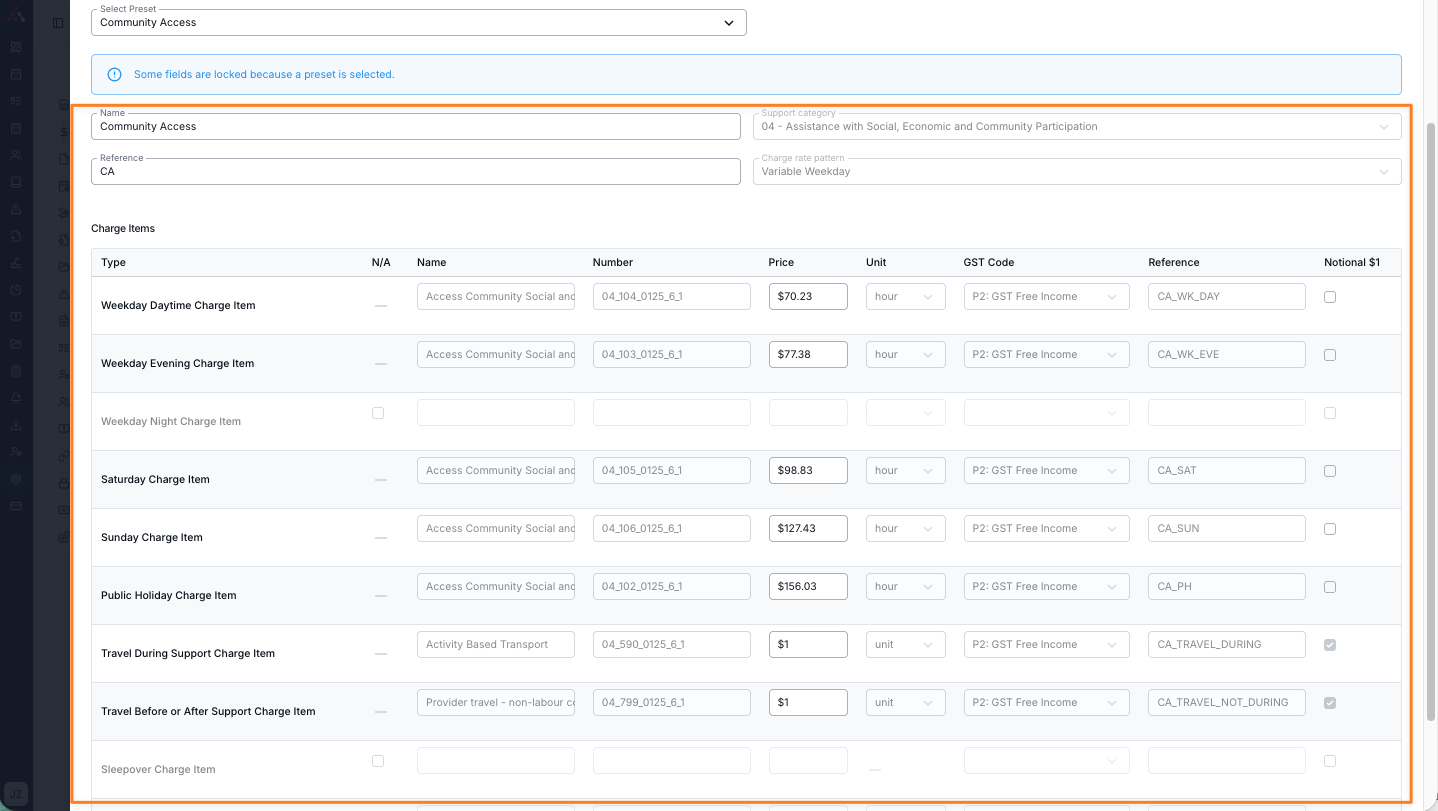
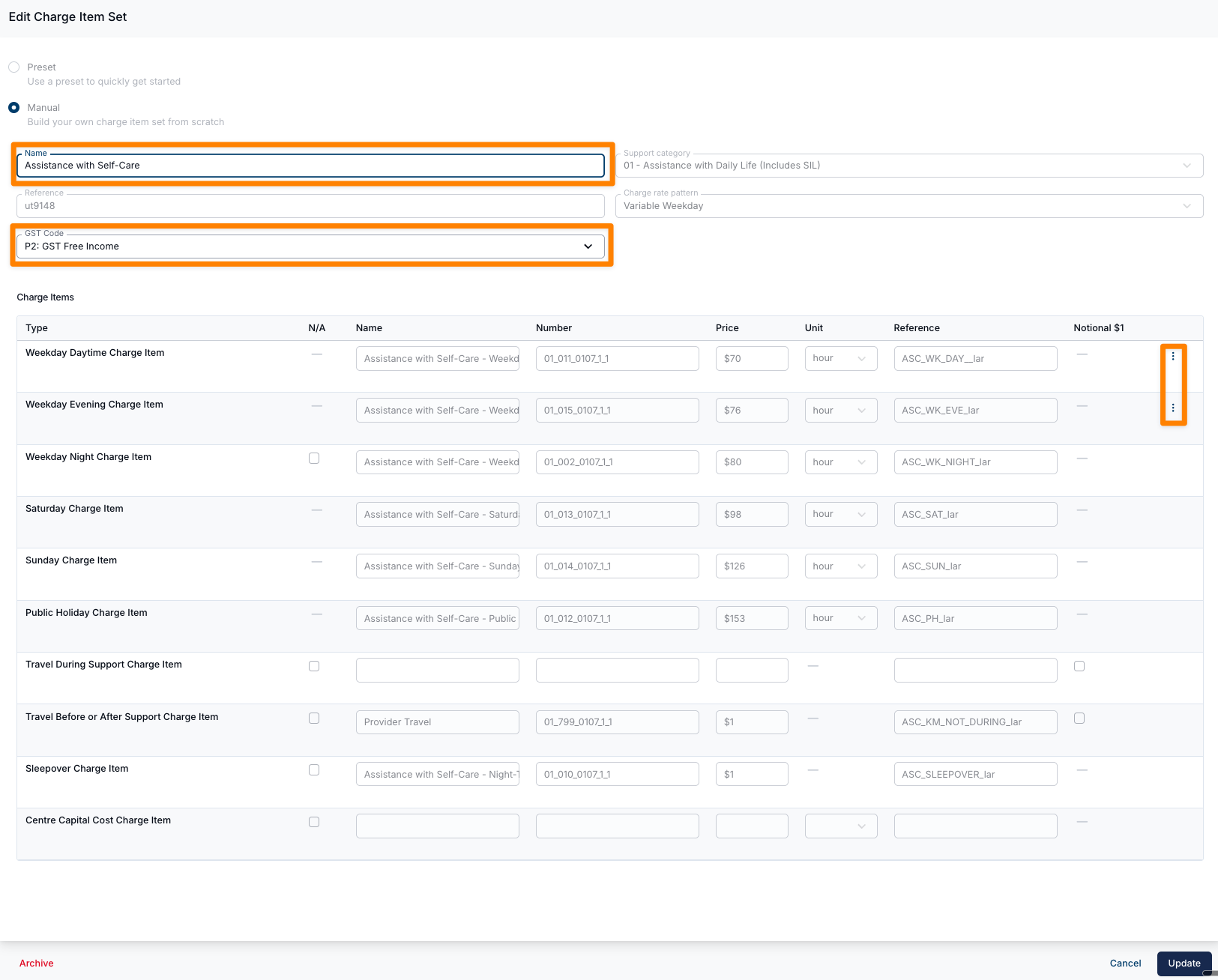
You can update the Name of the Charge Item Set, as well as the Reference and GST Code if required, to ensure these details align with your organisation’s preferences.
Manual
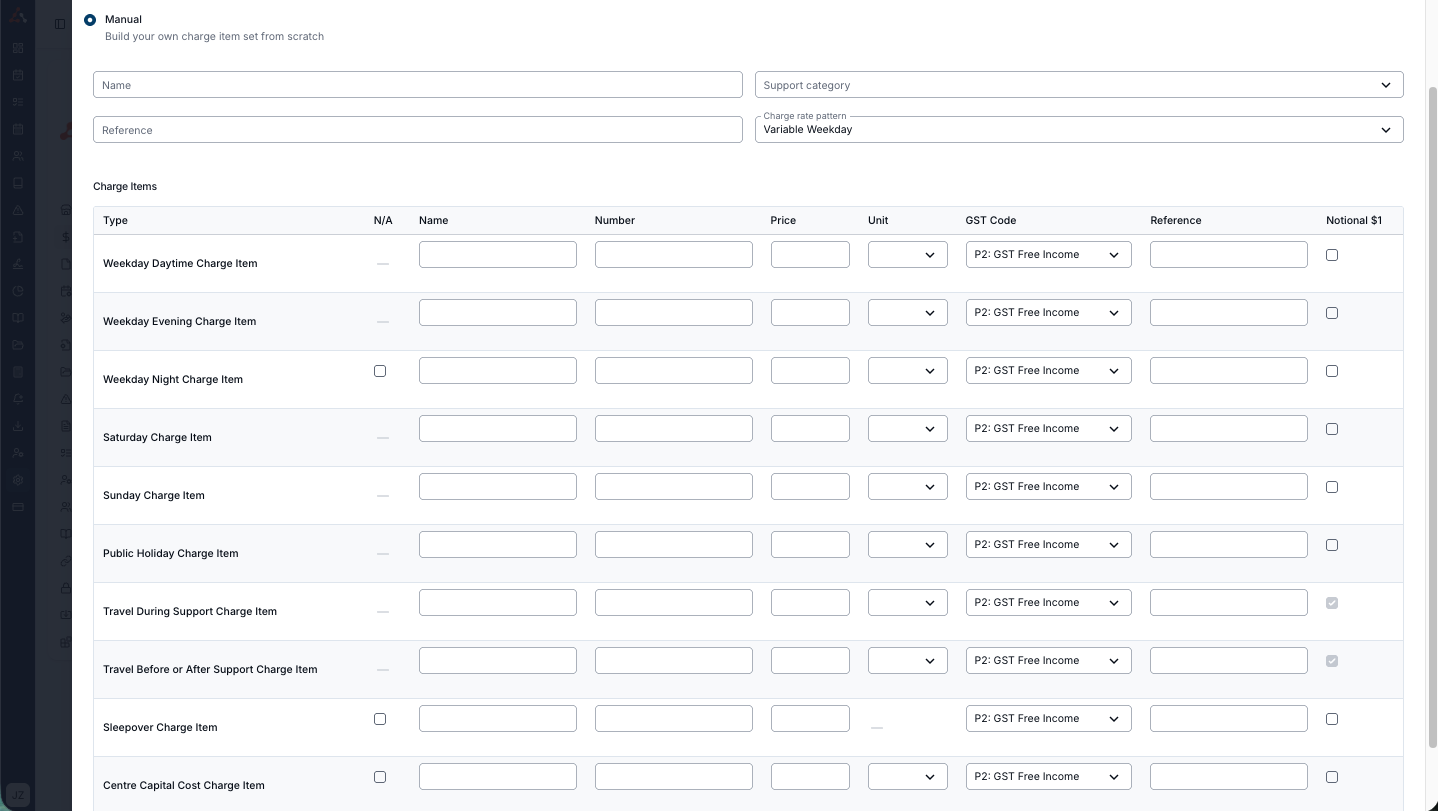
When you select manual you will see a blank table where you can enter each of the Charge Item types where the information has been pre filled within the preset Charge Item Set.
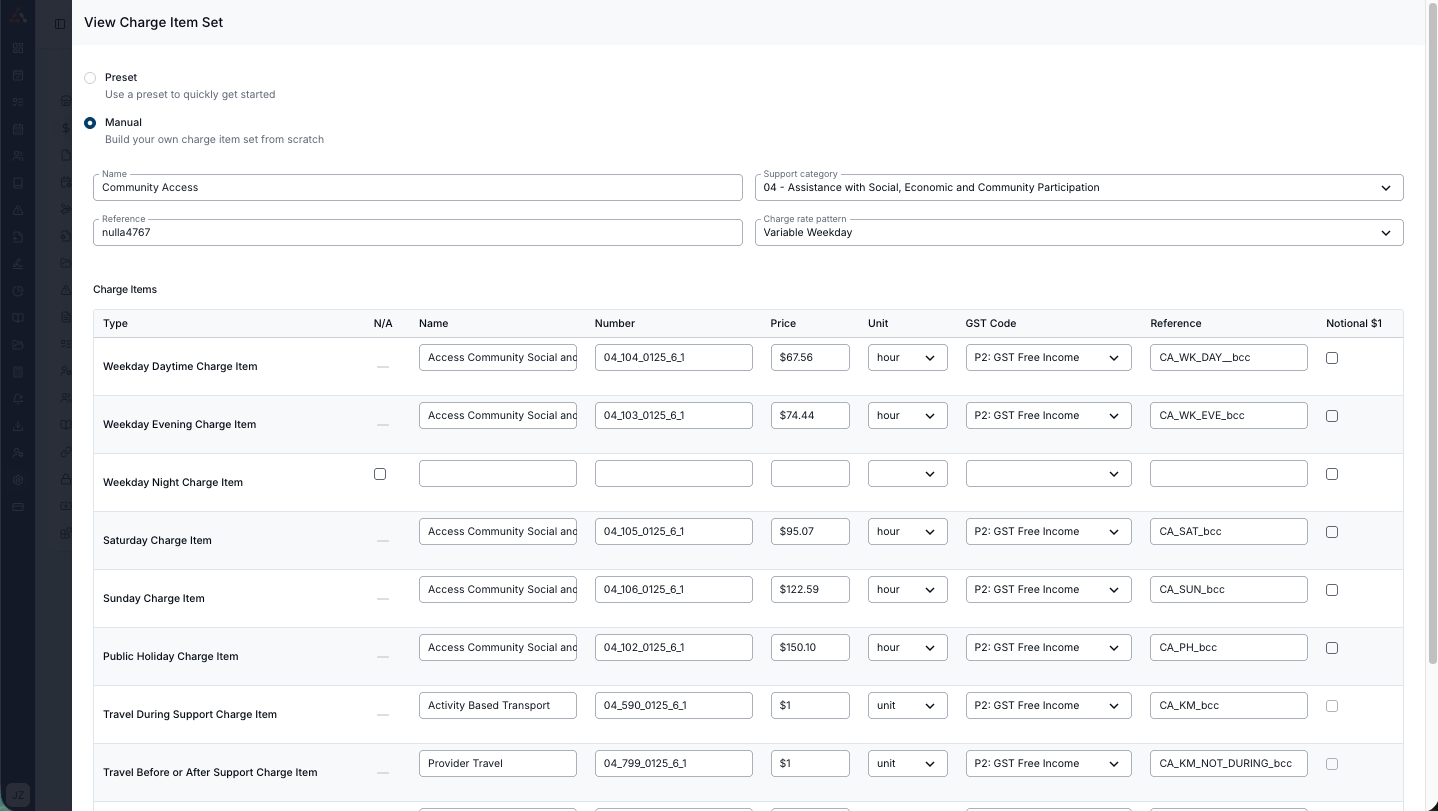
Once completed the set will look something similar to this.
Excluding Charge Items from Sets
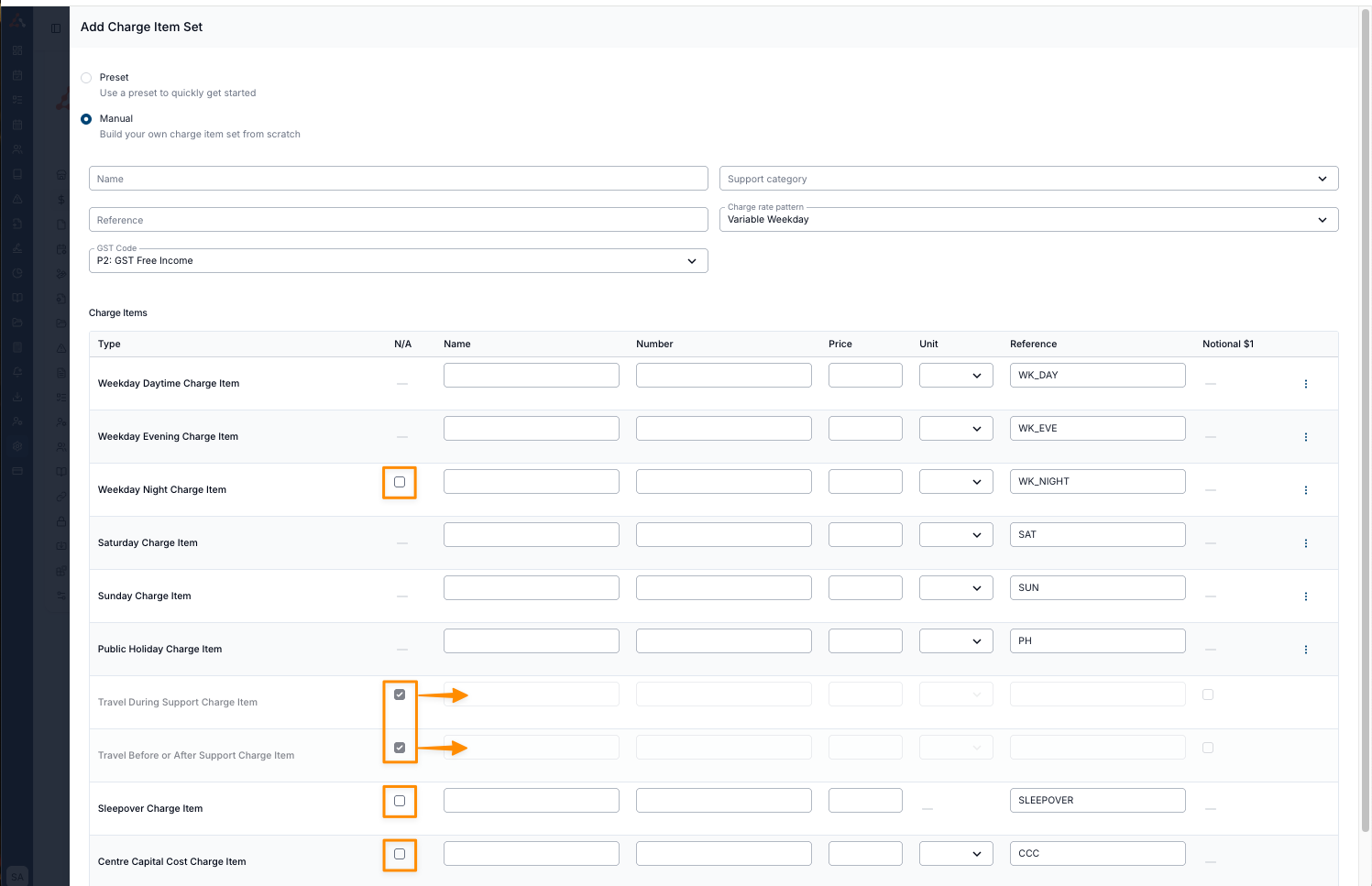
When manually adding in the Charge Items types, some Charge Items can be excluded by using the provided checkbox to mark as N/A. Once marked as N/A the relevant fields for that Charge Item type will become un-selectable and not be required to create the Charge Item Set.
Copy Charge Item into remaining Charge Items
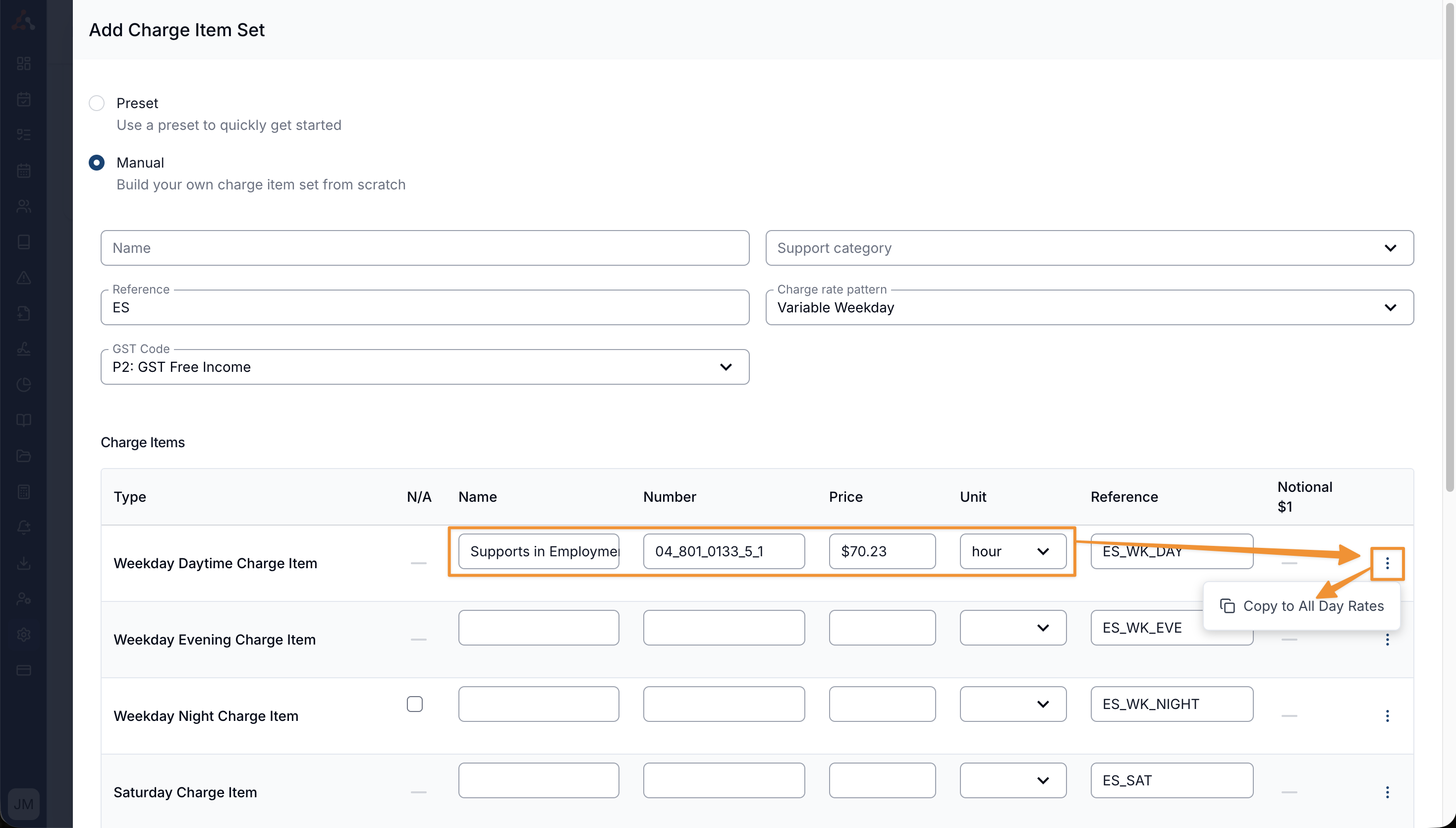
If you are completing a Charge Item Set where the Charge Item doesn't have variable charges for time of day or week, you can use the Copy to All Day Rates option to apply it to all remaining day rates.
Simply complete the Name, Number, Price and Unit fields of a day rate and select the Copy to All Day Rates option within the 3 dot menu.
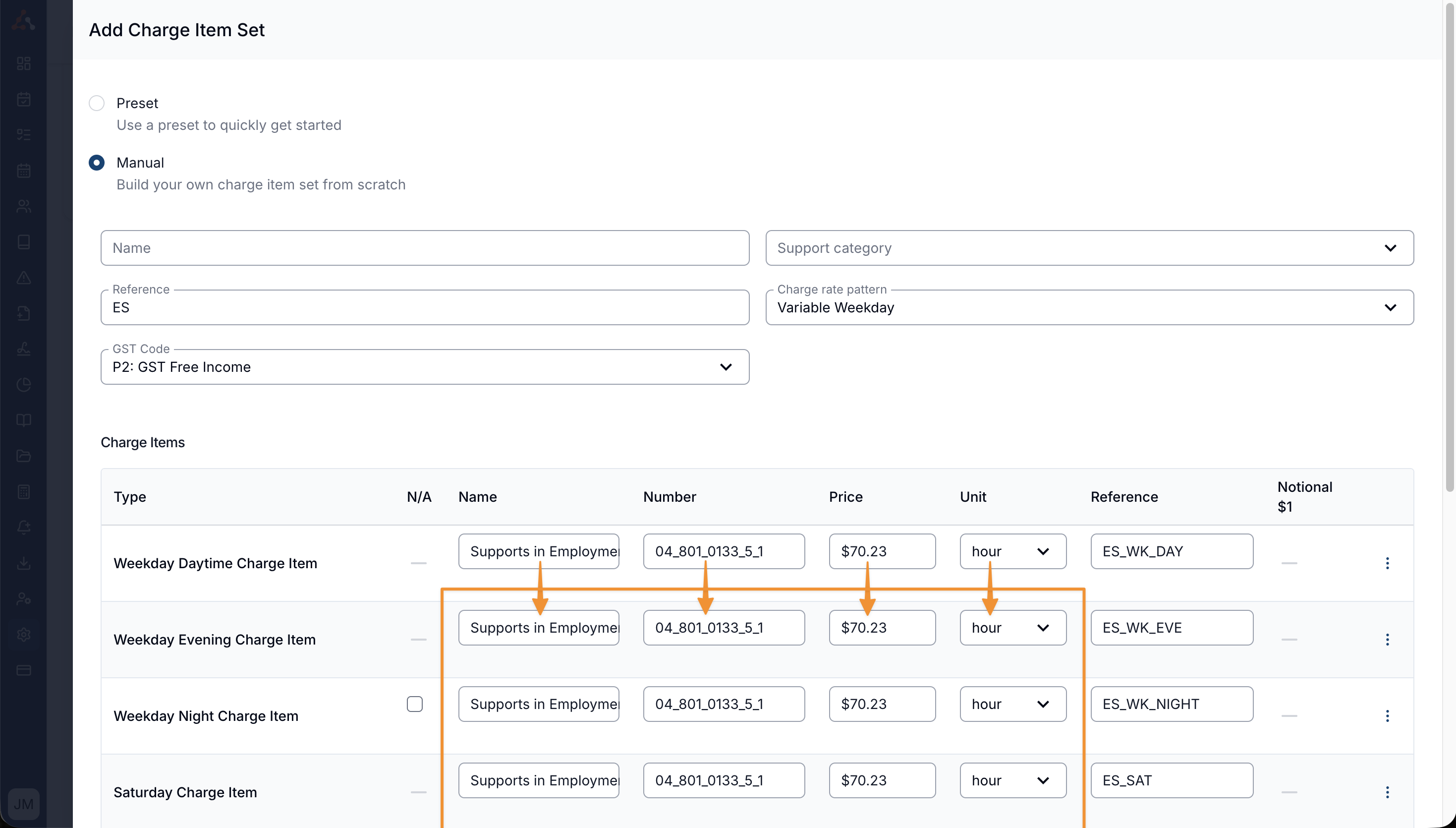
After selecting Copy to All Day Rates, the other day rates will be pre-populated with the same detail.
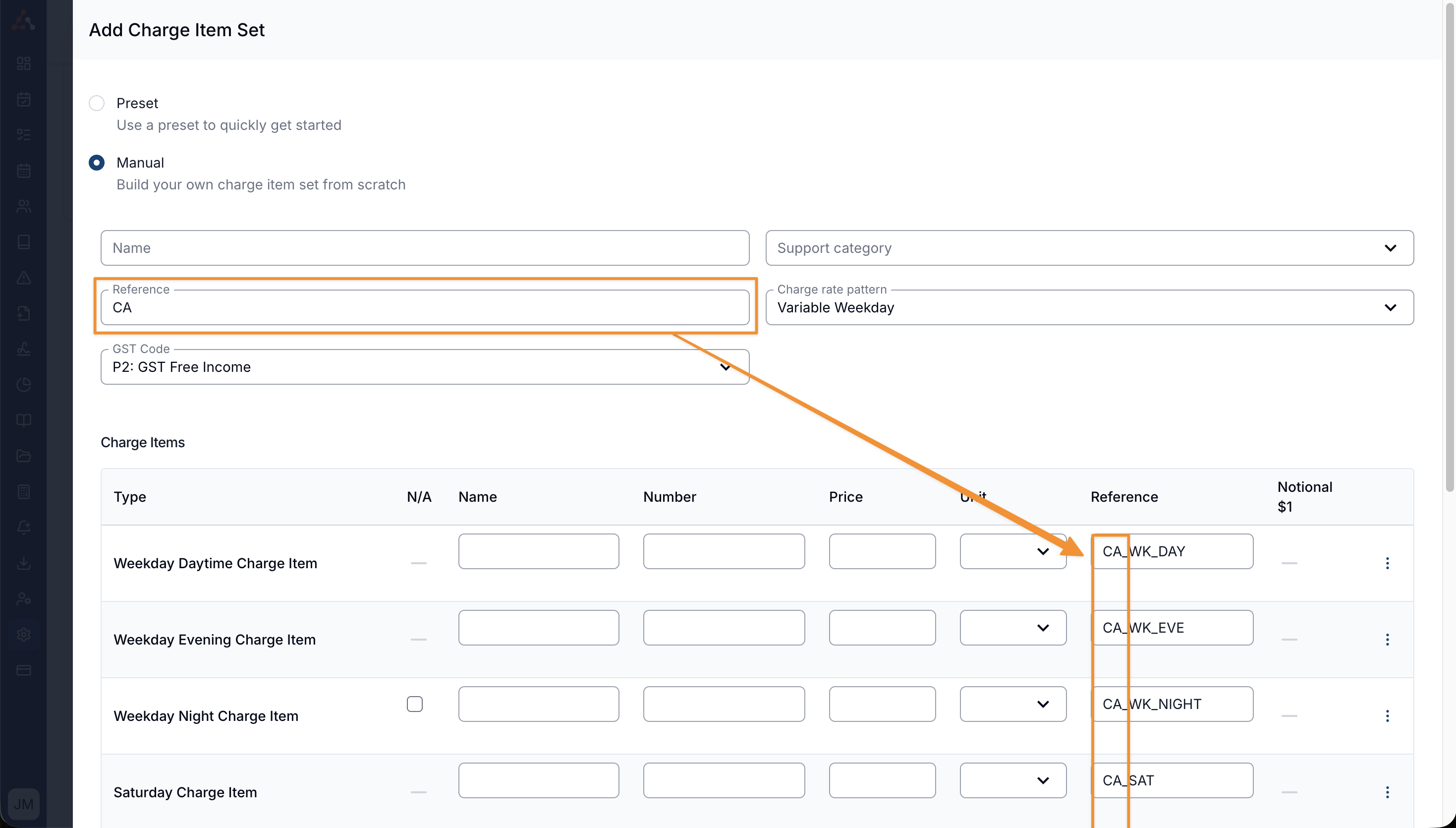
Prefill Reference into Each Charge Item Within a Set
When the Reference field is completed with a phrase or acronym to describe a Charge Item Set, that reference will automatically populate the Reference field of each individual Charge Item within the set.
Add Weekday Daytime Travel Charge Item to Set
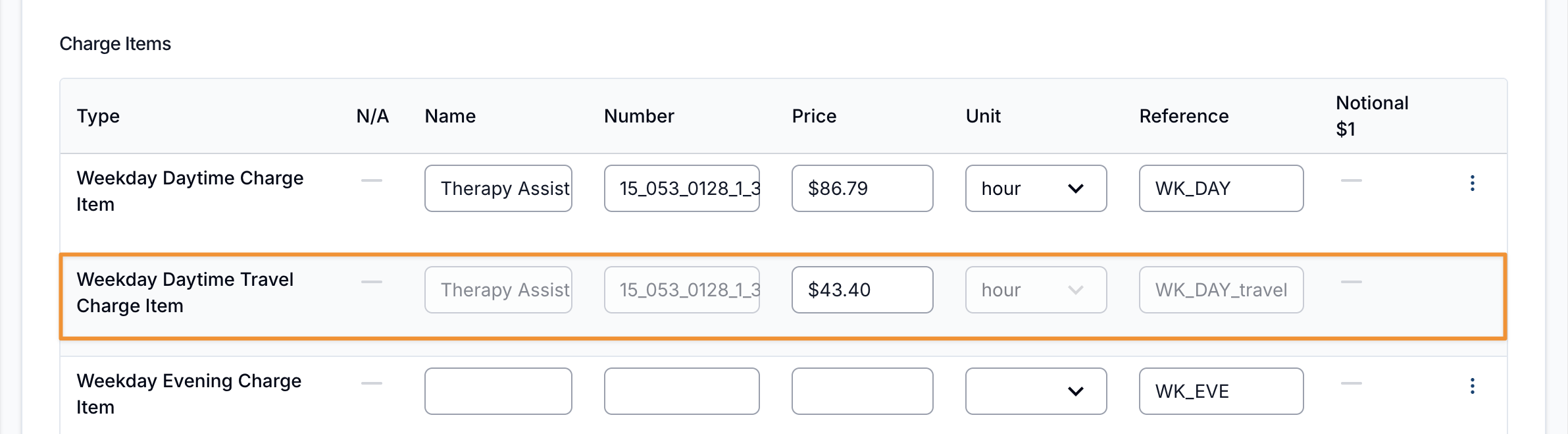
When creating the charge item set, you have the option of adding a weekday daytime travel charge item where required, by selecting the three-dot menu beside the weekday daytime charge item and selecting 'Charge different travel rate'.
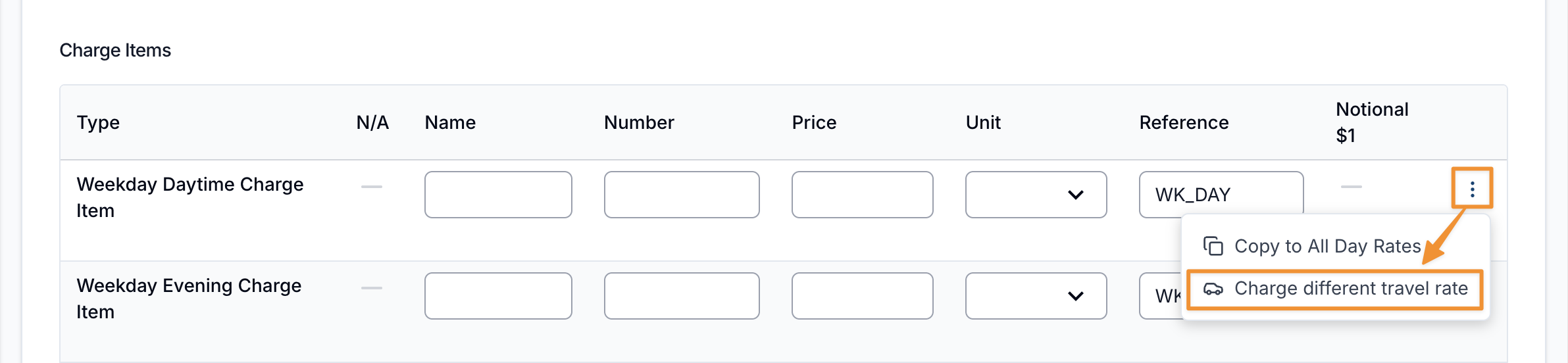
A new row will be introduced below the weekday daytime charge item for the travel rate. Here you can define a specific Price (rate) amount if required.
Updating Charge Item Sets
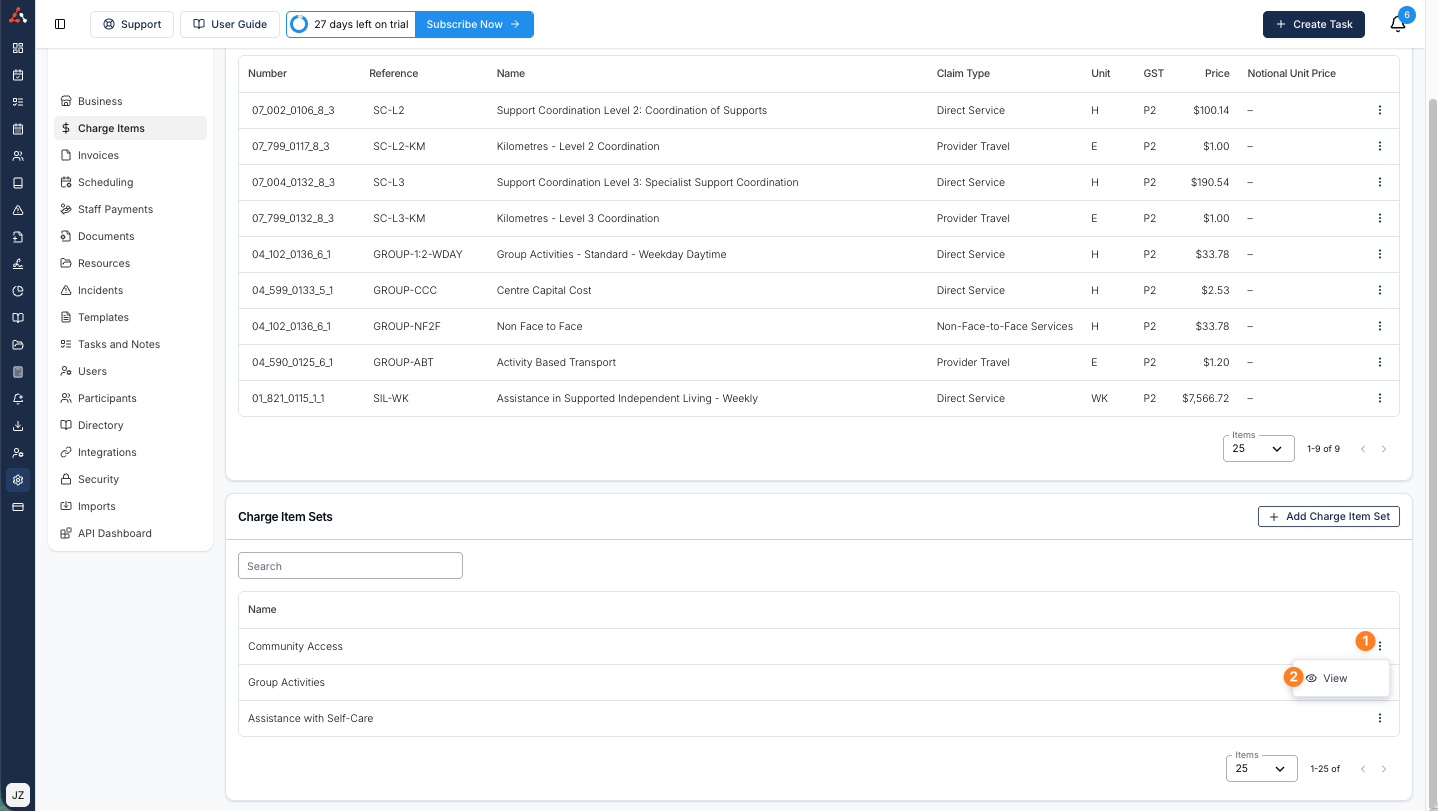
To update a Charge Item Set simply click the 3 dots to the right of the entry and click 'View' as seen below.
From here you can update any of the editable fields.
If significant changes are required, you will need to archive the existing Charge Item Set and create a new version. For more on this, see Archiving & Restoring Charge Item Sets.
Applying the Charge Item Set
To learn more about how to apply a Charge Item Set click here to view our user guide article on Scheduled Services.