- Scheduling
- Create a Participant Specific Form
Create a Participant Specific Form
Overview
To create a Form click, on the 'Create Form' button within the Manage Forms menu.
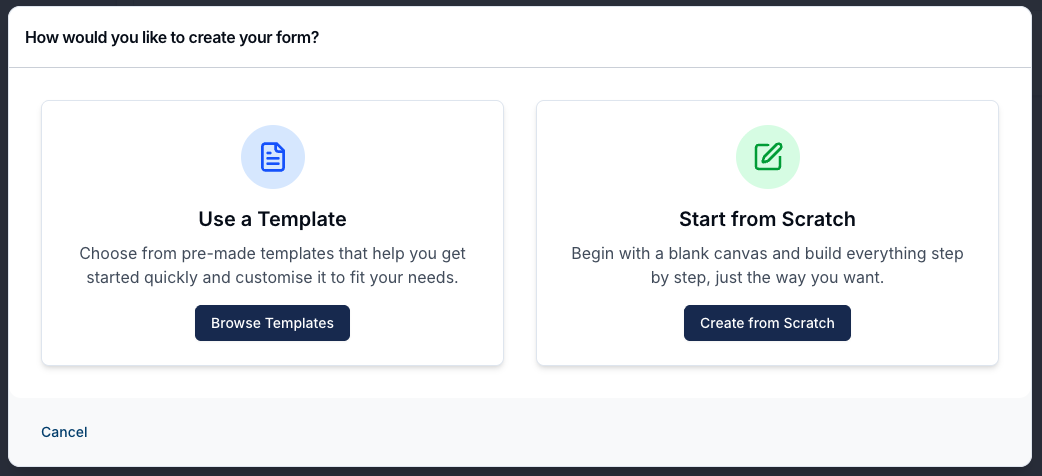
Once you do this you will be presented with two Form options, Using a Template or Starting from Scratch.
You can see how to create the Forms by following these links:
Make sure to return to this guide to see how to assign the Form to a specific Participant.
Once the Form has been created, you'll need to ensure that the visibility of the Form includes Support Workers — to do this, check out the Form Settings guide.
Adding an Associated Form
You can now head to the relevant Participant's profile page, and navigate to their Forms menu. From here, you'll need to click on Add Form within the Associated Forms section.
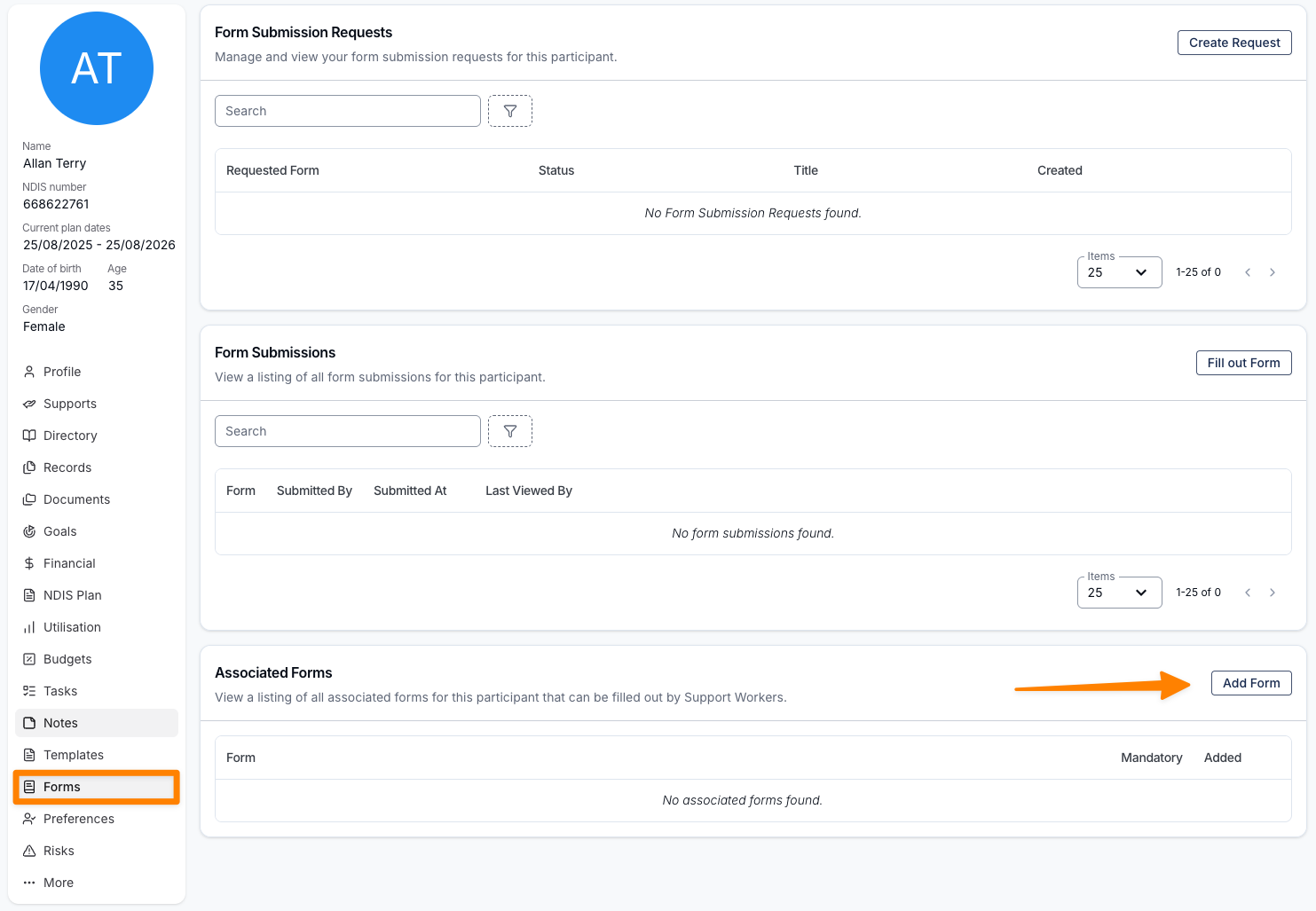
In the pop-out panel, select the relevant Form.
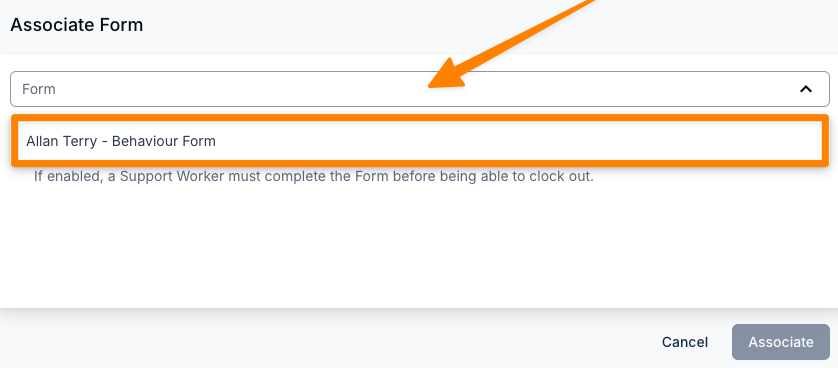
If you choose to make this Form accessible to Support Workers, it will be required when they clock out of their shift.
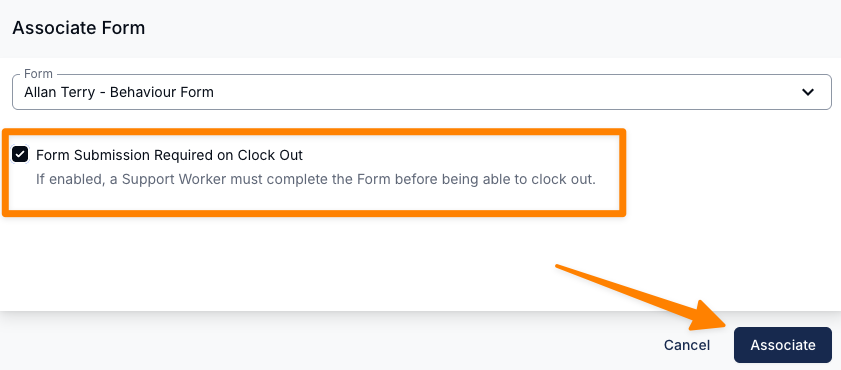
If the Support Worker does not complete the Form at the time of clocking-out, they will be prompted to either complete it afterward or provide a reason for why it was not completed.
To see how this process appears for Support Workers, click here.
To see how Support Workers can view Forms that are visible in all Supports for all Participants, click here.
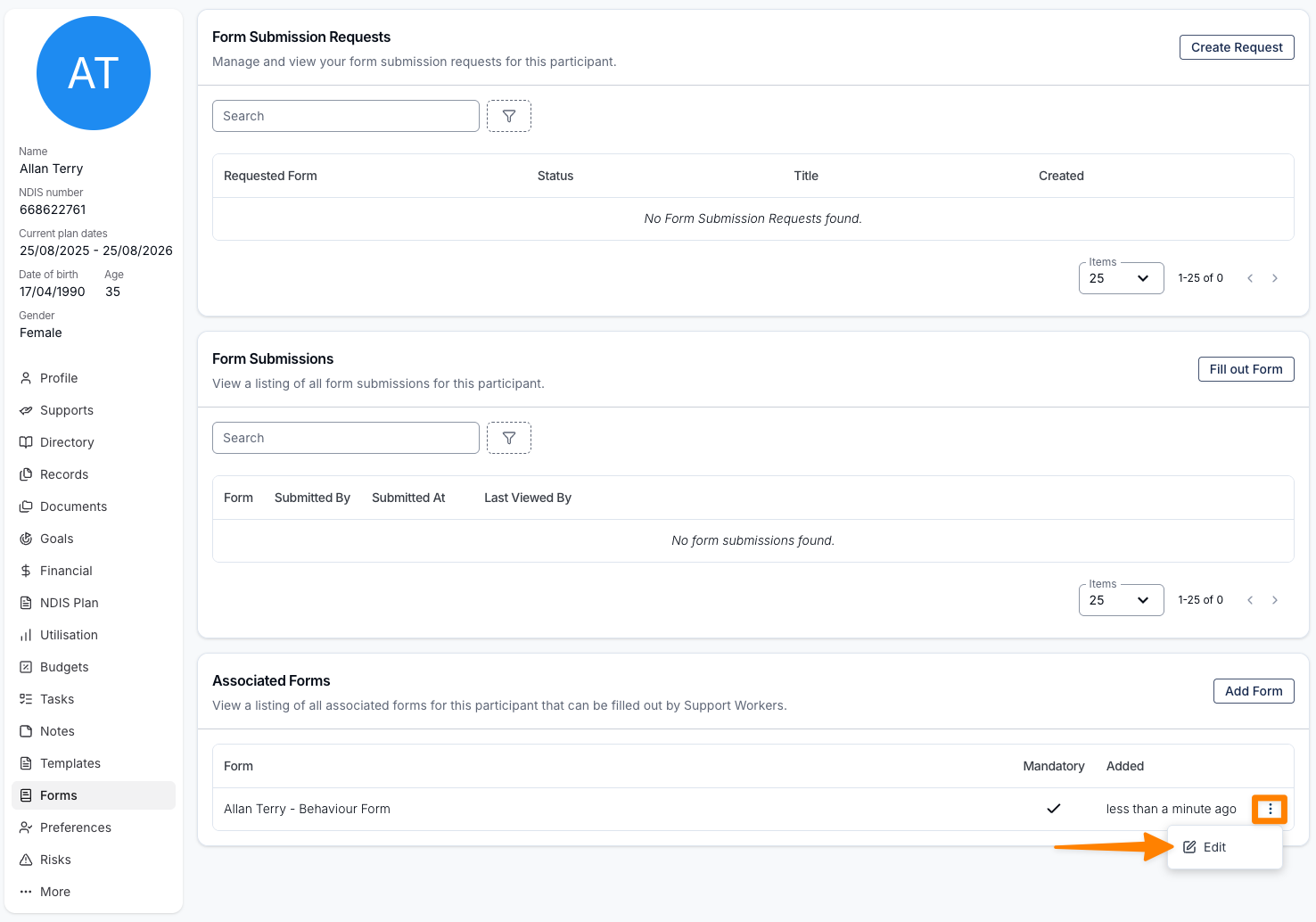
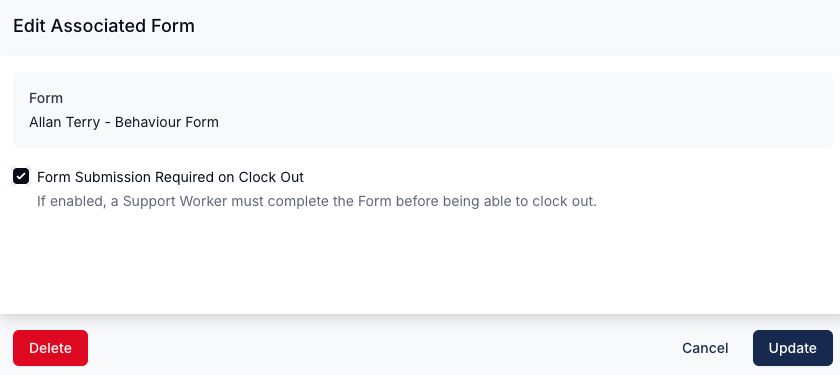
You can edit whether the Form is required or remove it from the Participant's Associated Forms by clicking on the three dots next to the Form and selecting Edit, and then following the relevant prompts.