- Scheduling
- During a Shift
- Case Noting in the App
Case Noting in the App
Overview
Most organisations require a case note to be completed as evidence that a shift occurred. Within the Astalty app, support workers can easily record, view, and edit case notes linked to their shifts.
Writing a Case Note
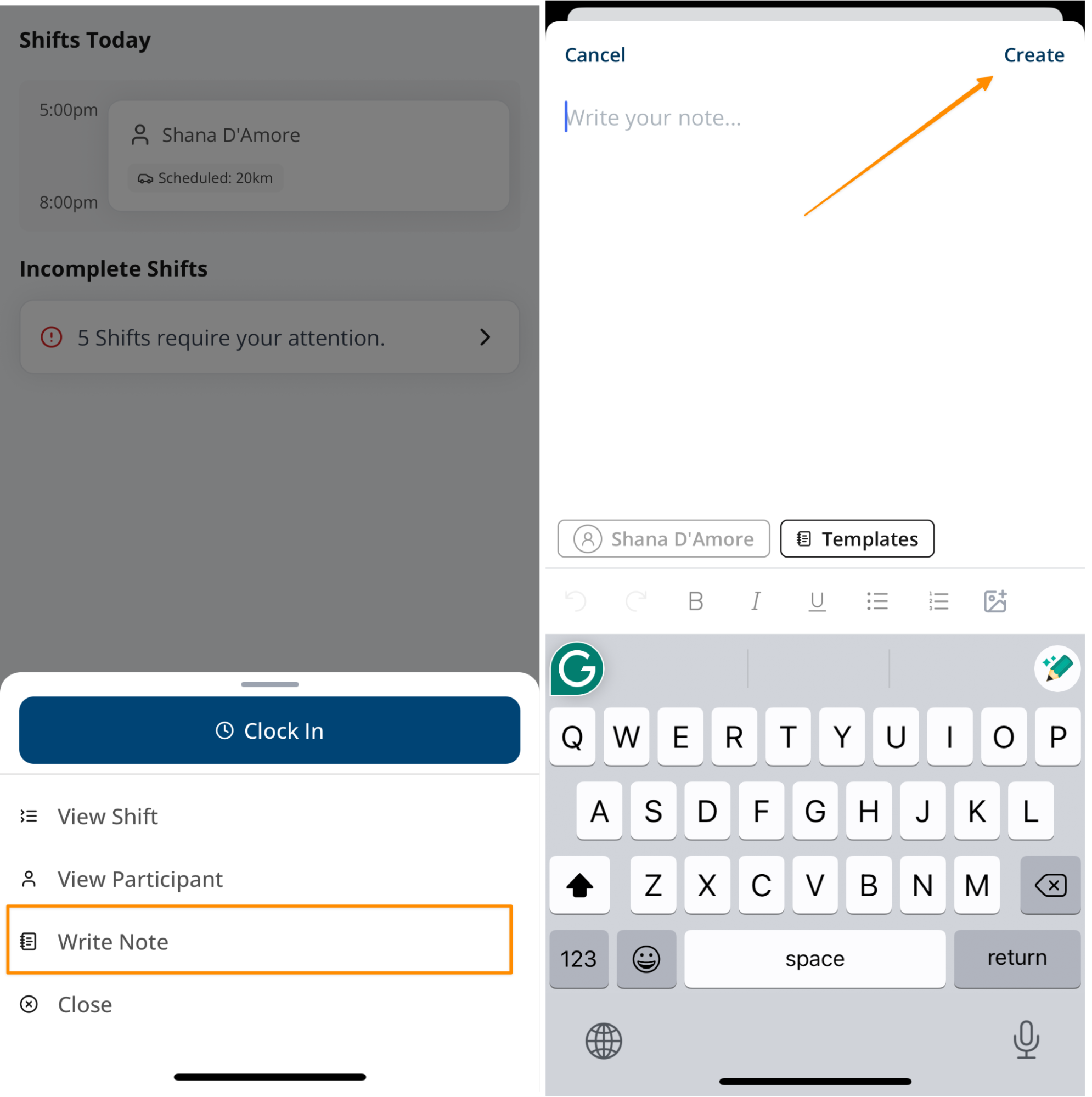
- Open the Support you are documenting.
- Tap Write Note.
- Enter the details of your case note.
- When finished, tap Create to save.
Editing a Case Note
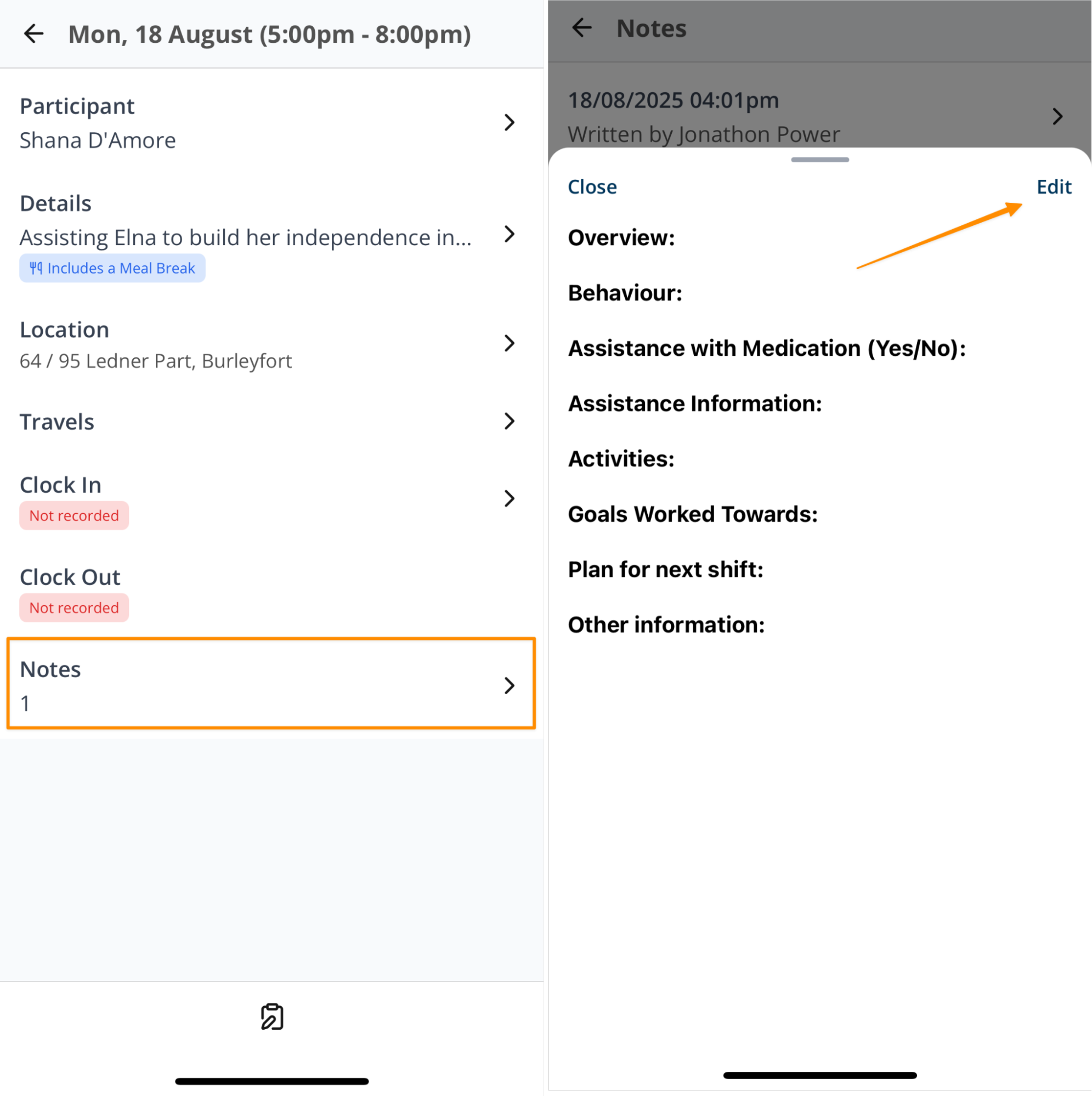
- Open the Shift and select Notes.
- Tap the case note you want to update.
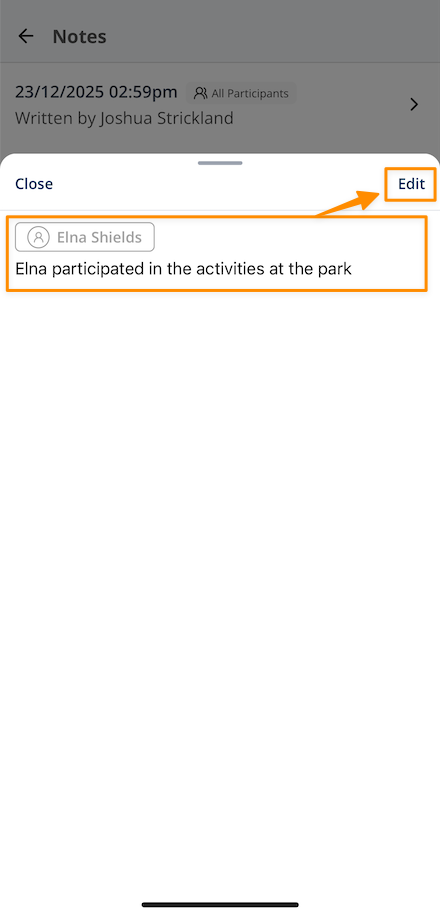
- Select Edit.
- Make your changes and save.
Incomplete Case Notes
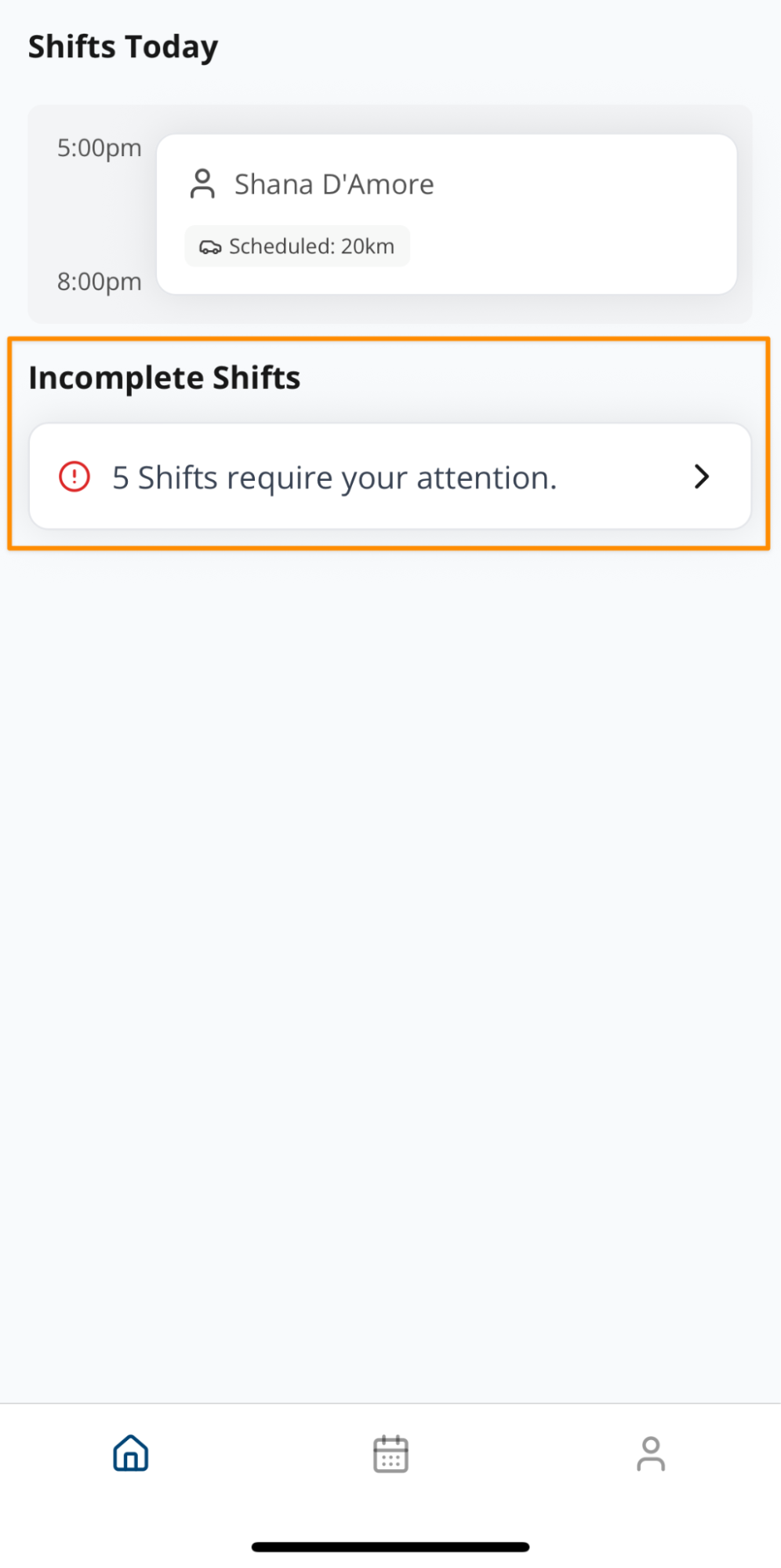
If a case note is not completed at the end of a shift, it will appear under Incomplete Shifts on the main screen of the Support Worker app. This helps you quickly identify any missing information that still needs to be recorded.
Completing an Incomplete Case Note
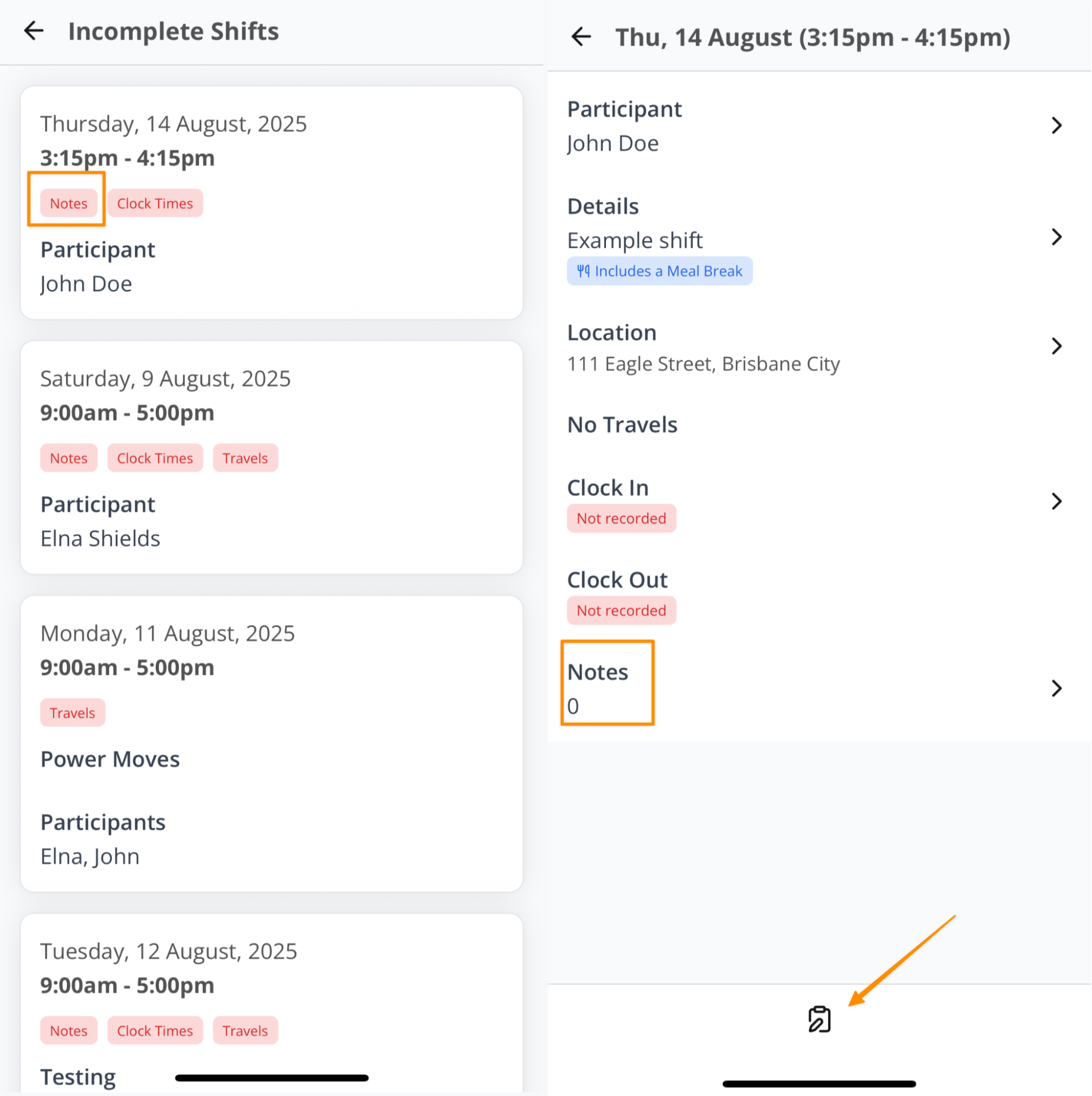
- On the home page, go to Incomplete Shifts.
- Find the shift marked with a red chip showing what is still outstanding.
- If a case note is missing, it will display as Notes: 0.
- Tap the entry, then tap the clipboard icon at the bottom of the screen.
- Enter your case note and save.
Once completed, the shift will disappear from the Incomplete Shifts list.
Templates
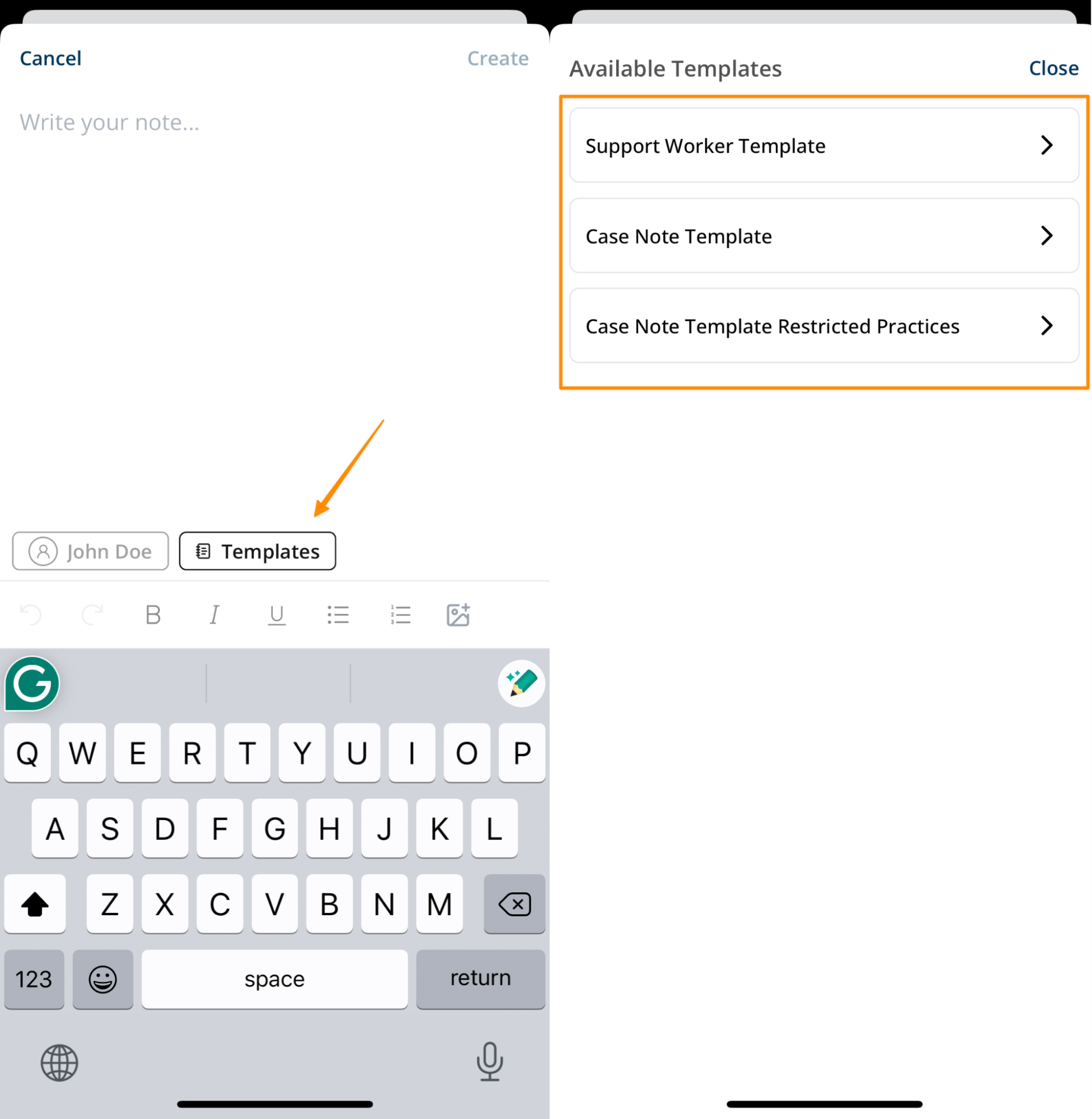
When writing case notes, you may have access to templates if your organisation has set them up. Templates provide a pre-structured format for notes, helping you remember what details to include and ensuring consistency across all case notes.
Accessing Templates
- When writing a note, tap Templates.
- Select the relevant template.
- The template will pre-populate your case note, which you can then complete with additional details.
Case Noting Group Supports
If you are scheduled to a group support, there may be times where you need to write notes that need to be applied to all participants in the group, or write notes specifically for each individual participant.
Completing Group Case Notes
To complete case notes for a group support:
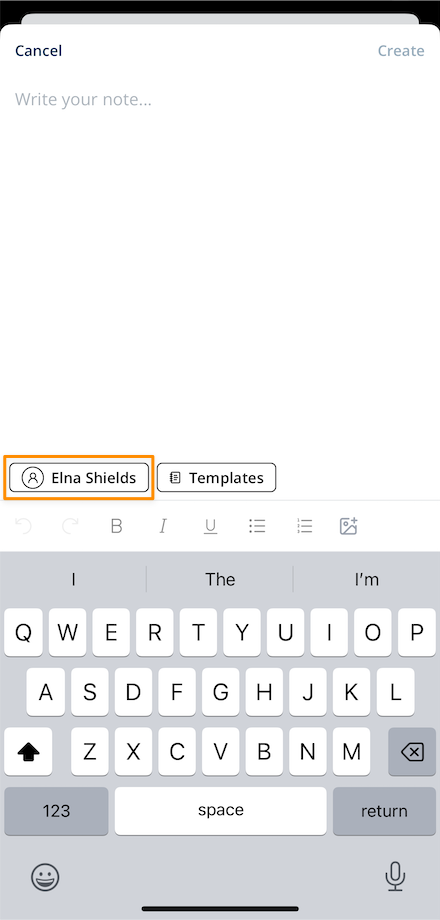
- Once you've selected your group shift, tap Write Note. When the blank note page opens, it will be automatically defaulted to All Participants.
- If you are intending to write a case note for all participants attached to this group support, complete your case note and then select Create.
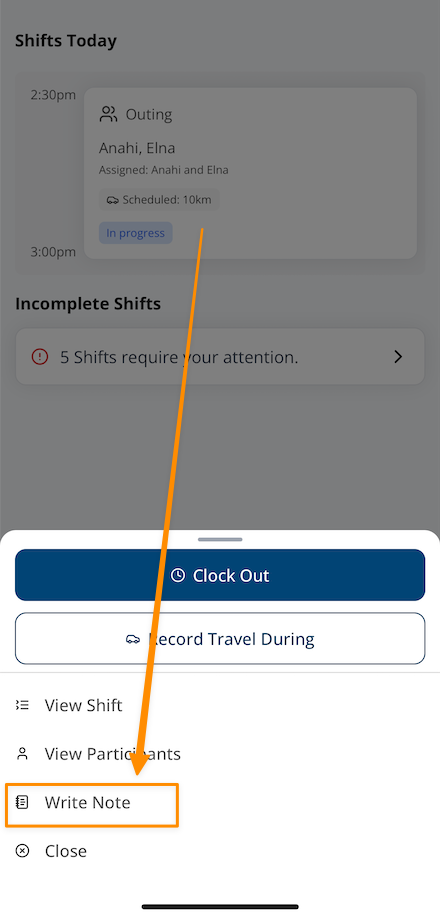
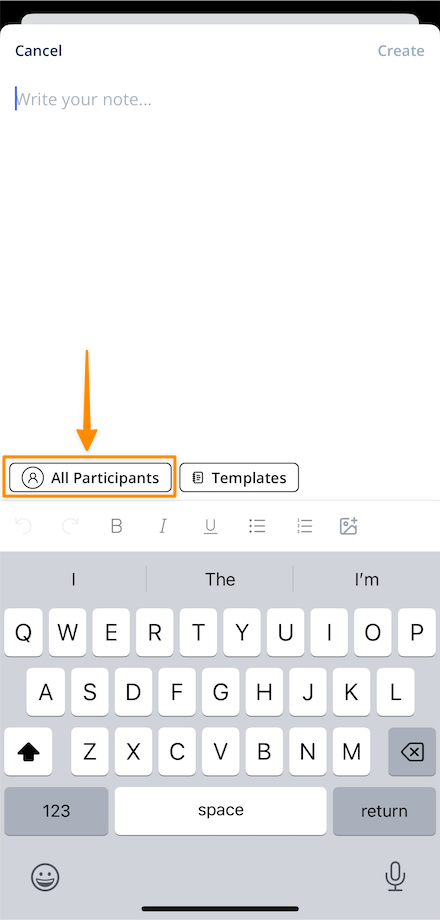
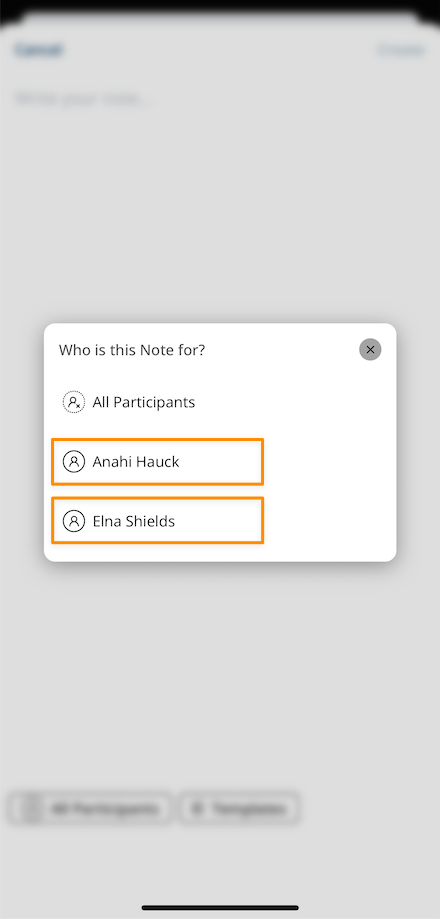
- However, if you need to write a note for a specific participant - tap the All Participants button and tap on the Participant that you would like to write the case note for. Write your case note and then tap Create to save it.
Viewing Group Case Notes
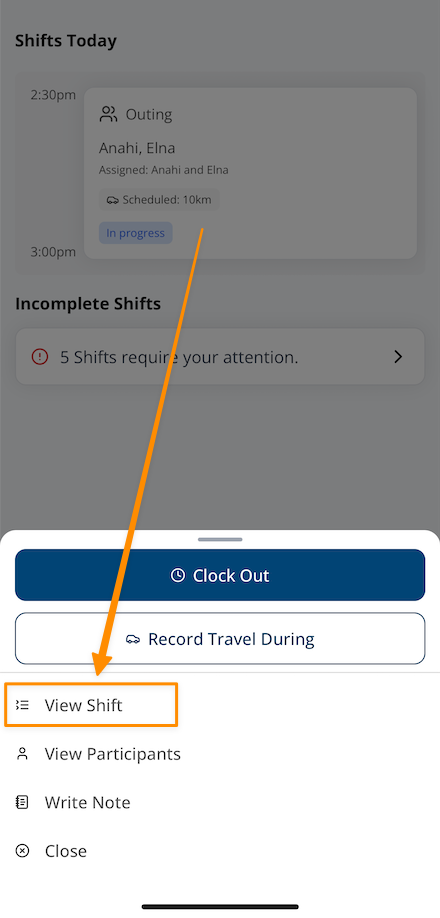
All case notes completed for this group support, can be viewed from the shift.
- Once you've selected your group shift, tap View Shift.
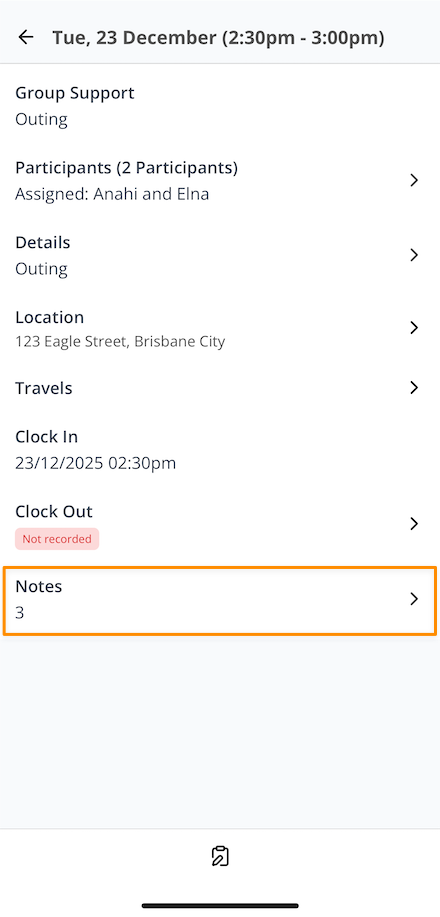
- Then tap on Notes - where it displays the number of notes already completed for this support.
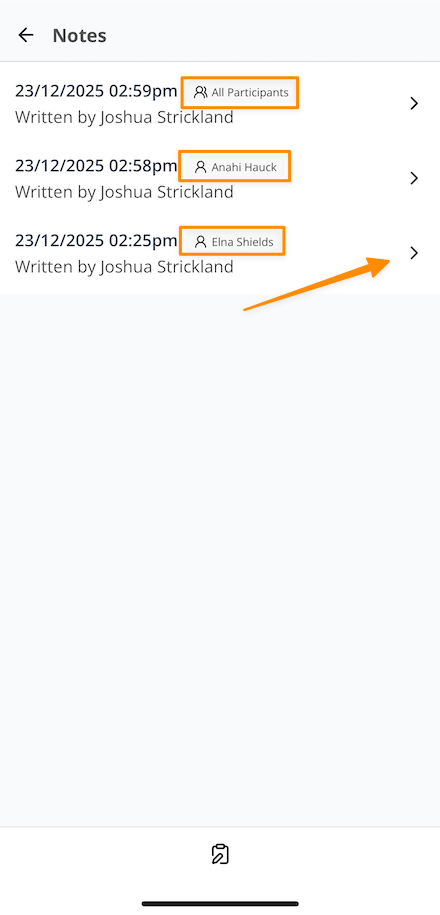
The notes page will display all the notes completed for this group support so far, including:
- The date and time
- Who it was written by
- Which participants were assigned to that note - all or specific participants.
If a note is selected, it will open up where it can be viewed and if you are the user who wrote the note it can also be edited.
Case Noting in the App – Video Overview
The following video provides a walkthrough of how to create, edit, and complete case notes in the Support Worker app.