Astalty Logo

Utilisation

Overview

The Utilisation feature in Astalty helps you track how a Participant's NDIS funding is being spent relative to the time remaining in their plan. It gives your team a clear picture of whether a Participant's funding is being used at the right pace relative to how much time is left in their plan.

Utilisation is available at the individual Participant level, as a cross-organisation report, and as configurable notifications to keep your team informed of potential overspending or underspending.

Accessing Utilisation

You can view utilisation data from several places in Astalty:

  • Participant Profile — Navigate to a Participant's profile and click Utilisation in the left sidebar to see all their active services and how funding is tracking.

  • Reports — Go to Reports → Participants → Utilisation for a full organisation-wide view of all Participants and their service utilisation.

  • Tasks — When viewing a Task, the right sidebar shows a funding utilisation summary for the related service.

Understanding the Participant Utilisation Page

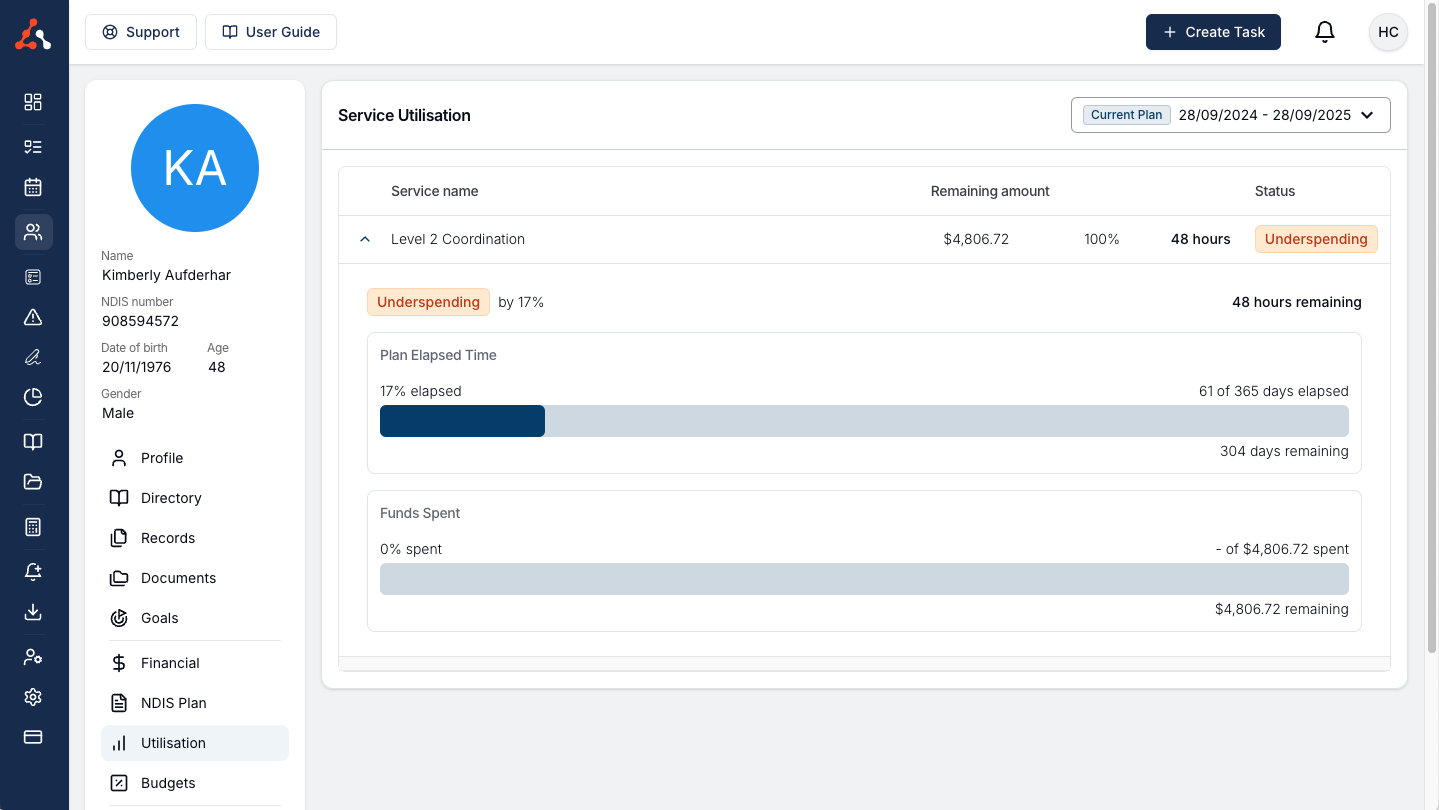
The Participant Utilisation page displays a table titled Funding Utilisation with all of the Participant's active services. For each service, you'll see:

Column

Description

Service Name

The name of the service (e.g. "Core Supports - Assistance with Daily Life").

Remaining Amount

Shows three values: the remaining dollar amount, the remaining percentage of the budget, and the remaining units (e.g. hours) if configured.

Status

Indicates whether the Participant is overspending or underspending for that service.

Viewing a Previous Plan Period

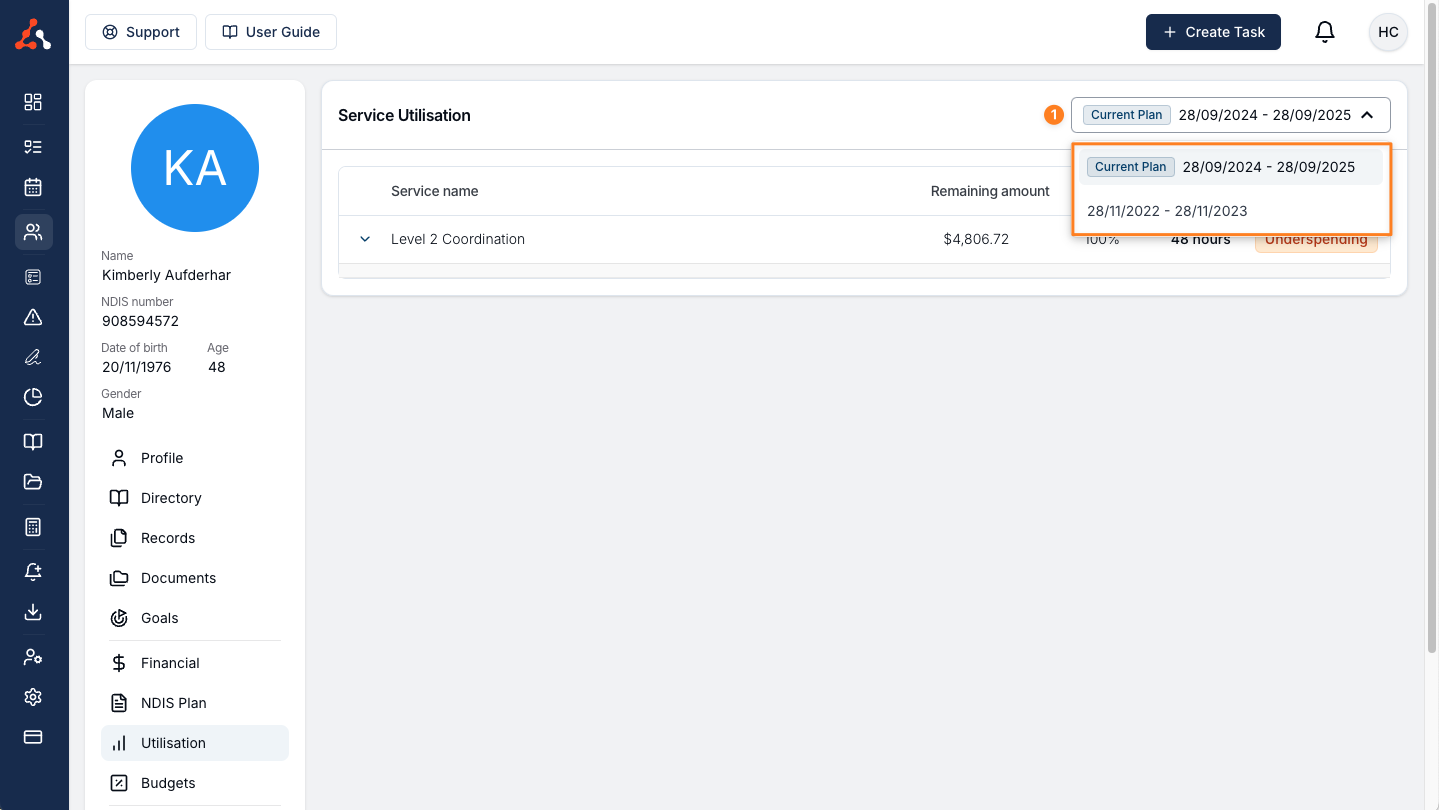
If the Participant has had multiple plans, you can select a previous plan from the dropdown at the top of the Utilisation card. This allows you to review historical utilisation data for past plan periods.

Expanding a Service for More Detail

Click the expand arrow on any service row to see a detailed breakdown. The expanded view shows:

  • Status and Variance — Whether the Participant is overspending or underspending, and by what percentage.

  • Remaining Units — If a charge item is configured for calculating units, this shows how many hours (or other units) remain.

  • Plan Elapsed Time — A progress bar showing what percentage of the plan's time has elapsed, with the number of days elapsed and days remaining.

  • Funds Spent — A progress bar showing what percentage of the released funding has been spent, with dollar amounts for spent and remaining funds.

For services with Funding Periods (indicated by a calendar icon), the expanded view also shows:

  • Released Funds Spent — How much of the currently released funding has been utilised.

  • Reconciled Date and Amount — If the service has been reconciled, this shows when it was reconciled and the remaining balance at that point.

  • Funding Period Graph — A visual breakdown of how funding has been allocated and spent across each funding period.

How Utilisation is Calculated

Utilisation compares two things: how much time has passed in the plan versus how much funding has been used. If funding is being used faster than time is passing, the Participant is overspending. If funding is being used slower than time is passing, the Participant is underspending.

Key Terms

Value

How It's Calculated

Total Used Amount

The sum of all pending billable charges for the service's charge items, plus any amounts used from reconciliation. Only charges dated within the service's active period are counted.

Released Funding

For services with Funding Periods, this is the total of all funding periods that have started (i.e. their start date is today or earlier). For standard services, this is the total service amount.

Remaining Amount

Released Funding minus Total Used Amount. This cannot go below $0.

Remaining Percentage

Remaining Amount divided by Released Funding, expressed as a percentage.

Plan Elapsed Percentage

The number of days elapsed since the service start date, divided by the total duration of the service, expressed as a percentage.

Utilisation Variance

Plan Elapsed Percentage minus the Used Percentage. This tells you whether spending is ahead of or behind where it should be based on time.

Overspending vs Underspending

The Status tells you whether funding is tracking ahead of or behind the expected pace:

  • Overspending — The Participant has used a greater share of their budget than the share of time that has elapsed. At this rate, they will run out of funding before the plan ends. Displayed as a red chip.

  • Underspending — The Participant has used a smaller share of their budget than the share of time that has elapsed. At this rate, they will have unspent funding when the plan ends. Displayed as an orange chip.

Example

A Participant has a 12-month service with $12,000 in funding. After 6 months (50% elapsed):

  • If they have spent $8,000 (67% used) → Overspending by 17% (they are spending faster than time is passing)

  • If they have spent $4,000 (33% used) → Underspending by 17% (they are spending slower than time is passing)

  • If they have spent $6,000 (50% used) → On track (variance is 0%)

Funding Periods

Some services are set up with Funding Periods (also called a Funding Schedule). This means the total service budget is divided into multiple time-based periods, and funding is "released" as each period's start date arrives.

When a service has Funding Periods:

  • Only released funding (periods whose start date has passed) is considered when calculating utilisation.

  • Future funding periods are shown but not counted in the current utilisation calculation.

  • The Plan Elapsed Percentage is calculated from the first funding period's start date to the end of the current active funding period.

  • Services with Funding Periods are indicated by a calendar icon next to the service name in the report.

Example

A service has $4,800 split across 4 quarterly funding periods of $1,200 each. In the second quarter:

  • Released Funding = $2,400 (the first two periods)

  • Utilisation is calculated against the $2,400 of released funding, not the full $4,800

  • The elapsed percentage is measured from the start of the first period to the end of the second period

Reconciliation

Reconciliation allows you to set a new baseline for a service's utilisation calculation. This is useful when you receive a statement from the NDIA or Plan Manager that confirms the actual remaining balance at a specific point in time.

When a service is reconciled:

  • The reconciled amount becomes the new "remaining balance" from that point forward.

  • Only charges created after the reconciliation date are added to the used amount.

  • The difference between the released funding and the reconciled amount is treated as "previously used" funding.

  • The reconciliation date and amount are displayed in the expanded utilisation detail.

This means utilisation calculations after reconciliation are based on confirmed real-world data rather than solely on the charges recorded in Astalty.

Remaining Units

If a service has a Calculate Remaining Units Using charge item configured, Astalty will display the remaining funding converted into units (typically hours).

The calculation is straightforward:

Remaining Units = Remaining Amount ÷ Charge Item Price

For example, if a service has $500 remaining and the configured charge item costs $50 per hour, the remaining units would be 10 hours.

The unit type (hours, kilometres, etc.) is determined by the unit configured on the charge item. This gives your team a quick, practical understanding of how much support time remains rather than just a dollar figure.

Utilisation Report

The Utilisation Report provides an organisation-wide view of funding utilisation across all Participants and their services. Navigate to Reports → Participants → Utilisation to access it.

Viewing All vs My Participants

If you have permission to view all Participants, you'll see tabs at the top to switch between:

  • All Participants — Shows utilisation data for every Participant in your organisation.

  • My Participants — Shows only the Participants assigned to you (as Primary or Service Coordinator).

If you only have access to your own Participants, the report will automatically show just those.

Utilisation Notifications

Astalty provides two types of utilisation notifications to proactively alert your team about funding usage. Both are configured under Notifications → Plans & Services.

Utilisation Notifications (Budget Threshold)

These notifications trigger when a Participant's service has used a certain percentage of its total budget.

How it works: You set a percentage threshold (e.g. 80%). When a service reaches 80% of its budget used, the notification is triggered.

Configuration options:

  • Used % — The percentage of budget used that triggers the notification (e.g. 50%, 75%, 90%).

  • Service Categories — Which NDIS Support Categories this notification applies to. The notification will only trigger for services under the selected categories.

  • Email Content — Custom content for the notification email body.

  • Recipients — Who receives the notification: Primary Coordinator, Service Coordinator, specific User Groups, or individual Users.

  • Delivery Methods — Within Astalty (in-app notification) and/or via Email.

Example: Create a notification at 80% used for all Core Supports services, sending to the Primary Coordinator via email and in-app. When any Participant uses 80% of their Core Supports budget, their coordinator will be notified.

Utilisation Variance Notifications

These notifications trigger when the difference between budget usage and plan elapsed time exceeds a threshold. This is more nuanced than a simple budget threshold — it accounts for whether the spending rate is appropriate given how much time has passed.

How it works: You set a variance percentage and a type. When the variance exceeds your threshold, the notification is triggered.

Configuration options:

  • Variance % — The variance percentage that triggers the notification (e.g. 10%, 20%).

  • Type — When to trigger:

    • Overspending — Only trigger when the Participant is overspending by more than the threshold.

    • Underspending — Only trigger when the Participant is underspending by more than the threshold.

    • Any — Trigger for either overspending or underspending.

  • Service Categories — Which NDIS Support Categories this notification applies to.

  • Email Content — Custom content for the notification email body.

  • Recipients — Who receives the notification: Primary Coordinator, Service Coordinator, User Groups, or individual Users.

  • Delivery Methods — Within Astalty and/or via Email.

Example: Create a variance notification at 20% for overspending across all categories, sending to the Service Coordinator. If any service is being used 20% faster than time is passing, the Service Coordinator will be alerted to take action.

Utilisation Export

You can export utilisation data as a CSV file for offline analysis or reporting. Navigate to Exports → Participants → Utilisation.

Utilisation in Tasks

When viewing a Task that has charges linked to a plan service, the right sidebar displays a Funding Utilisation section. This provides a quick at-a-glance view showing:

  • A progress bar indicating how much of the service budget has been used (colour-coded: standard blue up to 80%, amber between 80-100%, and red when over 100%).

  • The percentage used and remaining units.

Hovering over the progress bar displays a tooltip with the full utilisation breakdown, including the plan elapsed time and funds spent details.

What Counts as "Used" Funding

Utilisation counts funding as "used" based on pending billable charges in Astalty that match the service's configured charge items. Specifically:

  • Only charges with a pending status are counted (voided or deleted charges are excluded).

  • Only charges marked as billable are counted.

  • Only charges for charge items assigned to the service are counted.

  • Only charges dated within the service's active date range are counted.

  • If the service has been reconciled, only charges dated after the reconciliation date are counted (the reconciled amount accounts for everything prior).

Charges come from Tasks (including Supports/Shifts in the Scheduling module) and manual charges. They are included in the utilisation calculation as soon as they are created — you do not need to invoice them first.

Tips for Managing Utilisation

  • Set up notifications early — Configure utilisation notifications as soon as services are created. A 75% threshold gives you time to adjust support delivery before funding runs out.

  • Use variance notifications alongside budget threshold notifications — Budget threshold notifications tell you how much funding is left, but variance notifications tell you whether spending is tracking in line with how much time has passed. Using both together gives you the most complete picture of a Participant's funding health.

  • Configure remaining units — Setting up a "Calculate Remaining Units Using" charge item on each service makes it much easier for coordinators to understand remaining support in practical terms (hours) rather than just dollars.

  • Review the report regularly — Use the Utilisation Report to quickly identify Participants who may need their support adjusted. Sort by Variance to find the most over- or under-utilised services first.

Frequently Asked Questions

Why does my utilisation show "overspending" even though the Participant still has funds remaining?

Overspending doesn't mean the funds have run out — it means the Participant is spending at a rate that will exhaust the funds before the service period ends. For example, if 30% of the time has elapsed but 50% of the budget is spent, the Participant is overspending by 20% even though 50% of the funds remain.

Why are my remaining units different from what I expect?

Remaining units are calculated by dividing the remaining dollar amount by the price of the configured charge item. If charge items have different prices (e.g. weekday vs weekend rates), the remaining units calculation uses the specific charge item selected in the "Calculate Remaining Units Using" field on the service. This is an estimate based on that single rate.

What's the difference between a Utilisation Notification and a Utilisation Variance Notification?

A Utilisation Notification triggers based on a simple budget threshold — for example, "notify me when 80% of the budget is used." A Utilisation Variance Notification triggers based on the relationship between spending and time — for example, "notify me when the Participant is overspending by more than 15%." Variance notifications are more sensitive to pacing issues and can trigger earlier in the plan if spending is too fast or too slow.

Why does my utilisation only show some of the funding periods?

Only funding periods that have "released" (their start date has passed) are included in the utilisation calculation. Future funding periods are visible but not counted until their start date arrives. This ensures utilisation only measures spending against funding that is actually available to use.

How does reconciliation affect my utilisation?

When you reconcile a service, you're telling Astalty: "At this date, the confirmed remaining balance was this amount." From that point forward, utilisation only counts new charges created after the reconciliation date. Any discrepancies between Astalty's records and the actual balance (due to charges in other systems, NDIA adjustments, etc.) are accounted for through the reconciled amount.

Can I see utilisation for services that have ended?

On the Participant Utilisation page, you can select a previous plan from the plan dropdown to view historical utilisation data. In the Utilisation Export, tick "Include past services" to include ended services in the CSV. The Utilisation Report shows only current services by default.