- Scheduling
- Workers
- Staff Contracted Hours
Staff Contracted Hours
Overview
The Staff Contracted Hours feature allows you to record and manage each staff member’s employment details, including their start and end dates, employment basis, and contracted weekly hours.
To update a staff member’s contracted hours, the user must have the Manage HR Details for Users permission enabled.
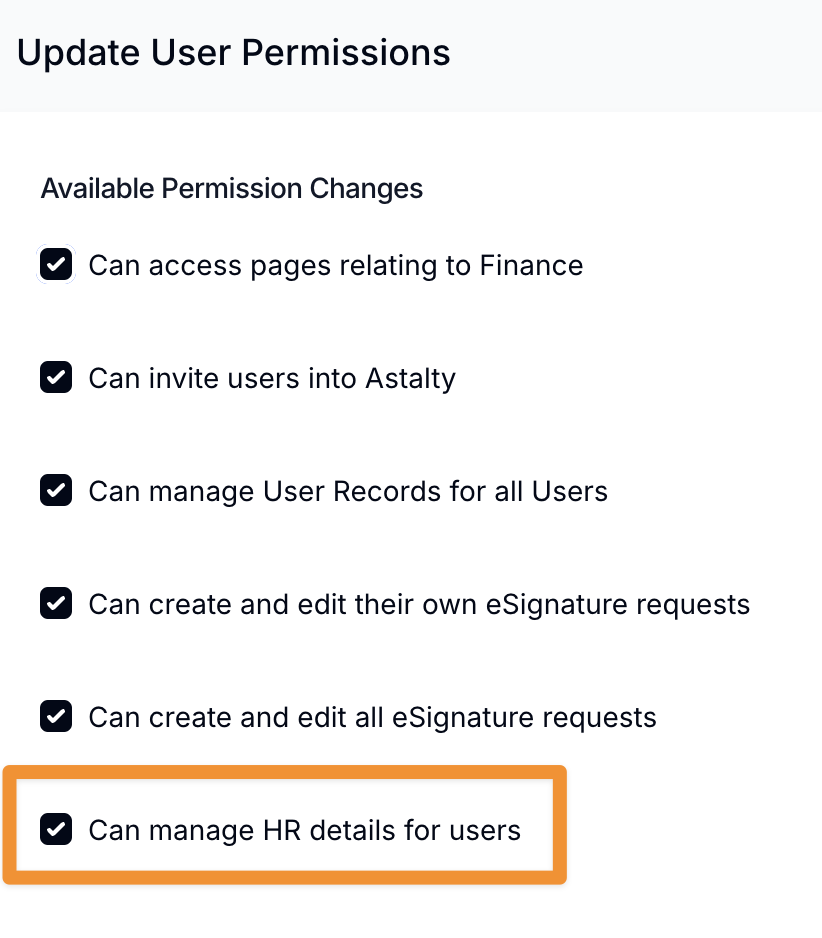
For more information on permissions, click on the following link.
Once this permission is active:
- Open the User Profile.
- Click on the HR tab.
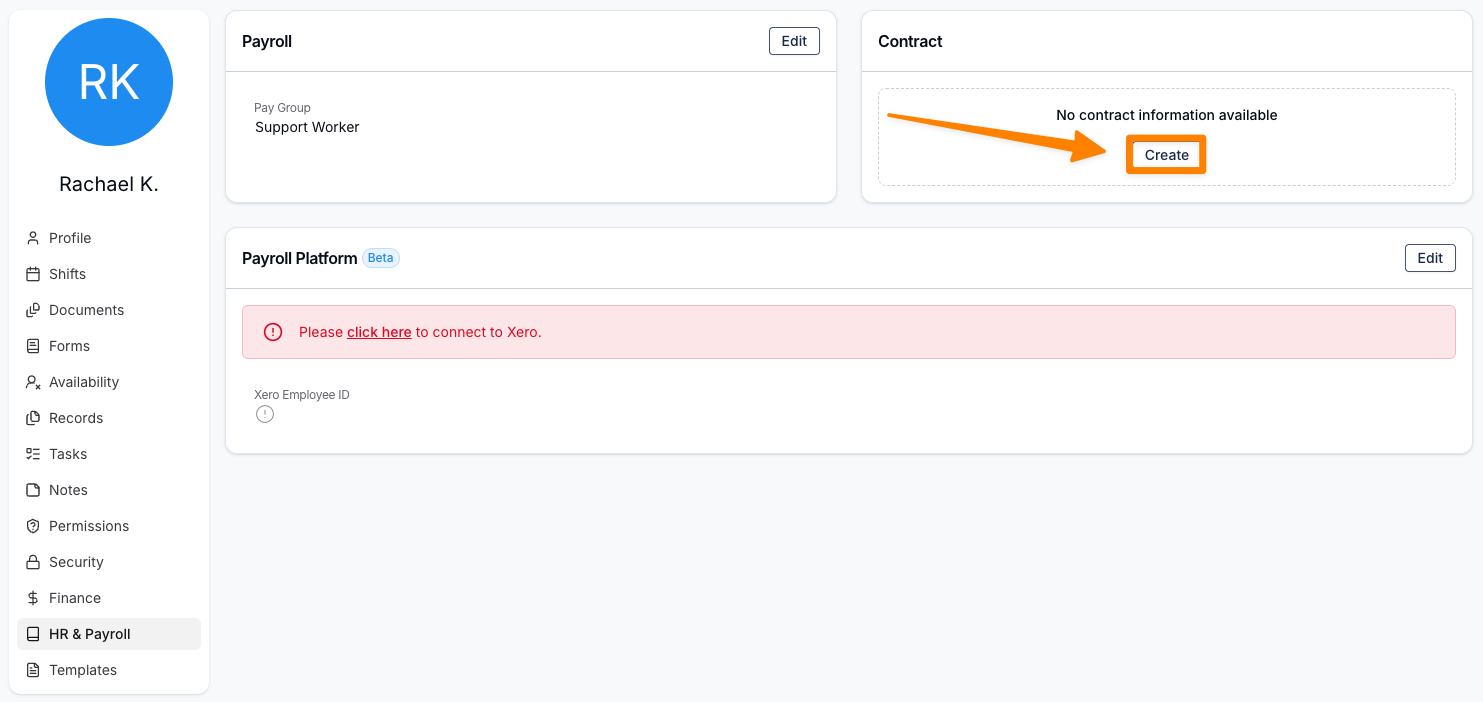
- In the Contract section, click on Create.
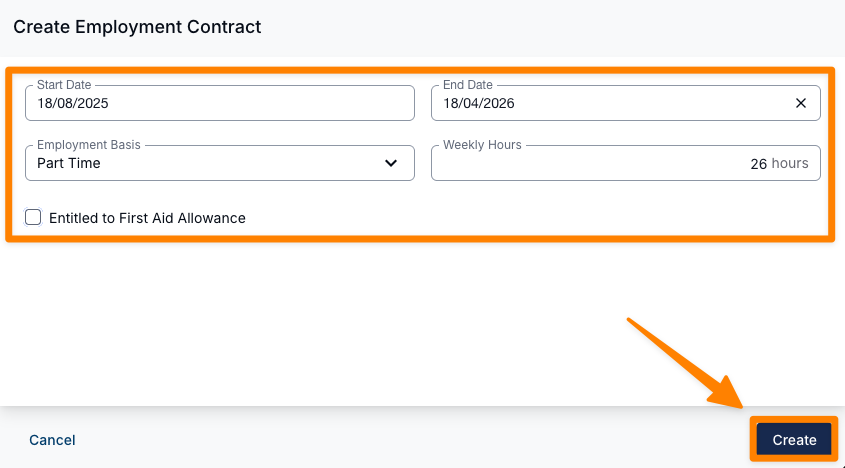
- Enter the relevant information in the fields, and click on Create.
- Details on this page include:
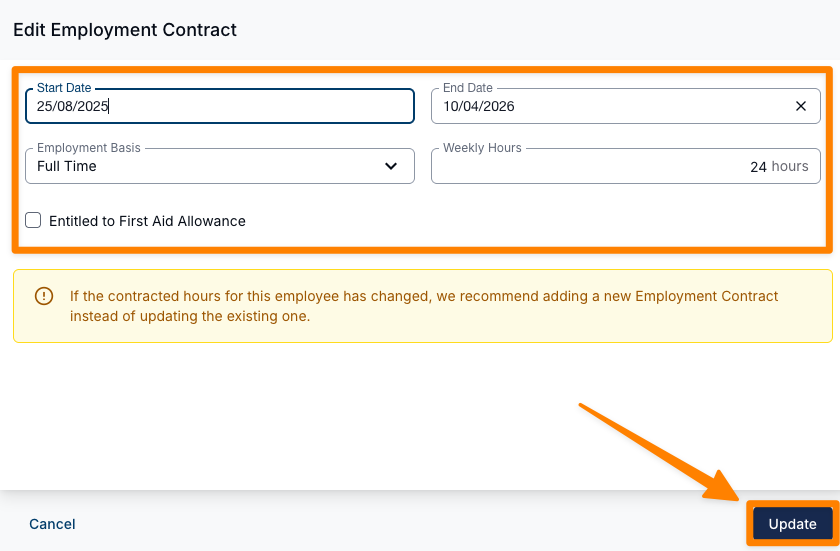
- Start Date and End Date
- Employment Basis — Full Time, Part Time, or Casual.
- Weekly Hours — Used to store contracted hours.
- Entitled to First Aid Allowance — This will be factored into Timesheet Batches.
- Details on this page include:
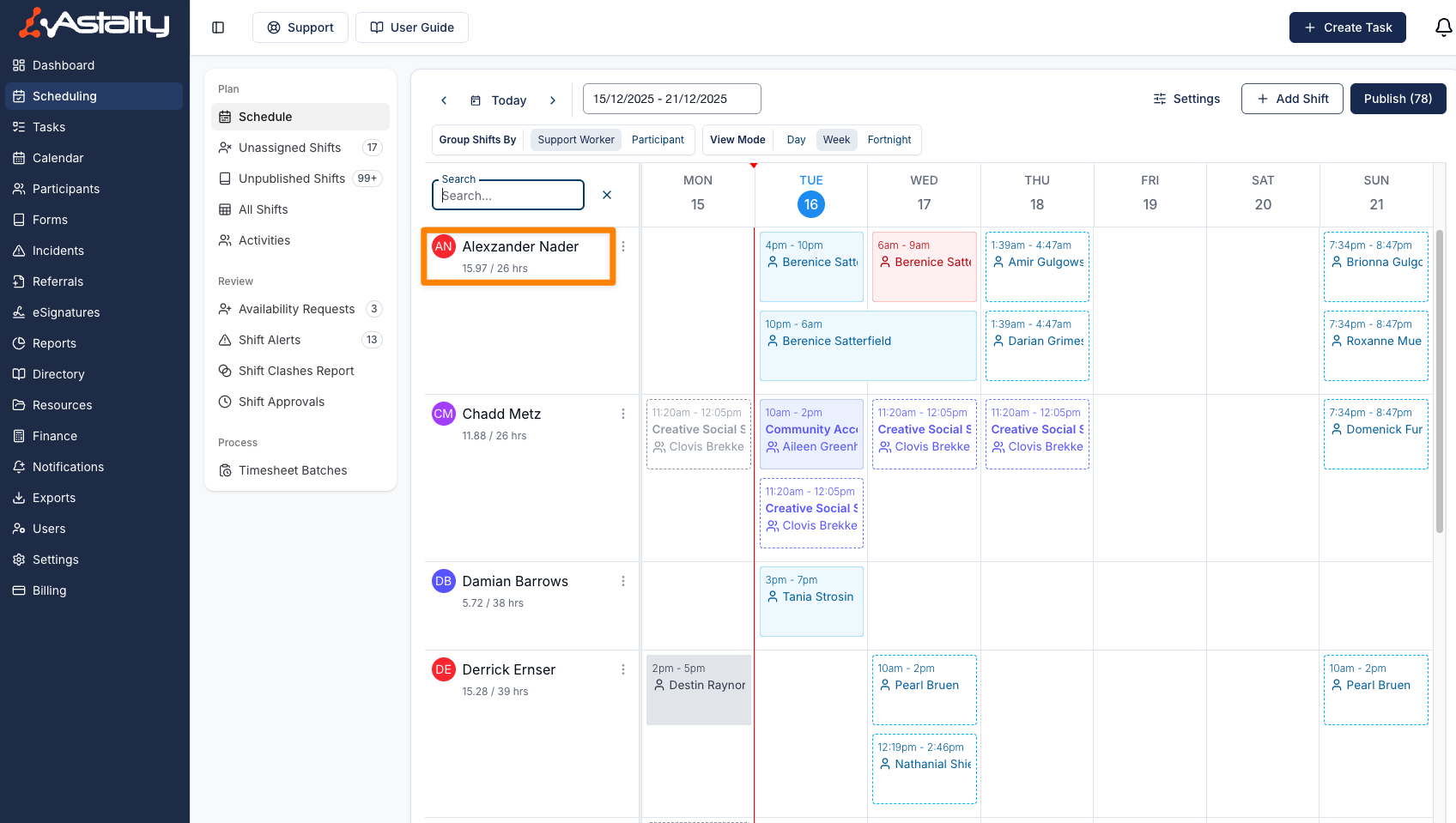
Weekly hours are useful for monitoring workload — on the Schedule page, you can see how many hours the support worker has worked/is scheduled for in a given week vs the contracted hours.
Minimum Break Between Shifts
Employment details include a Minimum Break Between Shifts field, which records the rest period a worker is entitled to between the end of one shift and the start of the next.
Choose from:
- 10 hours - Award default — the standard minimum break required under the SCHADS Award.
- 8 hours - By agreement — a reduced break that applies only where it has been agreed with the employee.
When you edit a worker's employment details, the field defaults to 10 hours - Award default. Select 8 hours - By agreement only where that arrangement is in place for the worker.
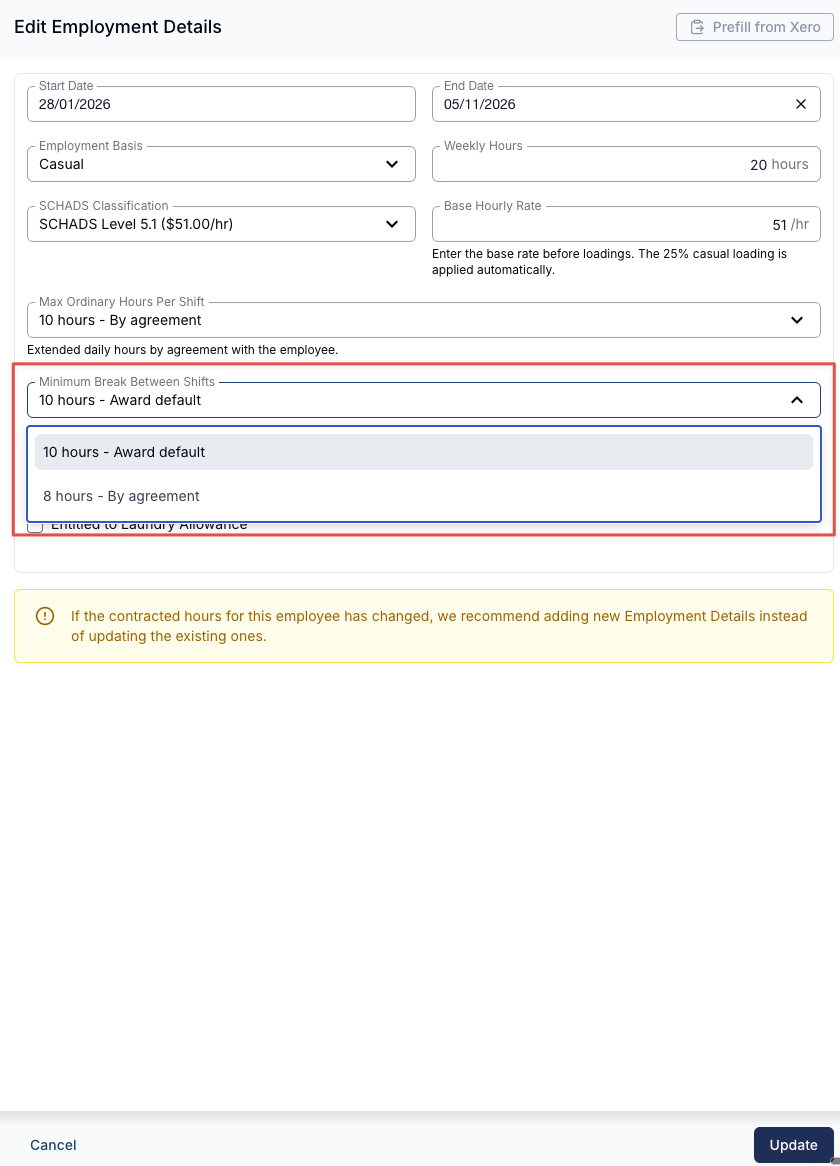
Scheduling alerts respect the value you set here. If a worker is set to 8 hours - By agreement, an 8-hour break between shifts no longer triggers a false Minimum Break alert when it is allowed.
Making Changes to Contracts
While editing Contracts is not generally recommended, there may be occasions where changes are required, such as correcting an error.
To edit a Contract:
- Open the User’s HR & Payroll menu and select Edit in the Contract section.
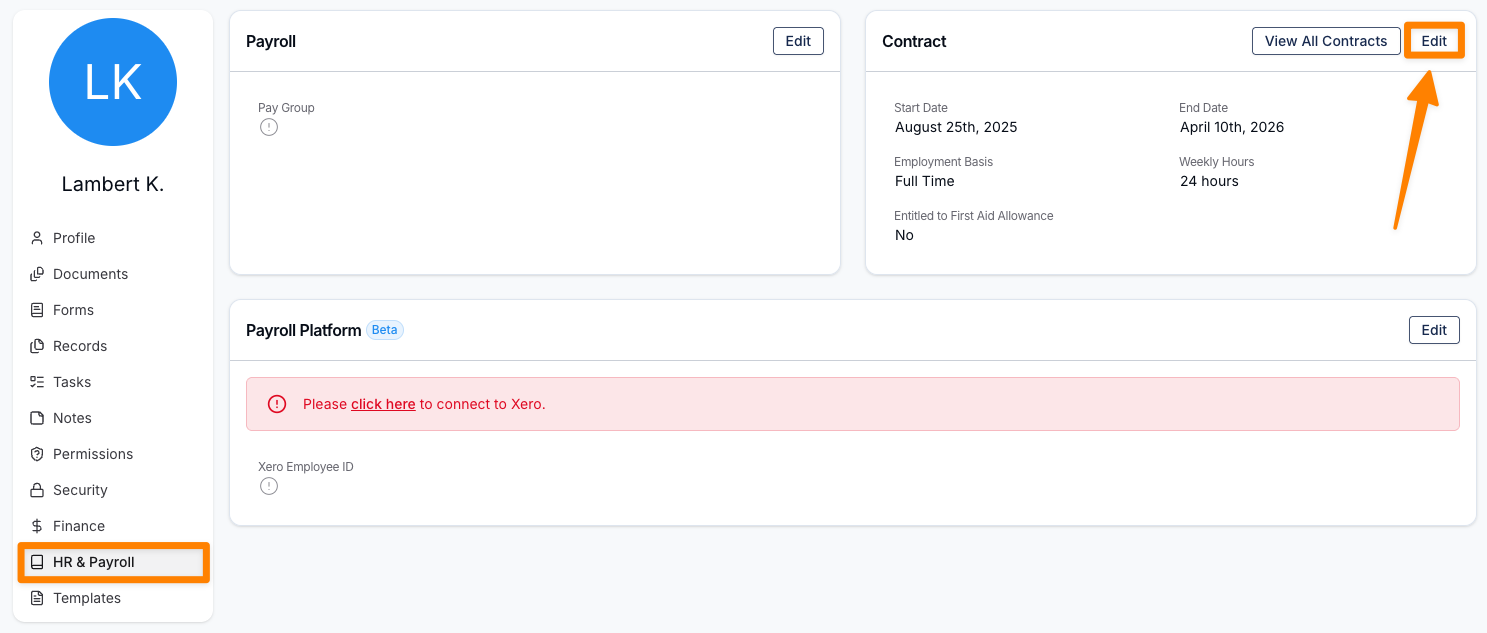
- Make the required changes, then click Update to save.
If a staff member’s employment type is changing (for example, from Casual to Part Time), it is recommended to end the existing Contract and create a new one rather than editing the current Contract.
To do this:
- Click on Edit for the current Contract.
- Update the End Date, and click Update.
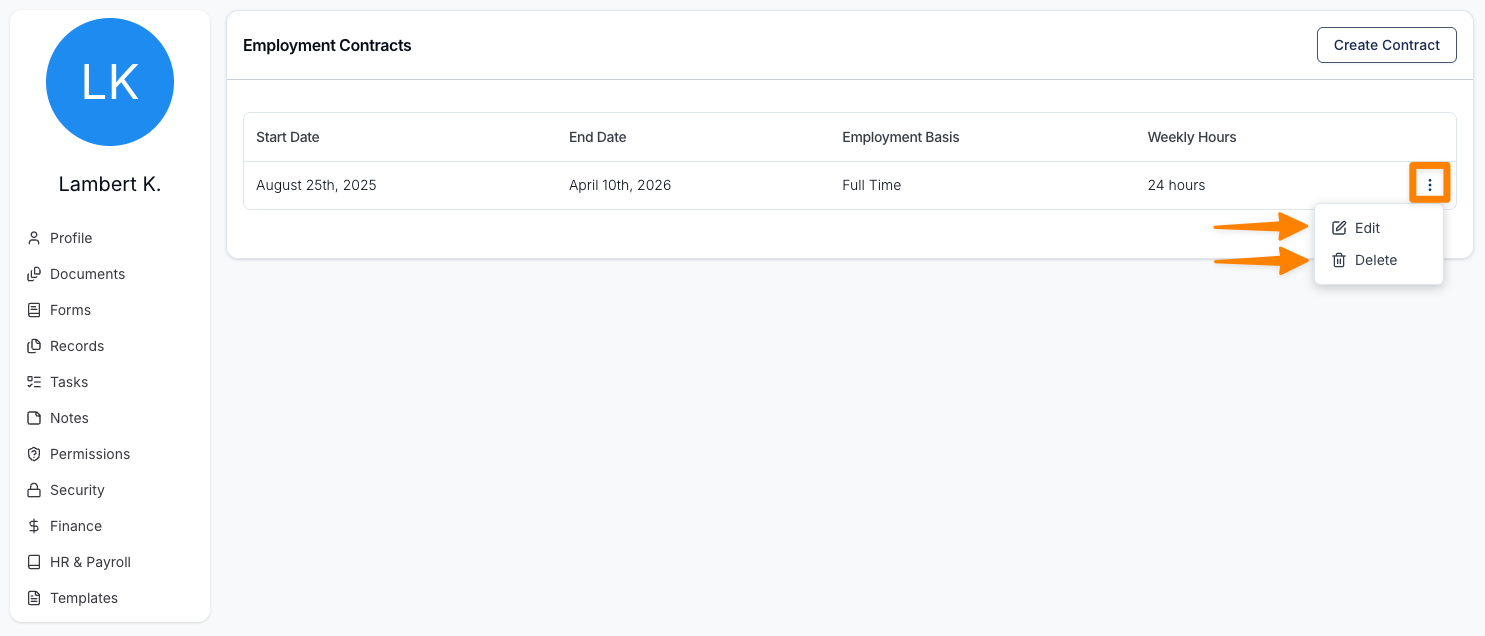
- Select View All Contracts to see a list of all historical Contracts. From this page, you can open and edit previous Contracts if required. Contracts can also be deleted, although this is not recommended.
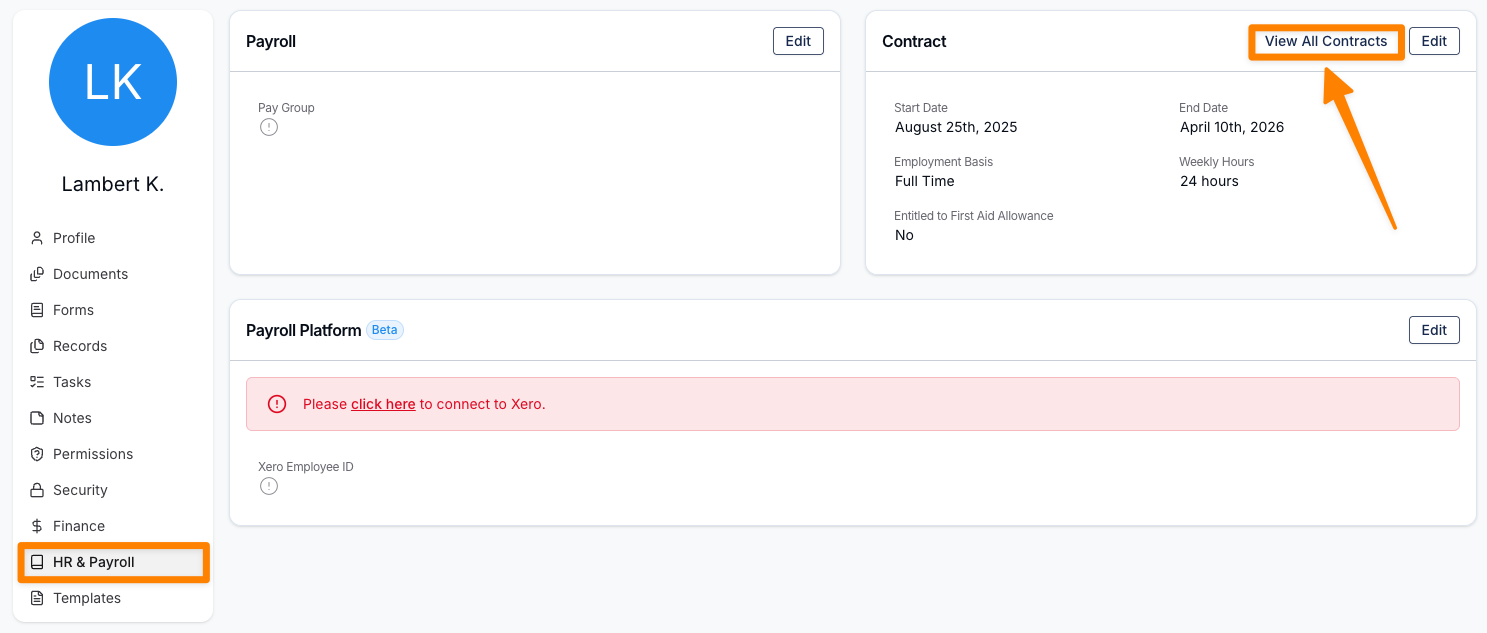
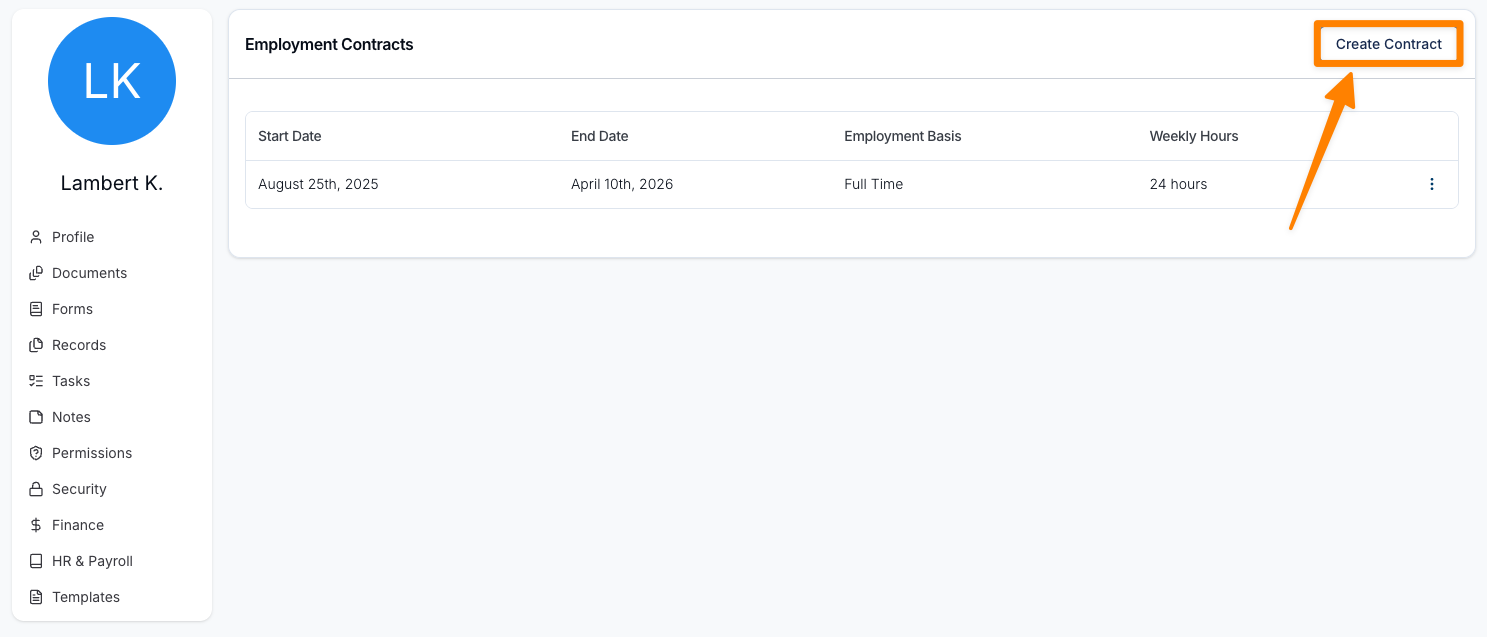
- To create a new Contract, click Create Contract, enter the relevant details, and then click Create.
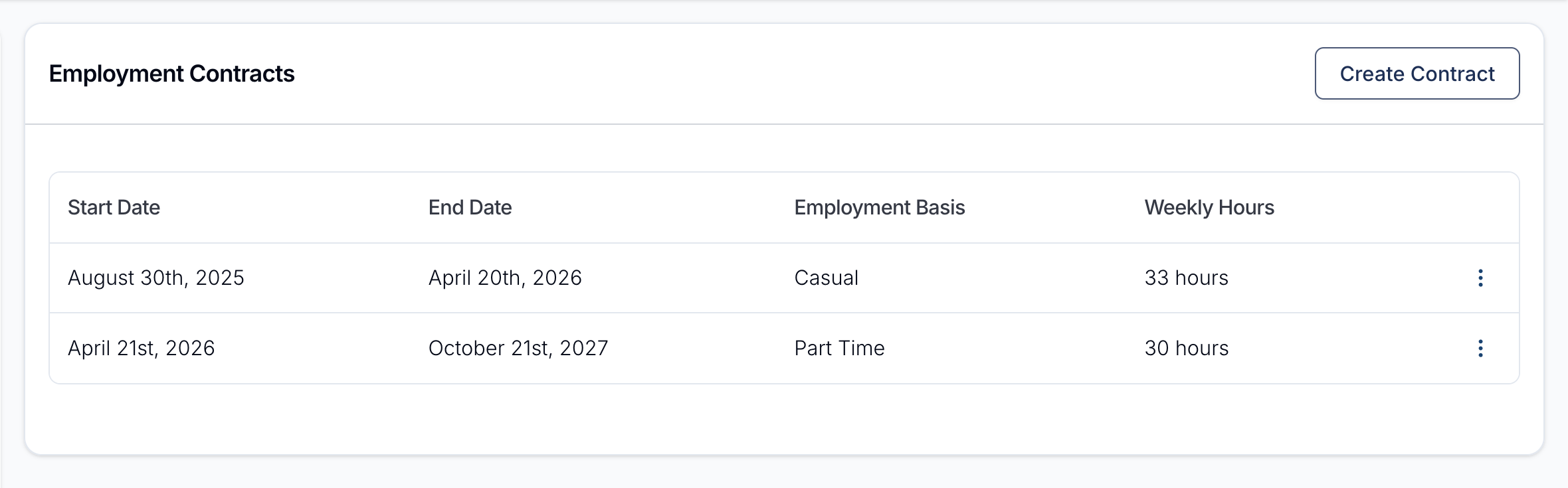
The active Contract will always be displayed on the User’s HR & Payroll page. All Contracts are listed in chronological order, from newest to oldest, on the View All Contracts page.