Overdue Note Notifications
Overview
Overdue Note notifications alert your team when a Participant still has no note on a support or task after a set number of days. Use them so coordinators can follow up on gaps without manually checking reports.
This is different from the Missing Support Notes Reminder, which sends a push notification to Support Workers every Monday for missing support notes. Overdue Note notifications are aimed at coordinators and staff (in Astalty and/or by email).
Only Admins can manage these notifications. This can't be changed per user.
Finding the notification
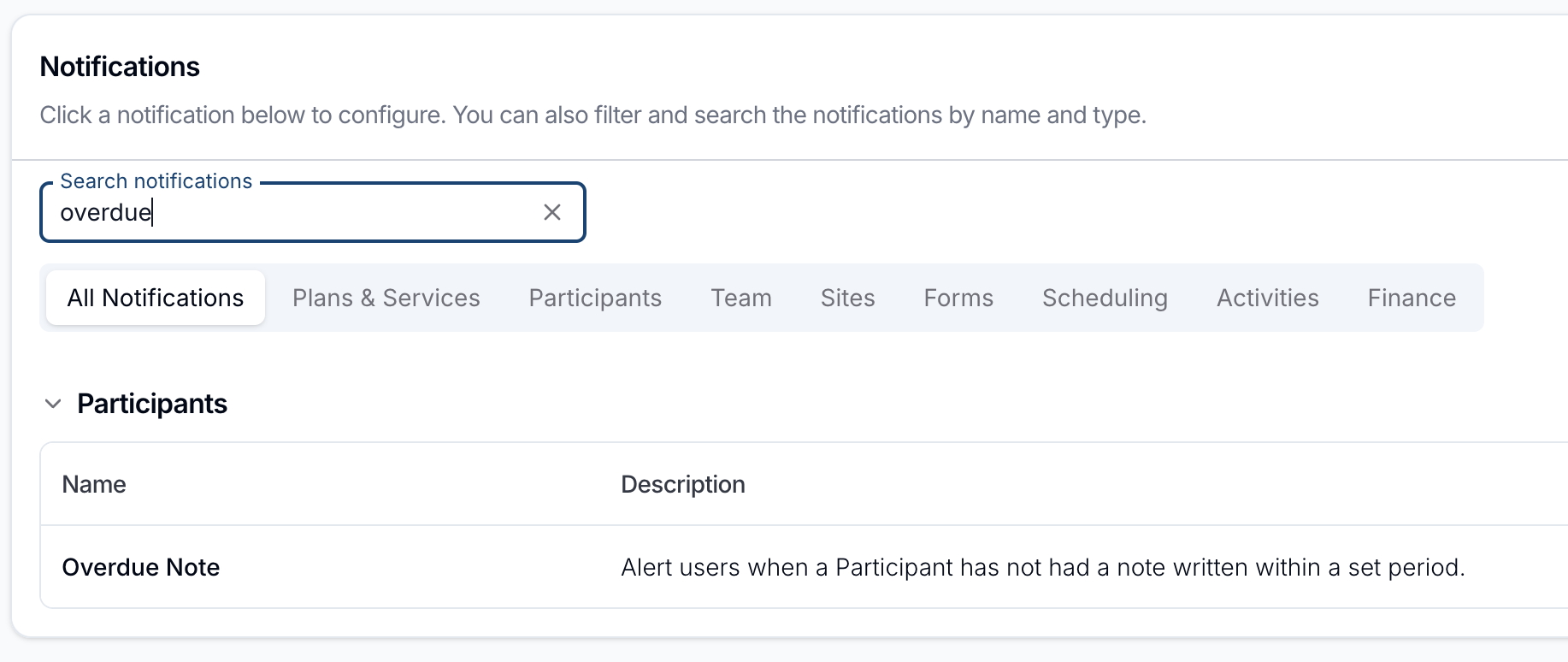
- Go to Notifications in the main menu.
- Search for overdue, or open the Participants group.
- Select Overdue Note.
Creating an Overdue Note notification
On the Overdue Note page, click Create Notification.
Days without a note
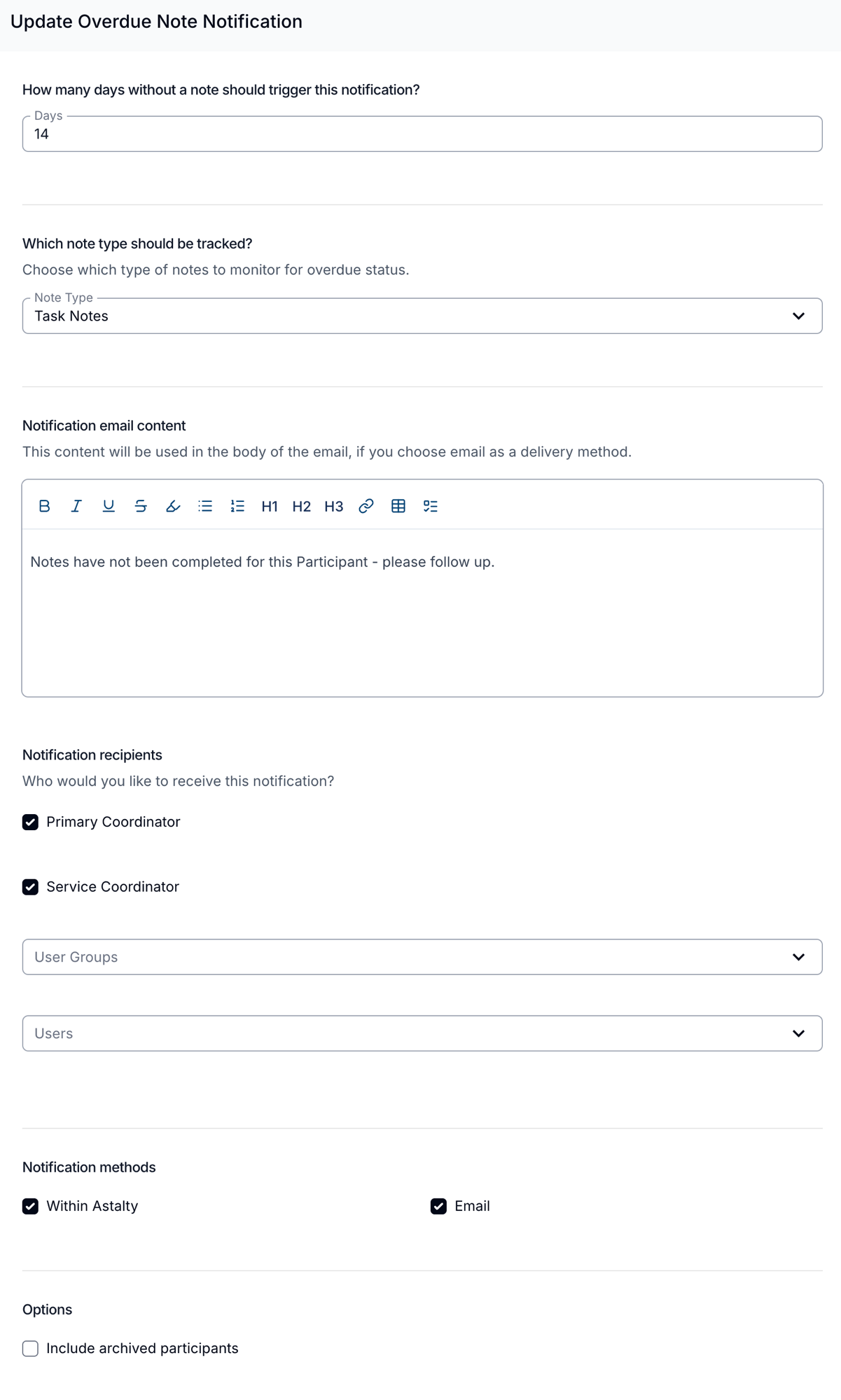
Enter how many Days should pass before Astalty alerts you, from 1 to 365. The default is 14.
Each day at 8:45am Brisbane time (AEST), Astalty looks at supports and tasks from exactly that many days ago (in your organisation's timezone) that still have no notes:
- Support notes - completed supports (clocked in and clocked out) from that day with no support notes (and no notes on the related group support, if any).
- Task notes - incomplete tasks dated that day (using the task's own date) that still have no notes.
For example, with 14 days, a support that was clocked out 14 days ago and still has no note will trigger the alert.
Note type
Choose which notes to monitor:
- Support Notes - support notes only. This is the default.
- Task Notes - task notes only
- All Notes - both support and task notes
Notification email content
Optional. If you send email notifications, this rich-text content is added to the email body (for example, steps the recipient should take when they follow up).
Notification recipients
Select at least one of:
- Primary Coordinator - the Participant's primary coordinator. Ticked by default.
- Service Coordinator - service coordinators on the Participant's current plan. Ticked by default.
- User Groups - one or more staff User Groups
- Users - specific team members
Notification methods
- Within Astalty - in-app notification. Ticked by default.
- Email - email to each recipient. Not ticked by default.
You can enable either or both, but at least one is required.
Include archived Participants
Turn this on if you also want alerts for supports and tasks belonging to archived Participants. Off by default.
When you are ready, click Add Notification (or Update Notification if you are editing an existing one).
Managing notifications
You can create more than one Overdue Note notification (for example one for support notes at 7 days and another for task notes at 14 days).
From the Overdue Note list, use the actions menu on a notification to:
- Edit - change the threshold, note type, recipients, methods, or other options
- Clone - start a new notification from an existing one
- Delete - remove the notification. Delete is also available when editing it.
What recipients see
In Astalty
The in-app notification is titled Overdue Note. The message names the Participant and summarises how many supports or tasks are without notes after the configured number of days. The action link depends on what triggered the alert:
- Supports - the Participant's supports filtered to those without notes
- Tasks - the Participant's tasks filtered to those without notes
With All Notes, supports and tasks are reported separately: a Participant with both can get one notification for their supports and another for their tasks on the same day.
The email subject names the Participant and how many notes are missing. The body lists each overdue item with its date - for example a task name and date, or a support date and time - with a link to open it, plus any custom content you configured, and a View Participant button.
Deactivated users are not included as recipients, even if they are in a selected user group.
Tips
- Pair this with the Missing Support Notes Reminder if you also want Support Workers reminded in the app about their own missing support notes.