- Insights
- Notifications
- Participant Record Acknowledgement Escalation Notification
Participant Record Acknowledgement Escalation Notification
Overview
The Participant Record Acknowledgement Escalation Notification alerts the people responsible for a Participant when a Support Worker still has outstanding records to read before an upcoming shift. It is separate from the Record Acknowledgement Notification, which reminds the Support Worker directly - the escalation instead notifies coordinators and office staff so they can follow up.
Each recipient only hears about Participants relevant to them: coordinators about the Participants assigned to them, site managers about shifts at their site, and chosen users and groups about the Participants they can see. Only active office and admin users receive it. Support Workers never do, even if they belong to a selected group.
Each recipient gets one digest per alert, titled Outstanding participant records, that says how many Support Workers have records still to read and links to the schedule with View schedule. The email subject is Outstanding participant records before upcoming shifts.
Setting Up the Notification
- Go to Notifications from the left-hand menu and find the Scheduling group.
- Select Participant Record Acknowledgement Escalation.
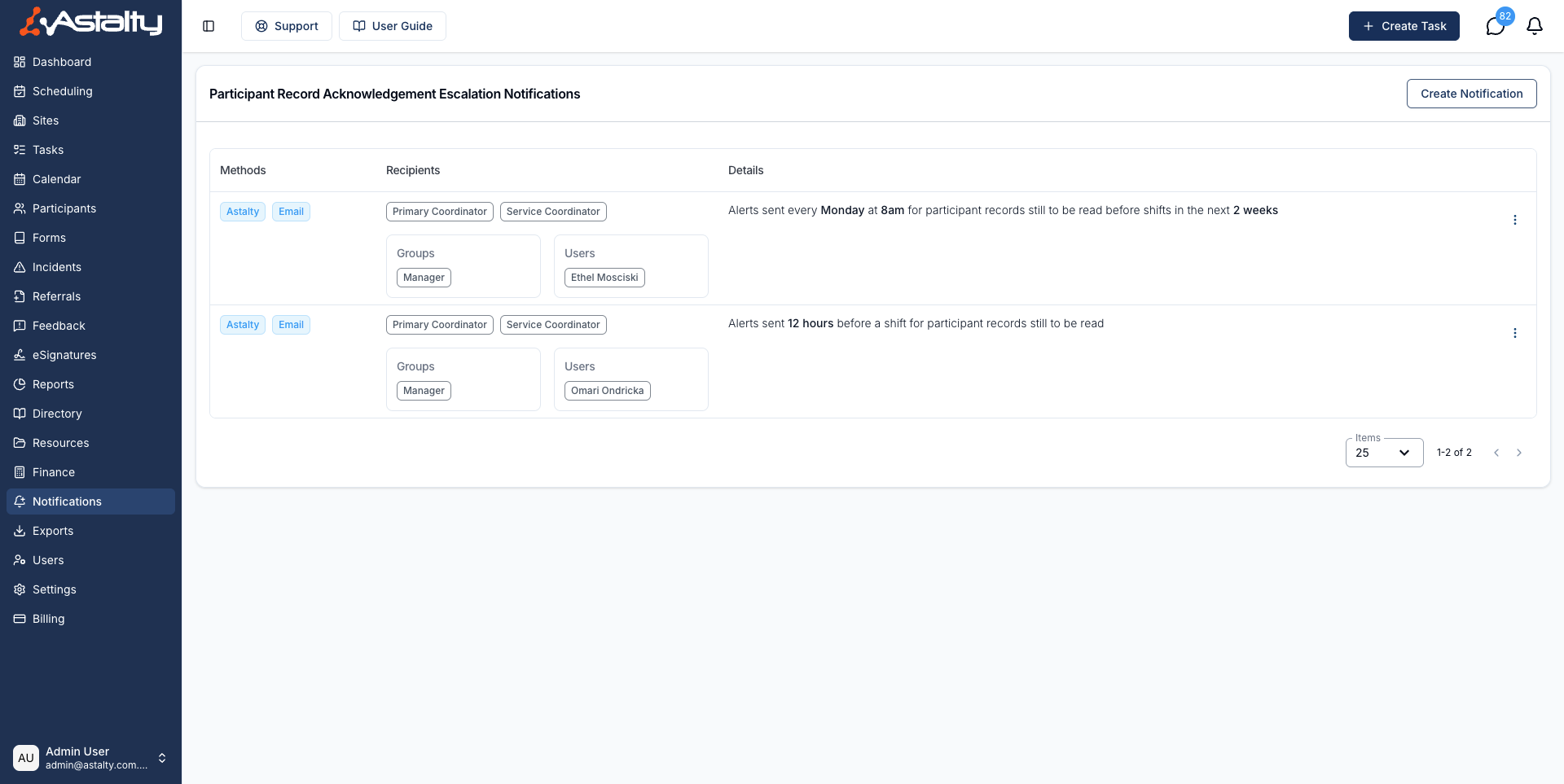
- Click Create Notification and configure the options below.
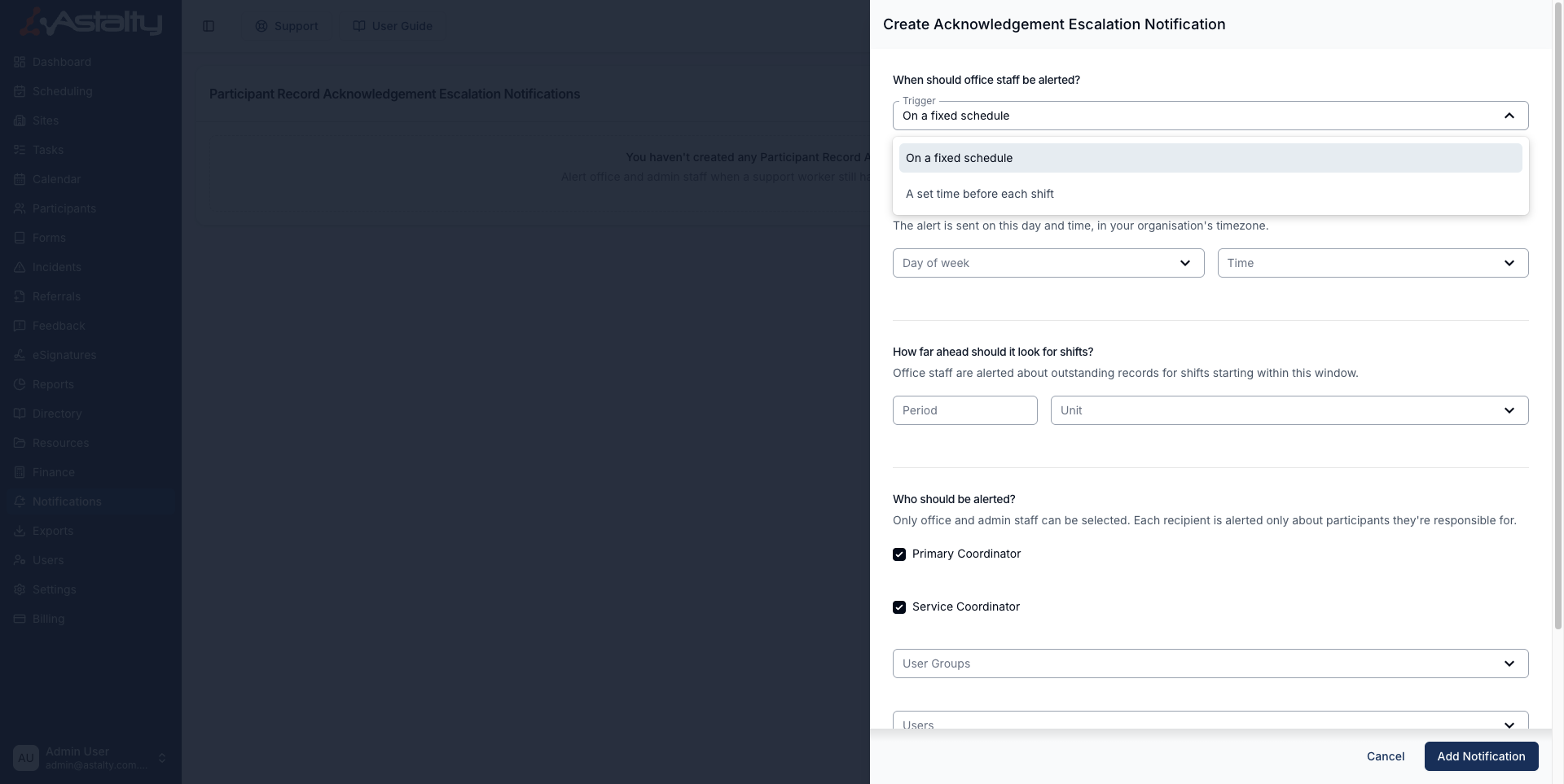
Choose when the alert is sent
Under When should office staff be alerted?, choose one of two options for Trigger:
- On a fixed schedule - the alert is sent once a week on the Day of week and on-the-hour Time you choose, in your organisation's timezone. Under How far ahead should it look for shifts?, set a Period and Unit (Hours, Days or Weeks): recipients are alerted about outstanding records for shifts starting within that window. The default is Monday at 8am, looking 2 weeks ahead.
- A set time before each shift - the alert is sent a set Lead time before each shift starts, as a number and Unit (Hours, Days or Weeks), for any records still outstanding at that point. The default is 12 hours. Astalty checks every hour, so the alert goes out in the hour the lead time is reached.
Choose who is alerted
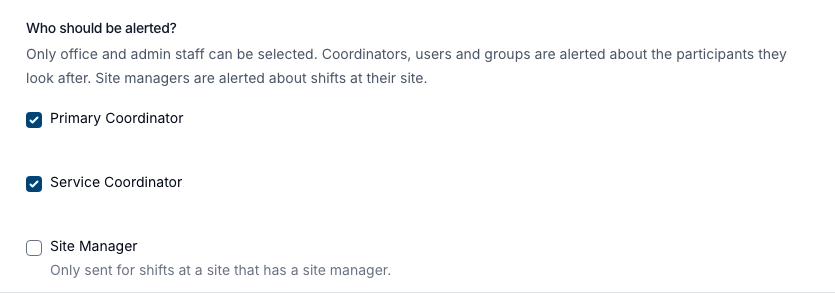
Under Who should be alerted?, select any combination of:
- Primary Coordinator and/or Service Coordinator - the coordinators assigned to each Participant. Both are ticked by default.
- Site Manager - the manager of the site each outstanding shift is at. Not ticked by default.
- User Groups - the office and admin users in the selected groups, each alerted about the Participants they can see. The All Users and Support Worker groups aren't offered.
- Users - specific individual staff members. Support Workers aren't offered.
You must select at least one recipient.
Choose the delivery method
Under Notification methods, choose to deliver the alert Within Astalty, via Email, or both. Both are ticked by default. This notification is never sent as a push notification.
Click Add Notification to save.
Managing Notifications
Configured notifications are listed with a plain-English summary of the schedule under When, plus Delivery and Recipients. For example: "Alerts sent every Monday at 8am for participant records still to be read before shifts in the next 2 weeks" or "Alerts sent 12 hours before a shift for participant records still to be read".
To edit or remove a notification, use the three-dot menu on its row and select Edit or Delete.