Incident Follow Up Notifications
Overview
Incident Follow Up notifications alert your team when an incident has been sitting in the same status for a set number of days without progressing - so a reported incident doesn't quietly go unreviewed.
This is different from Incident Notifications, which alert your team the moment an incident is submitted. Incident Follow Up notifications are about incidents that have already been reported and haven't moved since.
Only Admins can manage these notifications. This can't be changed per user.
Finding the notification
- Go to Notifications in the main menu.
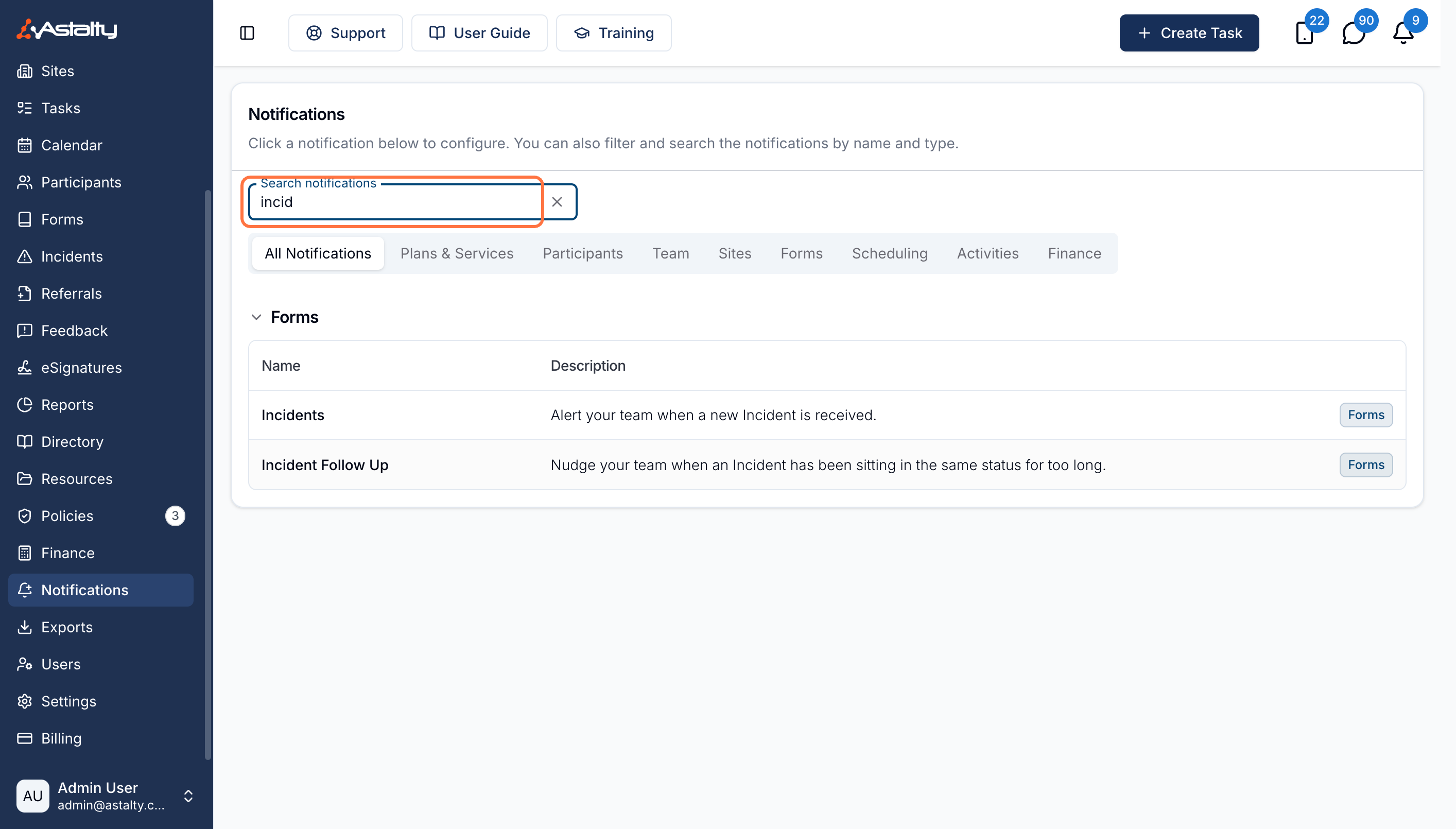
- Scroll to the Forms group, or type
incidentinto Search notifications. - Select Incident Follow Up (below Incident Deadlines).
Creating an Incident Follow Up notification
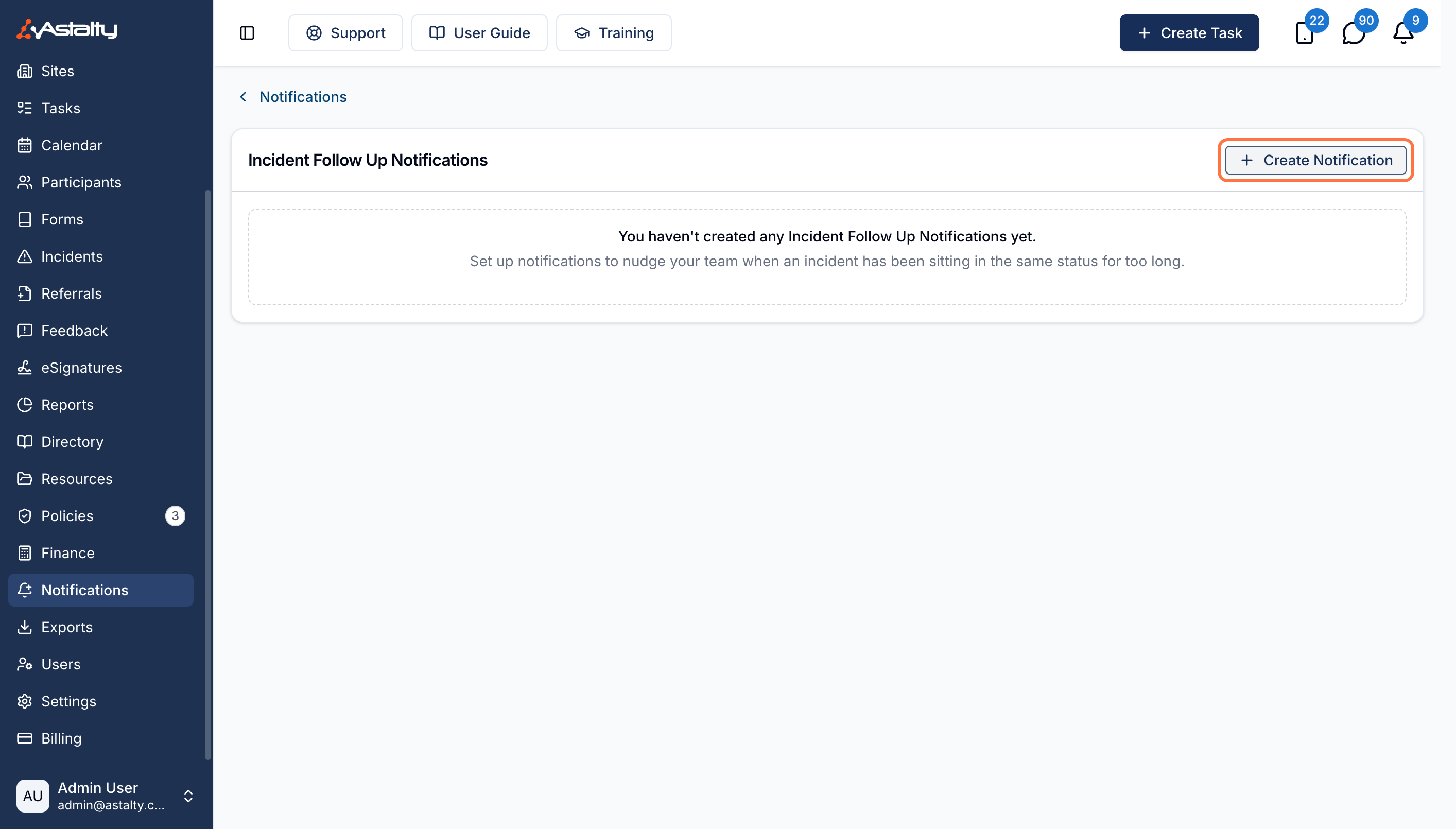
On the Incident Follow Up page, click Create Notification.
Days
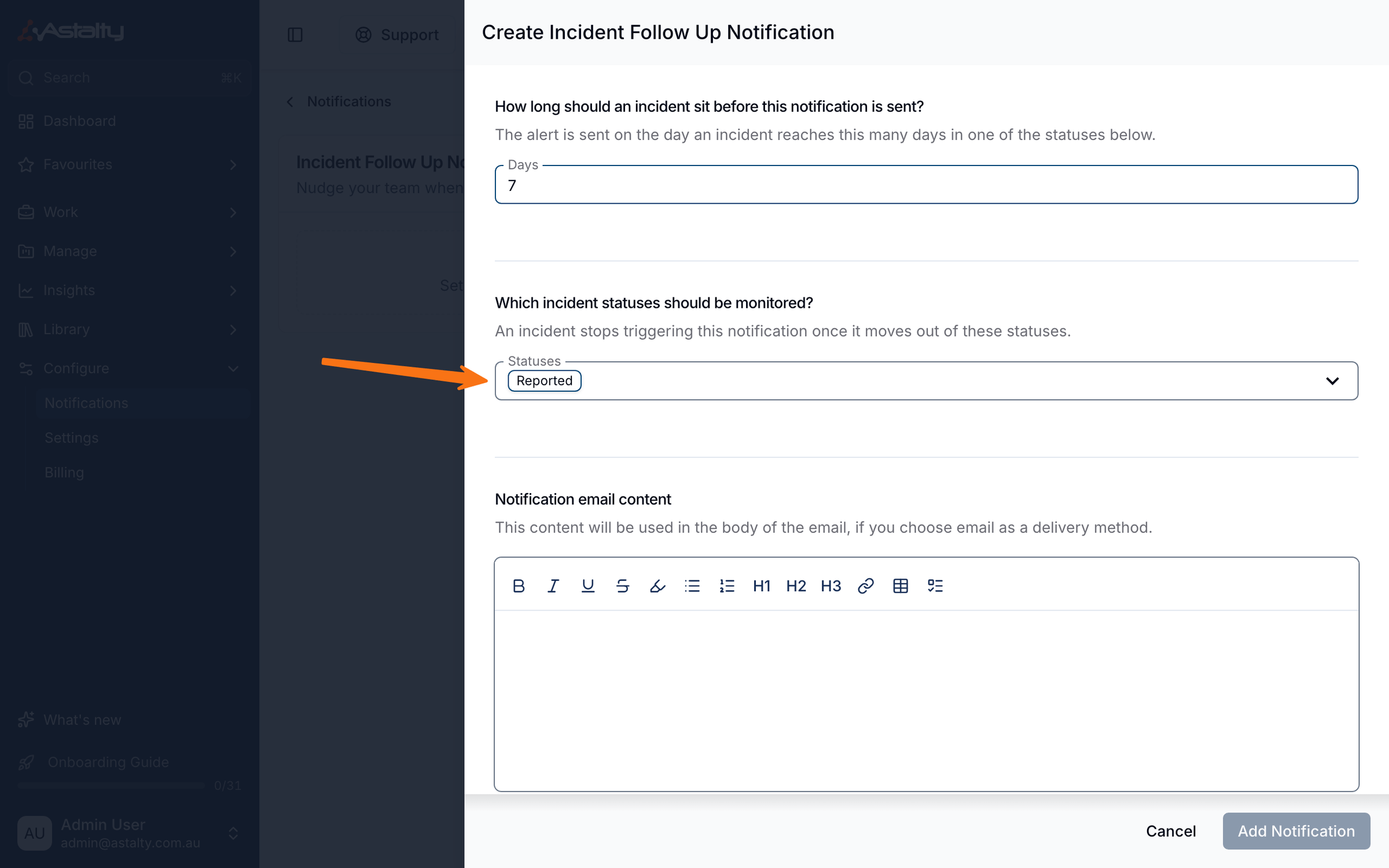
Enter how many Days an incident can sit in one of the monitored statuses before Astalty alerts you. The default is 7, and you can enter anything from 1 to 365.
The count starts from the last time the incident's status changed - not from when the incident was reported, and not from any other edit. Editing an incident's details, severity, or category doesn't restart the clock; moving it to a new status does.
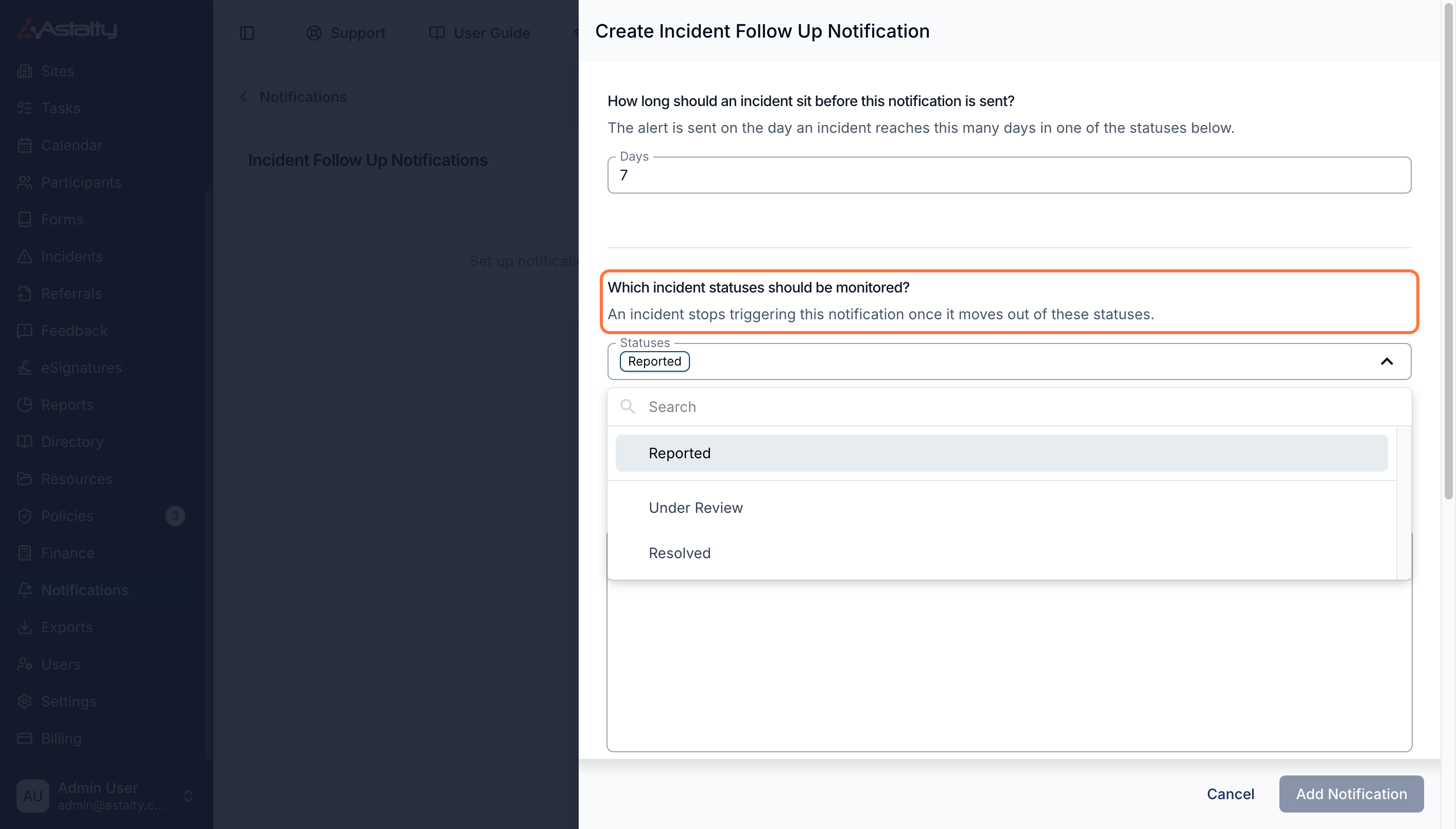
Statuses
Choose which incident statuses to monitor. You must select at least one. The available statuses are:
- Reported
- Under Review
- Resolved
An incident stops triggering the notification once it moves out of the statuses you've selected.
Notification email content
Optional. If you send email notifications, this rich-text content is added to the email body (for example, the steps your team should take when chasing a stalled incident). It doesn't replace the standard message, and it doesn't appear in the in-app notification.
Notification recipients
Select at least one of:
- Assigned user - the user the incident is assigned to. Off by default.
- Primary Coordinator - the Primary Coordinator of each Participant involved in the incident. Off by default.
- Service Coordinator - the coordinators of Services on each involved Participant's current plan. Off by default.
- User Groups - one or more staff User Groups. The All Users and Support Worker groups aren't offered.
- Users - specific team members
Add Notification stays disabled until you pick at least one recipient.
The coordinator options need an involved Participant with a coordinator recorded. Include a user or group for incidents without one.
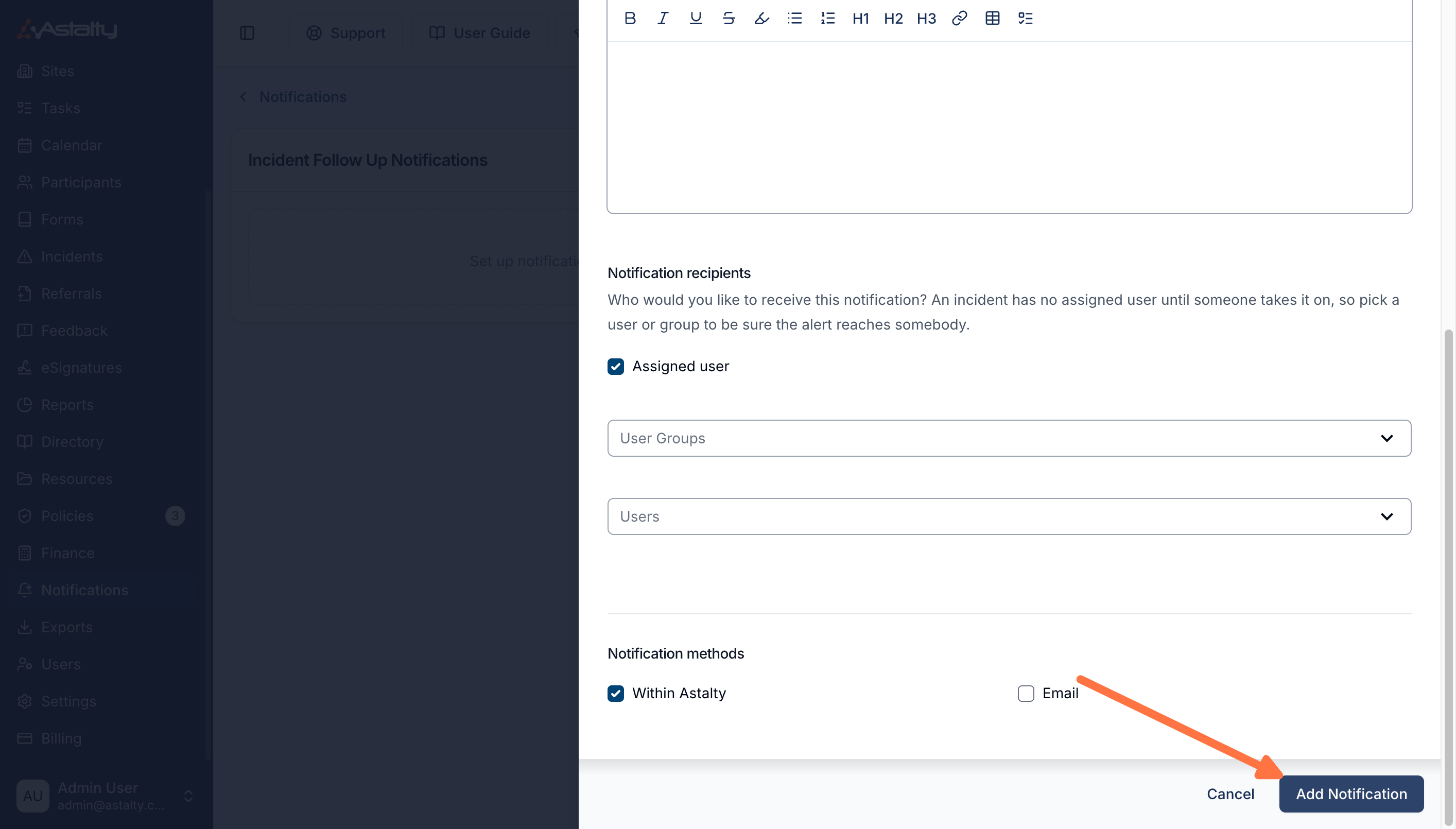
Notification methods
- Within Astalty - in-app notification. On by default.
- Email - email to each recipient. Off by default.
You can enable either or both, but at least one is required.
When you are ready, click Add Notification (or Update Notification if you are editing an existing one).
Managing notifications
You can create more than one Incident Follow Up notification - for example, one for Reported at 3 days and another that also watches Under Review and Resolved at 14 days.
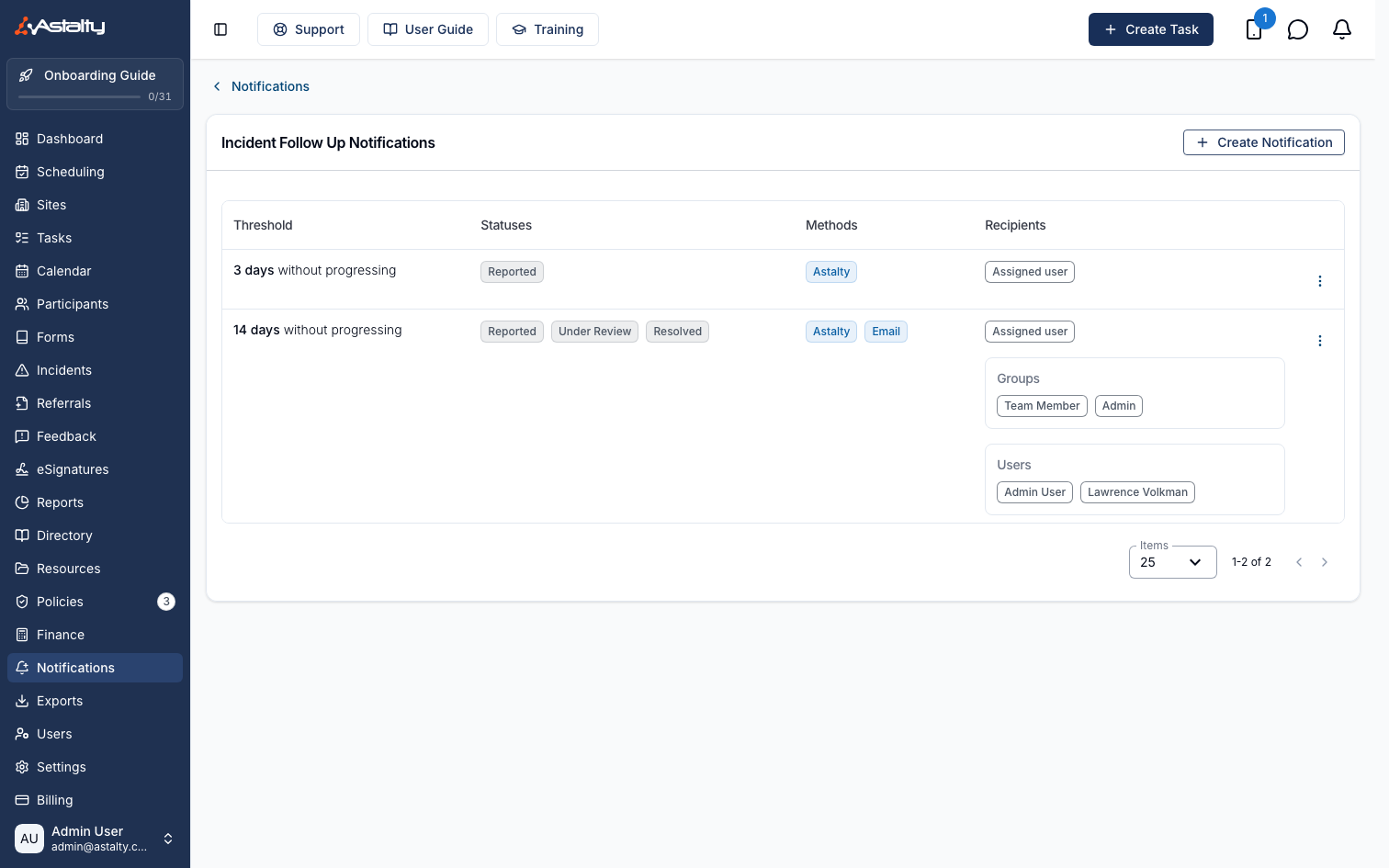
The list shows each notification's Threshold, monitored Statuses, Delivery and Recipients. There's no name field, so rules are identified by their threshold and statuses.
From the actions menu on a notification you can:
- Edit - change the days, statuses, recipients, methods, or email content
- Clone - start a new notification from an existing one
- Delete - remove the notification. Delete is also inside the edit drawer.
There's no way to pause a notification, so delete it if you no longer want it to run.
What recipients see
In Astalty
The in-app notification is titled Incident Follow Up. The message reads "Incident {reference} has been {status} for {number} days and needs following up." with a View Incident link that opens the incident.
The email subject is Incident Follow Up - {reference}. The body carries the same message, followed by any custom content you configured, and a View Incident button.
Deactivated users are not included as recipients, even if they are in a selected user group. Recipients are also de-duplicated by email address, so a user who is both the assignee and in a selected group only gets one notification.
Things to know
- Archived incidents are skipped - they never trigger a follow up notification.
- Incidents that existed before this feature shipped are given a starting point based on their last recorded status change, or where that couldn't be determined, the last time the record was updated. Because the alert only fires on the exact day an incident reaches your Days threshold, an older incident that was already past that threshold won't trigger one - it will only start behaving normally after its status changes again.
Related
- Incident Notifications - alert your team when an incident is submitted.
- Incident Deadline Notifications - warn before an upcoming reporting deadline.
- Incident Follow Up - how to review an incident and move it through its statuses.
- Referral Follow Up Notifications - the same idea for referrals that stop progressing.