- Insights
- Address Map Report
Address Map Report
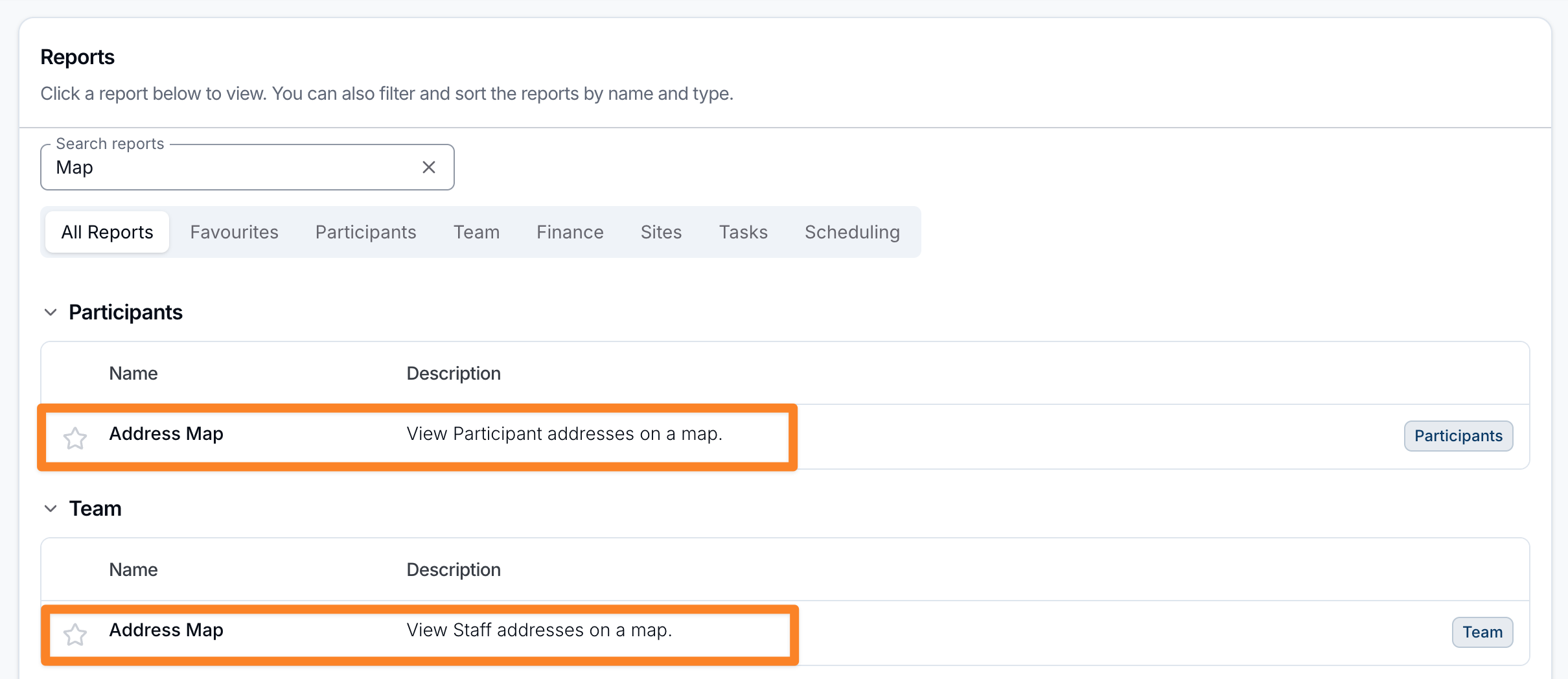
The Address Map report appears in two places, both showing the same map:
- Reports → Participants → Address Map — opens with Participants shown by default.
- Reports → Team → Address Map — opens with Staff shown by default.
Report Overview
The Address Map plots the addresses of your Participants and staff on an interactive map. It's useful for planning travel, grouping nearby supports, and understanding the geographic spread of the people you support and your team.
Regardless of which menu you open it from, the same map loads — the only difference is which markers are switched on to begin with.
Choosing what to show
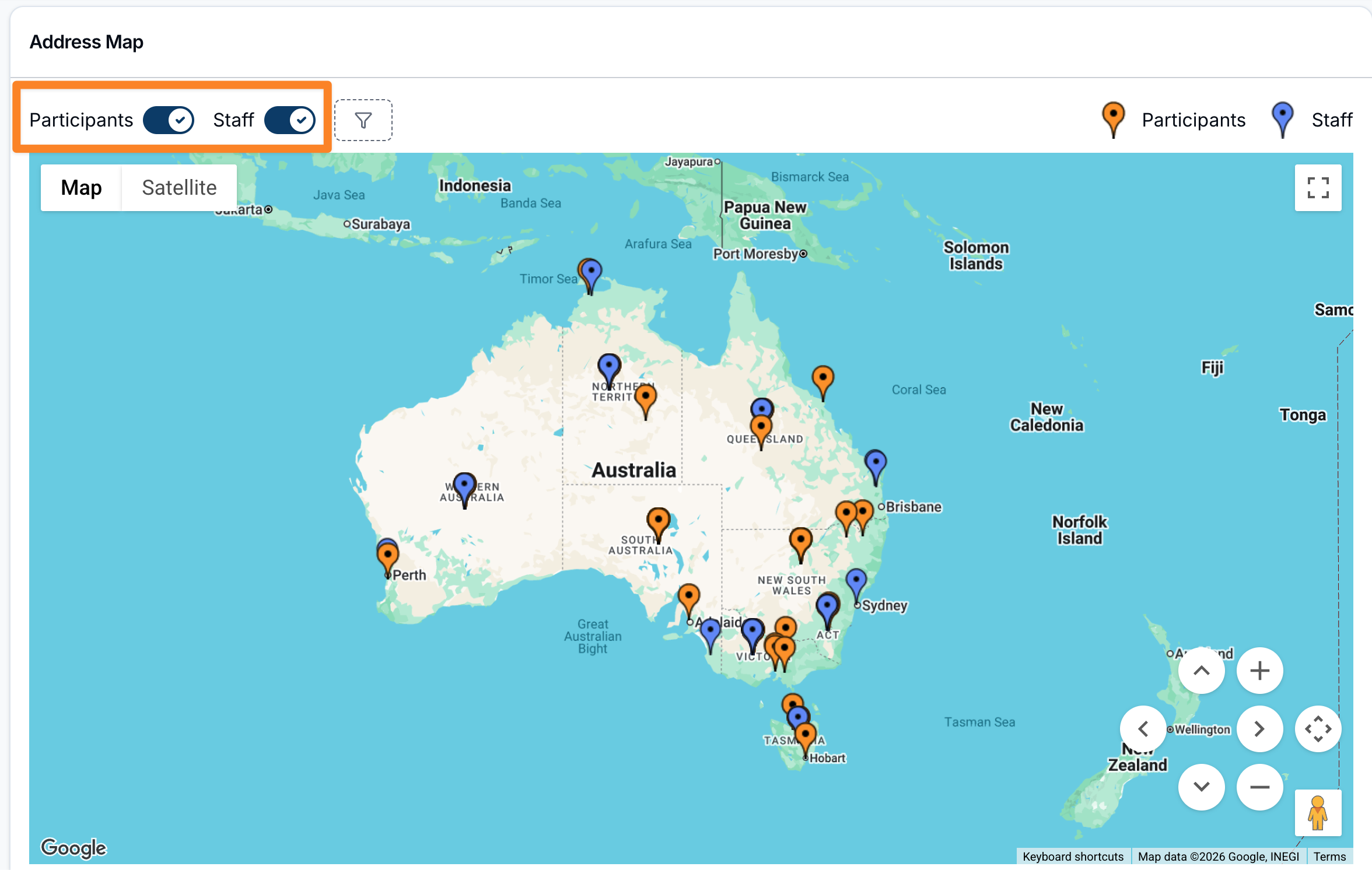
At the top of the map you'll find two toggles:
- Participants — show or hide Participant markers.
- Staff — show or hide staff markers.
You can display either group on its own or both at once. Each group has its own marker style, shown in the legend on the right — Participants markers are orange and Staff markers are blue — so you can tell them apart at a glance.
Filtering
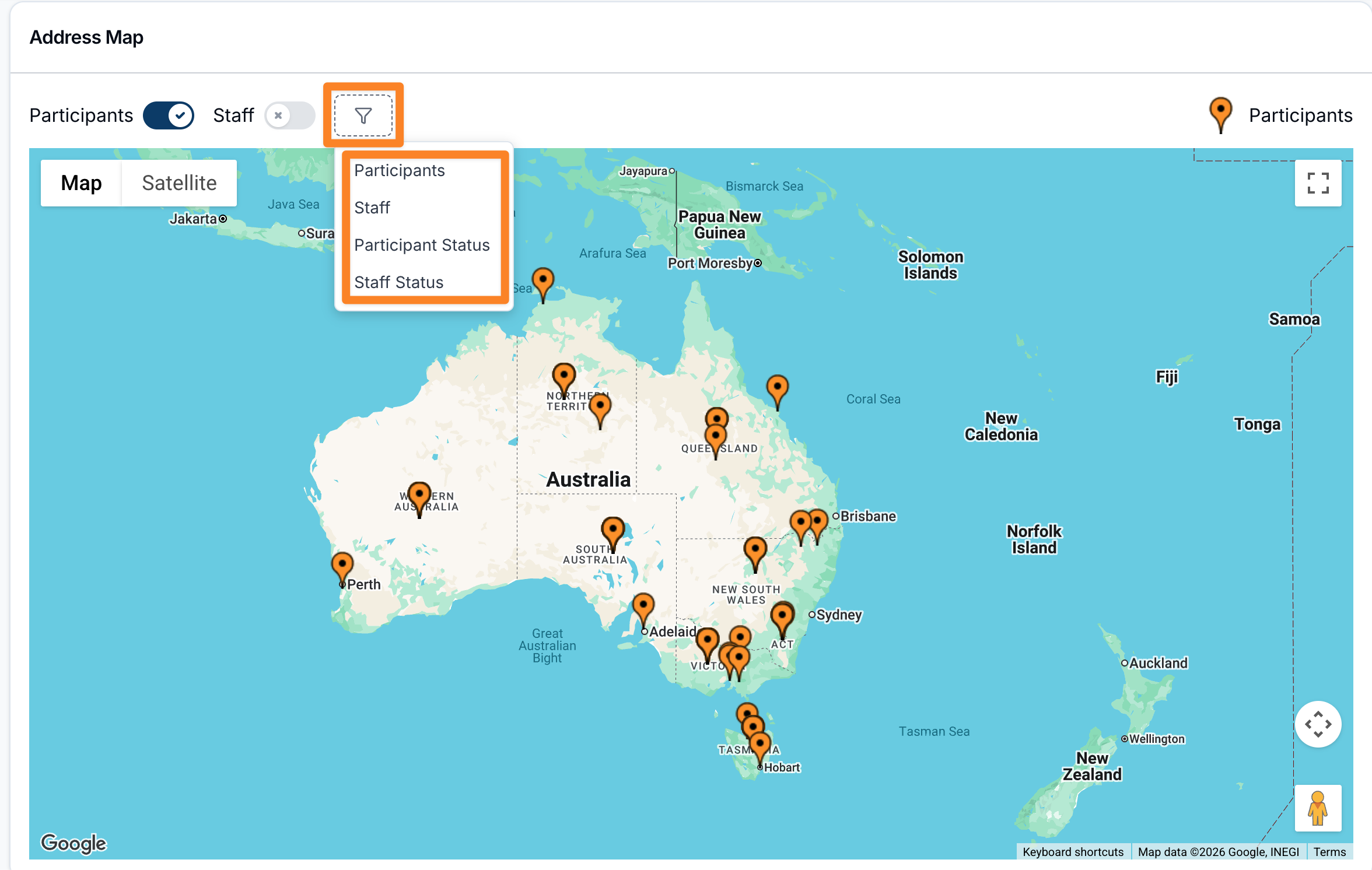
Use the filter (funnel) button to narrow the map to specific people or record statuses:
- Participants — limit the map to one or more selected Participants.
- Staff — limit the map to one or more selected staff members.
- Participant Status — limit Participant markers to particular Participant statuses.
- Staff Status — limit staff markers to particular staff statuses (for example active, deactivated, restricted, or invited).
Applying a Participant or staff filter automatically switches that group on so the results are visible.
Viewing a location
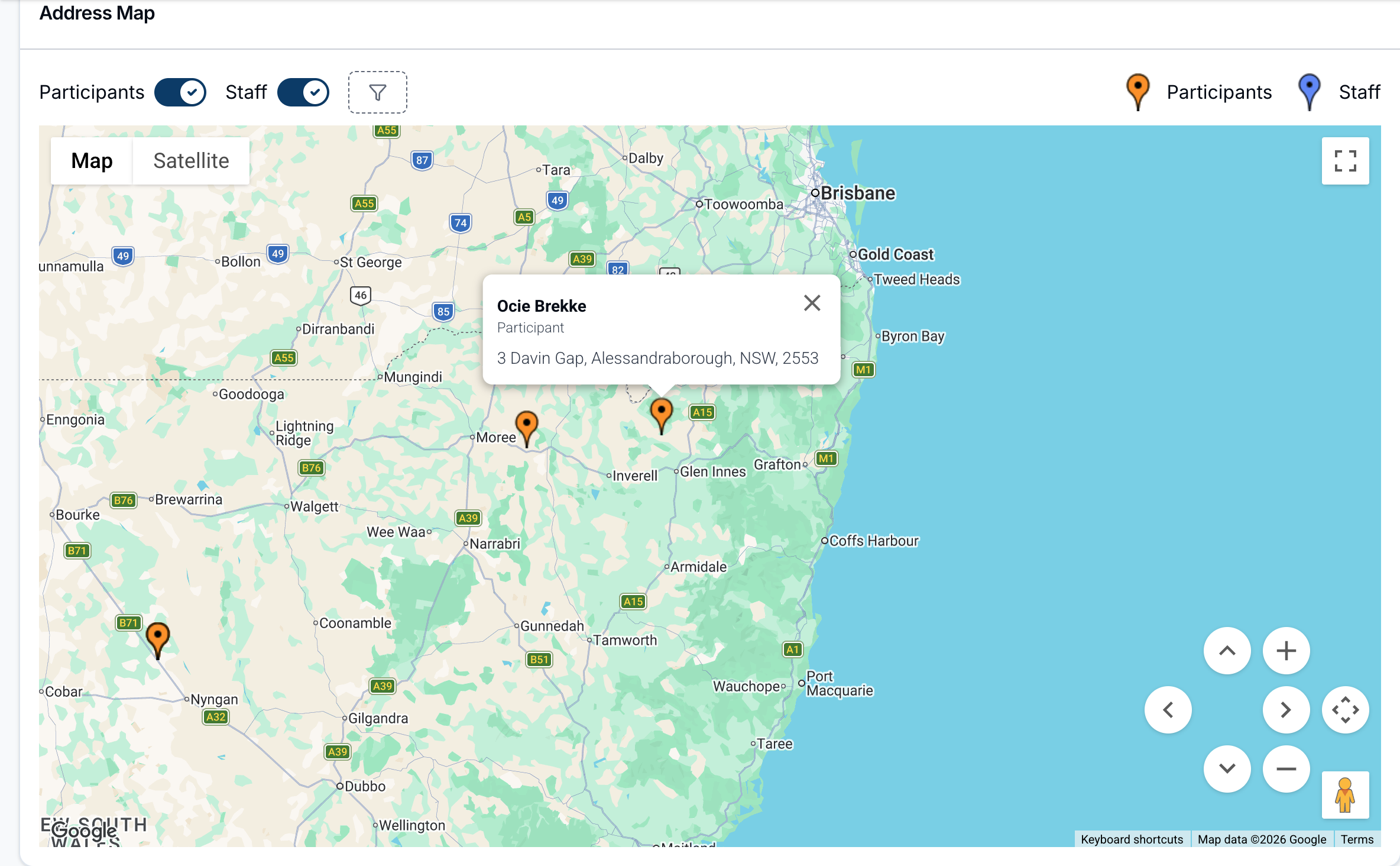
Click any marker to open a details window showing the person's name, whether they're a Participant or Staff member, and their full address. The name links through to their Participant or user profile so you can jump straight to their record.
Addresses that can't be plotted
If an address can't be matched to a location on the map, it won't be plotted. Instead, a highlighted panel appears above the map listing each address that could not be plotted, along with the name and the address as it's currently recorded. Correct the address on the Participant or user record to have it appear on the map.