Staff Contracted Hours
Overview
Employment details record the worker's contract dates, employment basis, weekly hours, award and pay settings. Astalty uses them for scheduling checks, costing and award interpretation.
You need the Manage HR Details for Users permission to create or update these details.
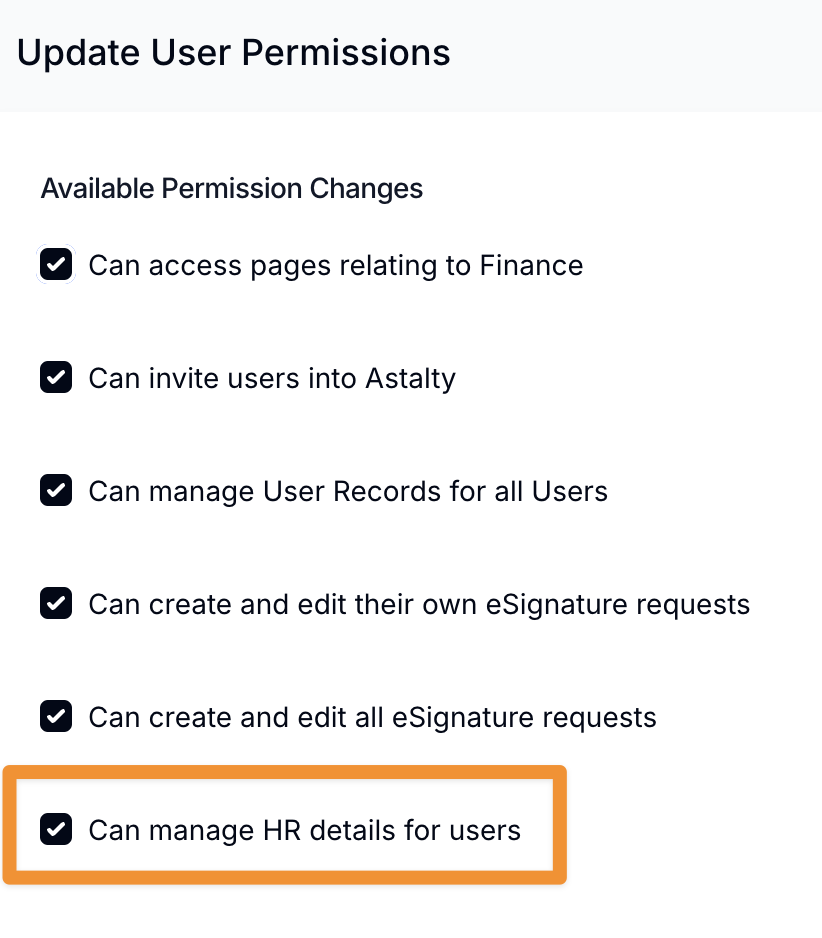
See Roles and Permissions for more information about assigning permissions.
To add employment details:
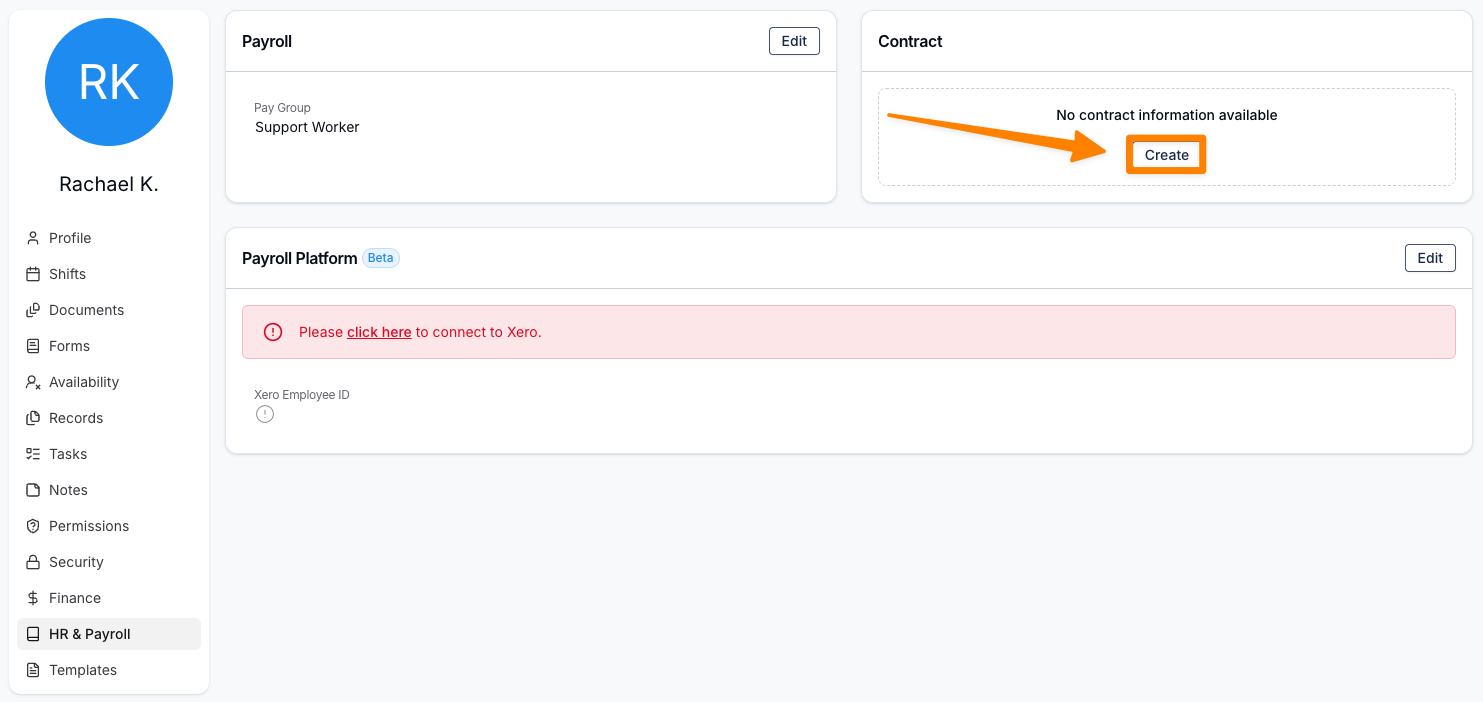
- Open the user's profile and select HR & Payroll.
- Under Current Employment Details, select Create.
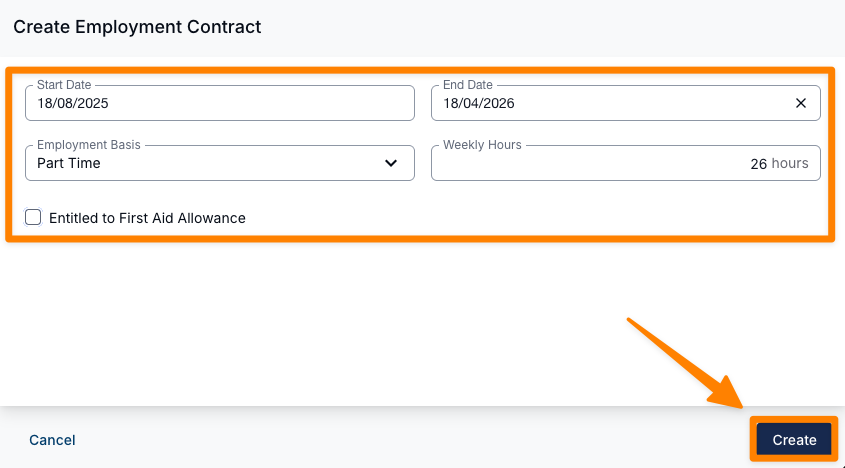
- Enter the required details, then select Create. The fields include:
- Award - Which award's pay rules apply to this worker (see Award below).
- Start Date and End Date
- Employment Basis - Full Time, Part Time, or Casual.
- Weekly Hours - Used to store contracted hours.
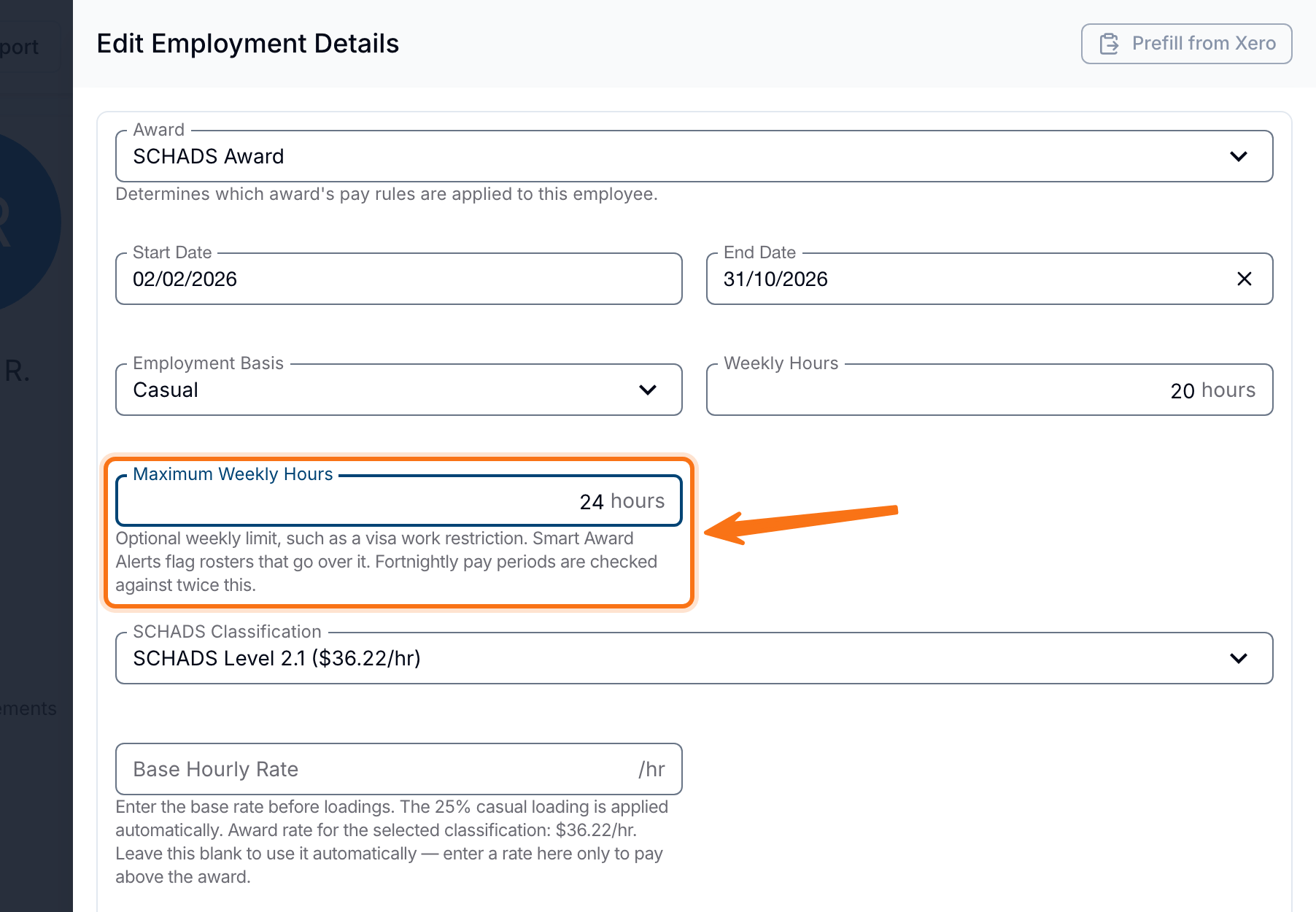
- Maximum Weekly Hours - An optional weekly limit, such as a visa work restriction (see Maximum Weekly Hours below).
- Entitled to First Aid Allowance - This will be factored into Timesheet Batches (SCHADS Award contracts only).
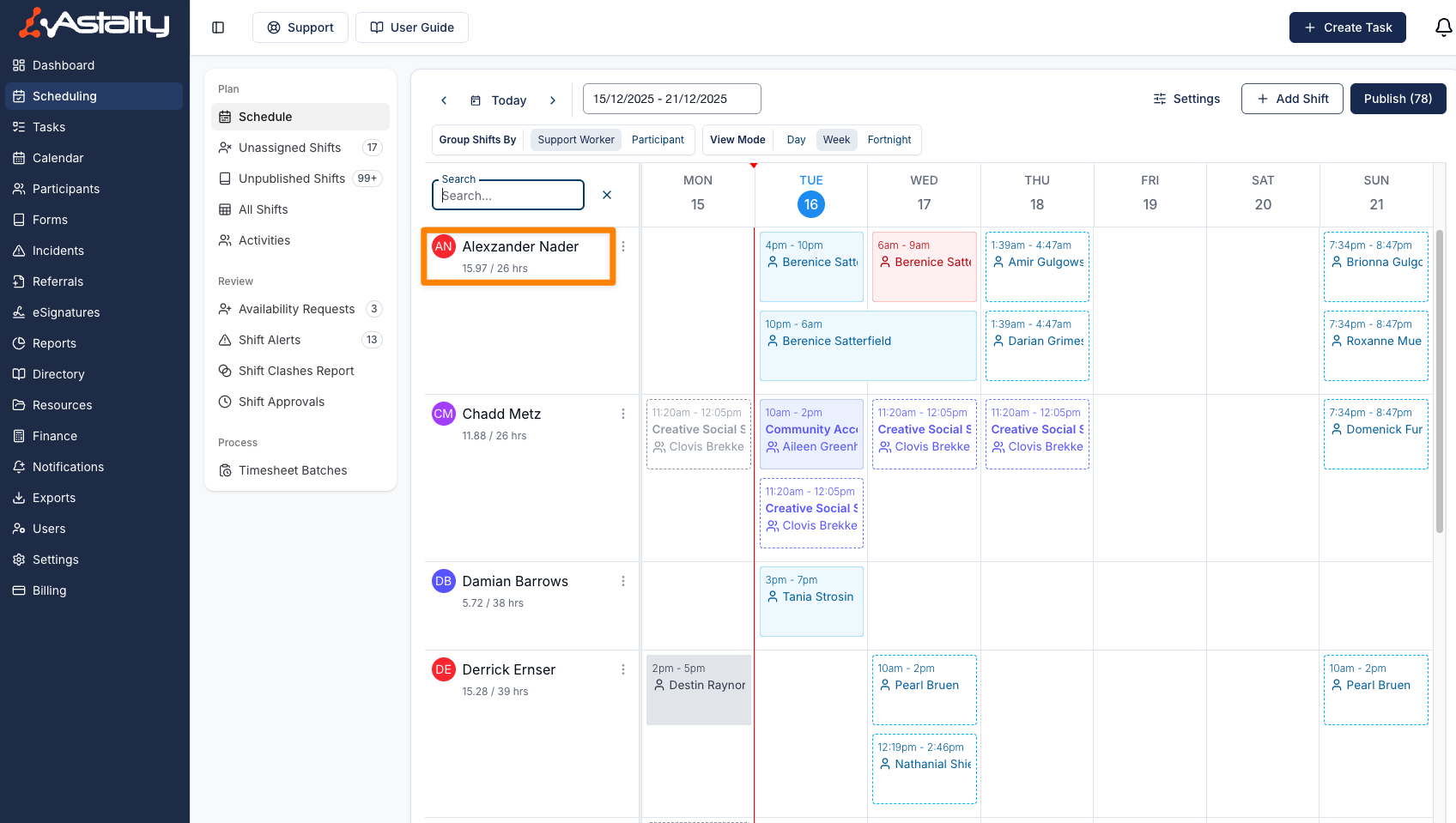
On Schedule, weekly hours let you compare a Support Worker's rostered hours with their contracted hours.
Maximum Weekly Hours
Employment details include an optional Maximum Weekly Hours field, for a limit such as a visa work restriction. Unlike Weekly Hours, which only raises a Contracted Hours alert for part-time workers, Maximum Weekly Hours applies to full-time, part-time and casual contracts alike.
On a fortnightly pay period, Astalty checks the worker's scheduled hours against twice this figure, not the weekly figure itself.
Maximum Hours flags a roster that goes over this limit; set its behaviour (Disabled, Warn Only or Prevent Selection) in Settings > Scheduling.
Award
Employment details include an Award field, which determines which award's pay rules are applied to the worker's shifts for interpretation, costing and scheduling alerts. Payroll platform differences determine whether payroll receives interpreted pay lines or timesheet records.
Choose from:
- SCHADS Award: the default for new contracts. Selecting it shows a SCHADS Classification field, which includes home care classifications for disability and aged care work. See SCHADS Interpretations in Astalty.
- Nurses Award: for nursing staff. Selecting it shows a Nurses Classification field: pick the worker's classification and pay point. See Nurses Award Interpretations in Astalty.
- Aged Care Award: for personal care and general services staff in residential aged care. Selecting it shows an Aged Care Classification field. See Aged Care Award Interpretations in Astalty.
- Health Professionals Award: for allied health professionals and the support services staff who work with them. Selecting it shows the Health Professionals Classification and Practice Type fields, and the Cleaner in a Private Medical Practice switch for a private practice. See Health Professionals Award Interpretations in Astalty.
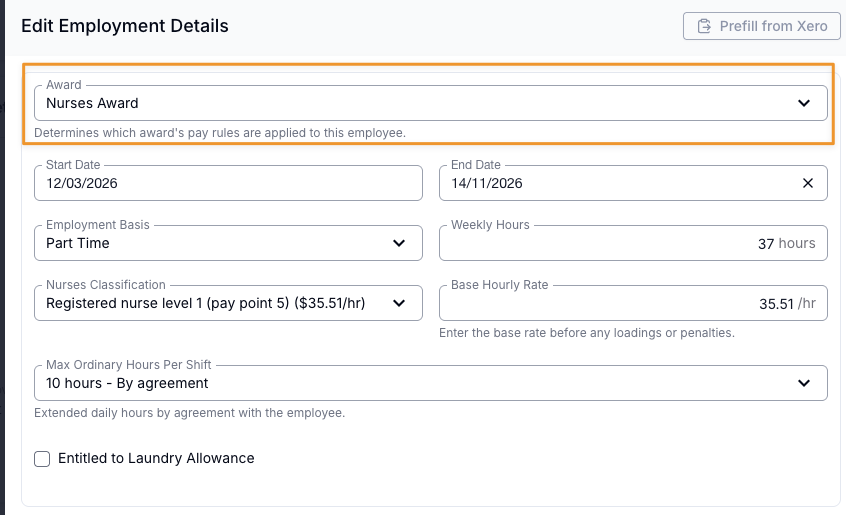
Fields that only exist under SCHADS (the SCHADS Overtime Stream, Entitled to First Aid Allowance and Minimum Break Near a Sleepover) are hidden on a contract under any other award.
Maintaining Award Rates
The Base Hourly Rate is an optional hourly amount for Astalty costing, before casual loading and other penalties. Choosing or re-selecting a classification leaves this field unchanged.
| Base Hourly Rate | Costing behaviour |
|---|---|
| Blank | Uses the selected classification's loaded rate for the pay period's start date |
| A saved amount | Uses that amount, including an imported or above-award rate; it does not increase automatically |
Reclassified Health Professionals contracts have a retained-rate exception: costing cannot fall below the applicable classification minimum while a previous classification is recorded.
After an Annual Wage Review, work-value increase or other rate change:
- Confirm the correct classification and effective pay period against the Fair Work award list.
- Review the Base Hourly Rate. Keep or update an intentional override. If a saved amount should instead follow the award schedule, clear it and check the classification before saving. Re-selecting the classification alone does not remove the amount.
- Update the rate in your payroll system separately. Xero uses its own pay items and employee template; Astalty does not update them.
- Compare the next affected pay period in the Award Pay Report and payroll. Check allowance rates as well as wages.
Classification lists show the rate loaded for today. That may differ from the rate applicable to a historical or future pay period. Do not overwrite an earlier period's rate without checking the effect on historical costing. Astalty uses one selected contract for an interpretation period; changes part-way through a period need manual review.
Older contracts may still contain a rate copied from their original classification. A rate hint does not change that saved amount. Check each contract rather than assuming an old copied rate has been cleared.
Missing historical rates must not be treated as zero pay. Verify the applicable rate and historical rules before relying on an older estimate. Also check the missing-rate limitation in multi-period cost reports.
Astalty's rate schedules are not a live Fair Work feed. Check the temporary SCHADS/Aged Care vehicle rate and October 2026 Health Professionals transition, including the changes you must make separately in payroll.
Max Ordinary Hours Per Shift
For SCHADS, record the applicable ordinary-hours arrangement:
| Option | Effect |
|---|---|
| 8 hours - Award default | Uses an eight-hour ordinary cap |
| 10 hours - By agreement | Uses a ten-hour cap where the employee has agreed |
| 12 hours - Sleepover shifts only | Allows up to twelve combined ordinary hours around a qualifying sleepover, by agreement; other shifts remain capped at ten |
The June 2026 sleepover rules also limit ordinary work to eight hours on either side. Choosing an option does not create the required agreement. Check the SCHADS rules and do not assume this field overrides another award's limits.
Minimum Break Near a Sleepover
Employment details include a Minimum Break Near a Sleepover field, which records the rest period the worker has agreed to where a break sits directly before or after a sleepover shift.
Under the SCHADS Award the minimum break between shifts is 10 hours. The only reduction the Award allows is to 8 hours by agreement, and only where the break is next to a sleepover (clause 25.4(b)). A break between ordinary shifts always requires the full 10 hours - this field does not change that.
Choose from:
- 10 hours - Award default - no 8-hour agreement is in place; breaks next to sleepovers also require 10 hours.
- 8 hours - By agreement - the worker has agreed to a reduced 8-hour break where it adjoins a sleepover.
When you edit a worker's employment details, the field defaults to 10 hours - Award default. Select 8 hours - By agreement only where that arrangement is in place for the worker.
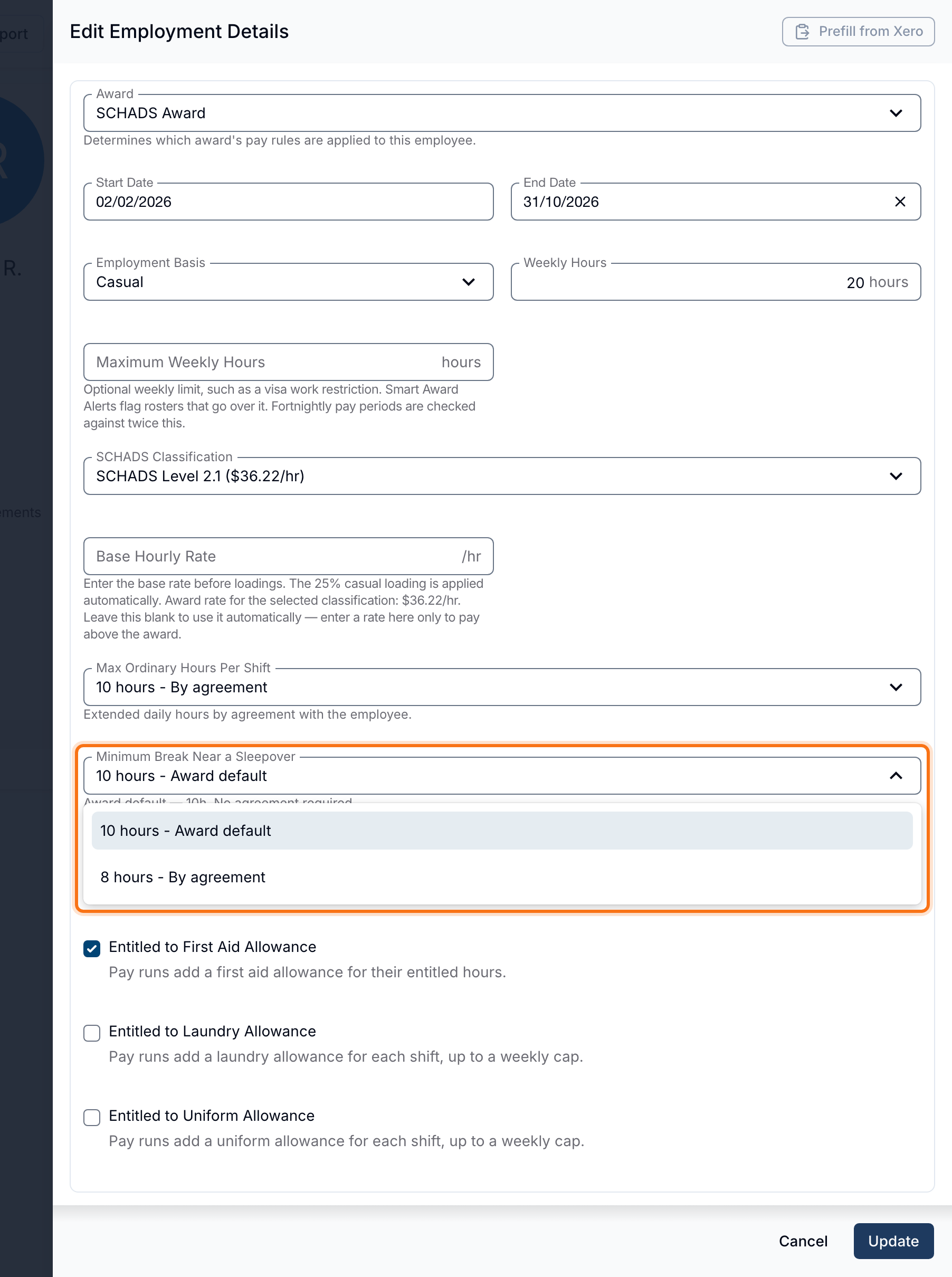
Scheduling alerts use this setting. If a worker is set to 8 hours - By agreement, a compliant 8-hour break beside a sleepover no longer triggers a false Minimum Break alert.
SCHADS Overtime Stream
Employment details include a SCHADS Overtime Stream field. It sets the first Monday to Saturday overtime band, the minimum engagement for part-time and casual employees, and whether the Award's broken shift rules apply.
Choose from:
- Disability services & home care: the default for new contracts, and the only stream for a home care classification. Choosing a home care SCHADS Classification sets this stream and locks the field. The first overtime band is 2 hours (paid at the first overtime rate) before the higher overtime rate applies, for all employees. Part-time and casual employees have a 2-hour minimum engagement. Broken shift rules apply.
- Social, community & crisis accommodation: for full-time employees the first overtime band is 3 hours. Part-time and casual employees keep the 2-hour overtime band and have a 3-hour minimum engagement. Broken shift rules, including the Broken Shift Allowance, do not apply.
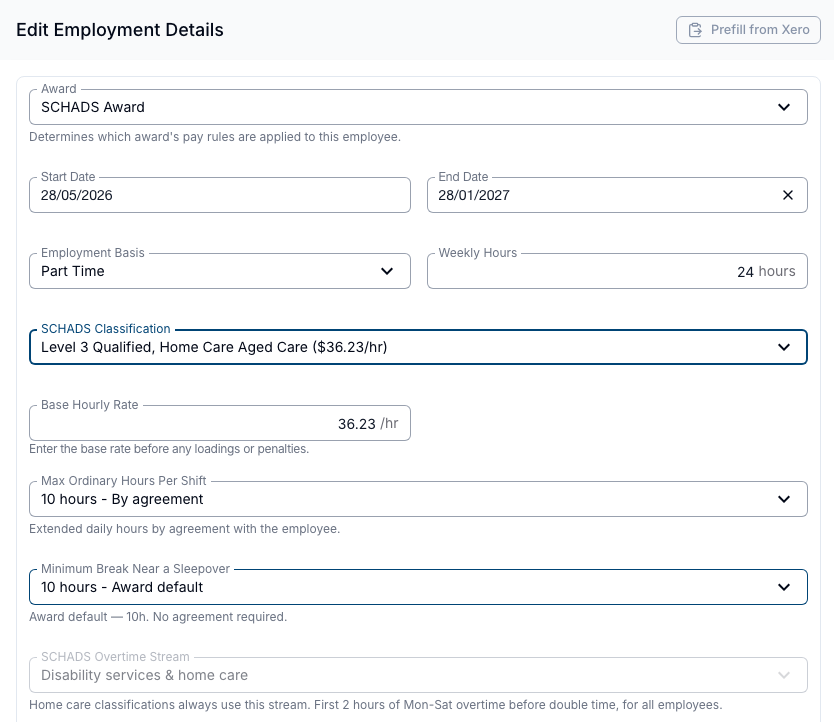
Set this to match the stream the employee is engaged under. For more detail, see SCHADS Overtime Stream in SCHADS Interpretations in Astalty.
Cleaner in a Private Medical Practice
Health Professionals Award employment details include a Cleaner in a Private Medical Practice switch. It appears when the Practice Type is Private medical, dental or physio practice, and is off by default.
Under the award, a casual employee's minimum engagement is 3 hours (clause 11.2). A cleaner employed in a private medical practice has a 2-hour minimum instead (clause 11.3).
- Turn it on for each casual cleaner working in a private medical practice.
- Leave it off for cleaners in dental, physiotherapy and other allied health practices. Clause 11.3 covers medical practices only, so their minimum stays at 3 hours.
With the switch on, Astalty checks the worker's casual engagements against 2 hours instead of 3. Adjoining shifts and travel can form one engagement; see Minimum Engagement. The switch has no effect on a part-time or full-time contract, which has no minimum engagement under this award. Saving the contract under another award, or with the Practice Type set to General, turns it off.
The worker must still be paid for at least the minimum engagement. Astalty pays a short shift up to the minimum only when Pay Award Minimum Engagement is on. Otherwise Astalty calculates pay from the approved hours only and does not top the shift up. The setting is not available when your payroll platform is Employment Hero, PayCat or QuickBooks Payroll.
Making Changes to Contracts
While editing Contracts is not generally recommended, there may be occasions where changes are required, such as correcting an error.
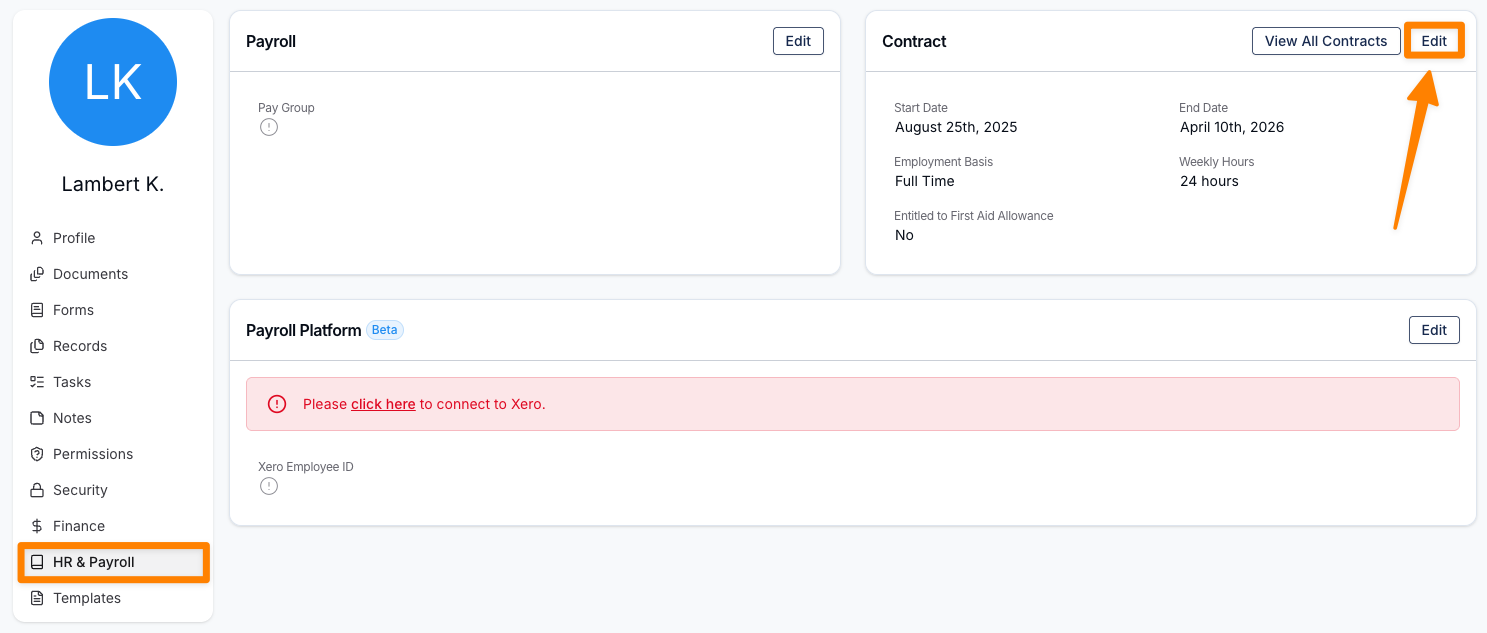
To edit a Contract:
- Open the User's HR & Payroll menu and select Edit in the Current Employment Details section.
- Make the required changes, then click Update to save.
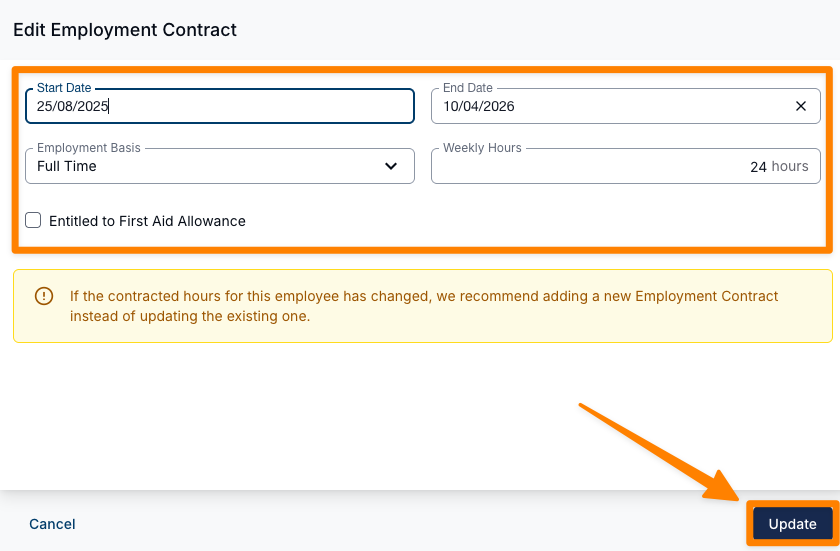
If a staff member's employment type is changing (for example, from Casual to Part Time), it is recommended to end the existing Contract and create a new one rather than editing the current Contract.
To do this:
- Click on Edit for the current Contract.
- Update the End Date, and click Update.
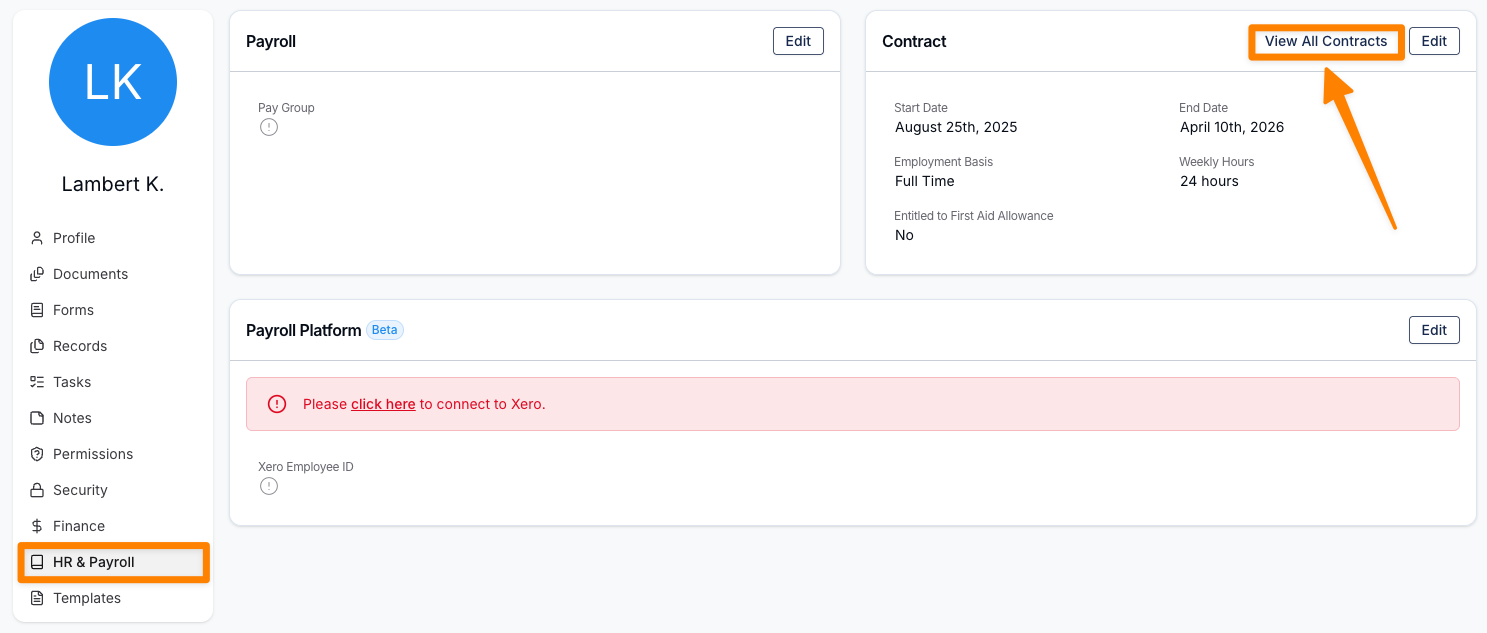
- Select Actions > View All Employment Details (a button of its own when no employment details are current) to see a list of all historical Contracts. From this page, you can open and edit previous Contracts if required. Contracts can also be deleted, although this is not recommended.
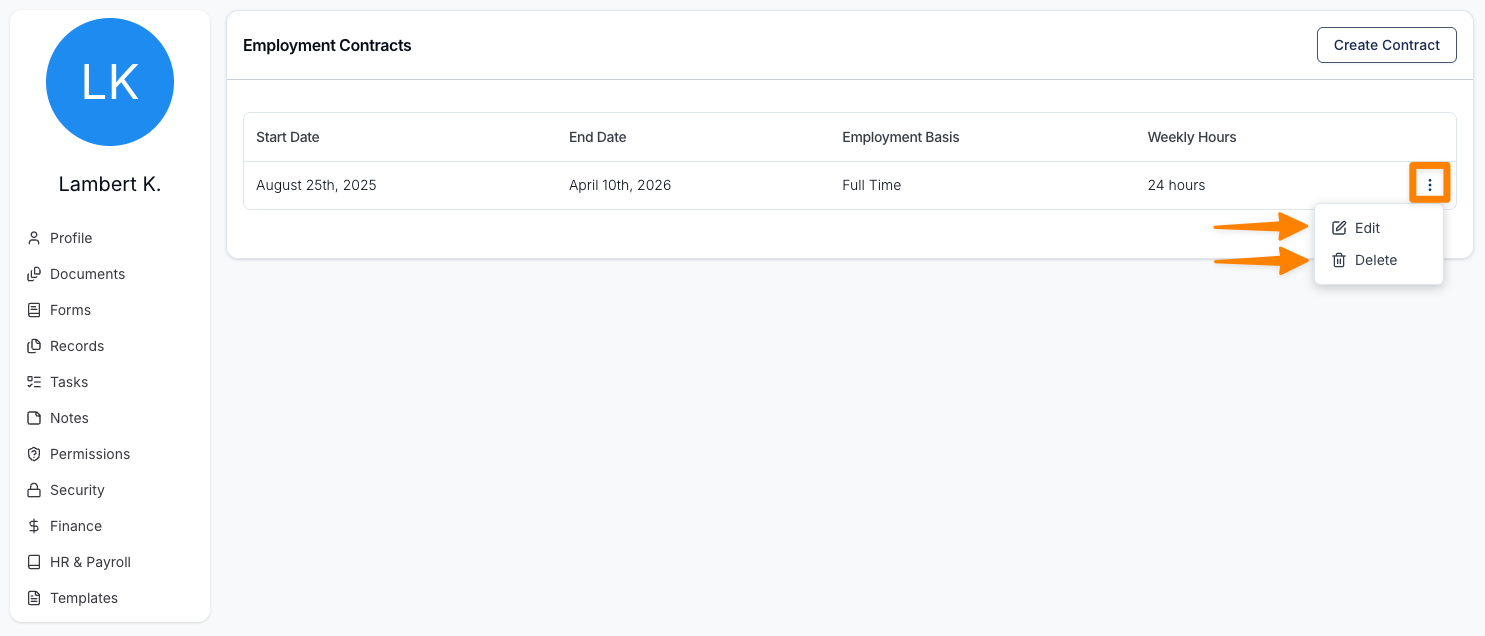
- To create a new Contract, click Add Employment Details, enter the relevant details, and then click Create.
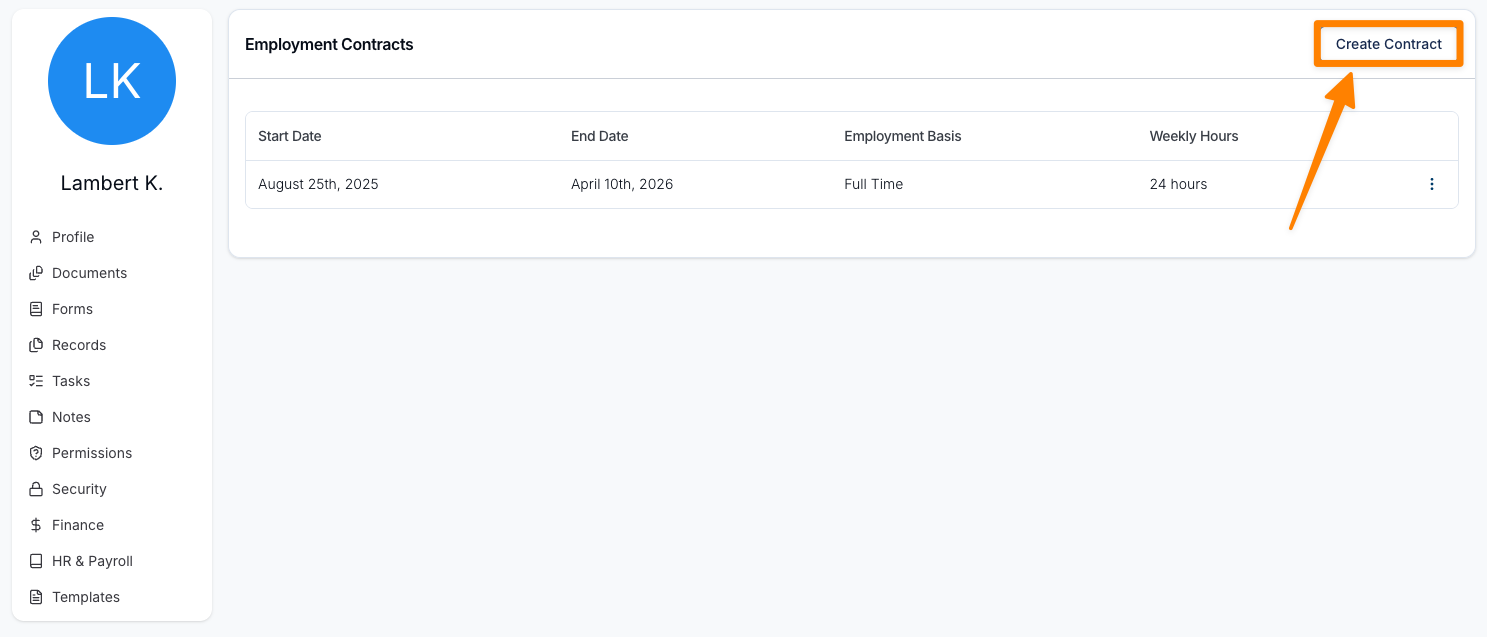
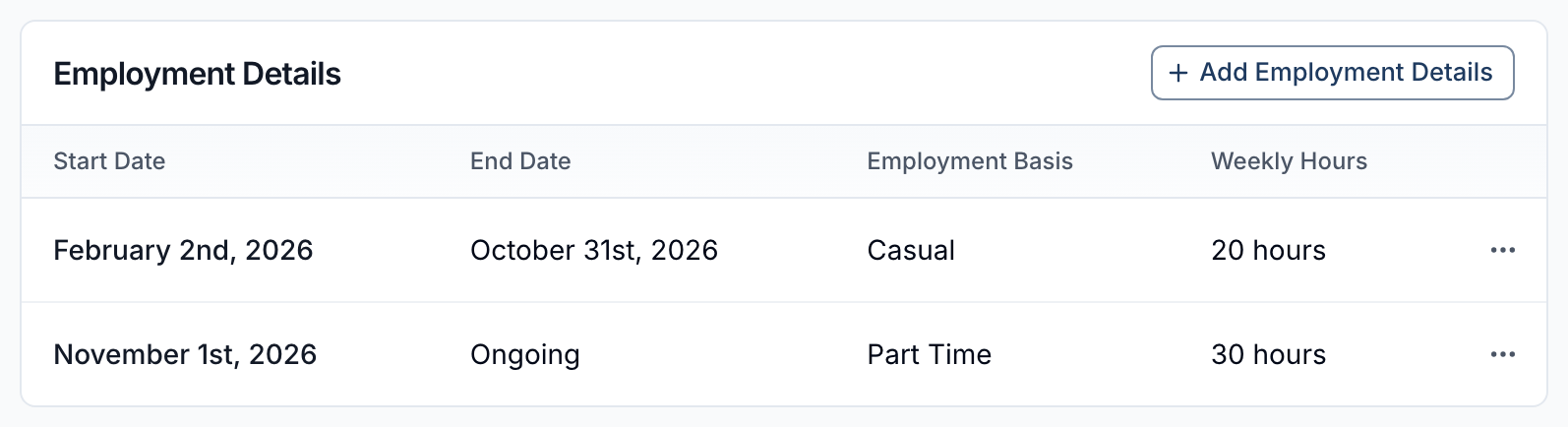
The active Contract will always be displayed on the User's HR & Payroll page. All Contracts are listed on the View All Employment Details page.