Inviting a Support Worker
Overview
Invite a Support Worker to give them an Astalty account. During the invitation, choose whether they can be assigned to supports now or should remain unavailable for scheduling until later.
How to Invite a Support Worker
- From the left menu, go to Users.
- Select Invite User.
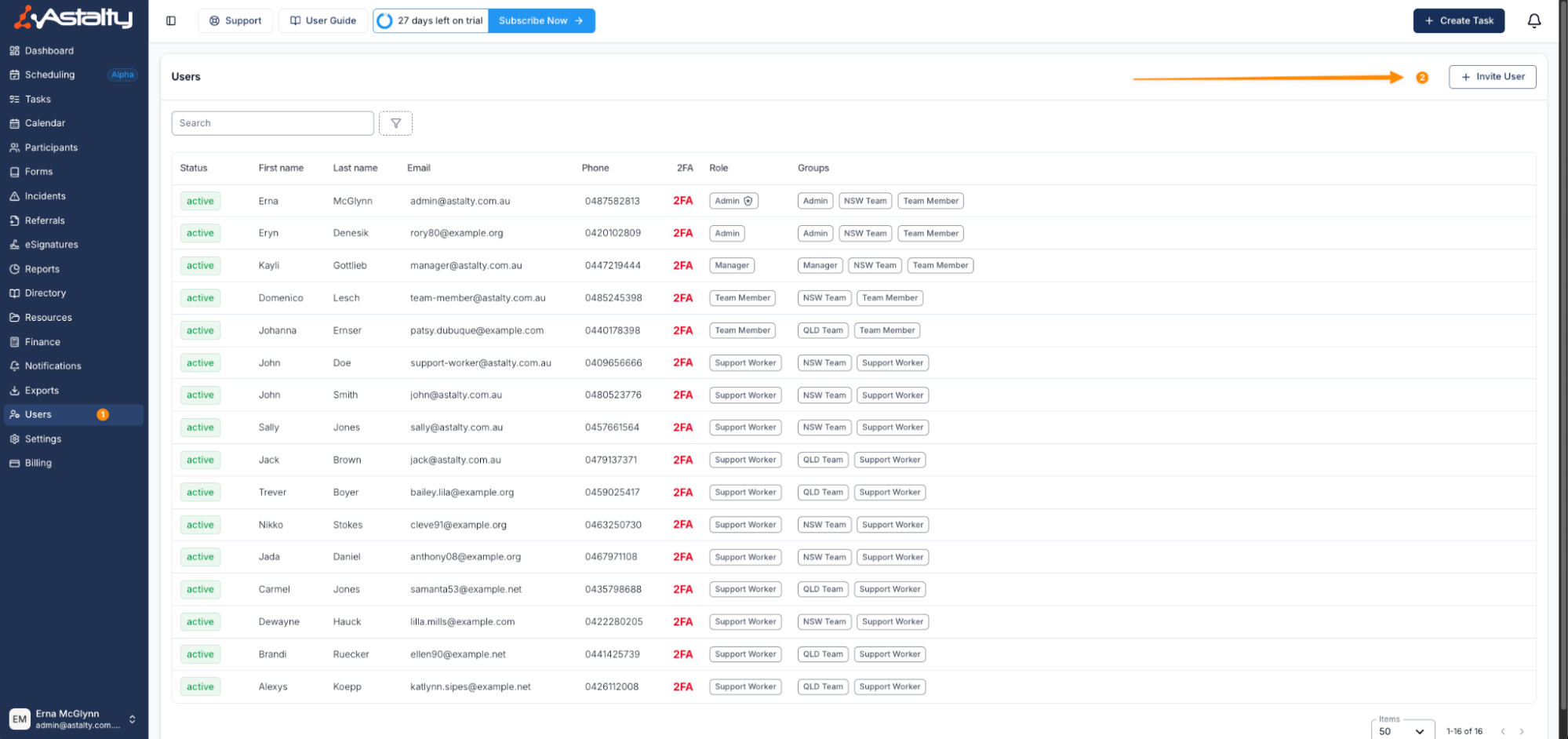
- Choose the User Type, such as Support Worker.
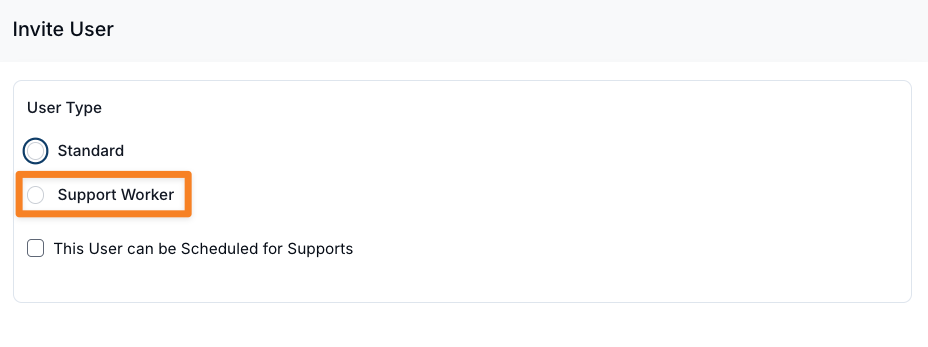
- Decide whether the user can be assigned to supports. Choosing Support Worker turns on Can be Scheduled for Supports:
- Leave it on to allow assignments, clock-in and clock-out actions, and unscheduled travel reporting.
- Turn it off if the user should not be scheduled yet.
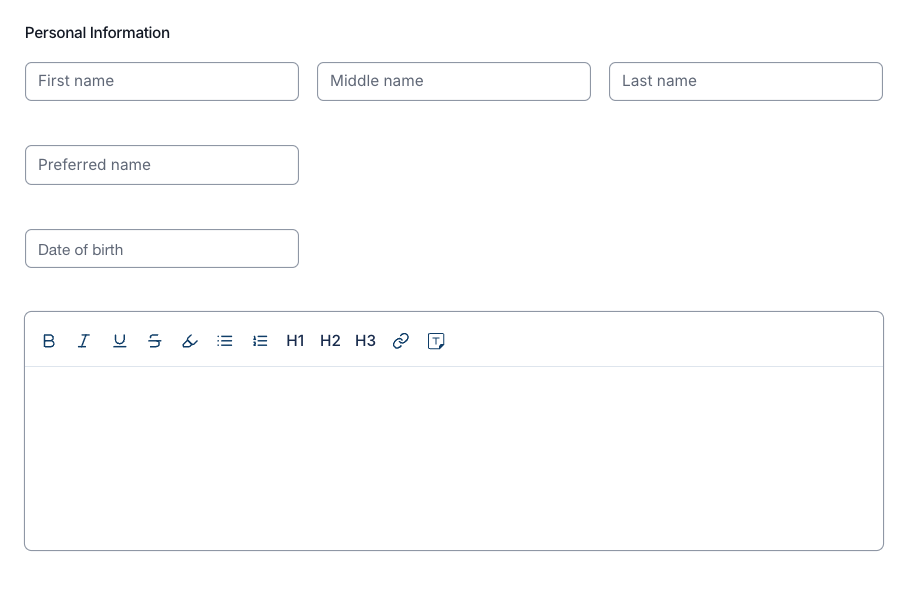
- Enter the Support Worker's details:
- Personal information
- Contact details
- Bio and any other relevant details
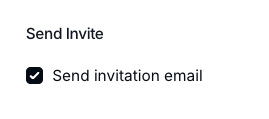
- Leave Send invitation email on to send the invitation now, or turn it off to create the user without sending the email.
- Select Invite User.
Other Information
- If you choose not to allow scheduling when first inviting a Support Worker, you can enable this option later by editing their user profile.
- Turning off scheduling creates the user without making them available for support assignments. Send invitation email controls whether the invitation email is sent.
Video Overview
The video demonstrates the invitation workflow.