- Administration
- MYOB
- Reconciling Payments in MYOB
Reconciling Payments in MYOB
Record payments in MYOB and Astalty picks them up against the matching invoices.
Overview
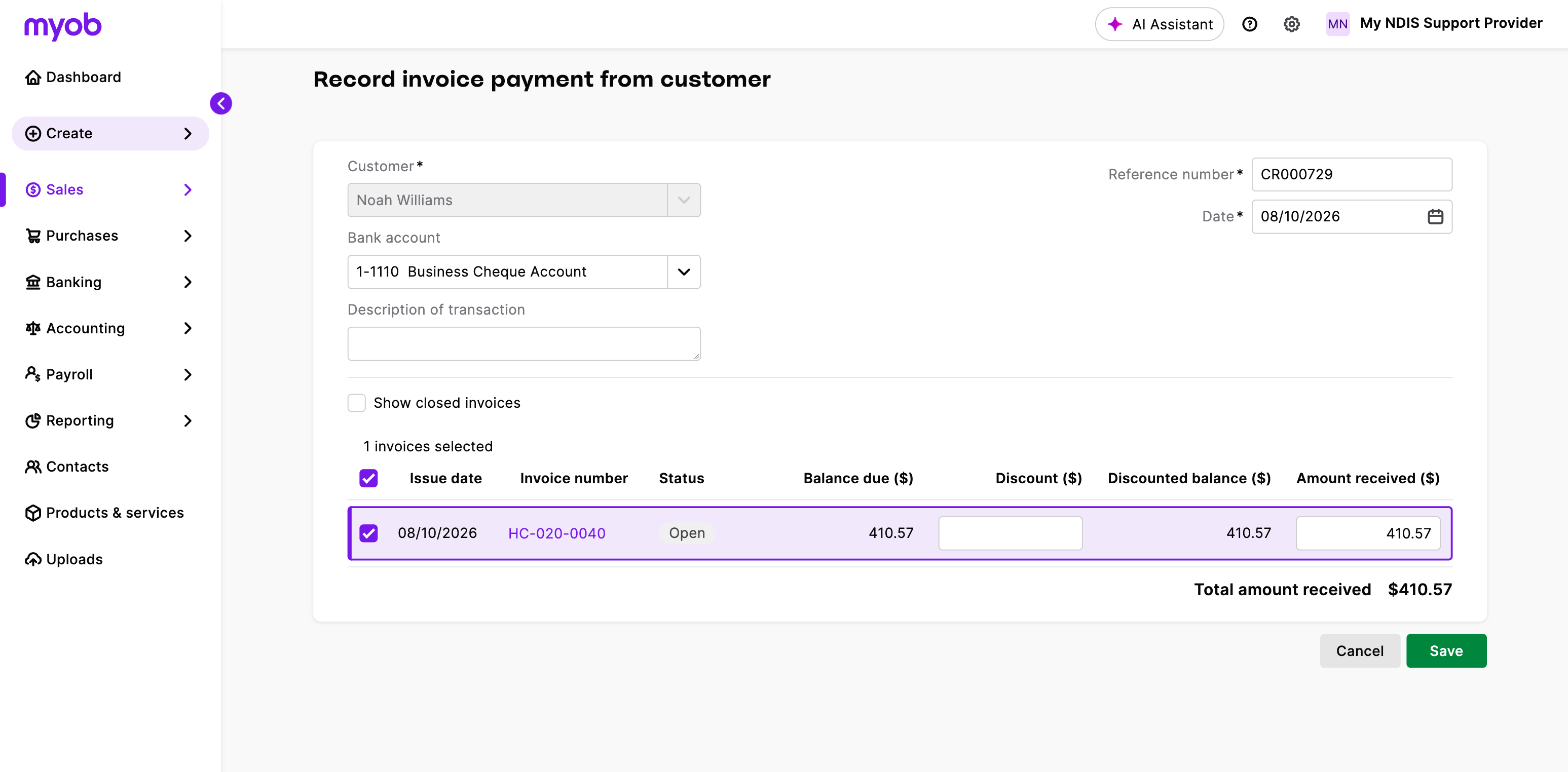
Once an invoice has reached MYOB, MYOB is where you record the payment. Record it there and Astalty picks it up, creating the matching payment against the same invoice, so the invoice is marked as paid in both systems without anyone entering it twice.
This is the flow for plan managed and self managed invoices. NDIA managed invoices work differently; see NDIA Managed Invoices.
Before You Start
Three things have to be true before a payment recorded in MYOB can find its way back:
- The invoice batch has synced to MYOB. Astalty matches on the MYOB invoice itself, so an invoice that never reached MYOB can't take a payment from it. With Sync invoices automatically on, this happens when you finalise the batch. If it's off, click Actions, then Sync with accounting on the finalised batch first; see Sync With MYOB.
- The MYOB connection is current. Astalty doesn't check MYOB while the connection is lapsed; see Reconnecting MYOB.
- The invoice still has an amount outstanding in Astalty. A payment already recorded manually in Astalty leaves nothing for the MYOB payment to fill.
An invoice is open and payable in MYOB as soon as it arrives, so there is nothing to approve first.
Recording the Payment in MYOB
Record it however you normally would, as long as the payment is applied to the invoice Astalty created:
- Record payment on the invoice.
- A customer payment covering several invoices, the usual case for a Plan Manager paying several invoices in one deposit.
- A bank feed transaction matched to the invoice.
A Receive Money transaction that isn't applied to the invoice doesn't count. The payment can be dated in the past. There is nothing to configure in MYOB to make this work, and nothing to click in Astalty afterwards.
How Often Astalty Checks
MYOB doesn't tell Astalty when a payment is recorded, so Astalty asks it:
| When (Sydney time) | How often |
|---|---|
| 8am to 6pm | Every 10 minutes |
| Outside those hours | Hourly |
Each check covers every synced invoice that still has an amount outstanding, however old, except voided invoices, NDIA managed invoices and invoices in archived Invoice Batches. On a busy day a large backlog of outstanding invoices can take more than one check to get through.
What Happens in Astalty
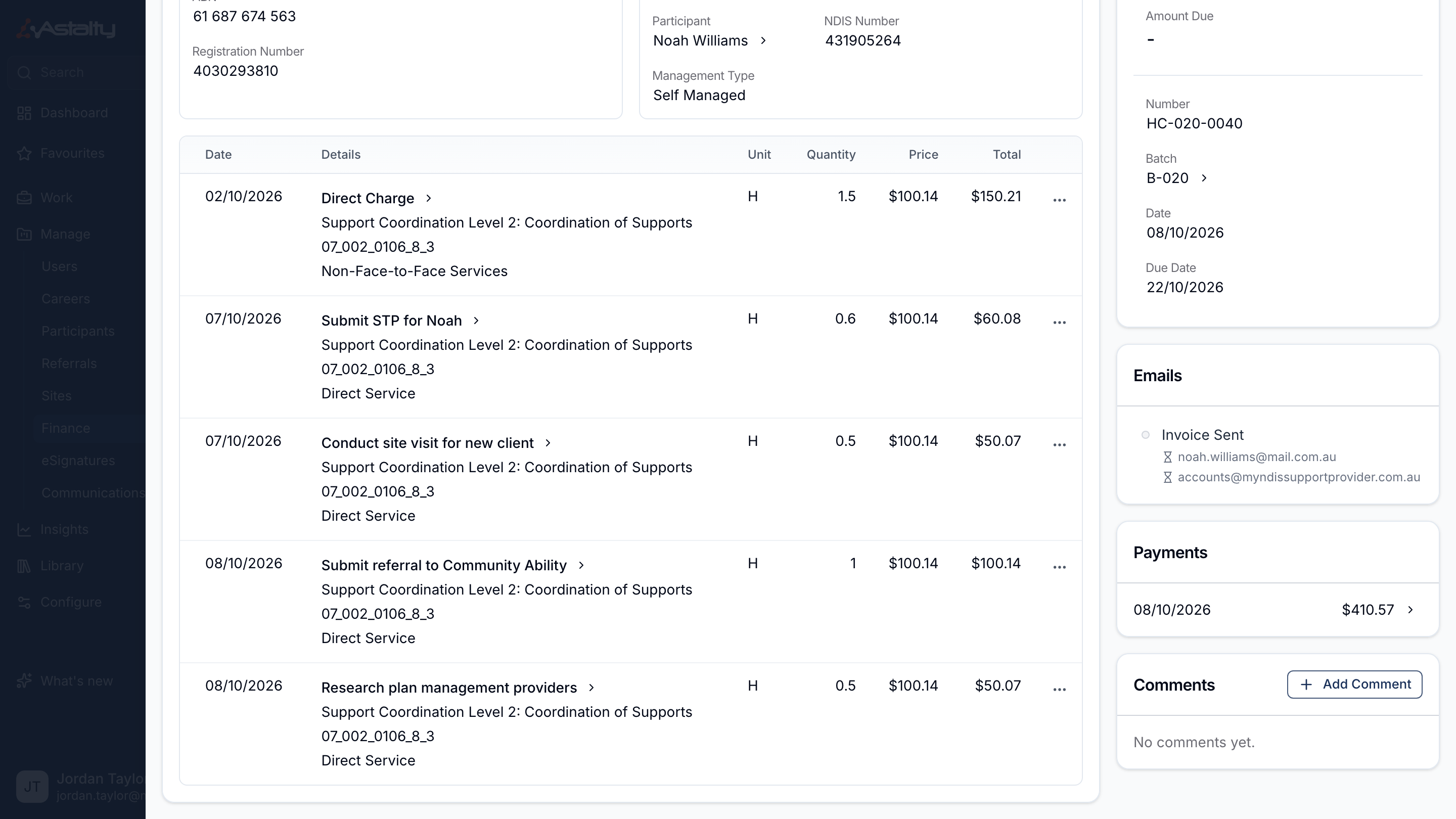
Astalty creates a payment against the invoice, with a View in MYOB button. That payment carries:
| On the payment | What it shows |
|---|---|
| Type | Plan if the invoice has a Plan Manager, otherwise Self |
| Amount | The amount MYOB applied to this invoice |
| Date | The payment date in MYOB |
| Reference | The MYOB receipt number |
| Allocation | The full amount, allocated to the invoice |
The invoice's outstanding amount drops accordingly and its status moves to Paid, and the invoice batch's Outstanding total refreshes to match.
Plan Managed and Self Managed
The payment itself works the same way for both. The only differences are who the invoice is addressed to in MYOB, and how the resulting payment is labelled in Astalty.
| Plan managed | Self managed | |
|---|---|---|
| MYOB customer card on the invoice | The Plan Manager, or the Participant if you've changed Who should we use to create invoices for Plan Managed invoices? | The Participant |
| Payment Type in Astalty | Plan | Self |
| Plan Manager on the payment | Set | Not set |
Partial Payments
A part payment is handled the same way as a full one. Astalty brings across each payment recorded in MYOB as its own payment record, so an invoice paid in two instalments ends up with two payments and stays Awaiting Payment, with the remaining Amount Due, until the second payment lands, or Overdue once past its due date.
One MYOB customer payment covering several invoices becomes one Astalty payment per invoice, each for the amount applied to that invoice.
Payments From MYOB Are Managed in MYOB
Once a payment has come across, MYOB owns it. In Astalty, a payment from MYOB can't be edited, can't have its allocations cleared, and can't have documents attached. Trying to delete it gives you a Cannot Delete Payment message:
This payment has been synced with your accounting platform and cannot be deleted. Please delete it there first.
That is the correct order of operations. Delete the payment in MYOB, and the next time Astalty checks that invoice it removes the matching payment here too, dropping the invoice back to outstanding. Manual and NDIA payments on the same invoice are left alone. Sync payments on the batch checks every invoice in it, paid ones included, within 5 to 10 minutes. It only appears while the batch still has an amount outstanding, so in a fully paid batch wait for the hourly check described below.
- A payment edited in MYOB (a new amount or date) isn't picked up, because Astalty already holds that payment. Delete it in MYOB and record it again.
- A fully paid invoice isn't checked on the usual schedule. Astalty looks through invoices reopened in MYOB every hour, a slice at a time, so on a large company file the payment can take a few hours to drop off. Voiding the invoice checks MYOB first, so a payment deleted there drops off straight away when you void.
- An invoice in an archived Invoice Batch is never checked again, so a payment deleted in MYOB stays in Astalty. Contact support@astalty.com.au if one needs removing.
If the Payment Hasn't Appeared
Nearly always this is one of the three conditions above, or a sync error on the invoice.
If everything looks right and the payment still hasn't come through, use Sync payments on the batch to ask Astalty to check now; see Sync Payments.
What Doesn't Come Back From MYOB
Only payments are read from MYOB. In particular:
- Credits and credit notes applied in MYOB don't reduce the outstanding amount in Astalty, and the invoice keeps receiving payment reminders. Clear the balance in Astalty as well; see Writing Off an Unpaid Balance.
- Money a customer overpaid that MYOB holds as unapplied credit isn't brought across.
- Changes to the invoice in MYOB don't flow back.
- Invoices created in MYOB by hand only take part if they match an Astalty invoice exactly. When a batch syncs, Astalty adopts an existing MYOB service invoice with the same number, total and customer instead of creating a second one; any other MYOB invoice isn't linked to Astalty.
NDIA Managed Invoices
NDIA managed invoices are deliberately kept out of this flow. Astalty never brings a MYOB payment back onto an NDIA managed invoice, because it reconciles NDIA claims line by line from the receipt file instead. That always applies; it isn't something you can switch on.
Whether the invoices themselves reach MYOB is a separate question, controlled by the advanced setting Send NDIA invoices. It's off by default and Astalty recommends leaving it off; see Send NDIA Invoices.
Either way, reconcile the payment itself in Astalty using Reconciling NDIA Payments. What you do in MYOB depends on that setting:
- Setting off (the default): the NDIA invoices never reach MYOB, so record the total the NDIA paid in MYOB as a single Receive Money transaction.
- Setting on: the invoices are already in MYOB against the NDIA customer card, so apply the NDIA deposit to them there. Don't also add a Receive Money transaction, or you'll count the income twice. Recording it in MYOB still won't create the payment in Astalty, so you have to record it in both places.
Related Guides
- Sync With MYOB: manually syncing a batch or its payments.
- Configuring the Integration: the plan managed contact and Send NDIA invoices settings referenced above.
- Plan and Self Managed Payments: recording a payment manually when you aren't using MYOB.
- Reconciling NDIA Payments: the separate NDIA process.
- Deleting Payments: removing a payment that was recorded in Astalty.
- Voiding Invoices: voiding an invoice that is in MYOB.