Reconciling NDIA Payments
Once the NDIA has processed your bulk upload payment request and the portal provides a results file, download it for reconciliation. Portal processing times and labels can change. See Finding the NDIA receipt file for the portal walkthrough.
Creating the Payment
After you have downloaded the receipt file from the portal, open the relevant batch on the Invoice Batches page. Open Actions and select Add NDIA Payment.

Upload the Receipt File
On the new payment, drag the receipt file into the Results File section or select it from your computer.

Apply the receipt file
Select Apply Results File. Astalty matches each result to the submitted claim reference and creates the supported charge-level allocations.

Payment Errors
If the NDIA rejects a claim, Astalty shows an error on the relevant charge. Review the rejection, correct the charge when appropriate, then generate a new bulk upload file from the Invoice Batch.

Missing Claims Handling
If a results file contains claim references that are not in this Invoice Batch, Astalty can still apply the matching results. You do not need to edit the file to remove the missing references.
What Are Missing Claims?
A missing claim occurs when a claim reference in the receipt file cannot be found in the invoice batch you're applying it to. This can happen if a claim was removed, billed in a different batch, or if the wrong results file was selected.
What Happens When You Apply a Receipt File
When you click Apply Results File, Astalty automatically checks that all claim references in the file exist in the invoice batch.
- If all claims match, the file is applied as normal.
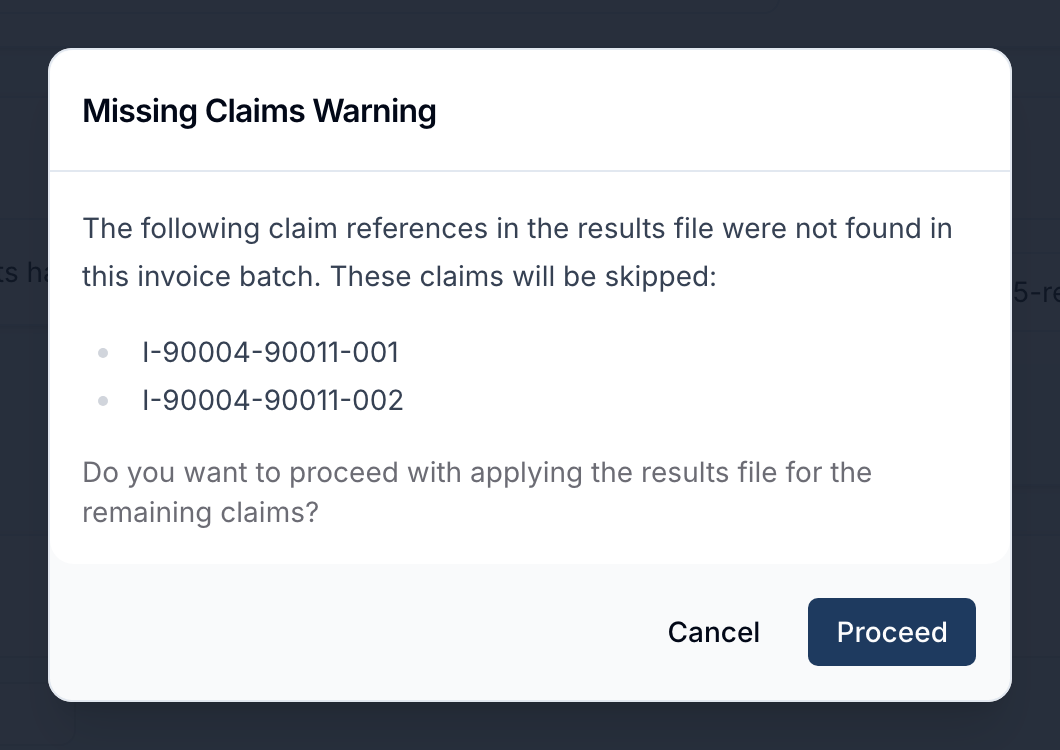
- If one or more claims are missing, Astalty will display a Missing Claims Warning dialog. The warning dialog will:
- Show a list of the claim references that could not be found
- Explain that these missing claims will be skipped if you continue
- Give you the choice to either Proceed or Cancel. If you choose to proceed, Astalty will apply the receipt file and process only the claims that exist in the batch. Any missing claims will be skipped, and payment allocations will be created for the valid claims only.
Example Scenario
If your receipt file includes claims A, B, C, and D, but the invoice batch only contains claims A, B, and C, Astalty will notify you that claim D is missing. You can then choose to proceed, in which case claims A, B, and C will be processed successfully while claim D is ignored.
Open Payments
When a results file contains claims with an OPEN result, Astalty warns you but still lets you apply the completed results in the file.
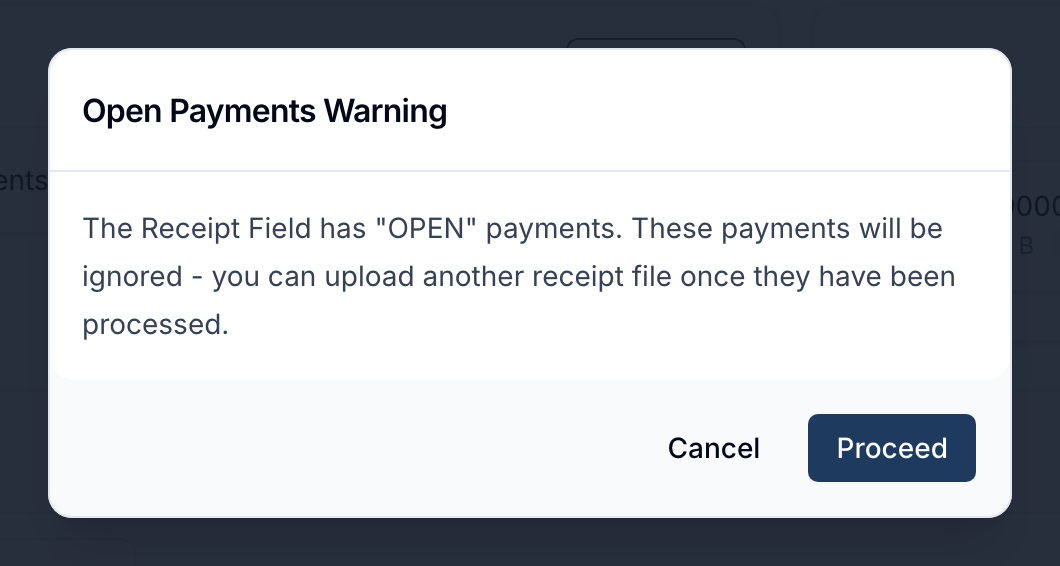
The OPEN claims remain unpaid after the file is applied.

After the NDIA processes those claims, download the updated results file and add another NDIA Payment from the same Invoice Batch. Keep the earlier payment. Astalty recognises results already applied and does not duplicate those allocations; it applies the newly paid claims from the later file.
