- Administration
- MYOB
- Configuring the Integration
Configuring the Integration
Choose the default income account, map Charge Items and cost codes, and set how invoices sync to MYOB.
Configuration
You need a valid MYOB configuration for the integration to work. Open Settings → Integrations → MYOB: the Overview shows the Company File, Connection, Default Income Account and Automatic Invoice Sync.
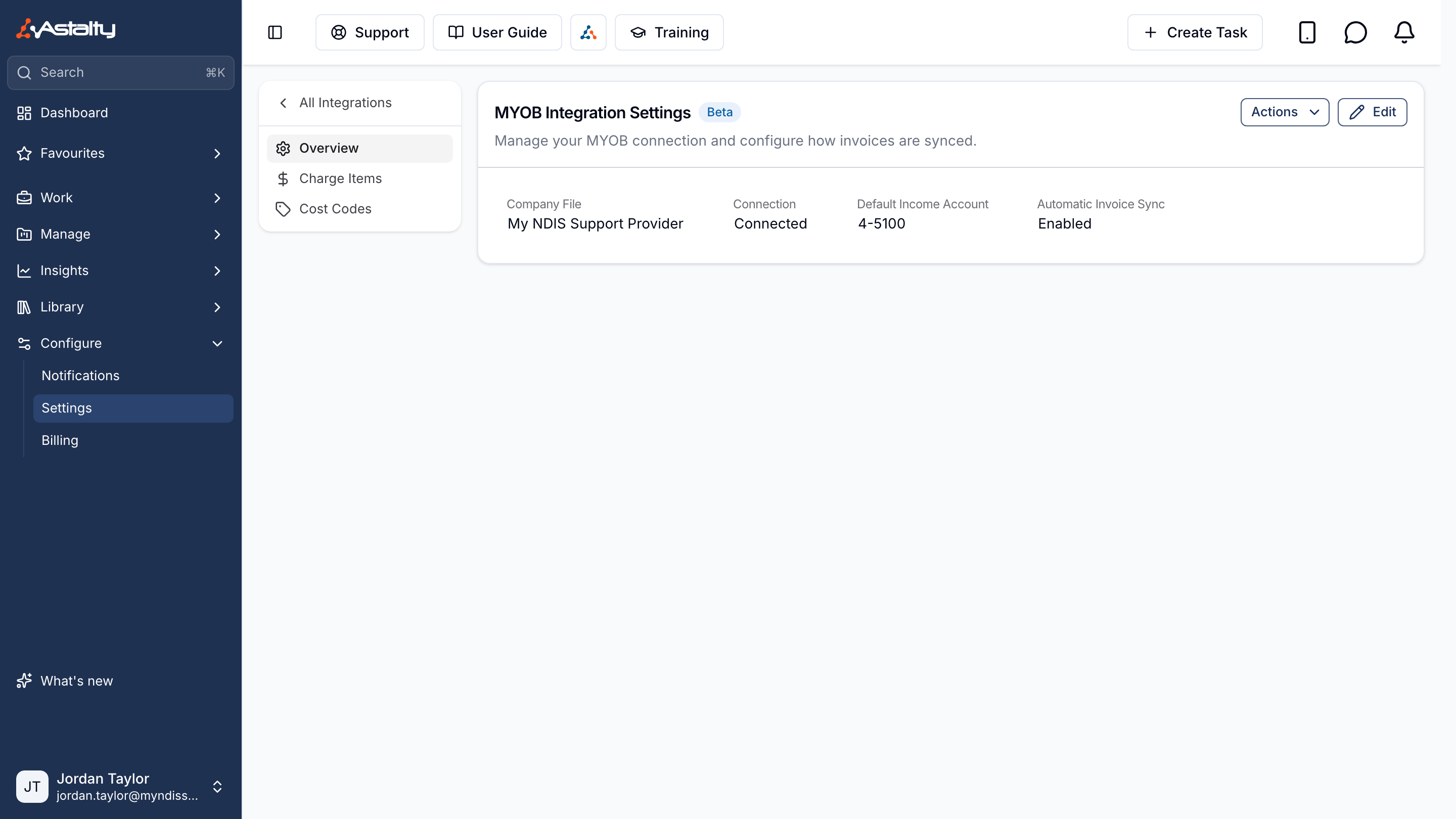
Click Edit to open Update MYOB Integration Settings.
Default Income Account
Astalty doesn't sync any invoice to MYOB until a default income account is chosen. Until then the page shows Default Income Account Needed, finalised batches aren't sent, and the person who finalises one is emailed We couldn't sync your invoices with your accounting platform. Those batches aren't sent later on their own: after choosing the account, use Sync with accounting on each one.
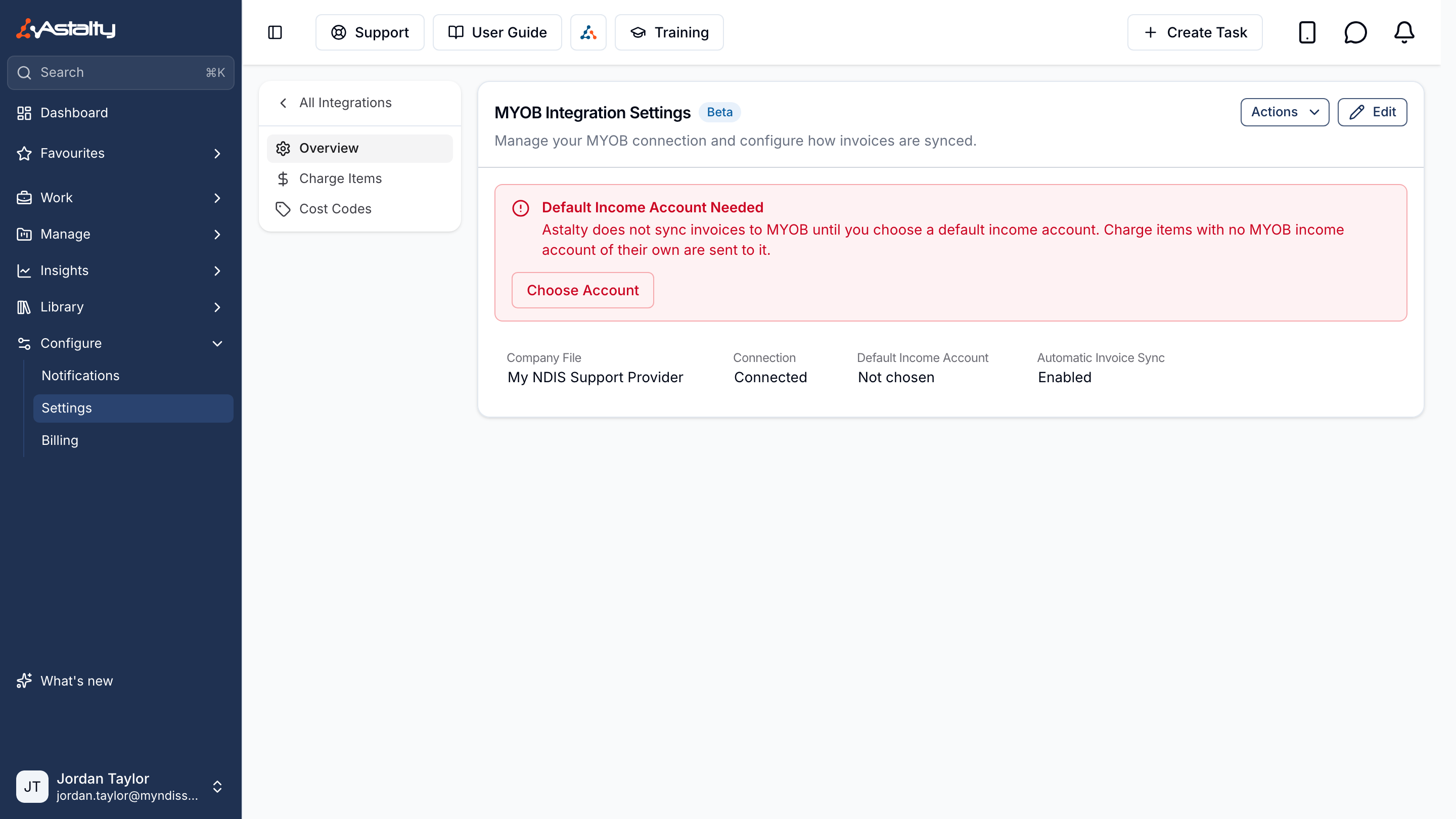
- Click Edit, or Choose Account on the notice.
- Choose the Default Income Account.
- Click Update.
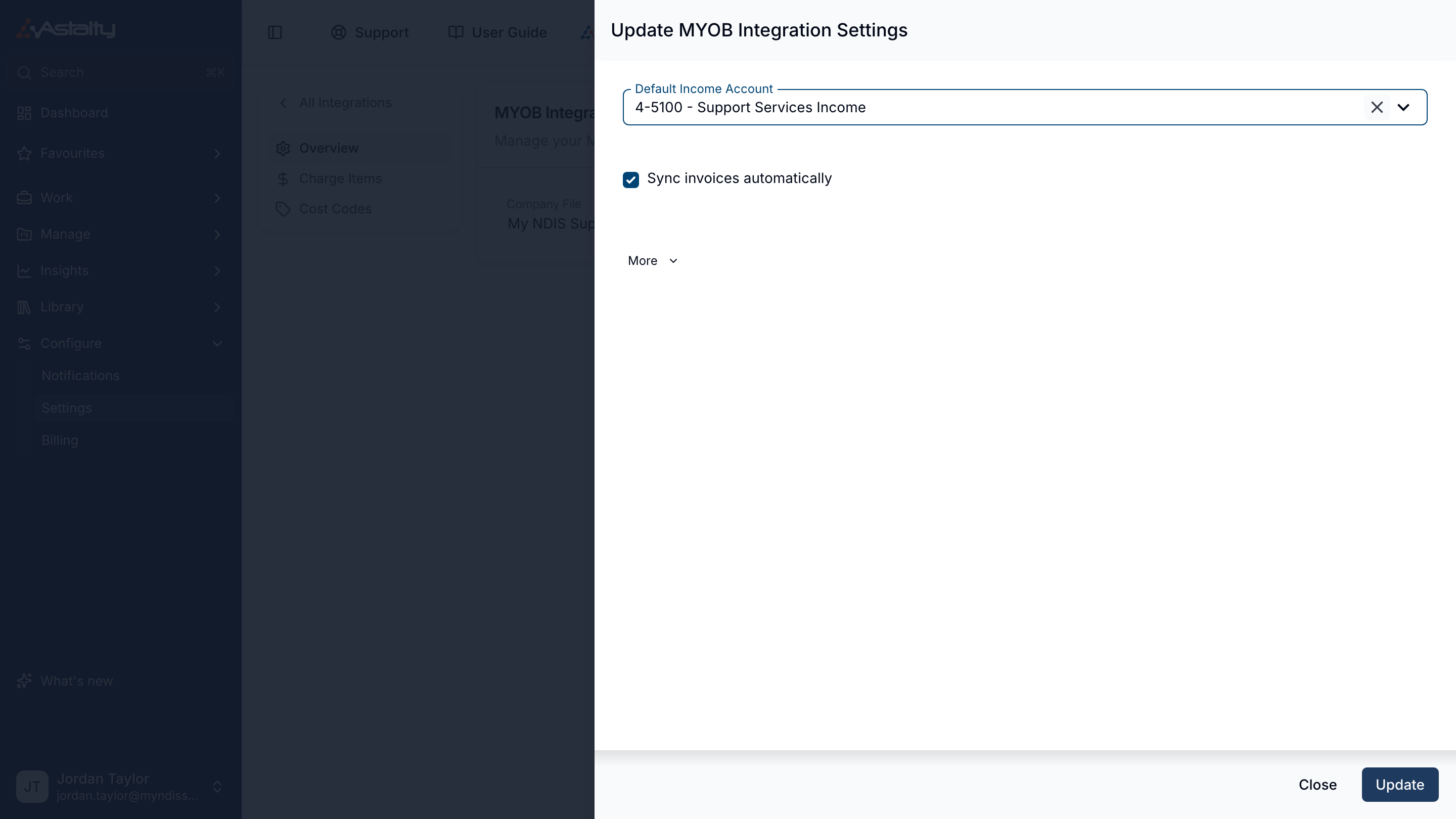
The list holds the company file's active income and other income accounts. Each invoice line uses its Charge Item's own income account, or this one when the Charge Item has none.
Sync Invoices Automatically
On by default. Each Invoice Batch is sent to MYOB as soon as you finalise it, and each invoice arrives in MYOB open and payable.
Untick Sync invoices automatically in the Edit drawer to send batches yourself instead, with Sync with accounting on the finalised batch. See Sync With MYOB.
Advanced Settings
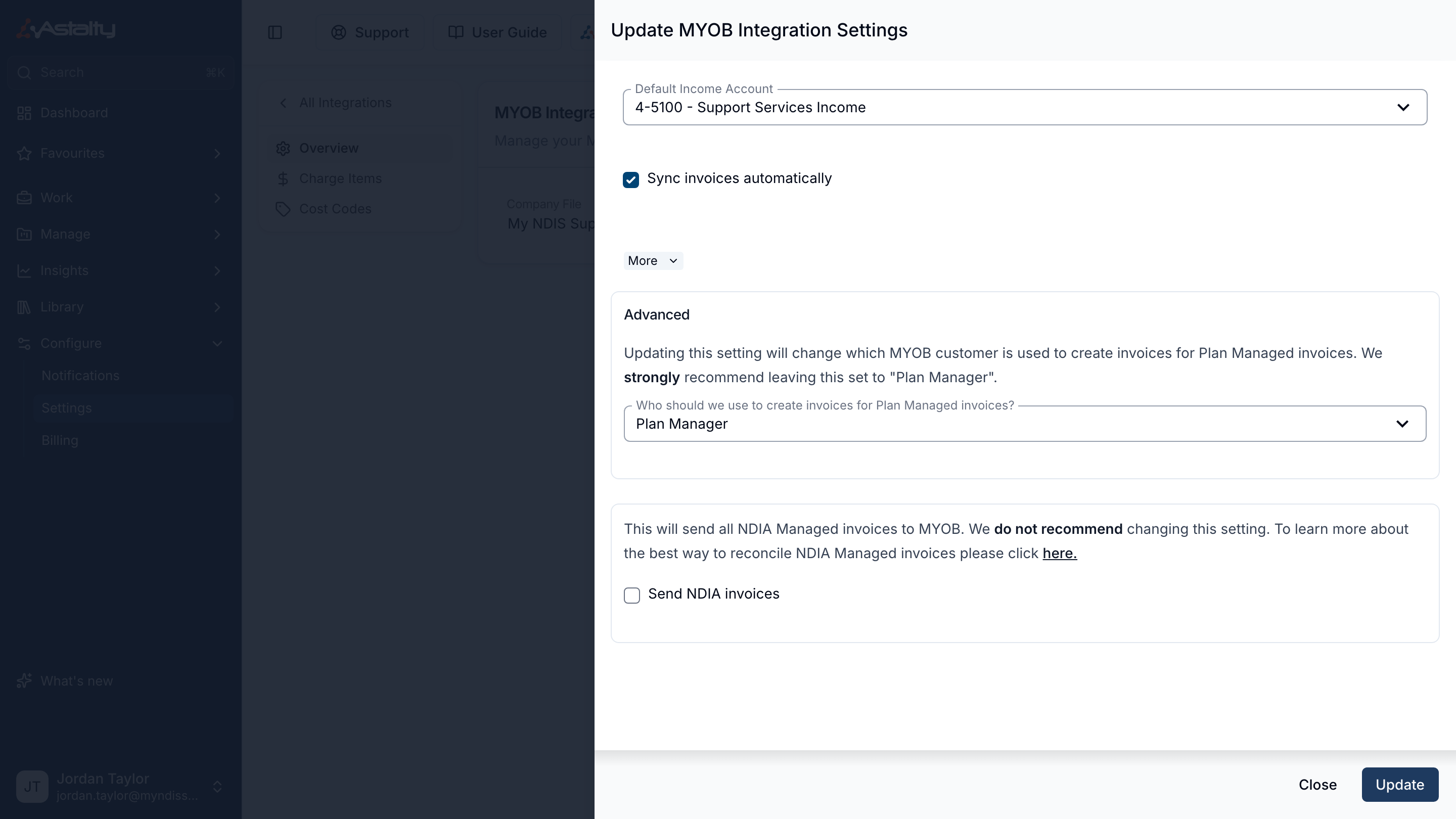
In the Edit drawer, click More.
Changing the Invoice Contact
Who should we use to create invoices for Plan Managed invoices? decides which MYOB customer card a plan managed invoice is raised against: Plan Manager (the default, and Astalty's recommendation) or Participant.
Send NDIA Invoices
Send NDIA invoices sends NDIA managed invoices to MYOB alongside your plan and self managed ones. It is off by default, and Astalty recommends leaving it off.
With it off, NDIA managed invoices never reach MYOB. You reconcile the NDIA batch in Astalty against the receipt file, which tells you how much the NDIA paid, and record that total in MYOB as a single Receive Money transaction. See Reconciling NDIA Payments.
Why NDIA Invoices Are Kept Out of MYOB
Astalty reconciles NDIA claims line by line from the receipt file, which is the only thing that matches how the NDIA actually pays:
- The NDIA rejects claims individually. An invoice commonly comes back part paid, with the rejected charges fixed and re-claimed in a later bulk upload file. The invoice in MYOB keeps showing its full amount until every line has been paid, across however many attempts that takes.
- A claim can come back OPEN, then be paid in a later deposit, splitting one invoice across two receipt files.
- Nothing reconciles itself. Astalty never brings a MYOB payment back onto an NDIA managed invoice, whatever this setting says, and payments never travel from Astalty to MYOB. Turning it on means reconciling twice: once in Astalty from the receipt file, and again by hand in MYOB.
- Every NDIA invoice uses one customer card. Astalty creates them in MYOB against a single card named NDIA, so one deposit covering a whole batch has to be split across those invoices by hand.
Charge Item Settings
Income Account
Click Charge Items in the MYOB menu. Charge Item Mapping lists every Charge Item, archived ones included, with its Income account. A Charge Item showing Not mapped uses the default income account, and a notice above the list counts how many do. Without the Scheduling add-on, Charge Items that belong to a Charge Item Set aren't listed.
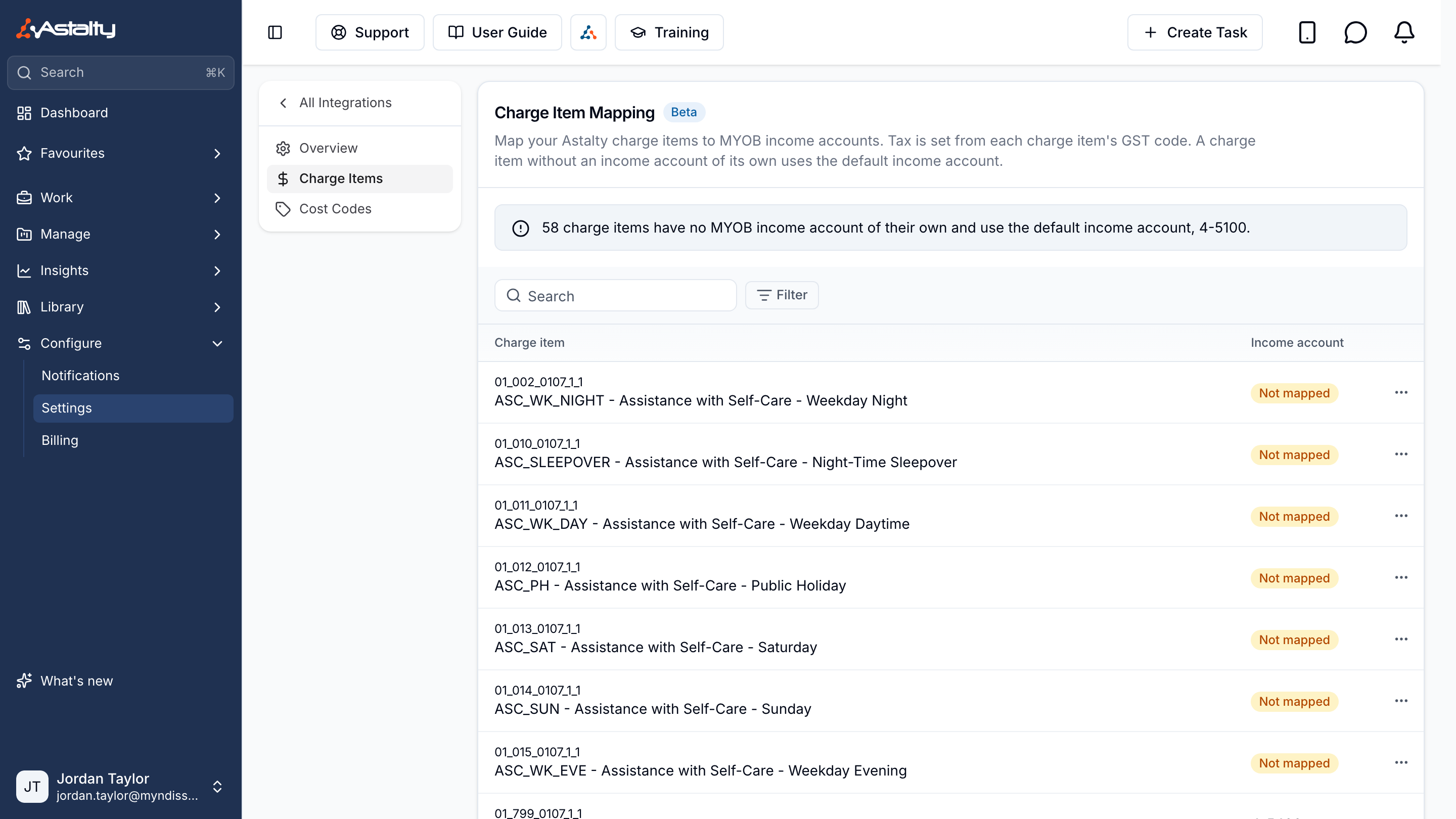
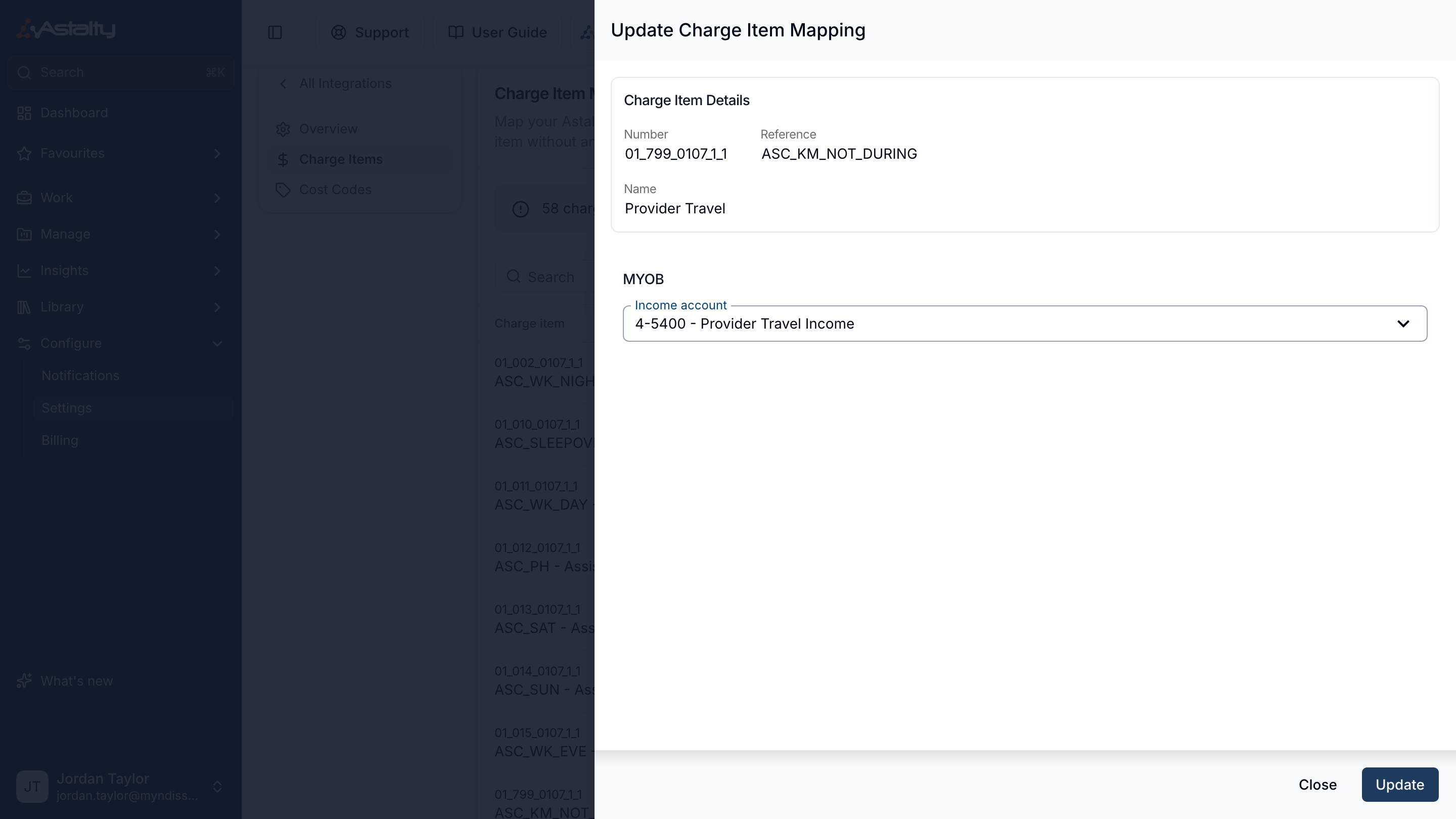
- Click the menu on a Charge Item's row, then Edit.
- Choose the Income account.
- Click Update.
Filter Mapping by Not mapped to find the Charge Items still using the default.
Tax Codes
Each line's MYOB tax code comes from the Charge Item's GST Code. There is nothing to map.
| GST Code | MYOB tax code |
|---|---|
| P1 | GST |
| P2 | FRE |
| P5 | N-T |
The company file must have each tax code your Charge Items use, and always GST, which Astalty sets on every customer card it creates.
Cost Codes and MYOB Jobs
If you use Cost Codes, you can map each one to a MYOB Job. An invoice line for a support with a mapped cost code carries that Job into MYOB.
Mapping a Job needs permission to update both Settings and cost codes.
- Click Cost Codes in the MYOB menu.
- Click the menu on a cost code's row, then Edit MYOB Job Mapping.
- Choose the Job.
- Click Update.
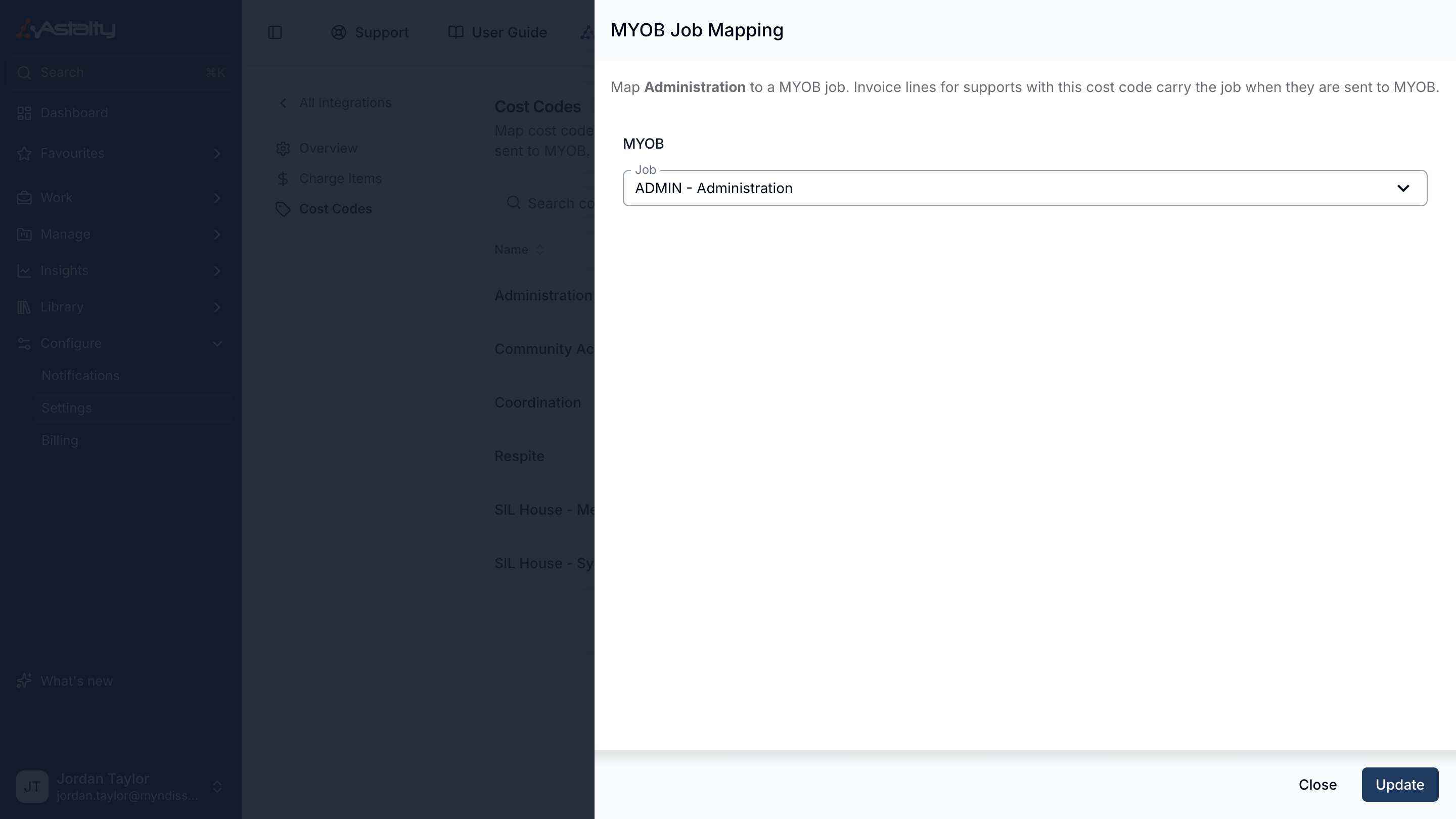
The list holds the company file's active Jobs. Only a support's cost code sets a Job, never its Charge Item, so a line whose support has no cost code (or an unmapped one) carries no Job. Cost Codes appears in the MYOB menu only when cost codes are turned on in Scheduling Settings. The same Edit MYOB Job Mapping option is on Settings → Scheduling → Cost Codes.
Invoice Number Prefix
MYOB keeps an invoice number of at most 13 characters. Astalty numbers invoices as prefix, batch number (3 digits) and invoice number (4 digits), so ABC-001-0001 is 12.
While you invoice through MYOB, a new invoice number prefix can have at most 3 letters or numbers. Change it in Invoice Settings.
The numbers grow past their padding: batch 1000 or invoice 10000 adds a character. A 1- or 2-character prefix leaves more room. An invoice number over 13 characters doesn't sync.