- Administration
- MYOB
- Sync With MYOB
Sync With MYOB
How finalised invoices reach MYOB, what they look like there, and how to fix the ones MYOB refuses.
Overview
With Sync invoices automatically on, finalised batches reach MYOB on their own. Payments recorded in MYOB come back on their own whichever way the batch was sent.
What Arrives in MYOB
Each invoice in the batch is created in MYOB as an open Service sale. NDIA managed invoices are skipped unless Send NDIA invoices is on.
| In MYOB | Comes from |
|---|---|
| Invoice number | The Astalty invoice number, e.g. I-001-0001 |
| Customer | The Plan Manager (plan managed), the Participant (self managed) or a card named NDIA. See Customer Cards. |
| Customer PO number | The Participant's name and NDIS number |
| Issue date and Due date | The invoice date, and the due date from your invoice terms |
| Description | Per line: Participant, NDIS number, service date, support item number, Charge Item name, the claim type (or Direct Service) with any cancellation reason, and any charge note. Descriptions longer than 1000 characters are cut. Plan managed lines also carry the claim reference when it is turned on in Invoice Settings. |
| Account | The Charge Item's income account, or the default income account |
| Job | The Job mapped to the support's cost code, if any |
| Tax code | GST, FRE or N-T, from the Charge Item's GST Code |
Amounts are sent tax inclusive.
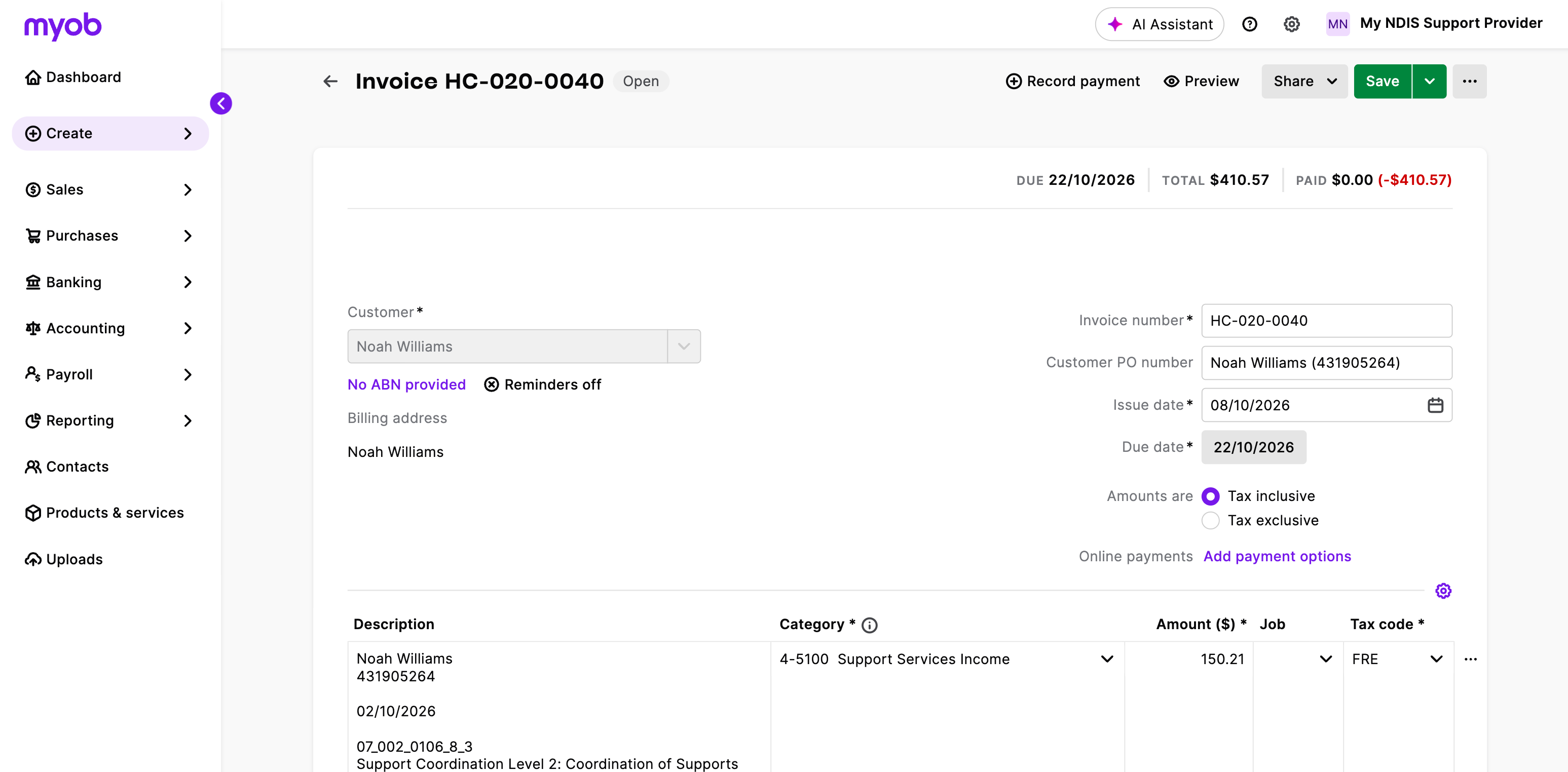
On a synced invoice in Astalty, View in MYOB opens MYOB's invoice list filtered to that invoice number and date. Click the invoice there to open it.
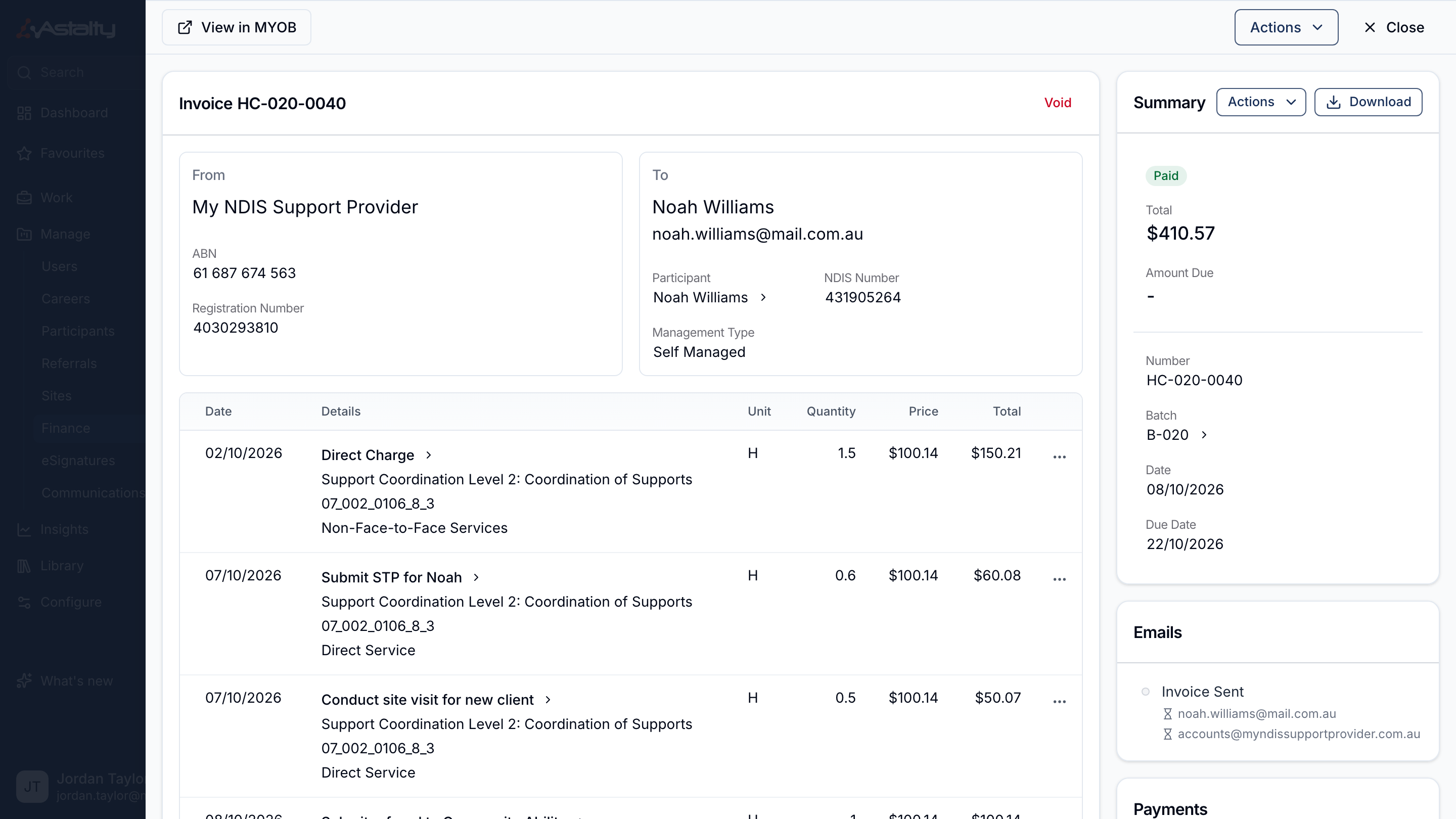
Customer Cards
Before Your First Sync: Set Card IDs
In MYOB, set the Card ID on each Participant's existing customer card to their NDIS number. Do this before the first sync, and for any card added by hand later.
Astalty never writes a Card ID onto a card it finds by name. A card with no Card ID keeps being matched by name, so two Participants with the same name share that one card until its Card ID is set to the right Participant's NDIS number. Once it is, Astalty finds the card by that number, whatever name it's under, and the other Participant gets their own new card.
Cards Astalty creates for a Participant with a 9-digit NDIS number already carry it as their Card ID.
How Astalty Finds the Card
A Participant with a 9-digit NDIS number is matched by Card ID first. Astalty looks for an active individual MYOB card whose Card ID is that NDIS number and uses it, whatever name it's under, so renaming a Participant doesn't create a second card.
If no card has that Card ID, or the Participant has no NDIS number (or one that isn't 9 digits, such as TBC), Astalty looks for an active MYOB card with the customer's name, ignoring capitals and spaces at either end: a company card for a Plan Manager or the NDIA, an individual card (surname and first name) for a Participant. Plan Manager and NDIA cards are only ever matched by name. A same-named card whose Card ID is another Participant's NDIS number is skipped. A Participant with no last name is matched and carded with their first name as both surname and first name.
- No match: Astalty creates the card, with invoice delivery set to Nothing so MYOB doesn't email the invoice as well. A Participant's card gets their 9-digit NDIS number as its Card ID; one with no number, or a placeholder such as TBC, gets none.
- One match: the invoice goes against it. A card found by name is used as it is: Astalty doesn't add a Card ID to it. If that card's Card ID is a different 9-digit number that no other Participant holds (for example, after an NDIS number was corrected), the invoice isn't sent; see Fixing Sync Errors.
- Two or more active matches: the invoice isn't sent; see Fixing Sync Errors.
First names longer than 20 characters and company names longer than 50 are cut to fit. Inactive cards are ignored when matching by name, so making a card inactive in MYOB means Astalty creates a new one next time. A Participant whose NDIS number is the Card ID of an inactive card isn't carded until you reactivate that card or change its Card ID.
Syncing a Batch by Hand
Use this for a batch finalised with Sync invoices automatically off, a batch that failed to sync, a batch finalised while no default income account was set, or a batch finalised before you connected MYOB:
- Open the batch from Invoice Batches.
- Click Actions, then Sync with accounting.
- Click Sync.
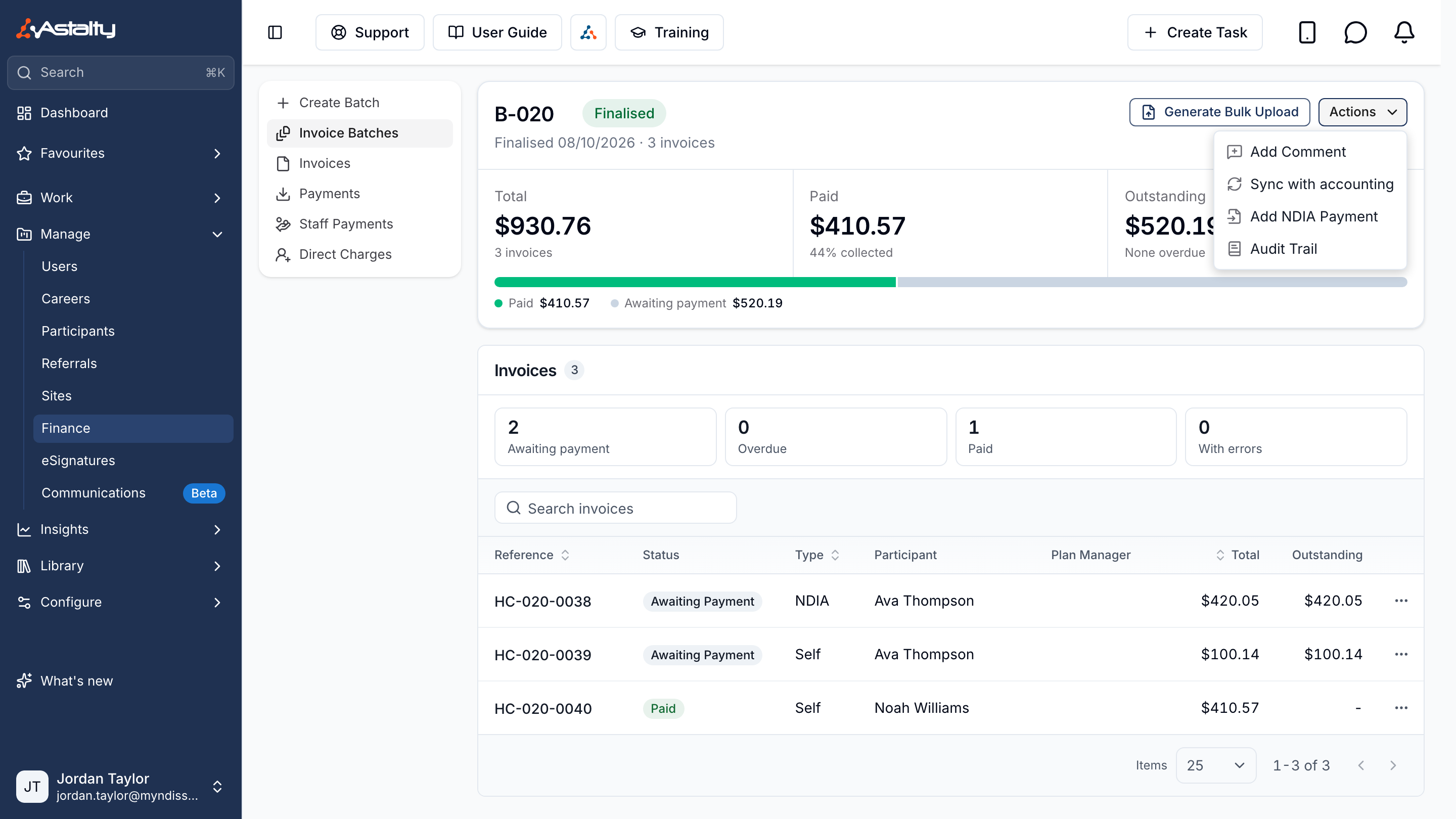
Astalty confirms This batch has started syncing with your accounting platform. Only invoices not yet in MYOB are sent, so syncing again never duplicates one. Voided invoices are never sent.
Sync with accounting only appears while MYOB is connected (including while the connection has lapsed), a default income account is set, and the batch isn't already queued or finished syncing.
Fixing Sync Errors
An invoice MYOB couldn't take shows a sync error count in the batch's invoice list, and the batch shows … sync errors from your accounting platform under Needs attention. Open the invoice to read each message in its Sync errors card.
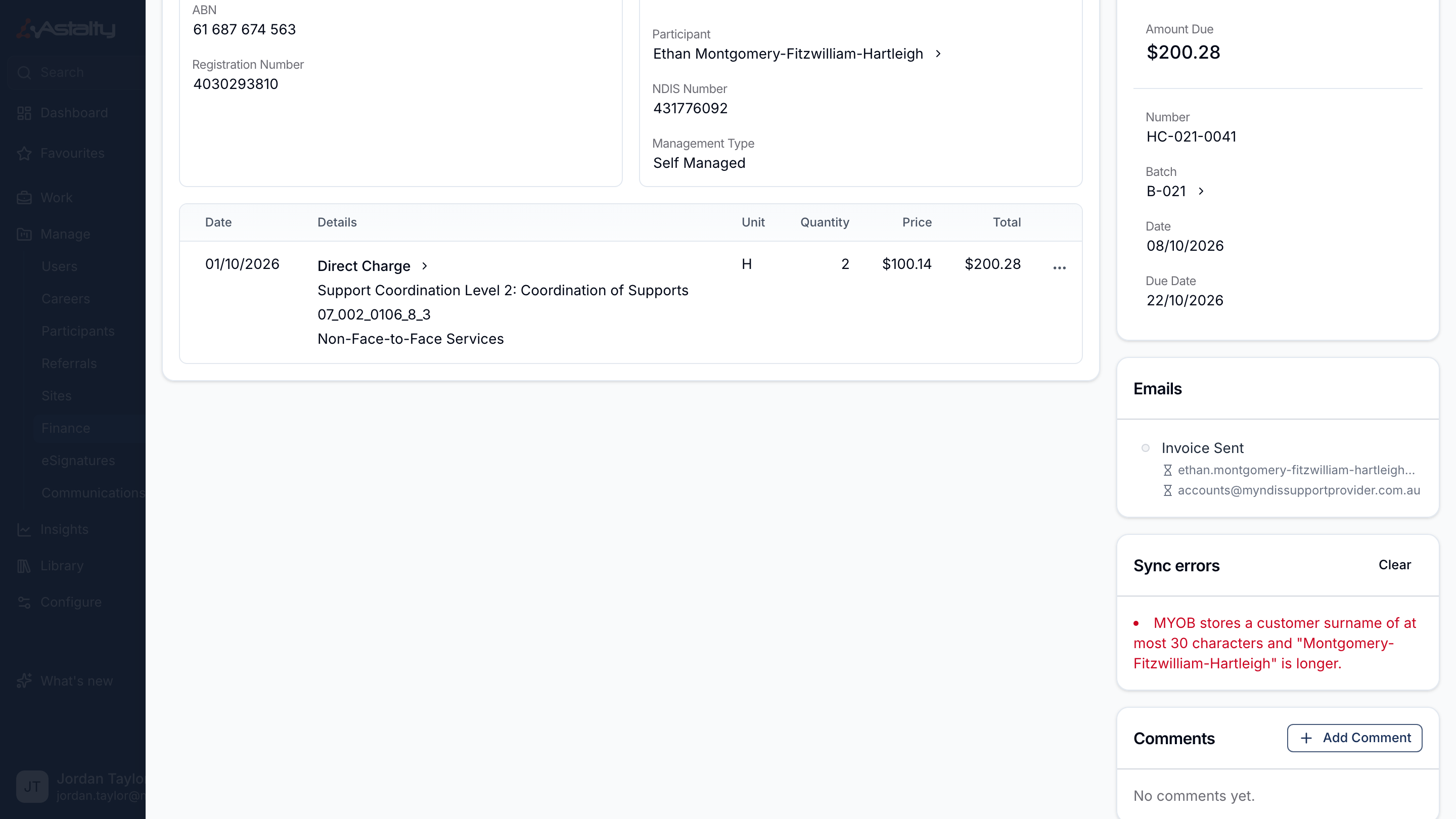
| Sync error | Fix |
|---|---|
| No MYOB account number is mapped for the charge item "…". | Choose a default income account, or map the Charge Item. |
| This invoice has no reference, so MYOB has nothing to number it with. | Contact support@astalty.com.au. |
| MYOB stores an invoice number of at most 13 characters and "…" is longer. Shorten the invoice number prefix. | Shorten the invoice number prefix so new invoices fit. The refused invoice keeps its number, so void it and invoice its charges again in a new batch; see Finding and fixing voided charges. |
| MYOB holds … active cards named "…", so the invoice cannot be carded without choosing between them. | In MYOB, merge the cards or make all but one inactive. |
| MYOB holds … active cards with Card ID … for …, so the invoice cannot be carded without choosing between them. | In MYOB, change the Card ID on all but one of the cards, or make them inactive. |
| The MYOB card with Card ID … is inactive or not set up as an individual, so the invoice for … was not carded. Reactivate that card in MYOB, or change its Card ID, then sync again. | Reactivate that card in MYOB, or change its Card ID. |
| MYOB has a card for … with Card ID …, but their NDIS number in Astalty is …, so the invoice was not carded. Correct the Card ID in MYOB or the NDIS number in Astalty, then sync again. | Make the card's Card ID and the Participant's NDIS number match: correct the Card ID in MYOB or the NDIS number in Astalty. |
| Another MYOB card already uses Card ID …, so no customer card could be created for …. Change the Card ID on that card in MYOB (it may be a supplier, employee or personal card), then sync again. | Find the card with that Card ID in MYOB, which may be a supplier, employee or personal card, and change its Card ID. |
| MYOB stores a customer surname of at most 30 characters and "…" is longer. | Shorten the Participant's last name in Astalty. |
| The company file has no active account numbered "…". | Make the account active in MYOB, or choose another in Configuring the Integration. |
| The company file has no active job numbered "…". | Make the Job active in MYOB, or remap the cost code. |
| The company file has no tax code "…". | Add the tax code in MYOB. |
| MYOB stores an invoice number as plain text and "…" carries characters it cannot keep. | Use only letters and numbers in the invoice number prefix so new invoices fit. The refused invoice keeps its number, so void it and invoice its charges again in a new batch; see Finding and fixing voided charges. |
| MYOB already has invoice … (not created by Astalty). Rename or remove it in MYOB, then sync again. | Rename or remove that invoice in MYOB. |
| MYOB already holds … invoices numbered …. Remove the extra ones in MYOB, then sync again. | Remove the extra invoices in MYOB. |
| MYOB already holds invoice … for a different amount, so it was not adopted. Check the invoice in MYOB. | MYOB holds an invoice with this number that doesn't match. Rename or remove it in MYOB. |
| MYOB already holds invoice … for a different customer, so it was not adopted. Check the invoice in MYOB. | As above. |
| The customer this invoice is addressed to has no name for MYOB to card it under. | Add a name to the Participant or Plan Manager in Astalty. |
| This invoice has no charges, so MYOB has no lines to raise it with. | Nothing to send; void the invoice if it shouldn't exist. |
Anything else is MYOB's own validation message.
Clear on the invoice, or Actions → Clear … sync errors on the batch, removes the messages. It doesn't change the invoices and doesn't retry the sync.
When a Whole Batch Fails
If MYOB is busy or limiting requests, Astalty keeps retrying the batch for up to 6 hours. If MYOB doesn't answer at all, or fails another way, the batch is tried 3 times (again after 1 and 3 minutes). A lapsed connection stops it straight away. Once it gives up, the batch is marked failed and the person who finalised it is emailed Invoice Batch Sync Error. Invoices in a batch set to send automatically were still emailed to their recipients.
An invoice MYOB refuses on its own doesn't fail the batch: it gets a sync error instead (see Fixing Sync Errors).
Fix the connection (see Reconnecting MYOB). Reconnecting sends failed batches again on its own; otherwise use Sync with accounting.
Sync Payments
To ask Astalty to check a batch's payments now:
- Open the batch from Invoice Batches.
- Click Actions, then Sync payments.
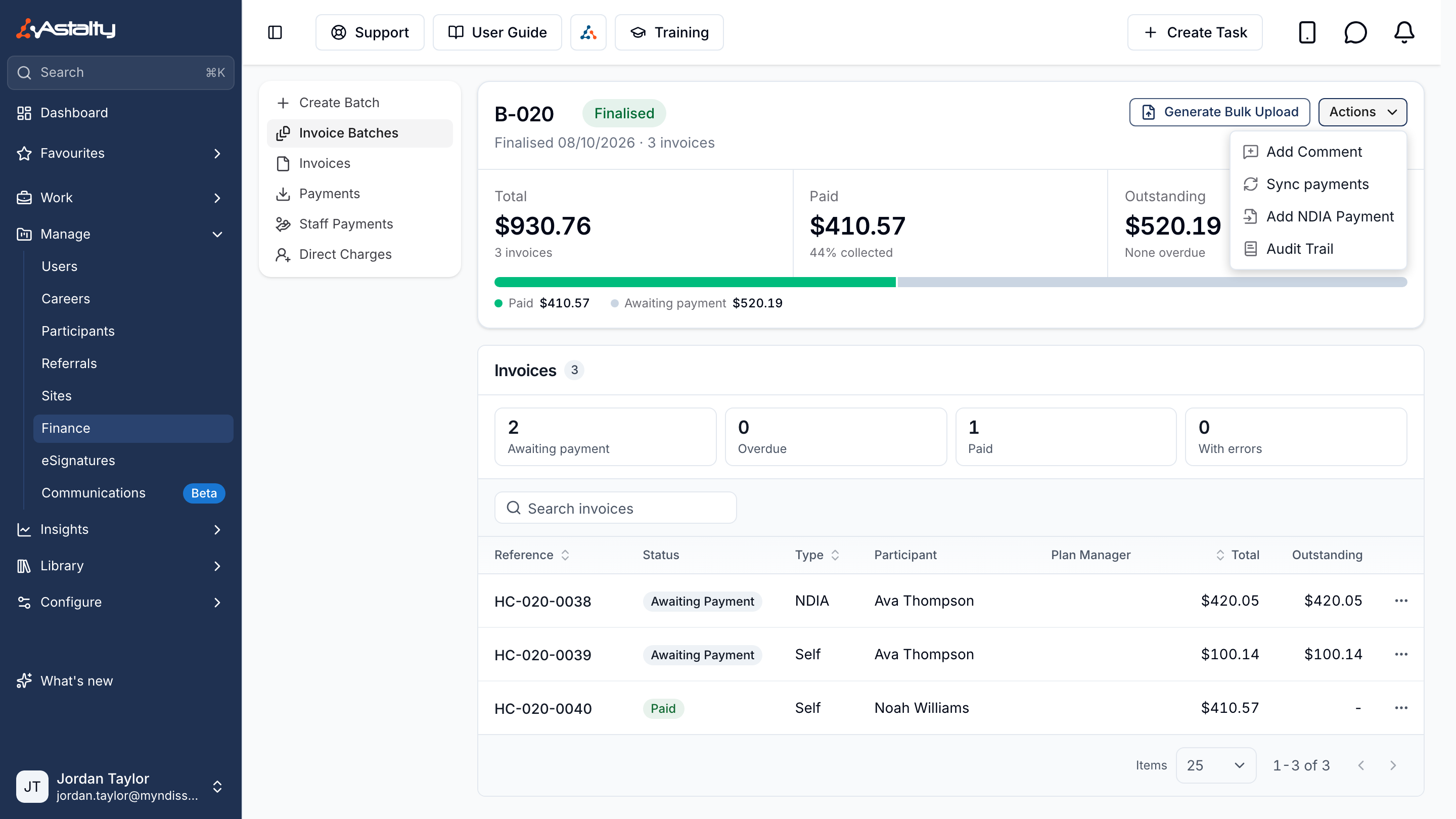
Astalty confirms Payments will be synced shortly. Please check back in 5 - 10 minutes.
Sync payments appears only when the batch has finished syncing, still has an amount outstanding, holds at least one invoice that isn't NDIA managed, and a default income account is set. It still shows while the connection has lapsed, but finds nothing until you reconnect.