- Administration
- MYOB
- Connecting and Disconnecting
Connecting and Disconnecting
Connect a MYOB company file to Astalty, check the connection, and disconnect it.
Connecting MYOB
You need the Settings update permission in Astalty, and a MYOB administrator sign-in for the company file.
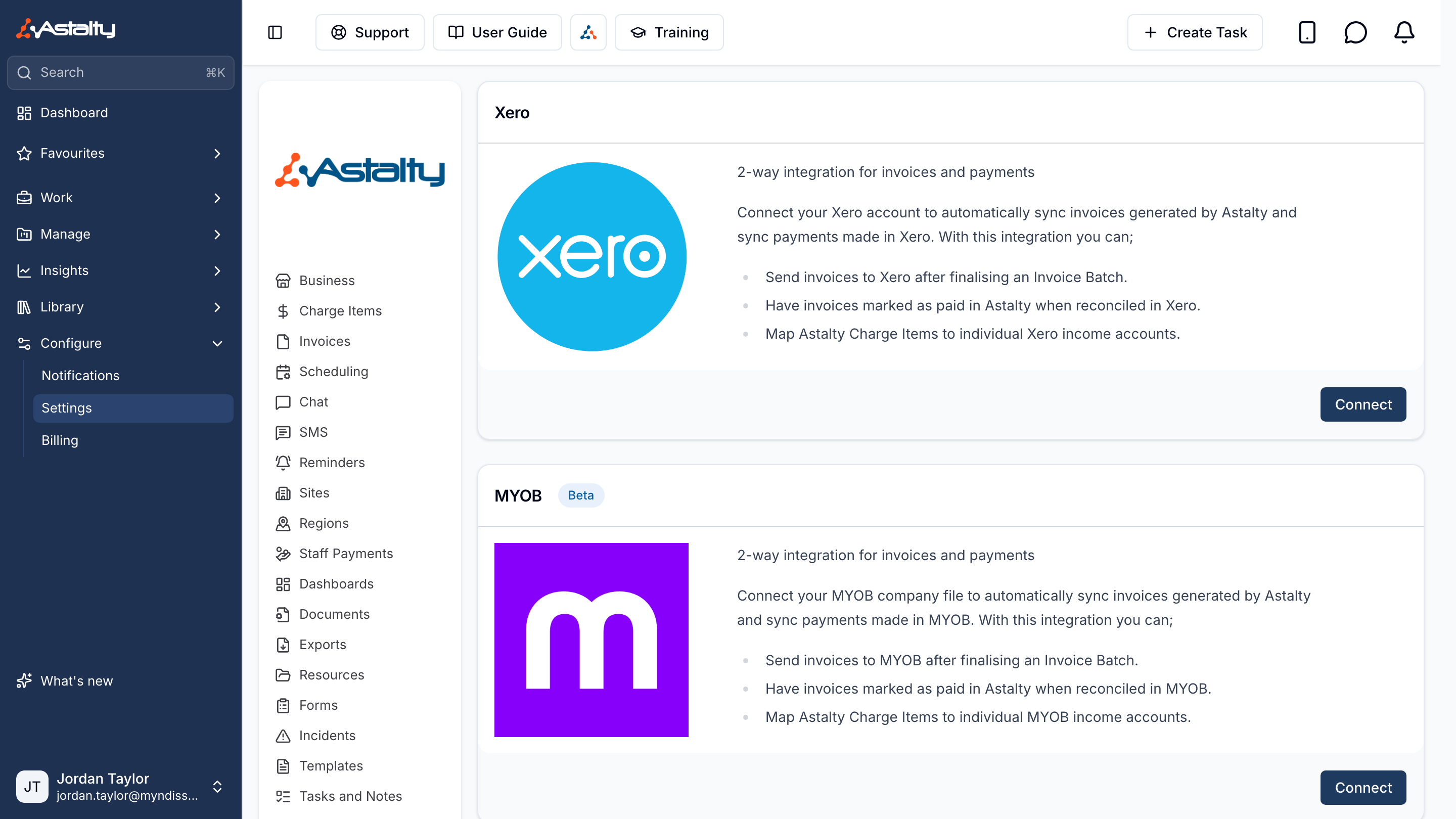
Head to the Integrations settings page and click Connect on the MYOB card.
Choose the Company File
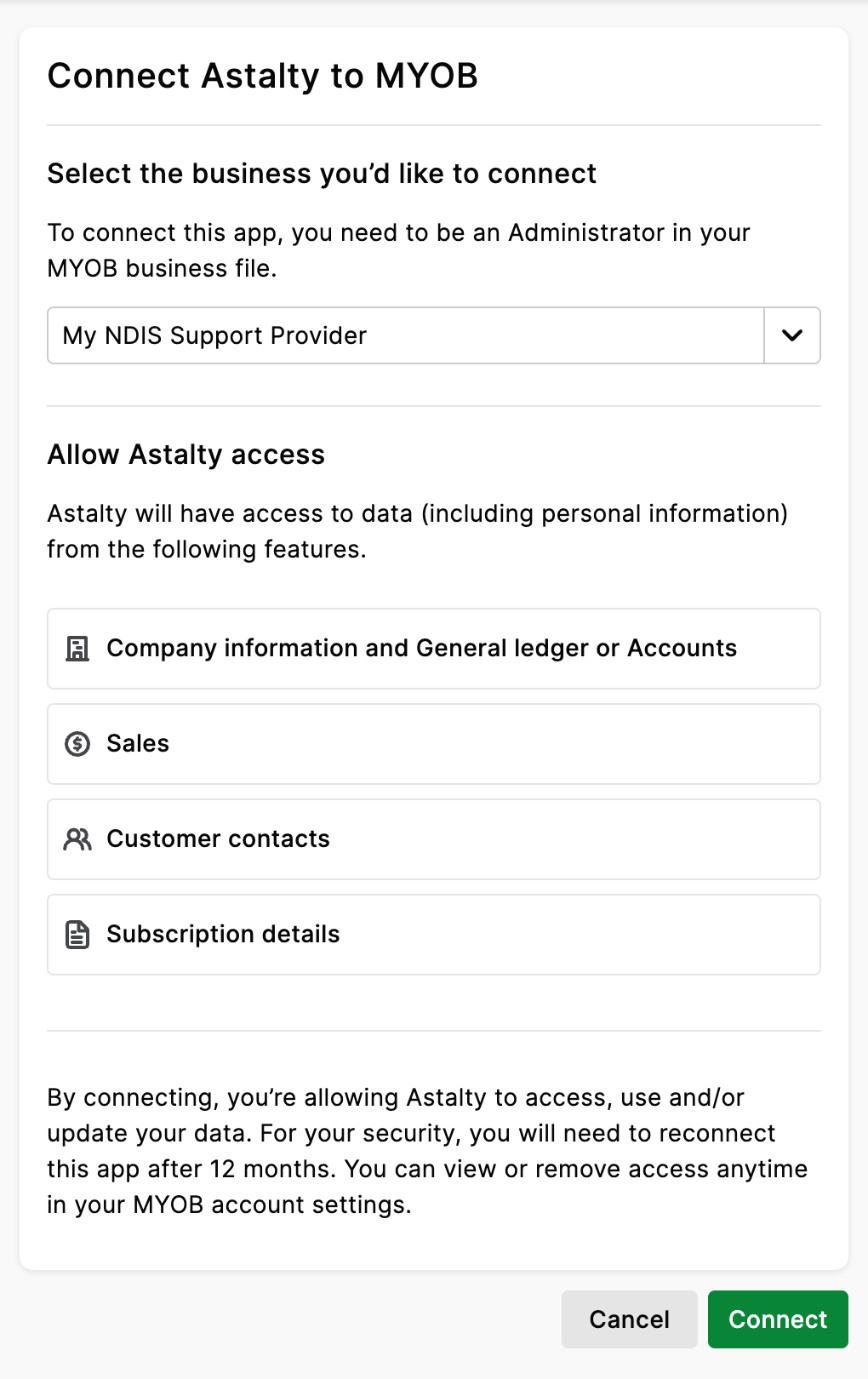
MYOB then asks you to choose the company file and allow Astalty access to it. You may need to sign in to MYOB first, as an administrator of the company file.
- Under Select the business you'd like to connect, choose the company file.
- Click Connect.
MYOB returns you to Astalty, which checks the connection straight away, then shows Connected to followed by the company file name. If the check fails, a refusal notice shows instead; see Checking the Connection.
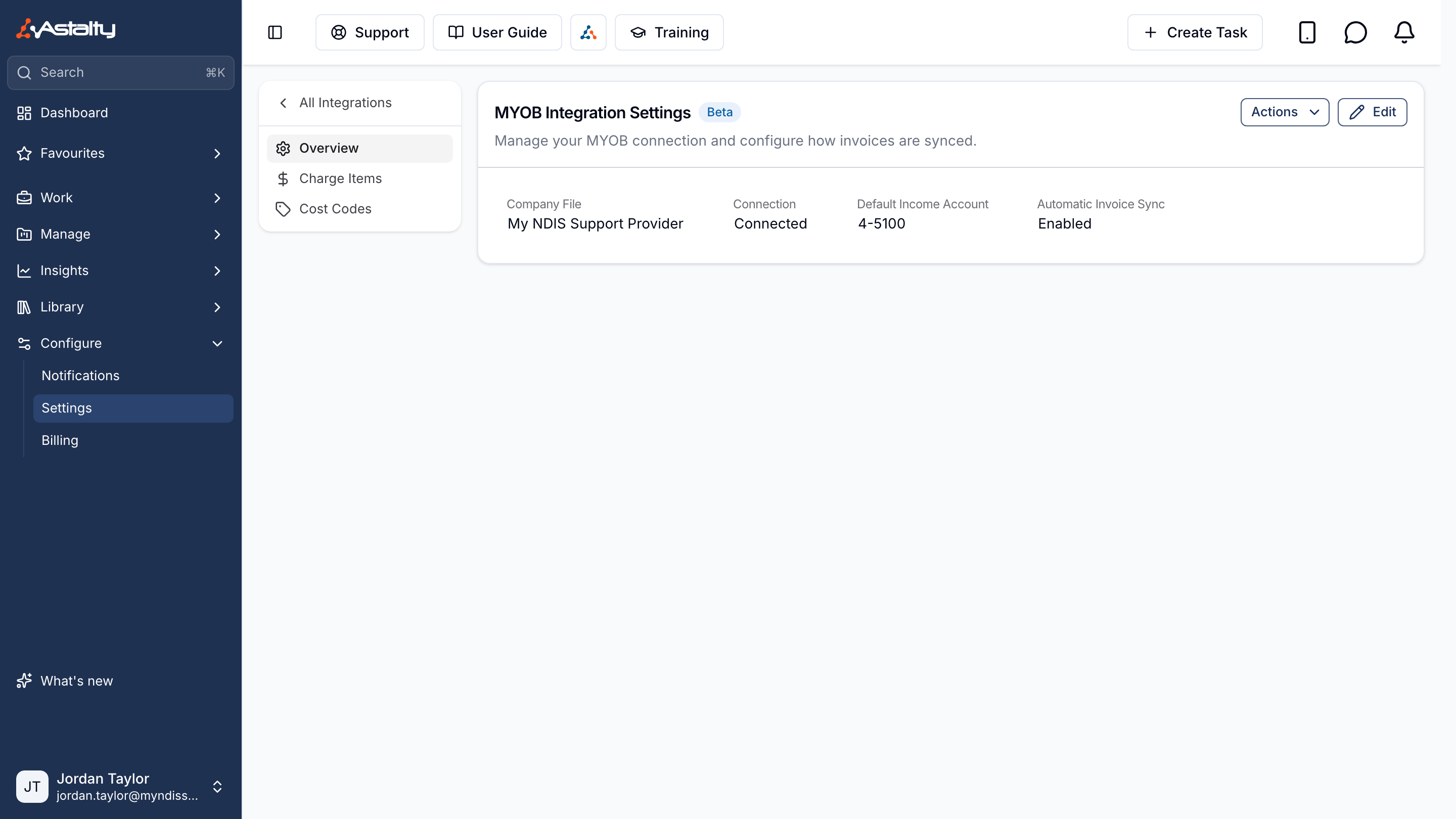
The company file is chosen on MYOB's screen, not in Astalty. To switch to a different one, click Actions, then Reconnect, and choose it there.
Next, set the default income account: see Configuring the Integration. No invoice syncs until it is set, and whoever finalises a batch before then is emailed We couldn't sync your invoices with your accounting platform.
Checking the Connection
Click Actions, then Check Connection. Astalty asks MYOB for the company file and shows MYOB answered for the connected company file. when it works.
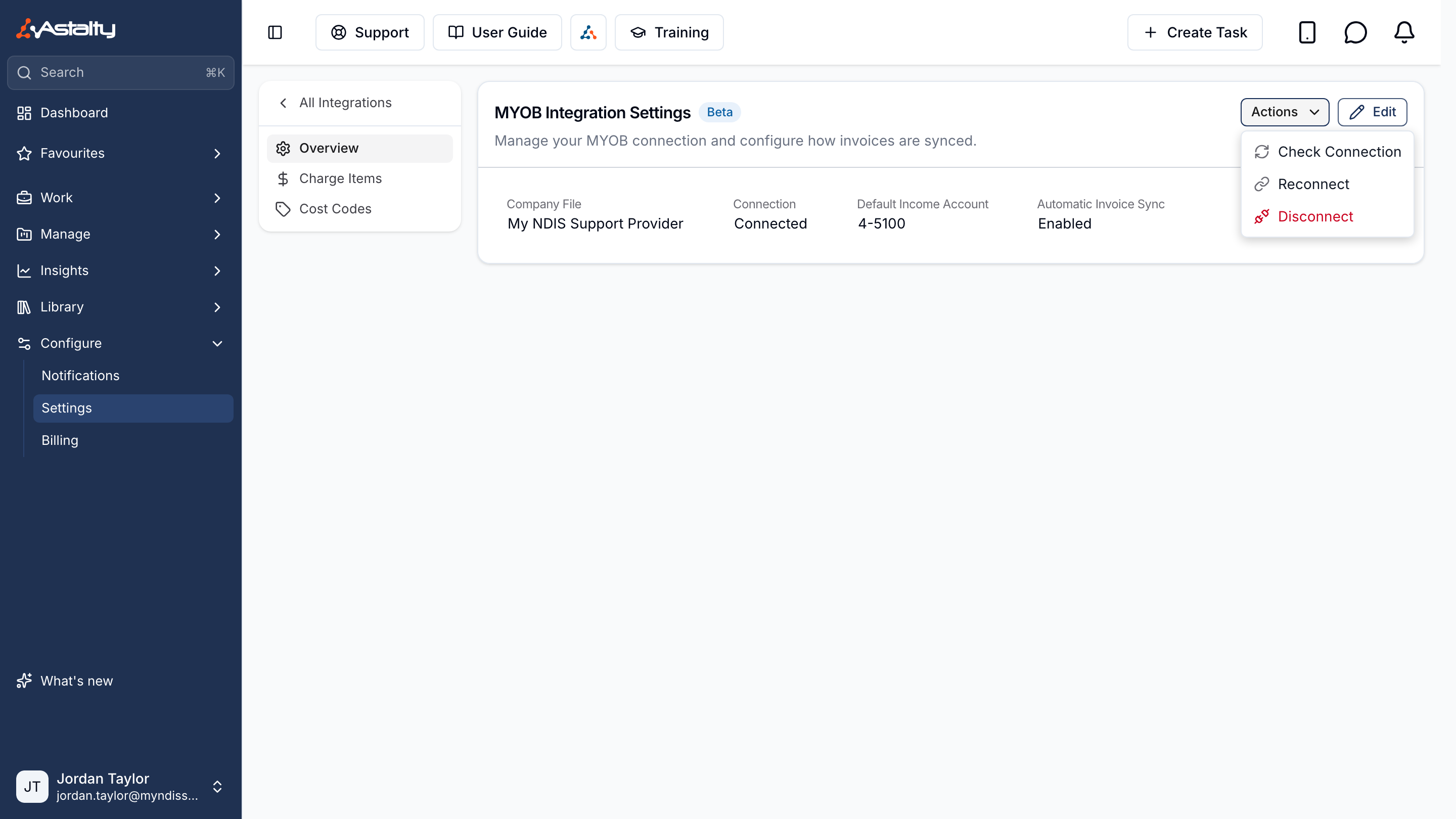
If MYOB refuses, a MYOB Did Not Confirm the Company File notice gives MYOB's reason:
| Reason | What to do |
|---|---|
| MYOB no longer serves the company file this connection was made against. Reconnect and choose a company file. | Reconnect and choose the company file. |
| The MYOB connection has been disconnected and must be reconnected. | Reconnect. |
| MYOB rejected this connection and it must be reconnected: followed by MYOB's reason | Reconnect. |
| MYOB rejected the refresh token: followed by MYOB's reason | Reconnect. |
| MYOB's own access denied message | The MYOB user who connected can no longer reach the company file. Reconnect as a MYOB administrator of it. |
| MYOB did not respond. Try again shortly. or MYOB could not be reached to check the company file. Try again shortly. | Try again shortly. |
Check Connection can be used 6 times a minute per account, and the automatic check after connecting counts towards that.
Disconnecting MYOB
- Open Settings → Integrations → MYOB.
- Click Actions, then Disconnect.
- Click Disconnect to confirm.
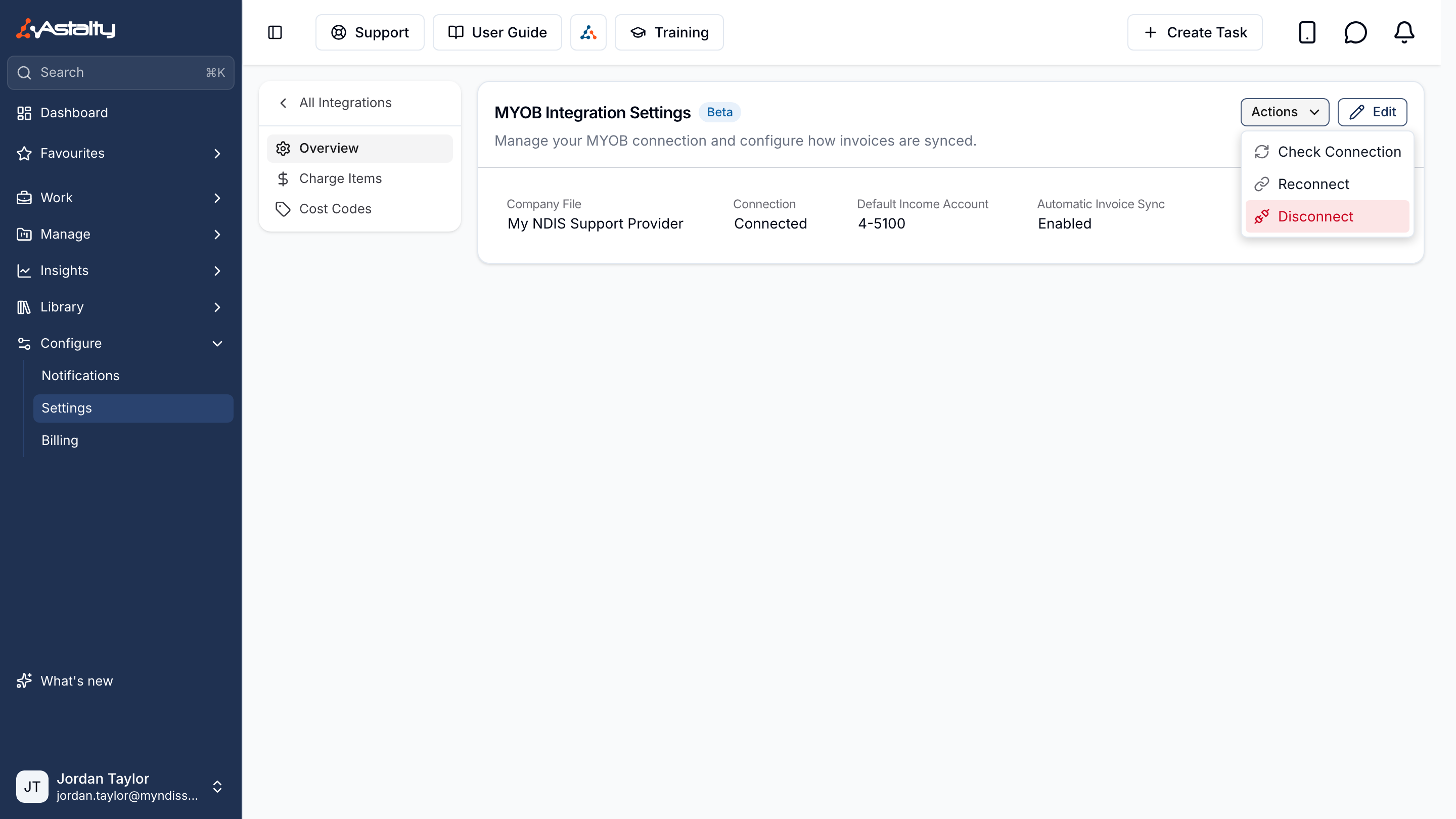
Astalty forgets straight away:
- the connection and the company file
- the Charge Item income account mappings and the cost code Job mappings
Astalty keeps:
- the default income account, which is used again if you reconnect. It is kept as an account number, so after connecting a different company file, choose the default income account again: the same number may not exist there, or may be a different account.
- invoices already in MYOB, which stay in MYOB and stay linked in Astalty
After disconnecting, payments recorded in MYOB no longer come back. Voiding an invoice that is in MYOB voids it in Astalty only: the invoice gets a sync error, the person who voided it gets an in-app notification and, unless another accounting platform has since been connected, the email We couldn't void your invoice in your accounting platform, and you delete or reverse it in MYOB yourself.
Removing Astalty From MYOB
After disconnecting, Astalty shows Disconnect Astalty in MYOB Too.
- Click Open MYOB Connected Apps.
- Sign in to MYOB as an administrator.
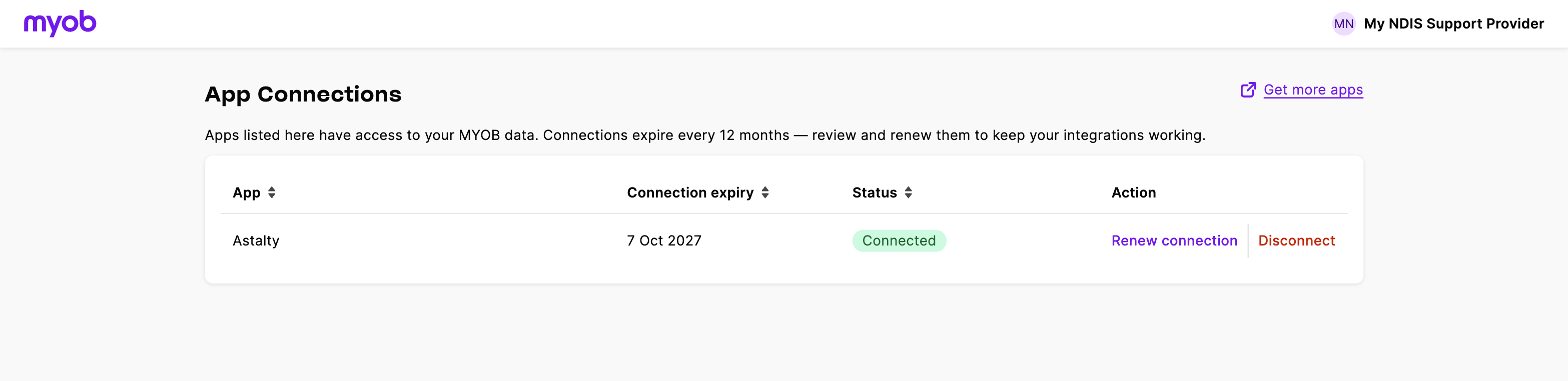
- Click Disconnect next to Astalty.