Deleting Payments
Overview
If a payment was recorded in error - the wrong amount, the wrong date, or a payment that never should have been entered - you can delete it. Deleting a payment removes every allocation it made, so each invoice it was allocated to is recalculated without it. Where that leaves an invoice short, the uncovered amount goes back to being owed.
If the payment itself is correct but you allocated it to the wrong invoices, you don't need to delete it. Use Clear Allocations instead, which keeps the payment and lets you allocate it again - see Clearing allocations instead of deleting below.
Who can delete a payment
Deleting a payment requires access to the Finance module. There is no separate delete permission - the same access that lets a user view and create payments also lets them delete one.
By default, this is available to Admin and Manager roles. Team Members and Support Workers do not have Finance access. Finance access can also be turned off for an individual Admin or Manager, so if the Payments page isn't visible to someone who should have it, check their user permissions.
Deleting a payment
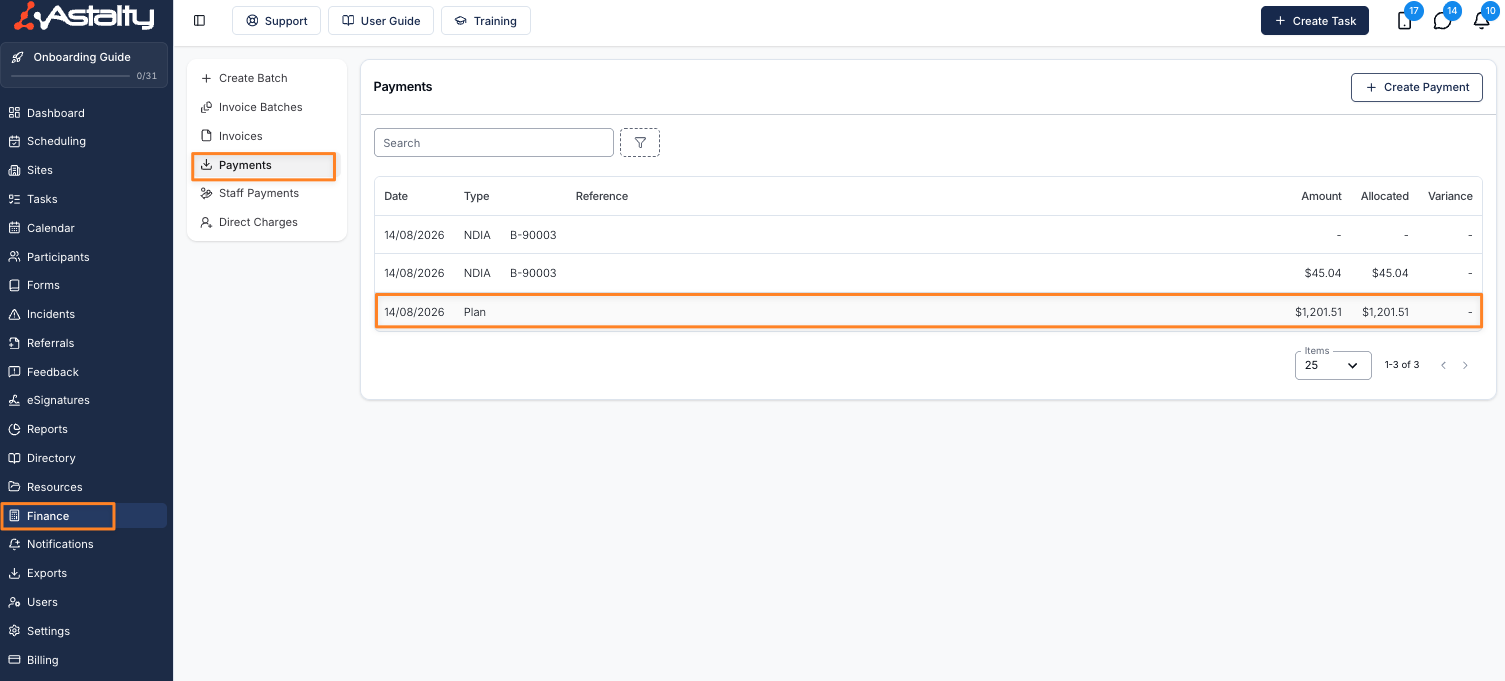
Go to Payments in the Finance section and click the payment you want to delete.
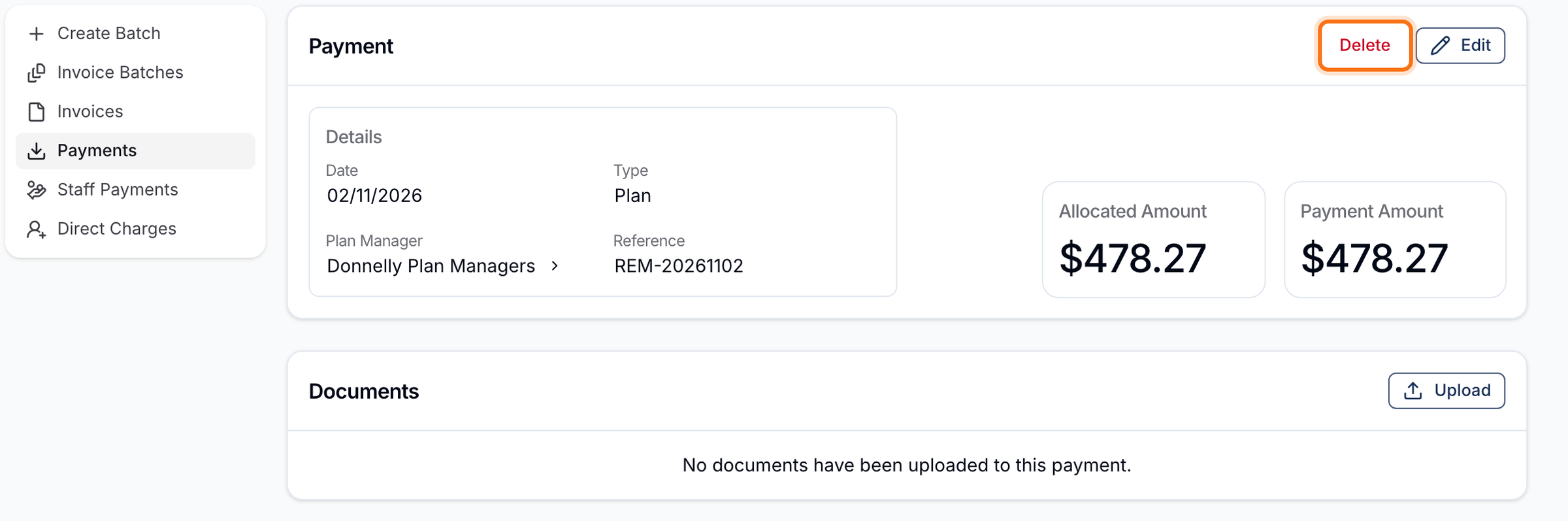
Click Delete in the top right of the Payment card, then confirm when asked Are you sure you want to delete this Payment?
Astalty returns you to the Payments list, and the deleted payment no longer appears there.
What happens to the invoice
When you delete a payment, Astalty removes each of its allocations and recalculates the paid amount on every invoice and charge that payment touched. Only that payment's share comes off - any other payments allocated to the same invoice are left exactly as they are.
What you see on the invoice afterwards depends on whether it is still covered in full:
- No longer covered in full - the amount this payment was covering reappears as Amount Due on the invoice and in the Outstanding column on the Invoices page. The status changes from Paid to Awaiting Payment, or to Overdue if the invoice is already past its due date. Where other payments still cover part of the total, only the uncovered remainder shows as due.
- Still covered in full - if other payments already add up to the invoice total, nothing on the invoice changes. It stays Paid with no amount due.
Invoice totals never change when you delete a payment. Astalty always calculates an invoice total from the charges on it, so removing a payment only affects what has been paid against that total.
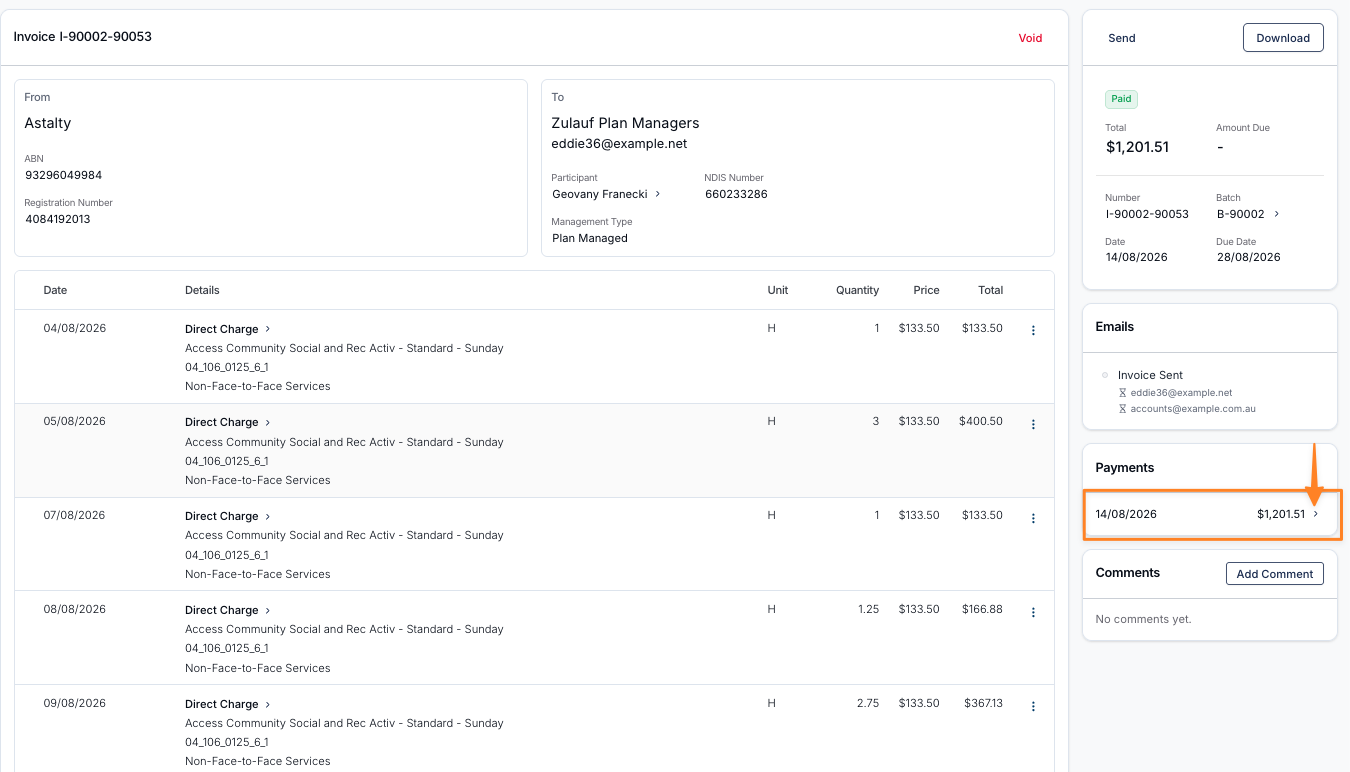
Every payment allocated to an invoice is listed in the Payments card on that invoice, so if you have the invoice open you can click straight through to the payment from there.
Payments synced from Xero or MYOB
Astalty imports payments from Xero or MYOB against eligible invoices that have been synced there. These payments are read-only in Astalty. Deleting a payment in Xero or MYOB removes its Astalty allocation on the next successful payment check. Changing an existing payment's amount, date or reference in Xero or MYOB does not update the imported Astalty payment. See Reconciling Payments in Xero and Reconciling Payments in MYOB for the supported workflow.
For a payment that came from Xero or MYOB, you cannot:
- Delete it
- Edit its date, amount or reference
- Clear its allocations
- Change what it is allocated to on an individual invoice
Clicking Delete on one of these payments opens an information dialog titled Cannot Delete Payment, reading This payment has been synced with your accounting platform and cannot be deleted. Please delete it there first.
To remove it, delete or reverse the payment in Xero, or delete it in MYOB. On the payment detail page, View in Xero goes straight to the Xero transaction, and View in MYOB opens MYOB's invoice list filtered to the payment's invoice. The next time Astalty syncs that invoice, it removes the allocation and the payment from Astalty for you - you don't need to come back and delete anything by hand.
Clearing allocations instead of deleting
Clear Allocations removes everything a payment is allocated to, but keeps the payment itself. Invoice balances are restored exactly as they are when you delete the payment, and the payment stays in your Payments list ready to be allocated again.
Use Clear Allocations when the payment is genuine but went to the wrong invoices. Use Delete when the payment should not exist at all.
To clear allocations, open the payment and click Clear Allocations in the top right of the Allocations card, below the payment's details. The button only appears when the payment has an amount allocated and the payment did not come from Xero or MYOB.
Once the allocations are cleared, the Allocated Amount on the payment returns to $0.00 and the outstanding invoices are listed again so you can enter the correct amounts. For a walkthrough of allocating a payment, see Plan and Self Managed Payments.
Reversing a write-off
A write-off in Astalty is recorded as an ordinary payment, so it is reversed the same way - delete the payment, or set its allocation against the invoice back to $0.00, and the outstanding amount returns to the invoice.
The same applies if Mark as Paid was used on an invoice by mistake. See Writing Off an Unpaid Balance.