Document Template Library
The Document Template Library gives you a pre-written document template to start from, so you don't have to build a Service Agreement or Support Plan from a blank page.
Overview
Building a Custom Template from scratch means writing the wording, adding the Placeholders, and setting up the layout yourself - covered in Template Settings. The library shortcut skips that: you pick a template Astalty has already written, import it, and land in the editor with a full copy you can change however you like.
An imported template is an ordinary Document Template from that moment on. It is not linked to the library, it doesn't update when Astalty changes the original, and you can edit, rename, or delete it exactly like one you built by hand.
Before You Start
- The Want a head start? card requires Template Packages.
- By default, only Admins can open the library and import a template.
- The library is available on the web app only - there is no equivalent in the Support Worker app.
Where To Find It
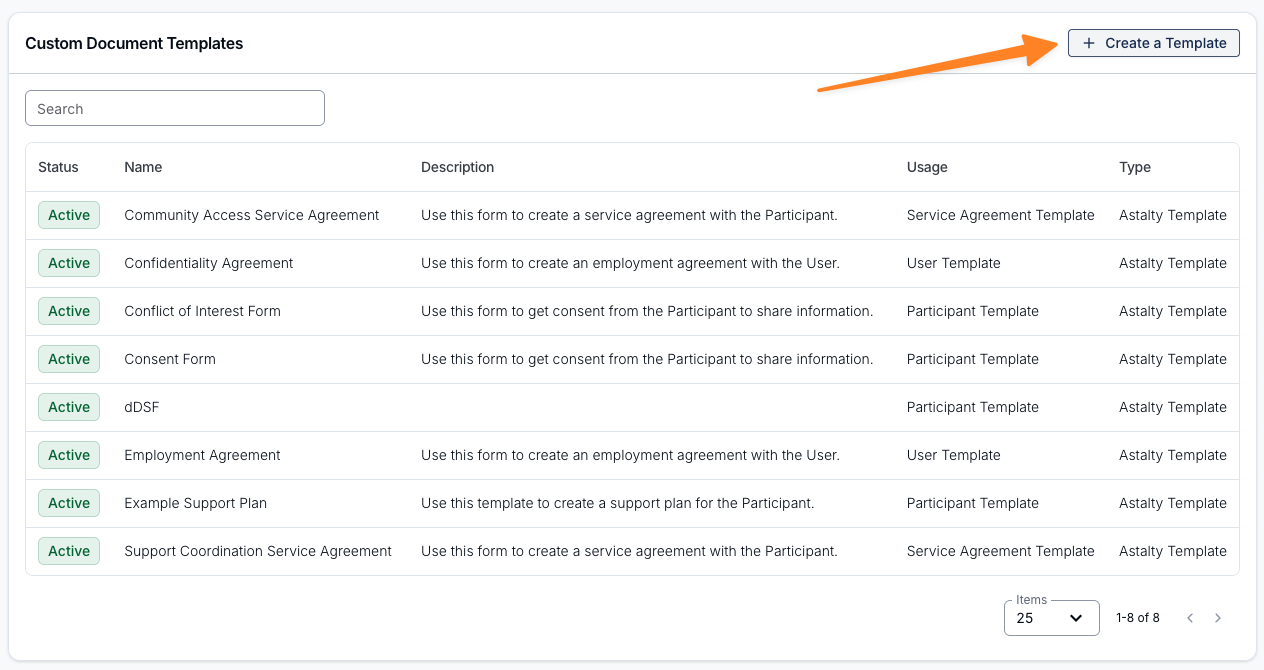
- Go to Template Settings.
- Select Create a Template.
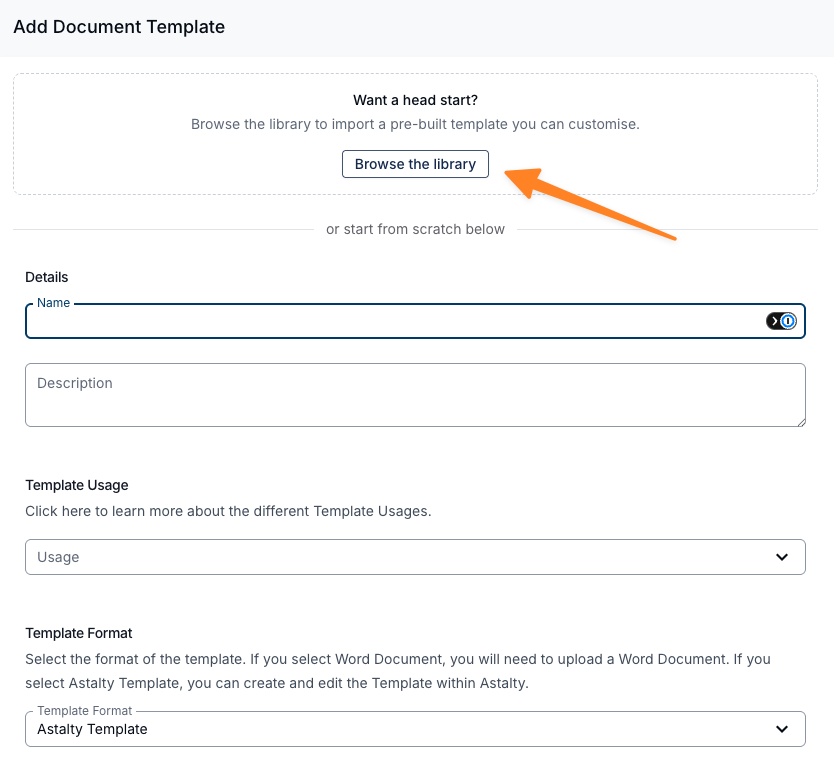
- On the Want a head start? card, select Browse the library.
The card sits above the create form, followed by a divider reading or start from scratch below - so you can still build a Template by hand from the same screen.
Choosing A Category
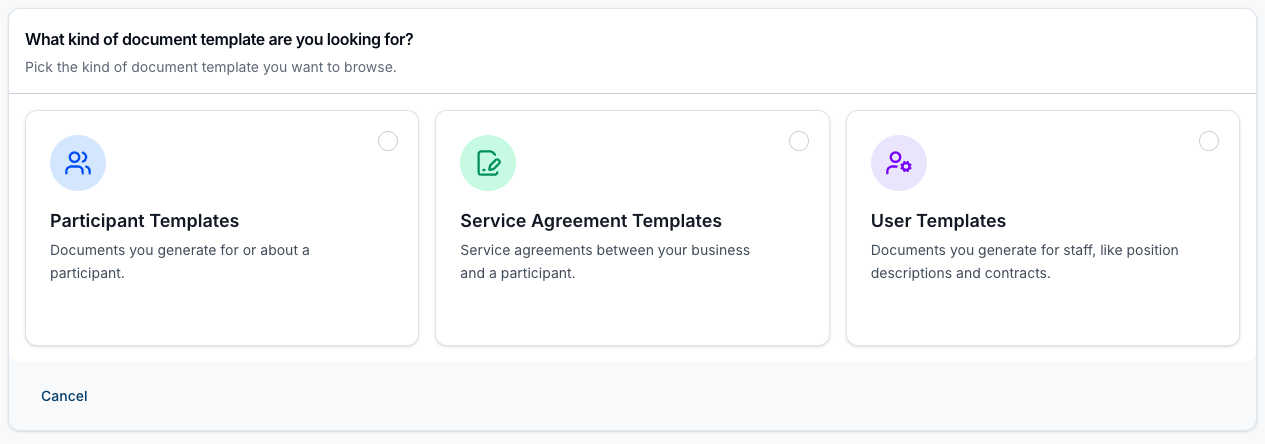
The library opens on What kind of document template are you looking for?, with a card for each Usage Type:
- Participant Templates - documents you generate for or about a Participant.
- Service Agreement Templates - service agreements between your business and a Participant.
- User Templates - documents you generate for staff, like position descriptions and contracts.
Selecting a card takes you to the Document Template Library list, filtered to that category.
Finding A Template
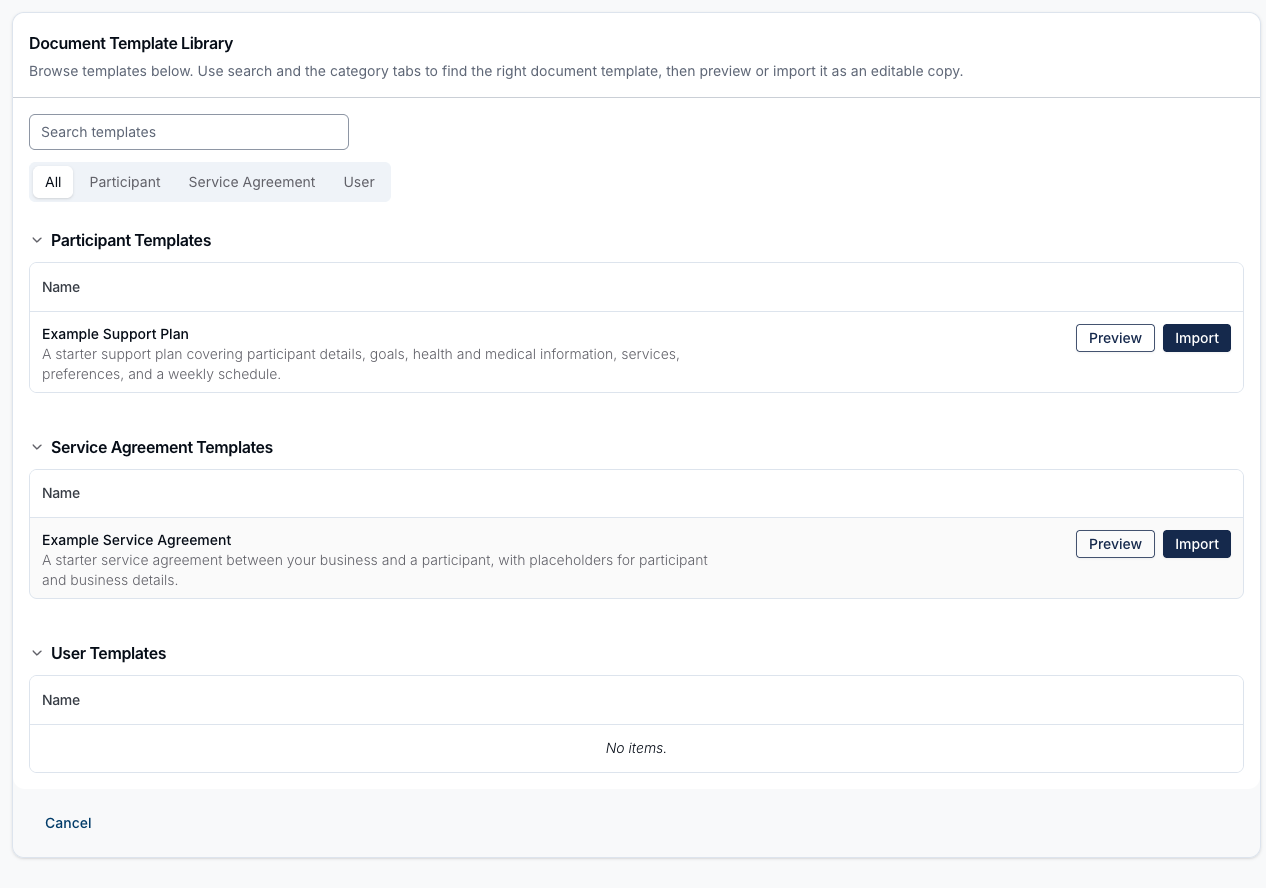
The Document Template Library list has two ways to narrow it down:
- Search templates - matches on a template's name and its description.
- Category tabs - All, Participant, Service Agreement, and User. The tab for the category you picked is selected when you arrive; All shows every category at once, grouped by Usage Type.
If nothing matches, the list shows No templates match your filters with a Clear filters button that resets the search and switches back to All.
Previewing And Importing
Each template row has two actions:
- Preview - opens a short, read-only extract of the template's wording. The preview is deliberately partial; it is captioned This is a short preview of the template. Import it to see and edit the full content.
- Import - copies the template into your account and opens it in the Template editor, where the full content is yours to edit.
You can also select Import from inside the preview without closing it first.
Once imported, finish the Template the same way as any other - see Template Settings for the Front Page, Body, and Header & Footer options, and Available Document Template Placeholders for the Placeholders you can add.
What's In The Library
The library holds two templates:
| Template | Usage Type | What it covers |
|---|---|---|
| Example Service Agreement | Service Agreement Template | A starter service agreement between your business and a Participant, with Placeholders for the Participant's and your business's details. |
| Example Support Plan | Participant Template | A starter support plan covering the Participant's details, goals, health and medical information, services, preferences, and a weekly schedule. |
Things To Keep In Mind
- Read the template before you use it. These are starting points written to suit most NDIS providers, not legal advice. Check the wording against your own policies and obligations, and edit anything that doesn't fit your organisation.
- Only the content is copied. Importing brings across the template's wording. It does not create Record Types, Forms, or Participant fields - Form templates are a separate catalogue.
Starter Record Types
The same "head start" idea applies to Record Types, from a separate catalogue:
- User Records - the record types most NDIS providers keep for their Support Workers.
- Participant Record Types - the record types most NDIS providers keep for their Participants.