ID Card Settings
Overview
The digital ID card is a staff badge your team can show from their phone. It tells a Participant, a family member or a facility that the person works for your organisation, with their photo and the details you choose to show.
You set the card up once, under Settings, and every staff member sees their own card on the Profile tab of the Astalty app. To see what staff see, read ID Card in the App.
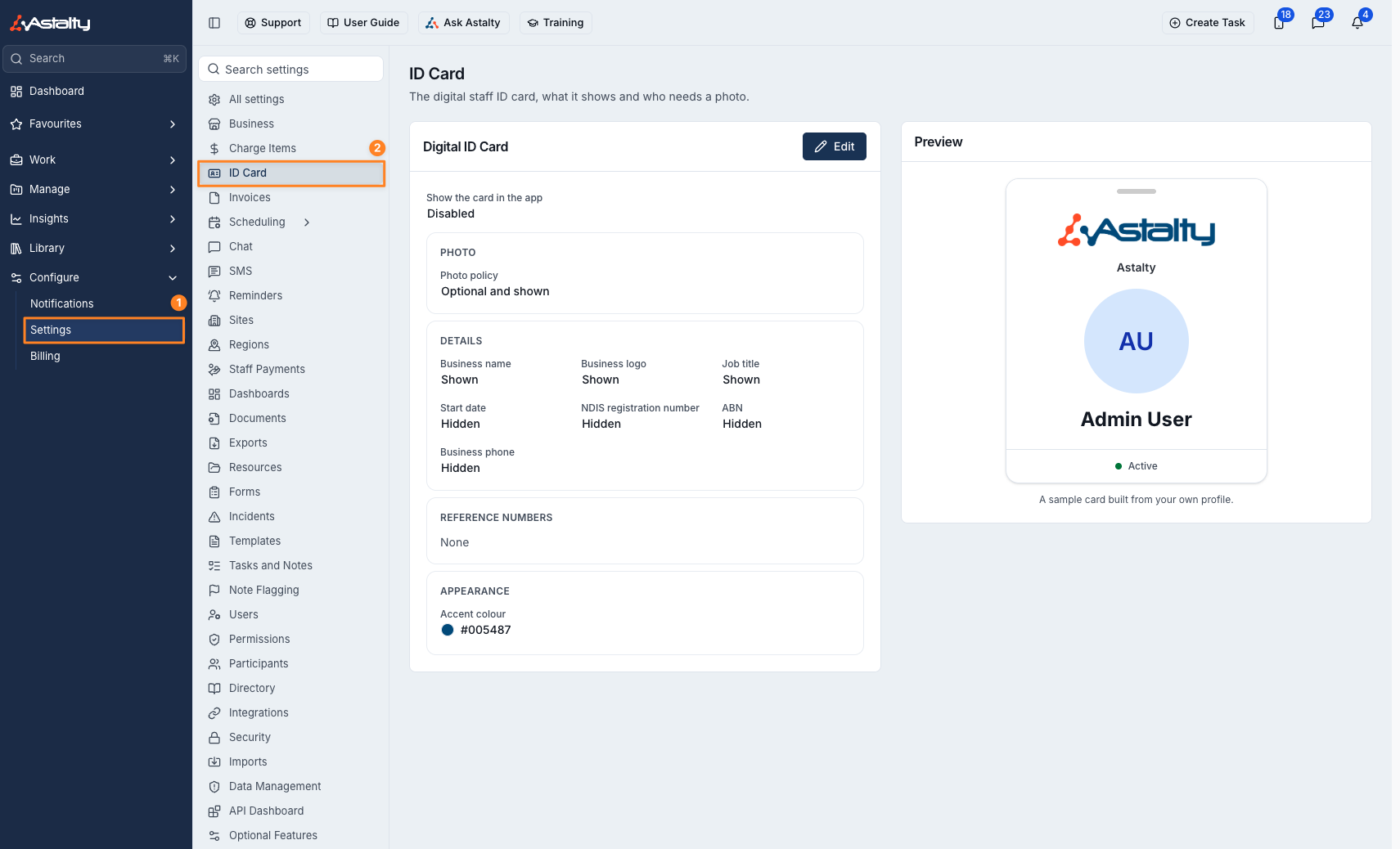
Set Up the ID Card
- Go to Settings > ID Card.
- Select Edit.
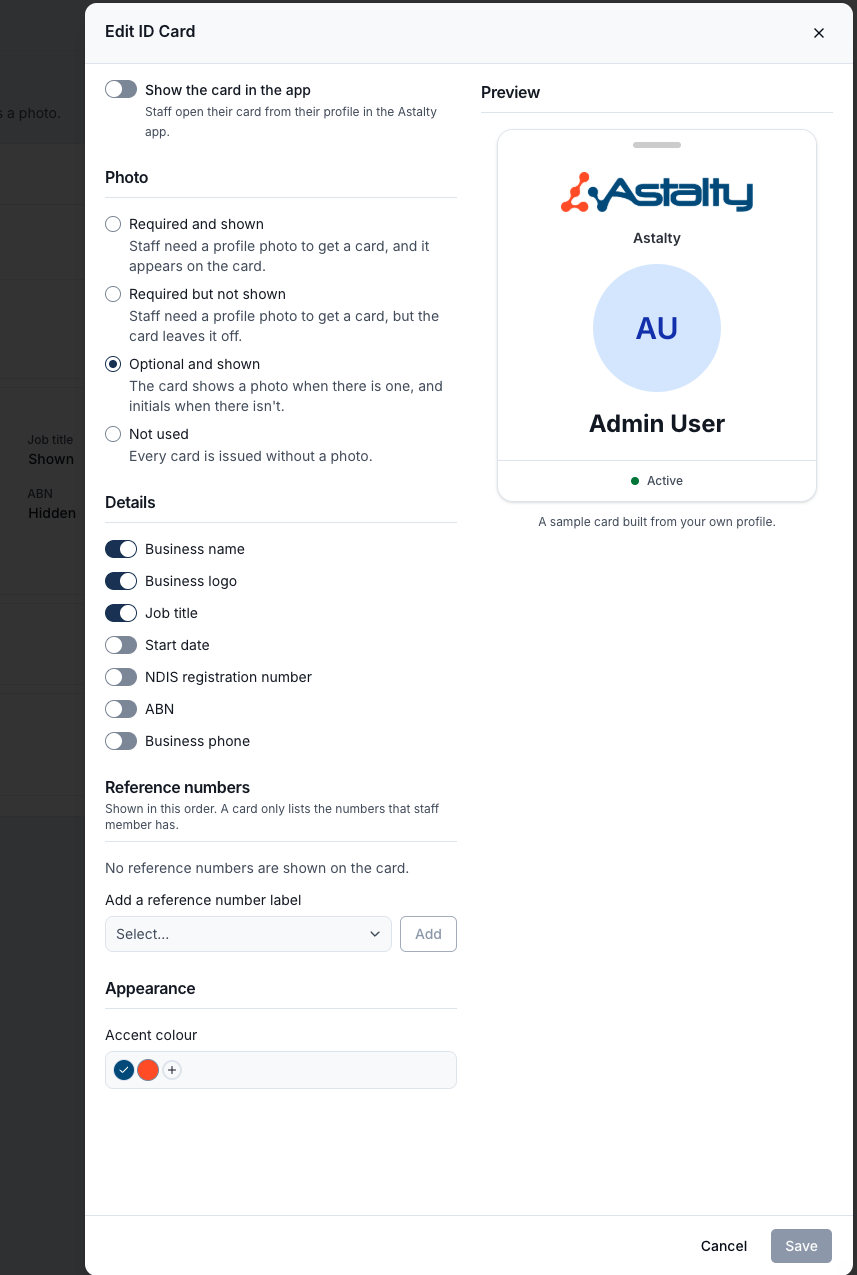
- Turn on Show the card in the app. Staff cannot open their card until this is on.
- Under Photo, choose how the card uses each staff member's profile photo:
- Required and shown: staff need a profile photo to get a card, and it appears on the card.
- Required but not shown: staff need a profile photo to get a card, but the card leaves it off.
- Optional and shown: the card shows a photo when there is one, and initials when there isn't.
- Not used: every card is issued without a photo.
- Under Details, turn on the details you want on the card: Business name, Business logo, Job title, Start date, NDIS registration number, ABN and Business phone.
- Under Reference numbers, add the labels of any reference numbers you want shown, such as an employee number, and drag them into the order you want. A card only lists the numbers that staff member has recorded on their profile.
- Under Appearance, choose an Accent colour for the card.
- Check the Preview beside the form, then select Save.
The preview updates as you change each setting, so you can see the card before your team does.
Staff Without a Profile Photo
If you choose a photo policy that requires a photo, the ID Card page tells you how many active staff have no profile photo. Those staff will not have a card until they add one. When they open their card in the app, they are asked to add a profile photo first.
Turning the Card Off
To stop staff using the card, select Edit and turn off Show the card in the app. Staff who open their card then see that it is not available.
A phone that is offline keeps showing the last copy of the card it downloaded for up to 48 hours. After that, the staff member needs to connect to the internet before the card shows again, and the app then shows whatever your settings are at that time.