- Administration
- Settings
- Note Flagging
Note Flagging
Note flagging watches the case notes your team writes and raises a flag on the ones that need a coordinator to look at them. You set this up by creating note checkers, each one a set of rules that decides when a note should be flagged.
A checker can work in either direction. It can flag a note for content that is present - behaviours of concern, medication issues, safeguarding - or for expected content that is missing, such as a note nobody ever signed off.
Where to Find It
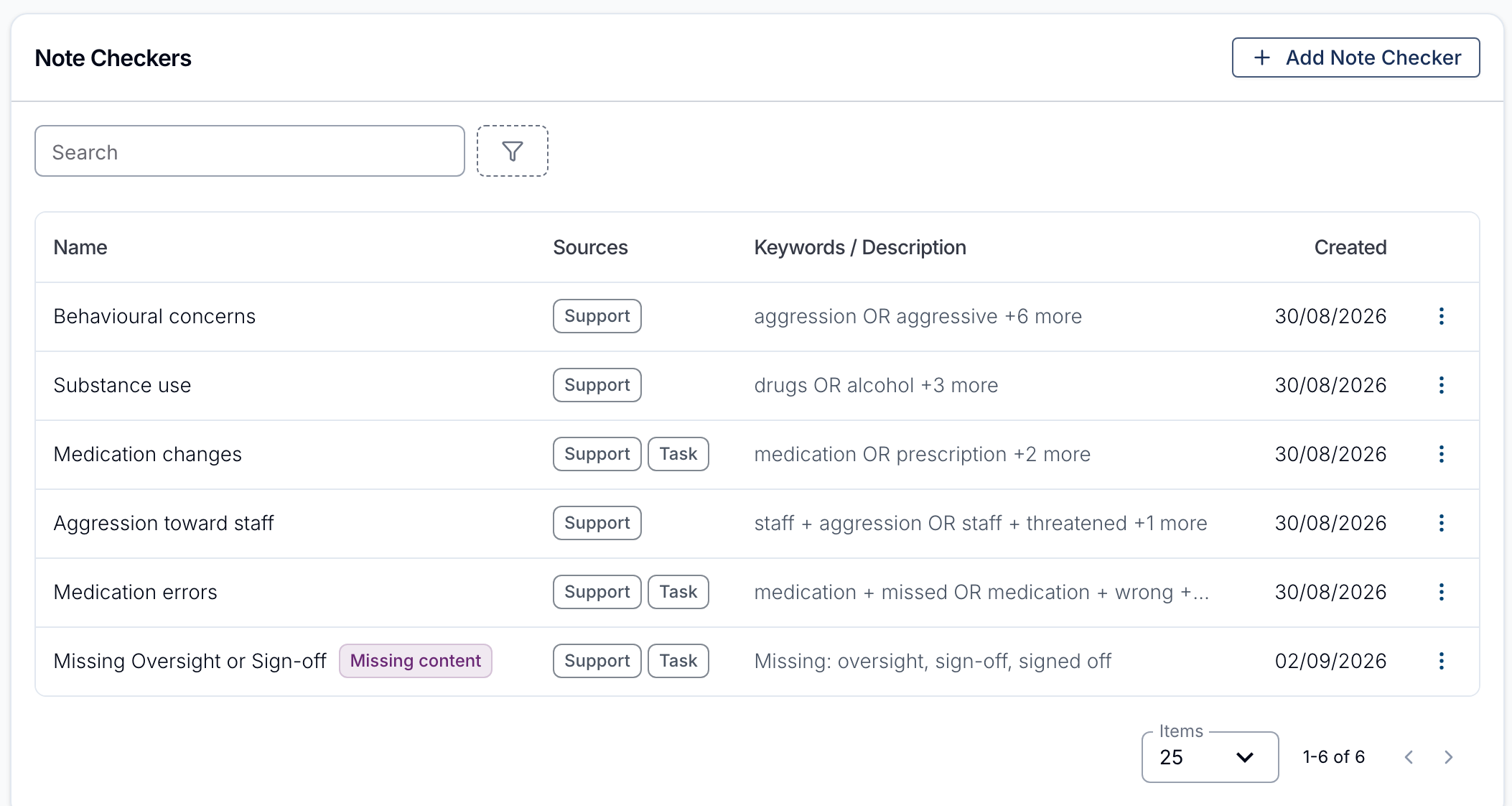
Note checkers are managed under Settings → Note Flagging. From here you can see your existing checkers and add a new one. By default, only Admins can see and manage note checkers.
Each checker is summarised by what it looks for, and a checker that flags missing content is marked with a Missing content label.
Creating a Keyword Note Checker
A keyword note checker decides whether to flag a note by looking for words and phrases you've defined. To create one, open Note Flagging and add a new checker. You then have two ways to fill it out - start from a ready-made template, or build the rules yourself.
Start From a Template
Rather than typing every term from scratch, you can Start from a template at the top of the form. Astalty ships with seven ready-made templates:
- Behaviour Concerns
- Aggression & Violence
- Substance Abuse
- Self-Harm & Suicide Risk
- Medication Issues
- Safeguarding & Abuse
- Missing Oversight or Sign-off
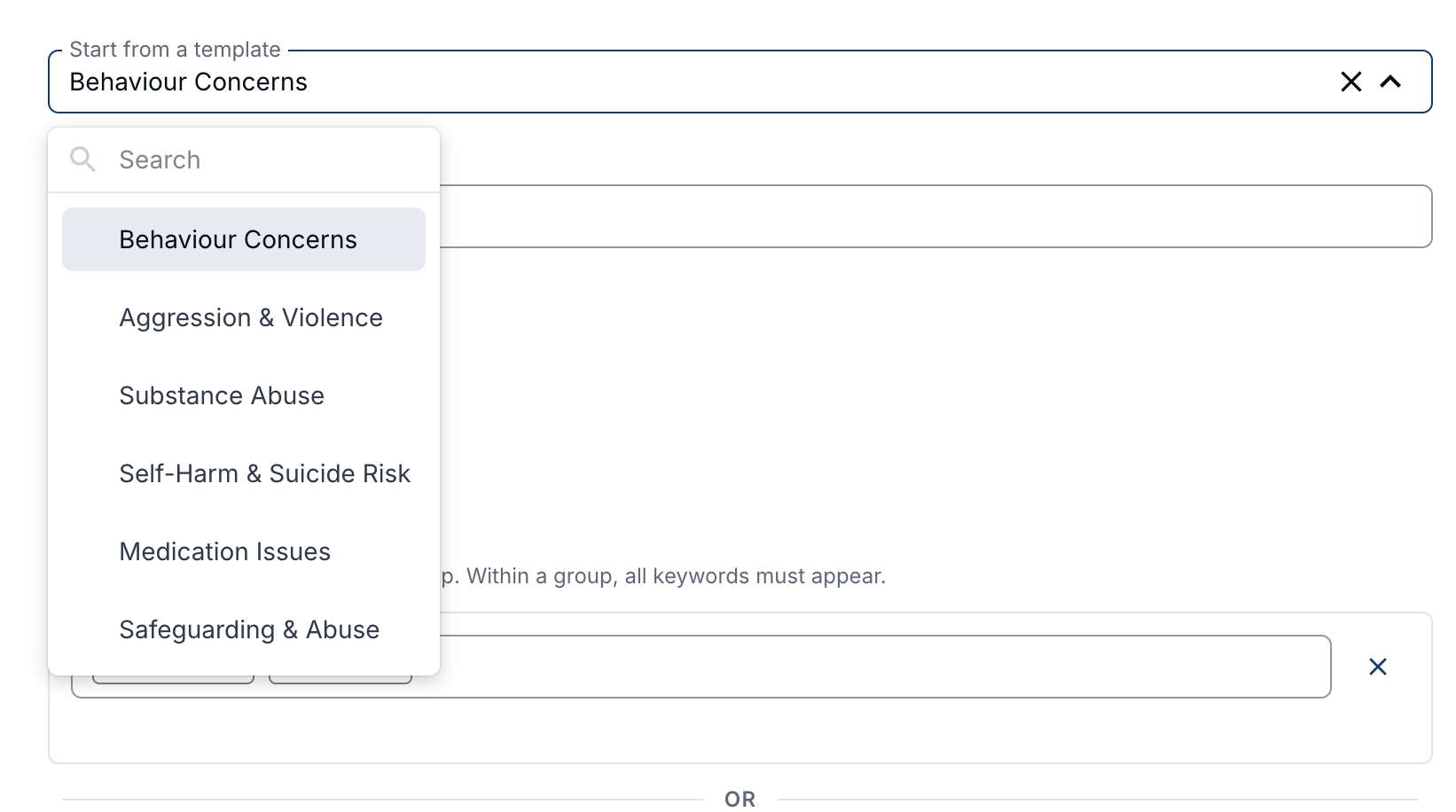
Selecting a template pre-fills the checker for you:
- the Name, which you can change,
- the note sources it applies to - both Support notes and Task notes,
- whether it flags content that is present or content that is missing, and
- the words or phrases it starts with.
Each template also brings a list of suggestions you can add with a click. Templates are just a starting point - everything they fill in can be edited, added to, or removed before you save. Clearing the template selection resets the form back to a blank checker.
Choosing What to Flag
What to flag decides which way round the checker reads a note:
| Option | A note is flagged when |
|---|---|
| Content is present | it contains the words or phrases you list |
| Content is missing | it contains none of the phrases you list |
Content is present is the default, and it is what the six safeguarding templates use. Flagging missing content is covered under Flagging Notes That Are Missing Content below, and is available on keyword checkers only.
How Keyword Groups Work
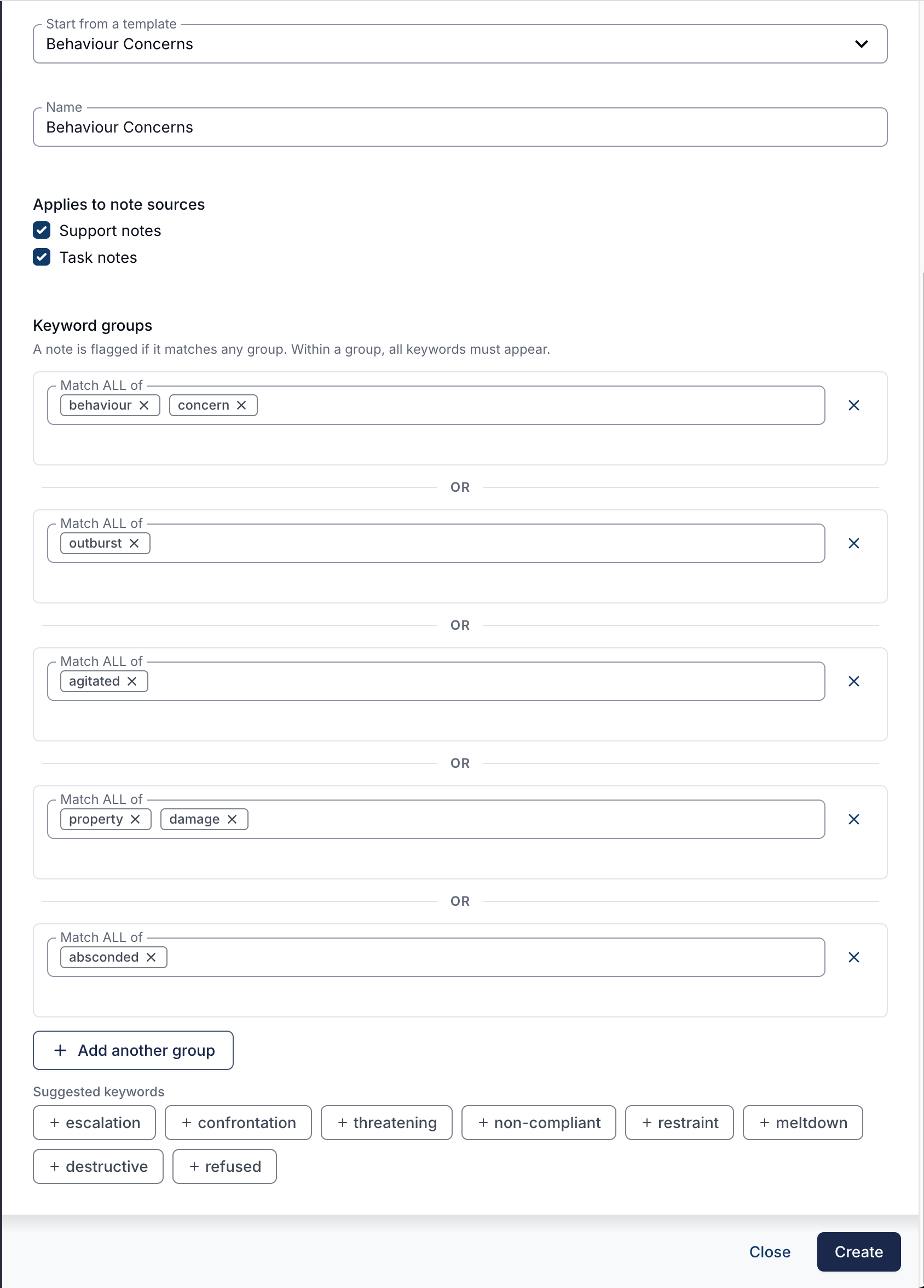
When a checker flags content that is present, its keywords are organised into groups, and the rule is:
A note is flagged if it matches any group. Within a group, all keywords must appear.
In other words, groups are joined with OR and the keywords inside a single group are joined with AND. This lets you combine broad single-word triggers with more specific multi-word combinations. For example, a group containing both property and damage only flags notes that mention both words, while a separate group containing just absconded flags any note using that word on its own.
Use Add another group to create more groups, and remove a group with the cross next to it. You also choose which note sources the checker applies to - Support notes, Task notes, or both.
Suggested Keywords
Below the keyword groups you'll see a row of suggested keywords - extra relevant terms offered as clickable chips, so staff don't have to remember every term that's worth watching for. Click a suggestion to add it, and it's added as its own keyword group. A suggestion made up of more than one word, for example physical altercation, becomes a group that requires all of those words to appear together.
Once you've added a suggestion it drops off the list, so the chips always show only the terms you haven't used yet. When the checker looks right, save it and it starts flagging matching notes from that point on.
Flagging Notes That Are Missing Content
Set What to flag to Content is missing to catch the opposite problem: a note that was written but never finished. This suits a two-stage workflow, where a Support Worker writes the note and a reviewer is meant to come back and add an oversight or sign-off section that sometimes never arrives.
Expected Phrases
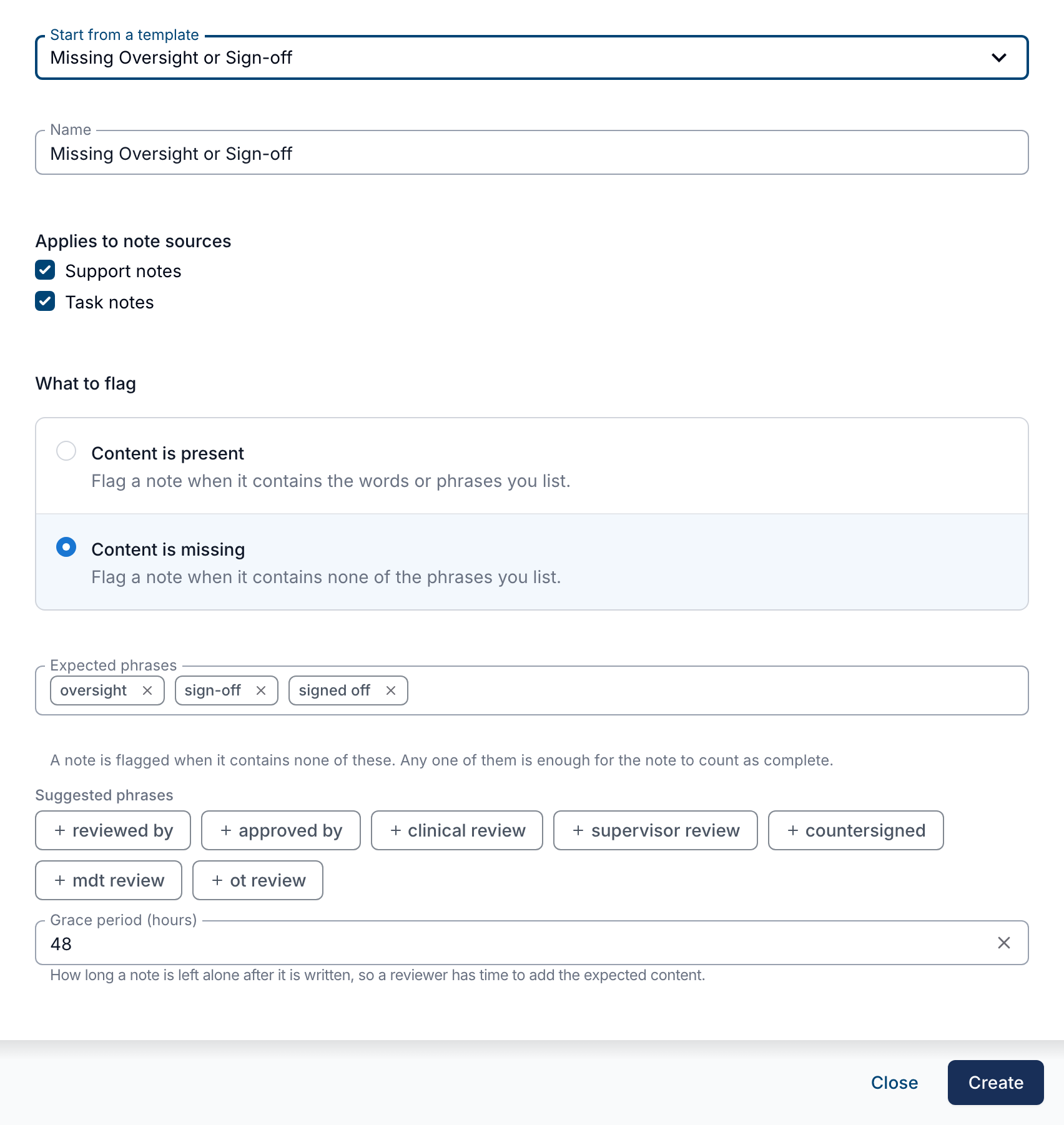
A checker that flags missing content takes a single flat list of Expected phrases rather than keyword groups, and it treats them as alternatives:
A note is flagged when it contains none of the expected phrases. Any one of them is enough for the note to count as complete.
This is deliberately the opposite shape to keyword groups. There, a group means "all of these words", and the groups are alternatives to each other. Here there is one list, and every phrase in it is an alternative way of saying the same thing - so oversight, sign-off and signed off cover three wordings of a single requirement.
List every wording your reviewers actually use. A phrase your team never types will flag every note that goes through the checker.
The Grace Period
A note is incomplete for a while by design, so a missing content checker leaves it alone at first. Grace period (hours) is how long that window lasts, and it defaults to 48.
The window is measured from when the note was created, not when it was last edited, so working on a note does not push the deadline back. A note written on Monday morning with a 48 hour grace period is judged from Monday morning, however many times it is revised in between.
Flags That Clear Themselves
A missing content flag tracks the note rather than sitting still:
- When the expected content is added, the flag resolves on its own and is recorded as Resolved automatically. Nobody has to close it by hand.
- If a flag was resolved automatically and the expected content is later removed, the flag reopens. A flag that somebody resolved manually does not reopen automatically.
This is the opposite of a flag for content that is present, which stays open until somebody reviews it and resolves it.
Checking Notes That Already Exist
A checker only looks at notes as they are written or edited, so notes that already existed when you created it have never been checked. Check Existing Notes, on the actions menu next to a checker, goes back over them: choose a period, see how many notes the checker would flag, then run it.
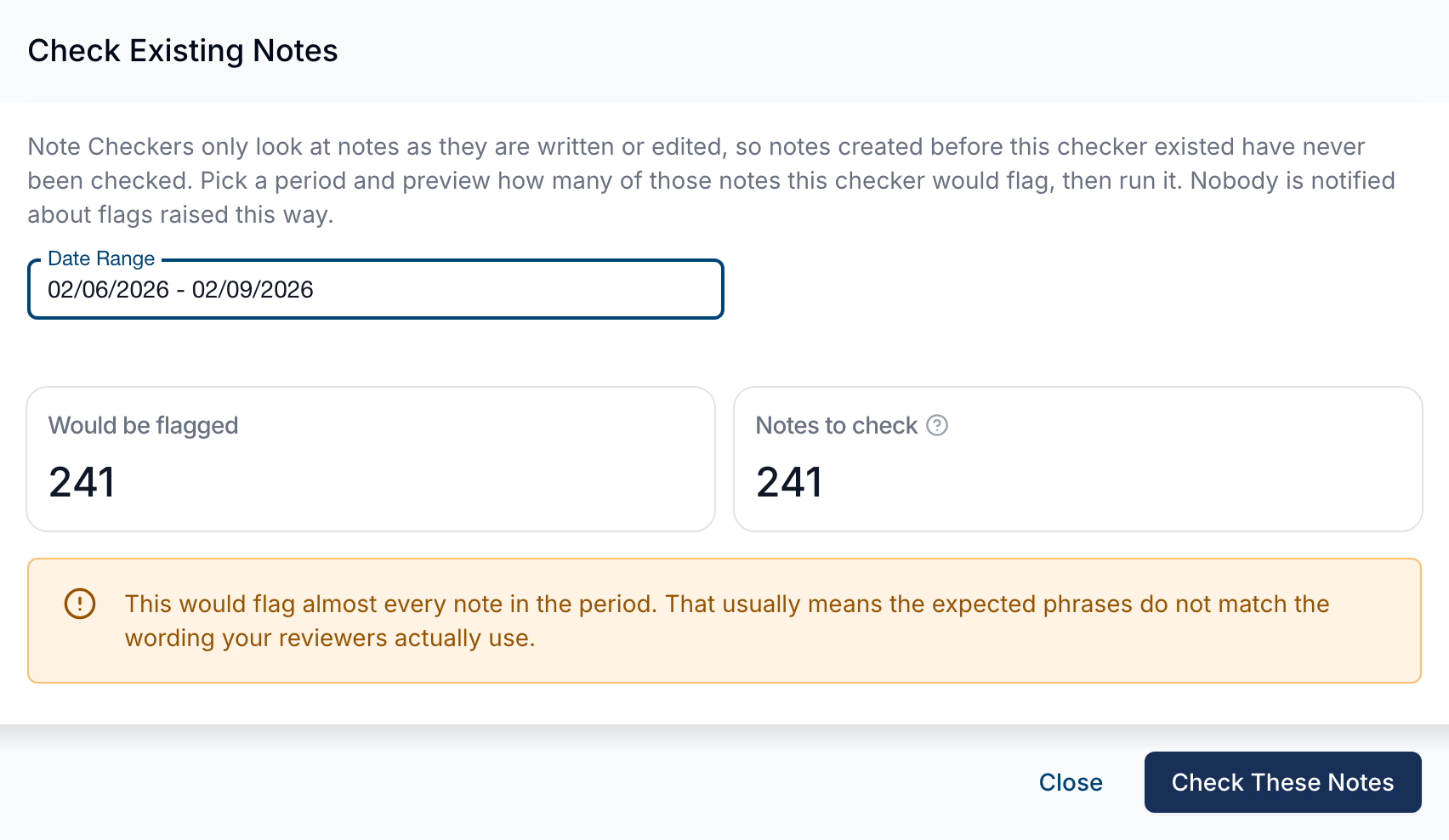
The preview is the fastest way to find out whether a checker is worth relying on, because an empty queue and a wrong phrase look identical from the outside. Run it over the last few months before you trust a missing content checker:
- Would be flagged: 12 of 8,600 - the phrases match how your team writes, and the flags are the genuine exceptions.
- Would be flagged: 8,400 of 8,600 - something is wrong at a scale worth understanding before you run it. Astalty warns you when a run would flag almost every note in the period.
A number that high has two possible causes, and it is worth telling them apart before you run anything. Usually the phrases don't match the wording your reviewers actually use, so open a handful of notes you know were signed off properly and check whether any expected phrase appears in them. If those notes do match and the count is still high, the checker is working and the gap is real - your reviewers genuinely are not finishing most notes, which is what the checker exists to surface.
Nobody is notified about flags raised this way, so a run over historical notes fills the report without sending a wave of notifications to your team.
Editing and Archiving a Checker
Select Edit on the actions menu to change a checker's name, note sources, phrases or grace period. Archive stops it matching new notes while leaving the flags it has already raised in place, and an archived checker can be unarchived later.
How Notes Are Matched
Two rules decide whether a word in a note counts as a match, and both apply to every keyword checker:
- Whole words only, ignoring case.
reviewmatches "Review" and "review", but not "reviewed" or "previewed". Add each form you want caught as its own phrase. - Formatting is ignored. Matching runs on the note's plain text, so bold, headings and lists make no difference to what a checker sees.
Very short notes are treated differently depending on which way the checker reads them. A note under 80 characters is skipped by checkers that flag content that is present, on the basis that there is not enough written yet to judge. That floor does not apply to checkers that flag missing content, because a two-line stub note is exactly the one worth catching.
Reviewing Flagged Notes
Everything a checker flags is collected on the Flagged Notes Report, where flags are assigned, reviewed and resolved. Flags carry a type that says why they were raised - Needs review for content that is present, Incomplete for content that is missing - so a completeness queue can be worked separately from a safeguarding one.