- Administration
- Settings
- Security Settings
- App Privacy
App Privacy
Overview
The App Privacy setting controls the screen capture policy used by the Astalty mobile app. It appears in Scheduling settings when the account has access to both Scheduling and App Privacy.
How to Configure App Privacy
- Go to Settings > Scheduling > General.
- Find the App Privacy card and select Edit.
- Choose one of the following options:
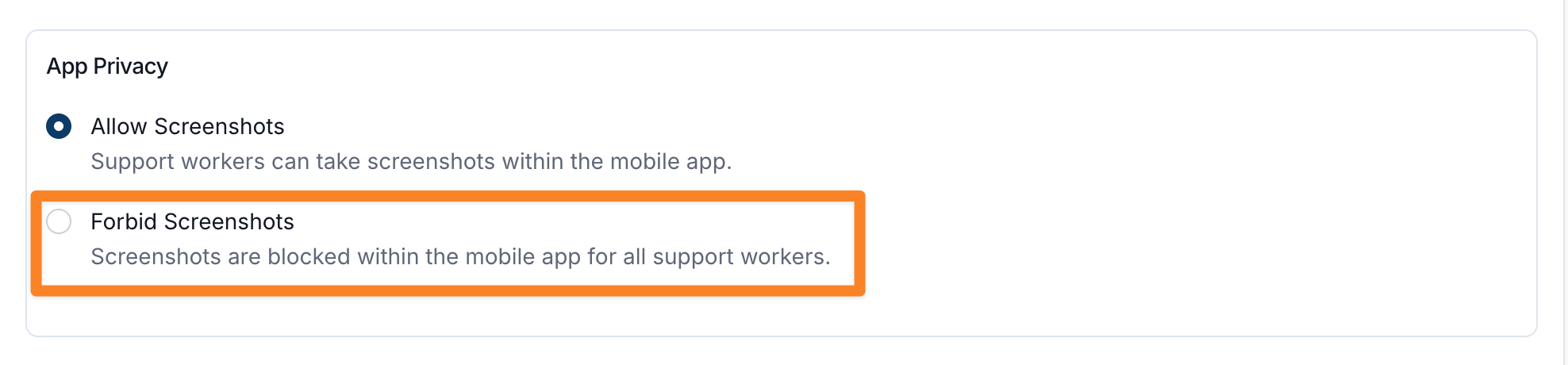
- Allow Screenshots lets the device capture the app screen.
- Forbid Screenshots asks the device to prevent screen capture while the Astalty app is in use.
- Save the change.
How It Works
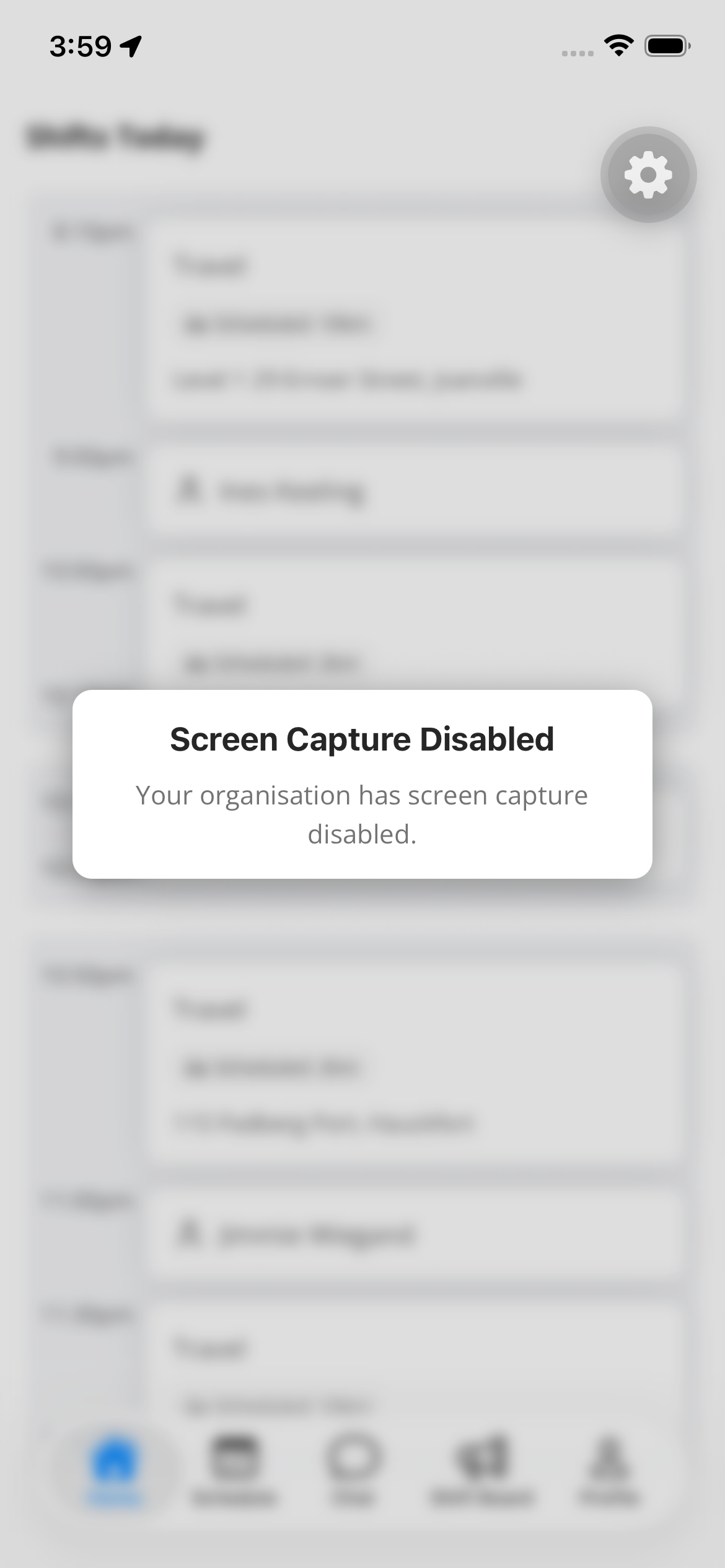
When Forbid Screenshots is selected, the app applies the device's screen capture protection. If the app detects a screenshot attempt, it shows Screen Capture Disabled with the message Your organisation has screen capture disabled. Exact screenshot and screen recording behaviour can vary by device and operating system.
Important Note
This setting governs screen capture inside the Astalty mobile app. It does not control other apps on the device.