- Scheduling
- Uploading User Records
Uploading User Records
Overview
The Astalty mobile app allows Support Workers to easily upload and manage required Records directly from their device. This ensures that important documents — such as certifications, licences, or compliance records — are kept up to date and accessible.
Within the app, you can:
- View which Records are required
- Upload documents quickly using your phone
- Track the status of your submissions
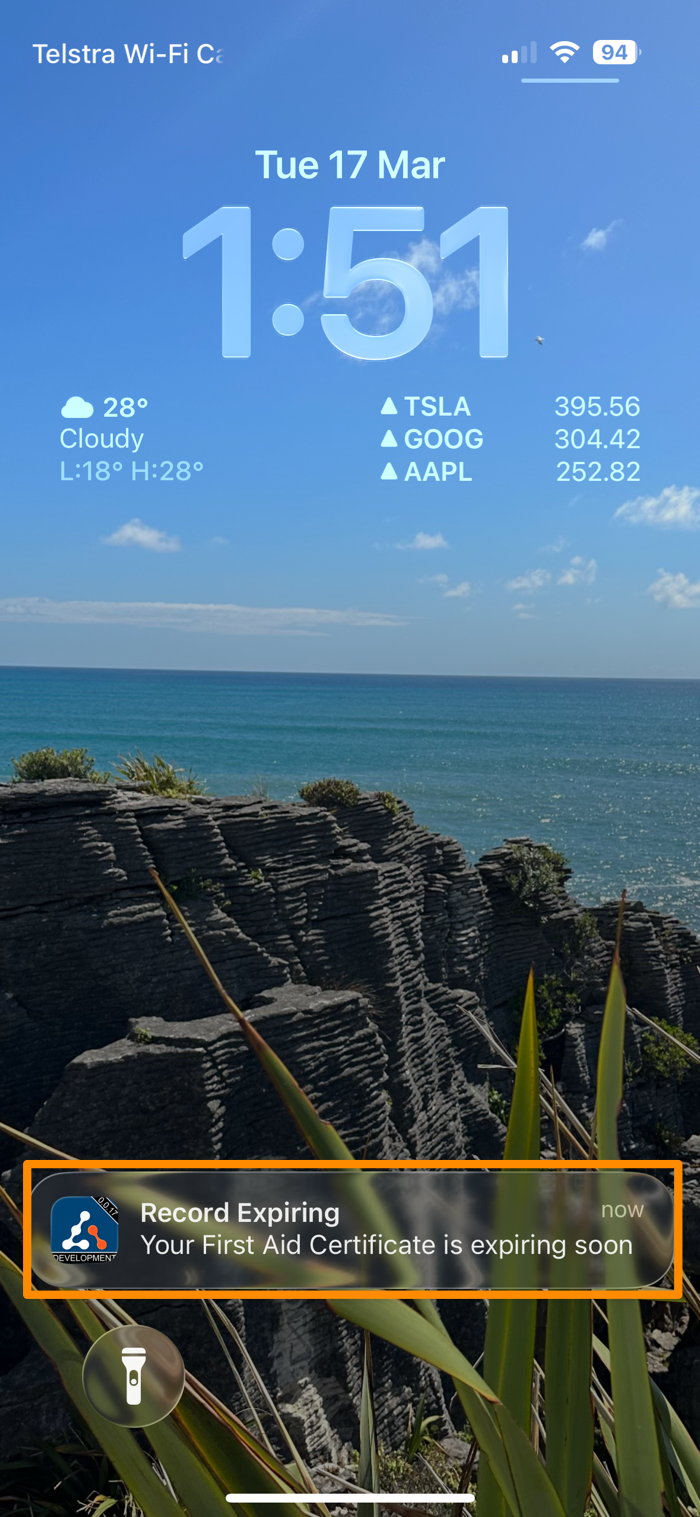
- Receive notifications when updates are needed (dependent on notification settings applied by admin users)
Keeping your Records current helps ensure compliance and allows you to continue working without interruptions.
Uploading Your Records
Open the Astalty App
- Navigate to the Astalty mobile app on your device.
Access Your Profile
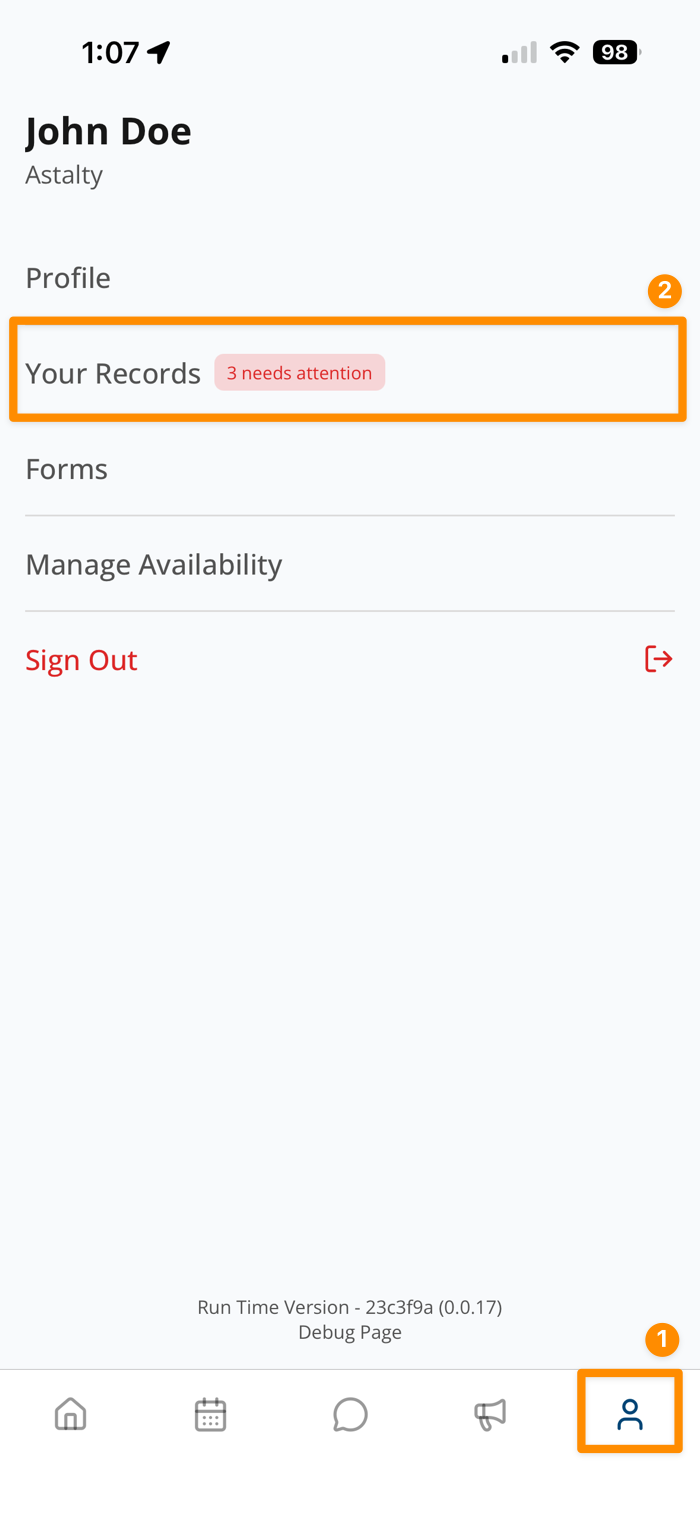
- Tap on the profile icon to open your profile.
Go to Records
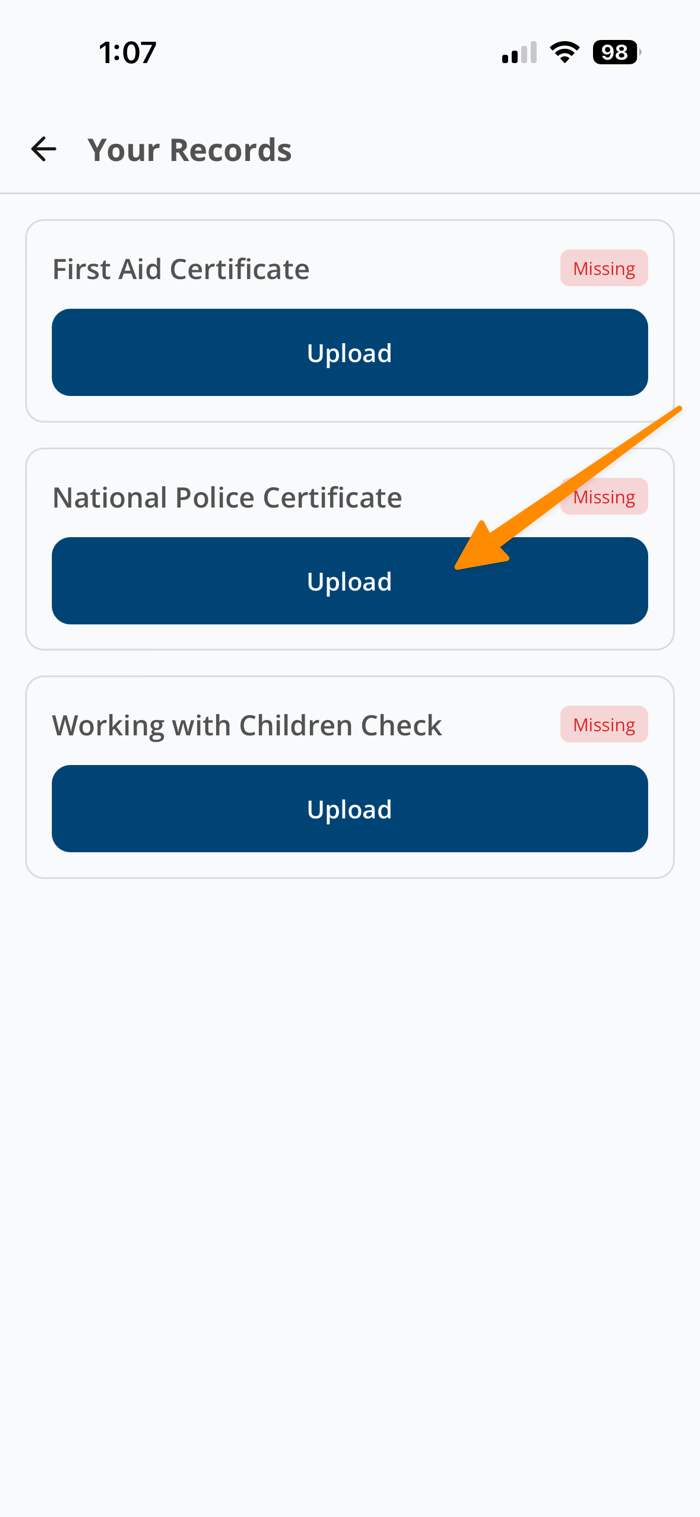
- Within your profile, select the “Your Records” option. Here, you will see any Records that you are required to upload.
Upload a Record
- Tap the Upload button next to the required Record.
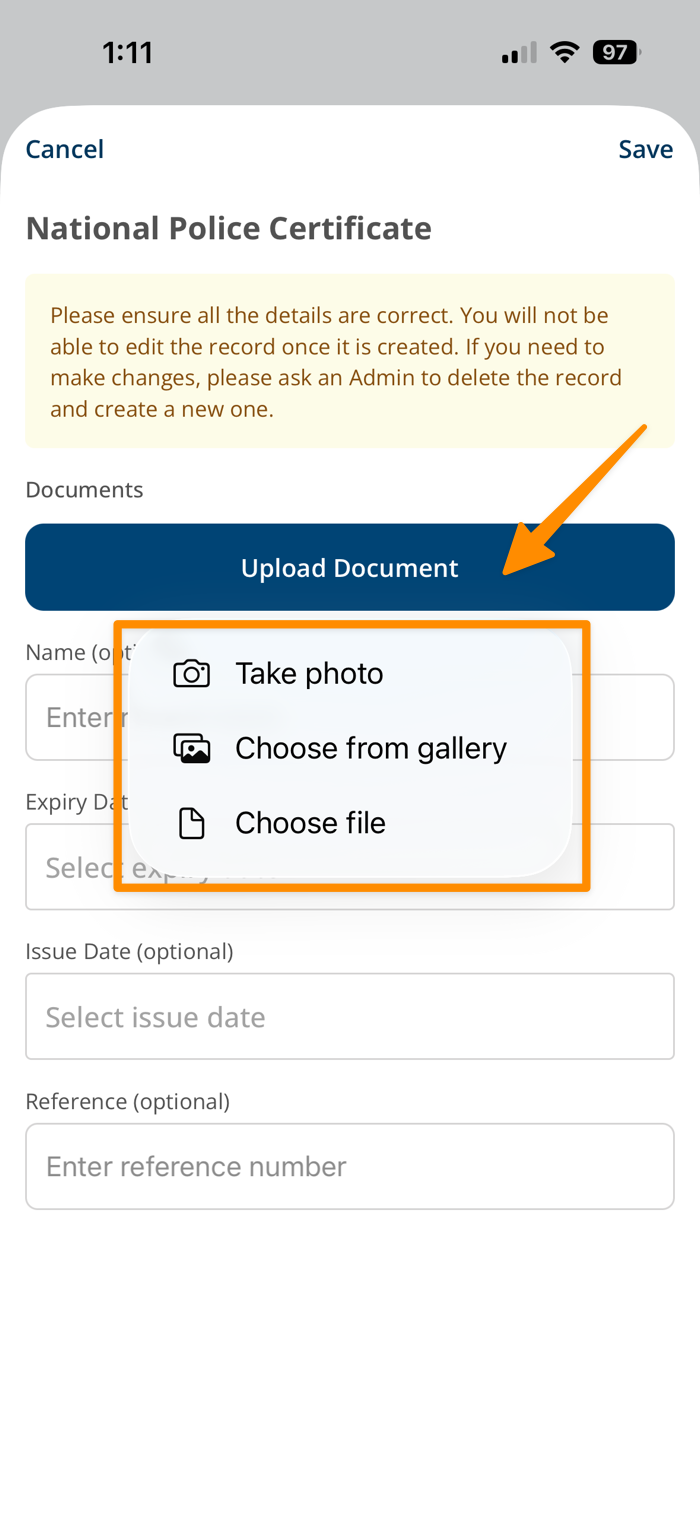
- Choose how you want to upload your document:
- Take a photo
- Select from your gallery
- Choose a file saved on your device
Complete Optional Fields (if needed)
- You may also fill in additional details:
- Name
- Expiry Date
- Issue Date
- Reference
Submit the Record
- Once uploaded, your document will be attached to your User Records.
Record Status & Notifications
- After uploading, you can view the status of your Records within the Your Records section.
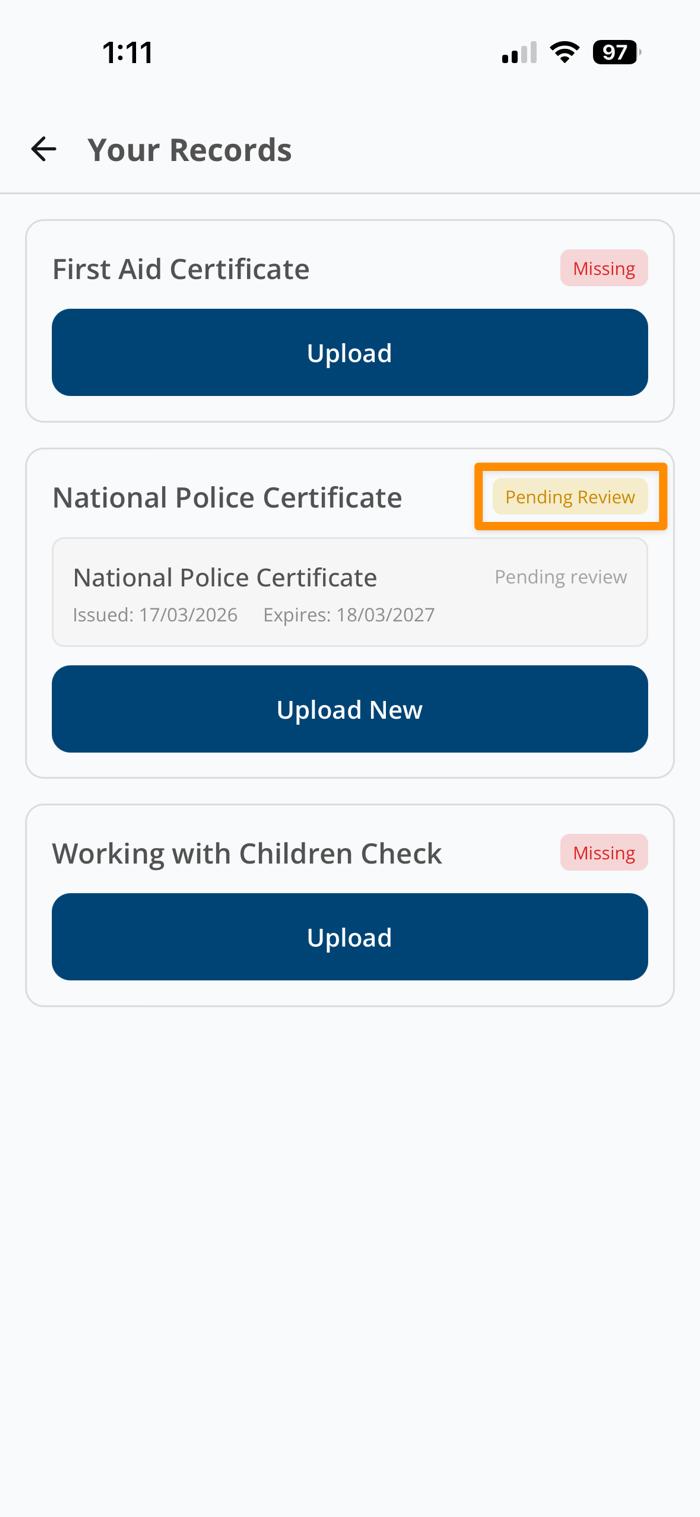
- Some Records may require admin verification:
- These will display a “Pending Review" alert.
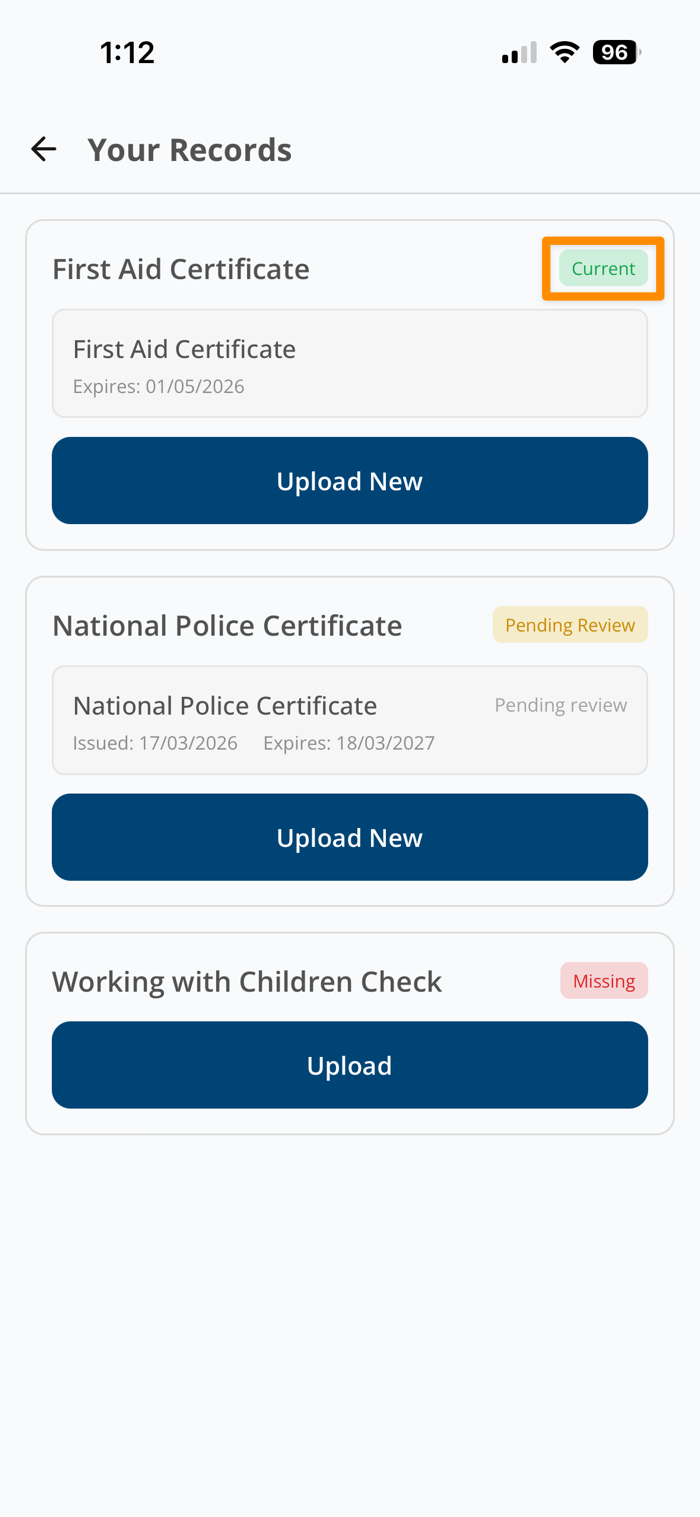
- Once a Record is approved and up to date, you will see an icon indicating the Record is Current.
- Depending on the Record type, you may receive notifications on your device when a document needs to be updated.