Creating a Service Agreement
Overview
A service agreement in Astalty is a document generated from a Service Agreement template and pre-filled with a Participant's details. It pulls information straight from the Participant's profile - and, when you select a Budget, builds out the Schedule of Supports for you - so you're editing a finished document instead of retyping it.
This page walks through the full process: setting up the template, optionally creating a Budget for the Schedule of Supports, generating the agreement, and sending it for signing.
Before you start
Every service agreement needs a template. A Budget is optional and is only needed when the template should include a populated Schedule of Supports:
- A Service Agreement template - the reusable document that defines the wording and placeholders. You only set this up once (see Step 1).
- A Budget, when needed - select one to populate the Schedule of Supports placeholder with the Participant's supports and amounts (see Step 2).
Step 1: Set up a Service Agreement template
A service agreement is generated from a custom template with the Service Agreement usage type. This usage type unlocks the Service Agreement placeholder group - including the Schedule of Supports - on top of the Business, Participant, and Primary Coordinator placeholders.
To create one, head to Template Settings, click Create a Template, and choose the Service Agreement Template usage type. Our recommendation is to choose the Astalty Template format so you keep full use of placeholders and can edit the document up until it's generated.
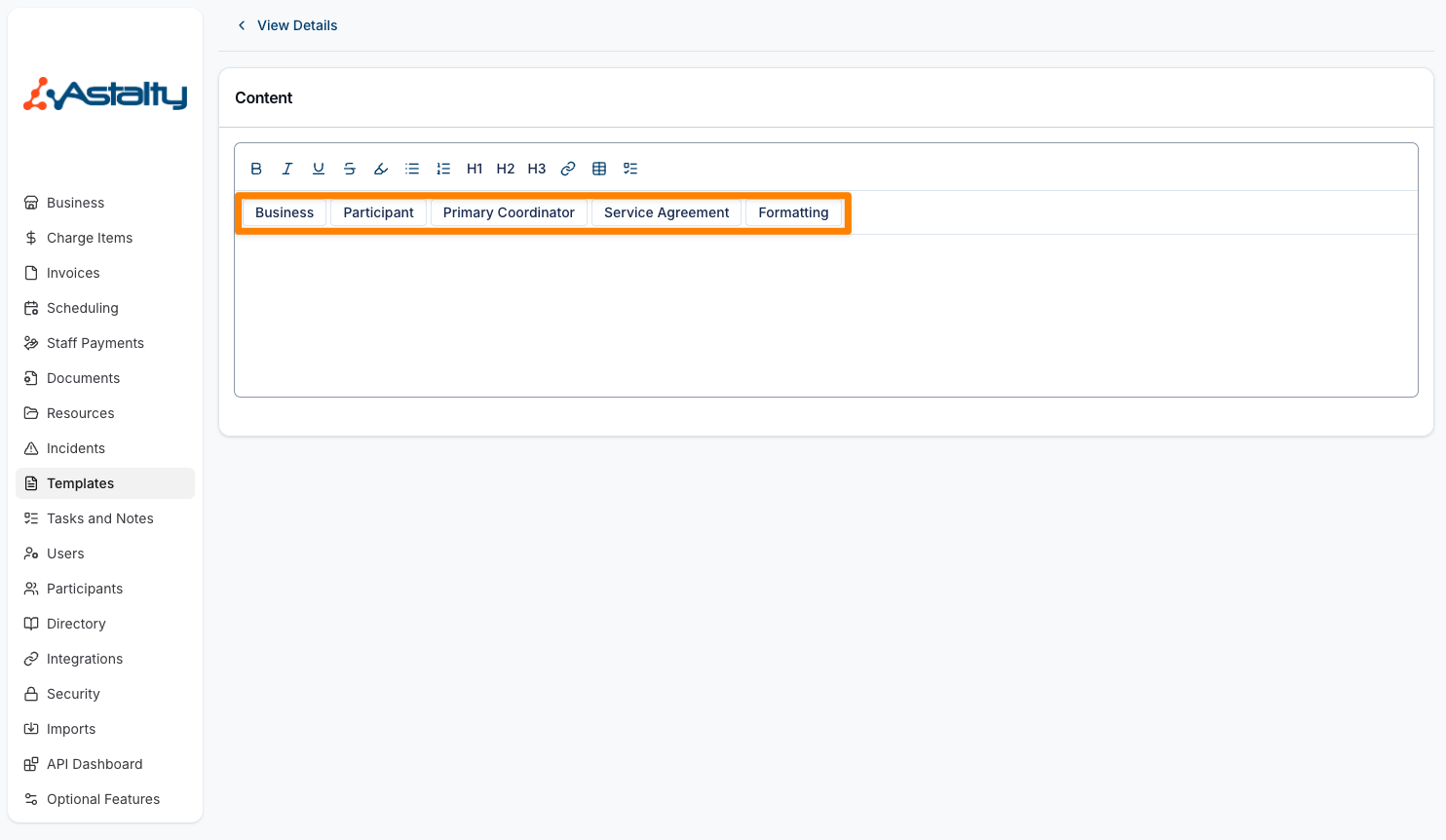
You only need to do this once - the same template can then be reused for every Participant.
Step 2: Create a budget for the Schedule of Supports
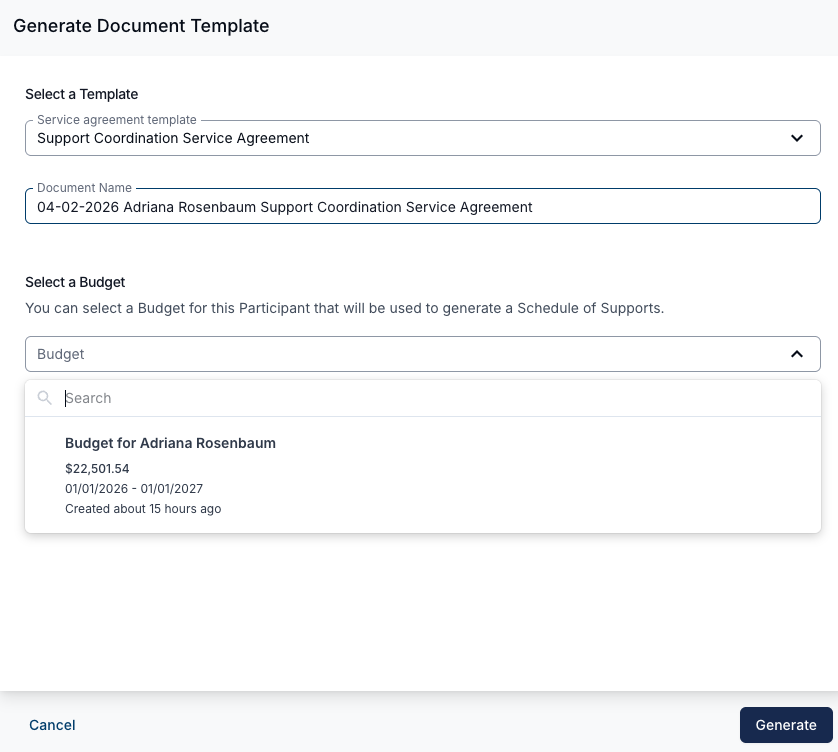
The Schedule of Supports in a service agreement is built from a Participant's Budget. Creating the budget first means the supports and amounts are populated for you when you generate the agreement.
Skip this step when the template does not need a Schedule of Supports. If you generate the agreement without selecting a Budget, Astalty leaves the Schedule of Supports placeholders blank.
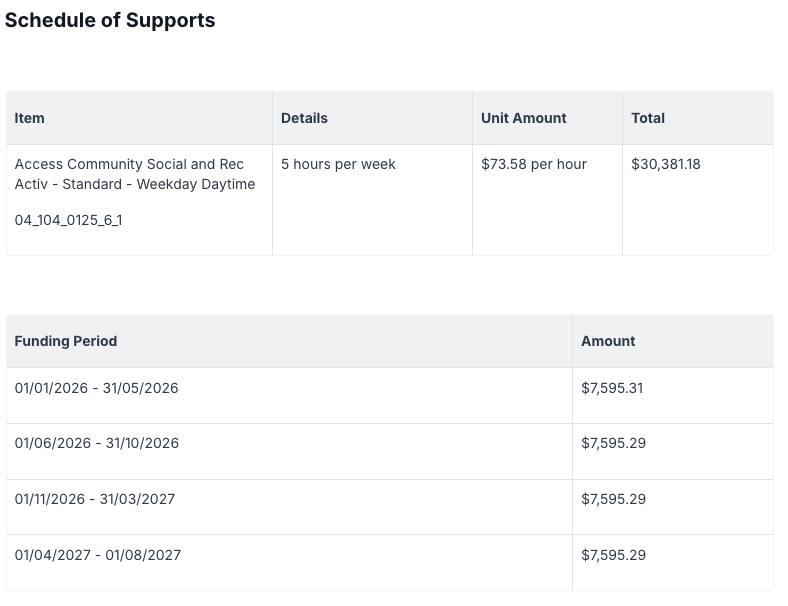
On the Participant's profile, open the Budgets page, click Create Budget, and add your budget items. If the Participant's funding is released in stages, you can also split the budget across funding periods - these carry across into the Schedule of Supports.
Step 3: Generate the service agreement
There are two ways to generate a service agreement. Both open the same Generate Document Template form.
Option A - From the Participant's Templates page
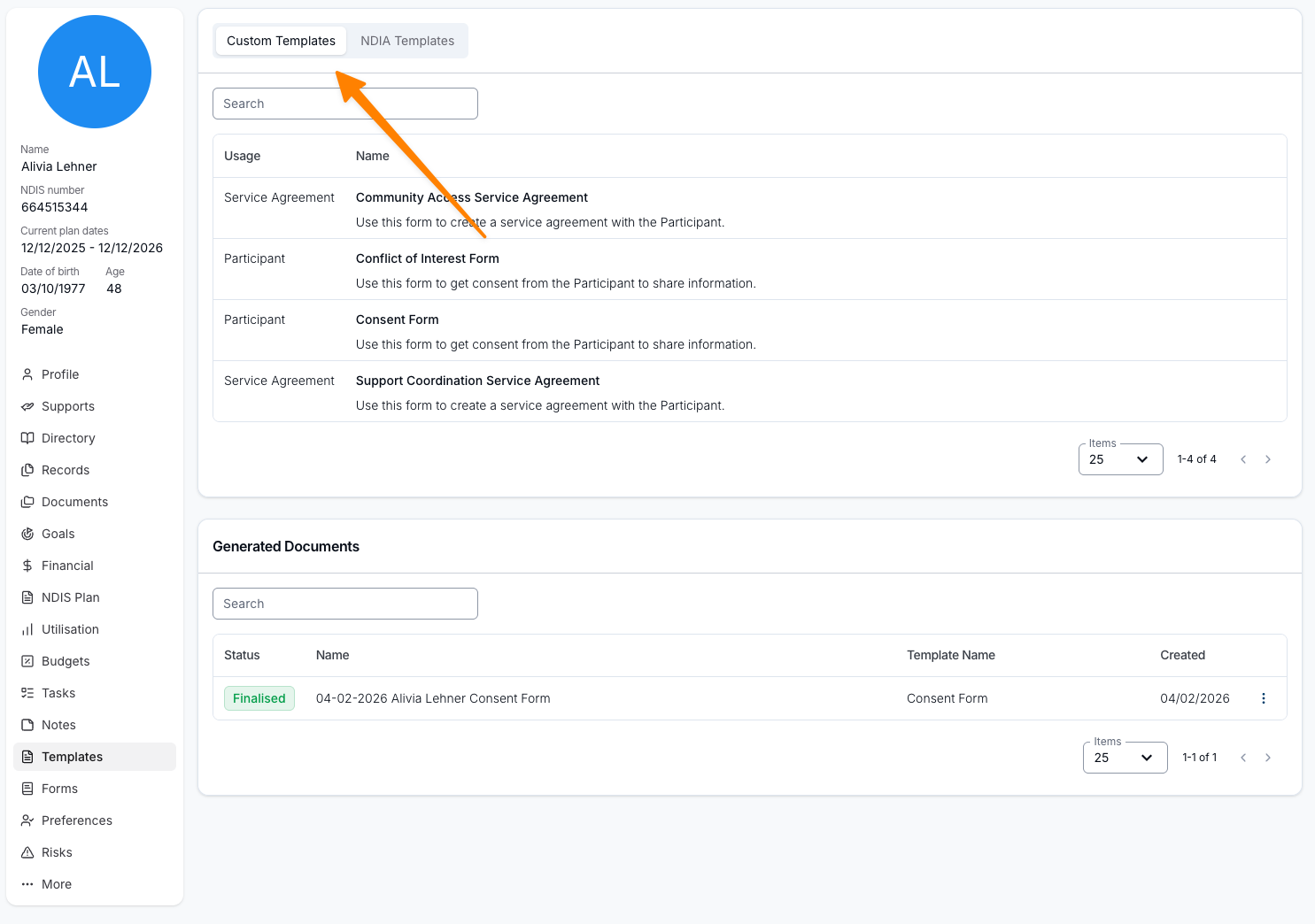
- On the Participant's profile, open the Templates page.
- On the Custom tab (the default), select your Service Agreement template from the list.
- In the Generate Document Template form, give the document a Name. If the template uses a Schedule of Supports, choose the Budget under Select a Budget. Otherwise, leave the Budget blank.
- Click Generate.
Option B - From the Budget
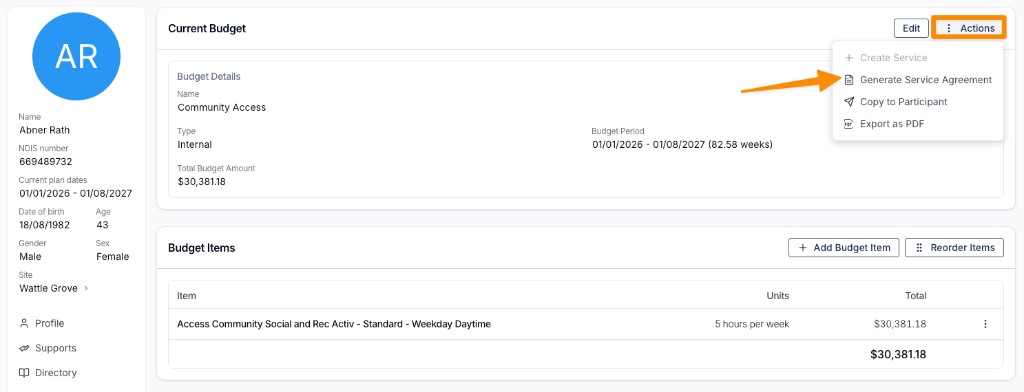
You can also start from the budget itself. Open the budget, click Actions, then Generate Service Agreement. The budget is already selected for you - just pick the Service Agreement template to use.
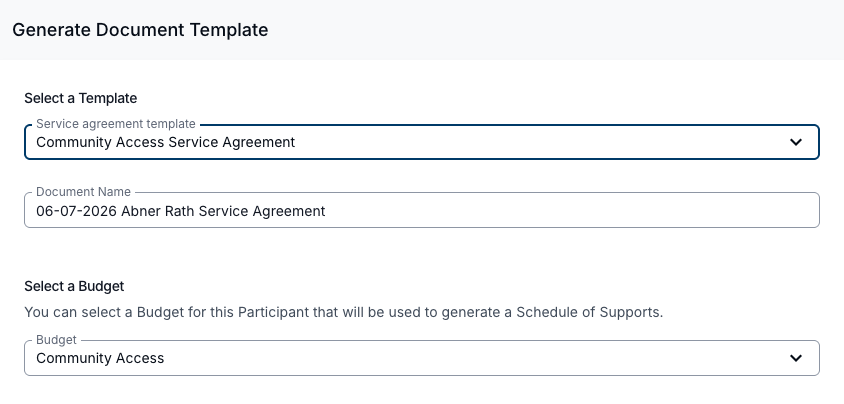
If the budget includes funding periods, each period and its amount is captured in the Schedule of Supports alongside the supports.
This is the same Generate Document Template form as Option A, so the Include the per-item funding breakdown option appears here too when the budget uses Budget Item Allocations. Because the budget is already selected, you'll see the option straight away rather than after choosing a budget.
Step 4: Edit the generated document
Once you click Generate, an Astalty (rich text) template opens in the document editor with its available placeholders filled in. These can include Participant details, the primary coordinator, and the Schedule of Supports when you selected a Budget. You can update, add, or remove content here before finalising.
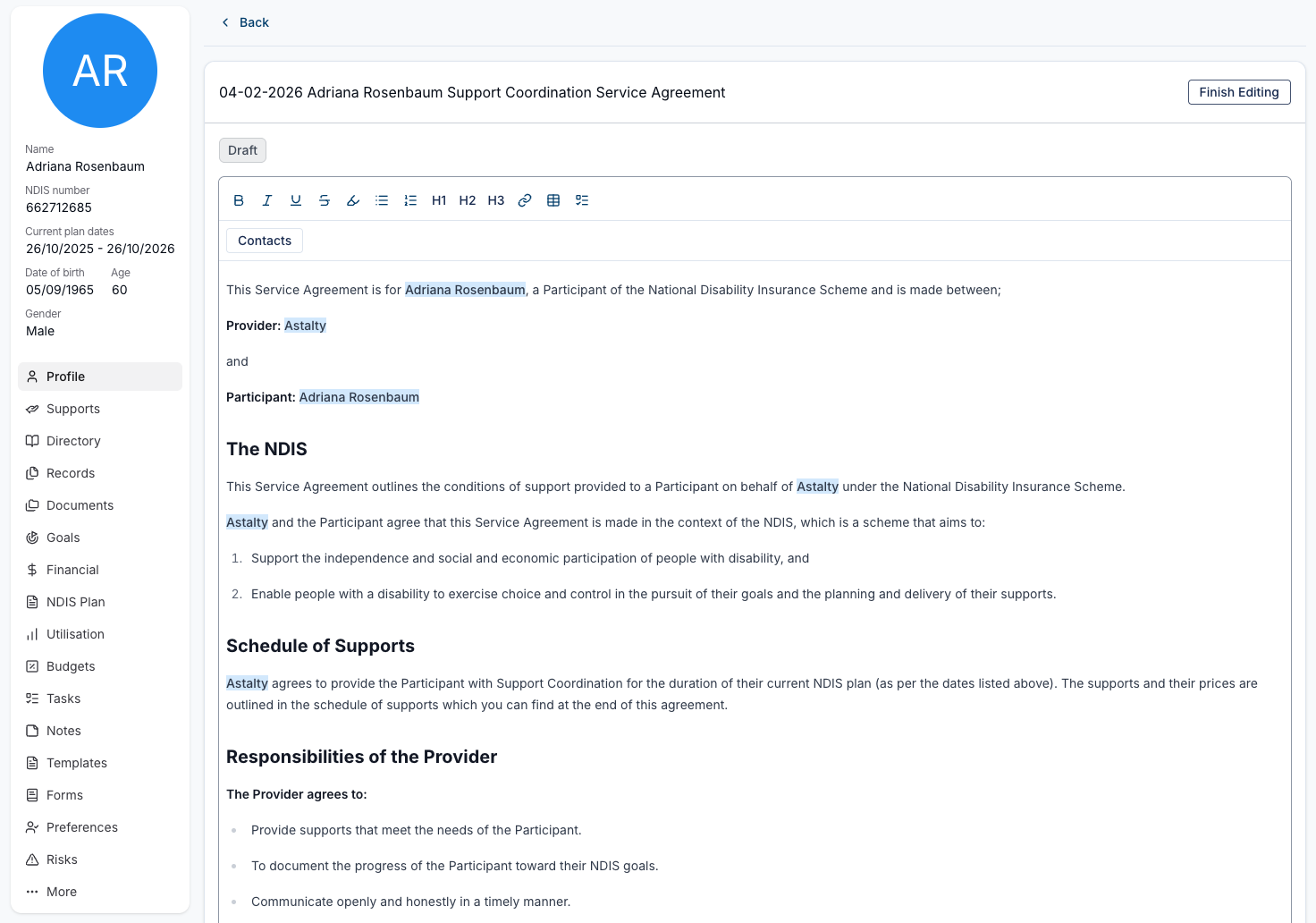
You can also insert Contact details on the fly using the Contact dropdown - select the contact and the contact method, and Astalty inserts it wherever you've placed it in the document.
Step 5: Finalise and create a record
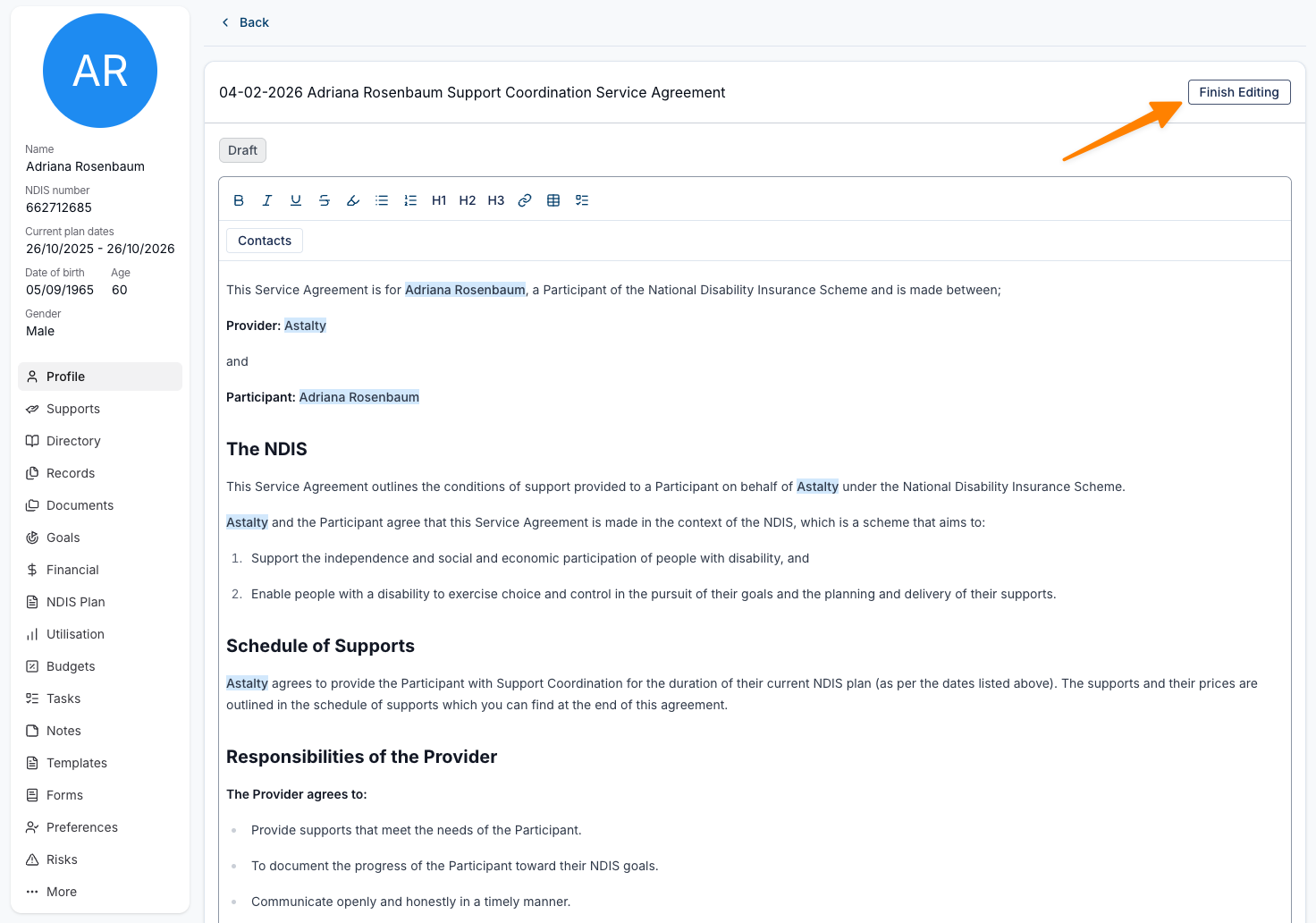
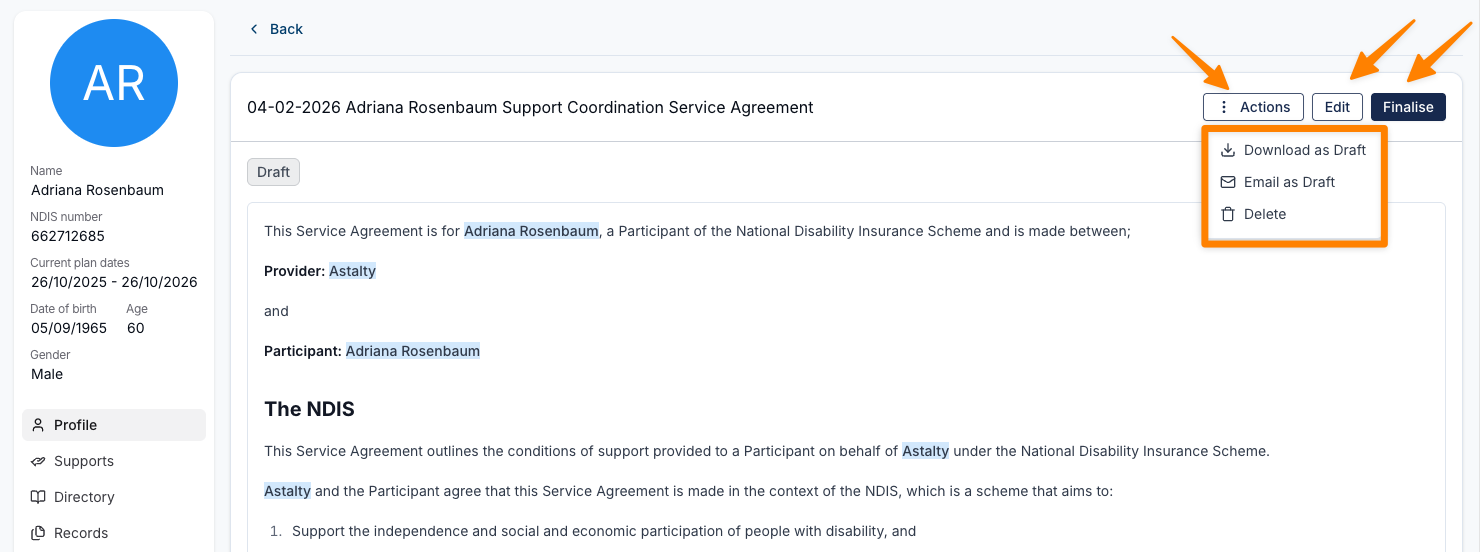
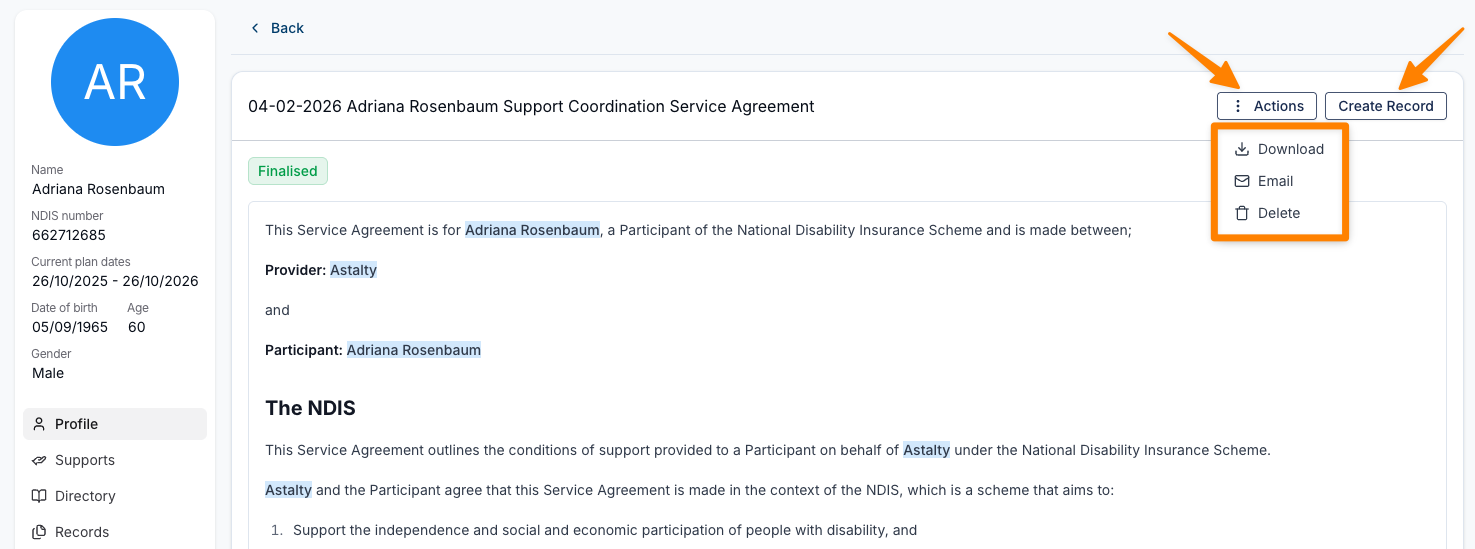
When the document is ready, click Finish Editing, then Finalise. From here you can Create a Record so the agreement is stored against the Participant with the right record type and expiry.
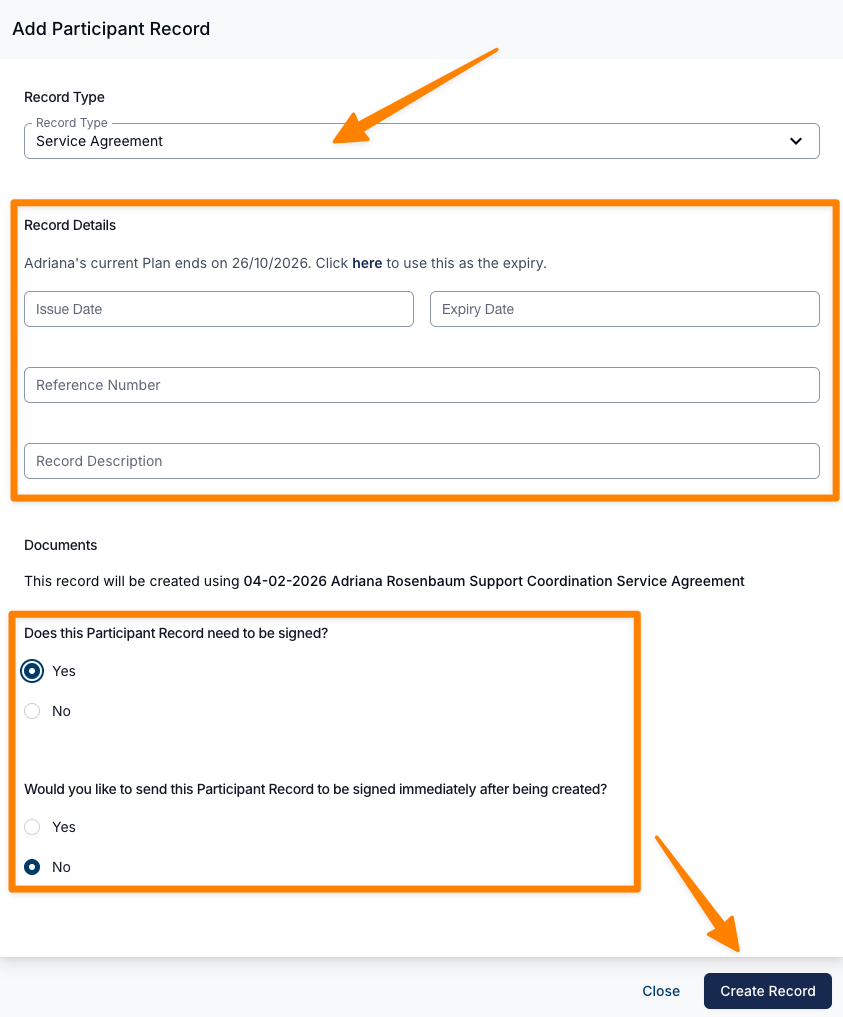
When creating the record, choose the Record Type, enter the record details, and choose whether it needs to be signed. If you select No, you can still send it for signing later from the Participant's Records page.
Step 6: Send the service agreement for signing
From the record you can send the service agreement for signing using Astalty's built-in eSignature functionality, or download a PDF to print and sign in person.
Related guides
- Template Settings - build and manage your Service Agreement template.
- Budget Functionality - create the budget behind the Schedule of Supports.
- Participant Custom Templates - generating and finalising any custom template.
- Participant Records - storing and tracking the signed agreement.
- Requesting Signatures - sending the agreement for eSignature.