Quick Action Menu
Use the Quick Action Menu to find pages, run common actions and return to recently viewed Participants.
Overview
Press CMD + K on Mac or CTRL + K on Windows, type a page name and press Enter to open the highlighted result.
The keyboard shortcut opens the menu without leaving your current page.
As well as taking you to a page, the Quick Action Menu can:
- Run a quick action, such as creating a task
- Take you back to a Participant you looked at earlier
- Show you the pages that belong to the record you are already on
Opening the Quick Action Menu
- Mac: press CMD ⌘ + K
- Windows: press CTRL + K
If your account has grouped navigation enabled, you can also select Search in the Side Menu. Grouped navigation is enabled per account by Astalty support; the keyboard shortcut works without it.
The shortcut works from every page in Astalty. It also works while your cursor is in a text field, so you do not have to click out of a form first.
To close the menu again, press the same shortcut a second time, press Esc, or select the × at the right of the search box.
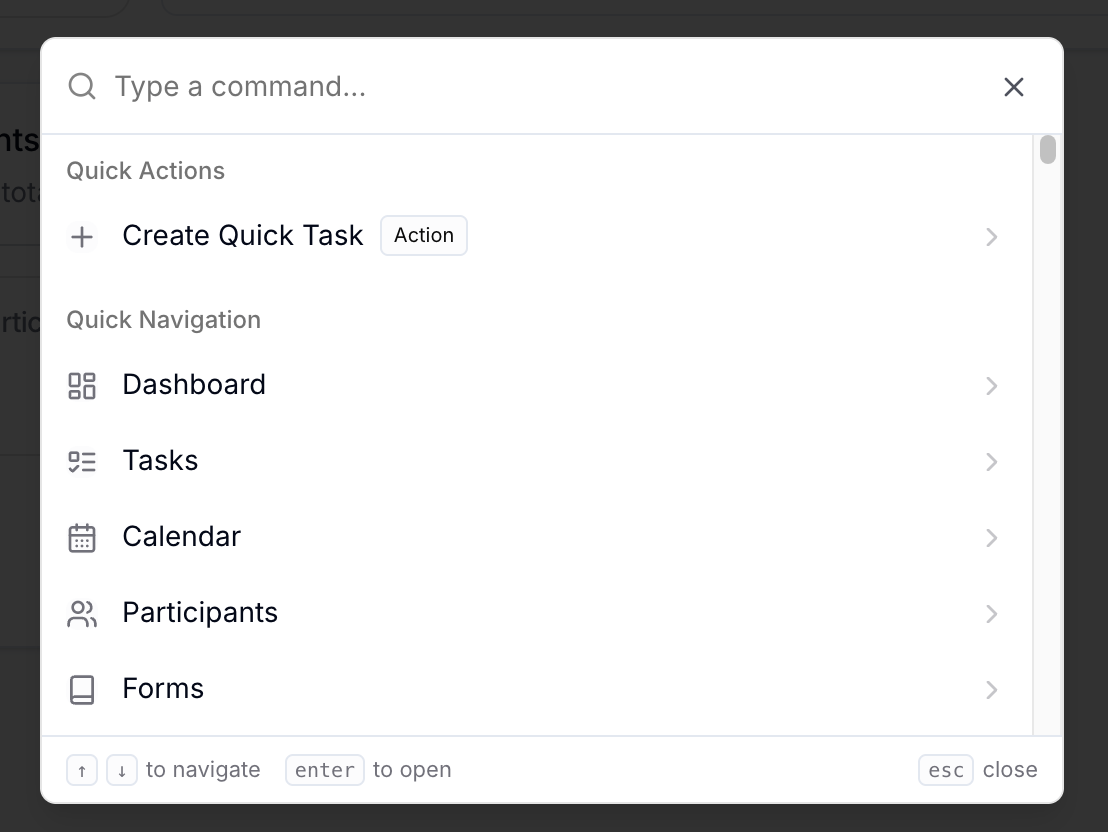
Keyboard Shortcuts
| Key | What it does |
|---|---|
| CMD + K / CTRL + K | Opens the Quick Action Menu, and closes it again |
| Start typing | Narrows the list as you type |
| ↑ / ↓ | Moves between results |
| Enter | Opens the highlighted result, or runs it |
| Esc | Closes the menu |
| CMD + B / CTRL + B | Not part of the menu, but worth knowing. It expands or collapses the Side Menu. |
Searching by Name or by Path
Search matches page names and their menu paths. Add a category such as reports or exports to narrow the results.
Typing shift exp returns the shift-related entries under Exports, and further down the list, Recurring Shifts Expiring Soon from Reports › Scheduling.
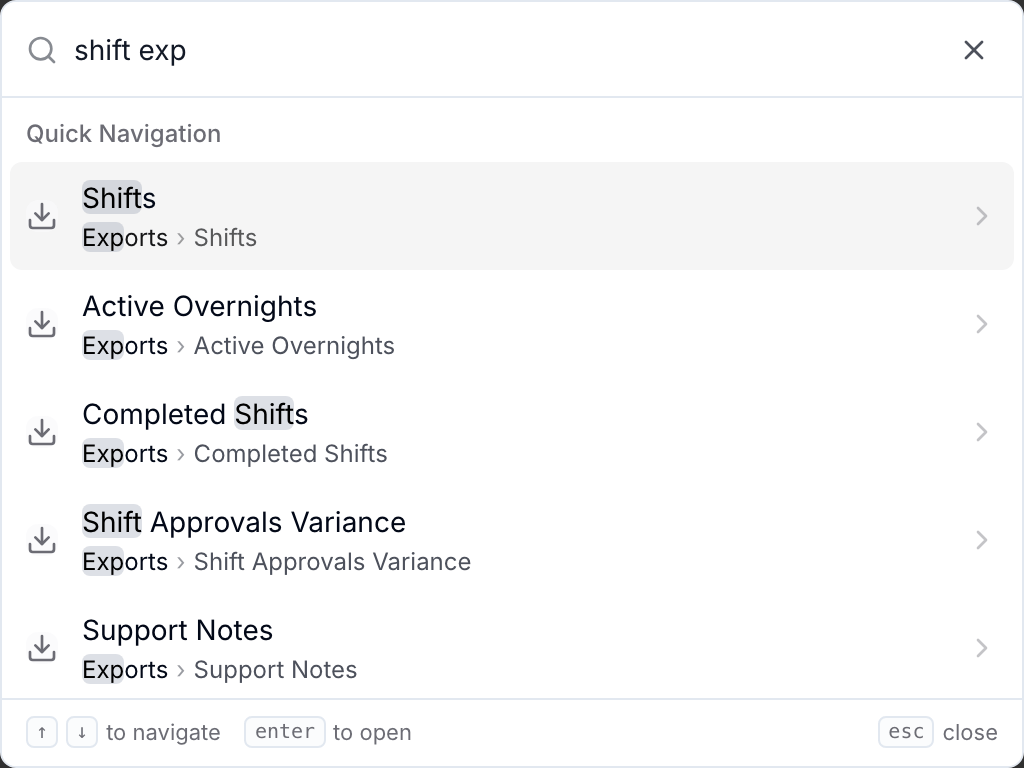
Search works with partial words, in any order:
- Every word you type has to match somewhere in the entry. Each extra word narrows the list rather than widening it.
- The order of your words does not matter. Typing shift exp and exp shift gives you the same results.
- Part of a word is enough. In the example above, exp matches both Exports and Expiring.
Whatever matched is highlighted in each result, so you can always see why something came up.
Searching by What You Call It
Some pages answer to more than their own name, so you can search for them using the words you would normally use.
The Security page under Settings, where account-wide two-factor authentication is managed, also comes up when you type 2fa, mfa, two factor or authenticator, even though those words do not appear in the result.
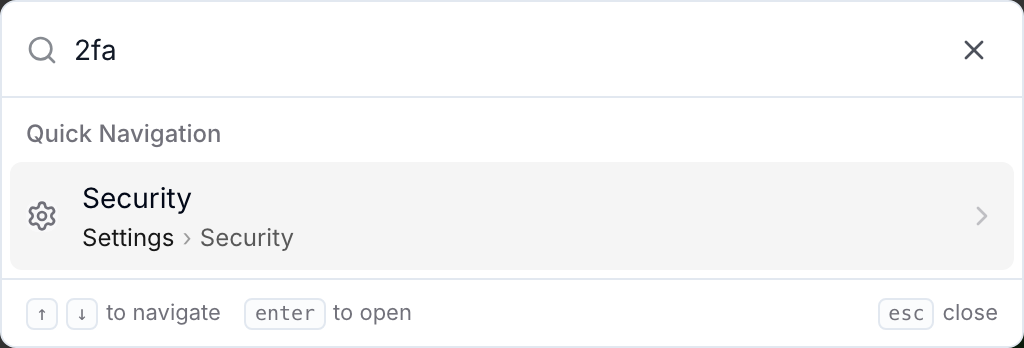
Settings Sub-Pages
You can search for individual settings pages without opening Settings first.
For example, typing cost codes returns Cost Codes under Settings › Scheduling › Cost Codes, and the same works for Pay Groups, Cancellation Reasons, Leave Types, Public Holidays and Schedule Colours. See the scheduling settings submenu for what each page holds.
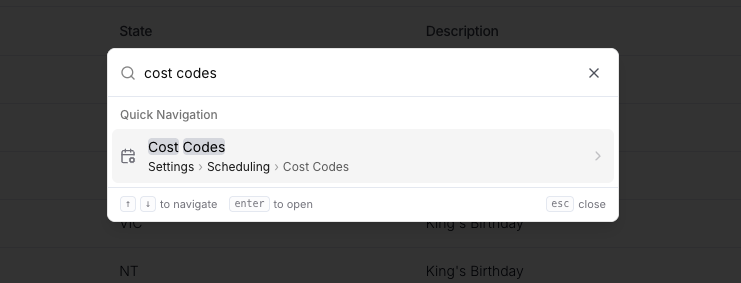
Sections Within a Page
Some results name a section within a settings page rather than a page of its own.
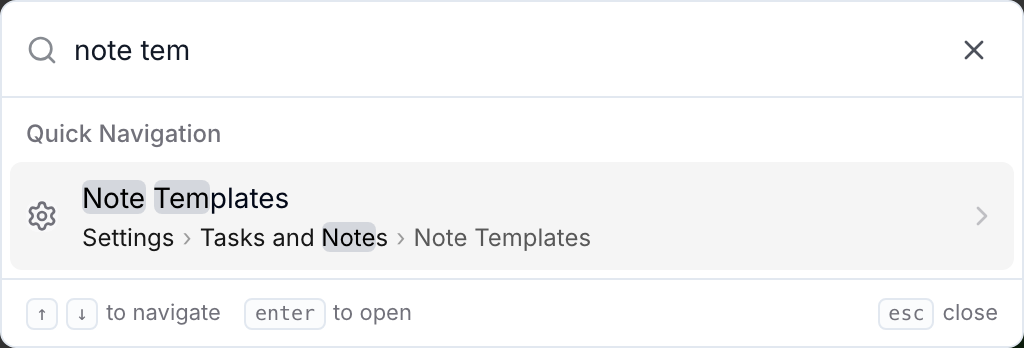
Note Templates, for example, has its own entry in the menu. Selecting it opens Settings > Tasks and Notes, where you can find the Note Templates section.
How Results Are Grouped
Results are grouped so you can tell at a glance what a result will do.
| Group | What it contains |
|---|---|
| No heading | The pages belonging to the record you are currently on. See Contextual Pages. |
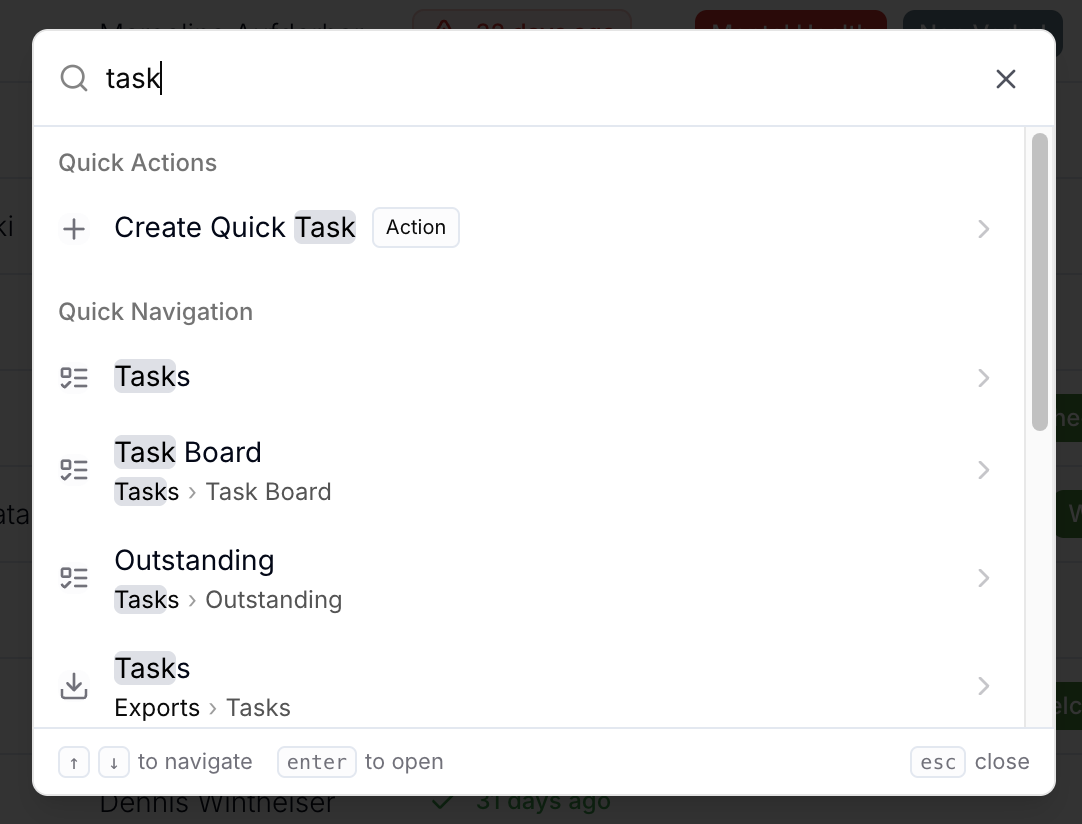
| Quick Actions | Things the menu does rather than pages it opens. Each one is marked with an Action badge |
| Quick Navigation | Every page you can reach in Astalty, along with your own profile |
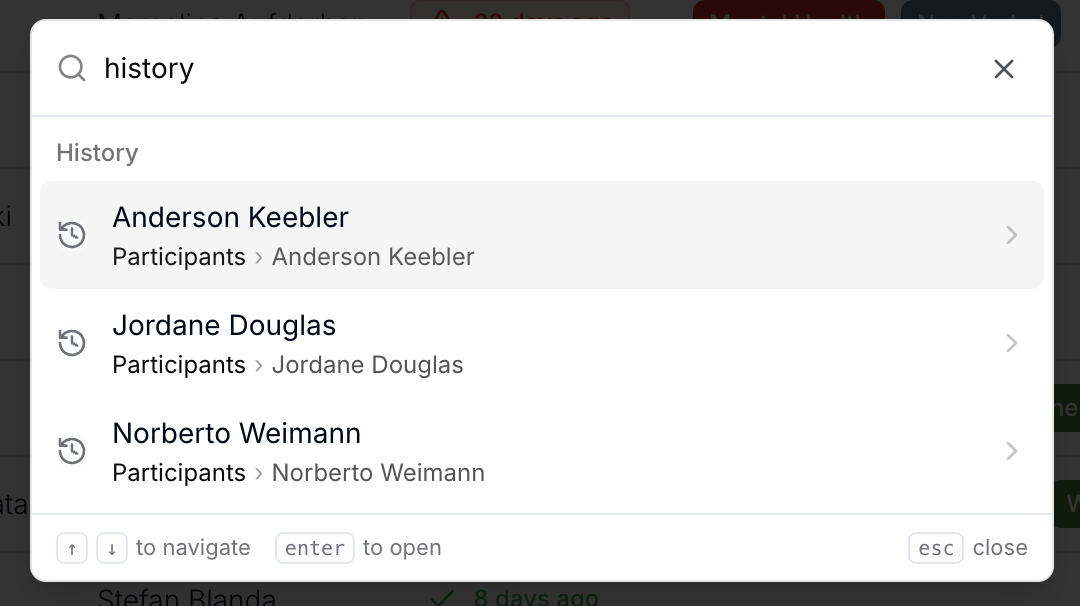
| History | Participants you have opened recently |
Within Quick Navigation, top-level pages are listed first and pages that sit deeper in the menu follow, so Dashboard and Participants appear before an individual report.
Creating a Task
You can create a task straight from the Quick Action Menu without leaving the page you are on. Open the menu and start typing task, then select Create Quick Task.
History
The Quick Action Menu keeps track of the Participants you have opened, so you can get back to one without searching for them again. Type history to see the list, or start typing a Participant's name and they will appear under History in the results.
The list covers your current session in Astalty, so it starts empty again after you refresh the page or sign back in.
Contextual Pages
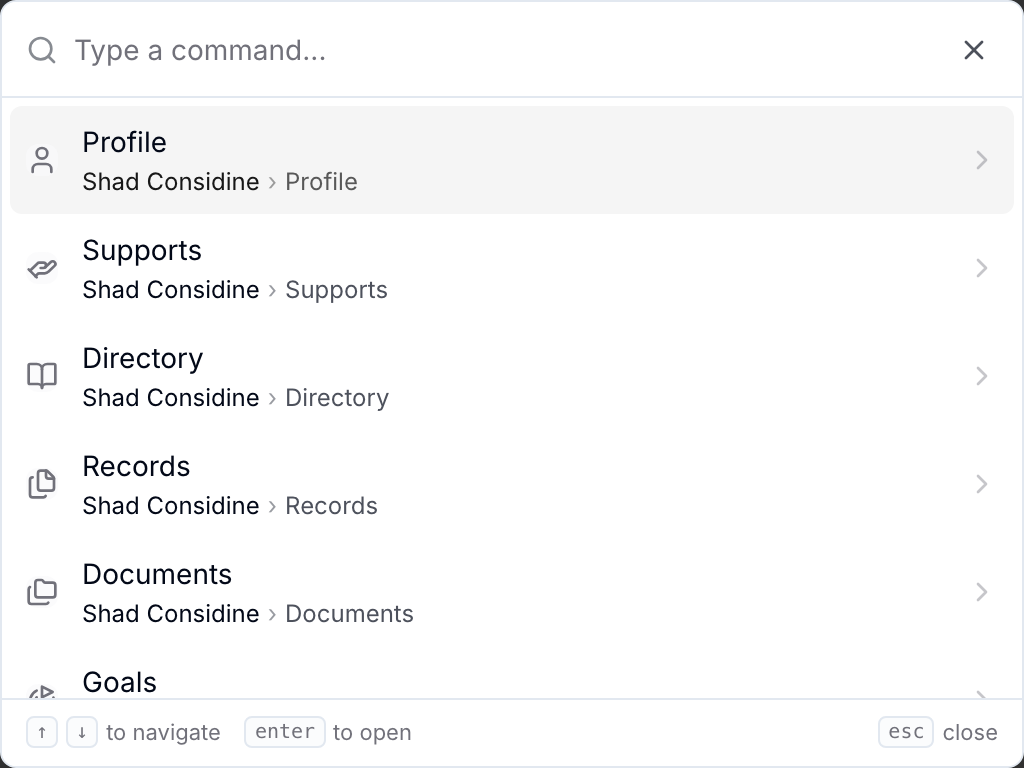
When you are on a record with pages of its own, such as a Participant's profile, those pages are listed first in the menu, above everything else, with the record's name in the path.
From a Participant's profile, you can reach its Supports, Records, Documents and other pages without going back to the Side Menu first.
Watch the Walkthrough
There is a short video covering the same ground: Quick Action Menu.
Things to Keep in Mind
- You will only ever see what you already have access to. Results are filtered by your user role, your permissions and the features enabled on your account, in the same way the Side Menu is. A page a colleague can find in the menu may not appear for you.
- Touch access depends on your navigation. Accounts with grouped navigation can open the menu from Search in the Side Menu. Otherwise, use the keyboard shortcut.
- It is a search box, not a filter. The menu searches page names and actions. To find a specific Participant, shift or invoice, use the search on the relevant page, or open the Participant from History if you have looked at them recently.