What's New
Overview
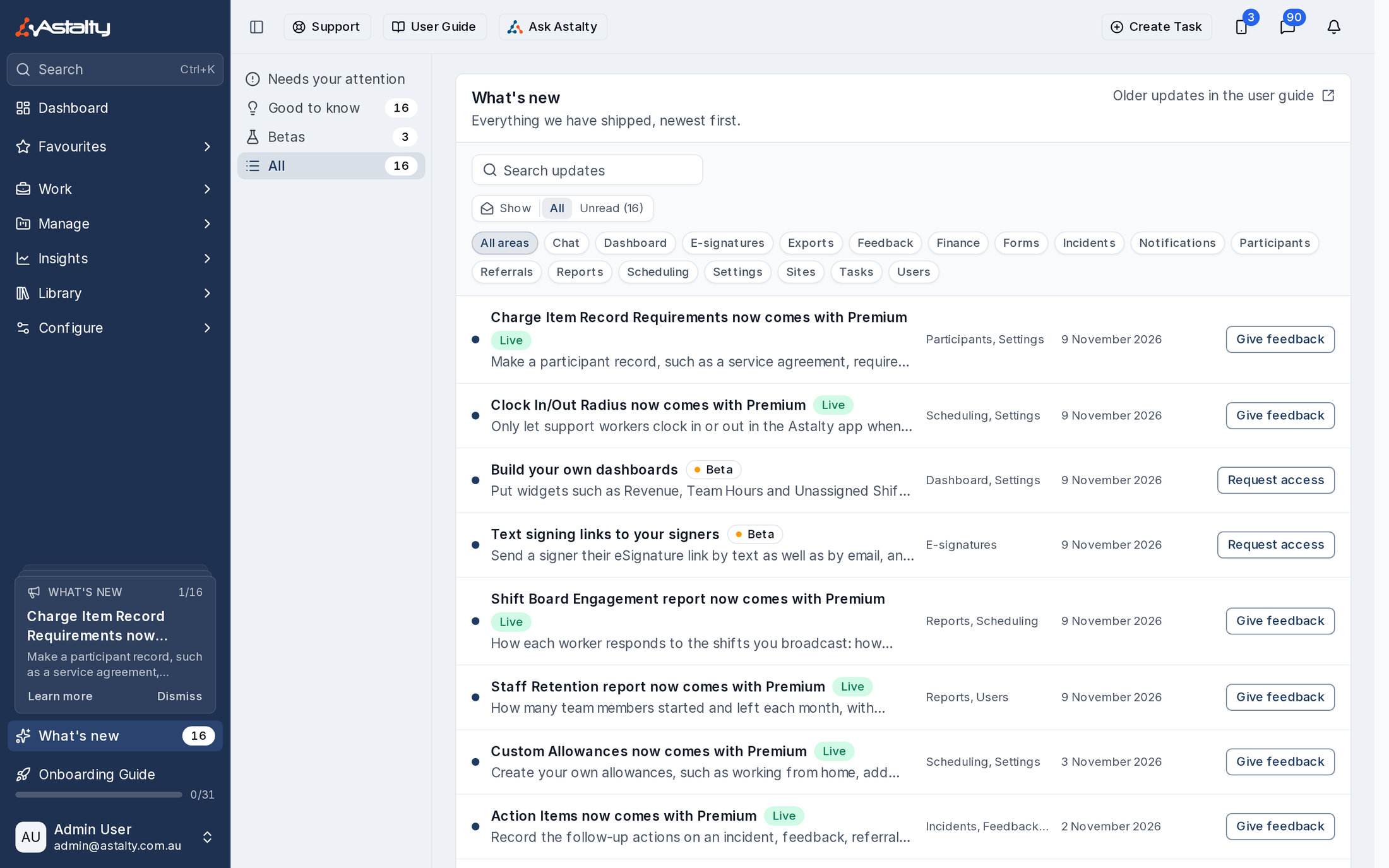
What's new lists recent Astalty releases in one place, newest first, so you can see what changed and how it affects your work. Open it from What's new at the bottom of the Side Menu. The number beside it is how many updates you have not read yet.
Every Astalty account has What's new. The updates you see are matched to your organisation's plan and your access, so a colleague may see a different list.
Browse Updates
Choose a list on the left of the page:
- Needs your attention: major changes that affect how you work.
- Good to know: smaller changes and improvements.
- Betas: features that are still being tested.
- All: every update.
Each list shows its unread count. A dot beside an update means you have not read it yet.
To narrow the list, type in Search updates, select an area such as Scheduling or Finance, or set Show to Unread. Select All areas to clear the area filter.
Select an update's title to read it in full. The release page explains what changed, where to find it and who it affects. Opening an update marks it as read and reduces the count beside What's new.
Updates released before What's new arrived in your account, or before your user account was created, are listed as already read. For older releases, select Older updates in the user guide to open the Changelog.
Give Feedback or Request Beta Access
Select Give feedback beside a live update to tell the Astalty team what you think of it.
Admins can select Request access beside a beta, or on the beta's release page, to ask for it to be switched on. Astalty opens a message to the support team with the request already written. Review it, then select Send Email to Support.
Cards in the Side Menu
When something new lands, a card appears just above What's new in the Side Menu. It shows the update's title, a short summary and how many cards are waiting, such as 1/16.
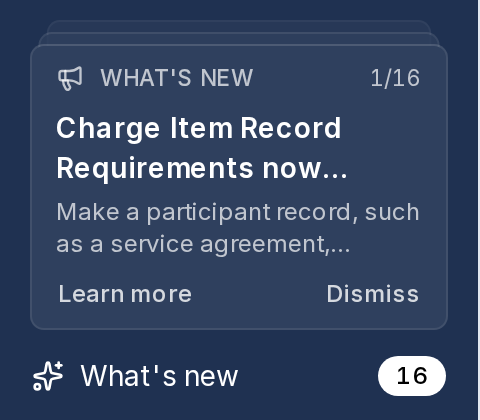
- Select Learn more to open the full update.
- Select Dismiss to remove the card and show the next one. A dismissed update stays in the What's new list.
Reading an update does not remove its card, so select Dismiss when you are finished with it. To put a card aside without dismissing it, move to it with the keyboard and press Esc. It comes back the next time you open Astalty in a new browser tab.
The cards show when the Side Menu is expanded, and do not show on a phone.
Page Tips
When a release changes a particular page, a tip may appear at the top of that page the next time you open it. The tip names the change and gives a one-line summary.
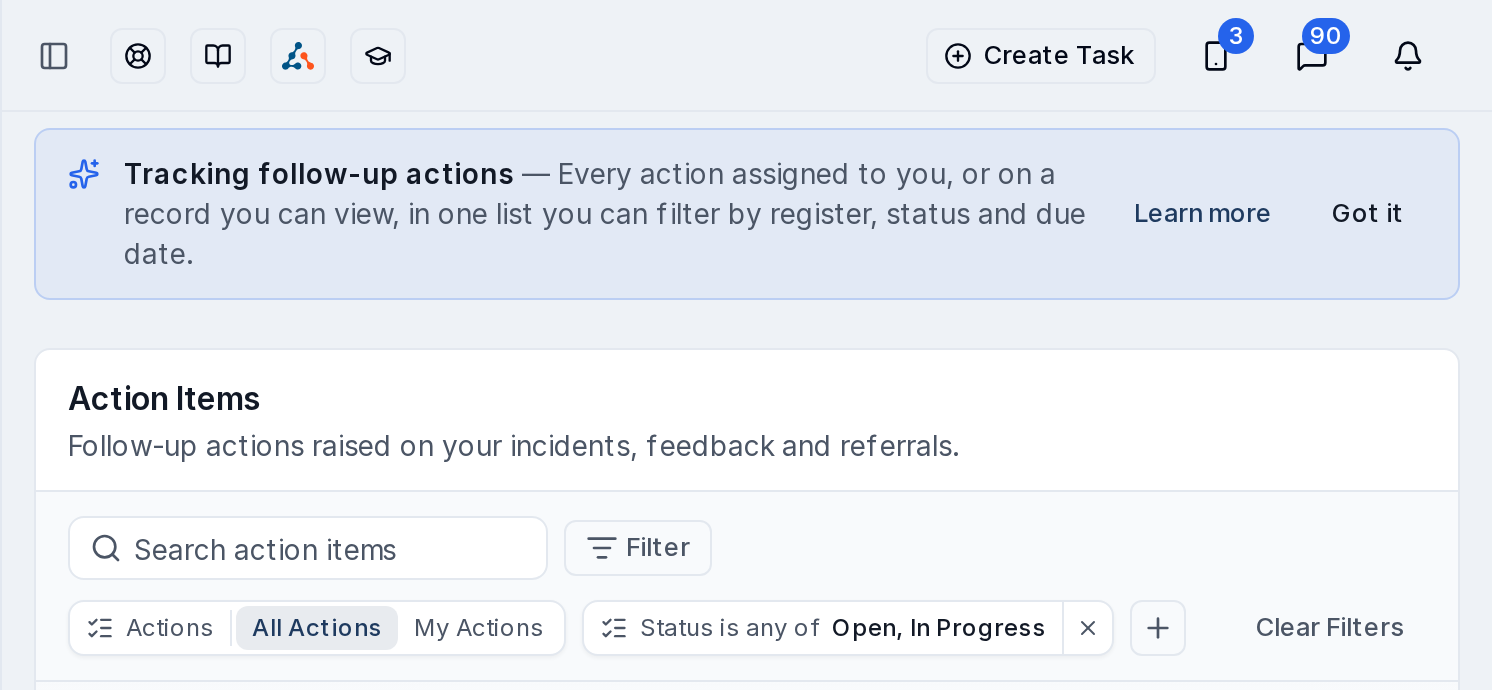
- Select Learn more to read the full update.
- Select Got it to close the tip for good.
Reading the update does not close the tip, so it stays on the page until you select Got it.