- Start Here
- Navigating Astalty
- General Navigation
General Navigation
Overview
Astalty provides several ways to navigate to its features, settings and profiles. Some features or options may not be available to you due to your user role, user permissions or features that may not be enabled on your account.
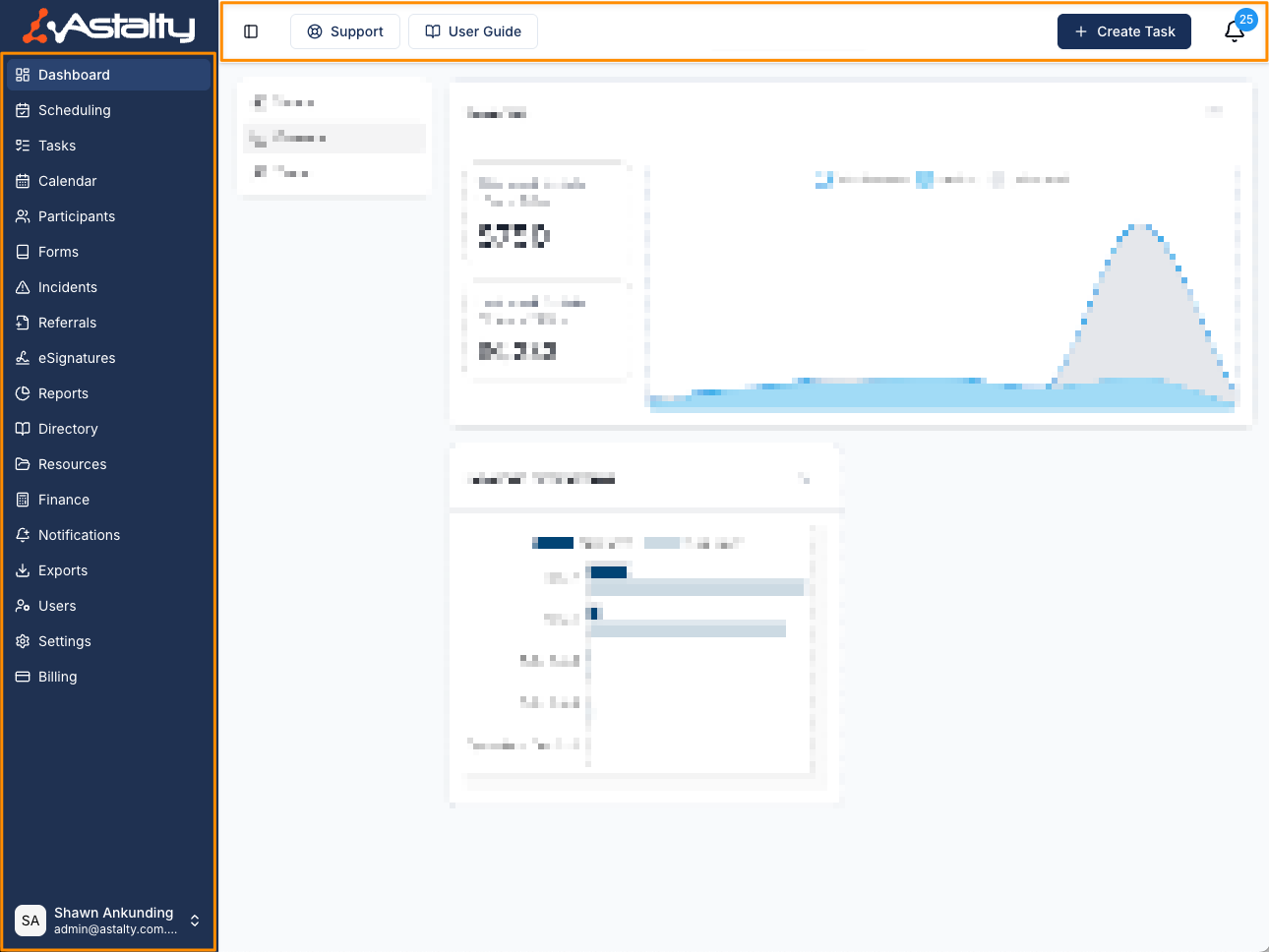
Side Menu
This is your main menu giving you access to all the features, profiles and settings. From the Side Menu you can also access your User Account.
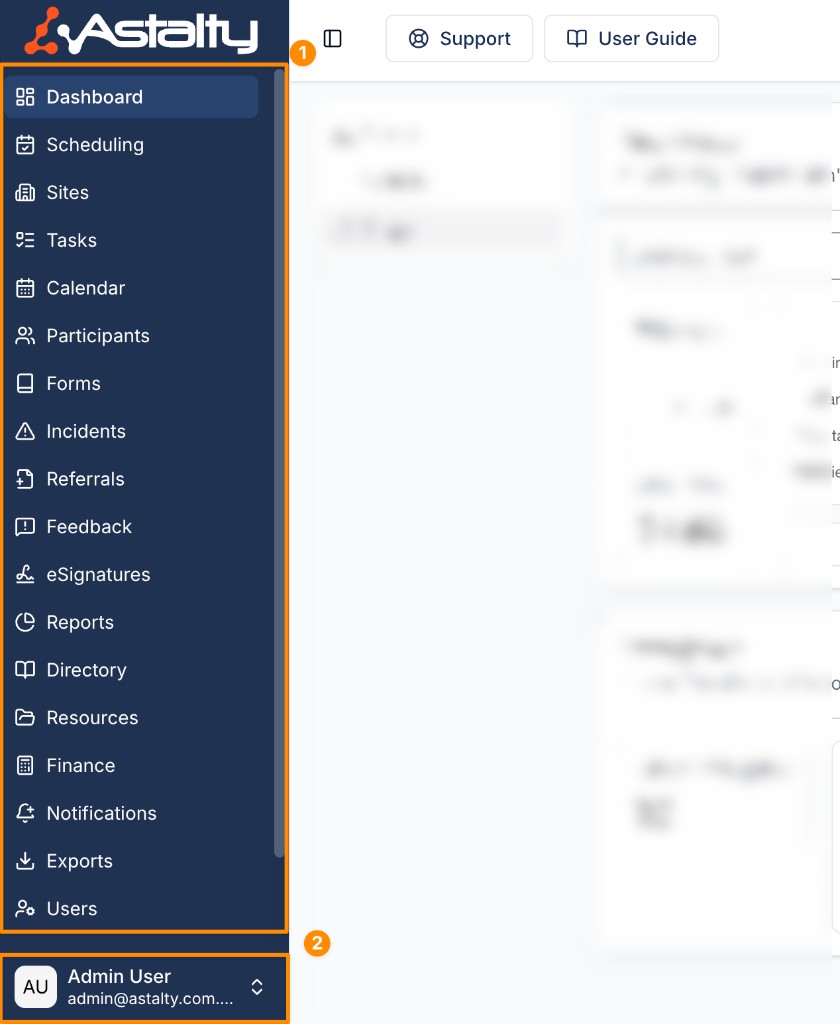
Side Menu Toggle
You can now choose to have it auto-hide (automatically expanding and collapsing to show minimal icons) or set it to stay permanently expanded or minimised, giving you more options for navigating Astalty the way you like.
Open your user menu at the bottom of the Side Menu, then select Sidebar Behaviour. Choose Manual to control the sidebar yourself, or Automatic for automatic expansion and collapse.
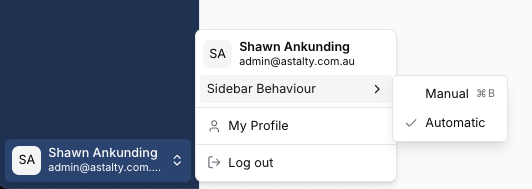
Use the top toggle button, CMD + B on Mac or CTRL + B on Windows to expand or collapse the Side Menu. The keyboard shortcut does not run while you are typing in an input or editor.
Top Menu
The Top Menu contains:
- The Side Menu toggle.
- Support and User Guide.
- A quick task button if you can create tasks.
- SMS and Chat shortcuts when those features and your permissions allow them.
- Notifications.
New users may also see Training. The buttons available to you depend on your account and permissions.
