- Participants
- Participant Templates
- NDIA Templates
NDIA Templates
Overview
Use NDIA Templates to open current NDIA documents from a Participant's profile. Where supported, Astalty fills the document with information already stored for the Participant.
Access Participant Profiles
- Open the relevant Participant profile.
Locate Templates
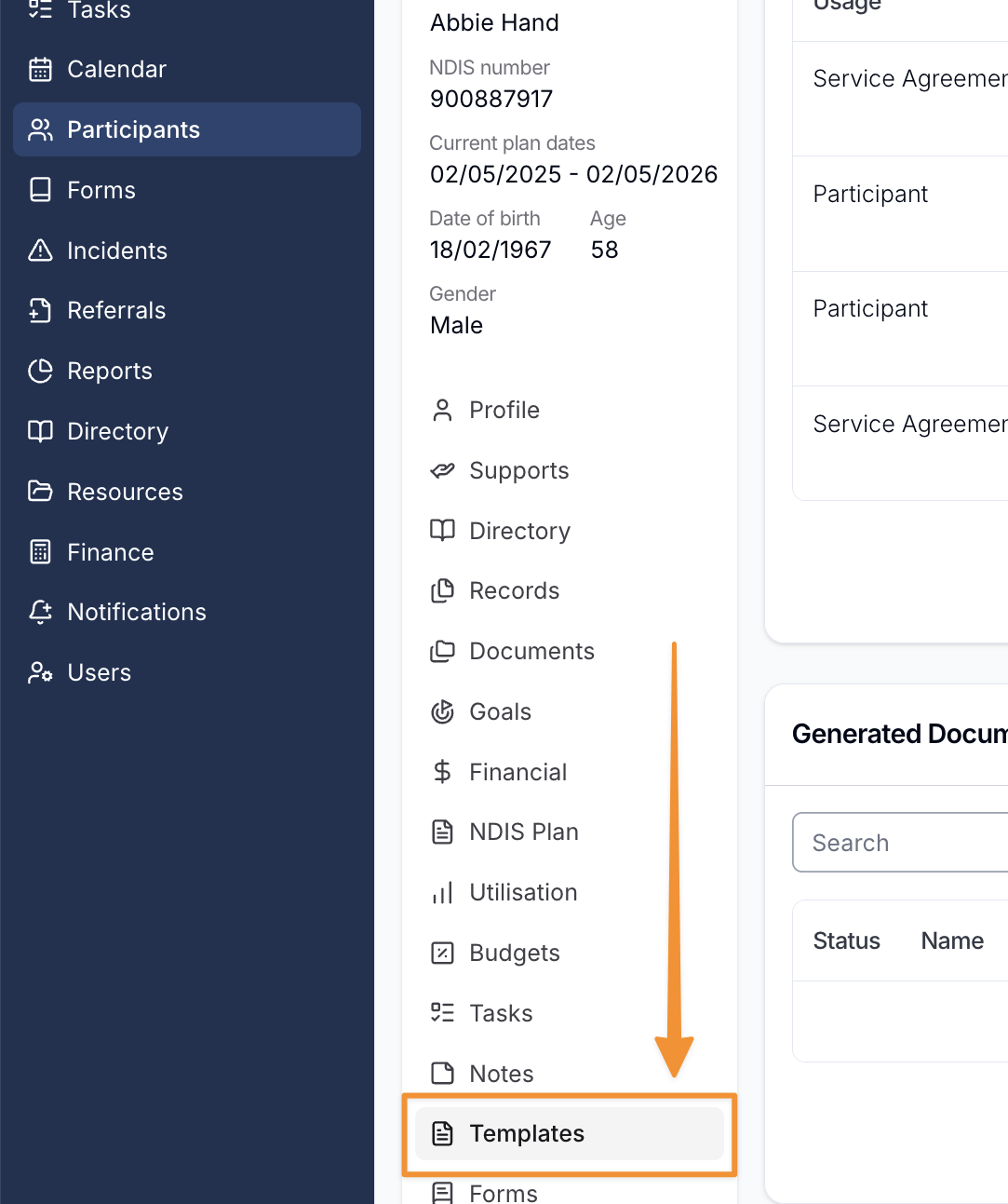
- Within the Participant's profile, find the templates section by clicking on 'Templates' in the left-hand side menu.
Select Template Type
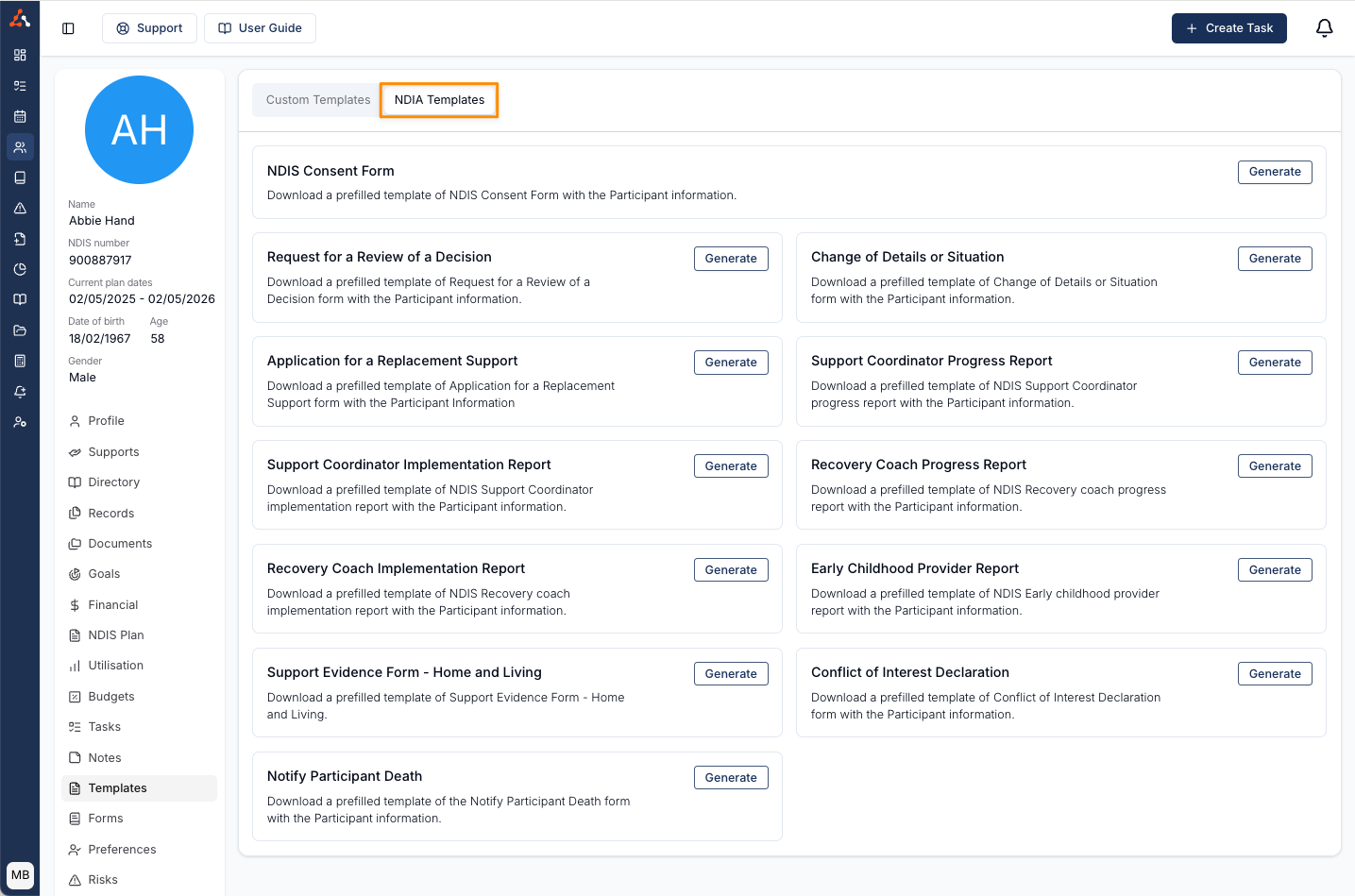
- At the top of the templates section, you can view and choose between custom templates and NDIA (National Disability Insurance Agency) templates.
Explore NDIA Templates
- Under NDIA templates, you'll find various options including:
- NDIS Consent Form
- Plan Reassessment Request
- Plan Variation Request
- Update Name, Pronouns or Gender
- Request for a Review of a Decision
- Application for a Replacement Support
- Support Coordinator Progress Report
- Support Coordinator Implementation Report
- Recovery Coach Progress Report
- Recovery Coach Implementation Report
- Early Childhood Provider Report
- Support Evidence Form - Home and Living
- Conflict of Interest Declaration
- Notify Participant Death
Requesting a Plan Change or a Detail Change
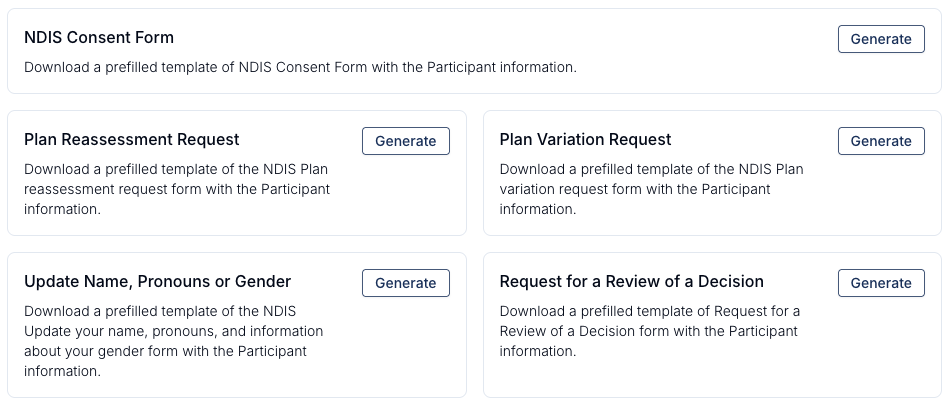
The NDIA retired the Change of Details or Change of Situation Form and split it across three forms, each with its own tile:
| Template | Use it when |
|---|---|
| Plan Reassessment Request | The Participant needs a whole new plan, not a change to the current one |
| Plan Variation Request | The Participant needs an urgent, short-term or minor change to their current plan |
| Update Name, Pronouns or Gender | The Participant's recorded name, pronouns or gender changes - this is not a plan change |
Choosing Who Completes Part B
All three forms open with Part A: Participant Details filled in from the Participant profile - Full name, Date of birth, NDIS number, Contact email, Phone number and Mobile number. These are read-only; correct them on the Participant profile if anything is wrong.
Part B then asks Who will be completing this form?. The options differ by form, because the NDIA accepts each one from different people:
| Template | Part B options |
|---|---|
| Plan Reassessment Request | Participant · Plan nominee, child representative or legal guardian · Someone else |
| Plan Variation Request | Participant · Plan nominee or child representative · your own name, marked (you) · Someone else |
| Update Name, Pronouns or Gender | Participant · Authorised representative · your own name, marked (you) · Someone else |
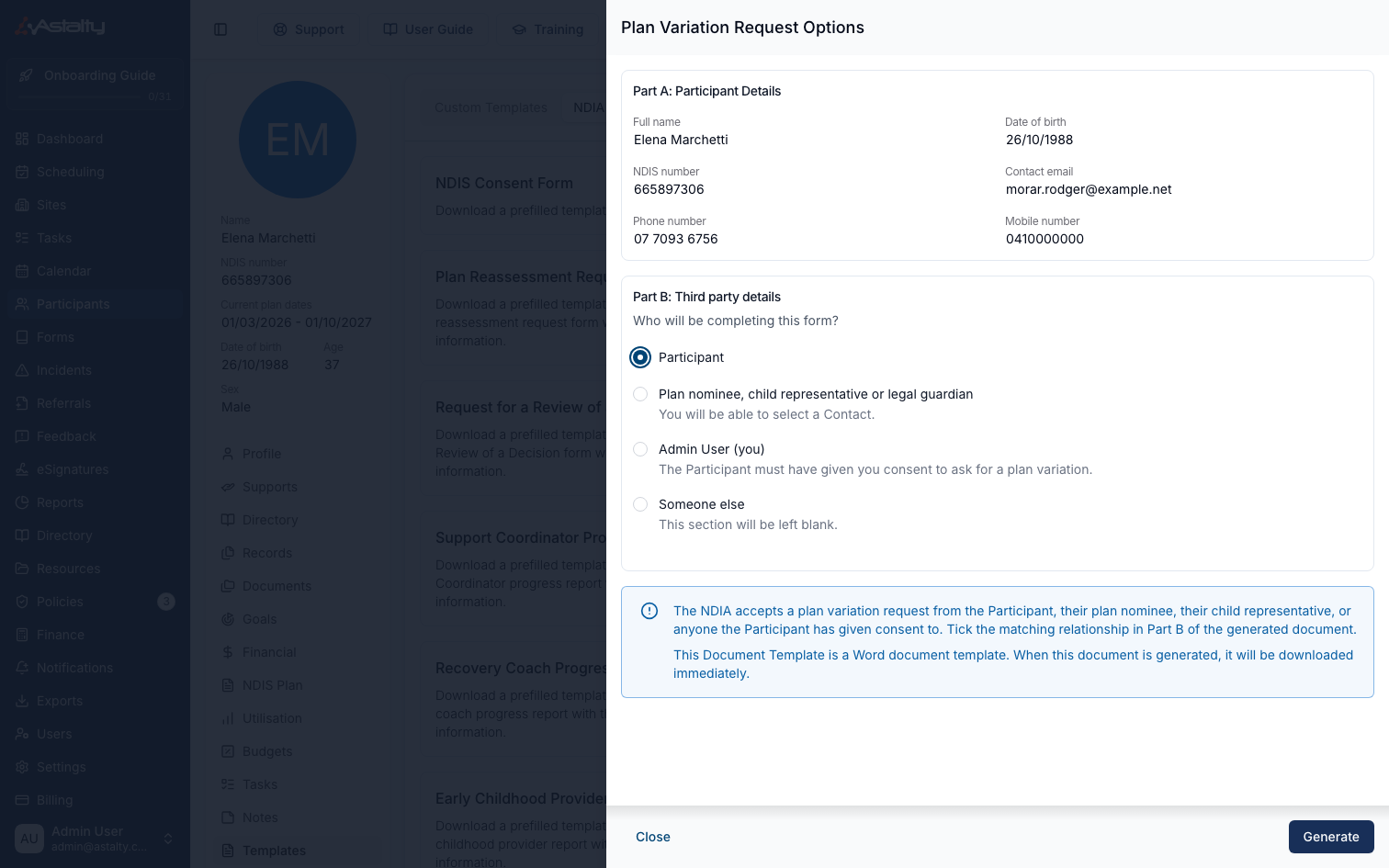
- Selecting the representative option reveals Select a Contact, which behaves like any other Contact picker on an NDIA form. The Contact you pick has their name, date of birth and contact details written into Part B.
- Selecting your own name writes your details into Part B. The Participant must have given you consent to make the request.
- Selecting Someone else leaves Part B blank to complete by hand.
On the Update Name, Pronouns or Gender form, the preferred name, pronouns and gender come from the Participant profile and are left blank when they aren't recorded there. The previous legal name, preferred title and organisation details are always left blank for the signer to complete.
Each form downloads as a Word document as soon as you select Generate.
Downloading Reports
- For progress and implementation reports, select Download to get a report pre-filled with the Participant's details. Review and complete the report before sharing it.
Selecting a Contact on an NDIA Form
Most NDIA forms ask you to choose one of the Participant's Contacts - the representative signing a consent form, a carer or support person, or another key contact. The field is labelled differently from form to form (Selected Representative, Select a Contact, Select a Carer/Support Person, Other Key Contact), but it behaves the same way everywhere.
Open the dropdown and each Contact is listed with their relationship shown as a chip beside their name, along with their email and mobile. This lets you tell the Guardian from the Trustee without leaving the form.
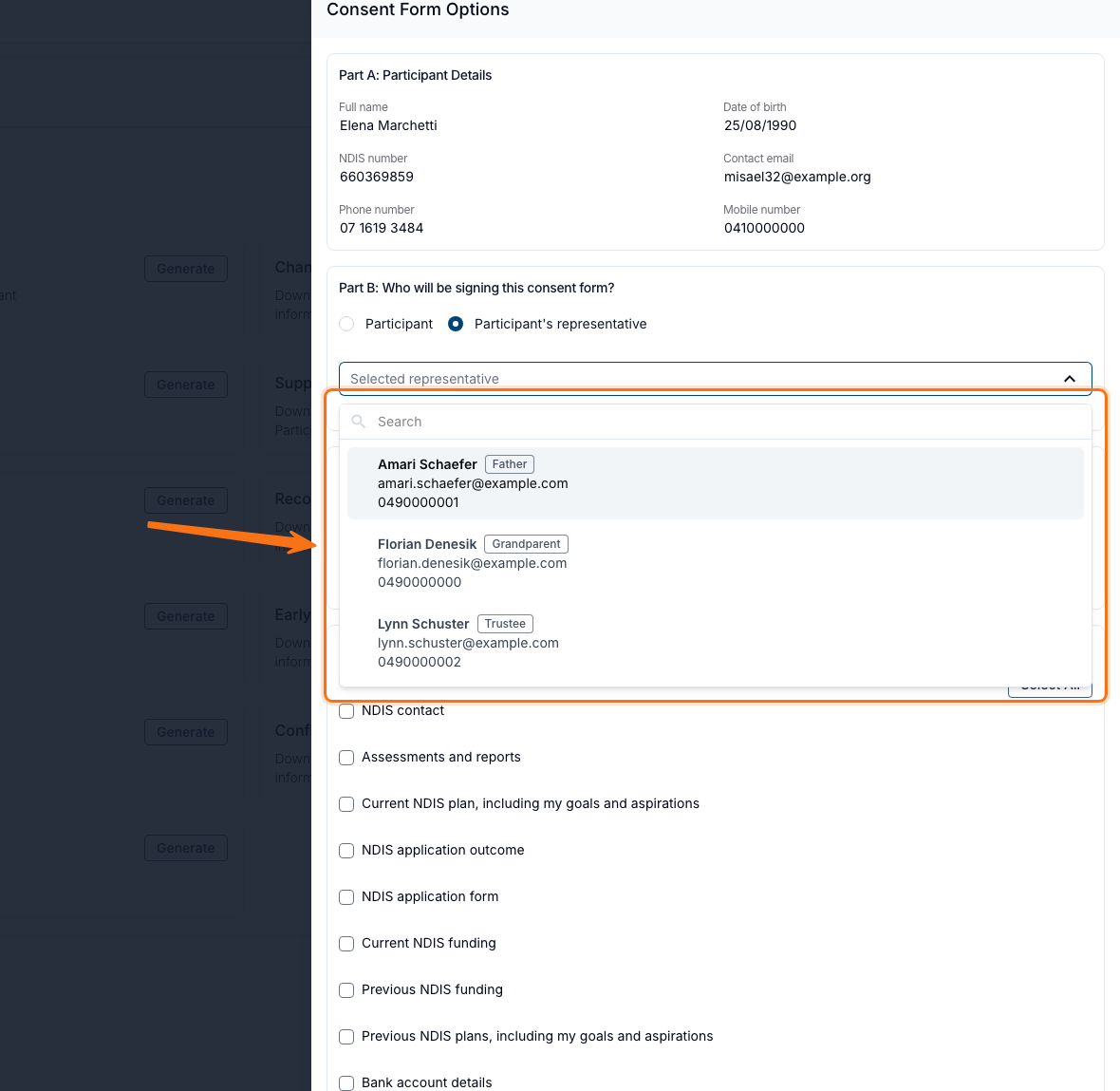
Emergency Contact is shown in red and Primary Contact in navy; every other relationship uses a neutral chip. A Contact with no relationship recorded shows no chip at all.
You can also search the list by relationship. Typing Trustee returns the Contacts recorded with that relationship - and the same search still matches on first name, last name, email, mobile and phone. Custom relationships you have typed in yourself are matched too.
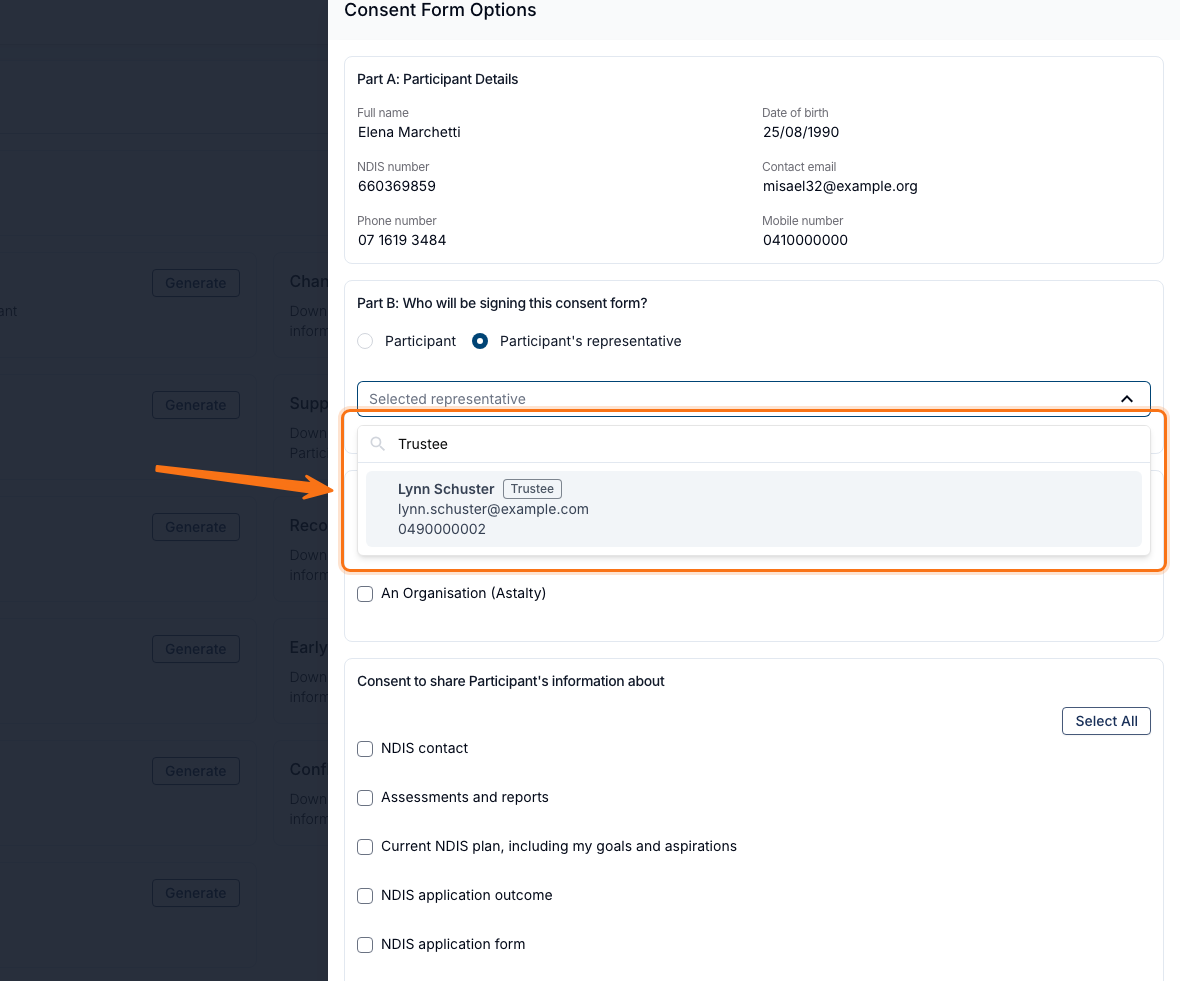
Relationships are recorded against the Contact on the Participant's Directory page - if a chip is missing or wrong, update it there.
Configuring the NDIS Consent Form
To generate an NDIS consent form, select 'Generate'.

Fill in the required information, such as:
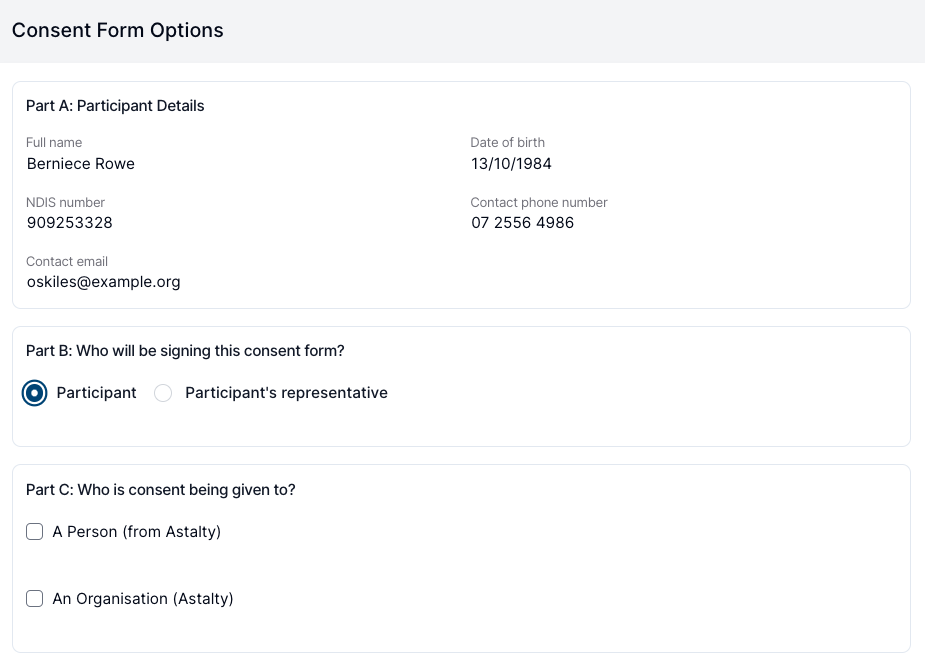
- Part B: Identify who will sign the consent form (Participant or Participant's representative).
- Specify to whom the consent is being given (a person within your organisation or an external organisation).
- Select the information to be shared (choose 'All' or specific headings relevant to your organisation's requirements).
- Determine the scope of the consent regarding changes to the Participant's personal details, communication preferences, and other consents on behalf of the Participant.
- Under How long is the consent for? (Optional), choose One time only, Ongoing, or Until a set date. Choosing Until a set date reveals a Consent Expiry Date field, which must be filled in before the form will generate.
Under Consent to do these things on behalf of Participant, the option to ask for a plan change is now Ask for a plan variation, matching the NDIA's own wording.
After completing the form, generate it to download a Word document with all the pre filled information.
Configuring the Conflict of Interest Declaration
To generate a Conflict of Interest Declaration, select 'Generate'. A form opens with Part A pre-filled from the Participant's details, along with the following selectable fields:
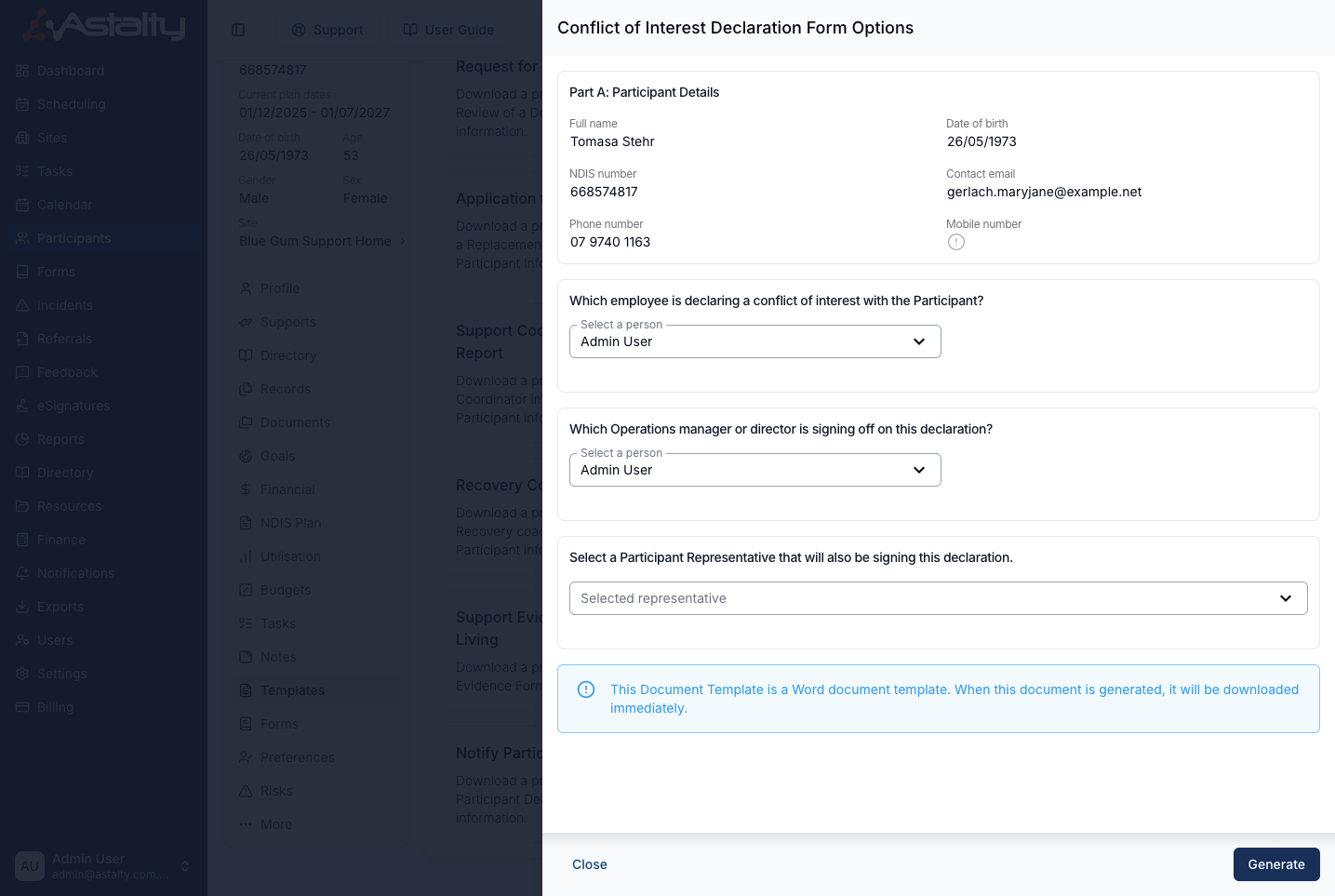
- Which employee is declaring a conflict of interest with the Participant? - select the team member the declaration relates to. This pre-fills with the Participant's primary coordinator when one is set.
- Which Operations manager or director is signing off on this declaration? - select the team member signing off. This pre-fills with the account owner, but you can choose any team member in your organisation instead. This is useful when a site or department manager, rather than the account owner, signs the declaration.
- Select a Participant Representative that will also be signing this declaration. - optionally choose a Participant representative who will also sign.
Once the fields are set, select 'Generate' to download the Word document with the details filled in.
Custom Template Functionality
See Participant Custom Templates to generate your organisation's own reusable documents.