- Participants
- NDIS Plan
- Funding Utilisation
Funding Utilisation
The Funding Utilisation card shows how much of a Participant's funding for a Service is spent, how much is already booked, and how much is left. It appears wherever you choose what to charge a Participant, so you can check their funding before you book more.
Funding Utilisation is included on the Professional plan and above.
Where It Appears
- Task View - in the task's sidebar, for each Service the task's charges draw on. See Task View.
- Create Task - under the Charge Item, before you save the task. This is a shorter version with the bar and the line under it, without figures, hover detail, chips or a total. See Creating Tasks.
- Supports and group supports - in the support's sidebar. See Funding Utilisation on Supports.
- Creating or cloning a support - in Service & Billing, or in Participants on group and flexible supports, including what the new booking adds. See Checking Funding While You Book.
To review every Service on a plan at once, use the Participant's Utilisation page or the Utilisation Report.
Spent, Booked and Left
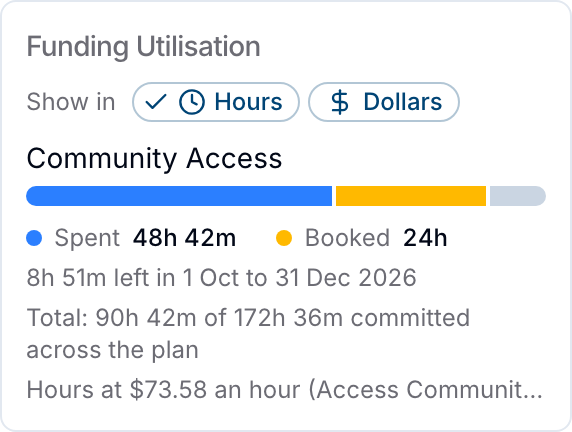
Each Service has a bar in three parts, counted up to the end of the funding period named in the line under it. For a Service with one funding period, that is the whole Service.
- Spent - billable charges dated today or earlier that are ready to invoice or already invoiced. A support's charges become ready to invoice once its shifts are approved.
- Booked - billable charges that exist but are not spent yet: draft charges, such as a support's charges before its shifts are approved, and any charge dated after today. Booking a recurring series creates the charges for every support in it, so the whole series counts as booked straight away.
- What is left - the funding released up to the end of that period, less what is spent and booked up to then.
Only billable charges on the Service's Charge Items, dated within the Service's start and end dates, are counted. When a Service has been reconciled, charges before the reconciliation date are ignored. Instead, the funding released up to that date, less the remaining amount you entered, counts as spent.
Reading the Line Under the Bar
The line under the bar sums up the Service:
| Line | What it means |
|---|---|
| 18h 14m of 149h 47m left | The Service has one funding period, and this is what is left of it. |
| 8h 51m left in 1 Oct to 31 Dec 2026 | The Service has several funding periods. The line names the period with the least left, from the current period onward. |
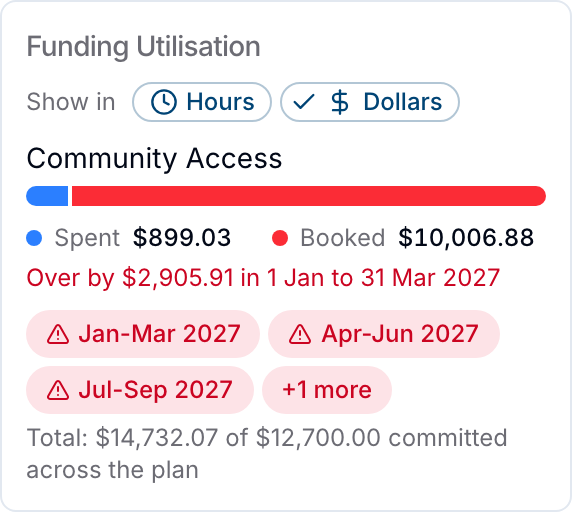
| Over by 39h 30m in 1 Jan to 31 Mar 2027 | Spent and booked charges take this period over the funding released through it. The line and the bar turn red. |
When the funding has not been released yet, the line also says when it releases: (releases 1 Jan) for a Service with one funding period, or (Jan-Mar releases 1 Jan) for a Service with several.
When none of a Service's funding periods runs from today onward, for example after its plan has ended, the card shows the percentage of the Service used and what is left instead. If spending went over, it shows how far over in red.
For a Service with several funding periods, two more lines appear:
- Red chips name up to three periods that are over, followed by a count such as +1 more when more periods are over.
- Total compares everything spent and booked with the Service's full amount, including funding that has not been released yet.
How Funding Periods Affect What Is Left
A Service without a funding schedule has one funding period covering the whole Service, so the card compares its spending with the Service's full amount. Every Service on a plan that is not a PACE plan works this way.
On a PACE plan, a Service can have a funding schedule that releases its funding in periods, for example every quarter. Funding Periods explains how to set one up. The card then follows how released funding can be spent:
- Each period's funding is released on the day the period starts.
- Funding left at the end of a period rolls over into the next one.
- Funding that has not been released cannot be spent early, so each charge is measured against the funding released up to the end of its own period.
For example, a Service has $500 left at the end of September and releases $2,000 on 1 October and another $2,000 on 1 January:
- Supports between 1 October and 31 December can use $2,500.
- Booking $3,000 of supports in that period shows Over by $500 in 1 Oct to 31 Dec 2026, even though the January release would cover the total.
- Because unspent funding rolls forward, the $500 also comes off every later period, so one overspend can put several periods over at once.
Hover for More Detail
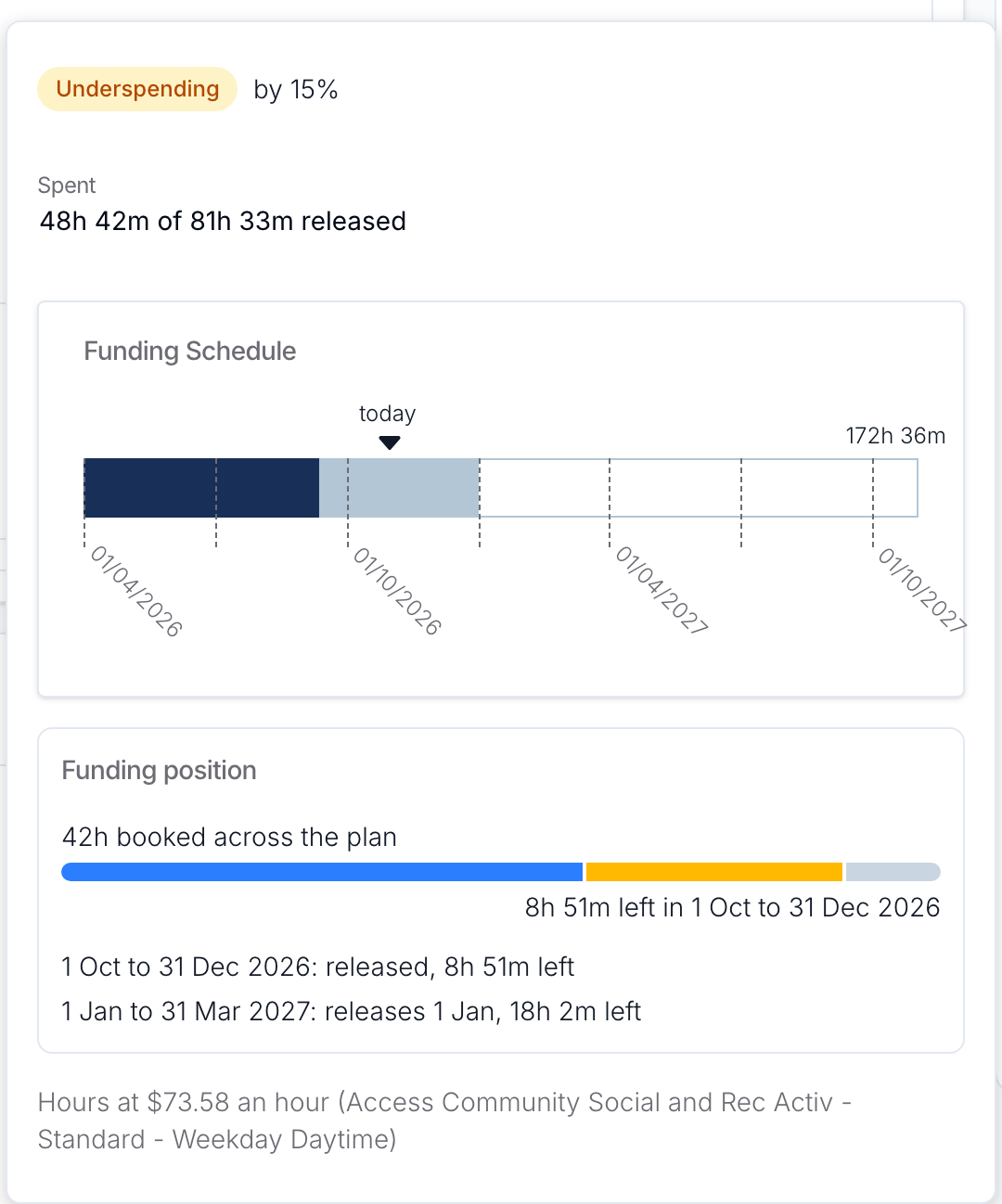
Hover over a Service to see more about it:
- Whether it is Underspending or Overspending: the share of funding spent, compared with the share of time elapsed.
- How much is spent of the funding released so far, with the funding schedule chart, or the time elapsed for a Service without one.
- Funding position - how much is booked across the whole plan, which can be more than the bar's Booked figure because the bar stops at the period it names. Then the bar again, and lines for the current and next funding periods, any period that is over, and the period named under the bar. When more periods are over than are listed, a last line counts them.
Each period line says whether the period has been released and how much is left or over, counting everything released and charged up to the end of that period. A period line ignores later periods, while the line under the bar takes them into account, so a period line can show more left than the line under the bar.
Hours or Dollars
When the Service has a Charge Item chosen in Calculate remaining units using, and that Charge Item is charged by the hour or the day, choose Show in then Hours (or Days) or Dollars. Hours are the default, and Astalty remembers your choice in this browser for every Funding Utilisation card.
Hours are worked out at that Charge Item's price, which the card shows underneath, for example Hours at $73.58 an hour. If the Participant's supports are charged at other rates, such as Saturday or evening rates, the funding covers fewer hours than the card shows.
Who Sees Booked Charges
Booked charges are counted only for people who can view support charges, which by default means Admins and Managers on accounts with Scheduling. Everyone else sees what is spent and left without the Booked part, and the lines saying what is left, and the Total, add not counting bookings. The Over-committed badge on the Utilisation Report and Funding Over-commitment Notifications always count bookings.
Finding Over-committed Services
The card shows one Participant's Services at a time. To find every Service whose spent and booked charges go over a funding period:
- Filter the Utilisation Report by Over-committed.
- Set up Funding Over-commitment Notifications to alert staff when a Service goes over.