Muting Conversations
If a conversation is busy and you'd rather not be interrupted by every message, you can mute it. Muting stops the notifications for that one conversation while leaving it in your chat list, so you can still read it whenever it suits you.
You can mute both direct messages and group channels, on the web app and the mobile app.
Muting a Conversation
- Open the direct message or group channel you would like to mute
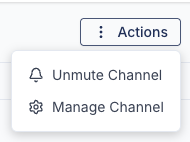
- Click the Actions menu in the conversation header
- Select Mute Channel
Unmuting a Conversation
To start receiving notifications again, follow the same steps - the menu item changes to Unmute Channel while a conversation is muted.
- Open the muted direct message or group channel
- Click the Actions menu in the conversation header
- Select Unmute Channel
What Muting Does and Doesn't Do
Muting silences the notifications that interrupt you - it does not hide the conversation or its unread counts.
When a conversation is muted, you stop getting:
- Mobile push notifications for new messages in that conversation
- Desktop pop-ups for new messages
- The notification sound when a new message arrives
When a conversation is muted, you still see:
- The conversation in your chat list, with its full message history
- The unread count on that conversation in your chat list
- The unread totals on the All, Direct and Groups tabs
- The Chat badge in the top bar
- The unread count in your browser tab title and on the browser tab icon
Mentions Still Come Through
Muting a conversation doesn't cut you off from something that needs your attention. If someone @mentions you in a muted group channel, you'll still be notified - muting stops the notifications for ordinary messages, not for being mentioned directly.
In a muted direct message, a mention still shows an in-app notification while you have Astalty open, but it won't send a push notification.
For more on how mentions work, see Messaging.
Spotting a Muted Conversation
On the web app, a muted conversation shows a small bell-with-a-line-through-it icon next to the timestamp in your chat list, so you can tell at a glance which conversations are silenced.
Muting in the App
Muting works the same way in the Astalty mobile app, and it applies to the push notifications you receive on your phone.
- Open the direct message or group channel
- Tap the actions icon in the top right of the conversation
- Tap Mute
To reverse it, follow the same steps and tap Unmute. A conversation you mute on the web is also muted in the app, and the other way around - your choice follows your account rather than the device you set it on.