- Scheduling
- Chat in the App
Chat in the App
Overview
Chat is Astalty’s built-in messaging feature that lets you communicate with your team directly within the app. Whether you need to send a quick message to a colleague or join a group conversation, Chat keeps everything organised in one place.
With Chat, you can:
- Send direct messages to individual team members
- View and respond to chats that you are a member of for team or topic-based conversations
- Share files, mention colleagues, react to messages, and pin important information
- See who is online in real time
Key Concepts
Direct Messages
A direct message is a private, one-on-one conversation between you and another team member. Only the two members can see the messages in a direct conversation.
Group Channels
A group channel is a conversation with multiple team members. Group channels have a name (e.g., "Team Standup" or "SIL House A") and can have members added or removed at any time. You can also link User Groups to a channel so that membership stays in sync automatically.
Using Chat
Accessing Chats
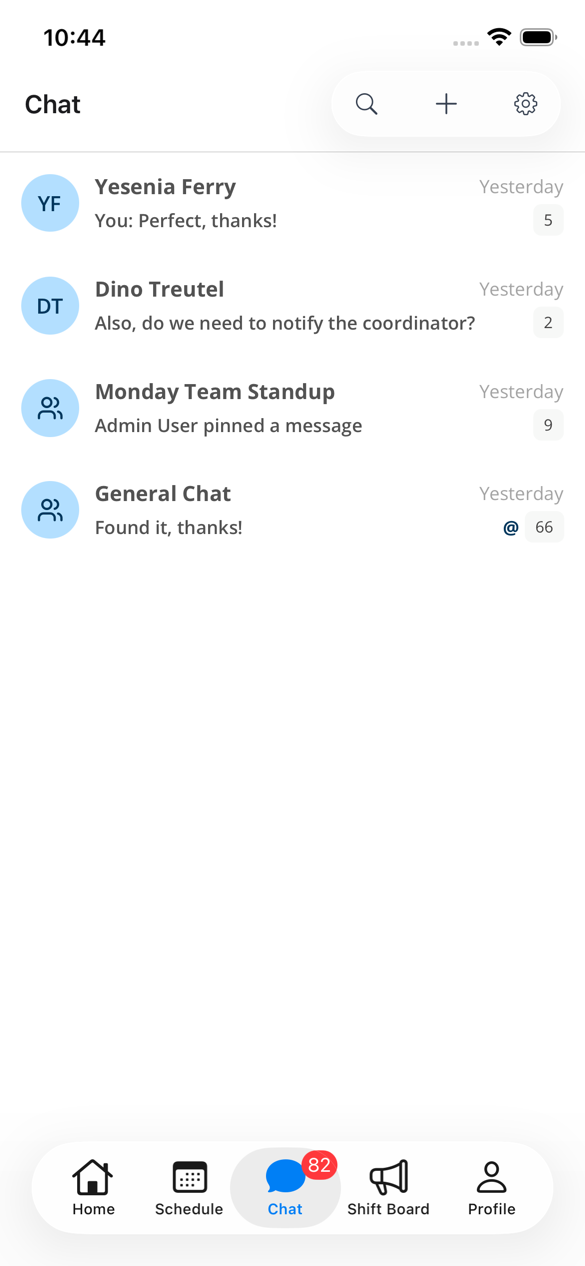
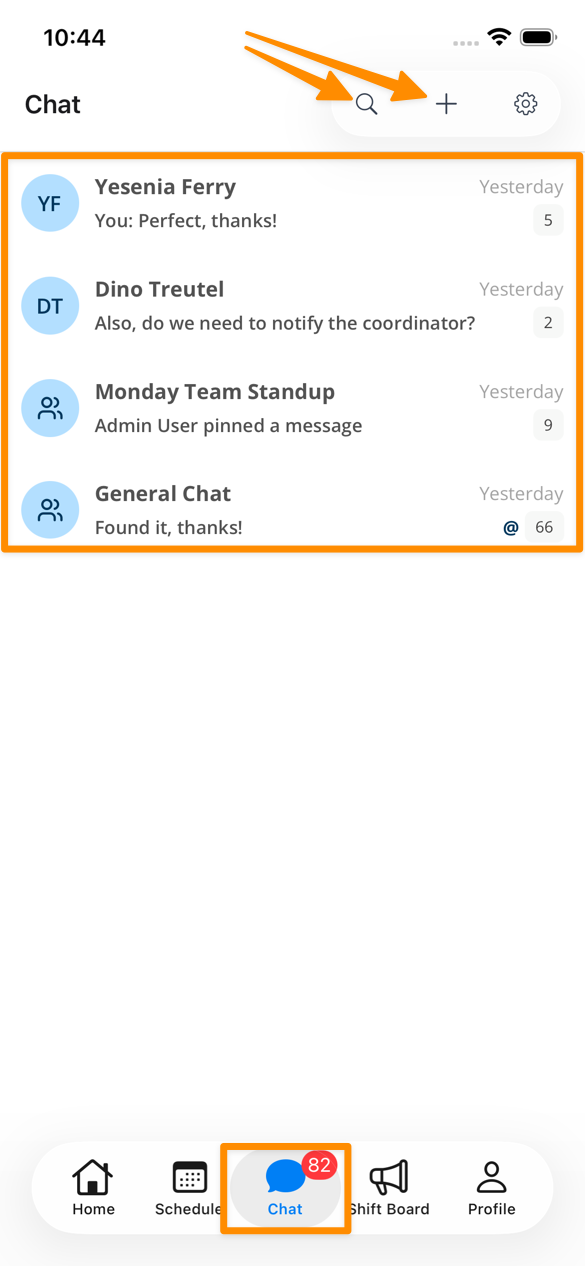
To access Chat, navigate to the Chat icon at the bottom of the app. The Chat icon will display how many unread messages there are.
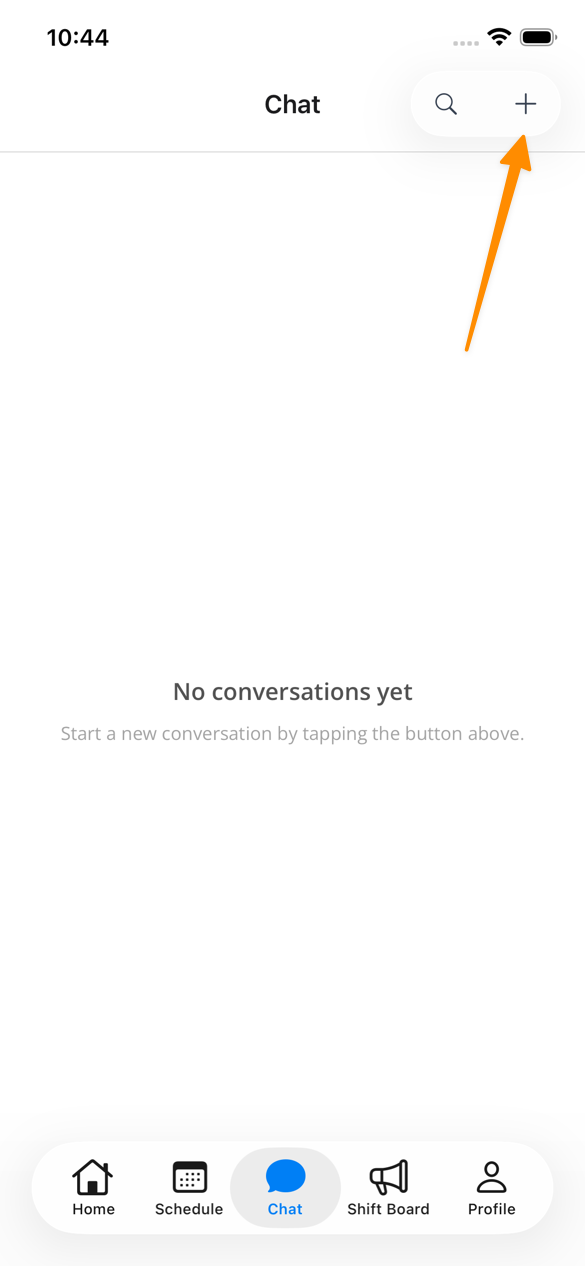
On this page, you'll be able to see any existing chats, create a new chat by clicking on the + at the top right of the screen (depending on your permissions), or search within Chats.
Replying in Conversations
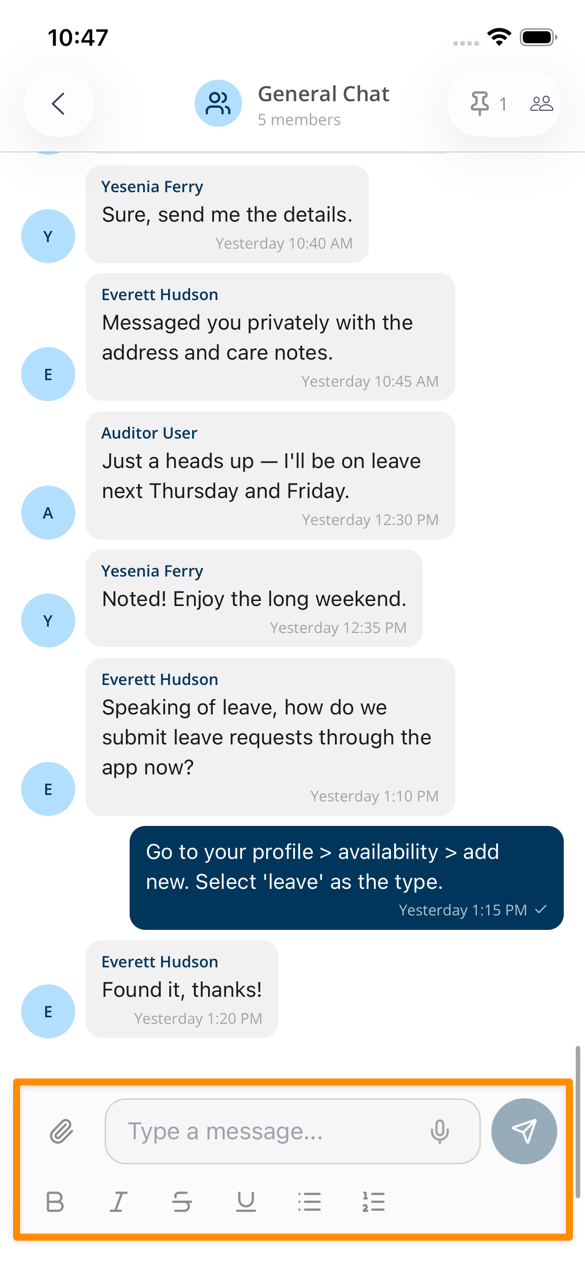
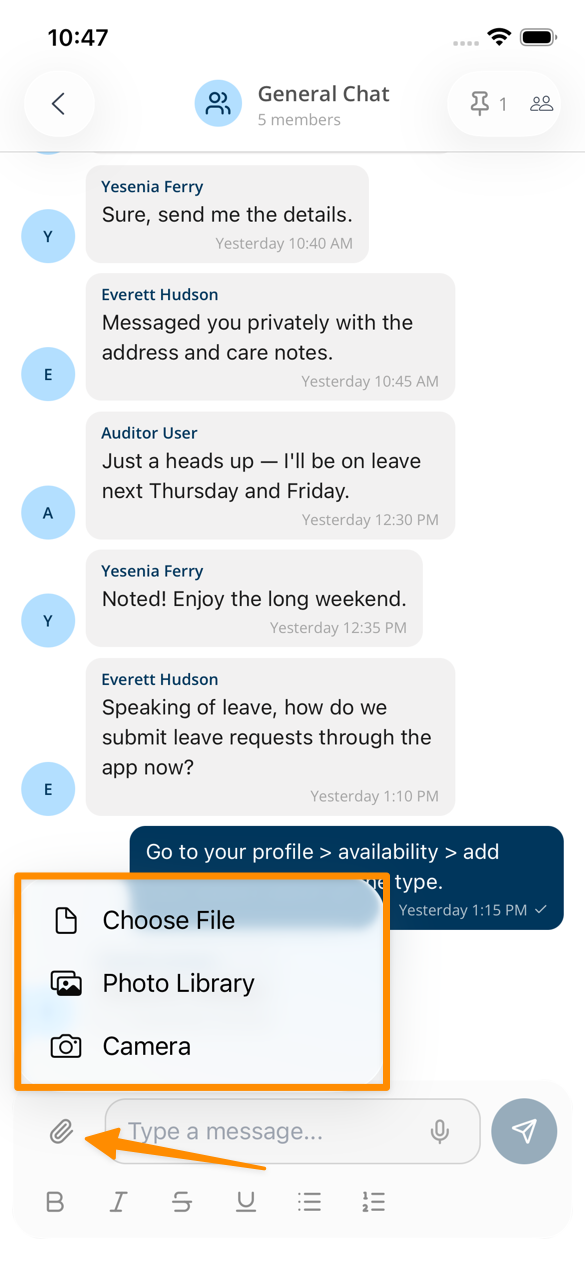
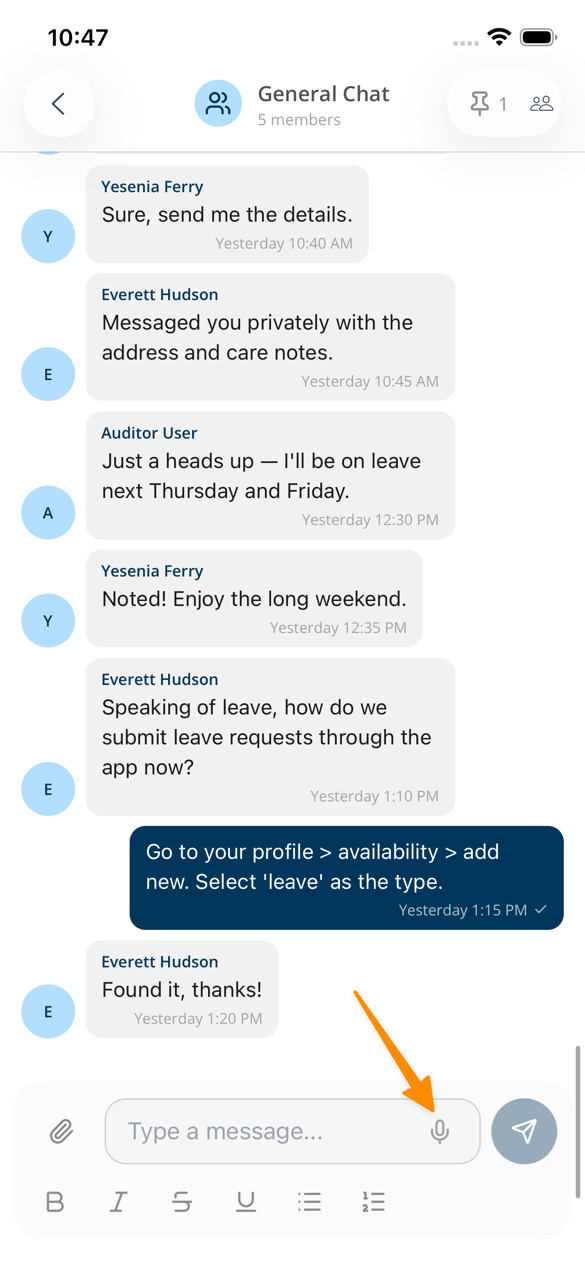
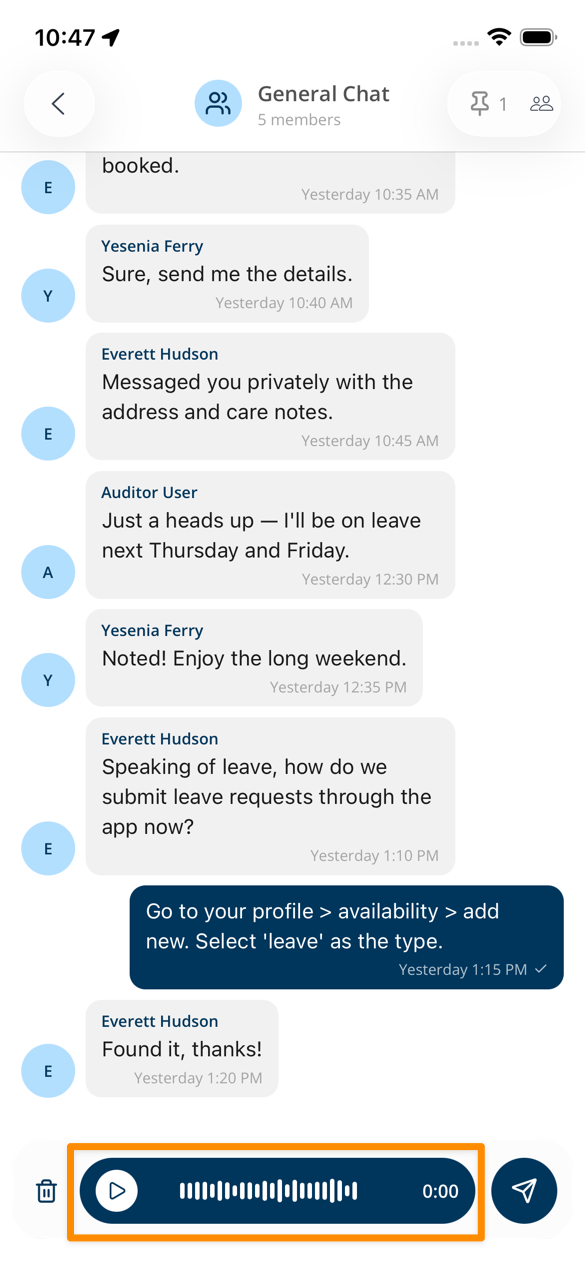
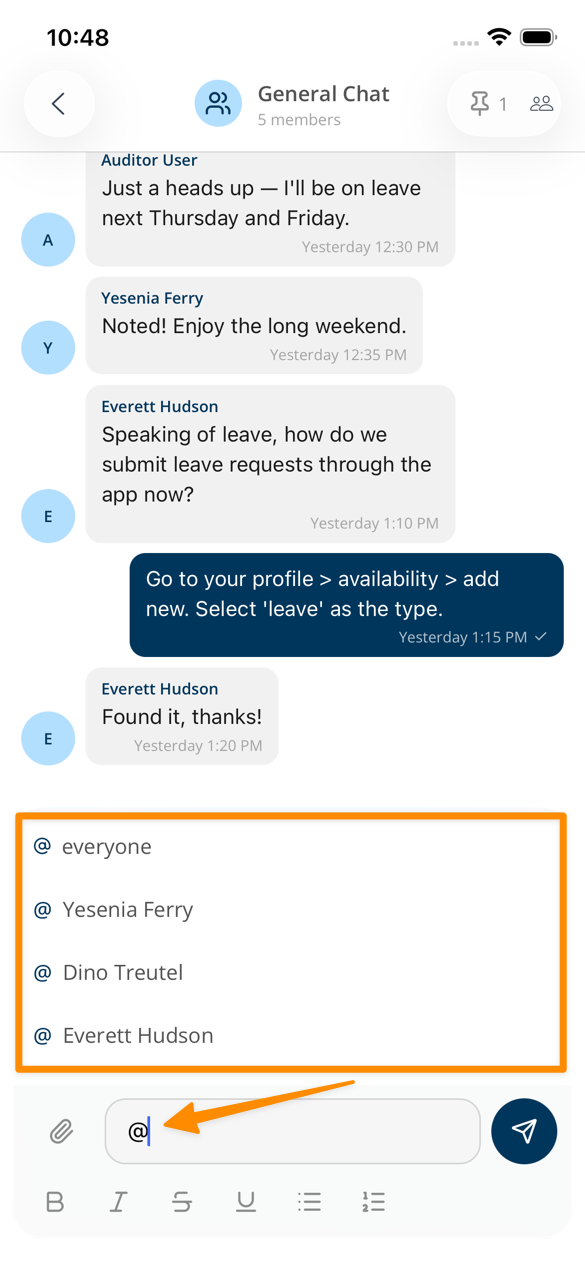
When opening a Chat, you'll be able to see messages and content received. You can reply by clicking into the reply field, where you'll also be able to upload files by clicking on the paperclip icon, or tap on the microphone option to record a voice message. To tag someone in the message, type the @ symbol and choose from the selections available.
Creating New Conversations
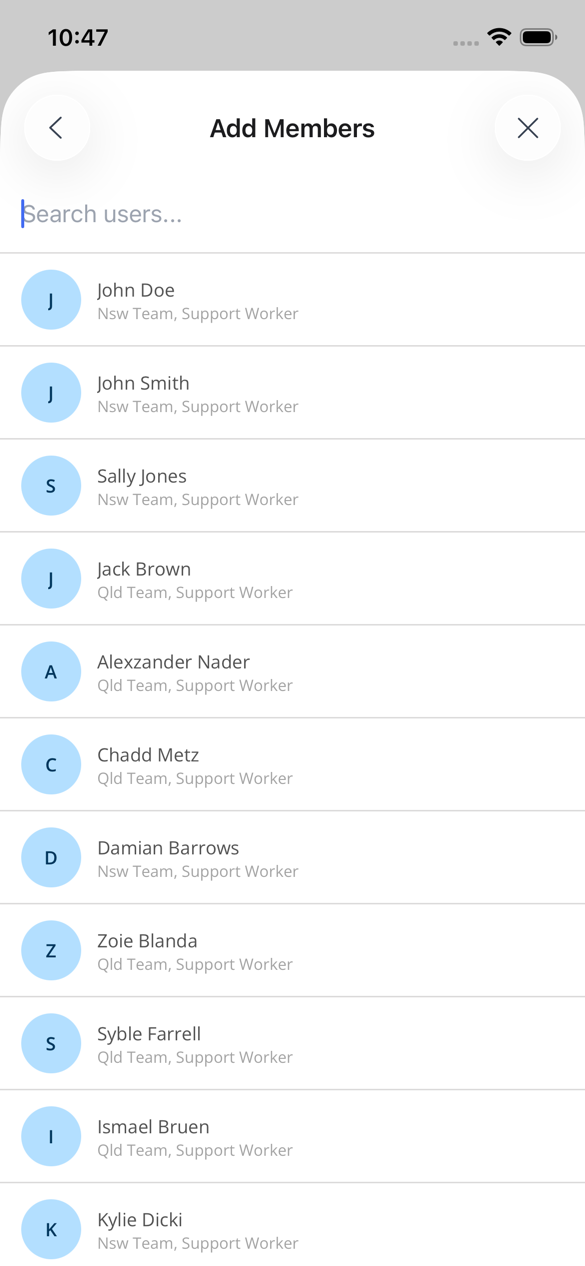
To start a new conversation, click on the + button at the top right of the screen, and the select the users from the list.
Pinned Messages
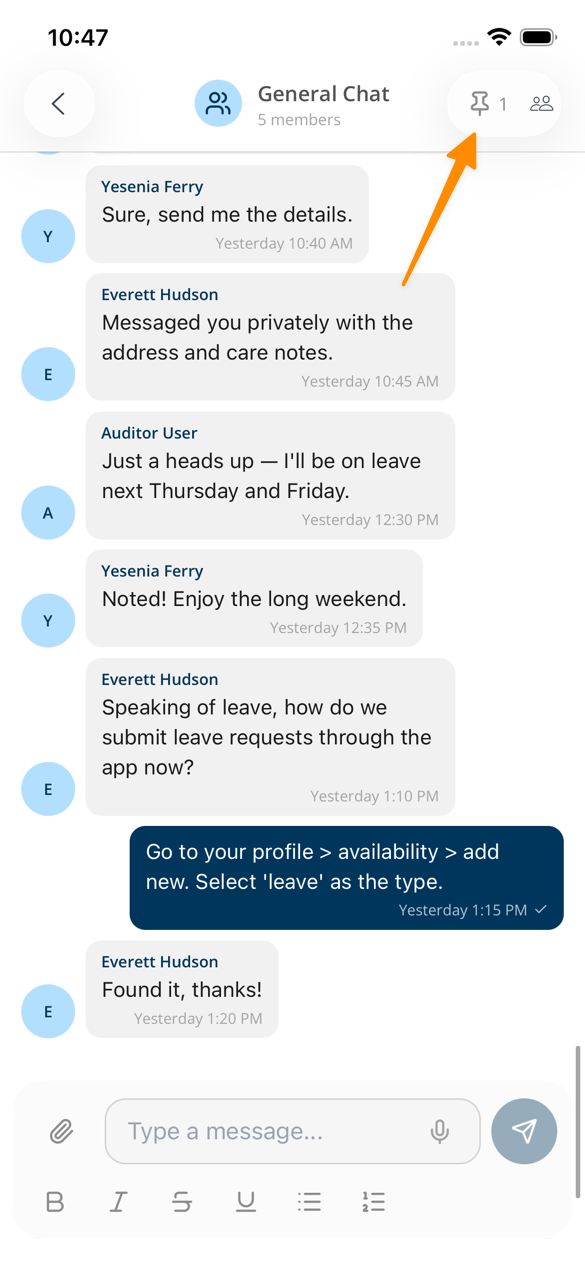
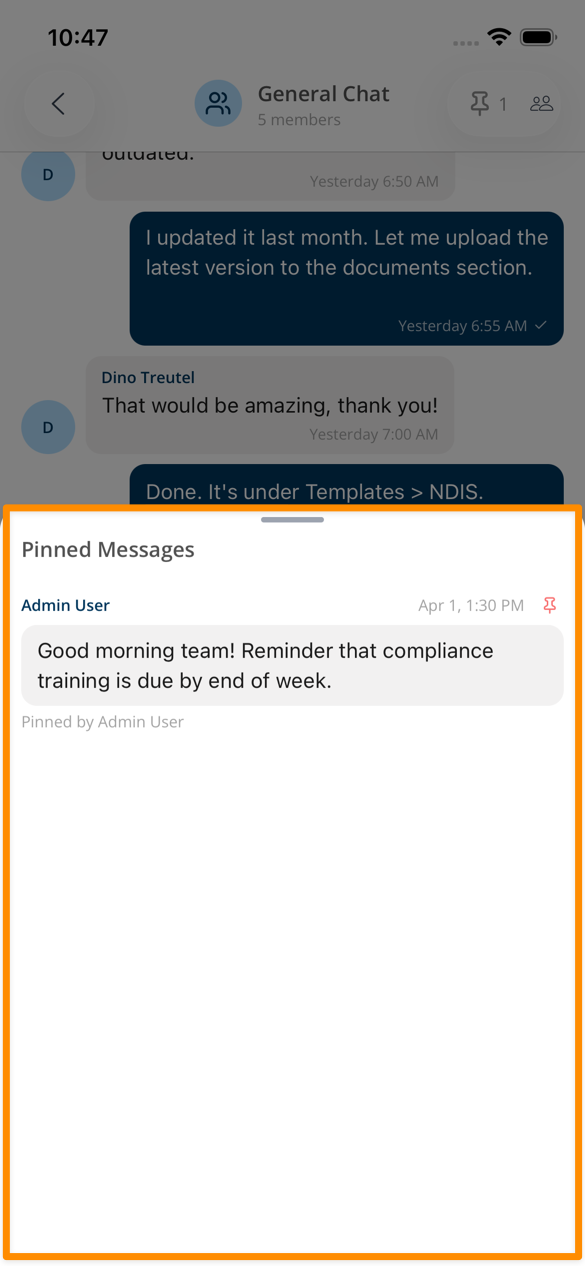
To see pinned messages, click on the Pin icon at the top of the Chat.
Searching in Chats
To search within Chats, click on the Search icon at the top of the screen, and enter a key phrase in the search bar. Any Chats that contain this phrase will be displayed for selection.
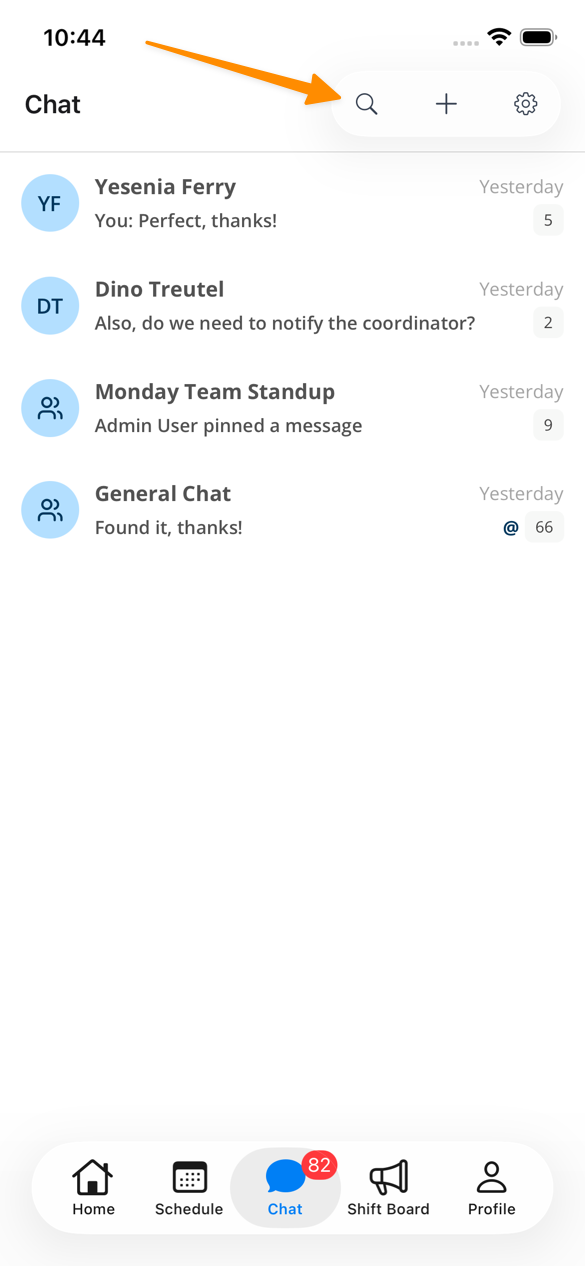

Tap on the relevant Chat to view the feed and send a reply.