29 October 2026
Archiving Regions
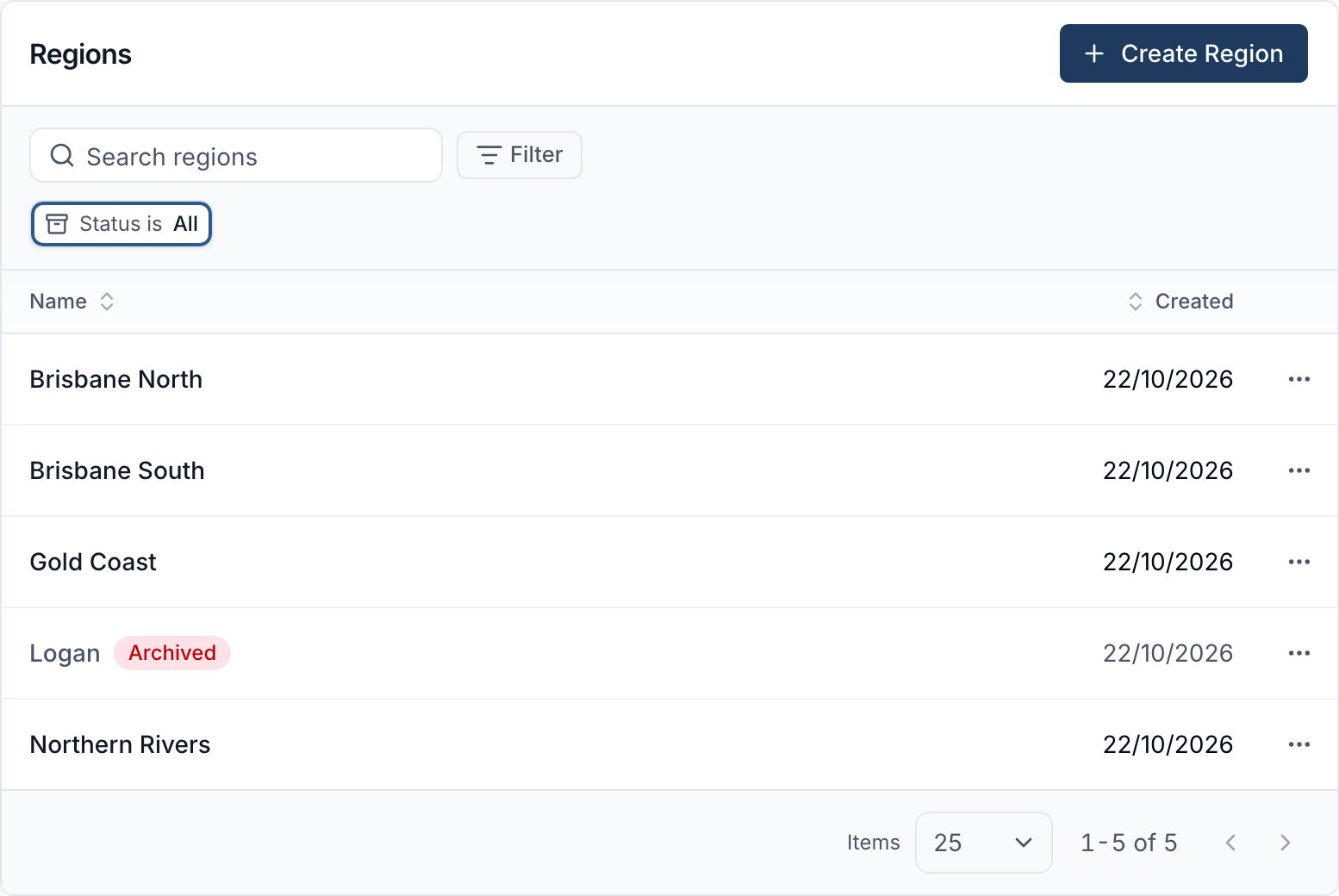
A Region can now be archived instead of deleted, so everything already tagged to it - Participants, staff and sites - keeps working across lists, reports and exports, while the Region itself can no longer be assigned to anything new. Use the Status filter (Active, Archived or All) to find one, and unarchive it at any time. Deleting a Region that's still tagged now offers Archive instead right from the message explaining why it can't be deleted.
For more information, visit the Regions guide.
Preferred Names in Reports and Pickers
Your account's Participant Name Display and Staff Name Display settings now also control names in more places: in-app reports - including the name you search or sort by - more Participant pickers such as Group Support and Form Participant Select fields, and the filename of an exported or emailed schedule PDF. Legal names still appear on payroll, invoicing, exports, signing records and audit trails.
For more information, visit the Participants Settings or Users Settings guide.
Archiving a Participant Record Type
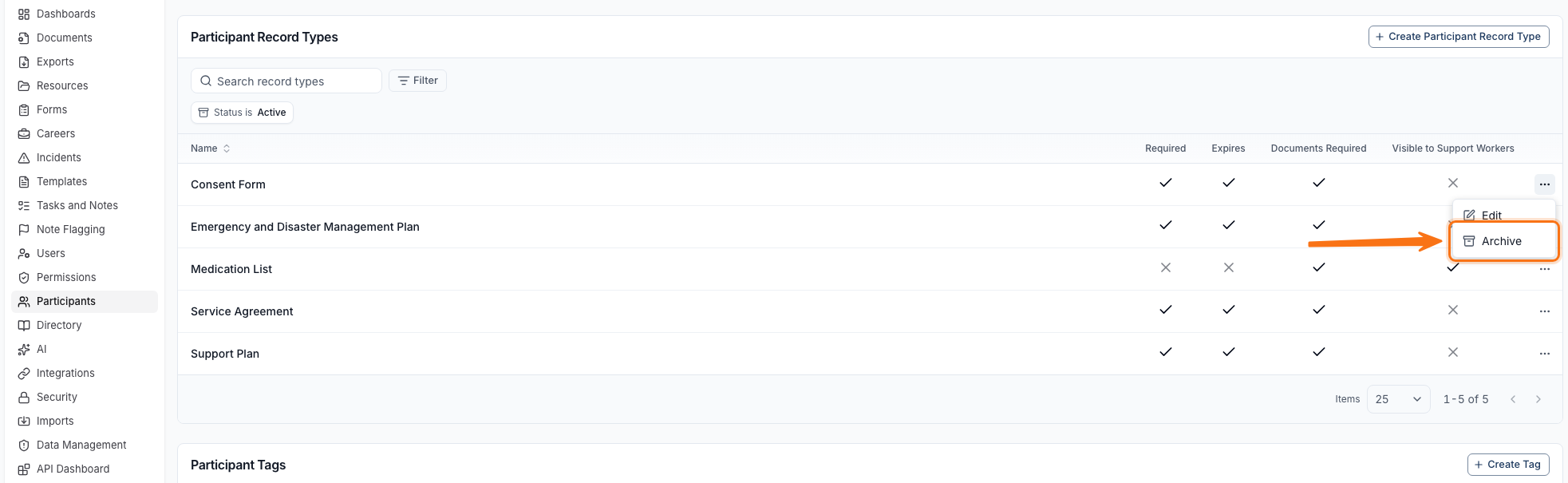
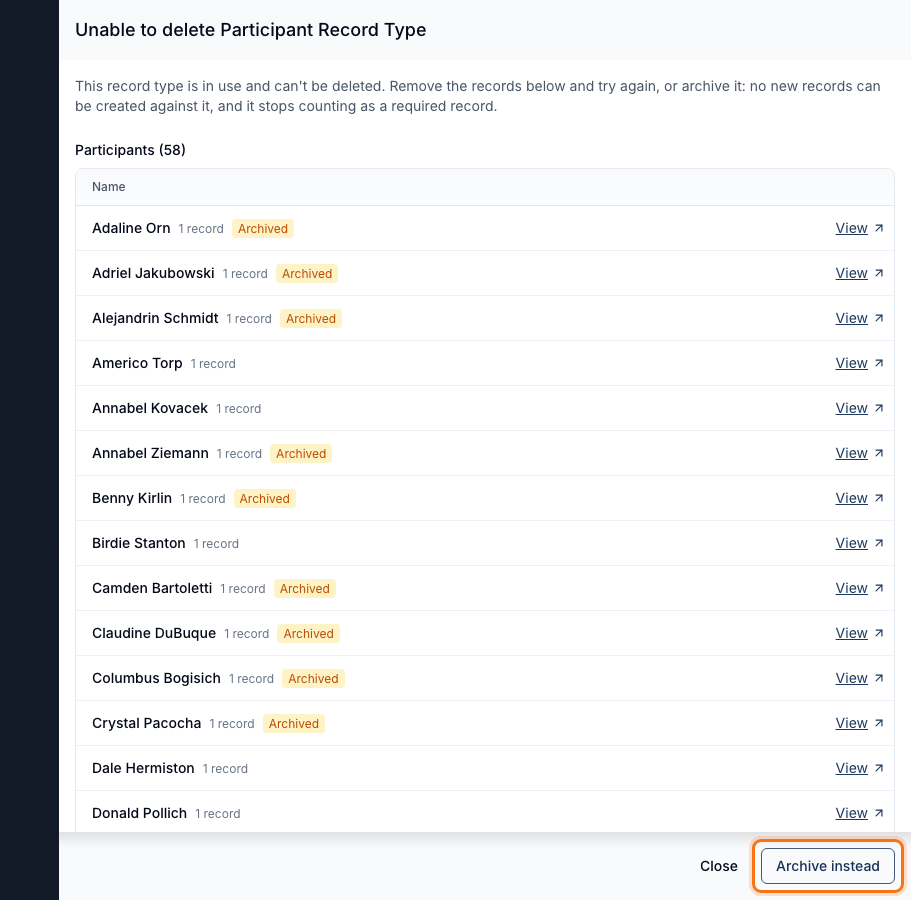
Participant Record Types can now be archived instead of deleted. Select Archive from a type's row menu, or Archive instead when deletion is blocked because the type is already in use. Archiving stops it being offered for new Records and drops it from the required-record count, but existing Records are unaffected, and you can unarchive it at any time. Use the new Status filter to show Active, Archived, or All types.
For more information, visit the Participant Record Types guide.
Archiving User and Site Record Types
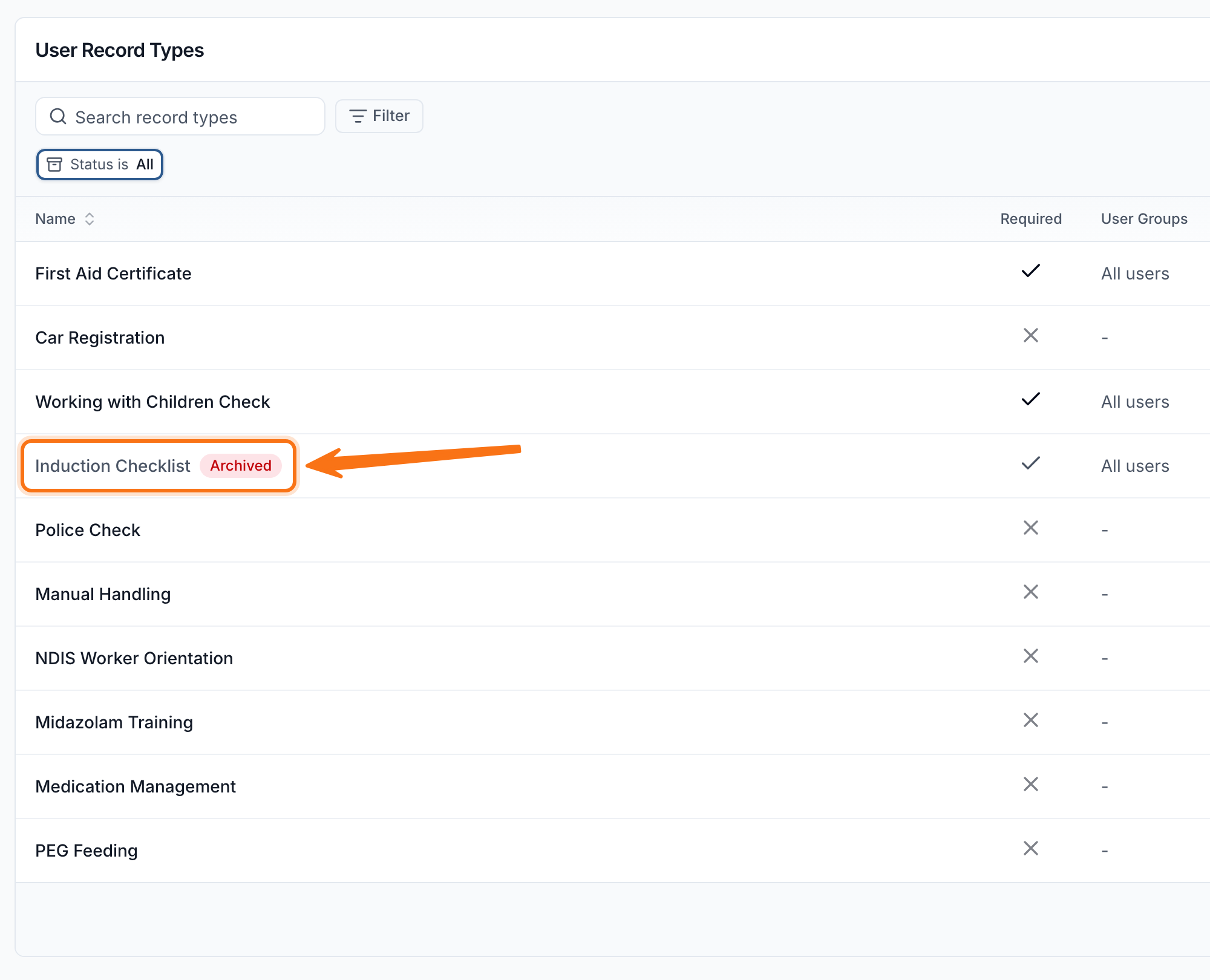
User Record Types and Site Record Types can now be archived instead of deleted, the same way Participant Record Types already can. An archived type stops being offered for new Records and stops counting as required - and any Record Notifications configured for it stop sending - but existing Records are unaffected, and it can be unarchived at any time. Use the new Status filter (Active, Archived or All) to find one.
For more information, visit the User Records and Sites Settings guides.
Confirming When You Roster an Unavailable Worker
When you create a shift or add attendees to an internal event, Astalty now asks you to confirm if a selected worker has approved leave, recorded unavailability, or a pending leave or availability request overlapping it. It's a warning, not a block - you can still confirm and proceed.
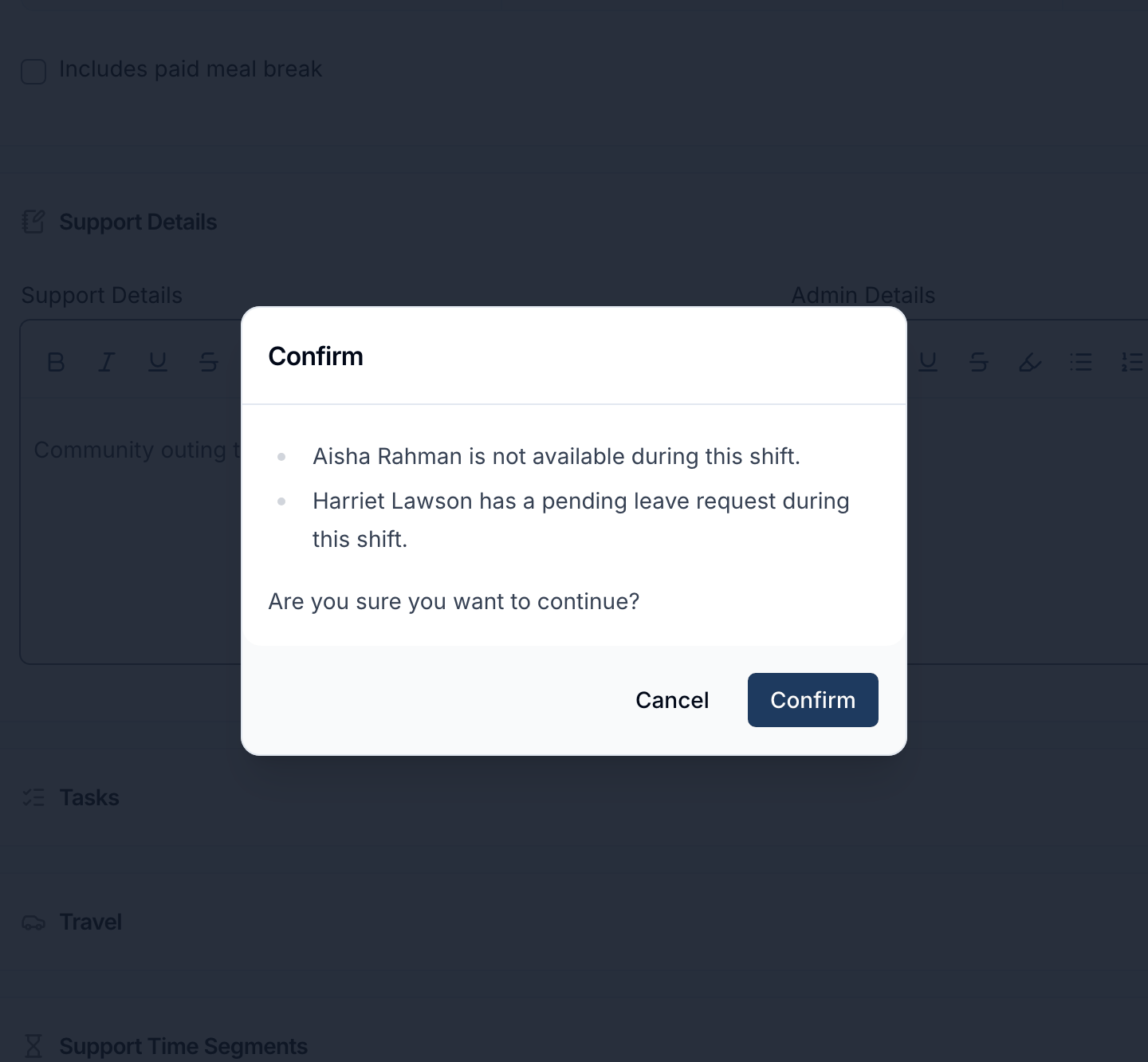
For more information, visit the Managing Availability guide.
Choosing Which Shifts to Keep When Approving Leave
Approving a leave or unavailability request no longer has to unassign the worker from every affected shift. The approve screen now lists each affected shift, ticked by default to unassign, so you can untick any the worker should keep - with an Unassign all checkbox for releasing or re-ticking them all at once.
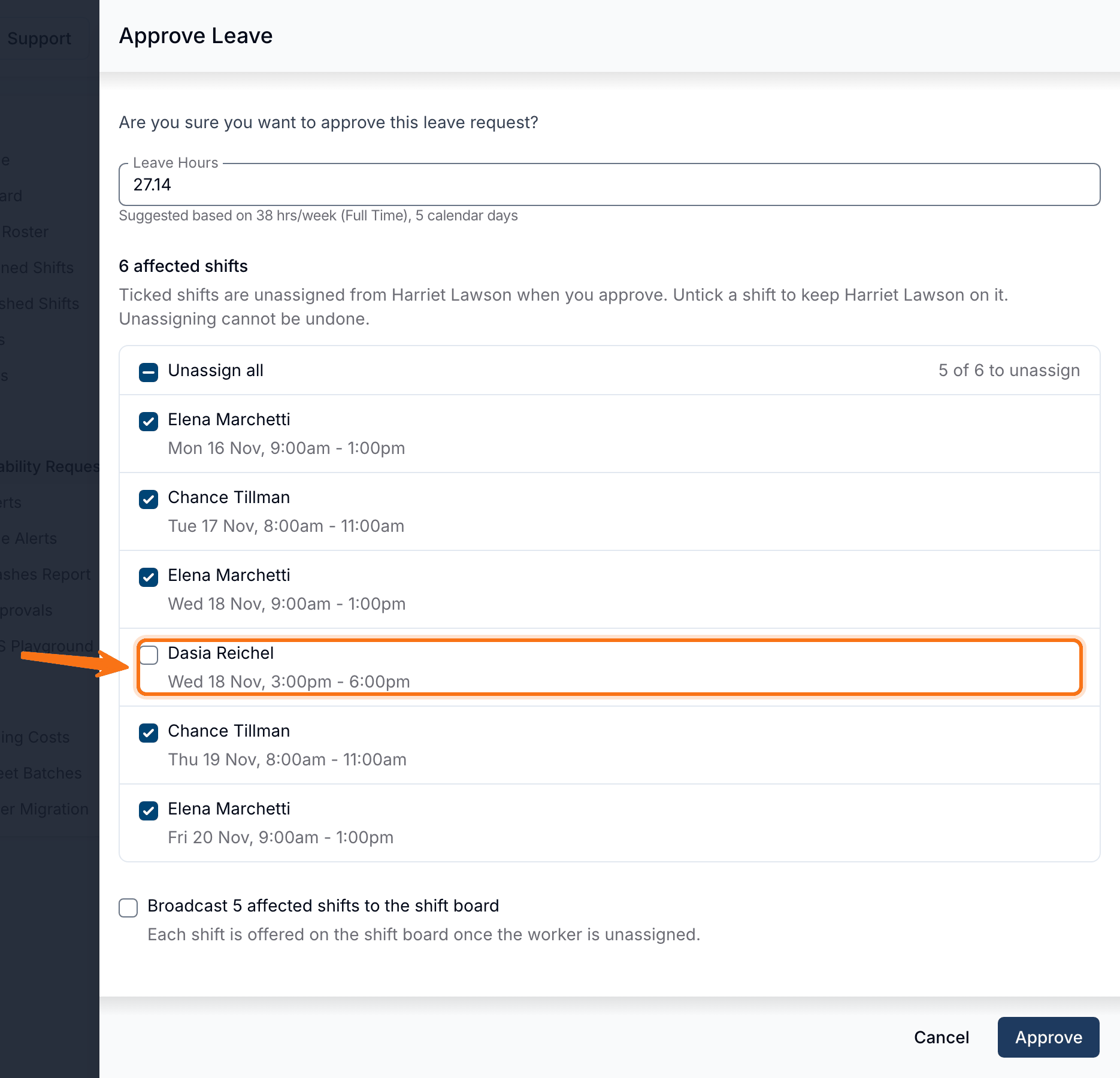
For more information, visit the Managing Availability guide.
Notifying the Requester's Team Leader for Availability Requests
If your organisation uses Teams, availability and leave request notifications can now go to just the requester's Team Leader instead of a fixed list of people every time. Turn on The requester's Team Leader on the notification form, and Astalty notifies whoever leads that person's Team - falling back to your chosen User Groups and Users if the requester has no Team, no Team Leader, or the Team Leader can't approve the request. This option is off by default.
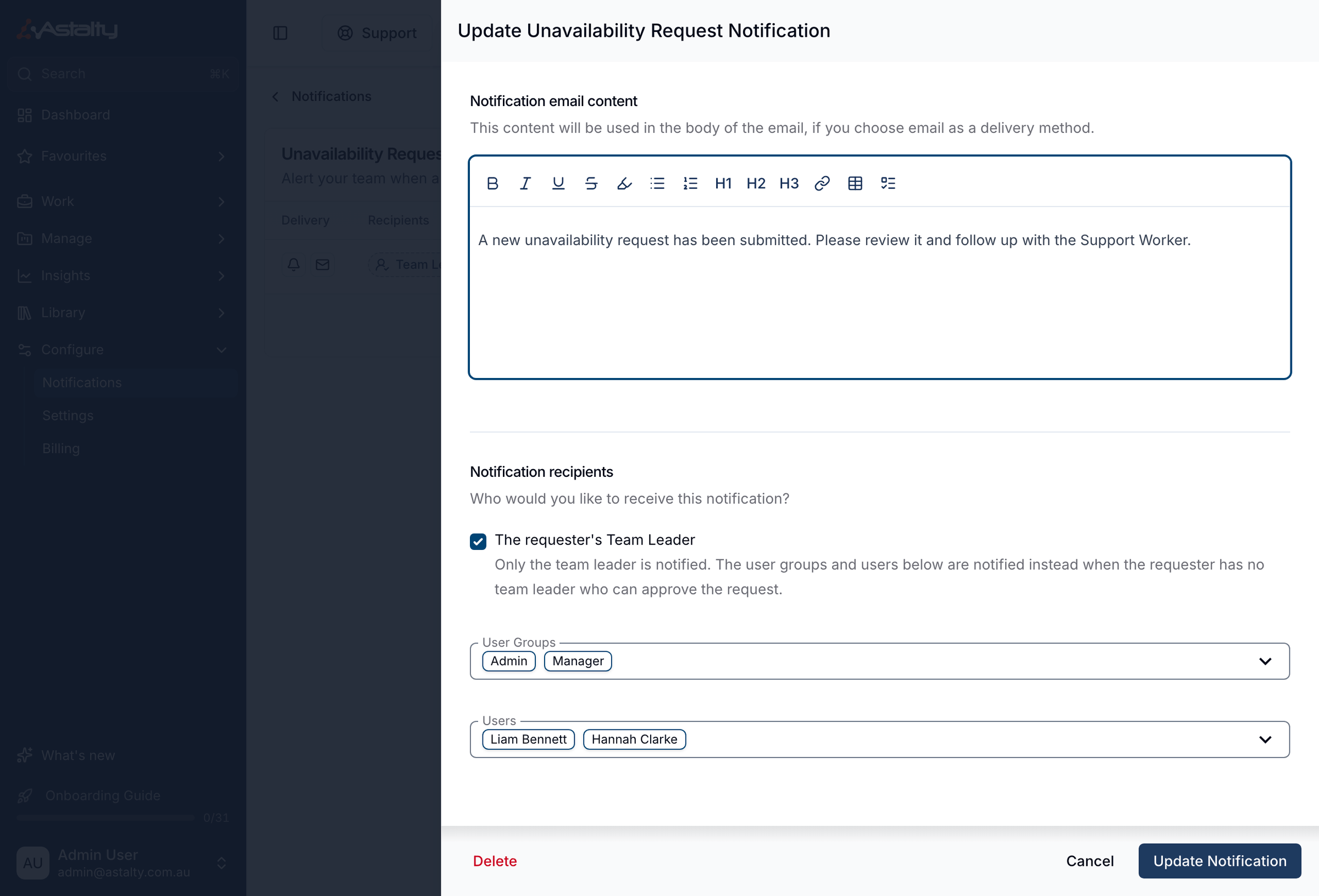
For more information, visit the Availability Request Notifications guide.
Broadcasting Internal Shifts
Unassigned internal shifts - like staff training, meetings or other admin time - can now be broadcast to Support Workers from Unassigned Shifts, the same way support shifts already are. Each occurrence broadcasts on its own, even if the internal event it belongs to repeats.
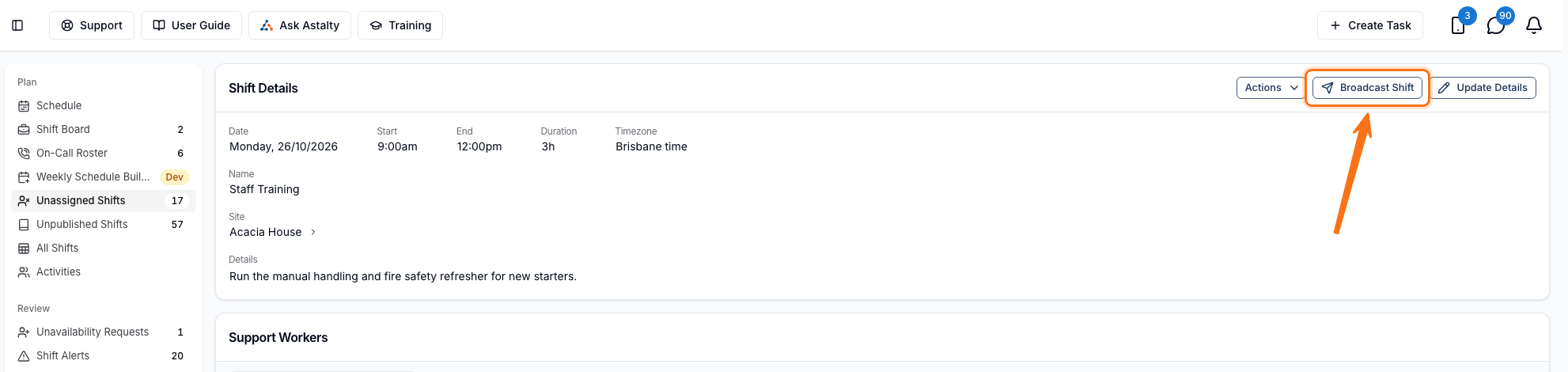
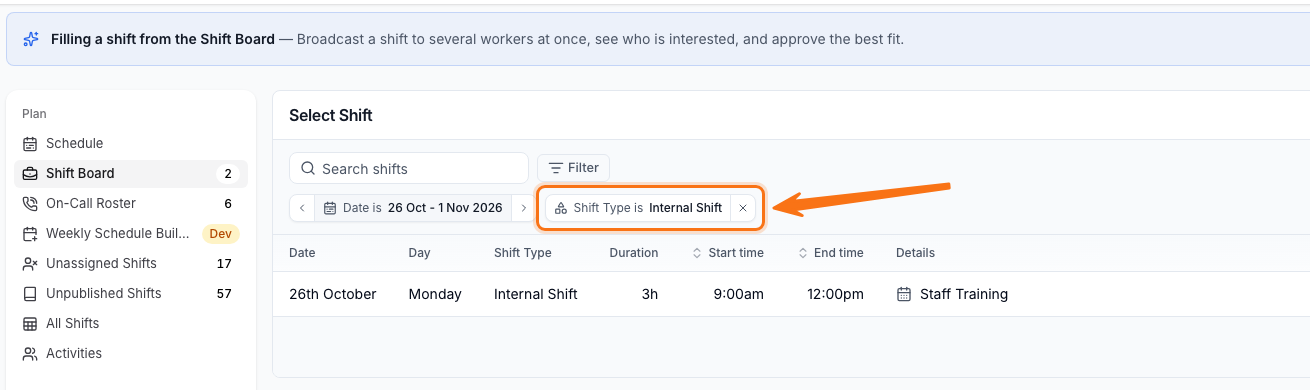
For more information, visit the Shift Board Workflow guide.
Contracted and Maximum Hours Award Alerts
Scheduling Award Alerts now flag two more situations: a part-time worker rostered past their contract's Weekly Hours, and any worker - including casuals - rostered past an optional Maximum Weekly Hours limit, such as a visa work restriction. Both limits are scaled to your pay period, and show up wherever Award Alerts already appear.
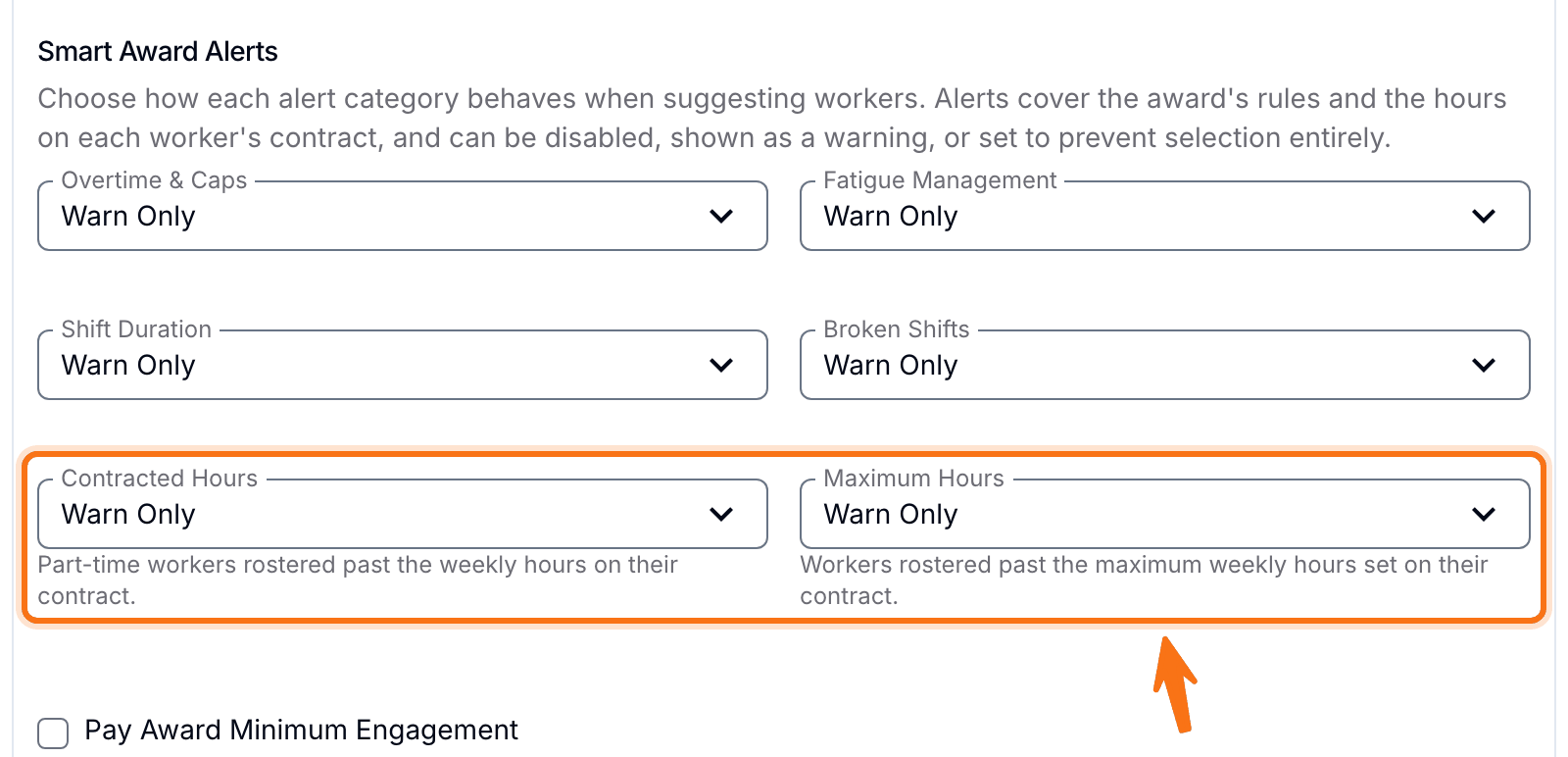
For more information, visit the Scheduling Award Alerts guide.
Participant Initials on Calendar Events
Calendar events linked to a Task with a Participant now show that Participant's initials as a small coloured badge beside the event name, in day, week and month views. The badge only shows to someone who could already see that Participant, and the initials follow your account's Participant Name Display setting, using a Preferred Name when one's set.
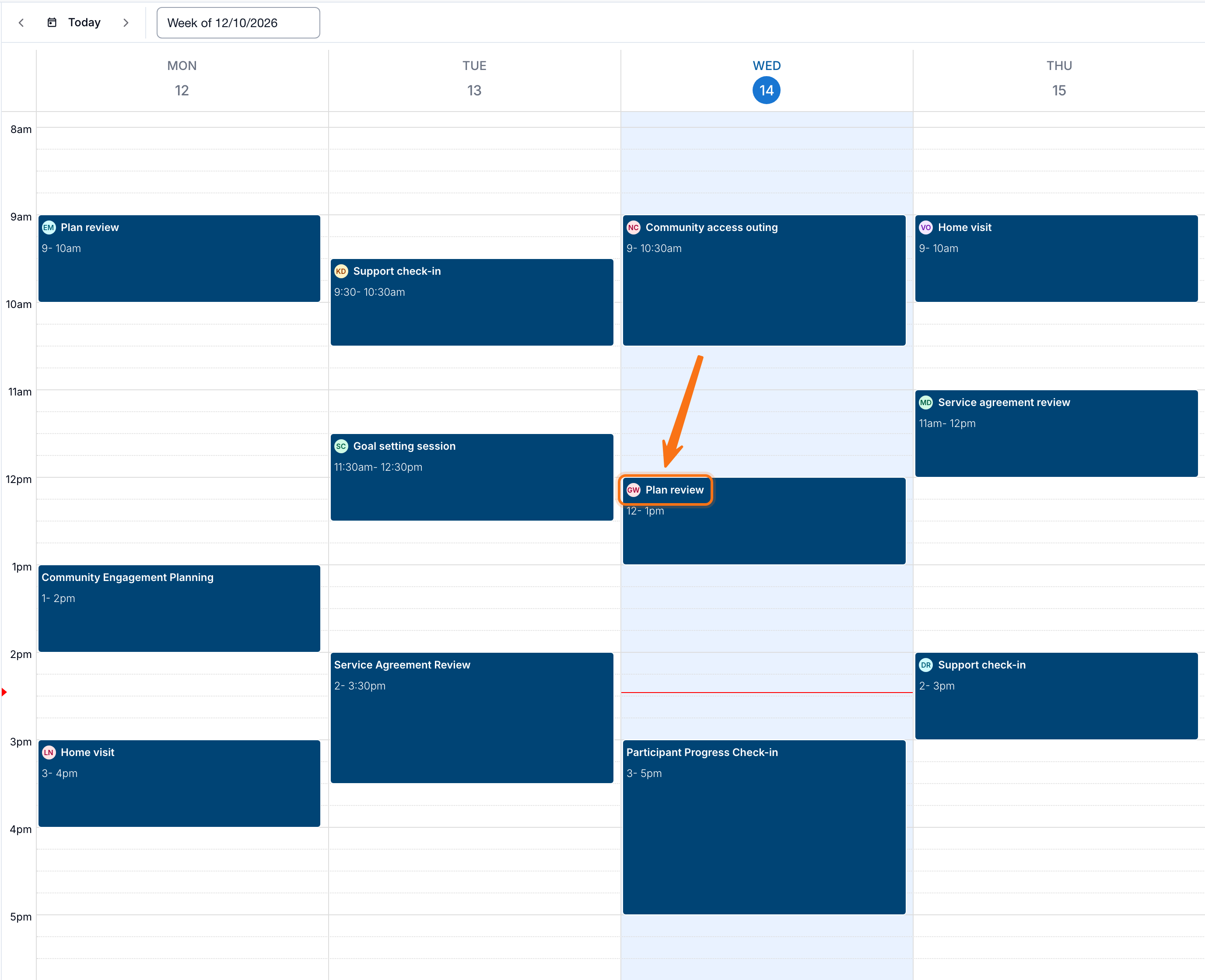
For more information, visit the Navigating the Calendar Interface guide.
Funding Utilisation
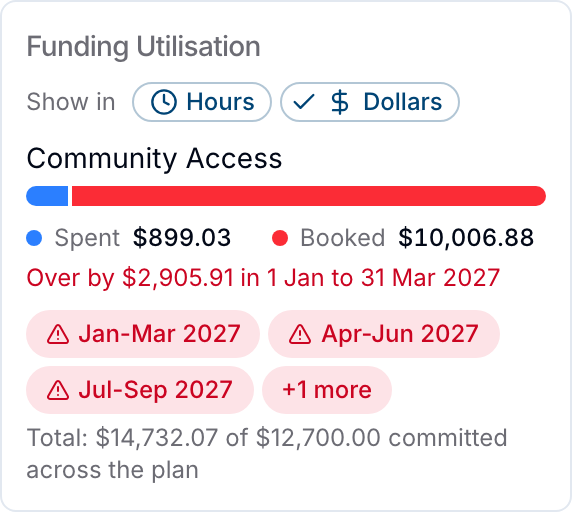
The Funding Utilisation card - shown on tasks, supports and wherever you choose what to charge a Participant - now breaks spending down by funding period, can be hovered for a funding schedule chart, and lets you switch between Hours and Dollars. On a PACE plan with several funding periods, the card shows which period limits how much more you can book, with a Total line and red chips for any period that's over. The Utilisation Report also gained an Over-committed filter, and Funding Over-commitment Notifications now alert per funding period.
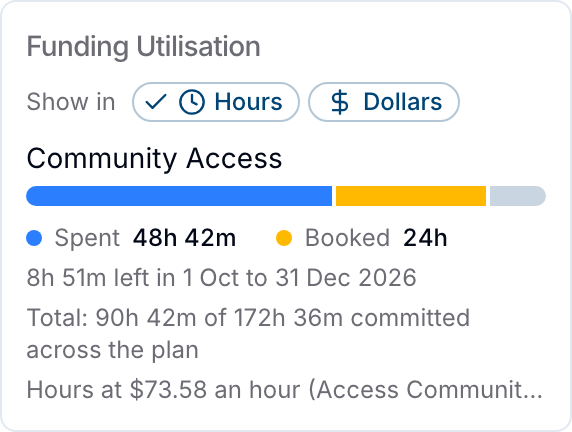
For more information, visit the Funding Utilisation guide.
Recurring Transport Budgets for PACE Plans
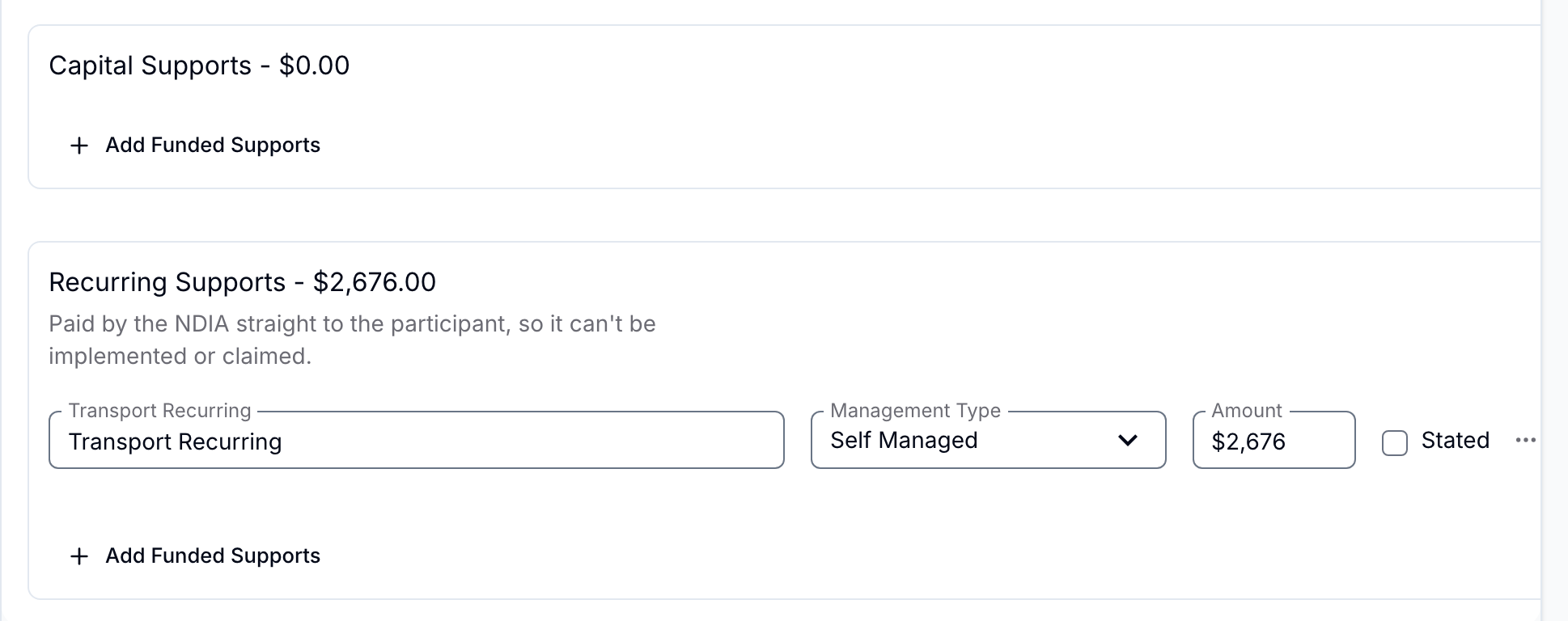
PACE plans can now fund Recurring Transport through a fourth budget group, Recurring, alongside Core, Capacity Building and Capital. The NDIA pays this straight to the Participant each fortnight, so it can't be implemented or claimed by a provider - adding it defaults its Management Type to Self Managed, and it's excluded from Implementations.
For more information, visit the NDIS Plan Budgets & Implementations guide.
Spread Remaining for Budget Funding Periods and Allocations
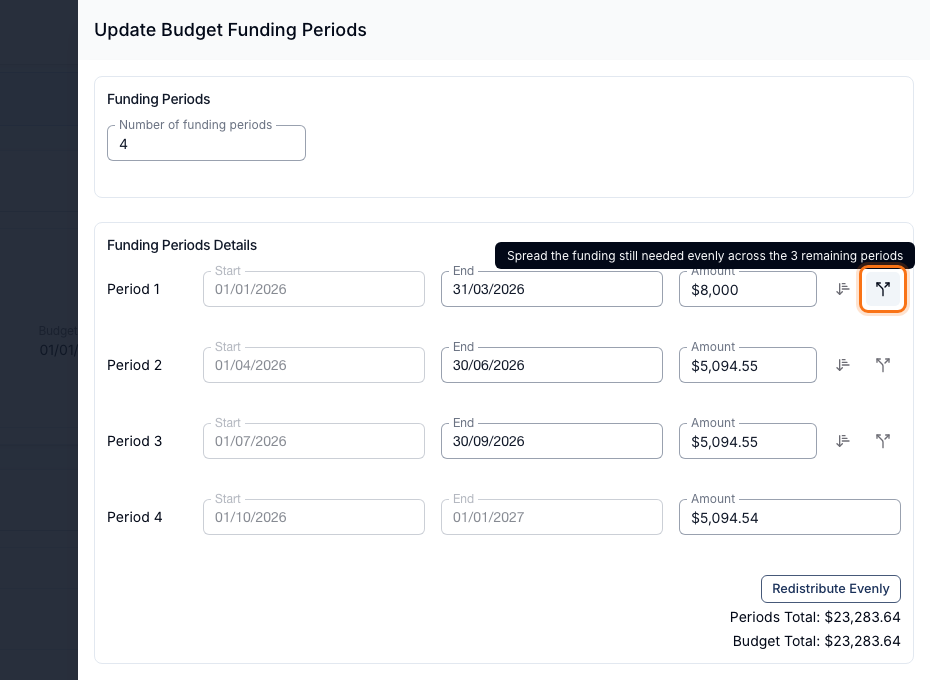
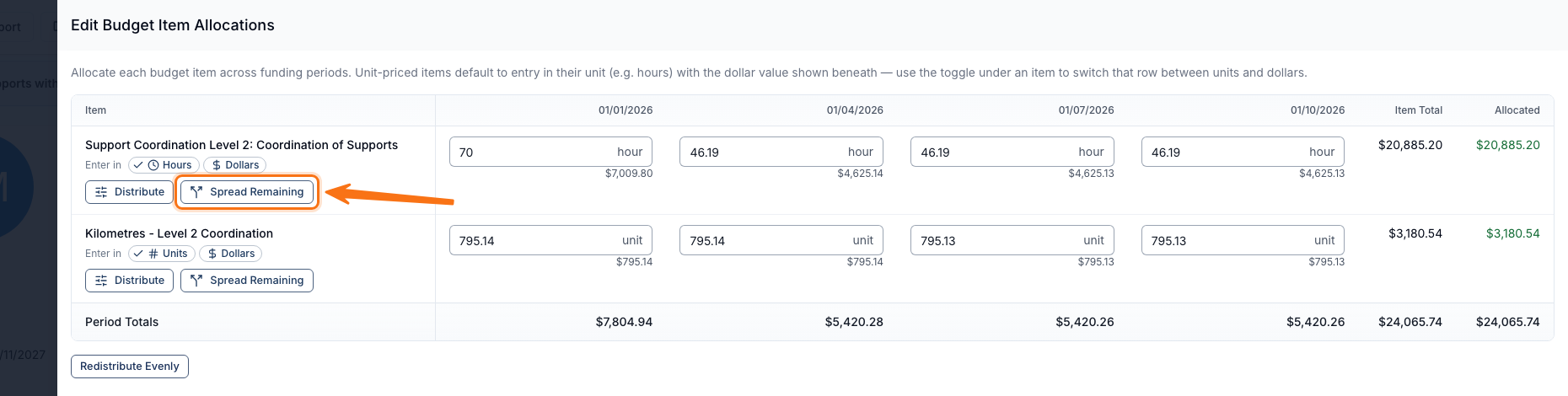
Budget Funding Periods gained a Spread Remaining shortcut beside the existing amount-copying and Redistribute Evenly options: it keeps whatever you've already entered and splits only what's left of the total evenly across the remaining periods, so fixing up a few periods no longer means wiping out a custom split. The same Spread Remaining action is available on the Budget Item Allocations matrix, a beta feature enabled per account by Astalty.
For more information, visit the Budget Functionality guide.
Editing Multi Select Answers on Submitted Forms
A Multi Select answer on a submitted form - an incident report, a register entry, or any other form - can now be edited in place, the same way other field types already could. If the field is required, at least one option has to stay selected when you save the change.
For more information, visit the Viewing Submissions for a Form guide.
Editing User Select Answers on Submitted Forms
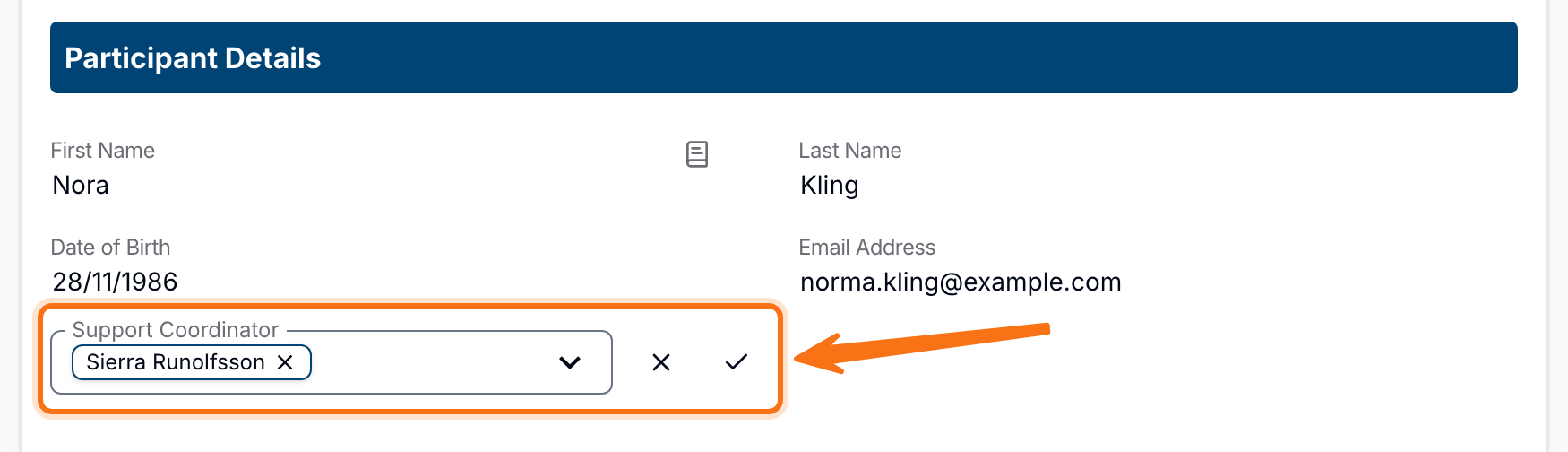
A User Select answer on a submitted form - such as a Support Coordinator question on a register entry - can now be edited in place, the same as Multi Select answers already could. Editing it opens a staff picker pre-filled with everyone currently selected, and you can choose more than one person from the account's active staff.
For more information, visit the Viewing Submissions for a Form guide.
Recent Submissions in the Astalty App
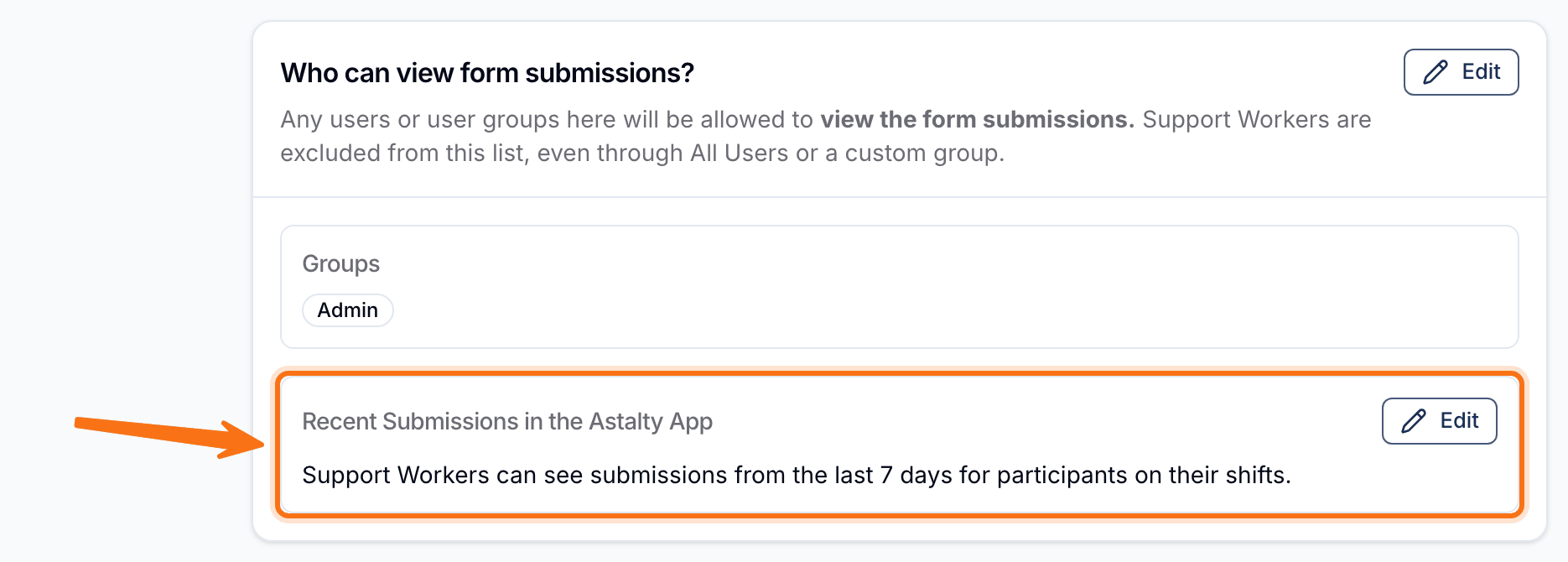
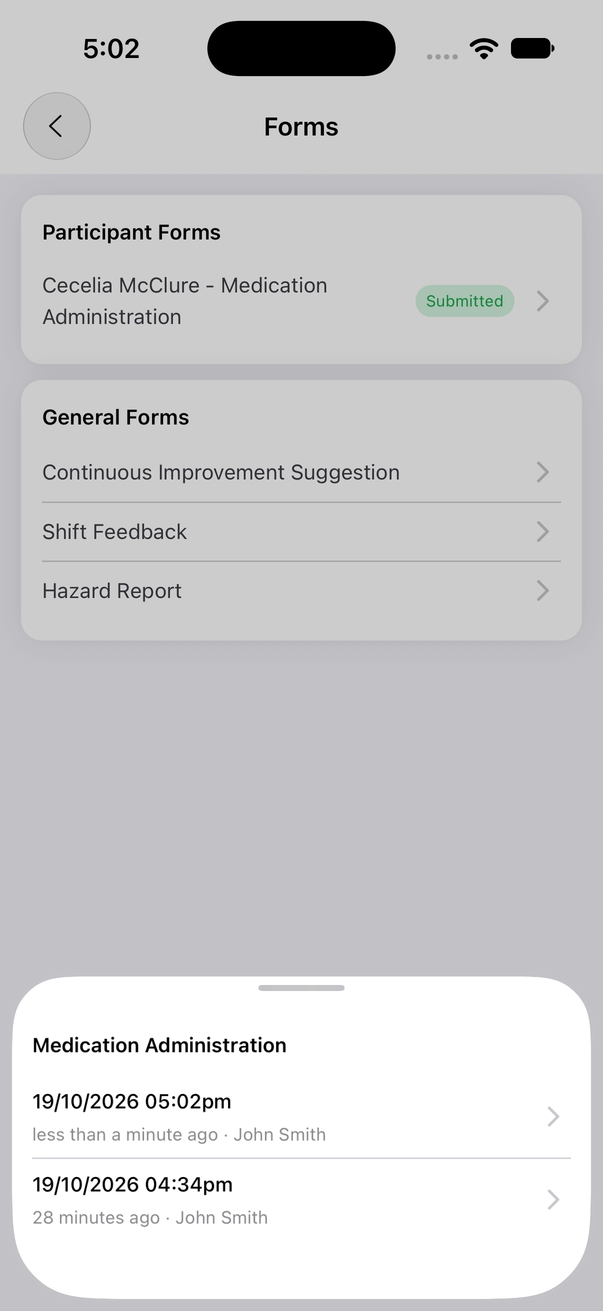
Where your account is subscribed to Premium, Support Workers using the Astalty app can now look back at a General Form's recent submissions for Participants on their shifts - useful for checking something like when medication was last given. Turn it on per General Form from Who Can View Form Submissions → Recent Submissions in the Astalty App, choosing how many days back Support Workers can see. It's off by default; while off, Support Workers see only their own submissions.
For more information, visit the Form Settings guide.
Inserting a Note Template in Chat
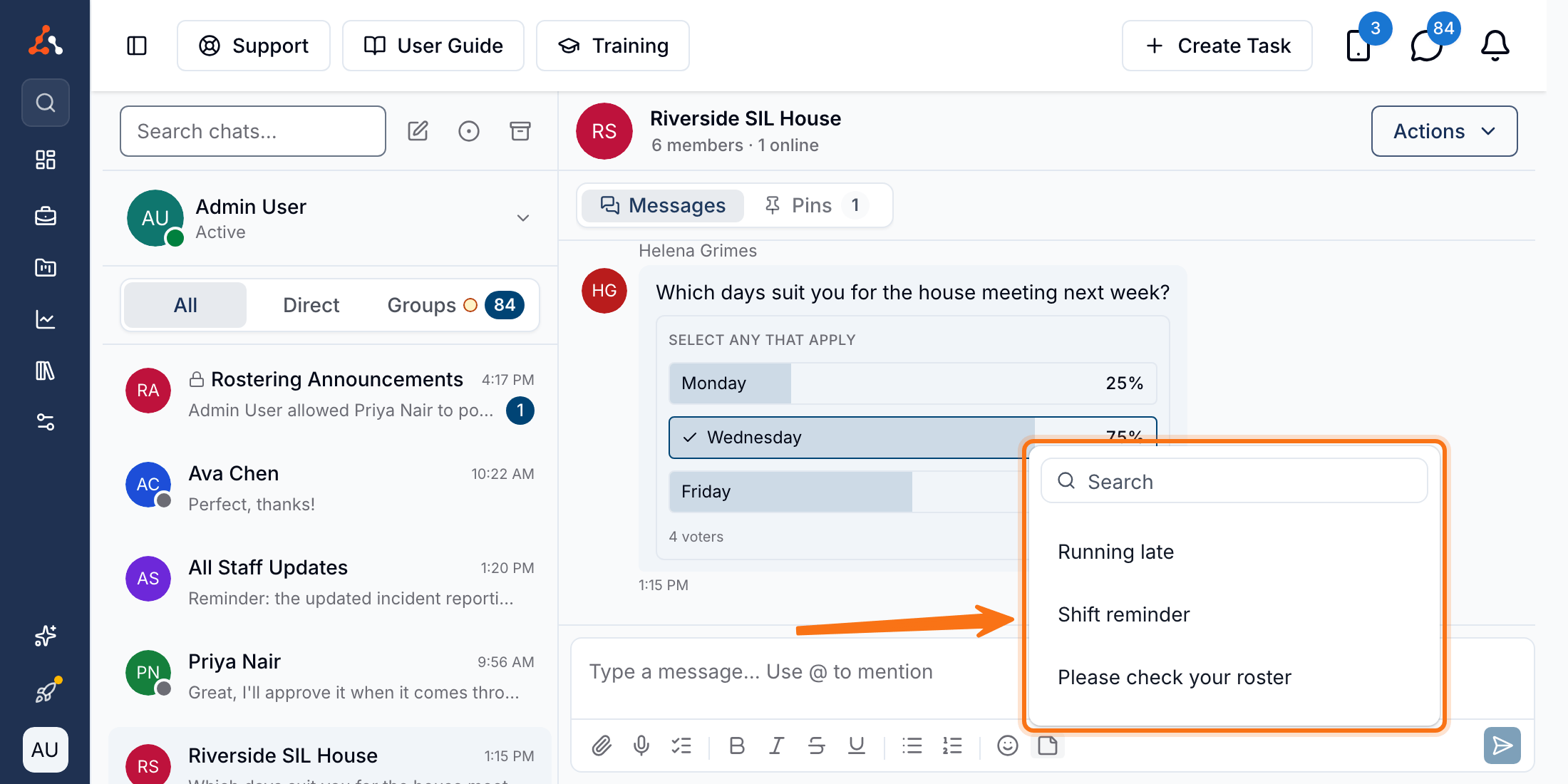
Chat now has a note template icon in the message toolbar, so you can insert a saved Note Template straight into a message instead of retyping or pasting it. It's inserted at your cursor, or at the end of the message if you haven't clicked in yet; bold, italics, underline, strikethrough, lists and links carry over, while headings and highlighted text come through as plain text. Only people who can view Note Templates see the icon - Support Workers can't by default - and it's browser-only, not yet in the Astalty app.
For more information, visit the Messaging guide.
Saving SMS Attachments to a Participant or Case Note
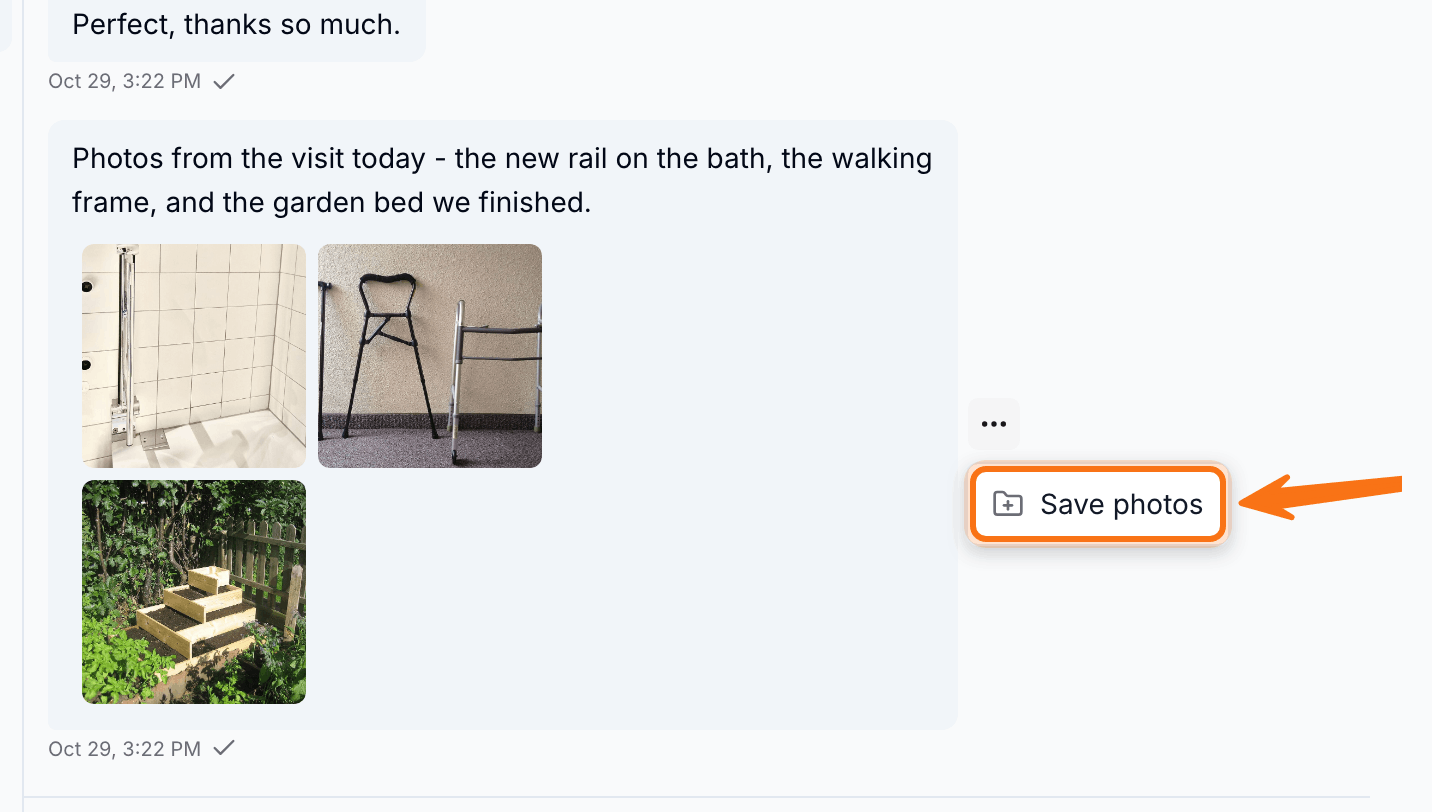
Attachments received over SMS can now be saved straight into a Participant's documents, or attached to one of their existing case notes, without leaving the inbox. Click Save photo(s) or Save file(s) on the message, choose the Participant and where it should go, and save.
For more information, visit the Two-Way SMS guide.
Incidents and Feedback on the Registers Page
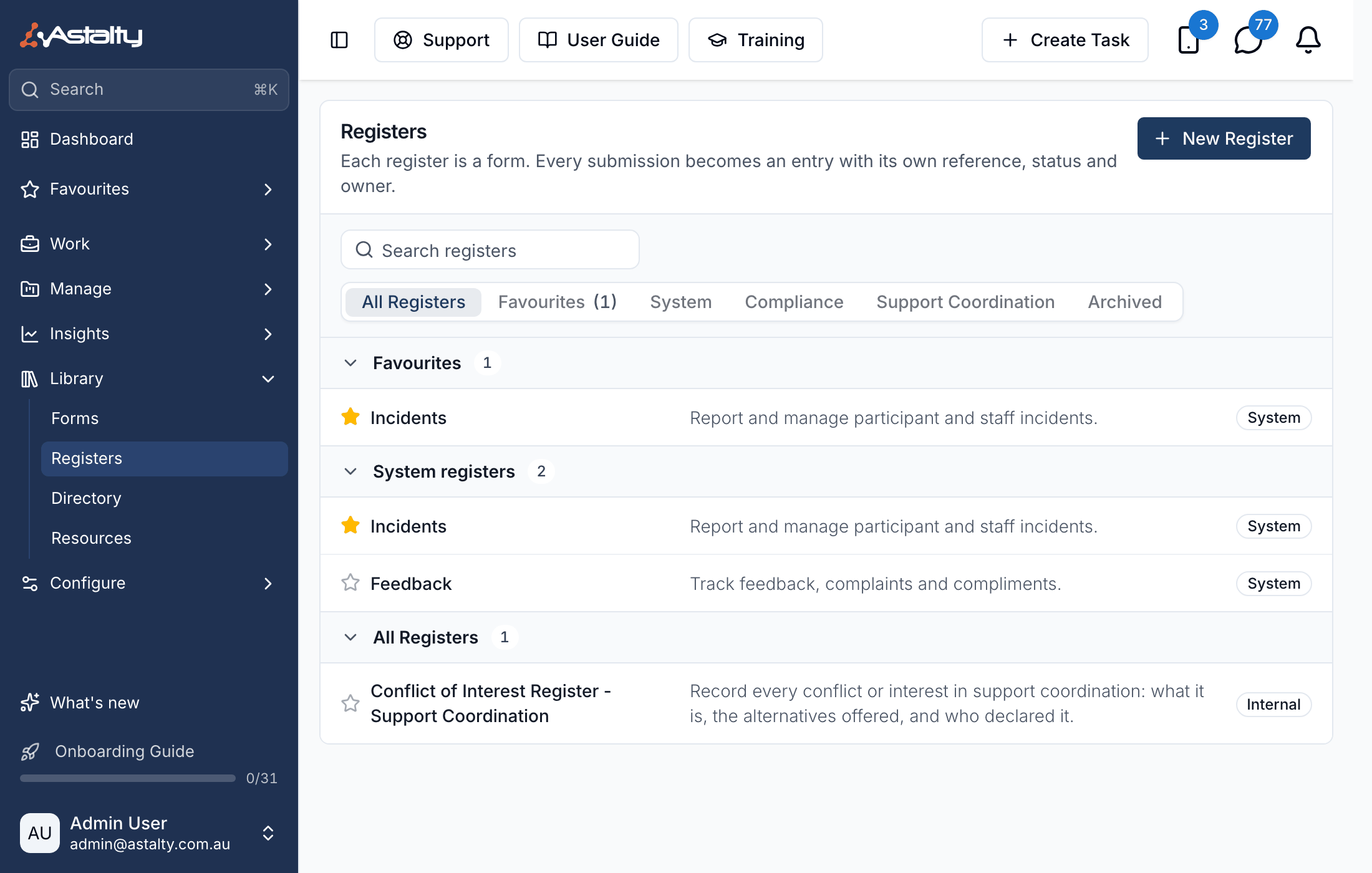
Incidents and Feedback & Complaints now also appear on the Registers page under a System section, so they're easy to find alongside your own registers and can be starred into Favourites. Selecting one takes you straight to Incidents or Feedback & Complaints.
For more information, visit the Registers Overview guide.
Referral Source
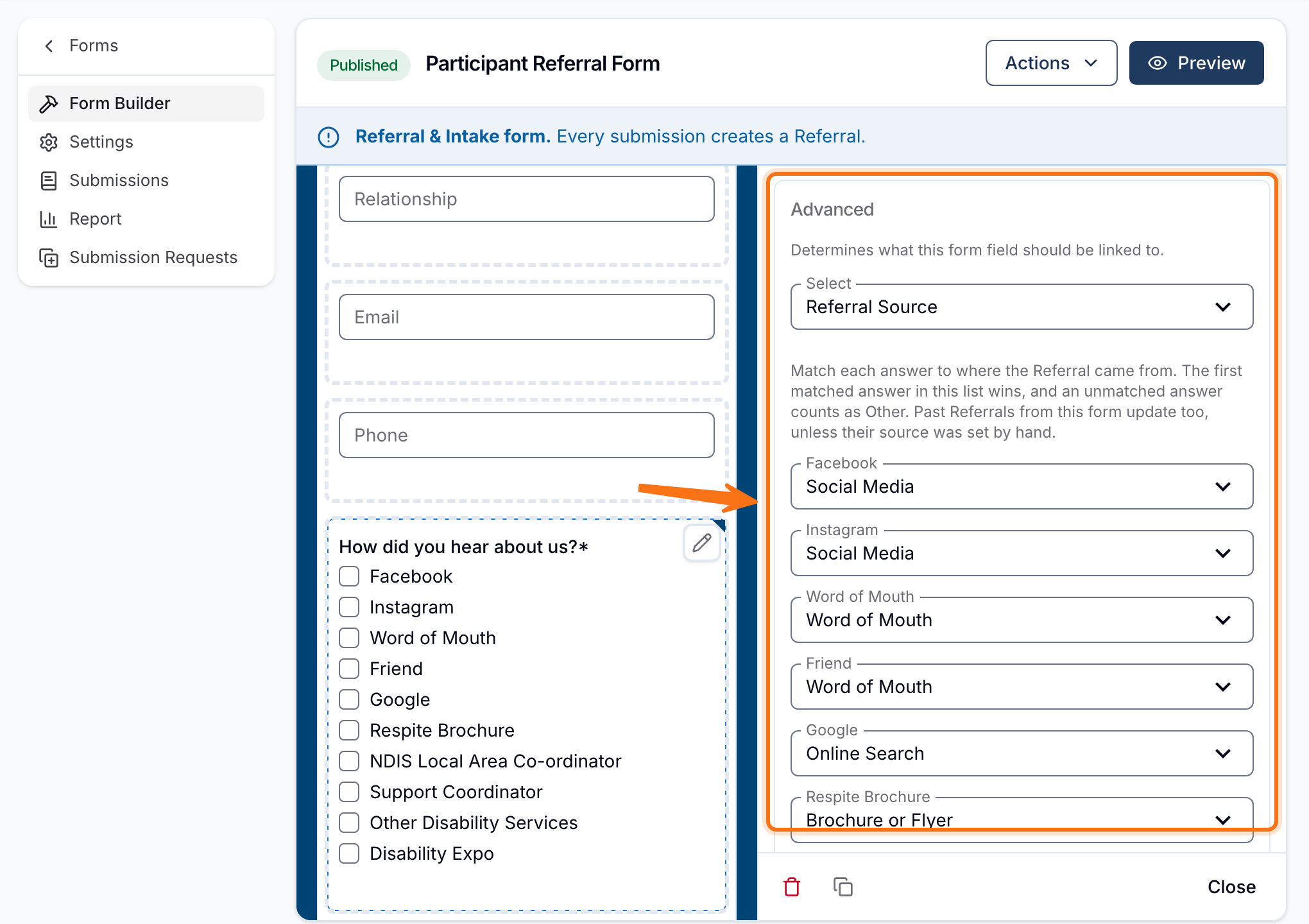
Every referral now records a Source - such as Social Media, Word of Mouth or NDIA or LAC - shown on the referral, the Referrals register and the Waitlist, and filterable on the register. Admins can link a form question like "How did you hear about us?" to Referral Source in the form builder, matching each answer to a source automatically. The Referral Conversion Report can also be filtered and broken down by Source.
For more information, visit the Referrals Overview guide.
Action Items Export
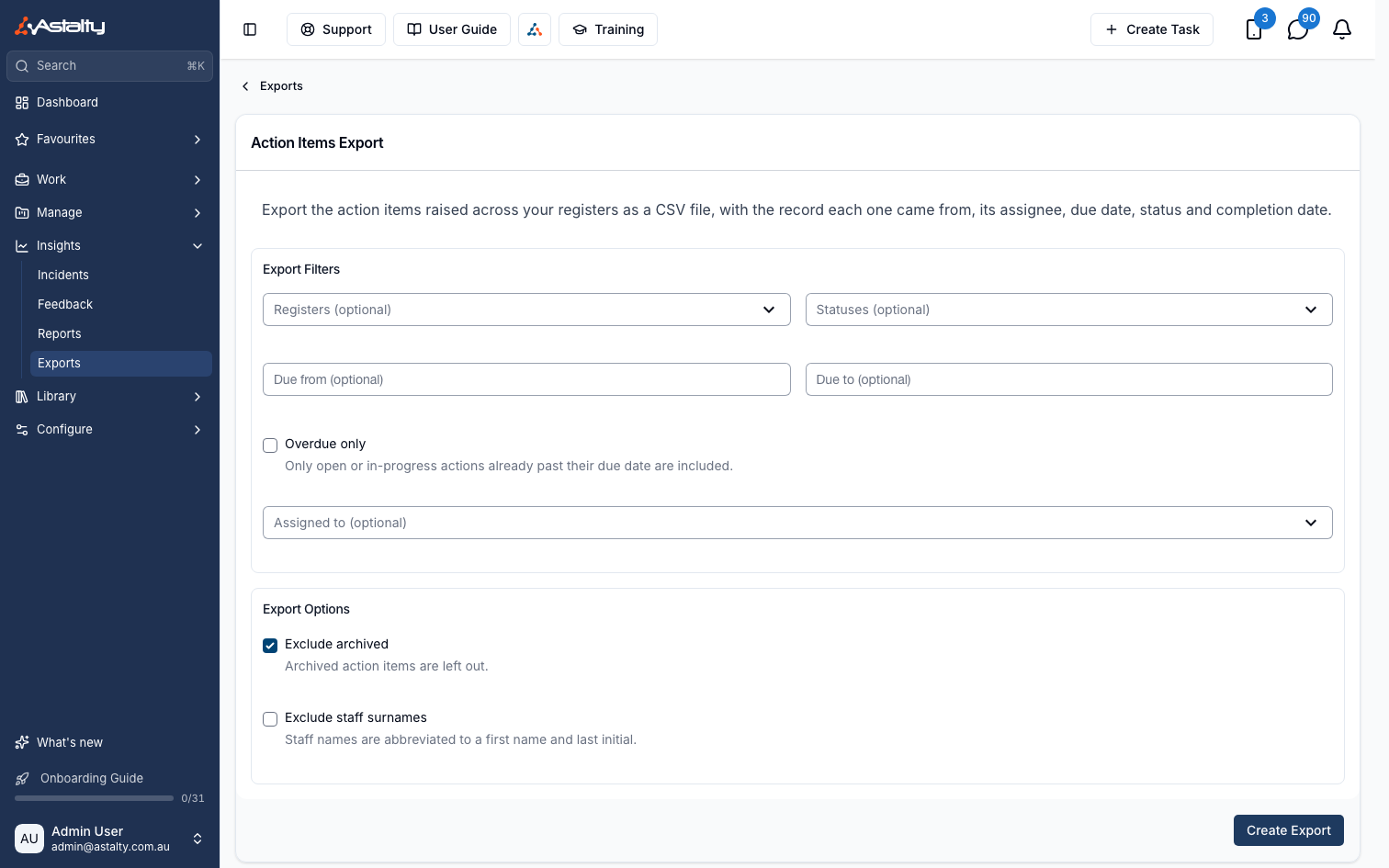
You can now bulk export every action item raised across your incident, feedback, referral and custom registers as one CSV file, with the register each one came from, its assignee, due date, status and completion date. Find it from Create Export → Action Items. It's an optional beta feature; contact Astalty Support to have it enabled.
For more information, visit the Action Items Export guide.
Action Item Assignment Notifications
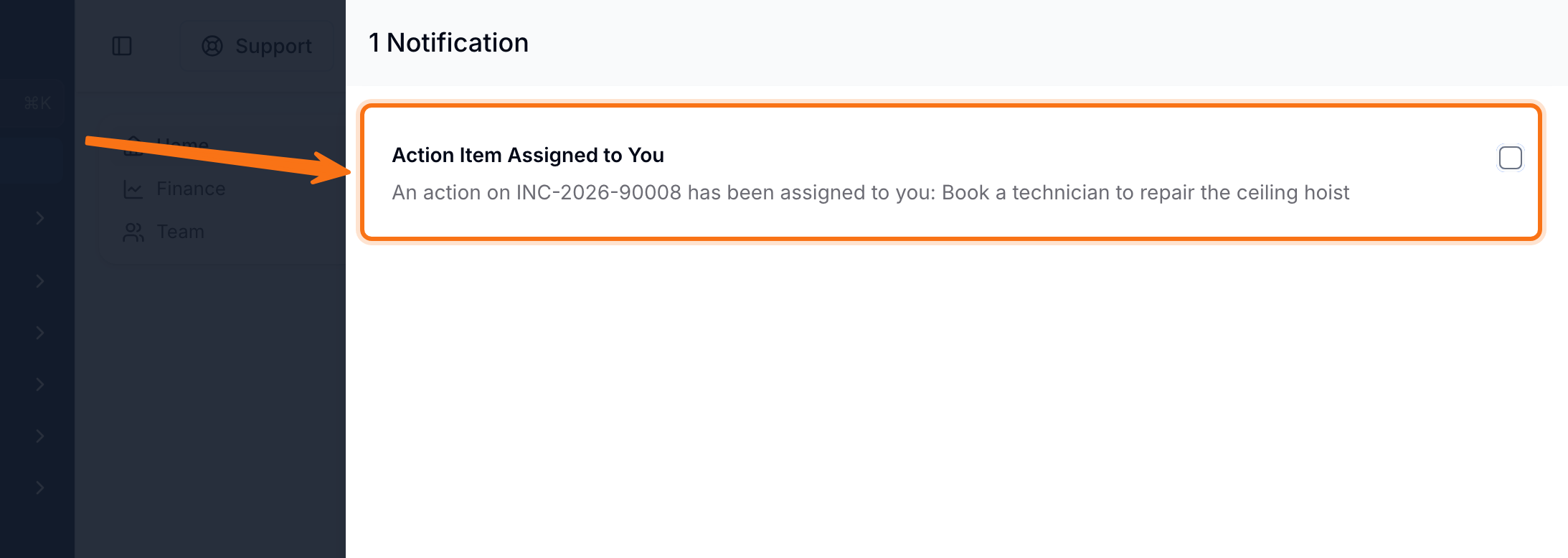
When an action item is assigned or reassigned to you, Astalty now sends an in-app notification and an email, so you don't have to keep checking the Action Items page for new work. Both link straight through to the action, and you won't be notified when you assign an action item to yourself.
For more information, visit the Action Items guide.
Notifications Register
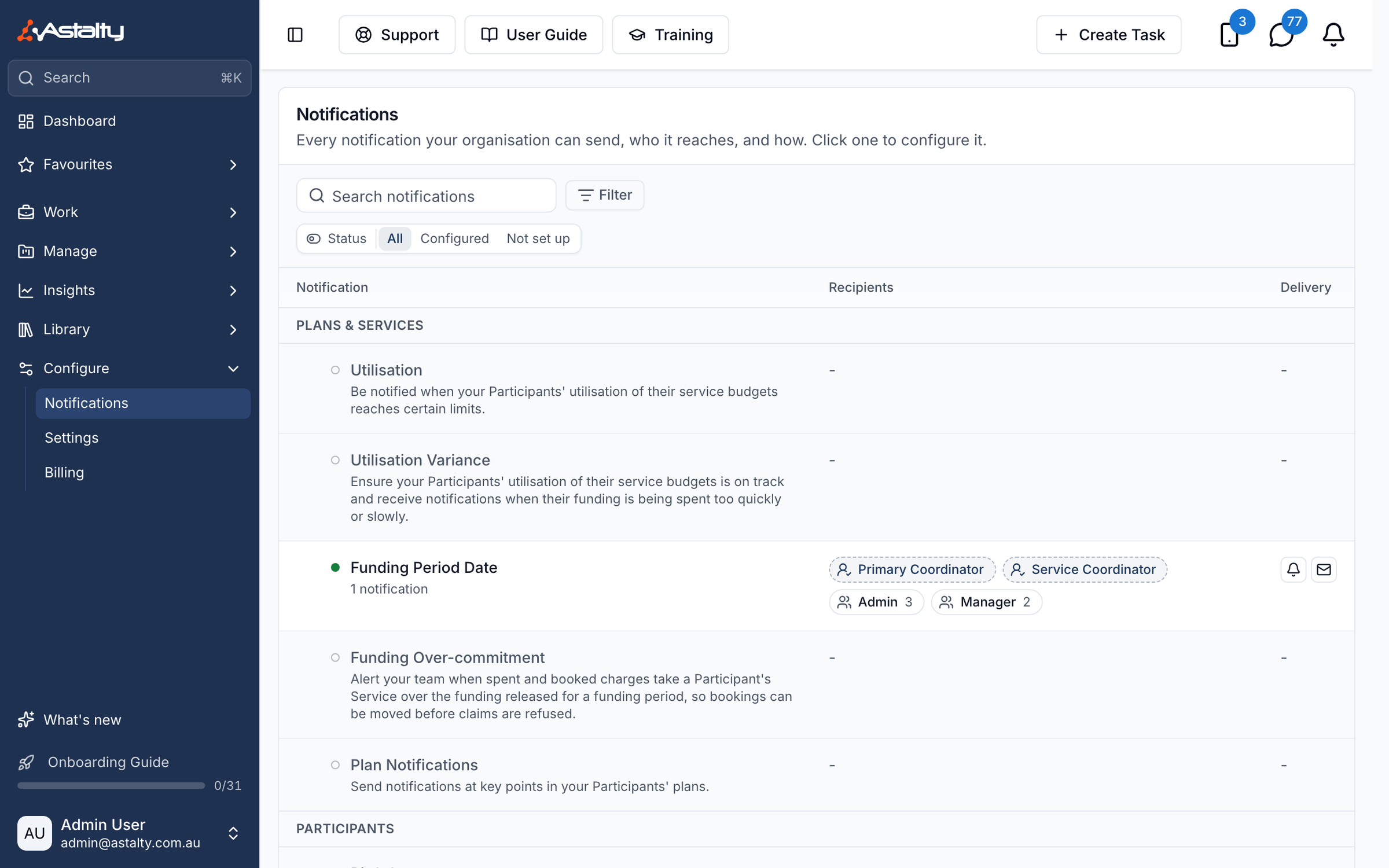
The Notifications page now lists every notification type your organisation can send in one register, showing whether each is set up, who it reaches, and how it's delivered. Filter by Status (Configured or Not set up), Category or Delivery, or search by name.
For more information, visit the Notifications guide.
Flagged Notes: Group Support Notes in Participant Filters
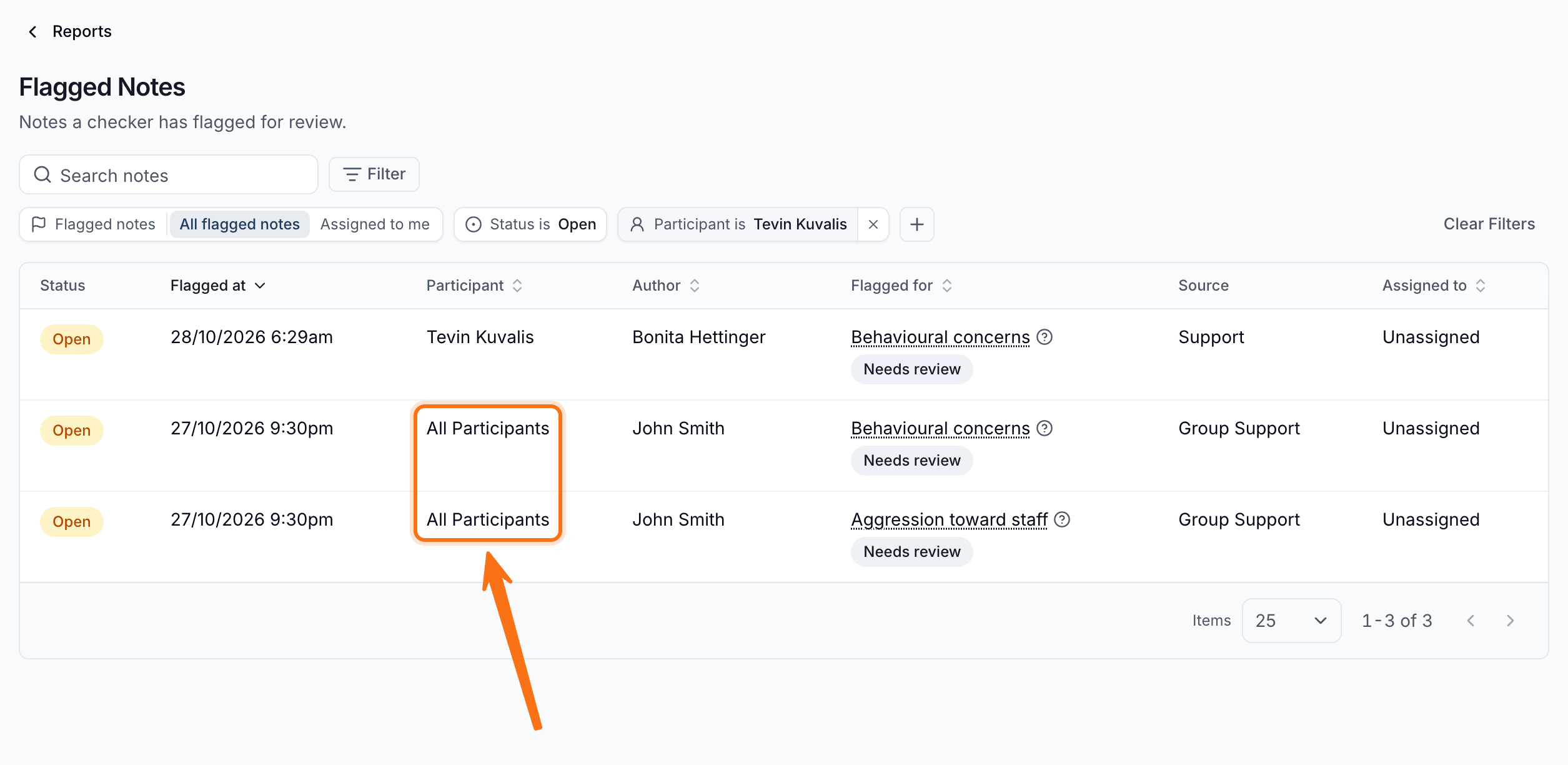
The Flagged Notes report's Participant filter, and the Flagged Notes export's Participants and Participant Tags filters, now also surface flags on notes written for a whole Group Support that Participant attended. These show as All Participants rather than one name. Search still won't find them by a Participant's name - use the Participant filter instead.
For more information, visit the Flagged Notes Report guide.
Participant Notes Export: Group Support Notes
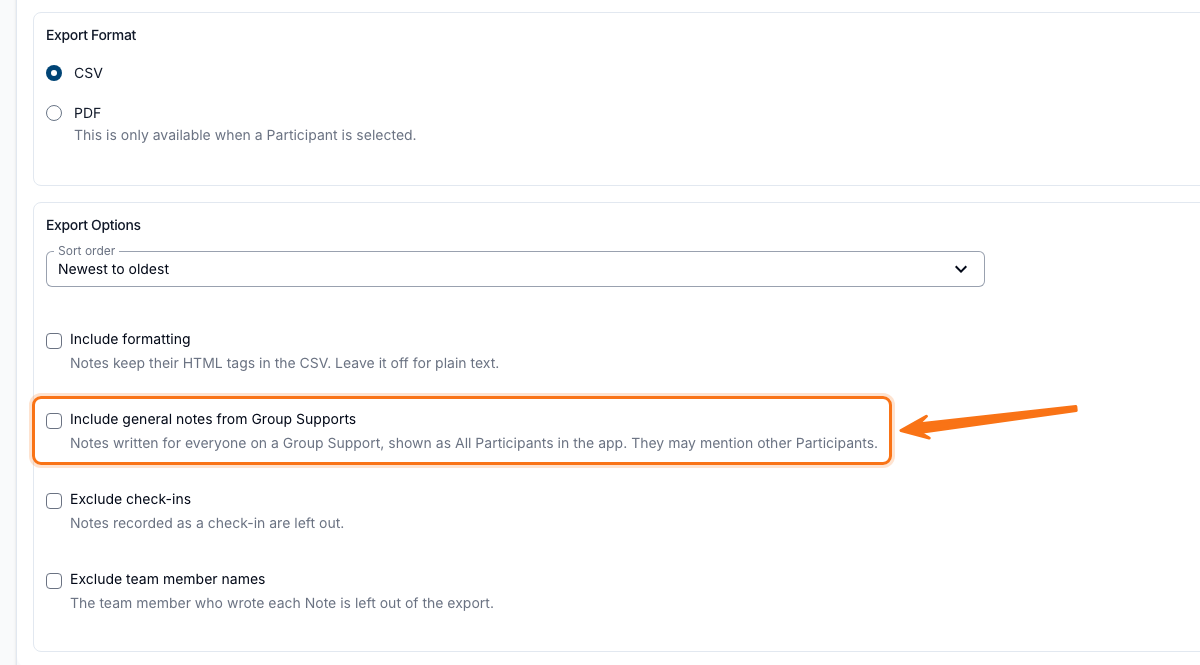
Exporting a Participant's notes now leaves out general notes written for everyone on their Group Supports by default. Turn on Include general notes from Group Supports, shown once you've selected a Participant, to include them - the export labels each one All Participants rather than a name.
For more information, visit the Participant Notes Export guide.
Years of Experience Report: Include Unschedulable Staff
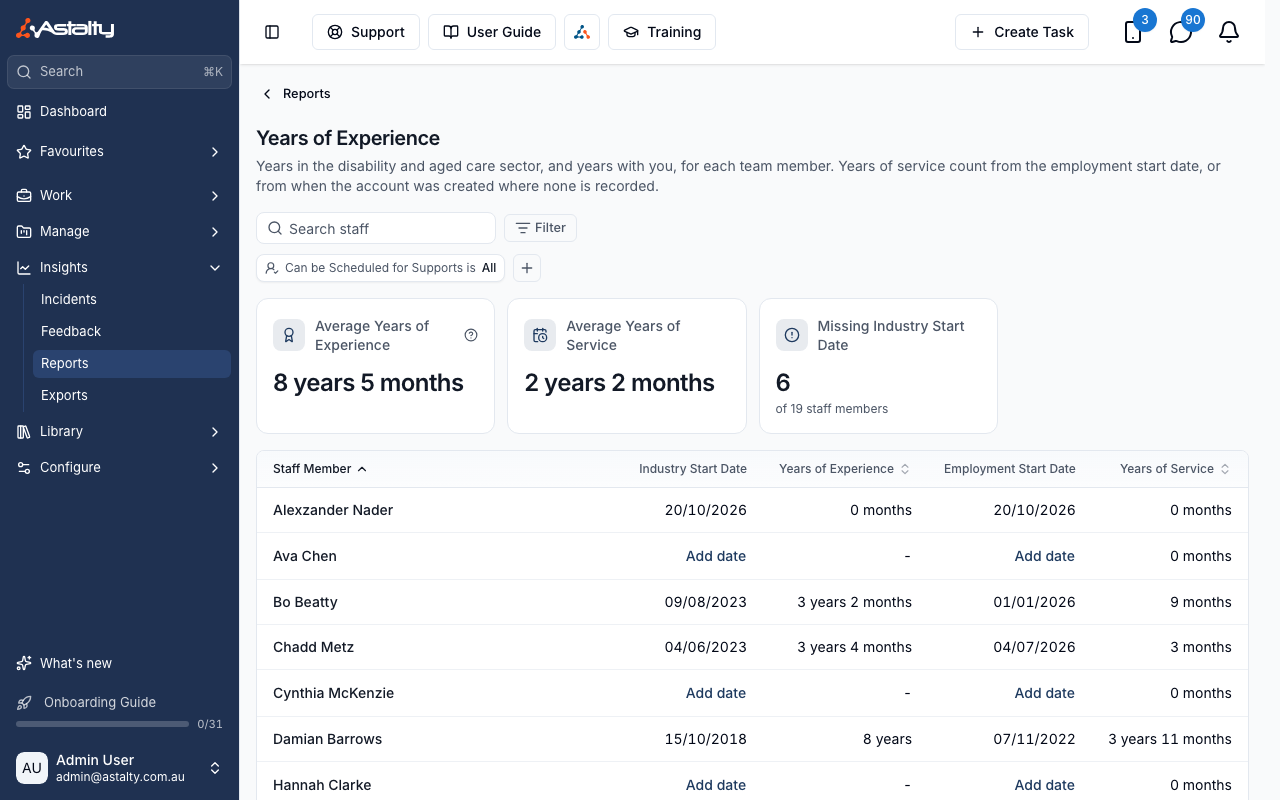
The Years of Experience report has a new pinned Can be Scheduled for Supports filter (Yes / No / All), so staff who are never rostered - such as support coordinators - can now be counted too. It defaults to schedulable staff only; switch it to No or All to include everyone else.
For more information, visit the Years of Experience Report guide.
Shift Approvals Variance Export: New Columns
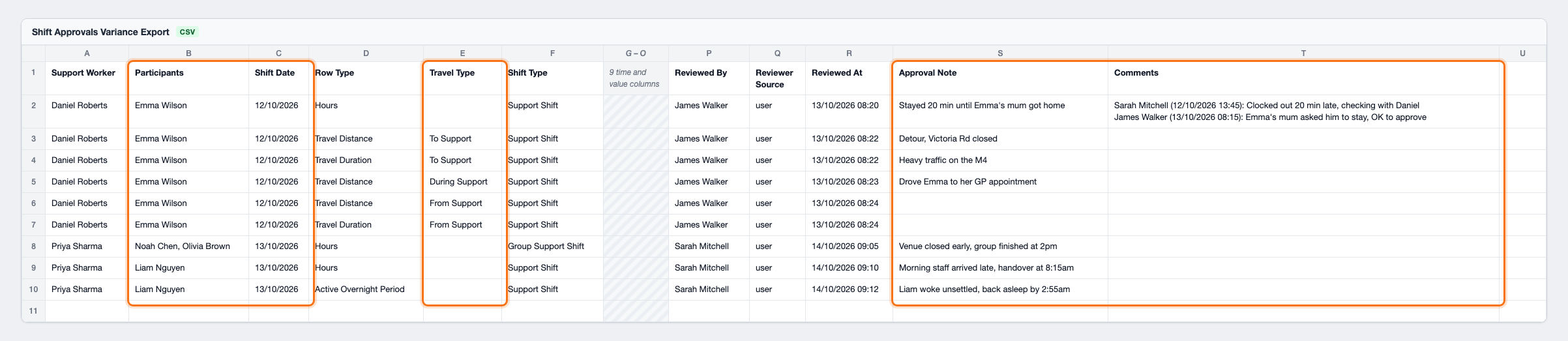
The Shift Approvals Variance Export now includes who each shift was for, the shift's date, the travel leg type, each approval's note, and any comments left on the shift - five new columns in total. Every column after Support Worker has moved to make room, so a spreadsheet that reads by column position will need a one-off update.
For more information, visit the Shift Approvals Variance Export guide.
Filtering the Utilisation Export by Scheduled or Unscheduled Services
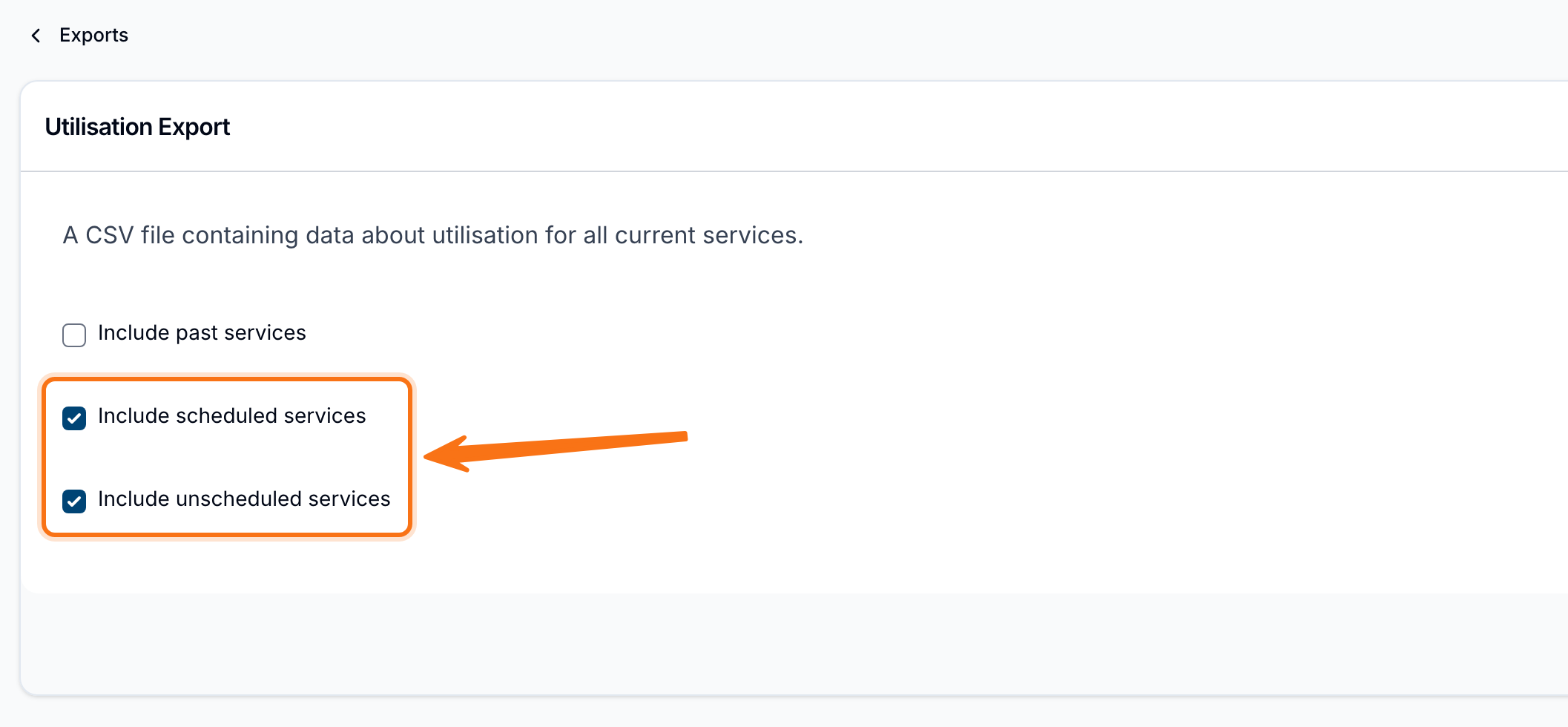
The Utilisation Export can now be limited to just scheduled services, just unscheduled services, or both, using two new toggles - Include scheduled services and Include unscheduled services - on the create-export form. Both are on by default, and at least one must stay selected.
For more information, visit the Utilisation Export guide.
Sorting Invoices by Participant
The Invoices list, and the Invoices table inside a finalised Invoice Batch, can now be sorted by any column - Reference, Type, Participant, Date, Due Date or Total. Sorting by Participant keeps each Participant's invoices together, with the oldest due invoice leading each group - useful for chasing someone with several overdue invoices.
For more information, visit the Invoices guide.
Xero Now Accepts "Hour" Pay Items
Validating a timesheet batch for Xero no longer blocks a custom allowance's earnings rate just because its Type of Units is set to Hour instead of Hours - Xero accepts and pays both. Other units, such as Kilometres, still show a warning and block the export.
For more information, visit the Custom Allowances guide.
Astalty for Outlook: Note Pre-fill
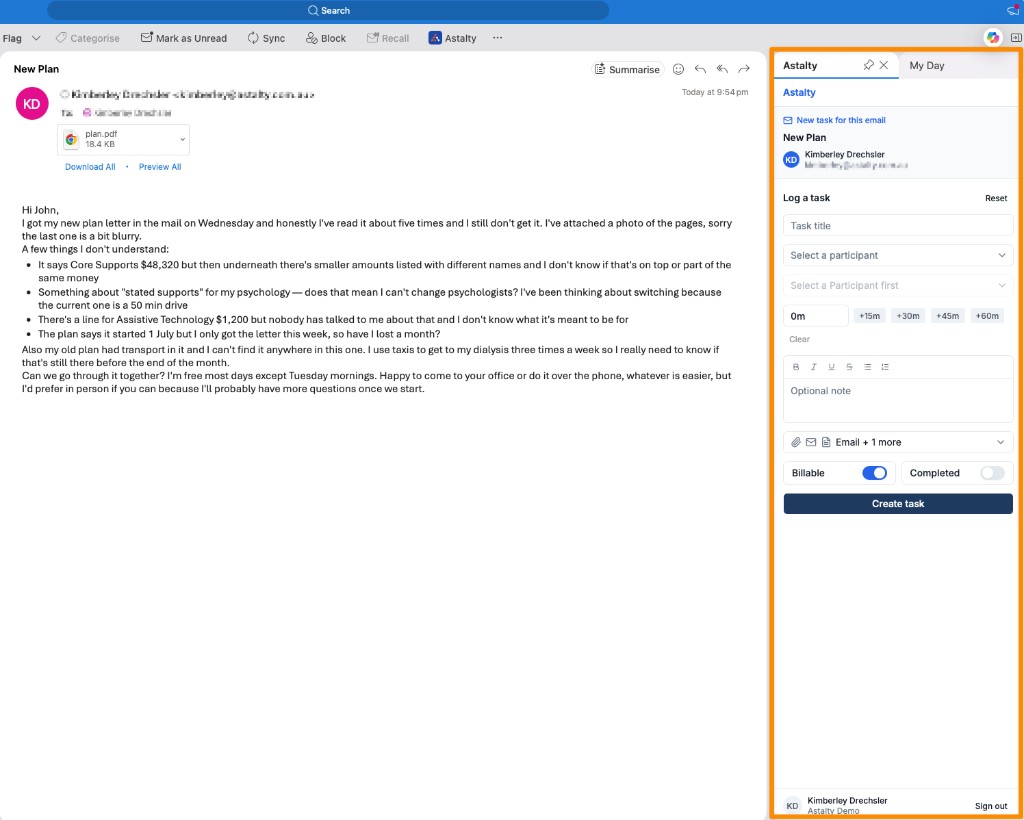
When logging a task from an email in the Astalty for Outlook add-in, the task's Note field now pre-fills with the email's text, so you don't need to copy and paste it across. You can still edit or clear it before saving; if you keep the panel pinned, save before switching to another email, since switching resets the form and loads the new email's text.
For more information, visit the Astalty for Outlook guide.
Listing Webhook Event Types via the API
Integrators can now fetch the current list of subscribable webhook event types directly from the API, instead of relying on the static events table. Call GET /public/v1/webhook-event-types to get the exact set your account can currently subscribe to - useful for building an event-type picker or config file from a live source. It's part of the Webhooks beta feature.
For more information, visit the Listing Webhook Events via the API guide.