19 November 2026
What's New
Recent Astalty releases are now in one place. Select What's new at the bottom of the Side Menu to see them, newest first, with a count of the ones you haven't read. You can browse Needs your attention, Good to know and Betas, search or filter by area, and give feedback on a release. Admins can select Request access to ask for a beta. New releases can also appear as cards in the Side Menu and as tips on the page they change.
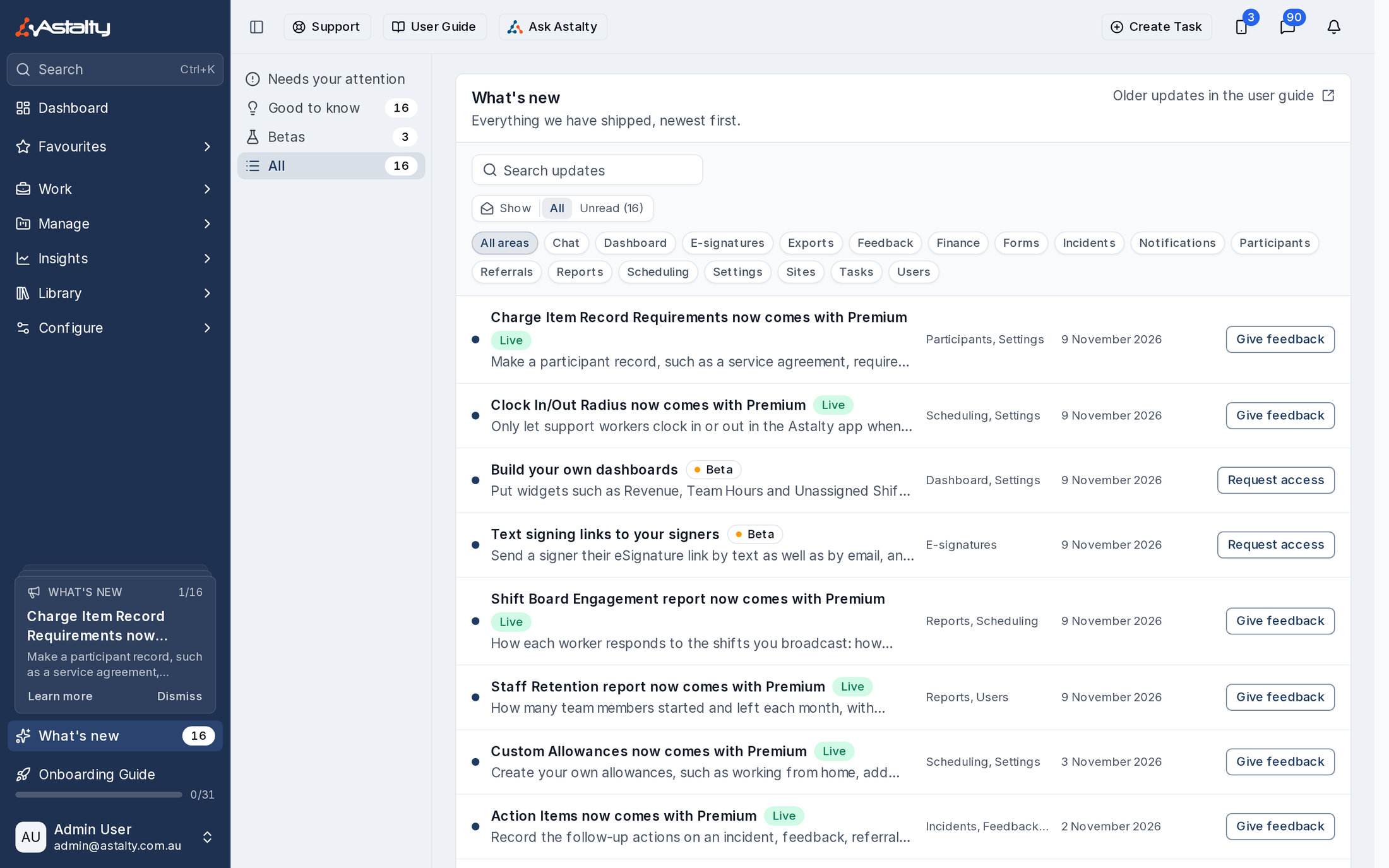
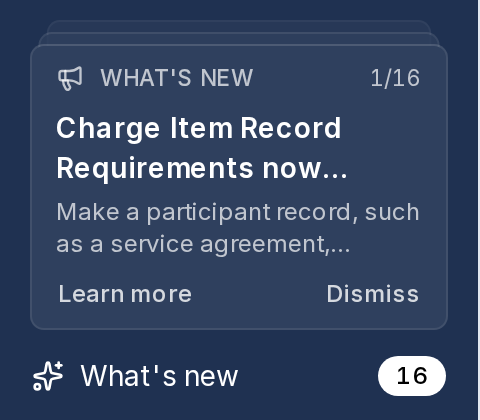
For more information, visit the What's New guide.
Assigned and Timed Shift Tasks (Beta)
On a group support, you can now give a Support Task to one worker's shift, so only that worker sees it in the app and is responsible for it. Any Support Task can also have a Due at time. You set how early or late still counts as on time with Task Tolerances in Scheduling Settings. Completing a task outside that window needs a note, and a task that hasn't been done once the window closes shows as Overdue. The Support Tasks Report and Export show when each task was due and actioned, and whether it was early, late or overdue. It's in beta and enabled per account; contact Astalty Support to turn it on.
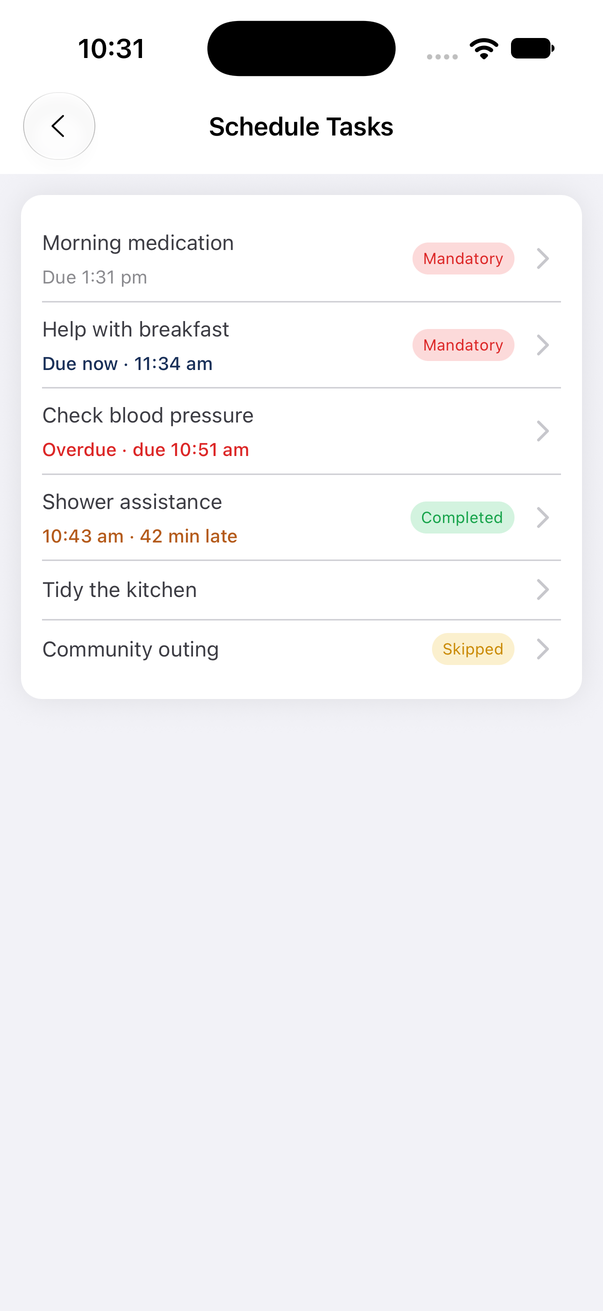
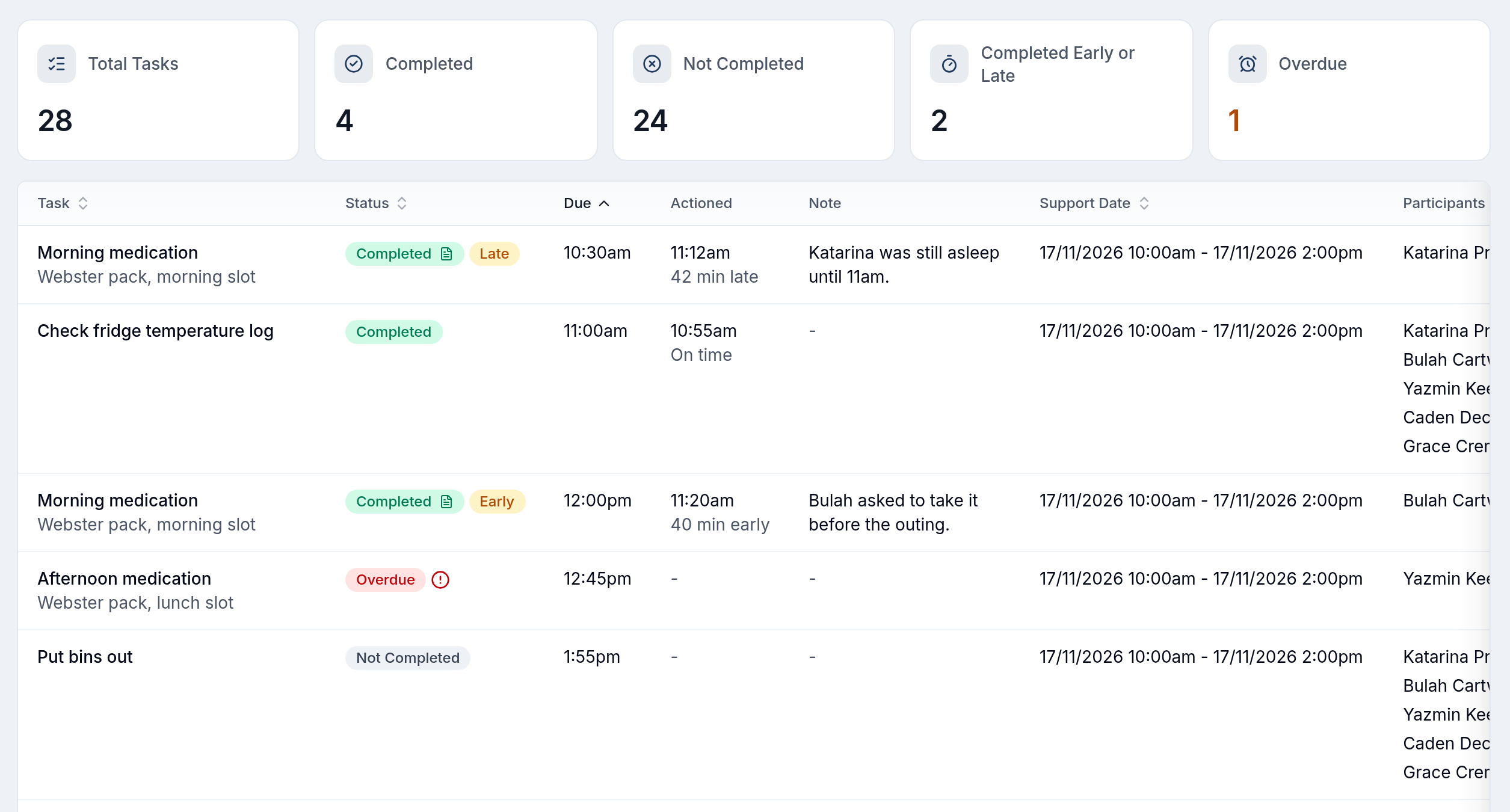
For more information, visit the Support Tasks, Completing Support Tasks and Support Tasks Report guides.
Reassigning, Unassigning and Cancelling Several Shifts at Once
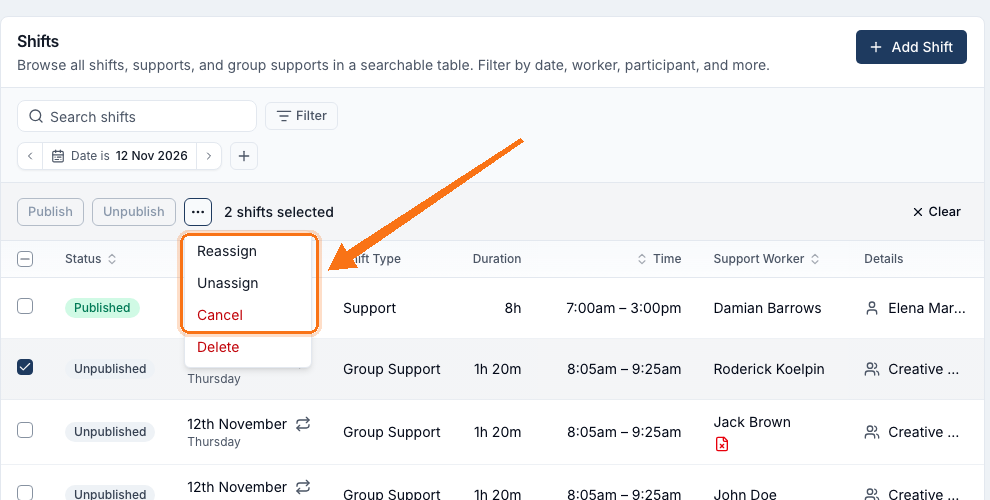
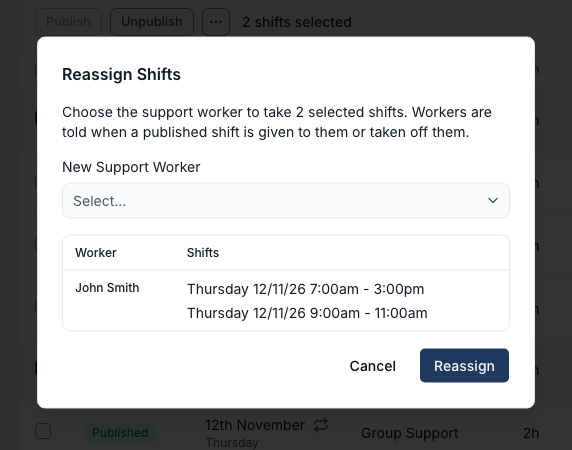
On the All Shifts page, you can now select several shifts and Reassign them to one Support Worker, Unassign them, or Cancel them with the same cancellation details. This is useful when a worker is on leave for the day and someone else is covering all of their shifts. If any selected shift can't be changed, nothing is changed. Astalty lists the blocked shifts and why, so you can deselect them and try again.
Cancelling a shift on a group support cancels the whole group support, including shifts you didn't select.
For more information, visit the Published and Unpublished Shifts guide.
Every Participant Signs Off on Group Supports
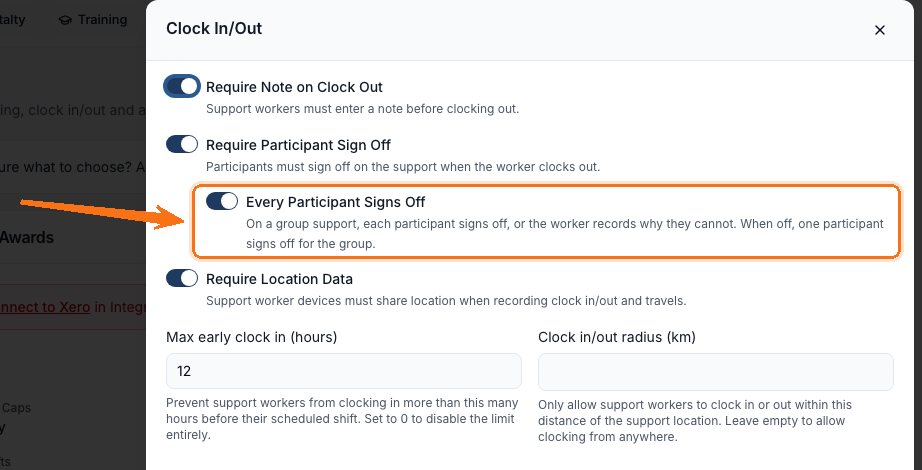
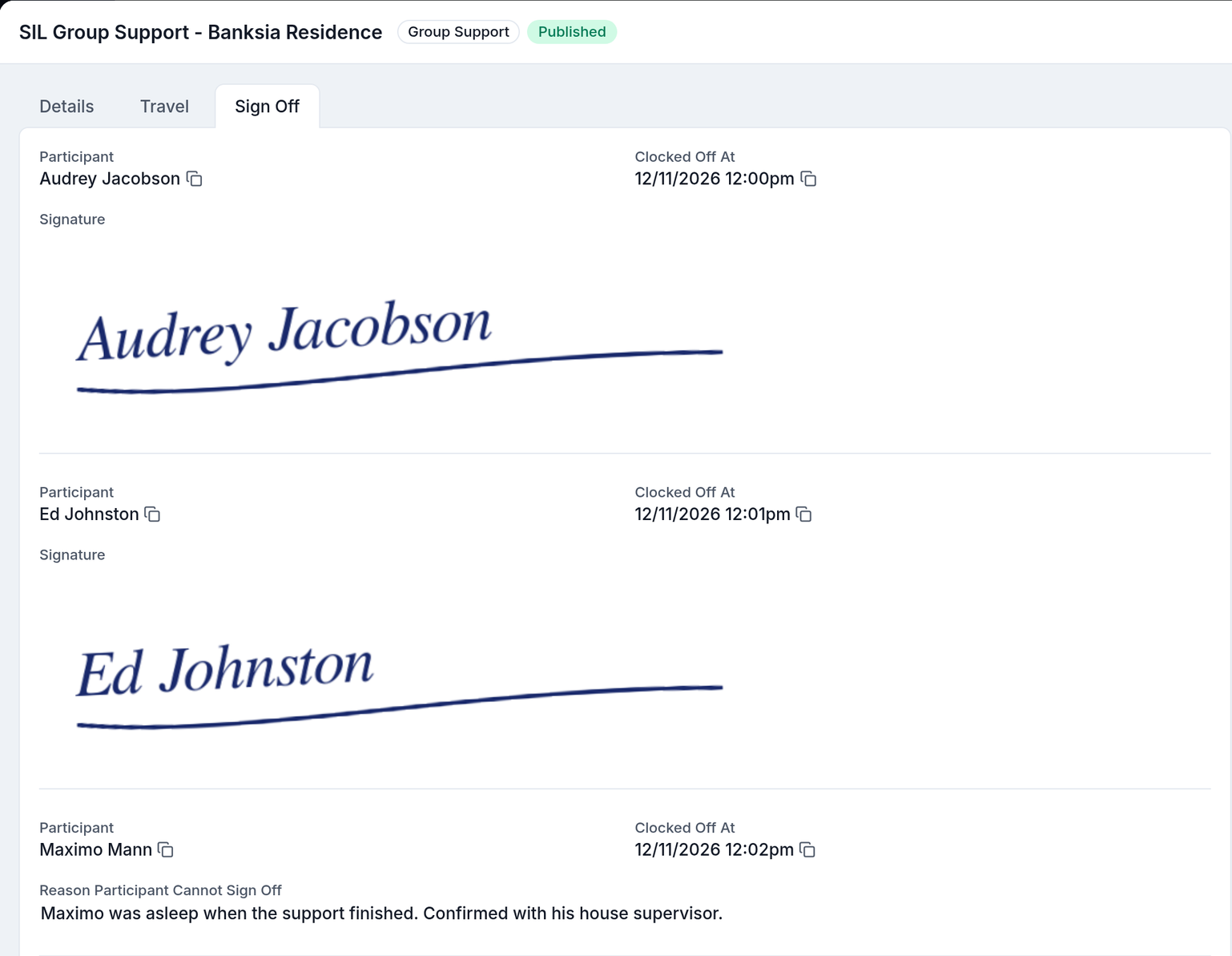
You can now ask each Participant on a group support to sign off when the Support Worker clocks out, instead of one Participant signing for the group. Turn on Every Participant Signs Off under Require Participant Sign Off in Scheduling Settings. The worker then collects a signature from each Participant, or records why that Participant can't sign, before they can clock out. Every sign-off is listed on the support's Sign Off tab. Support Workers need the latest version of the Astalty app.
For more information, visit the Scheduling Settings and Clocking In and Out of a Shift guides.
Removing a Support Worker From a Shift Board Broadcast
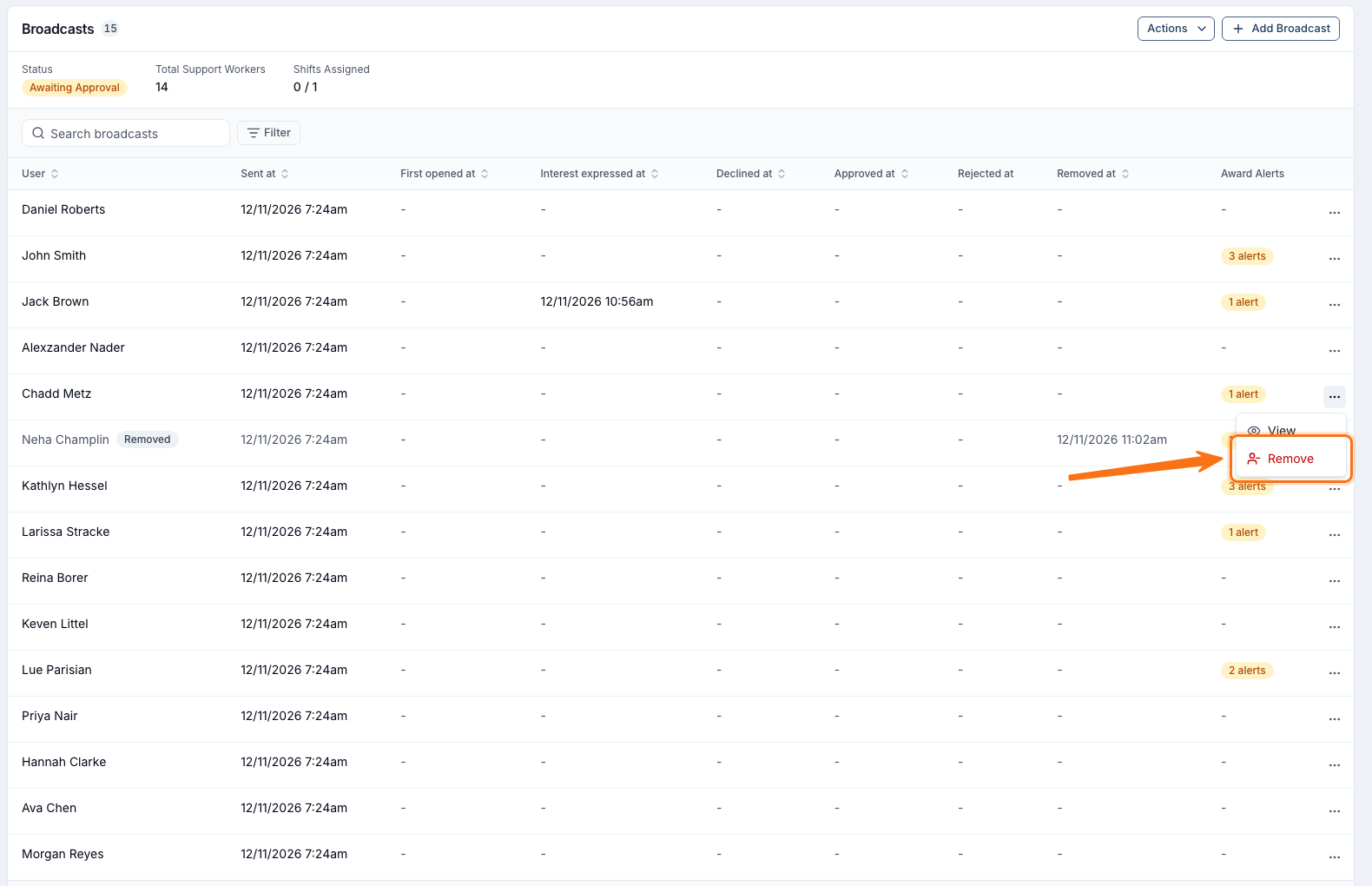
You can now take a Support Worker off a Shift Board broadcast before they respond, for example when they've picked up a clashing shift. Open the three dots menu on their row in Broadcasts and select Remove. The shift disappears from their Shift Board straight away, and they aren't notified. A removed worker can't be added back to the same broadcast.
For more information, visit the Shift Board Workflow guide.
Goals Export for Every Participant
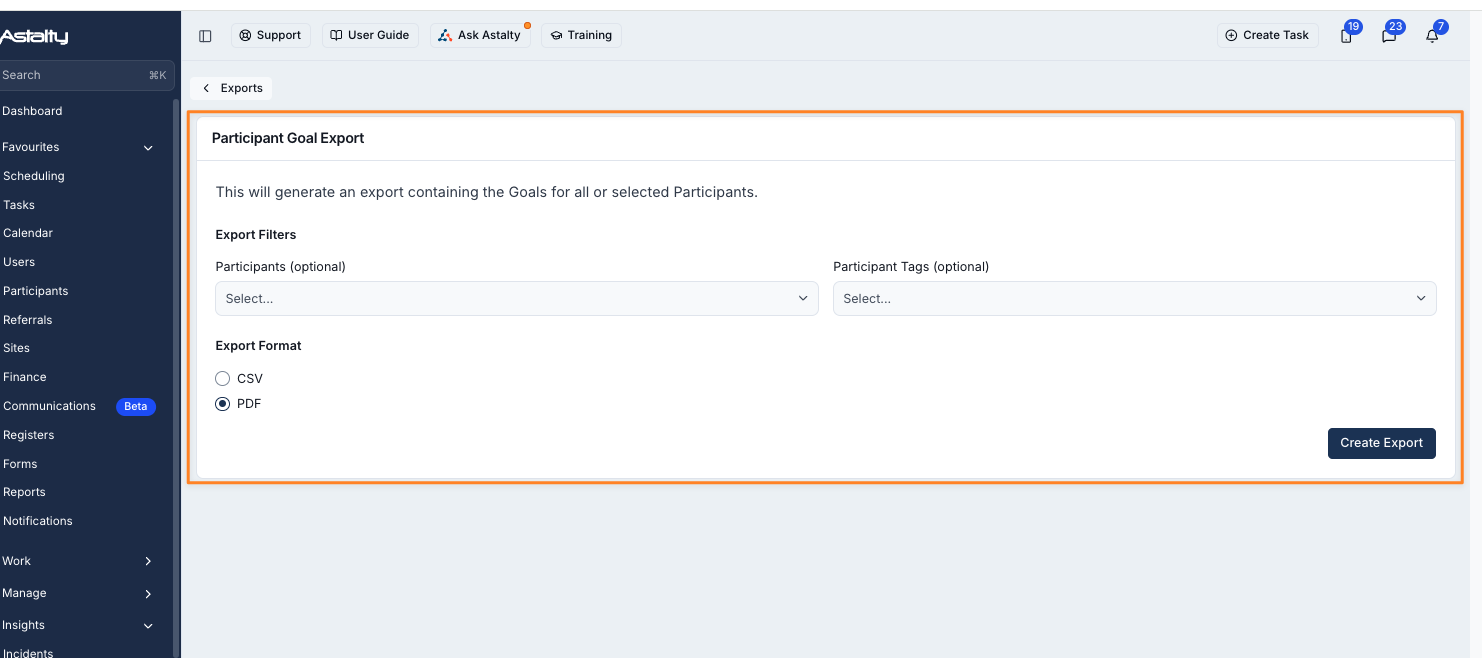
The Goals Export now covers every Participant in one export, instead of one Participant at a time. You can narrow it to the Participants you choose by name or by Participant Tag. A CSV is always a single file. A PDF covering more than one Participant downloads as a zip file with one PDF per Participant.
For more information, visit the Goals Export guide.
Time and Funding Left in Utilisation
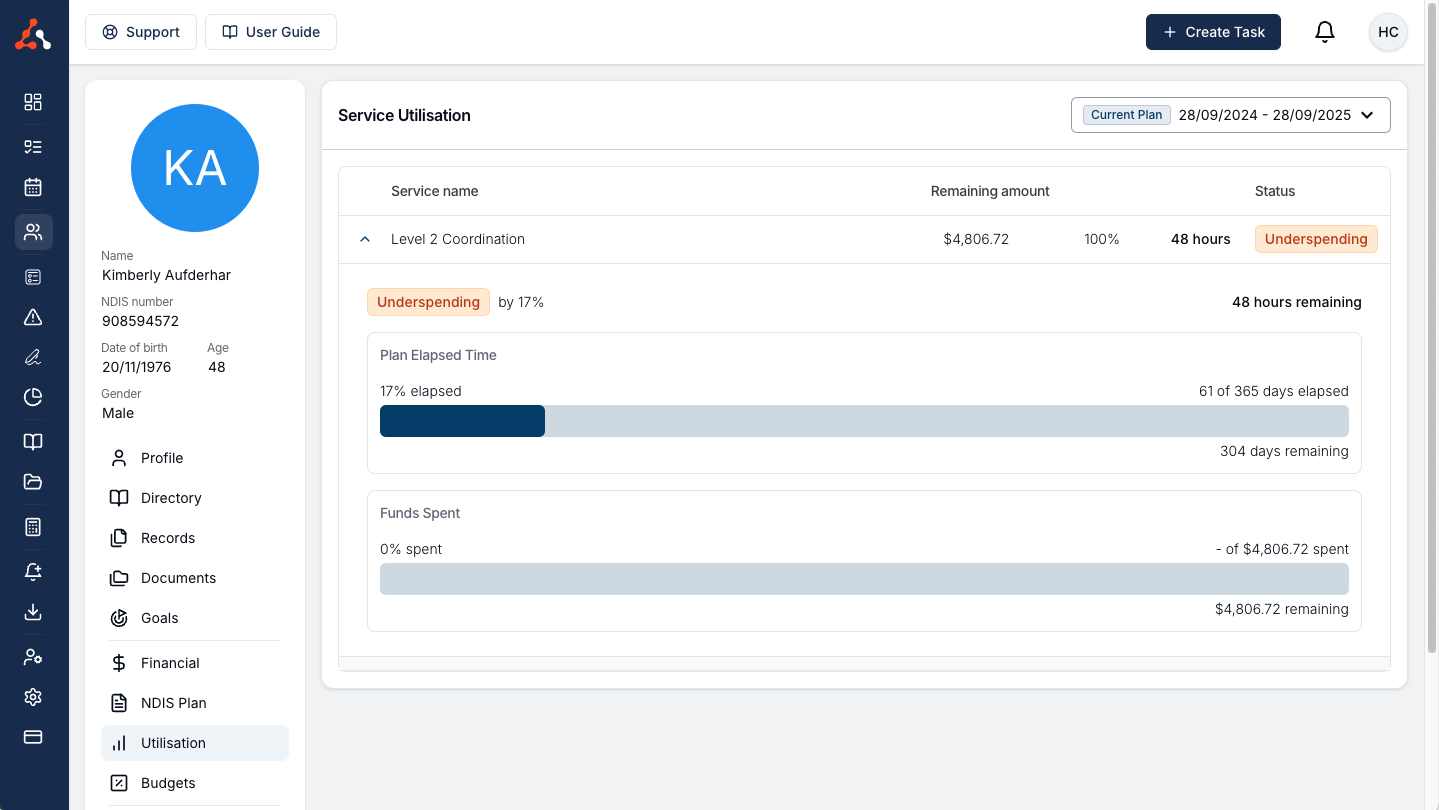
An expanded Service row in Utilisation now shows how long is left in the Service, or in the current funding period when the Service has a funding schedule, with roughly how many weeks that is. Hover over the funding left to see about how much can be used each week, such as About 2h 30m a week left until 01/11/2027. The same detail appears in the Utilisation Report, on a Site's Utilisation tab and on the funding card on a task.
For more information, visit the Participant Utilisation guide.
Filling Information Items From a Referral
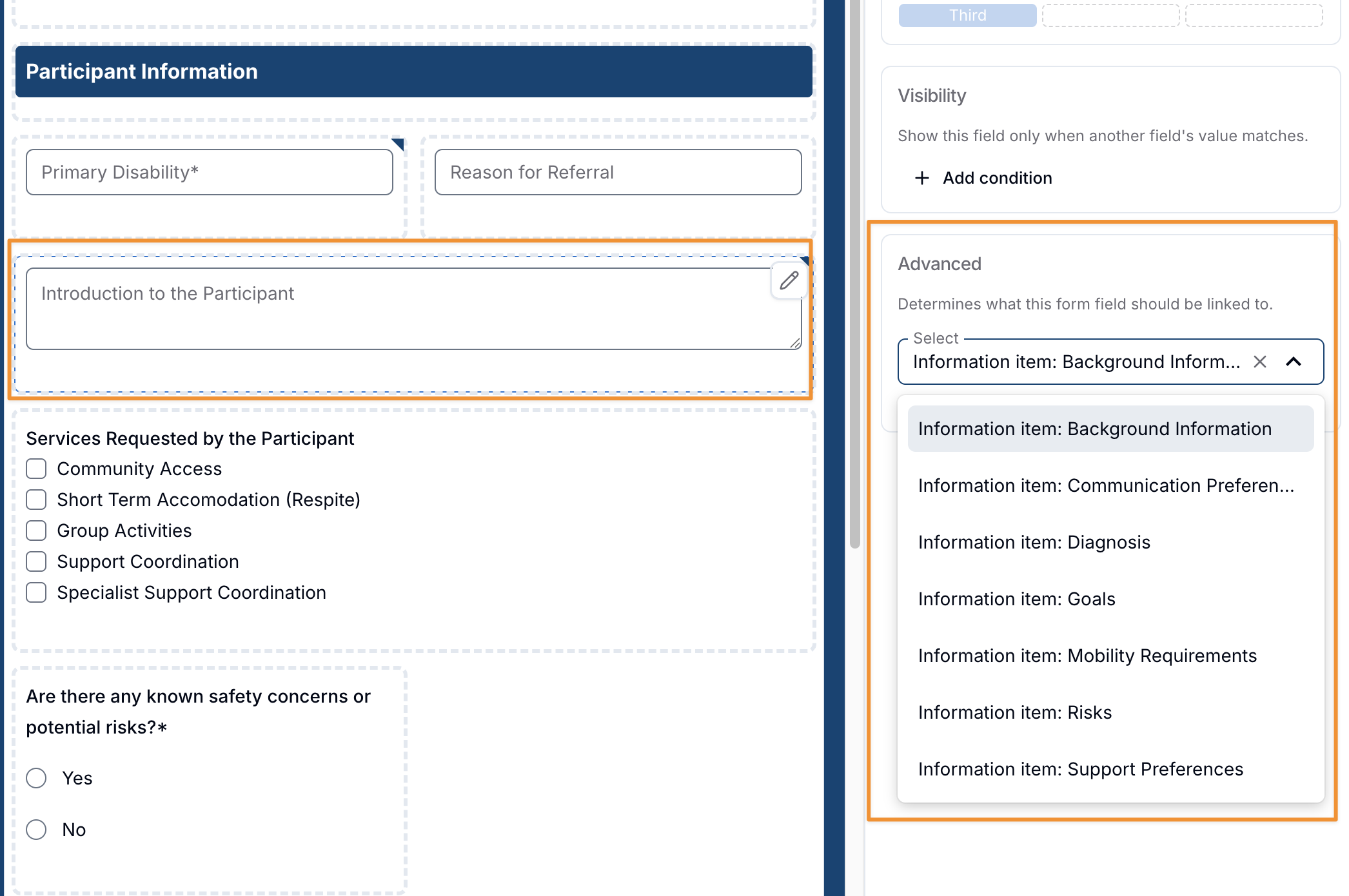
A referral form question can now be linked to one of your Participant Information Items, such as Background Information or Communication Preferences, so the referrer's answer is saved on the Participant without anyone retyping it. In the form builder, choose Information item: and the item's name from Select under Advanced. When you update an existing Participant from a referral, each linked Information Item has its own checkbox, so you can keep what the profile already says.
For more information, visit the Referrals Overview guide.
Identifying Register Entries
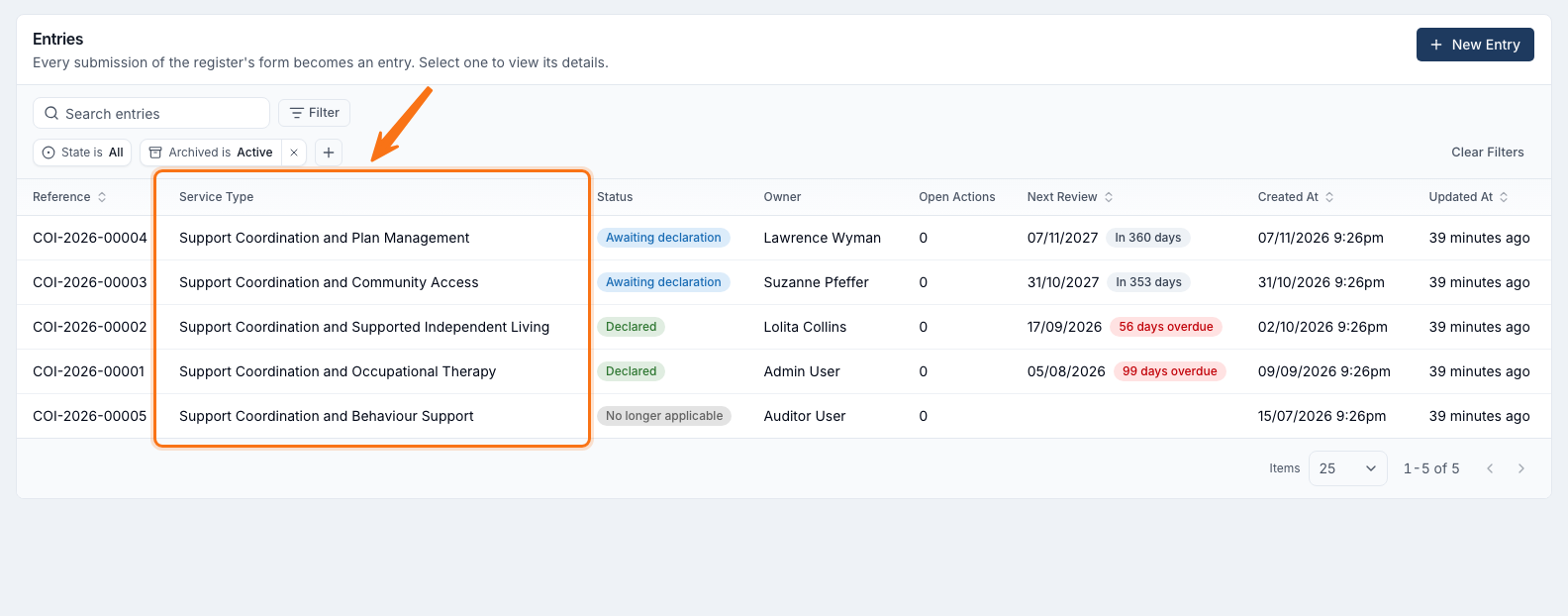
You can now choose an Identifying Field in a register's settings, such as the applicant's name on an expression of interest register. Each entry's answer then shows in a column straight after Reference, so you can tell entries apart without opening them, and searching the register matches those answers too.
For more information, visit the Register Settings guide.
Getting Notified When a Delegated Task Is Complete
When you create a task for someone else, you can now switch on Notify me when complete. You'll get a Task Completed notification in Astalty when they finish it, so you don't need to check their Task Board or follow them up. You choose it when you create the task.
For more information, visit the Assigning and Reassigning Tasks guide.
More Detail in the Task Assignment Email
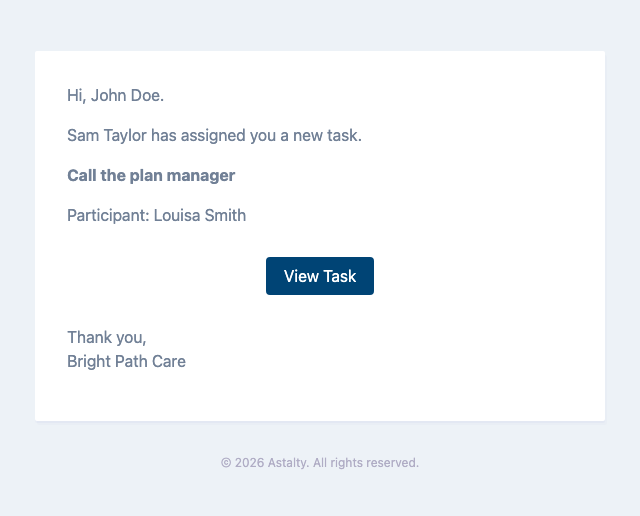
The email sent when you're assigned a task now says who assigned it, gives the task's name and shows the Participant it's for, so you know what the work is before you open Astalty.
For more information, visit the Assigning and Reassigning Tasks guide.
Comment Notifications on Action Items
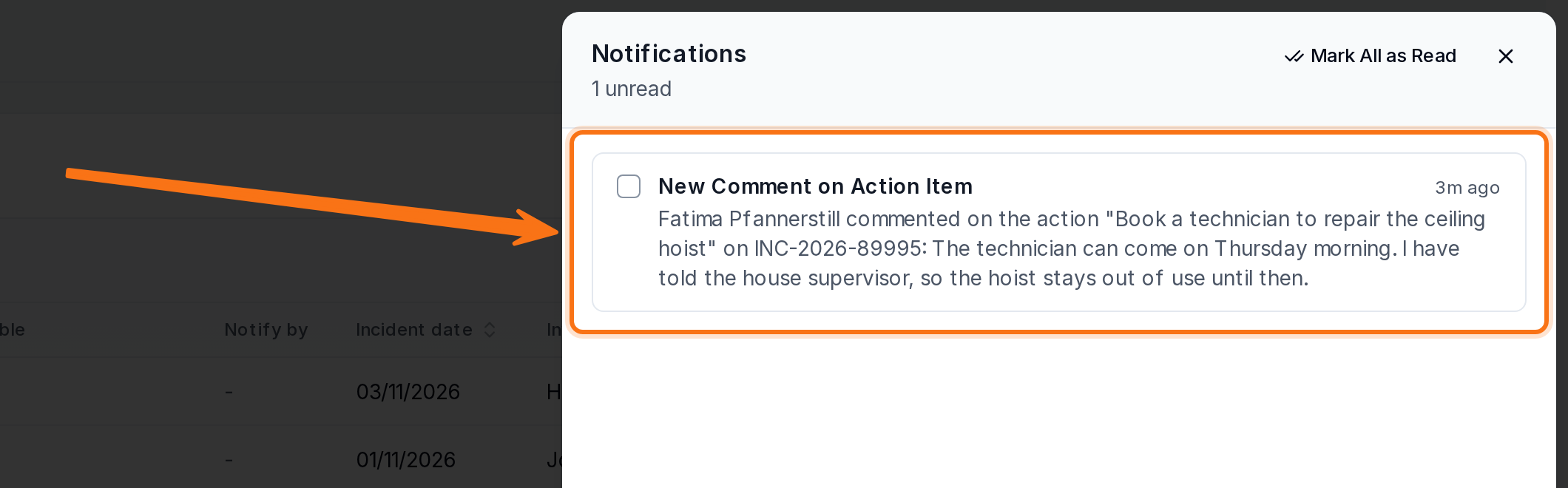
When someone comments on an action item, the people following it now get an in-app notification and an email, so replies don't get missed. Followers are the person who created the action item, the person it's assigned to, and everyone who has commented on it before. The email includes the whole comment.
For more information, visit the Action Items guide.
Lapsed Qualification Notifications Name the Worker
When the lapsed qualification check finds one worker, the in-app notification now names the worker, the qualification and the date of their shifts. For the Account Owner and Admins who can manage User Records for all Users, it opens the worker's Records tab. Everyone else gets View Schedule. The email is unchanged and still lists every affected worker.
For more information, visit the Lapsed Qualification Notifications guide.
Showing the Timezone in Reminders and Group SMS
To make times clear to Participants in another state, you can now add the timezone after the time in a message. Use ${Support_Timezone} in support reminders and group support SMS, and ${Event_Timezone} in calendar appointment reminders. It shows the short name in effect on the day, such as AEST or AEDT, so it follows daylight saving. Your existing messages don't change until you add it.
For more information, visit the SMS Reminders and Messaging Group Support Participants via SMS guides.
Copying Pay Item Mappings and Checking Linked Employees
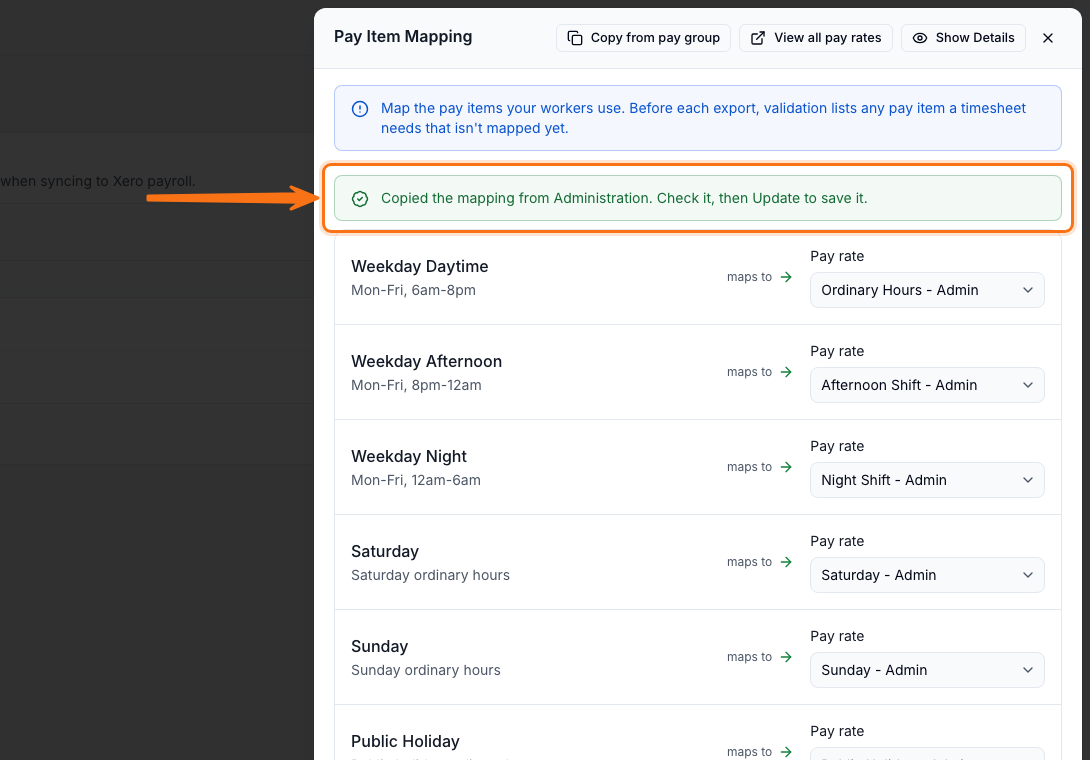
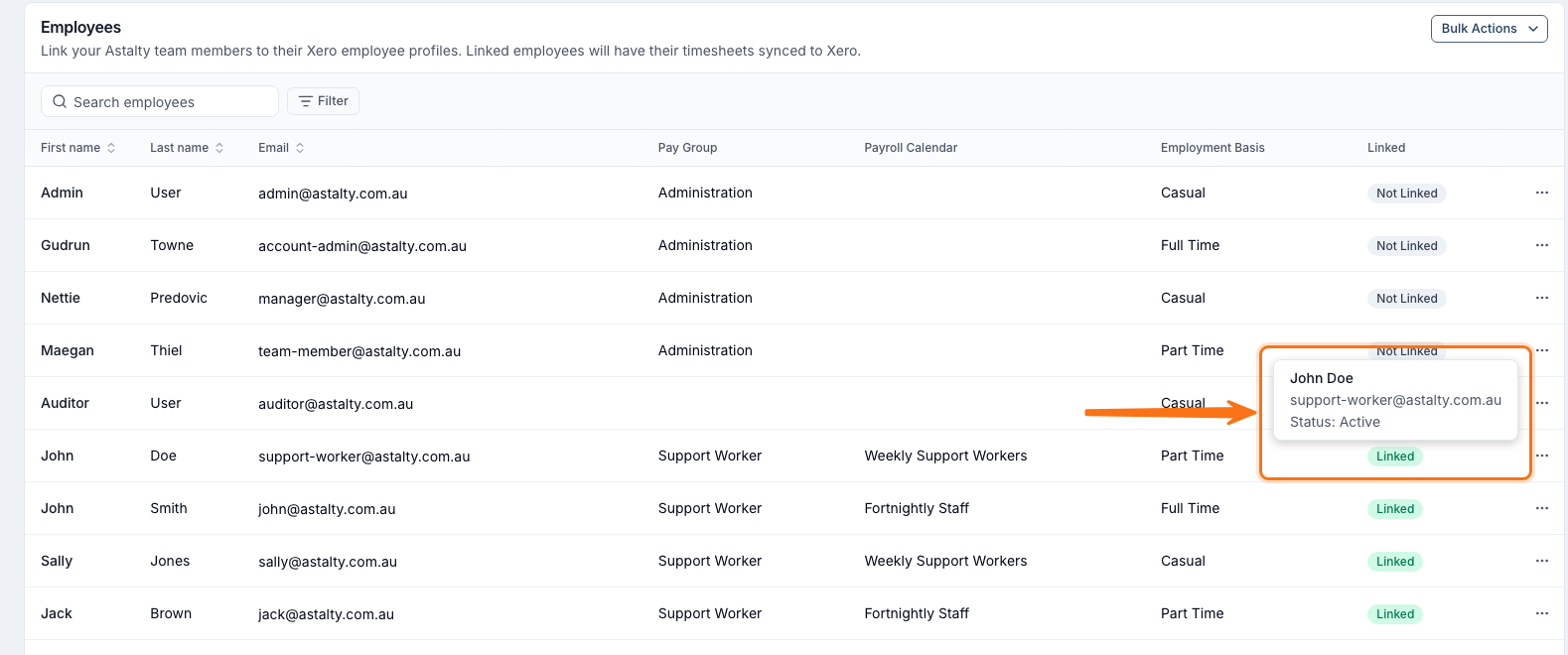
When you set up a new pay group, you can now select Copy from pay group in the Pay Item Mapping drawer to start from one you've already mapped, then change what differs. On the Employees page, hover over or click the Linked badge to see which Xero or Employment Hero employee a staff member is linked to. The page now lists all your staff by default.
For more information, visit the Set Up Pay Groups and Employees and Employment Hero guides.
Integration Mappings in the Cost Codes List
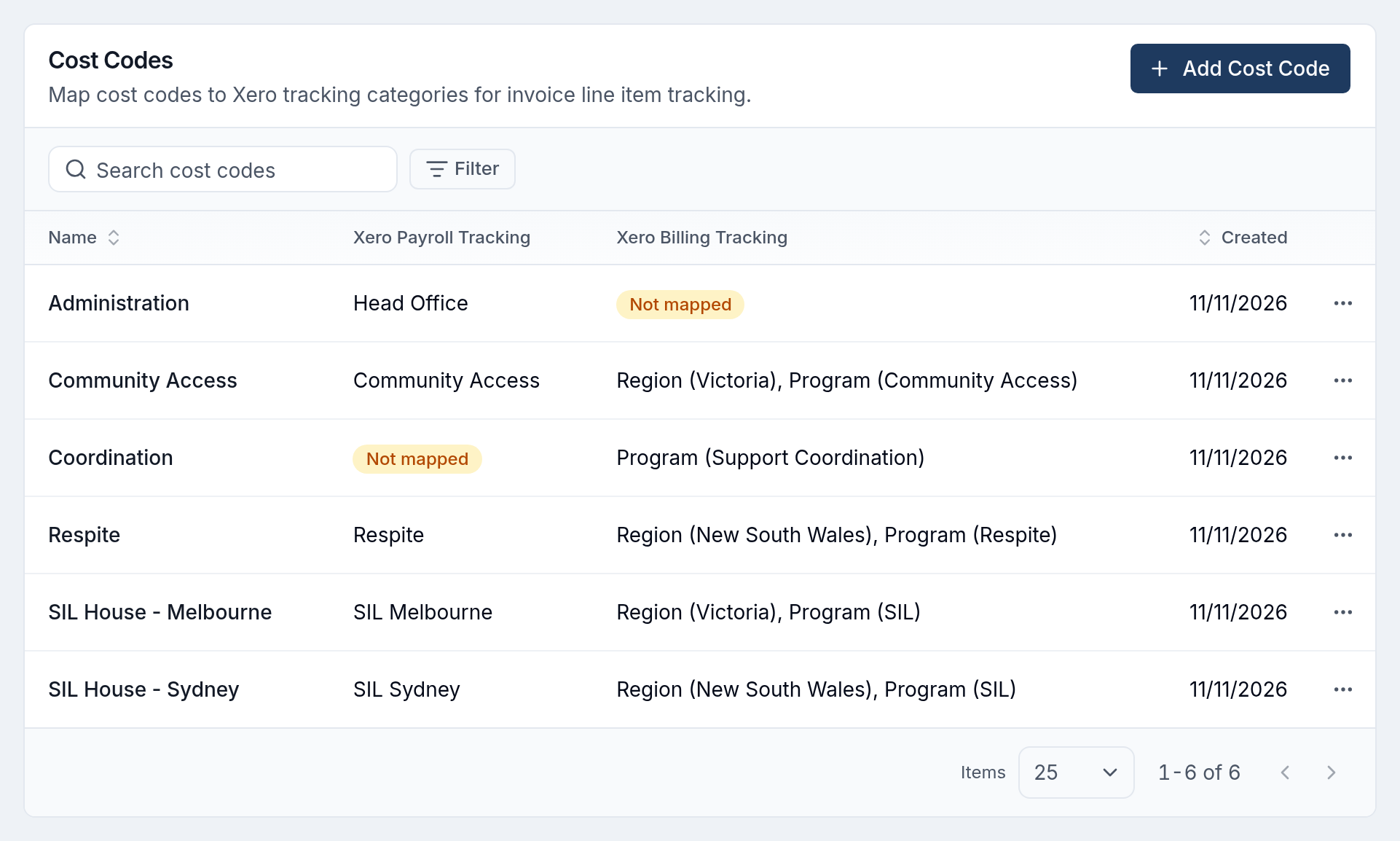
Each integration's Cost Codes list now shows what every code is mapped to, such as its Xero tracking options, MYOB job or Employment Hero location. A code with nothing mapped shows Not mapped, so you can spot the codes that still need a mapping without opening each one.
For more information, visit the Cost Codes (Advanced) guide.
1 Hour and 2 Hour Calendar Intervals
The Calendar's Interval (minutes) setting now offers 60 and 120, so you can fit more of the day on screen. On these intervals, clicking and dragging to create or resize an event still works in 15-minute steps.

For more information, visit the Navigating the Calendar Interface guide.
Gender on User Profiles
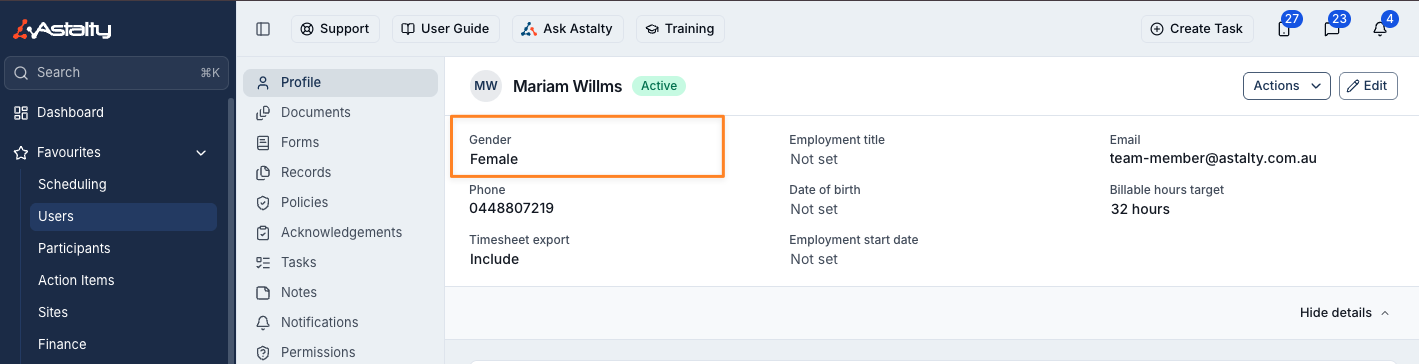
A user's Gender now shows on their profile, so you can check it without opening Edit. It shows Not set when no gender is recorded.
For more information, visit the Updating User Profiles and Changing Passwords guide.