- Changelog
- 19 March 2026
19 March 2026
Uploading User Records in the App
Support Workers can now upload required Records directly through the Astalty mobile app. This includes the ability to capture documents via camera, select files from their device, and provide additional details such as issue and expiry dates.
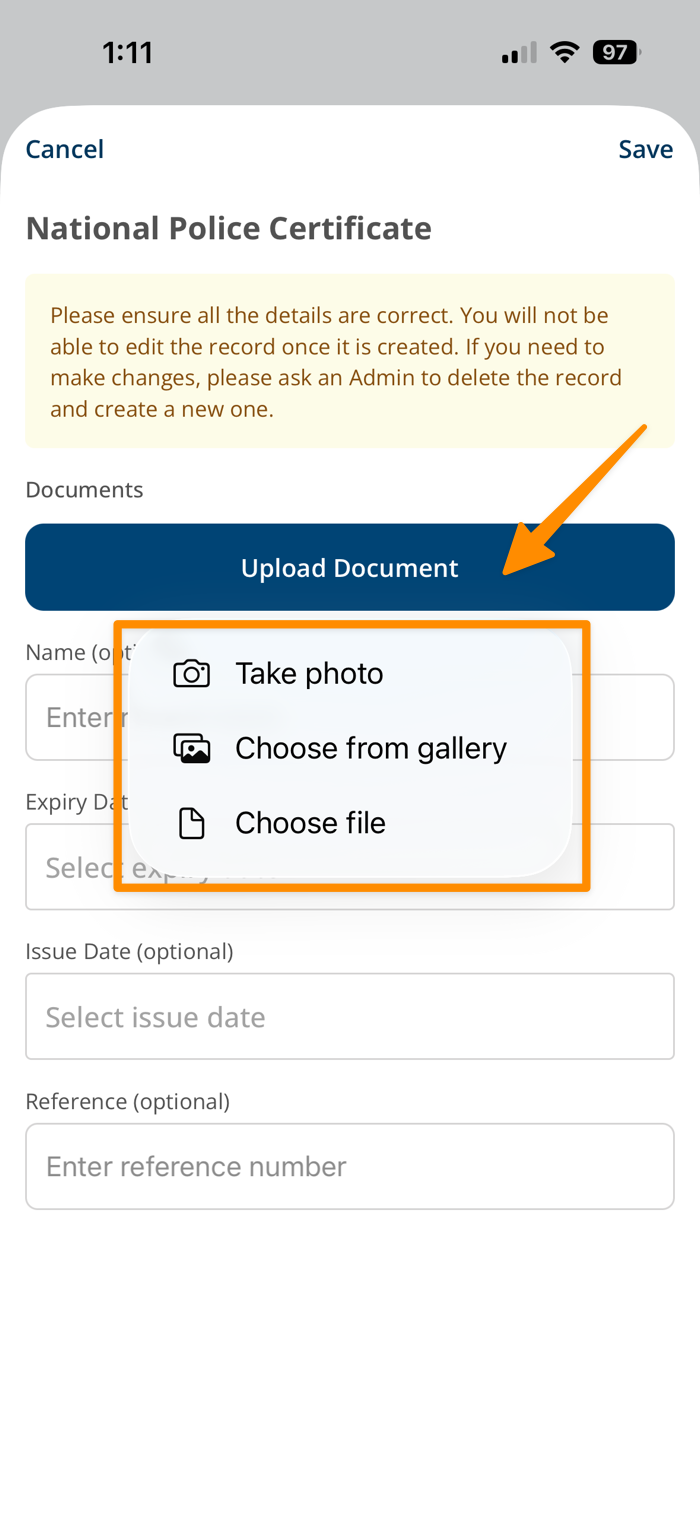
This enhancement significantly streamlines Record management by reducing reliance on external systems and manual follow-ups. By enabling real-time uploads and notifications, it ensures Records are submitted and maintained more efficiently — improving compliance, reducing admin overhead, and creating a more seamless workflow across the organisation.
For more information, visit the following guides:
Cloning Tasks
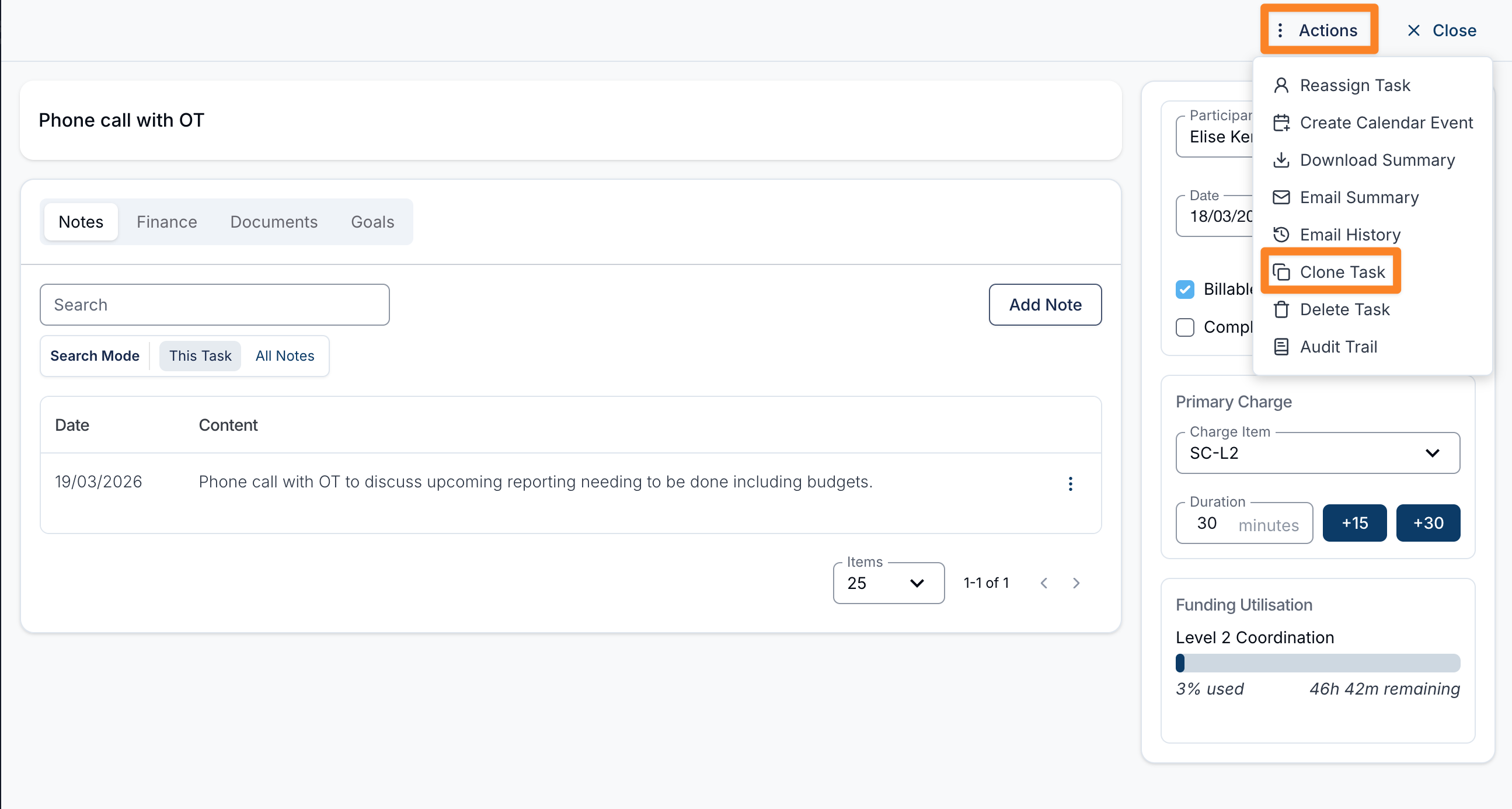
Tasks can also be cloned to quickly create a new task using the details of an existing one.
To clone a task, select the Clone Task option on an existing task. This will open the Create Task form with the original task’s details pre-filled, allowing you to make any adjustments before saving.
What is cloned?
When cloning a task, the following details are copied into the new task:
- Task name
- Participant
- Charge Item(s)
This can save time when creating similar or repeat tasks.
What is not cloned?
The following items are not currently copied when cloning a task:
- Notes
- Attached documents
These will need to be added manually after creating the new task.
For more information, visit the Creating Tasks and Cloning Tasks guide
Minimum Character Count for Case Notes
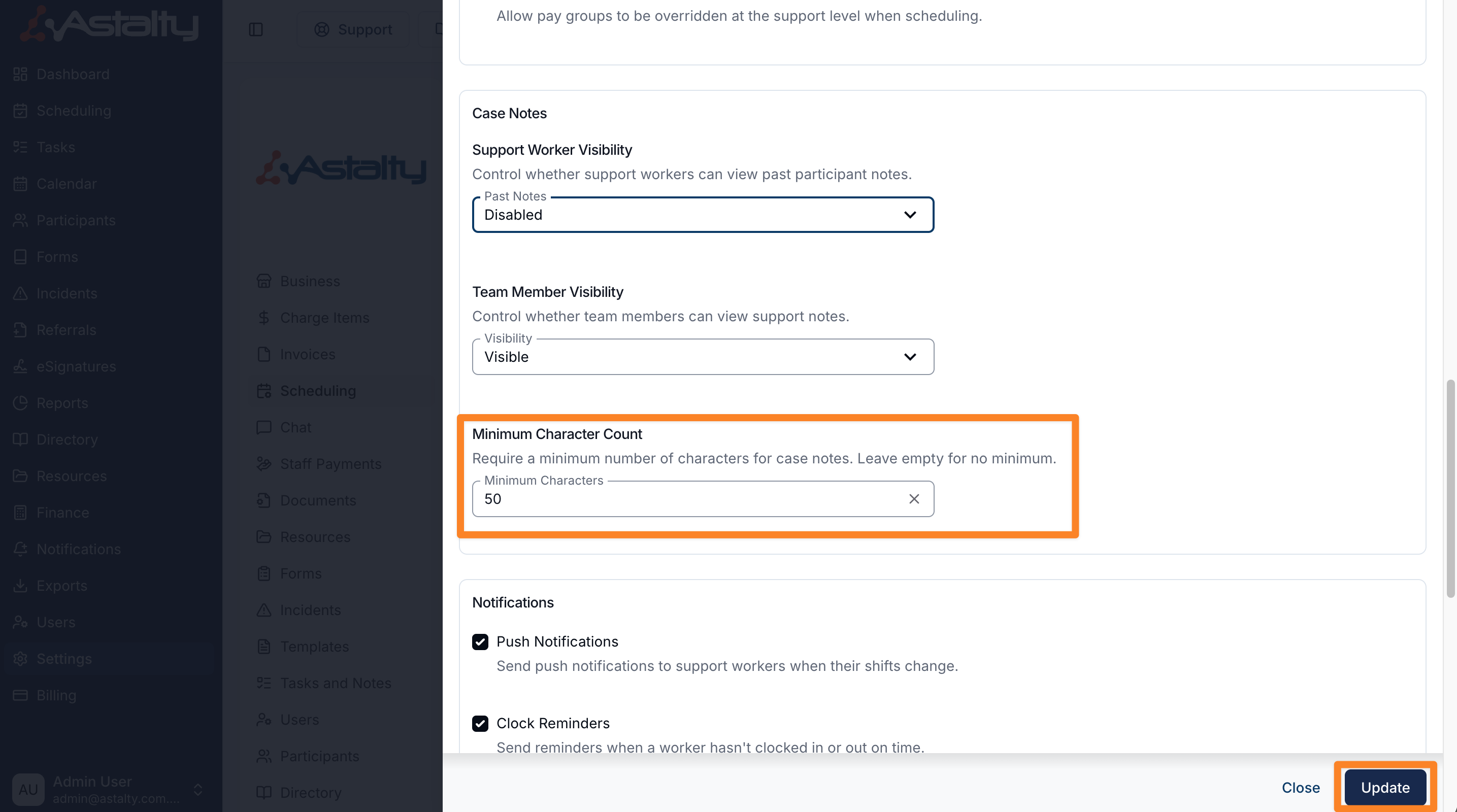
You can set a minimum character count for support worker case notes to ensure a sufficient level of detail is recorded before notes can be saved.
How to set a minimum character count
To configure this setting:
- Go to Settings
- Select Scheduling
- Click Edit (top right)
- Enter a value in the Minimum Character Count for Case Notes field
Note: Leave this field empty if you do not want to enforce a minimum character count
How it works
- Support workers will be required to meet the minimum character count before they can save a case note
- If the requirement is not met, the note cannot be submitted
For more information, visit the Support Worker Case Note Template guide
Downloading Goals as a PDF
To print a PDF of the Goals, open the Goals page on the Participants profile, click Actions and select Download as PDF.
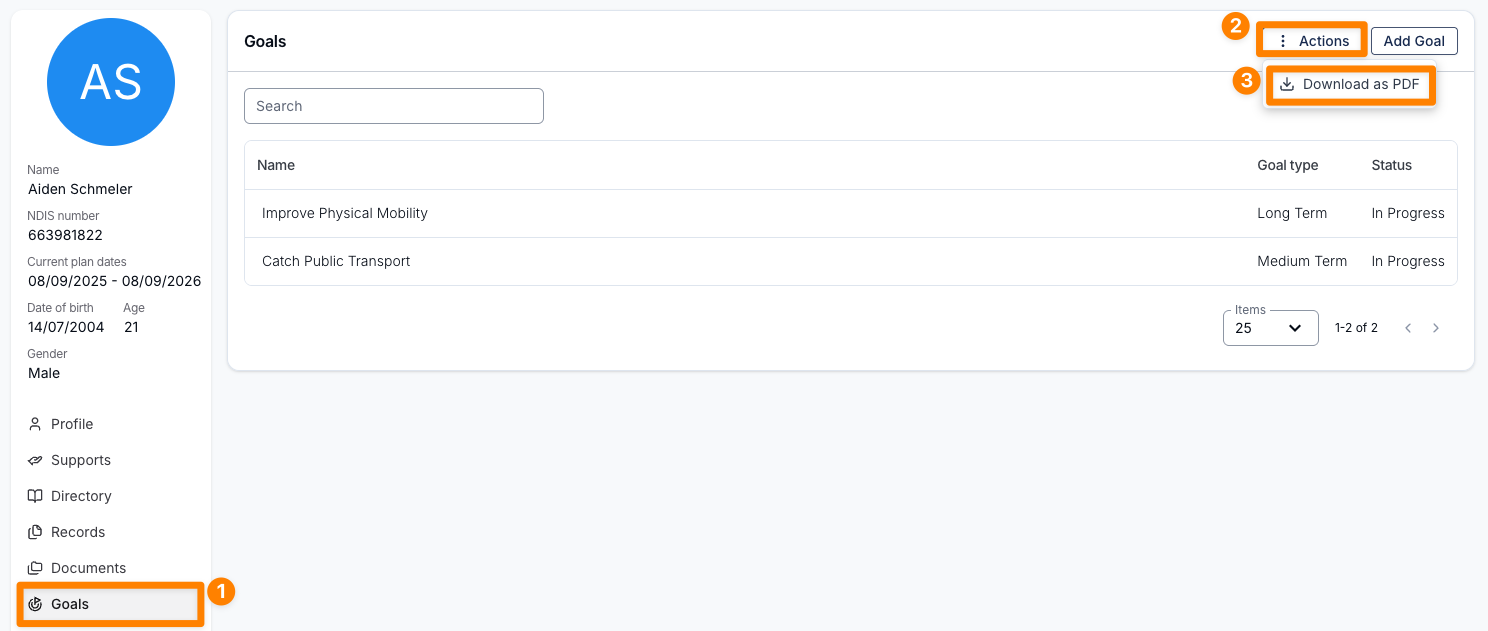
This will generate a document containing all of the Participant’s listed Goals, including the Goal, Status, Type, Description, Achievement Strategies, and Barriers, and will be formatted as shown below.
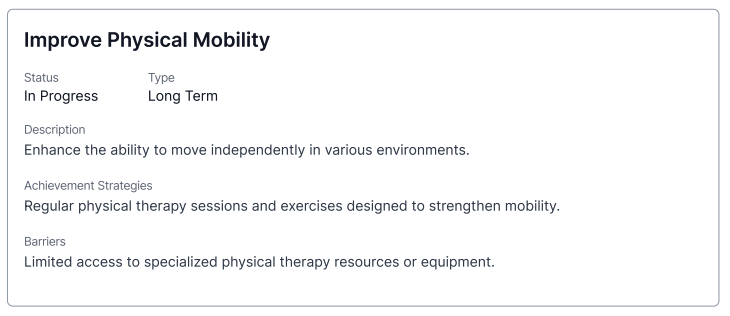
If you have uploaded your Business Logo, it will also appear on the PDF.
For more information, visit the Goals guide.
Updated Shift Clashes Report
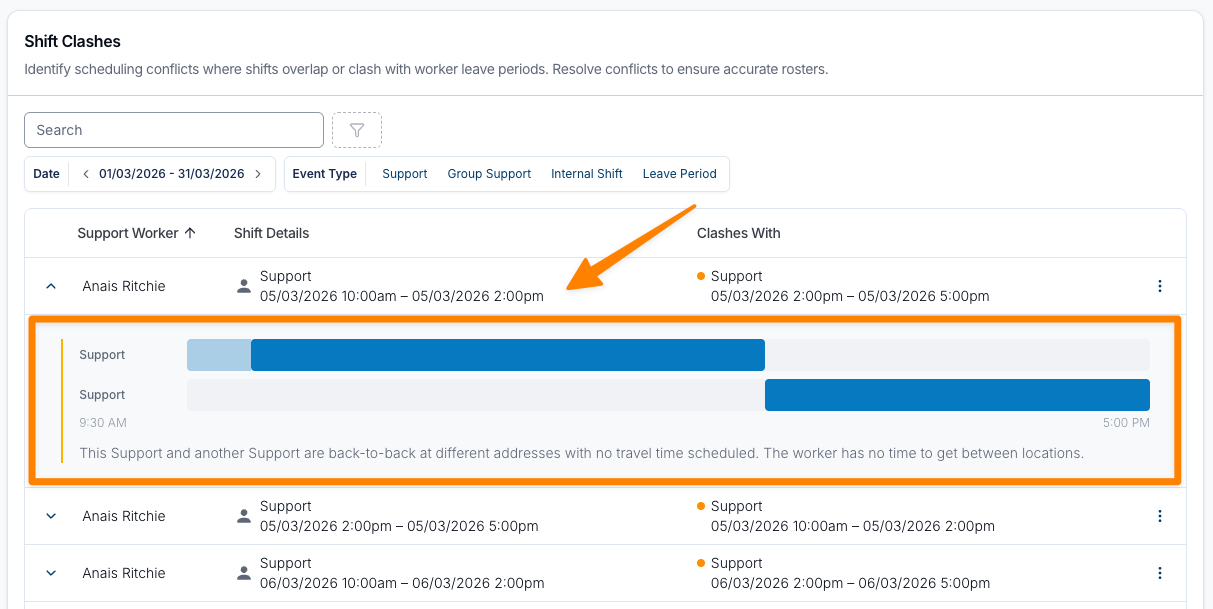
The Shift Clashes Report has been enhanced to provide clearer visibility of scheduling conflicts and a more intuitive way to investigate and resolve them. These updates are designed to help schedulers quickly understand the type and severity of clashes, reduce time spent investigating issues, and make more informed scheduling decisions to prevent service disruptions.
What’s Changed
- Added colour-coded conflict types in the Clashes With column:
- Red = overlaps or leave conflicts
- Orange = travel time issues
- You can now click into a support to see:
- Exact conflict point
- Clear explanation of the issue
Why It’s Better
- Faster prioritisation with visual indicators
- Quicker investigation with clear, clickable details
- More accurate scheduling, especially around travel time
- Simpler workflow from identifying to resolving clashes
For more information, visit the Shift Clashes Report guide.
Adding Participants to a Group Support After it has Ended
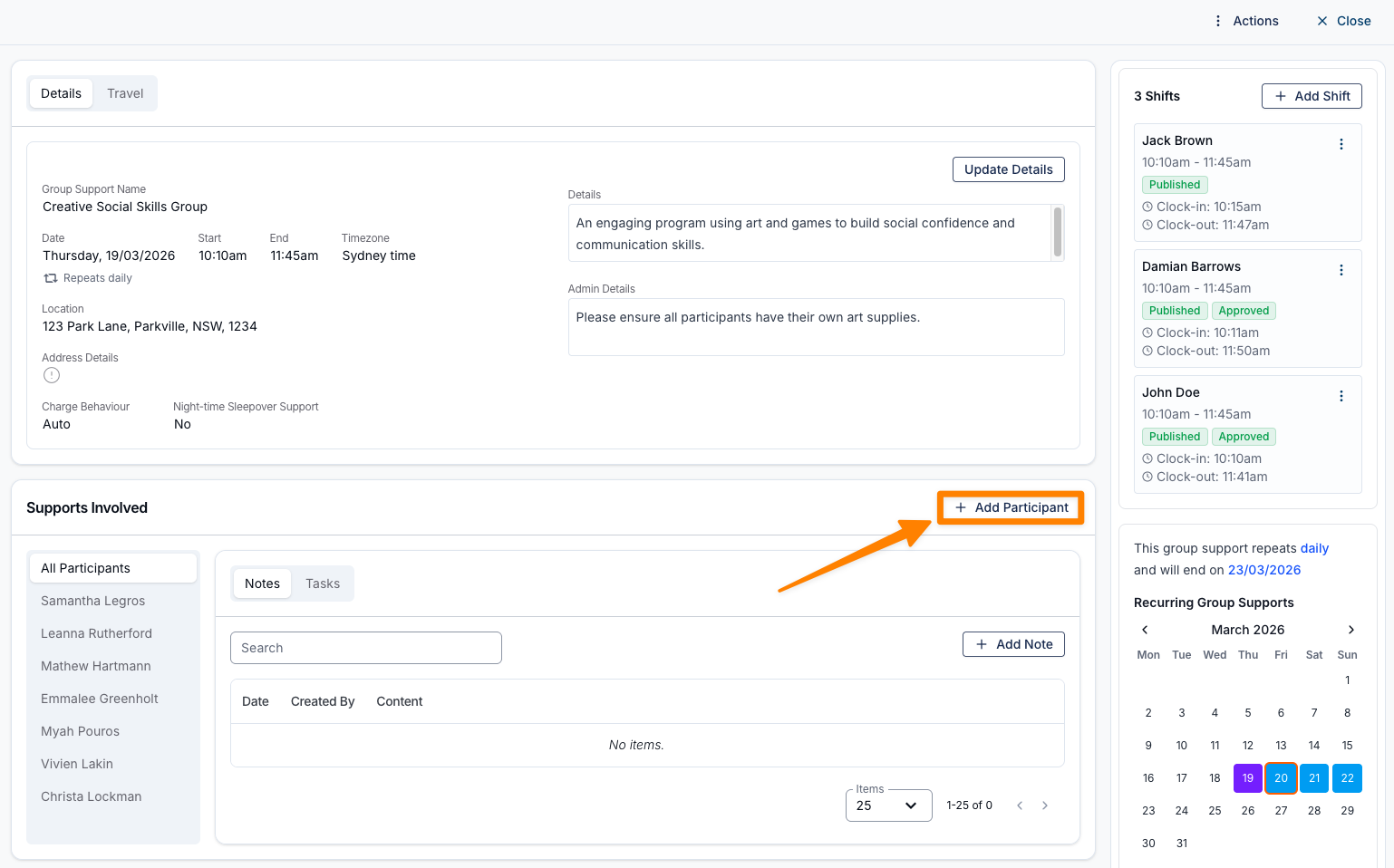
Users can now add Participants after a group support has ended, making it easier to capture late additions or correct missed Participants without needing to recreate or adjust the original booking.
This enhancement ensures that Participant records remain accurate and complete, with support ratios and charge allocations automatically recalculated based on the updated Participant list. Changes made to group supports will also flow through to any linked Activities, maintaining consistency across scheduling and Activity tracking.
By allowing post-support updates, this improves billing accuracy, reduces administrative rework, and provides greater flexibility for teams managing dynamic group environments where attendance may change or be confirmed after the session has taken place.
For more information, visit the Adding a Group Shift guide.