- Changelog
- 27 June 2026
27 June 2026
Aged Receivables Report (beta)
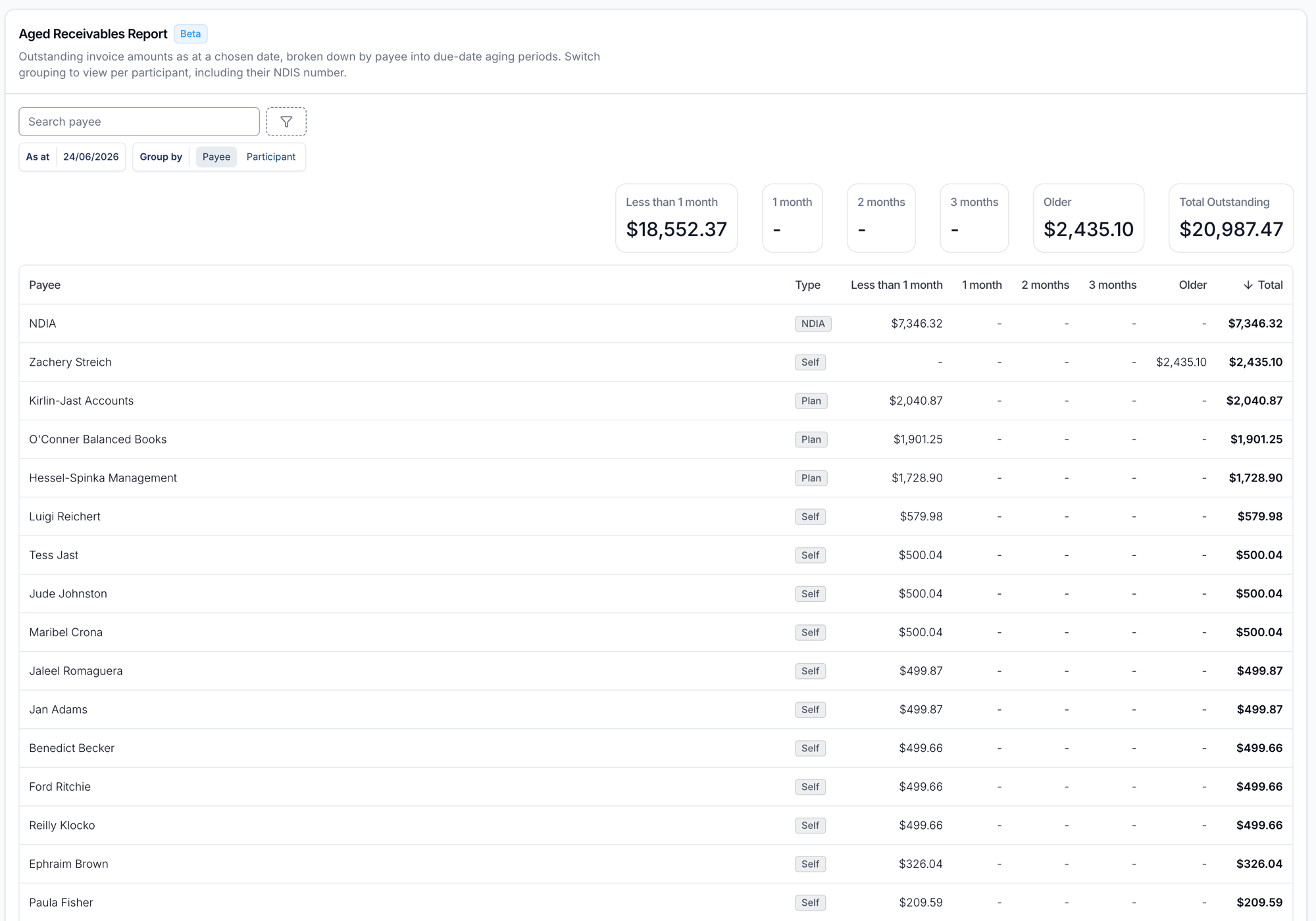
The Aged Receivables Report gives you a point-in-time view of what was still owed to you as at any chosen date, who owes it, and how overdue it is. Built around NDIS funding types (NDIA, Plan and Self managed) and similar to Xero's Aged Receivables Summary, it lets you review your true historical debtor position rather than just what's owing right now.
- Set an As at date to calculate outstanding amounts as they stood on that day, ignoring any payments received afterwards
- See amounts bucketed into aging periods — Less than 1 month, 1 month, 2 months, 3 months and Older — with totals and a grand total
- Use the Group by toggle to view by payee (who to chase, with NDIA rolled into a single row) or by participant (a row per funding type, with NDIS number shown)
- Every row is tagged NDIA, Plan or Self, and you can search by payee name or NDIS number and filter by management type or specific participants
- Available to anyone with Finance access, with no separate setting or opt-in required
For more information, visit the Aged Receivables Report guide.
Participant Reminder Status Report
The Participant Reminder Status Report gives you an at-a-glance view of which participants are set up to receive SMS reminders and whether they have a valid mobile number on file. Use it to catch participants who have opted out, or whose mobile is missing or invalid, before relying on reminders to reduce no-shows.
- Lists every active participant, with one row per participant
- Shows whether Support Reminders and Calendar Reminders are Enabled or Disabled per participant
- Reports each participant's mobile status as Valid, Invalid or Missing, since reminders can only be delivered to a valid number
- Filter by participant name, by Support or Calendar Reminder status, or by mobile Missing to quickly find everyone who needs a number added
- Part of the SMS Reminders feature, which runs over Two-Way SMS
For more information, visit the Participant Reminder Status Report guide.
User Records Export
The User Records export lets you download a CSV of all user records across your team, including any required records that are missing, so you can quickly identify compliance gaps.
- Create the export from the Exports page via Create Export > User Records under the Users group
- Includes all active users, automatically excluding deactivated users
- Produces a CSV with Status, User, Record Type, Issue Date and Expiry Date columns
- Flags any required record type (globally or per user group) that a user is missing with a status of Missing
- A Premium feature that must be enabled for your provider, after which it appears for anyone with access to the Exports page
For more information, visit the User Records Export guide.
Read-Only Channel Posting
Group channels now support a read-only mode, letting everyone see the conversation while restricting who can post — perfect for announcement-style channels where only specific people should be able to send messages.
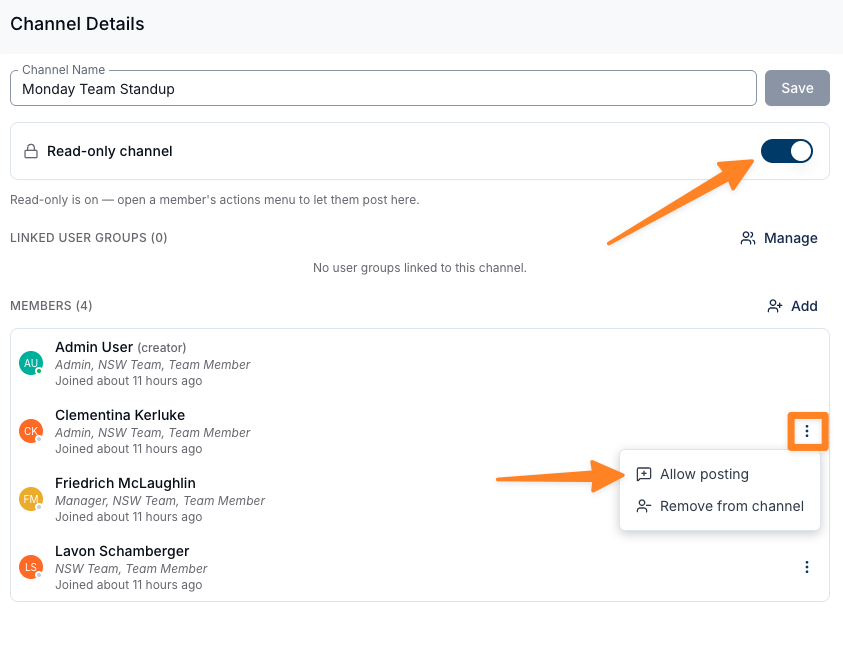
- Turn a channel read-only from Actions > Manage Channel by enabling the Read-only channel toggle; members keep read access but cannot post unless allowed
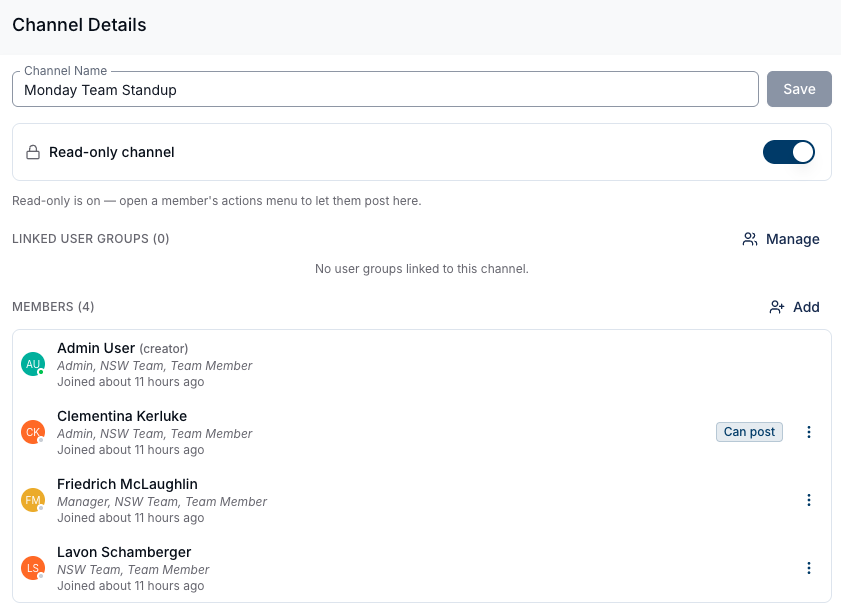
- Grant posting rights to individual members via the three-dot actions menu next to their name in the Members list by selecting Allow posting, and revoke it with Stop allowing posting
- Members who can post display a Can post chip next to their name, so it's easy to see who is permitted to post
For more information, visit the Group Channels guide.
Xero Payroll: Dual Pay Item Method
The Xero payroll setup guide now supports two methods for configuring Pay Items, so you can choose the approach that best fits your staffing mix.
- Rate Per Unit — each Pay Item carries a fixed dollar rate per hour. Suitable for casual employees only (leave cannot accrue), and requires a separate Pay Group in Astalty for every pay classification
- Multiplier (Recommended) — Pay Items use a multiplier applied to the employee's base rate. Required for permanent staff so leave accrues correctly, and needs only two Pay Groups (one casual, one permanent)
- The steps to create Pay Items are the same for both methods under Payroll > Payroll Settings > Pay Items — only the value you enter differs
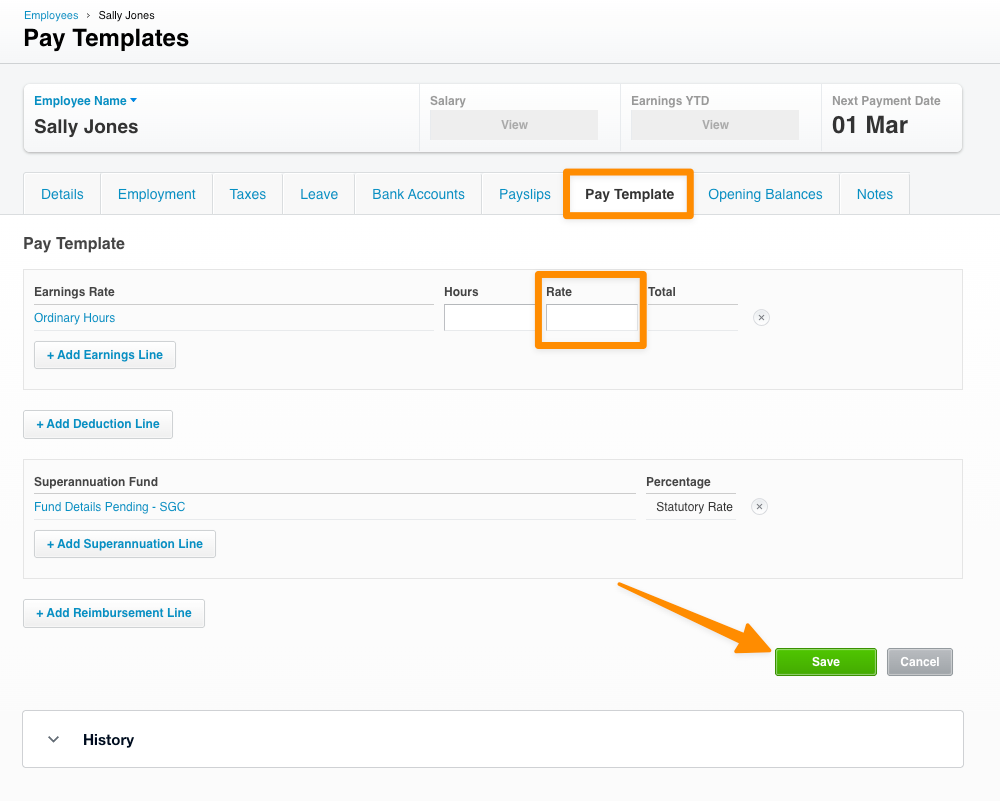
- Note: Xero rounds multiplied rates to four decimal places, which can cause a minor $0.01 underpayment per pay item — correct this by adding one cent to the employee's base rate in their Ordinary Hours Pay Template
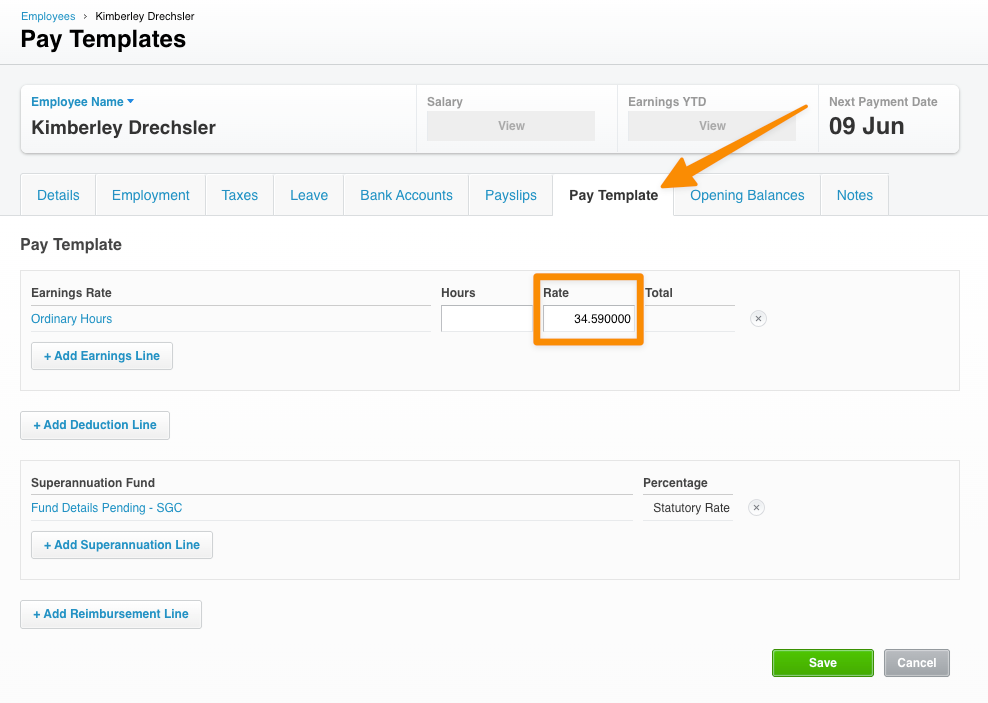
For more information, visit the Setup Pay Items and Employee Templates in Xero guide.
Incident Email Reference & Summary Changes
Staff incident email notifications now lead with the incident reference and a summary of key details, so staff can act on an incident without logging in to Astalty.
- The notification email subject line now includes the incident reference number, making incidents easy to identify from your inbox
- The email body includes a summary of key details — Reference, Type, Occurred time, Reported (when and by whom), Category, Severity, Status, and Reportable to the NDIS
- The incident reference appears in both the email subject and the details panel, so staff can quote it on a call, in a handover, or when escalating to the NDIS Commission
For more information, visit the Staff Incidents guide.
Note Template Usage Type Filter
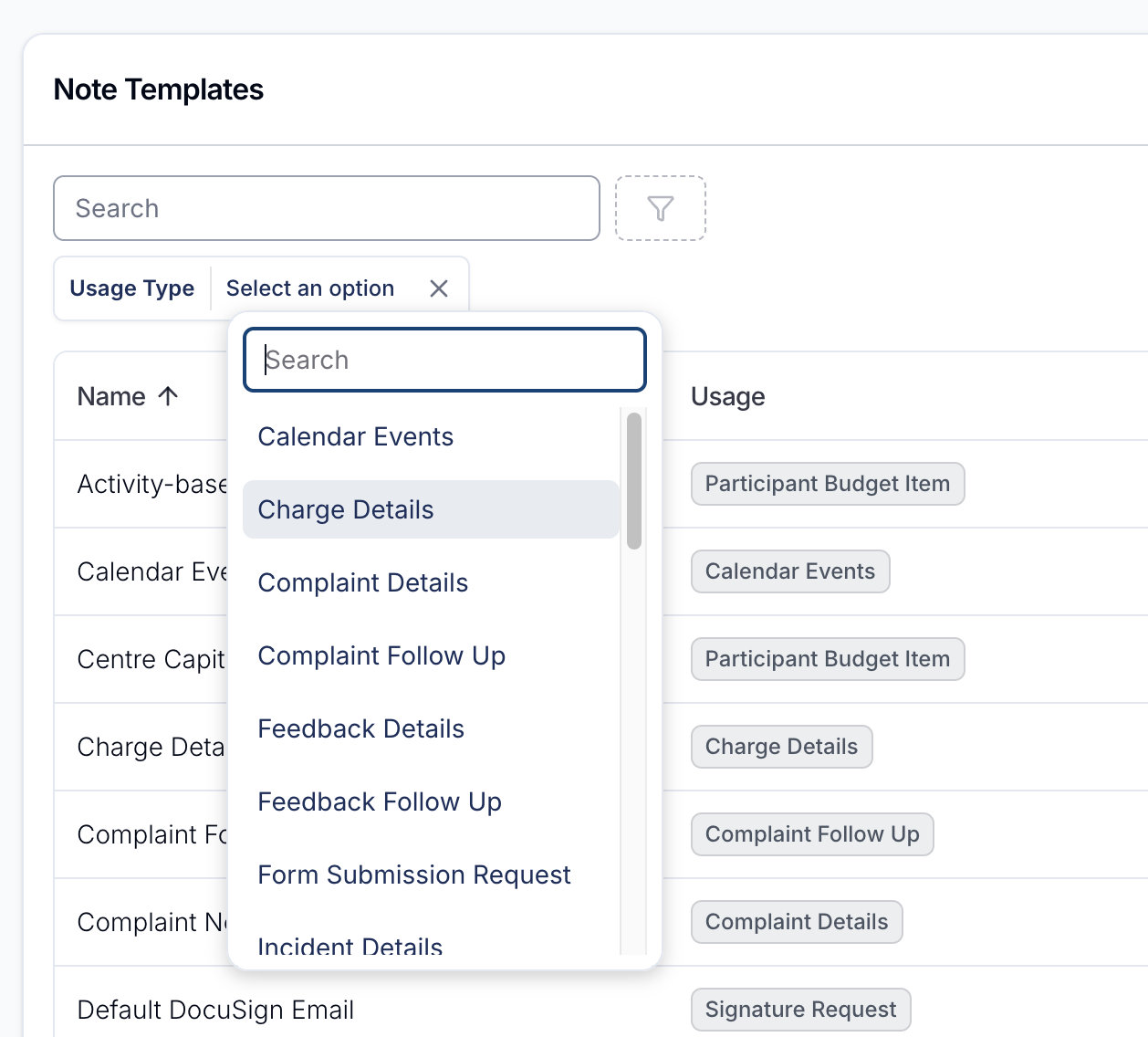
You can now filter your note templates by usage type, making it faster to find the right template when you have a large list.
- Use the Usage Type filter above the note templates table in Tasks and Notes settings to show only templates with the selected usage type
- The filter dropdown has its own search box, so you can quickly find a usage type without scrolling the full list
- Clear the filter using the X next to the selected usage type to return to seeing every template
For more information, visit the Note Templates guide.