24 September 2026
Premium Now Includes Regions, Skills, Qualifications and Referral Reporting
Regions, Skills, Qualifications, Charge Item Set Overrides and the Participant Retention Report are now included with Astalty Premium, with nothing to switch on. They're no longer available as a separate request on other plans - access now follows your subscription. A new Referral Conversion Report has joined them.
- The Referral Conversion Report tracks how many referrals you receive each month and how many convert, decline, or stay in progress
- Find it under Reports → Referrals → Referral Conversion
For more information, visit the Astalty Premium and Referral Conversion Report guides.
The API Is Now Included with Astalty Premium
The Astalty API has moved out of beta and is now available to every provider on Astalty Premium, with nothing to request or switch on. On other plans, upgrading to Premium is required for API access.
- Only the Account Owner can open the API Dashboard and manage API keys - that hasn't changed
For more information, visit the API Overview guide.
Staff Retention Report
A new report shows how many team members started and how many left, month by month, along with churn, retention rates, average tenure and the reasons people gave for leaving. It's in beta - contact Astalty Support to have it enabled on your account.
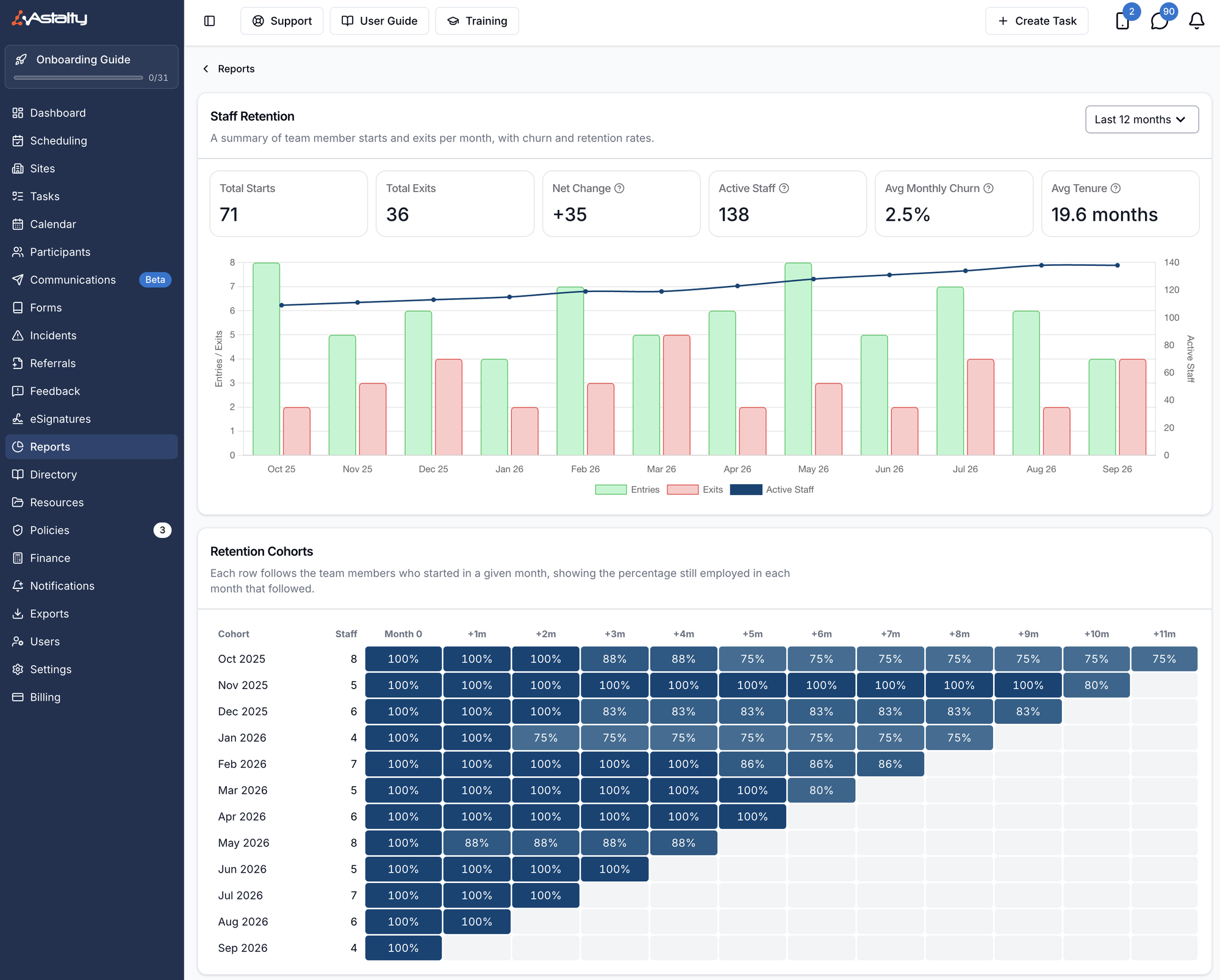
- Open it from Reports → Team → Staff Retention, available to Admins and Managers
- Choose Last 12 months, Last 24 months or Last 36 months
- A Retention Cohorts table tracks how long each month's intake stayed, and an Exit Reasons table breaks exits down by the reason recorded on deactivation
For more information, visit the Staff Retention Report guide.
Recording Why a Team Member Left
You can now record a reason when you deactivate a team member, and build your own list of exit reasons to keep leaver records consistent.
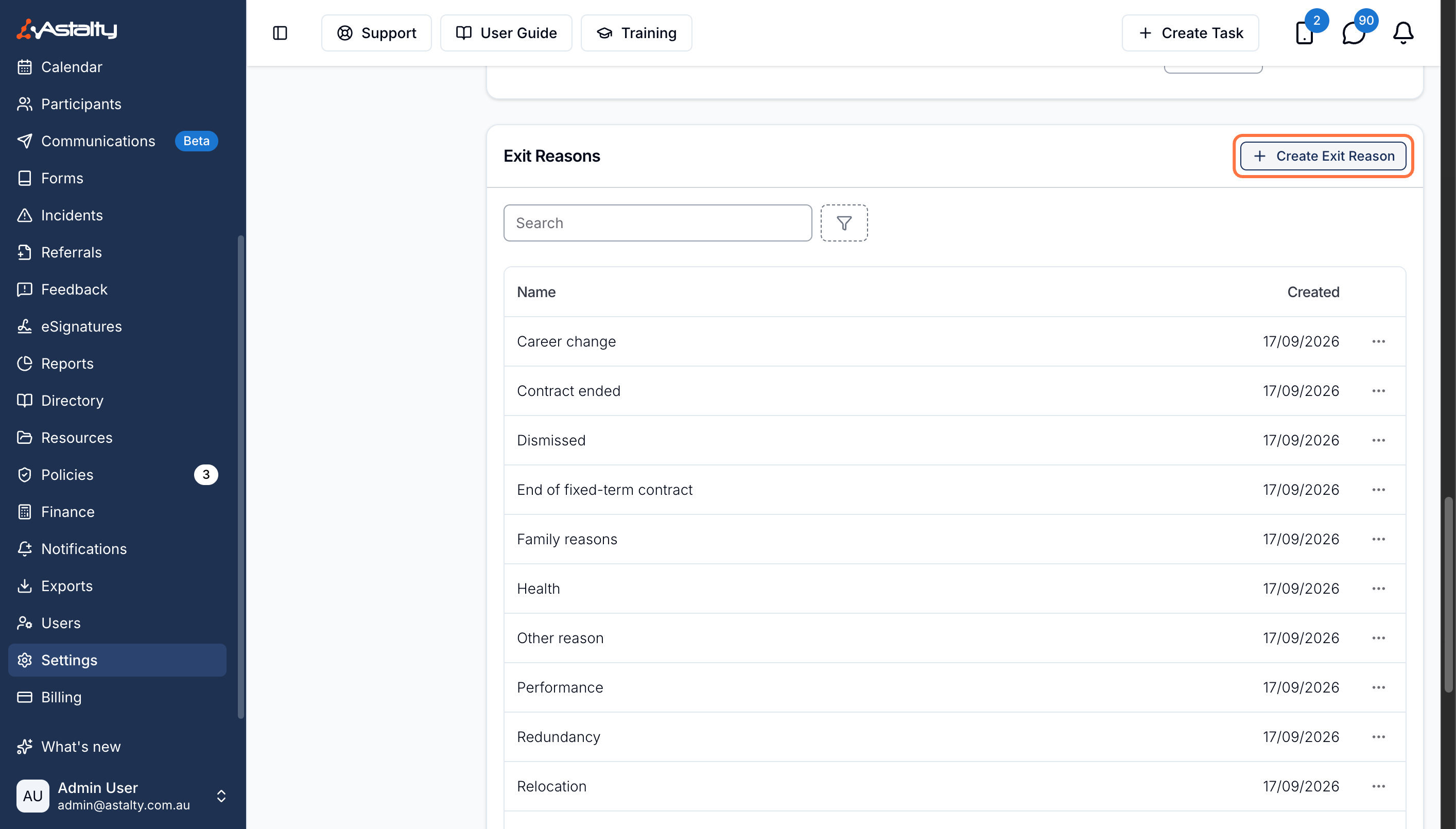
- Set them up under Settings → Users → Exit Reasons - every organisation starts with five: Resignation, Dismissed, Redundancy, Retirement and Other
- Rename, archive or add your own; an archived reason can't be chosen again but stays on any exit already recorded against it
- The reason and any exit details are captured on the deactivation screen and can be corrected afterwards from the team member's profile
- Exit reasons feed the new Staff Retention Report's Exit Reasons breakdown
For more information, visit the Exit Reasons guide.
Excluding Specific Staff from Scheduling Costs
Named staff can now be left out of the Scheduling Costs report without deactivating them - useful for office staff, trainees, or anyone whose shifts the report was never meant to measure.
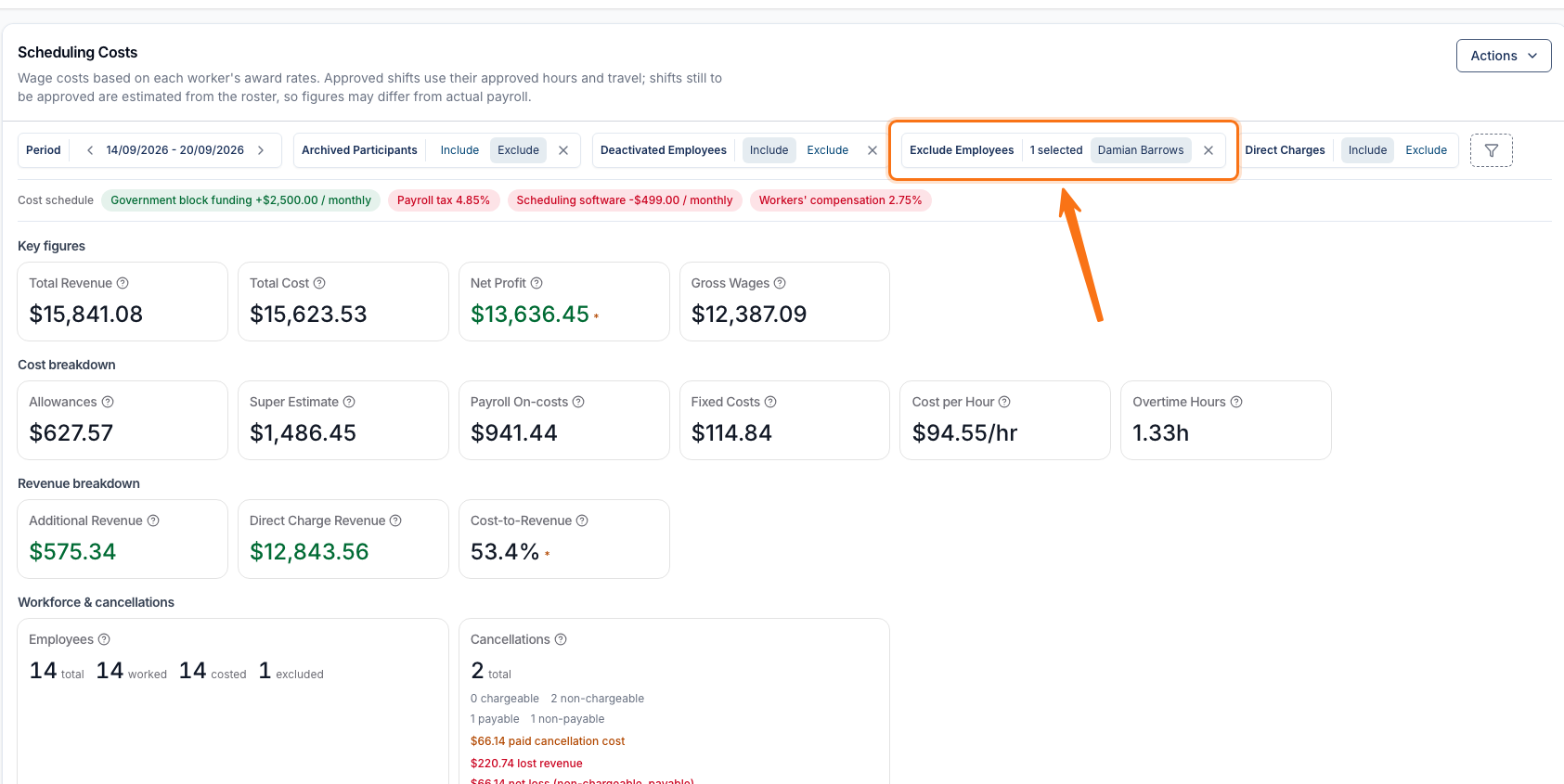
- Add the Exclude Employees filter from the filter bar and tick one or more names - it covers everyone who has ever been rostered a shift
- Excluding someone removes their hours, wages, allowances, super, on-costs and cancellation costs from every figure on the report; the revenue their shifts earned still counts, which an amber asterisk on Net Profit and Cost-to-Revenue flags
- The Employees card shows how many were excluded, and the Export as XLSX file applies the exclusion too, though it carries no note saying anyone was left out
For more information, visit the Scheduling Costs guide.
Exporting the Billable Charges Report as a CSV
The Billable Charges Report can now be exported as a CSV, with one row per charge, instead of reading the figures on screen only.
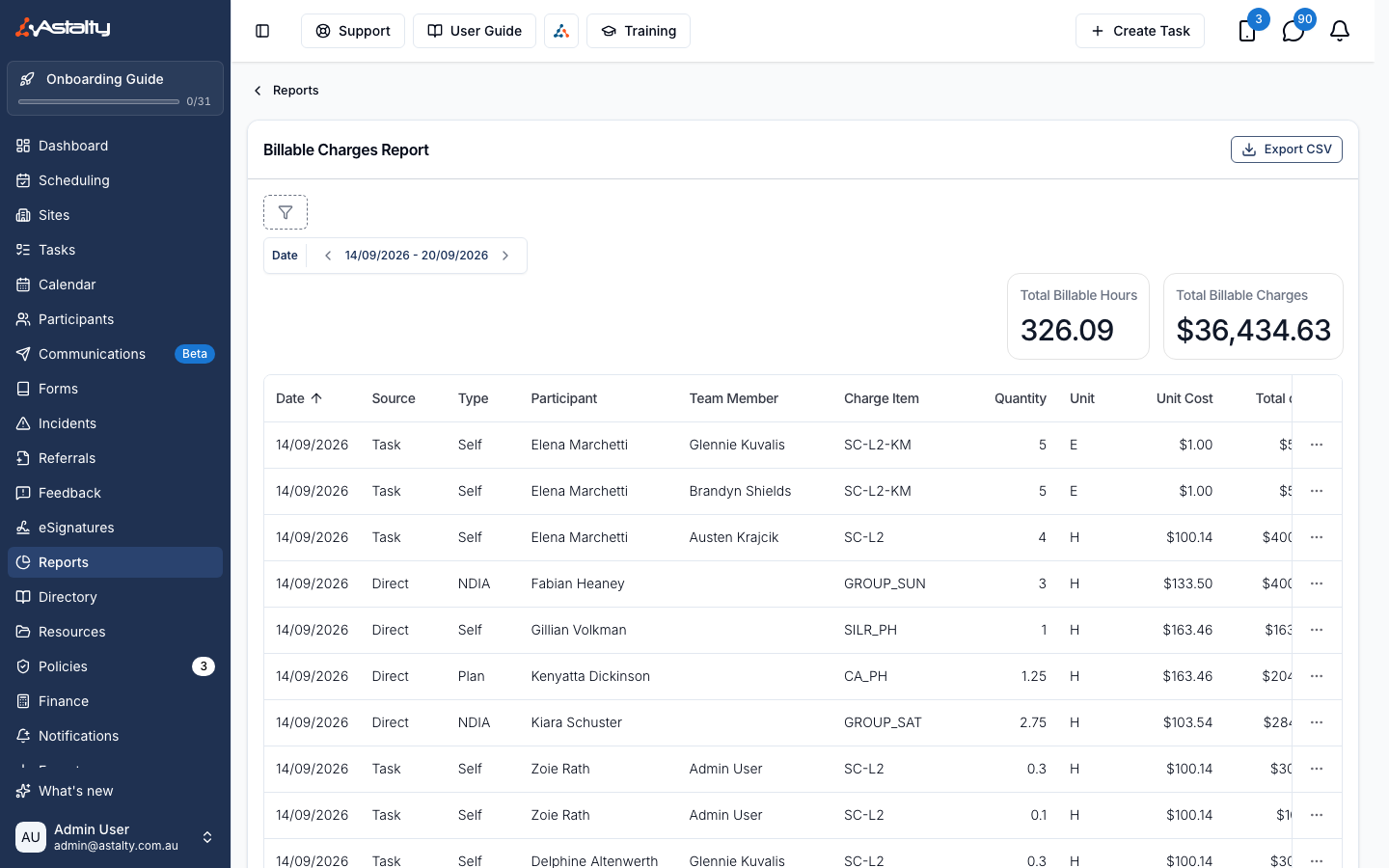
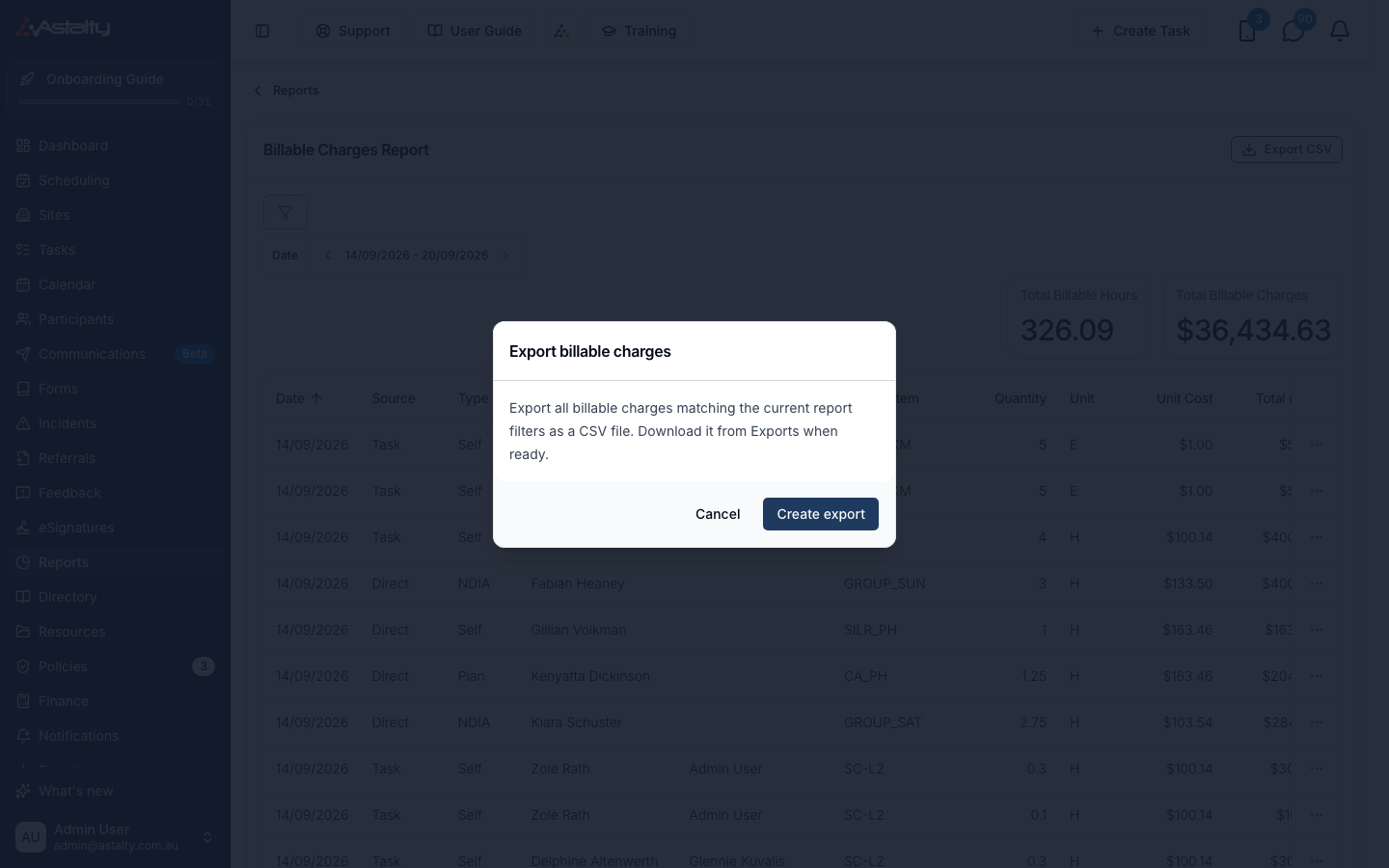
- Set your Date range and any filters, click Export CSV, then Create export, and download the file from Exports once it's ready
- The file carries the same columns as the report: Date, Source, Type, Participant, Team Member, Charge Item, Quantity, Unit, Unit Cost, Total Cost and Due
- Date ranges are capped at 366 days, except when filtering by Invoice Batch
- Needs the Exports module and the Access Exports Module permission - Admin by default
For more information, visit the Billable Charges Report guide.