13 August 2026
SMS reminders to nominated contacts
Participants can now have their SMS reminders also sent to chosen contacts - for example a parent, carer, or support coordinator - without putting someone else's number on the Participant record.
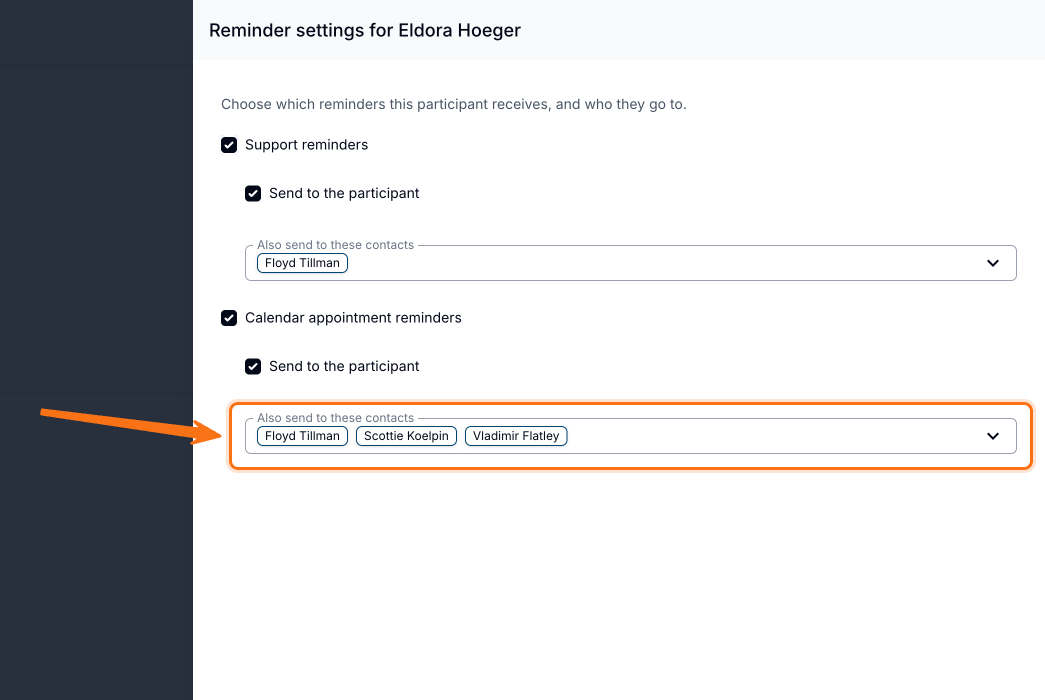
- Open Reminder settings from the Participant's More tab (or from the reminder status link on a support or calendar form) and, for each channel, tick Also send to these contacts
- Support reminders and calendar appointment reminders are chosen separately - a contact can get one without the other
- Participant only, contacts only, or both are all valid; contacts receive the Participant's message word-for-word
- Each recipient is a separate billable SMS; numbers that share a handset are de-duplicated so only one message is sent
- Available to any provider with SMS turned on - there is no extra switch to enable
For more information, visit the SMS Reminders guide.
Regions
You can group Participants, staff and sites by area - for example Brisbane North or Gold Coast - then filter lists, the schedule, reports and exports by those areas. A Region is just a name you assign; it does not change what anyone can see or access.
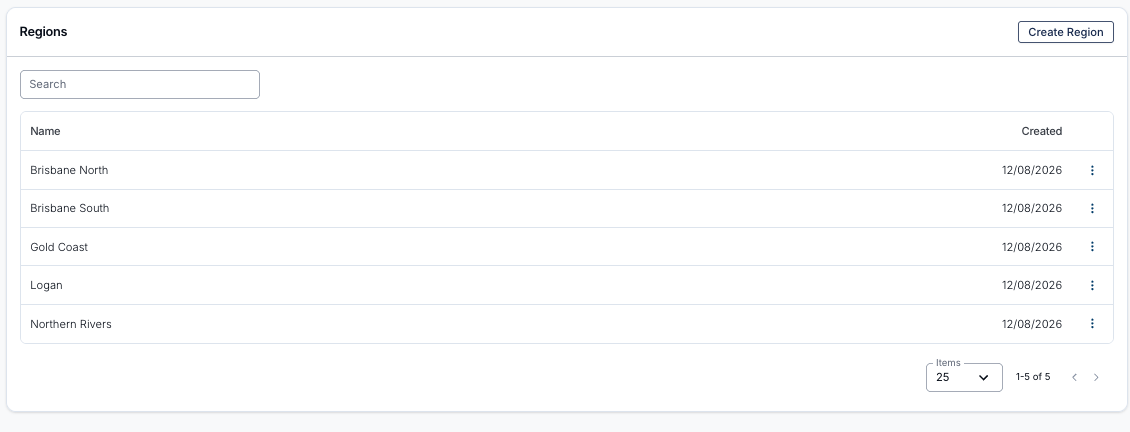
- Create and manage Regions under Settings → Regions, then assign them on Participant, staff and site records
- Use Region filters wherever they appear once Regions is turned on for your account
- Regions is currently in beta and is switched on by Astalty - contact support if you would like it enabled
- This is separate from Primary Region in Business Settings, which only sets your NDIS price guide zone
For more information, visit the Regions guide.
Polls in Chat
You can run a quick poll inside a chat conversation and watch the answers update live, instead of chasing people one by one for a reply.
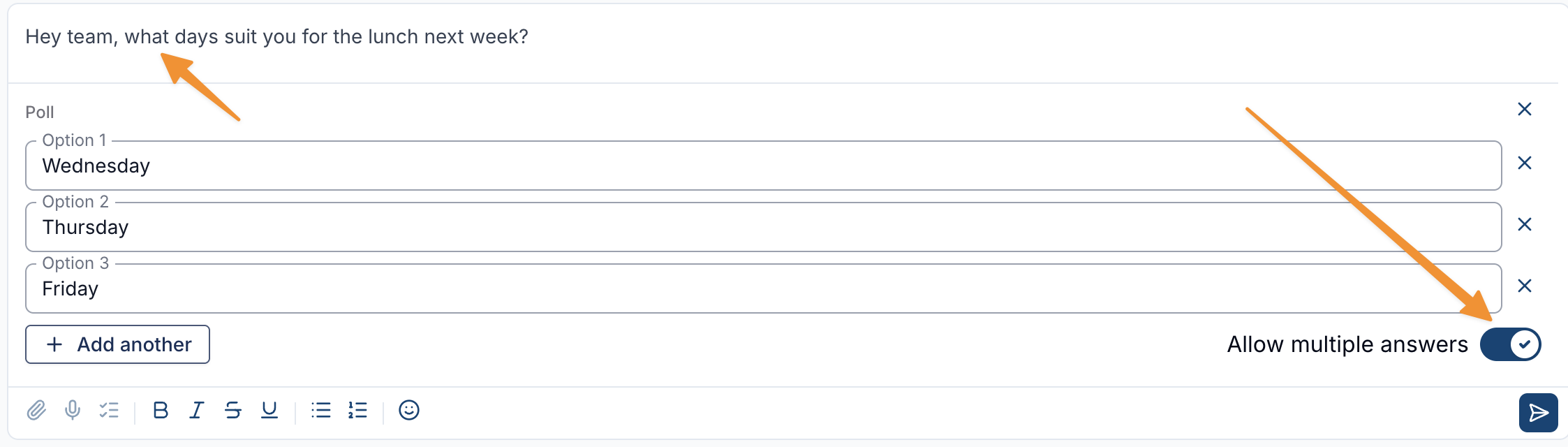
- Create and close polls on the web app; voting works on both web and the Support Worker app
- Polls work in direct messages and group channels, and are included with Chat - there is no extra switch to turn on
For more information, visit the Polls guide.
Commenting on Invoices
You can leave internal comments on an invoice so the next person who opens it can see the context - a disputed charge, a bounced email, or why you are holding off chasing payment.
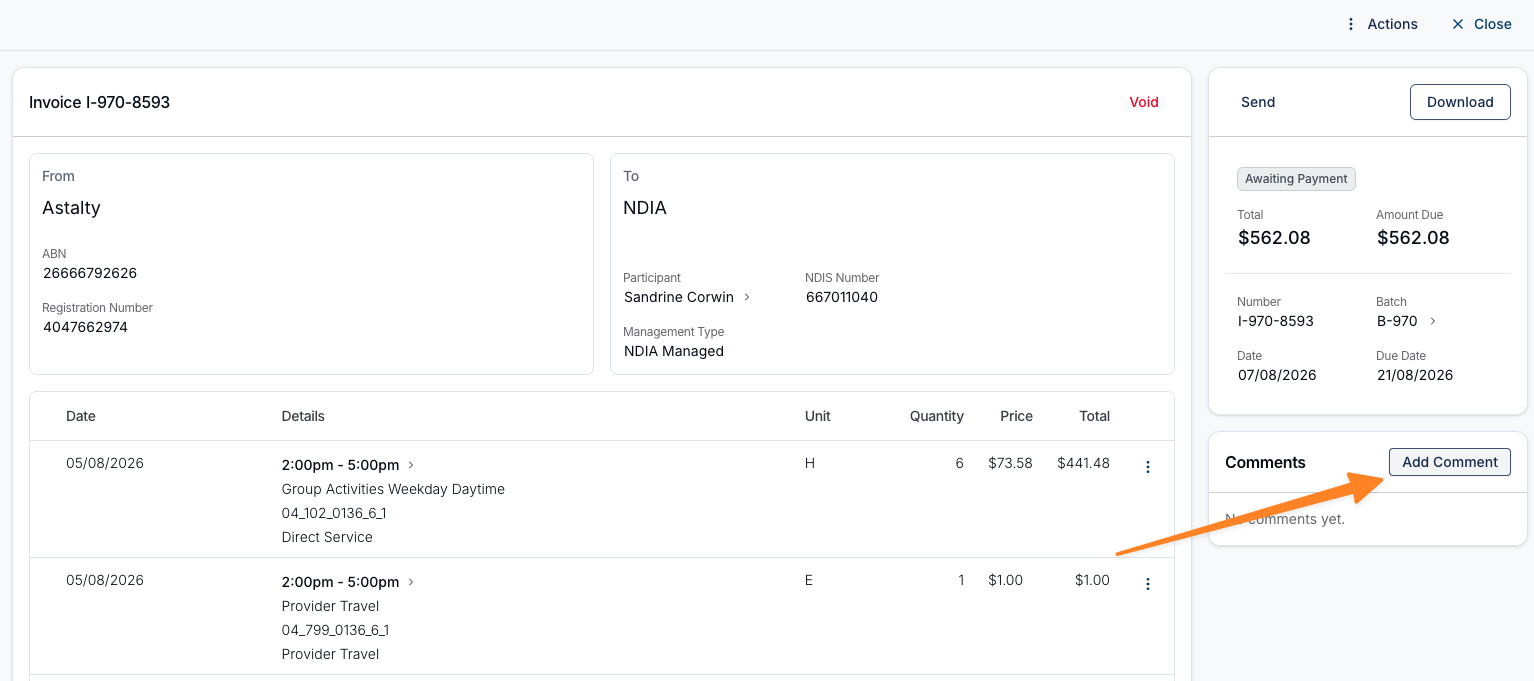
- Comments sit in a Comments section on the invoice panel and stay with the invoice wherever you open it from
- They are internal only - they never appear on the PDF, in emails, or in Xero, and adding one does not notify anyone
For more information, visit the Commenting on Invoices guide.
Commenting on Invoice Batches
You can also leave internal comments on an invoice batch, so notes about why a batch was held or who is looking after it travel with the batch itself.
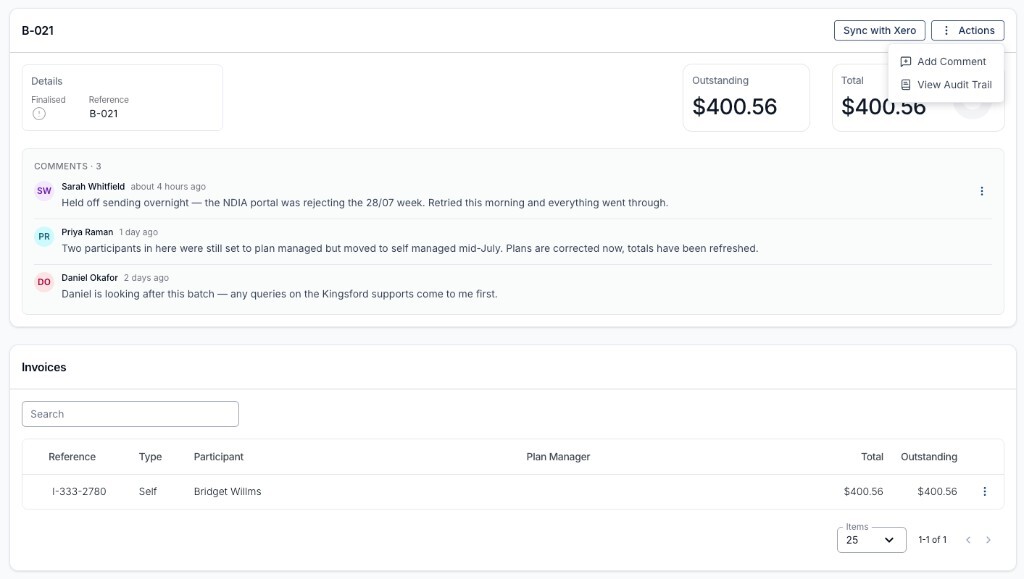
- Add a comment from Actions → Add Comment on a draft or finalised batch
- Comments are internal only and are not shared with Participants, Plan Managers or Xero
For more information, visit the Commenting on Invoice Batches guide.
Archiving Participant Records
When a Participant Record is no longer in force - for example an old Service Agreement - you can archive it instead of deleting it, so the history stays in Astalty for your audit trail.
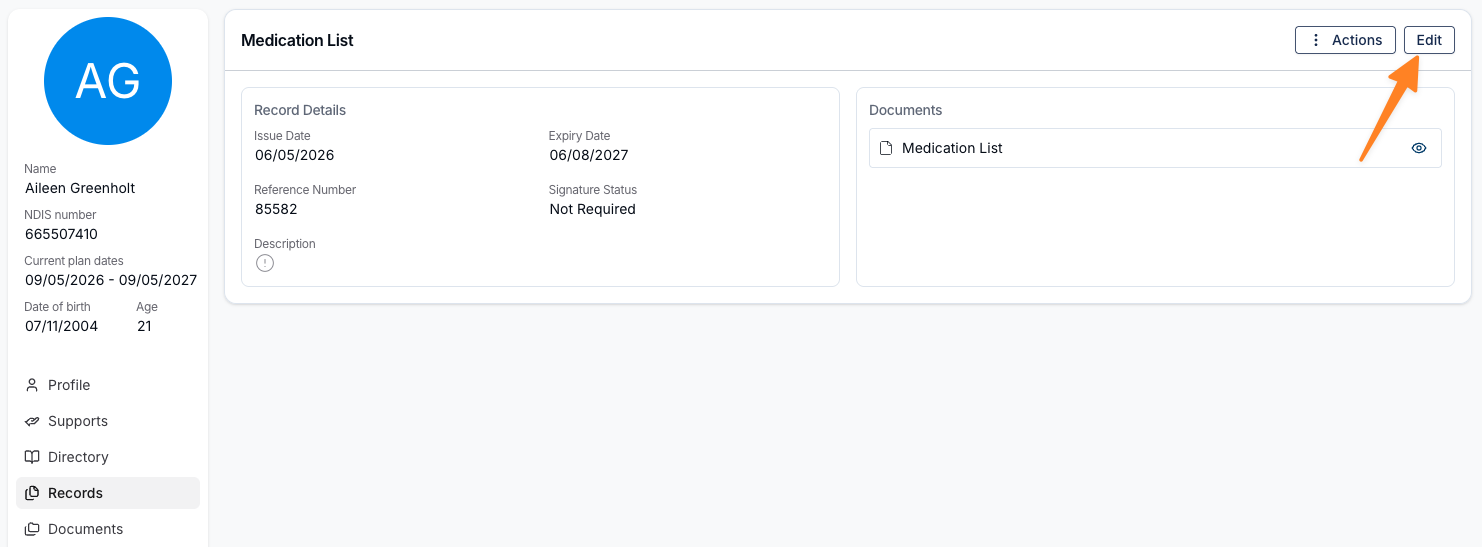
- Open the Record, choose Edit, then Archive at the bottom of the screen
- Archived Records keep their documents, drop out of day-to-day compliance tracking, and cannot be restored - create a new Record if you need one again
- Use the Status filter on the Participant's Records page to show only active or only archived Records
For more information, visit the Participant Records guide.
QuickBooks Payroll
You can connect Astalty to QuickBooks Payroll so approved timesheets and leave flow through without exporting and importing files by hand.

- Sync timesheet batches directly, or export a compatible CSV
- Map pay groups and cost codes, including work either side of a sleepover
- Sync approved leave into payroll automatically
- This is QuickBooks Payroll (AU), not QuickBooks accounting - and you can set it up yourself from Integrations
For more information, visit the QuickBooks Payroll guide.
Overdue Note Notifications
You can alert coordinators when a support or task still has no note after a set number of days, so gaps are followed up without manually checking reports.
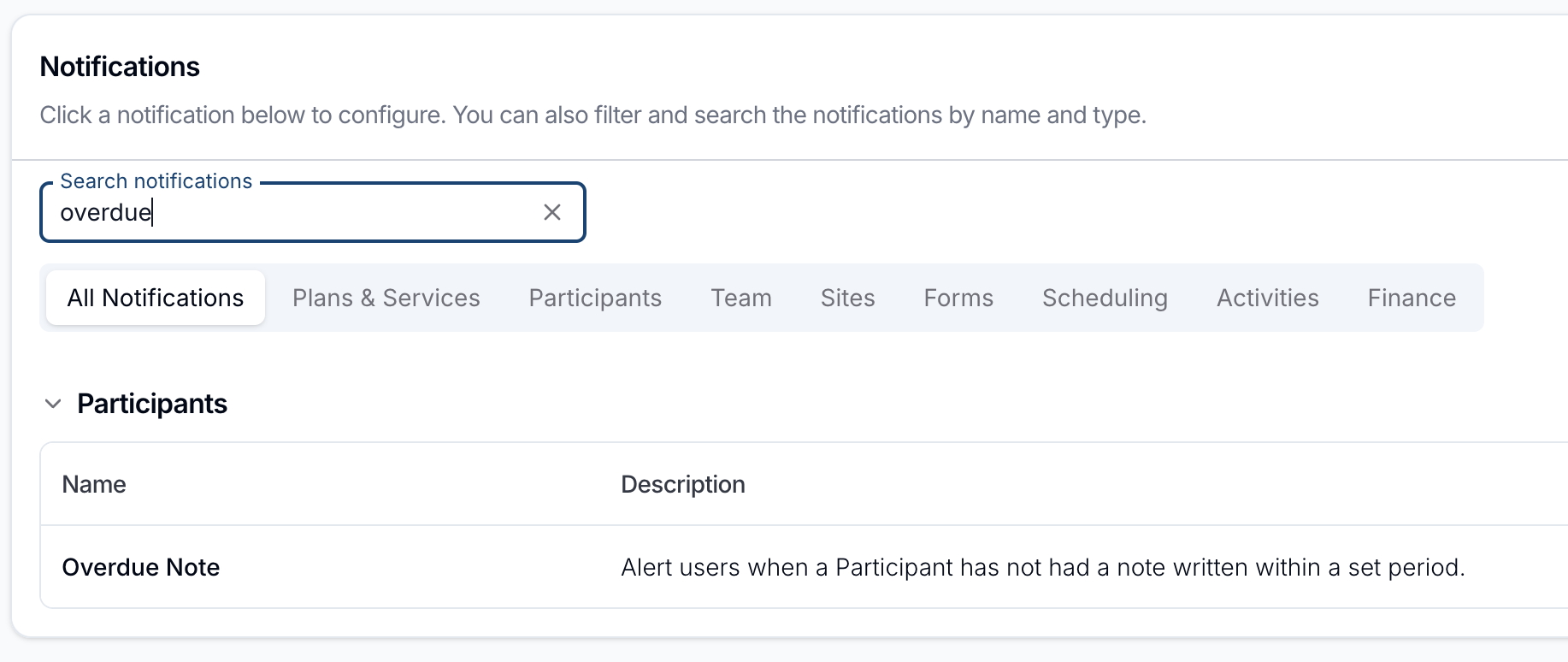
- Set rules under Notifications → Overdue Note, including how many days to wait and who to notify
- Alerts can go within Astalty, by email, or both
- This is separate from the Missing Support Notes Reminder, which pushes Support Workers every Monday about missing support notes
For more information, visit the Overdue Note Notifications guide.
All Users and Team Member Groups
Reserved user groups are clearer about who they include, so notifications and chat reach the people you intend.
- All Users now covers everyone in your organisation - including Support Workers - except Auditors
- Team Member now means users with the Team Member role only; Admins and Managers sit in their own groups
- To reach office staff without Support Workers, select Admin, Manager and Team Member together; to reach everyone, select All Users
For more information, visit the User Groups guide.
Auditor Access on Professional Plans
Auditor access is included on the Professional plan and above - you no longer need Astalty support to switch it on. Lite accounts still need to upgrade before inviting an Auditor.
- Invite an NDIA auditor from Users for temporary, read-only access to specific Participants
- Auditor accounts do not count toward your user limit and deactivate after 14 days
For more information, visit the Inviting NDIA Auditors guide.
Document Template Placeholders by Category
The list of document template placeholders in the user guide is now grouped by category, so it is easier to find the field you need when building a template.
- Placeholders are still listed by usage type (Participant, Service Agreement, or User)
- Within each list, related placeholders sit under category headings - and you can still click any placeholder to copy it
For more information, visit the Available Document Template Placeholders guide.
Award Pay Report and Pay Period Settings
The Award Pay Report date selector follows the pay periods you configure in Scheduling Settings, rather than letting you pick any free date range.
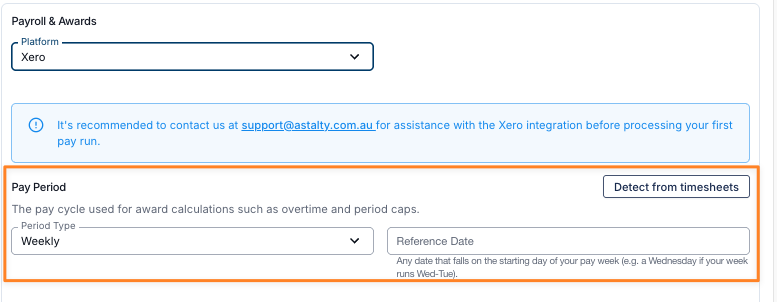
- Set your pay period length and start day under Settings → Scheduling
- On the Award Pay Report, move backwards and forwards a whole pay period at a time
- Weekly and fortnightly providers each see a picker aligned to their configured period
For more information, visit the Award Pay Report and Scheduling Settings guides.
Required Import Order
When you bring data into Astalty yourself, imports need to run in a set order so later files can find the people and organisations they link to.
- Run Users, then Plan Managers, then Participants, then related data such as contacts, documents, case notes and services
- The Imports Overview page spells out the order and why each step depends on the one before it
For more information, visit the Imports Overview guide.
Services Import with Funding Periods
The Unscheduled Services import can bring across remaining balances and, for PACE plans, funding period schedules - so migrated services start with the right budget picture.
- Use the Funding Periods sheet when a service has a funding schedule
- Remaining amount and reconciled date work together when you are not using funding periods
- This import is arranged with Astalty (it is not self-service) - contact imports@astalty.com.au to set it up
Getting Help
There is a clearer path to reach Astalty support from the user guide and from inside the product.
- Email support@astalty.com.au, or use the Support button in Astalty to report a bug, request a feature, or ask a question
- The Getting Help guide walks through each option and what you will be asked
For more information, visit the Getting Help guide.
AI Privacy
A new AI Privacy page explains how Astalty's AI features handle your data - including where requests are processed and that your data is not used to train models.
- Covers AI in Astalty and the AI chat in this user guide
- Production AI requests run on AWS Bedrock in Sydney, within Astalty's own infrastructure
For more information, visit the AI Privacy guide.
Security Overview Updates
The Security page now covers data residency, how incidents are handled, and the measures Astalty uses to keep your information safe - in one place you can share with auditors or your own compliance team.
For more information, visit the Security guide.
Integrations Overview
Integrations has its own overview page in the guide, so you can see the available connections and jump into the one you need from a single starting point.
For more information, visit the Integrations Overview guide.
Downloading the Support Worker App
The Support Worker App overview now includes the Apple App Store and Google Play links, so you can send people straight to the right download when they install or reinstall the app.
- Apple App Store for iPhone and iPad, and Google Play for Android
- Search for Astalty (publisher Astalty Pty Ltd) if you prefer not to use the links
For more information, visit the Support Worker App Overview guide.