- Changelog
- 20 August 2026
20 August 2026
Astalty for Outlook
You can now log a task in Astalty straight from an email, without leaving Outlook. Open an email, click Astalty on the toolbar, and a panel opens beside your inbox.
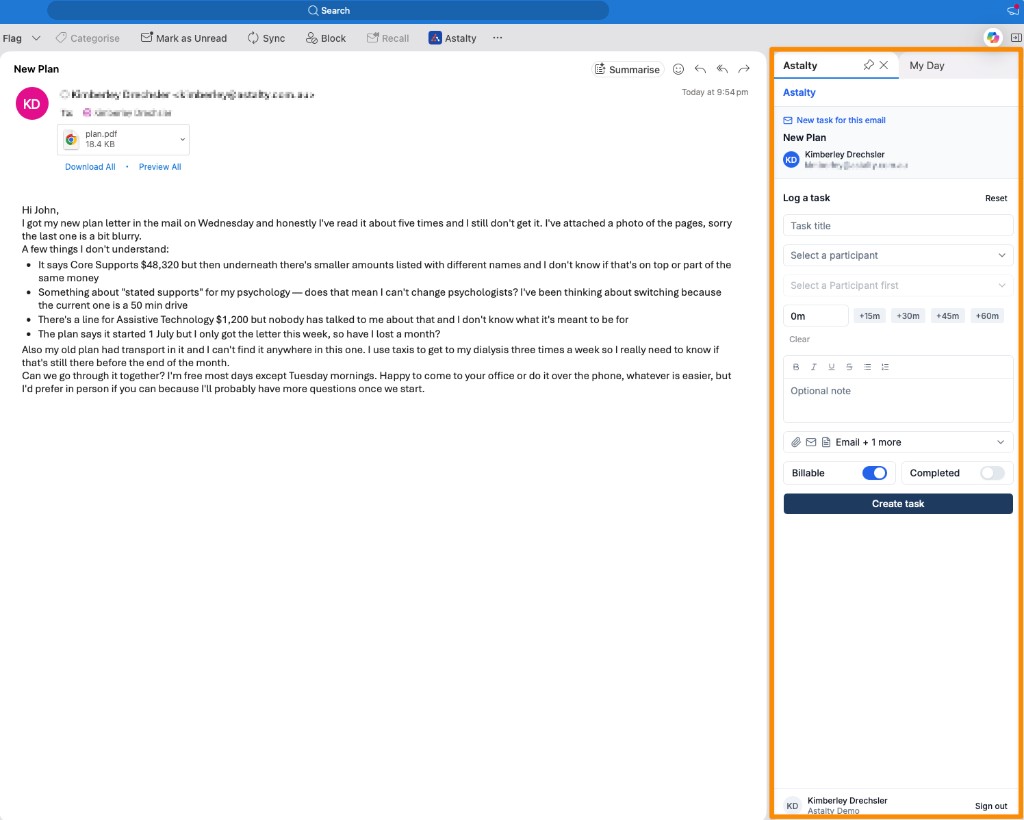
- Pick a Participant - anyone on the email who matches a Participant in your account is marked as Suggested - then choose a Charge Item, record your time, and add a note
- Attach the email itself and any of its files to the task, so they are saved against the task's documents
- Emails that already have tasks logged against them show a Linked tasks section, and you can open one in Astalty from there
- Works when reading an email in new Outlook for Windows and Mac, Outlook on the web, and classic Outlook desktop
- Your Microsoft administrator may add it for you, or you can add it yourself from the Microsoft marketplace
For more information, visit the Astalty for Outlook guide.
Skills
You can build a list of the things your workers can do - for example Auslan, Meal Preparation, or Comfortable with Pets - record what each Participant is looking for, and see how well a worker fits when you roster.
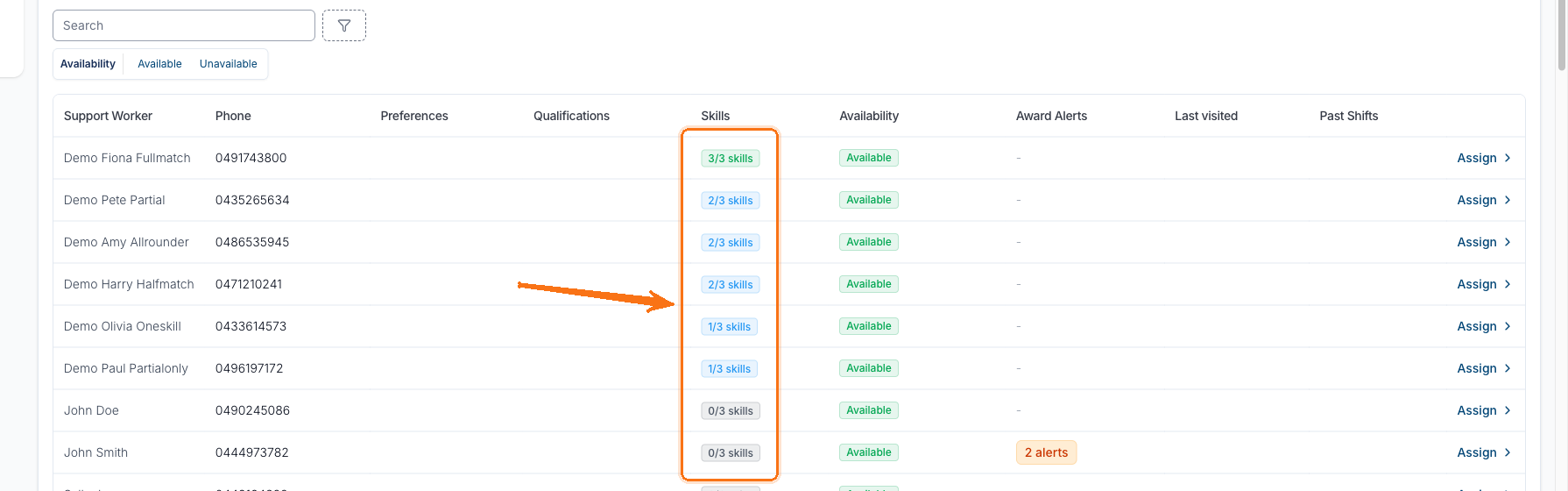
- Build the list under Settings → Users, assign skills on a worker's profile, and set desired skills on a Participant's Preferences page
- Wherever Astalty suggests workers, a Skills chip shows how many of the Participant's desired skills that worker has
- A skill match is information only - it never hides a worker or stops you assigning anyone
- Skills are for softer things like languages or cooking. Certificates and checks that expire belong in Qualifications
- Skills is currently in beta and is switched on by Astalty - contact support if you would like it enabled
For more information, visit the Skills guide.
Support Time Segments
You can split one support's billed time across different Charge Item Sets - for example charging 12:00pm-3:00pm through a different set to the rest of the day - instead of creating separate supports.
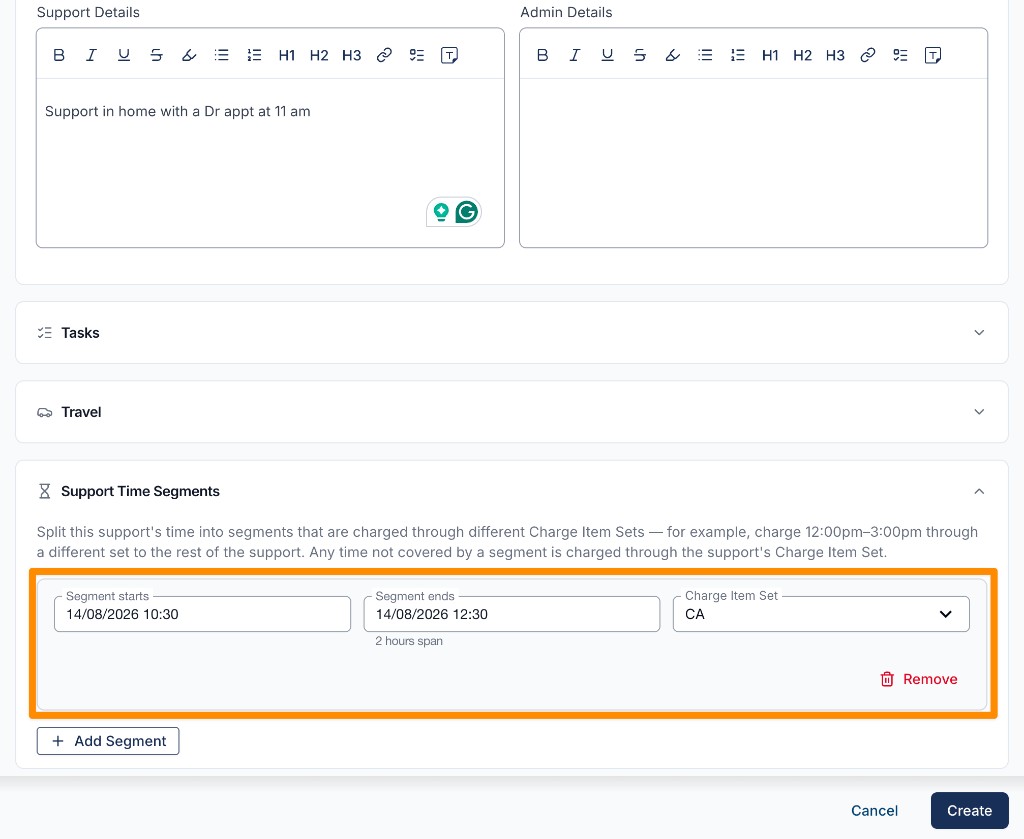
- Add up to ten segments when creating or editing a support that uses automatic charging
- Any time not covered by a segment is charged through the support's primary Charge Item Set
- This is a billing setting only - it does not change pay, and Support Workers see no difference on the shift
- Support Time Segments is currently in beta and is switched on by Astalty - contact support if you would like it enabled
For more information, visit the Support Time Segments guide.
Reassigning a Support Worker
When a worker can no longer do a shift and you already know who is covering it, you can swap them in one step on the desktop scheduler - the shift never has to pass through Unassigned Shifts.
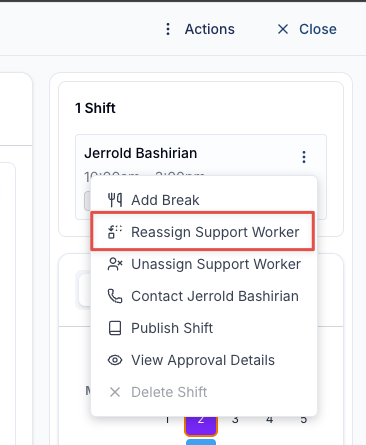
- Open the support, click the three dots next to the assigned worker's name, and choose Reassign Support Worker
- You get the same worker list as a normal assignment, including availability, preferences, past shifts and any alerts
- A confirmation step summarises what is about to change and lets you record a reason, which is saved to the support's audit log
- On a recurring support, tick the later occurrences you want to change - only that shift, all future shifts, or just the ones you pick
- You do not need to unpublish the shift first; both the outgoing and incoming worker are notified straight away
For more information, visit the Reassigning a Support Worker guide.
After-Hours Scheduling
There is a new guide for covering shifts when you are away from your computer - filling a support, swapping a worker, cancelling a support, or just finding a phone number from your phone.
- Tap Profile → View All Shifts in the Astalty app to open a limited version of the scheduler, already signed in
- Designed for filling and fixing supports after hours - build your roster on the desktop scheduler instead
- Includes a video walkthrough and tips on finding your way around the in-app browser window
For more information, visit the After-Hours Scheduling guide.
Syncing Invoice Comments to Xero
You can now choose to send the comments on your invoices across to Xero, so your bookkeeper or accountant sees the same context without opening Astalty.
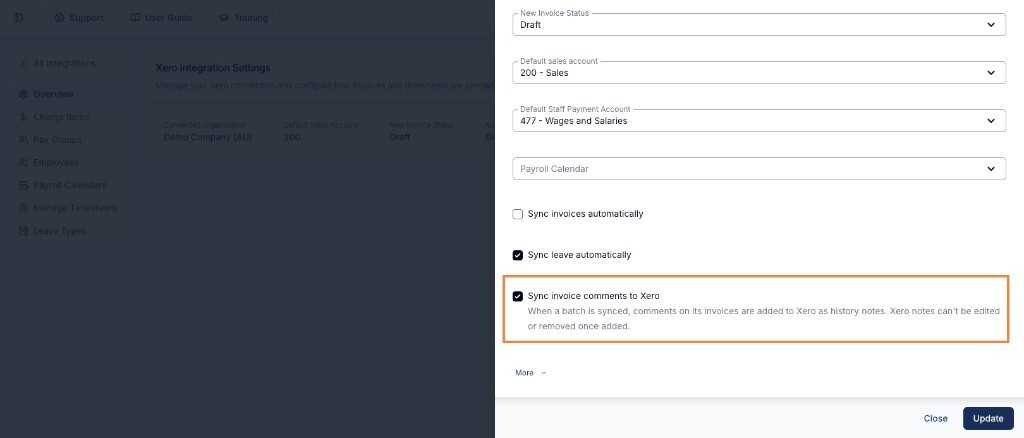
- Turn on Sync invoice comments to Xero under Settings → Integrations → Xero - it is off until you enable it
- Comments appear against the invoice in Xero under History & Notes
- Xero does not allow a note to be changed or removed once it is added, so editing or deleting the comment in Astalty afterwards does not change what is in Xero
- Each comment shows a tick once it has reached Xero, or a warning if it could not be sent
- Comments on invoice batches are always internal and never sync
For more information, visit the Syncing Invoice Comments to Xero guide.
Writing Off an Unpaid Balance
A new guide covers what to do when you receive a part payment and decide not to chase the rest.
- Record a second payment for the amount still owing and allocate it to the invoice, so the invoice moves to Paid and the shortfall drops out of Total Outstanding
- The invoice total itself never changes, so your original figures stay intact for reporting
- Avoid Mark as Paid on an invoice that already has a payment against it - it records the full invoice amount again and leaves the invoice overpaid
- Applies to plan managed and self managed invoices; NDIA managed invoices are reconciled through the receipt file
For more information, visit the Writing Off an Unpaid Balance guide.
Deleting Payments
A new guide explains what happens when you delete a payment that was recorded in error.
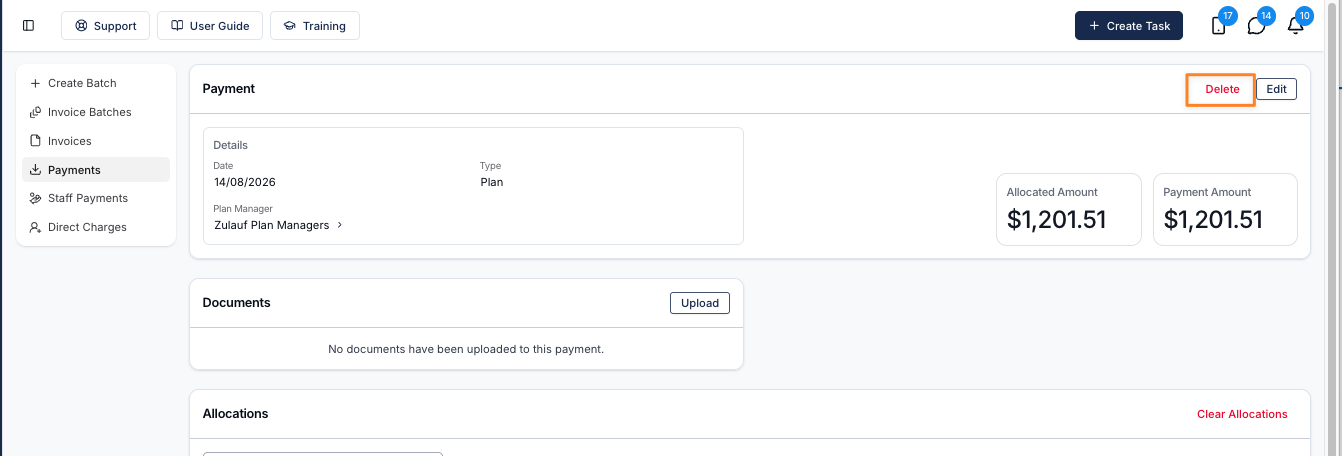
- Deleting a payment removes every allocation it made, and any amount it was covering goes back to being owed
- If the payment is genuine but went to the wrong invoices, use Clear Allocations instead and allocate it again
- Payments that came from Xero cannot be deleted in Astalty - remove them in Xero and they drop out on the next sync
- There is no undo, so check you have the right payment open before confirming
For more information, visit the Deleting Payments guide.
Comments on Shift Broadcasts
Comments about an individual Support Worker now live in the drawer you open with View or Approve on their row, so you can read the context while you decide who to assign.
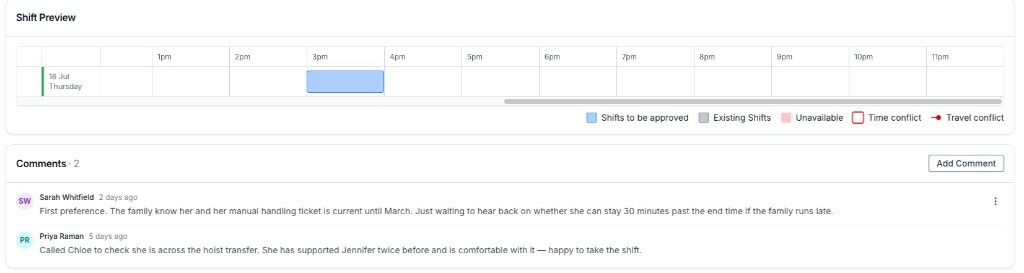
- Open View or Approve on a worker's row and scroll to the Comments card to read or add their comments
- Rows in the Broadcasts table no longer expand, and there is no comment preview under a worker's name
- Comments that apply to filling the shift generally still sit in a panel on the broadcast page - that panel now only appears once there is a comment to show
- Adding a comment does not approve or reject anyone
For more information, visit the Commenting on Shift Broadcasts guide.
Duplicating a Form
Duplicating a form now gives you a true copy. The new form keeps the original's field images, permissions, notifications and settings, so you only need to change the parts that are actually different.
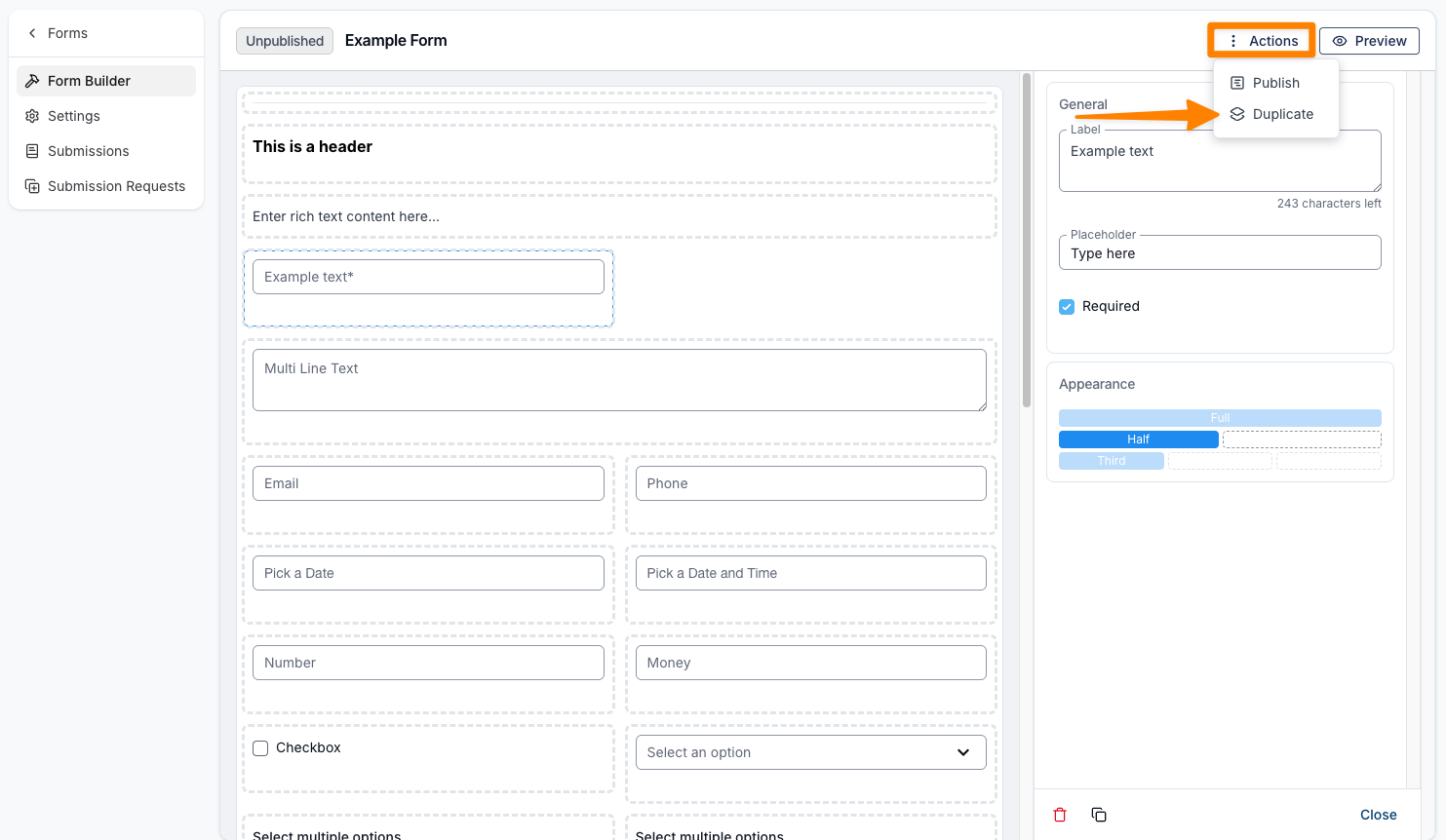
- Field images come across with the fields themselves, as their own separate files - changing the image on one form does not affect the other
- Who Can Fill Out This Form and Who Can View Form Submissions are copied, so a copy of a confidential form stays restricted to the same people
- Notifications are copied with their messages, recipients, and in-app and email settings
- Settings such as the submission message, submission confirmation and embedded form name visibility carry over as well, along with conditional logic
- The copy takes the original's name with a (Copy) suffix and is created unpublished, so you can review it before anyone can complete it
- Archived fields are not copied - only active fields come across
For more information, visit the Editing a Forms Appearance - Form Builder guide.
Exit Date and Exit Reason in the Participants Export
The Participant Export now lists every field it includes, and that list covers Exit Date and Exit Reason.
- Both are included for every Participant, not just archived ones
- Because an exit date can be recorded without archiving someone, you can filter the file for rows that have an Exit Date but no Date Archived to find Participants who still need tidying up
For more information, visit the Participants Export guide.
New Columns in the Shifts Export
The Shifts Export now includes five extra columns, giving you more context on each shift without having to cross-reference another report.
- Day - the day of the week the shift starts, as a full day name, so you can group or filter by day without working it out from the date. This brings the CSV into line with the PDF roster, which has always shown the day
- Site - the Site the shift is assigned to
- Location - the address where the support takes place, matching the Location shown on the support
- Approved Duration - the time between the shift's approved start and end times, in minutes, so you can compare approved time against what was scheduled. This is blank until the shift has approved times
- Timezone - the shift's timezone, shown as the city name (only for accounts using Multi-Timezone Scheduling)
For more information, visit the Shifts Export guide.
How Public Holidays Affect Charging and Pay
The guide now spells out how a public holiday reaches both Participant charging and employee pay, so you can check a local holiday will be picked up correctly.
- A holiday with no Public Holiday Groups applies to all Participants in its state
- A holiday assigned to Public Holiday Groups applies to Participants in those groups - and on a group support, the whole shift is paid at public holiday rates when any attendee is in one of them
- A local holiday such as a regional show day flows through to employee pay automatically; there is no separate employee-side setup
For more information, visit the Public Holidays and Award Pay Report guides.
Sleepover Pay Corrected in the Guide
We have corrected the sleepover guidance for active overnight time. The two hours included in the sleepover allowance is a participant billing rule, not a pay rule.
- On the pay side, active overnight time is paid at overtime rates from the first minute
- Monday to Saturday the first overtime band is paid at 1.5x and the rest at 2x. That band is shared across all disturbances in the same night, and Sunday and public holiday work is paid at a flat overtime rate instead
- A minimum of one hour's pay applies per sleepover, across all disturbances that night combined - not per disturbance
For more information, visit the Creating a Sleepover or Active Overnight Support guide.
Participant Profile Overview Video Playlist
A new video playlist takes you on a guided tour of the Participant profile, one area at a time.
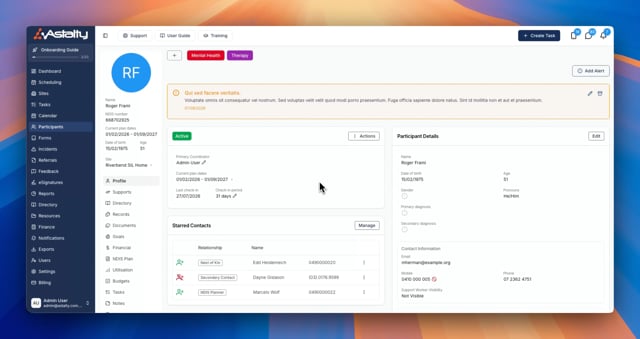
- Twenty-four short videos covering tags, alerts, check-ins, records, documents, goals, NDIS plans, budgets, utilisation, preferences, and more
- Watch it straight through when you are new to Astalty, or jump to the one area you need
To watch, visit the Participant Profile Overview playlist.
Scheduling On-The-Go Video
A short, standalone video for anyone covering shifts after hours or on call, showing how to open the scheduler from the Astalty app and fill, reassign or cancel a support from your phone.
To watch, visit the Scheduling On-The-Go playlist.