- Changelog
- 18 June 2026
18 June 2026
SCHADS Pay Report
The SCHADS Pay Report provides interpreted SCHADS pay hours for every employee across a single pay period, broken down by rate and allowance type. It gives you a quick way to review total hours per person and verify that pay lines are correct before exporting to payroll.
- Available in two places: as a standalone report under Reports > Scheduling > SCHADS Pay Report where you choose the pay period, and inside a timesheet batch on the SCHADS Interpretation tab (when the payroll platform is set to Xero)
- Uses a pay period picker that locks to complete weekly or fortnightly periods so overtime calculations stay accurate
- Displays stat cards for Employees, Ordinary hrs, Overtime hrs, Total hrs and Kilometres above a table breaking hours down by each applicable SCHADS pay rate and allowance, with empty columns hidden and a Totals row across the team
- Click any employee row to expand a Daily breakdown or Itemised lines view, including a collapsible interpretation trace explaining which award rules were applied
- Employees that can't be interpreted (e.g. no contract or pay group) surface in a warning banner instead of failing the report
- Currently in beta, requiring the Admin role and SCHADS interpretation switched on for your provider

For more information, visit the SCHADS Pay Report guide.
Superannuation on Staff Payments
You can now pay superannuation to eligible contractors directly through Staff Payments. Once enabled, Astalty adds a separate superannuation amount to each entitled contractor's Recipient Created Tax Invoice (RCTI) when you generate their invoice for a finalised batch.
- This is an optional feature that must be enabled by the Astalty Support team — contact support@astalty.com.au to turn it on
- Opt a contractor in from their profile under Users > Finance tab > Other Financial Details, by ticking the Entitled to superannuation checkbox (and confirming their Entity Name and ABN)
- Process the Staff Payment Batch exactly as normal — create, draft, calculate, finalise, and mark as paid
- Superannuation is calculated as the contractor's total payment amount multiplied by the super guarantee rate that applies on the date the batch was marked paid (e.g. 12% from 2025–26 onwards)
- Superannuation is not added to the payment amount or included in the ABA payment file — Astalty does not remit it on your behalf. Each amount appears on the RCTI as the line Statutory Superannuation (Paid Separately)
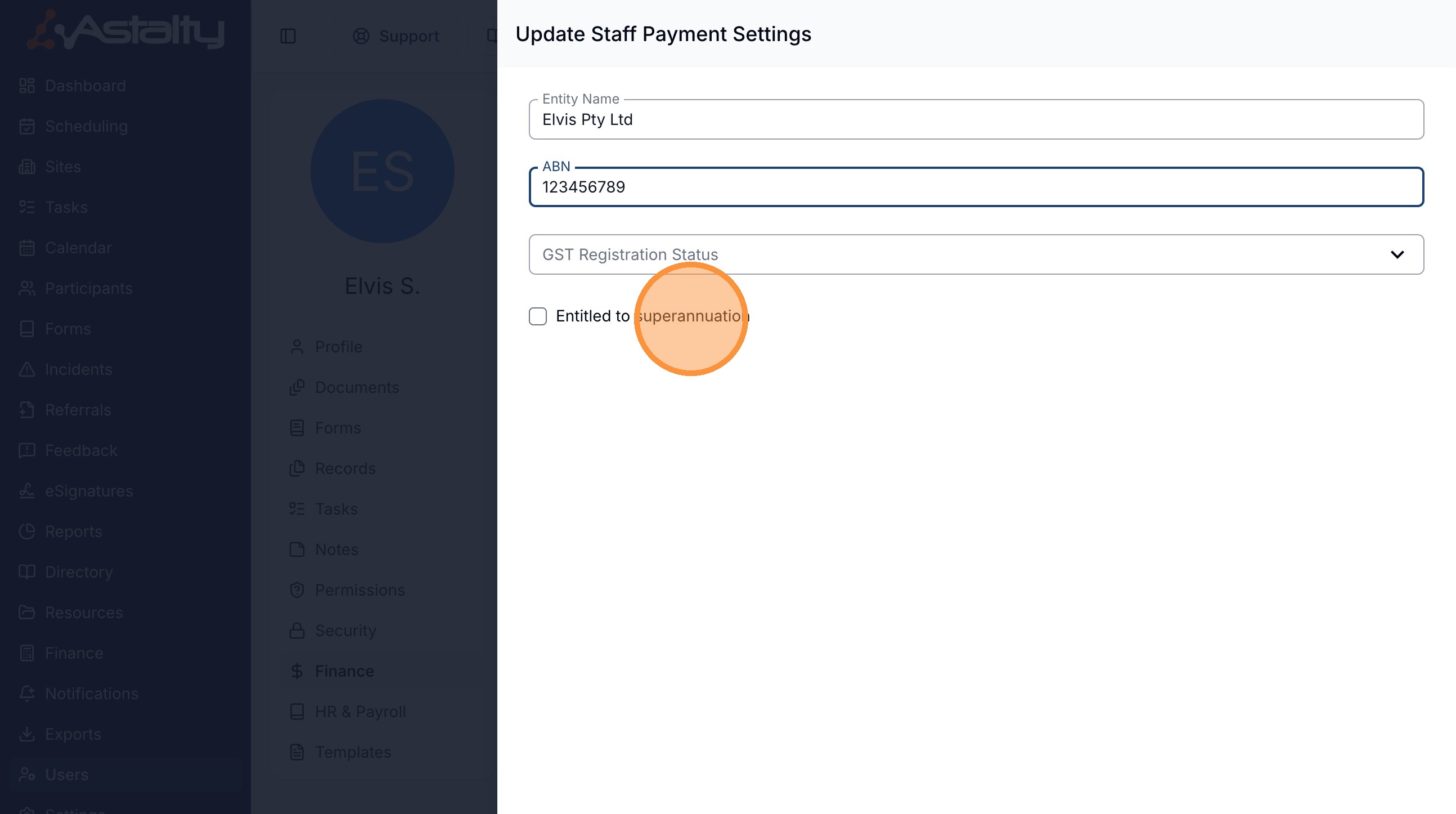
For more information, visit the Superannuation guide.
Role Permissions
The new Role Permissions page lets you control which permissions each role has across your whole organisation, so you can tailor what a role can do without editing every user one by one.
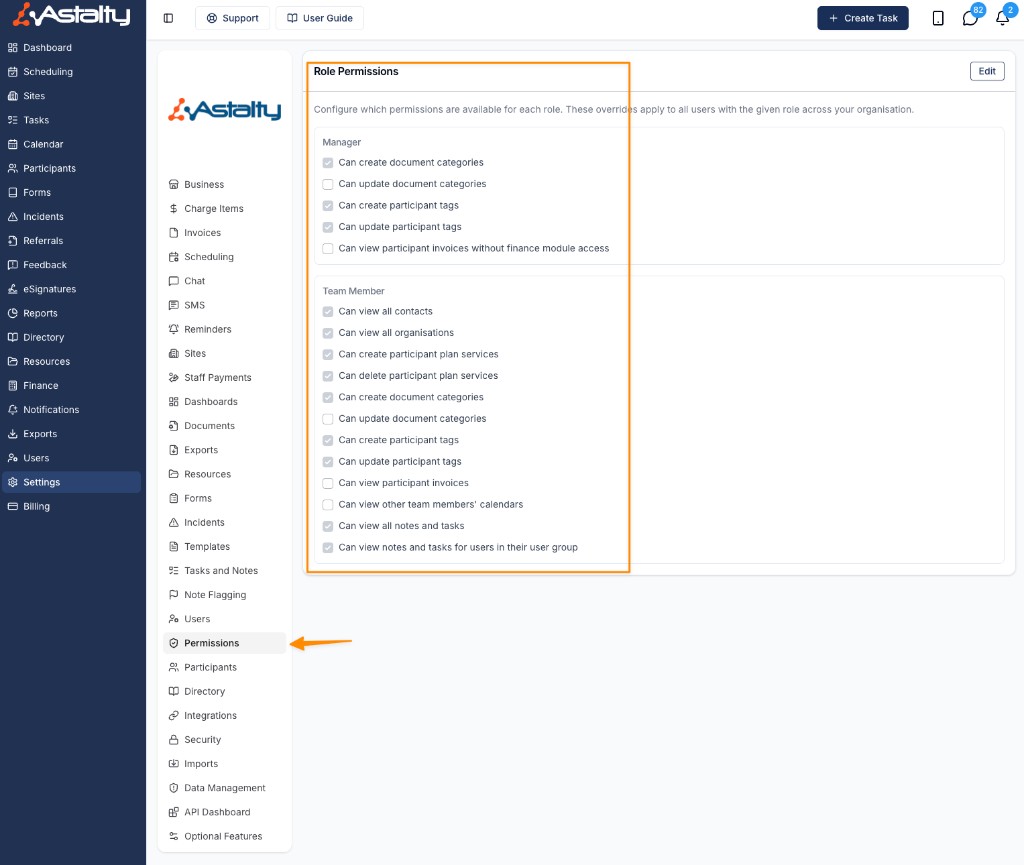
- Manage permissions from Settings > Permissions; turning a permission on or off applies to every user with that role immediately
- Configure role-specific permissions for Manager and Team Member roles, such as creating and updating document categories, participant tags, and participant plan services
- Control Team Member visibility of Notes and Tasks, where Can view all notes and tasks always takes precedence over the user-group-based option
- Included automatically on the Premium plan; Professional accounts don't see the page and Lite accounts see a locked upgrade prompt. Only Admin and Account Owner users can open and edit it
For more information, visit the Role Permissions guide.
Self-Service User Type Conversion
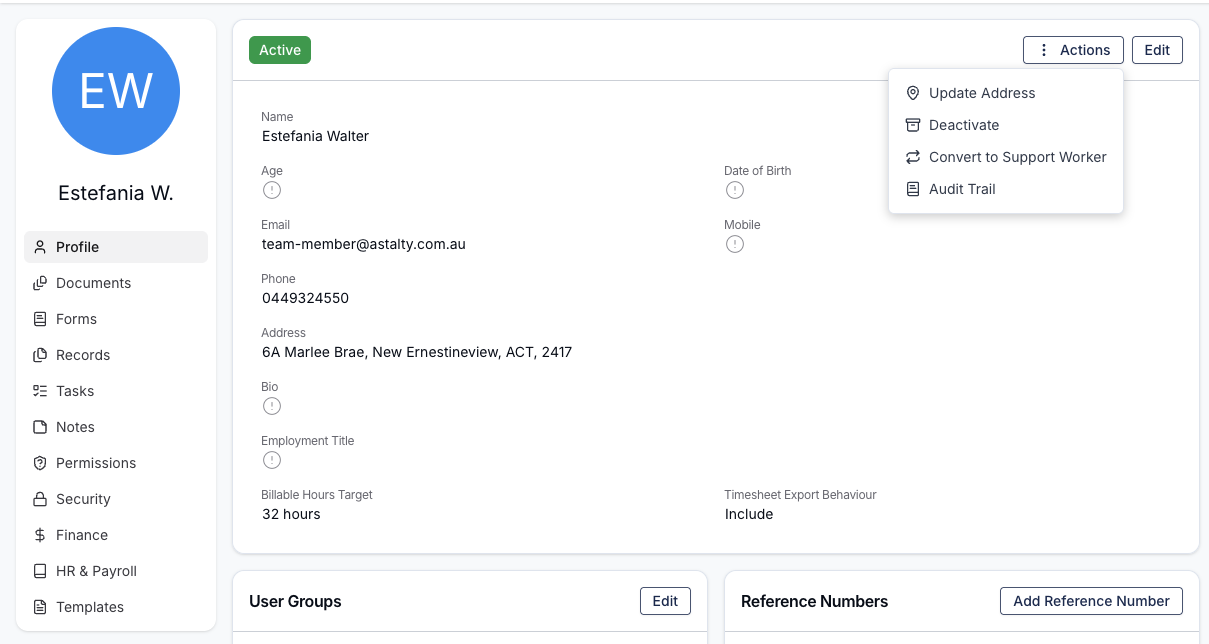
You can now switch a user between Standard User and Support Worker yourself, without contacting support. Astalty automatically issues a pro-rata credit or charge for the difference so your billing stays accurate.
- Convert a user from their Profile tab via the Actions button, or from their Permissions tab under the Change Status menu
- Converting a Standard User to a Support Worker applies a pro-rata credit; converting a Support Worker to a Standard User applies a pro-rata charge for the remainder of the current billing period
- Review the pro-rata adjustment in the confirmation dialog before confirming
- Available to Admins and the Account Owner; you can't convert your own account, the Account Owner's account, a deactivated user, or an Auditor
For more information, visit the Converting User Types guide.
Two-Way SMS
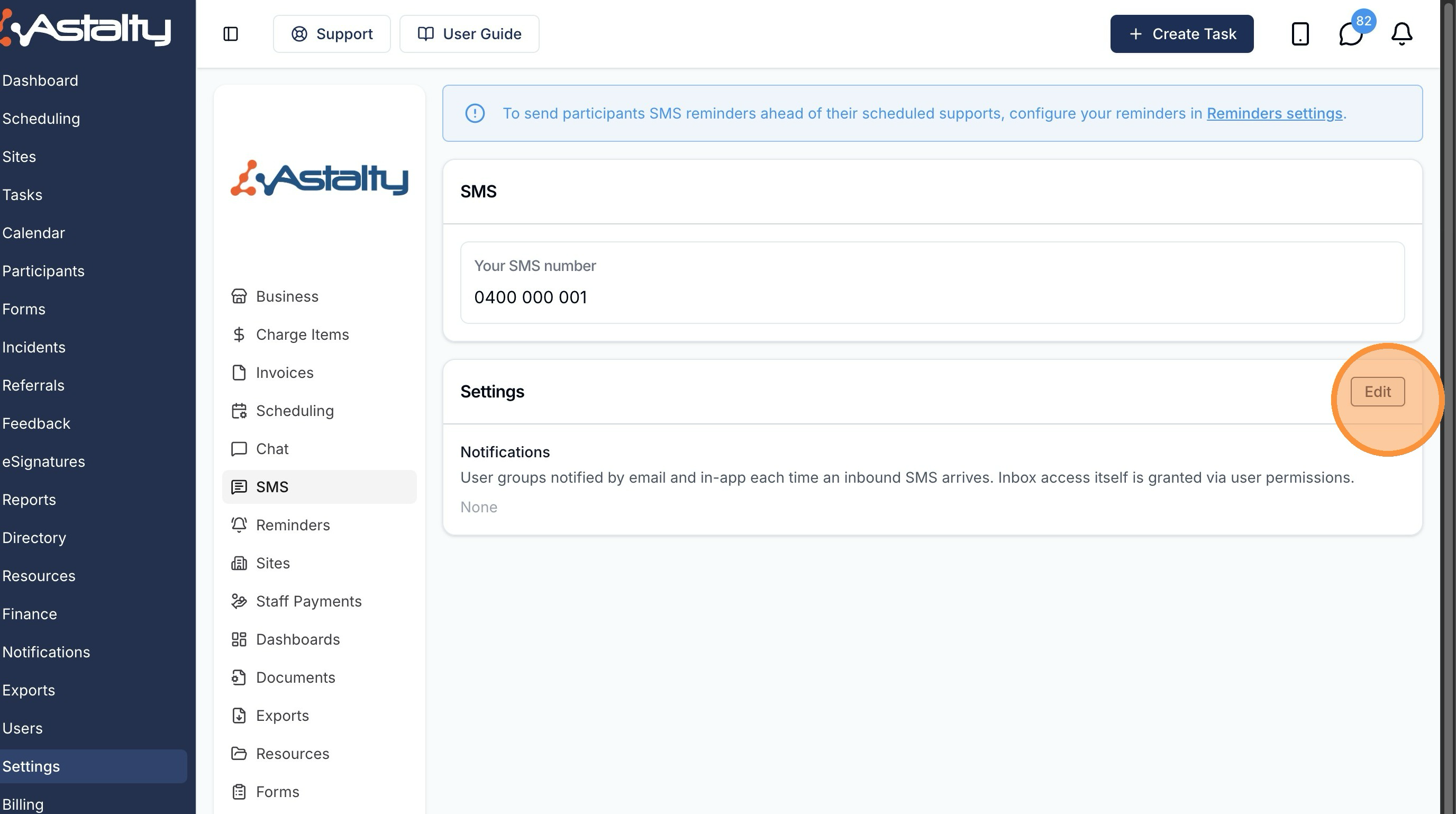
Two-way SMS gives your provider a dedicated Australian mobile number so you can send and receive text messages with participants and their contacts directly inside Astalty. Inbound replies land in a shared SMS inbox, and the same number can send automated SMS Reminders.
- Enable SMS from Settings > SMS (Account Owner only, on an active paid subscription), agree to the terms, then choose and confirm your dedicated number
- Grant SMS inbox access per user under Users > user's Permissions tab by ticking Can access the SMS inbox (Admin role only)
- Use the SMS inbox to read two-way conversation threads, reply or start new conversations, and see delivery status
- Astalty automatically processes opt-out replies (e.g. STOP, UNSUBSCRIBE), flags opted-out contacts, and blocks further outbound messages until they opt back in
- Paid add-on: $15 per number, per month plus $0.10 per outbound message segment
For more information, visit the Two-Way SMS guide.
Minimum Break Near a Sleepover
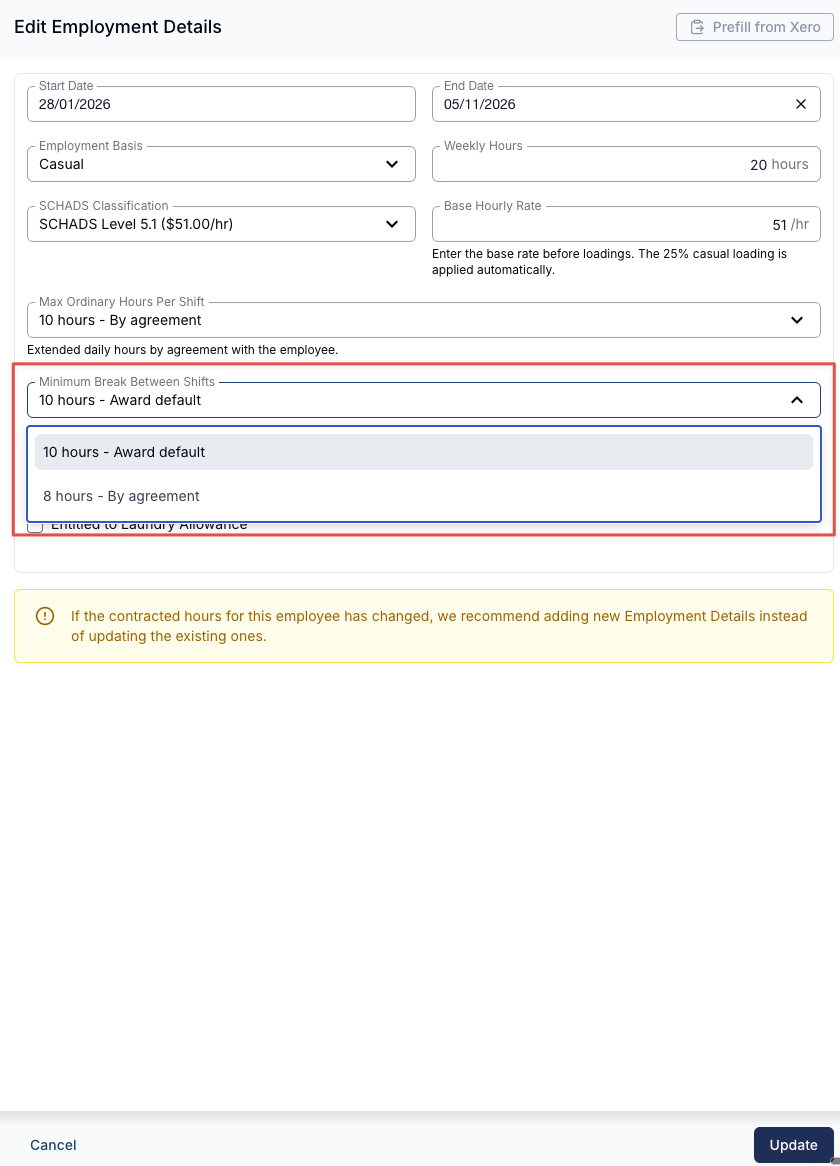
A worker's employment details now include a Minimum Break Near a Sleepover field, which records the rest period the worker has agreed to where a break sits directly before or after a sleepover. Scheduling alerts respect the value you set, preventing false alerts where the Award allows the shorter break.
- Set the field on the User Profile > HR tab in the Contract section (requires the Manage HR Details for Users permission)
- Choose 10 hours - Award default (the standard SCHADS minimum) or 8 hours - By agreement (a reduced sleepover-adjacent break that applies only where agreed with the employee)
- Defaults to 10 hours - Award default when editing a worker's employment details
- When a worker is set to 8 hours - By agreement, a compliant 8-hour break beside a sleepover no longer triggers a false Minimum Break scheduling alert
For more information, visit the Staff Contracted Hours guide.
Developer API & Webhooks (beta)
Astalty now has a public REST API and webhooks, letting you integrate your account with other systems and automate workflows. Both are in beta and enabled per account for the Account Owner.
- The JSON-based REST API exposes records you already work with — participants, contacts, organisations, plan managers, referrals, sites, users, tasks, invoices and invoice batches, charge items, incidents and more — under the
/public/v1base path, with an always-current interactive endpoint reference at api.app.astalty.com.au/docs - Create and manage keys from Settings > API Dashboard > Manage Keys, authenticating requests with a Bearer token
- Each API key can be created as Full Access or Read Only, so you can hand out read-only keys for integrations that should never change your data
- Webhooks let Astalty push signed events to a URL on your server in real time — supported events include participant created/updated, referral created, task created, invoice batch created/finalised, feedback created, and several user lifecycle events — with signature verification and automatic retries on a back-off schedule
For more information, visit the API documentation.