- Finance
- Staff Payments
- Superannuation
Superannuation
Overview
Once the feature is enabled, you can mark individual contractors as entitled to superannuation. When you generate a contractor's invoice (RCTI) for a finalised Staff Payment Batch, Astalty will add a separate superannuation amount to that invoice.
Marking a Contractor as Entitled to Superannuation
Once the feature has been enabled on your account, you can opt a contractor in to being paid superannuation from their user profile.
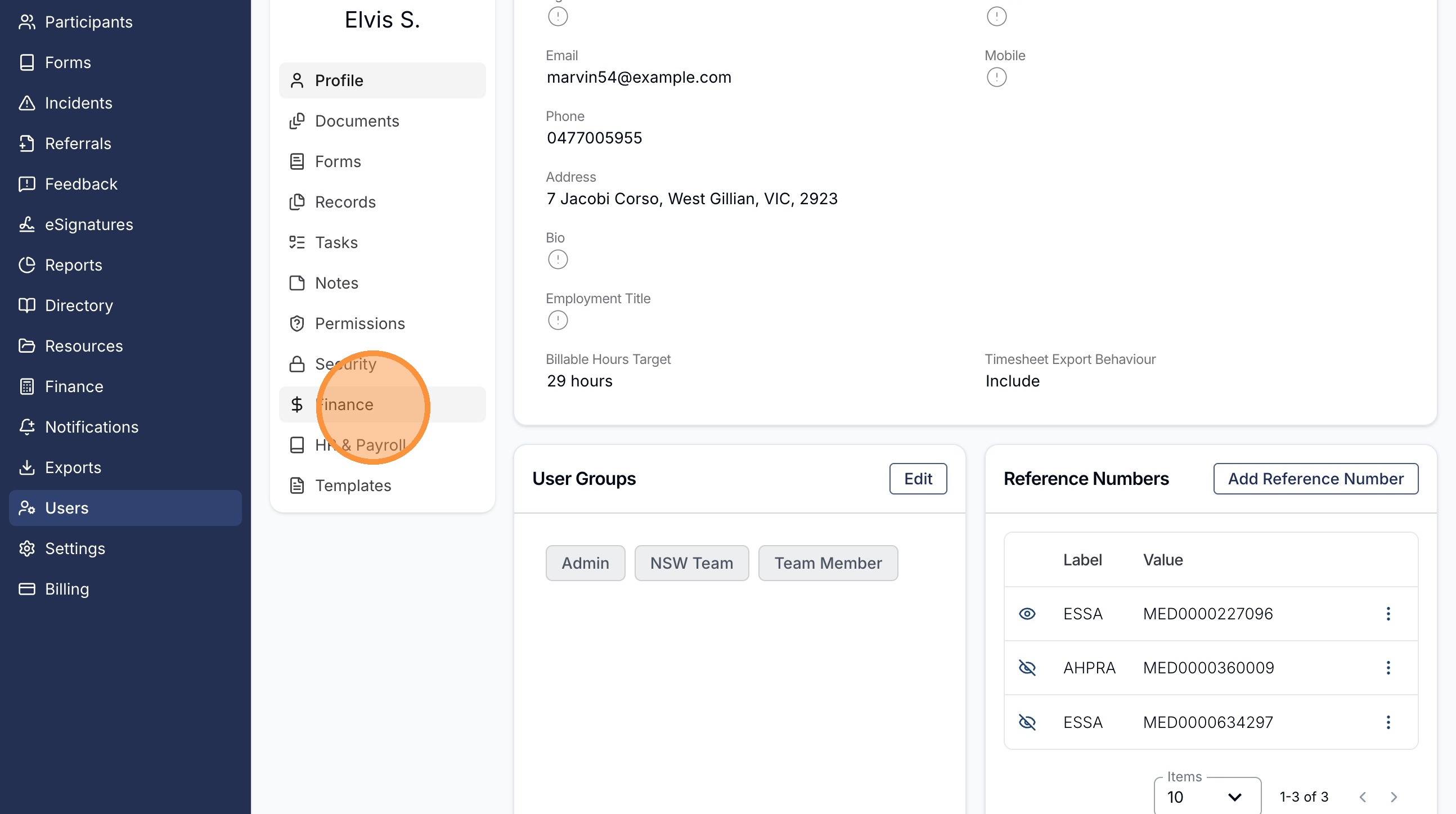
First, navigate to the Users menu and select the contractor you'd like to make entitled to superannuation. From their profile, open the Finance tab.
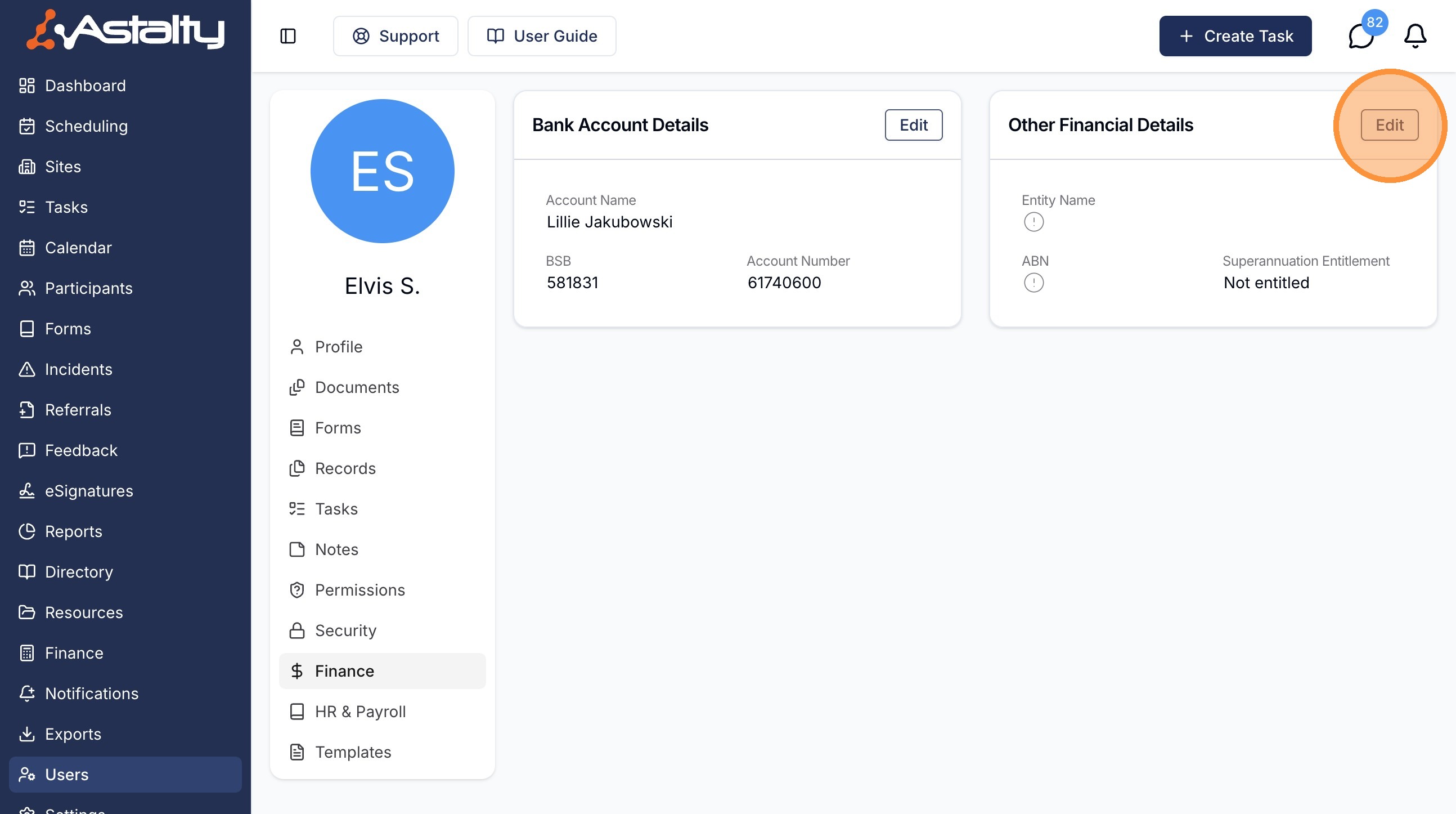
In the Other Financial Details card, click the 'Edit' button.
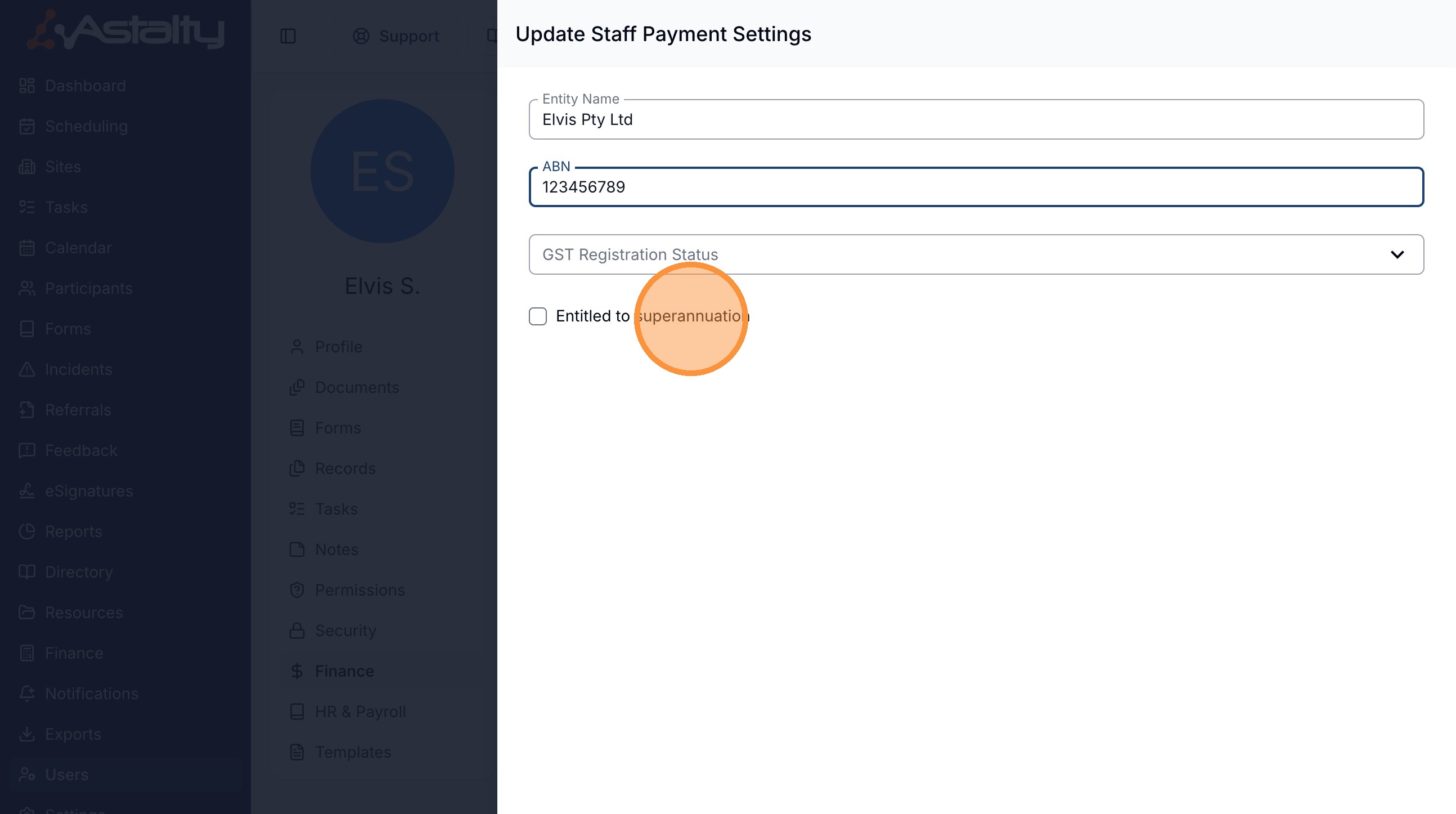
Update any details you need to, such as the Entity Name and ABN. If the contractor is entitled to be paid superannuation, tick the 'Entitled to superannuation' checkbox.
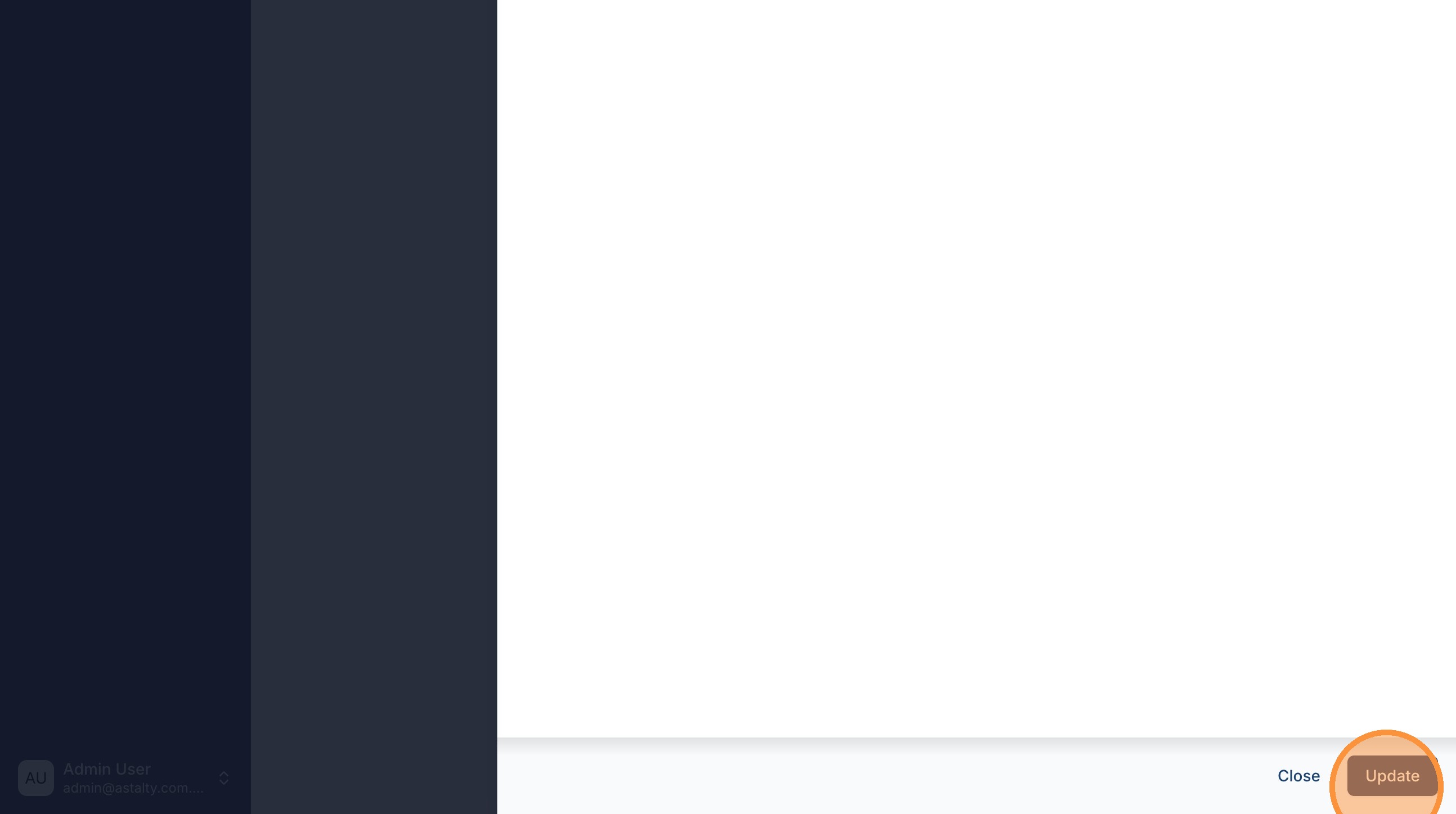
Once you're happy, click 'Update' to save your changes.
Processing the Staff Payment Batch
Now that the contractor is entitled to superannuation, process your Staff Payment Batch exactly as you normally would — create the batch, generate the draft, calculate it, finalise it, and mark it as paid.
You can follow the full process step by step in our Processing guide.
Finding the Superannuation Amount
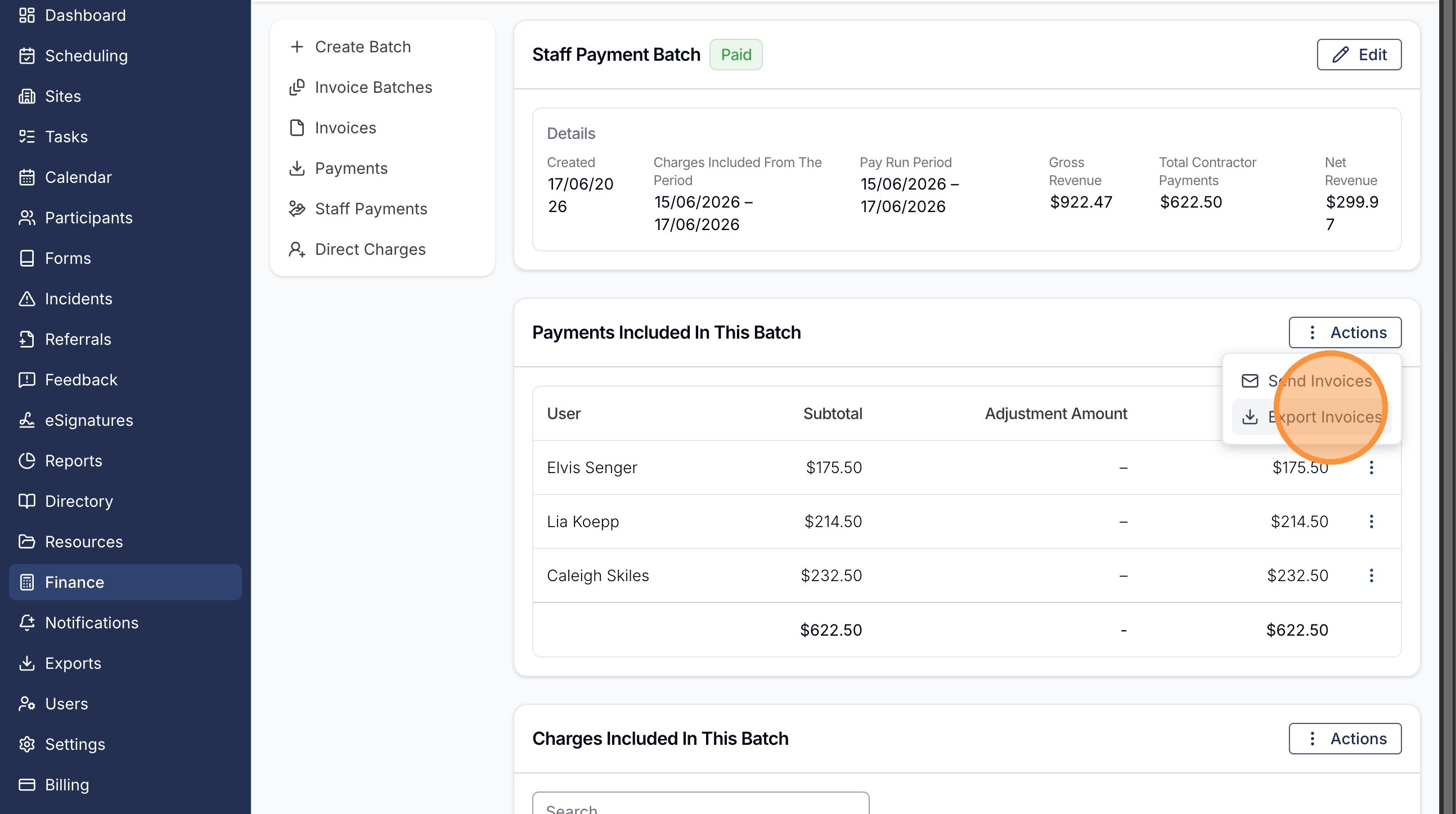
To view the superannuation amount, open the finalised, paid batch, click the 'Actions' button and select 'Export Invoices'.
Choose the contractors you'd like to include and select 'Export Selected', then download the file.
On the downloaded invoice (RCTI), the superannuation amount is shown as a separate line — 'Statutory Superannuation (Paid Separately)'.
Contractors can also download their own RCTI from the My Payments report. See our Reports & Exports guide for more detail.