Processing
Create a Staff Payment Batch to calculate contractor payments from invoiced Task charges, then record the batch as paid.
Overview
Complete the Staff Payment settings before processing your first batch. You need payment rates to calculate a batch. You need provider and contractor bank details only if you will create an ABA payment file.
Staff Payment Batch Criteria
A draft Staff Payment Batch includes invoiced Task charges in the selected date range when the assigned staff member has the Contractor employment type and the charge has not already been placed in a Staff Payment Batch. Direct Charges and support charges without a linked Task are not included.
Finalise the relevant Invoice Batch first so the Task charges are linked to invoices. Each Charge Item also needs a Payment Rate before you can calculate the draft batch. Bank details and the provider's ABA settings are required only when downloading an ABA payment file, as explained below.
Staff Payment Batch Process
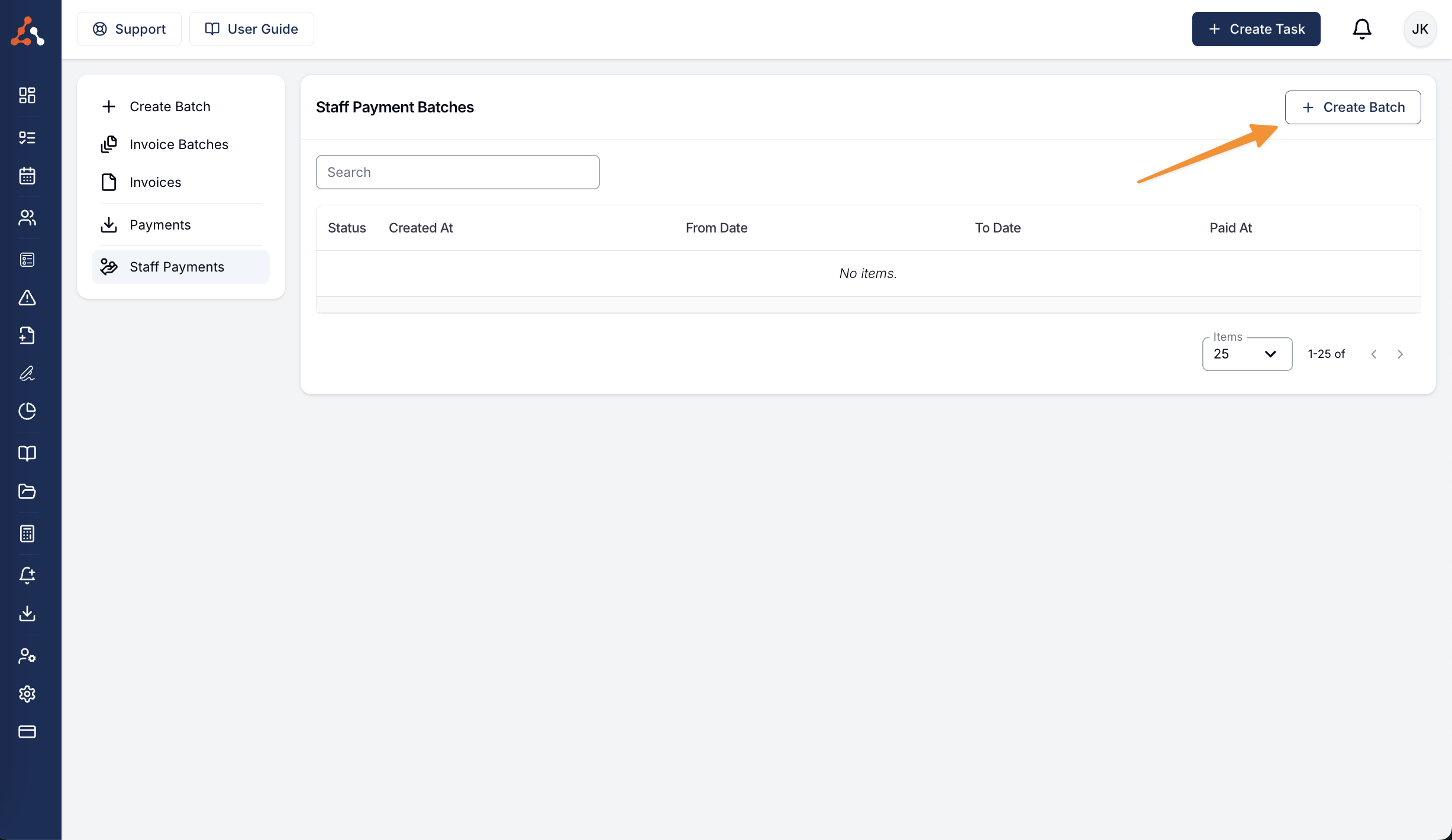
- Open Finance > Staff Payments.
- Select Create Batch.
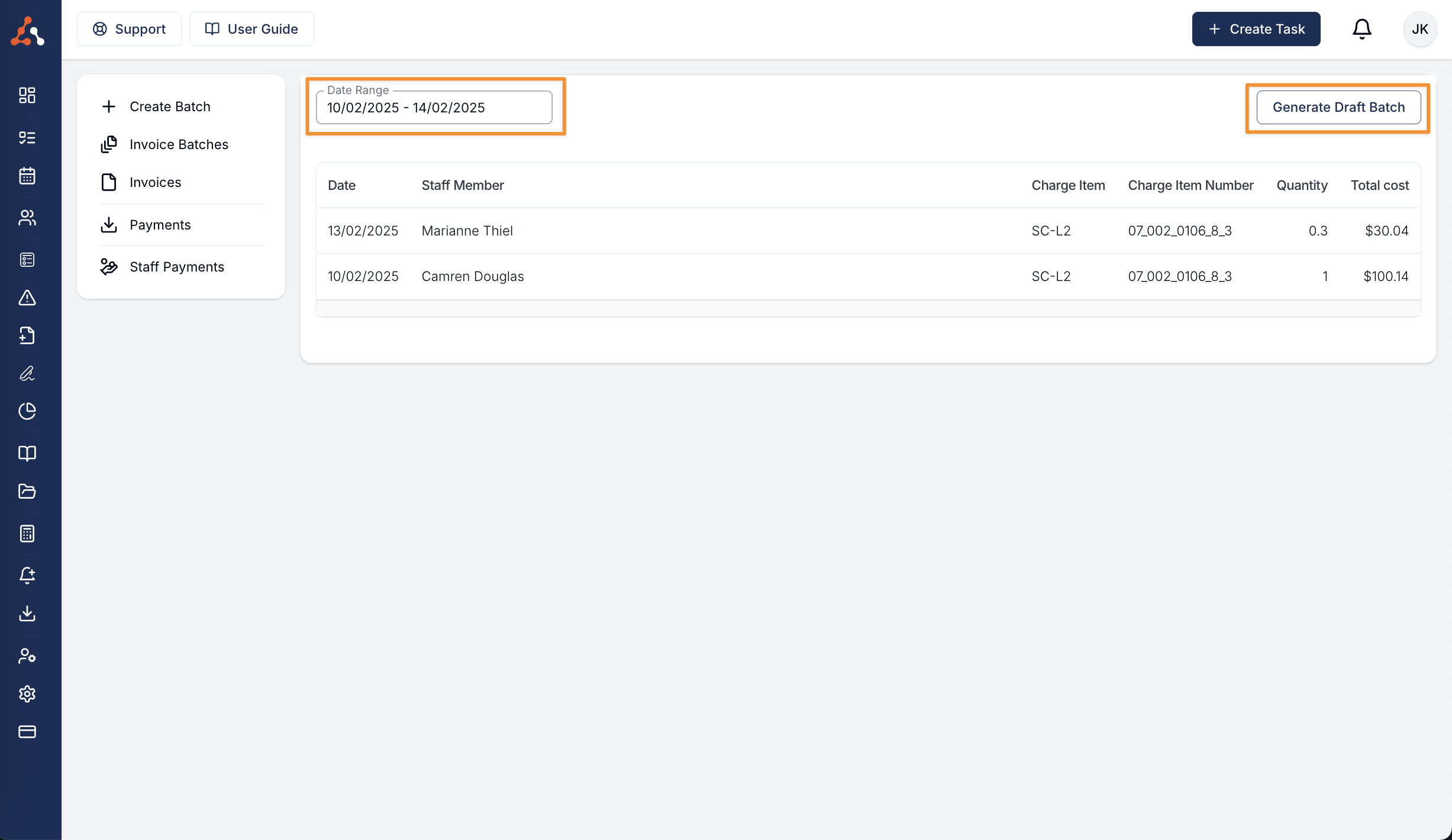
- Review the eligible charges. If Astalty finds older unpaid charges, select Adjust dates to include them.
- Select Generate Draft Batch.
- Enter Pay Run Date From and Pay Run Date Until, then select Apply.
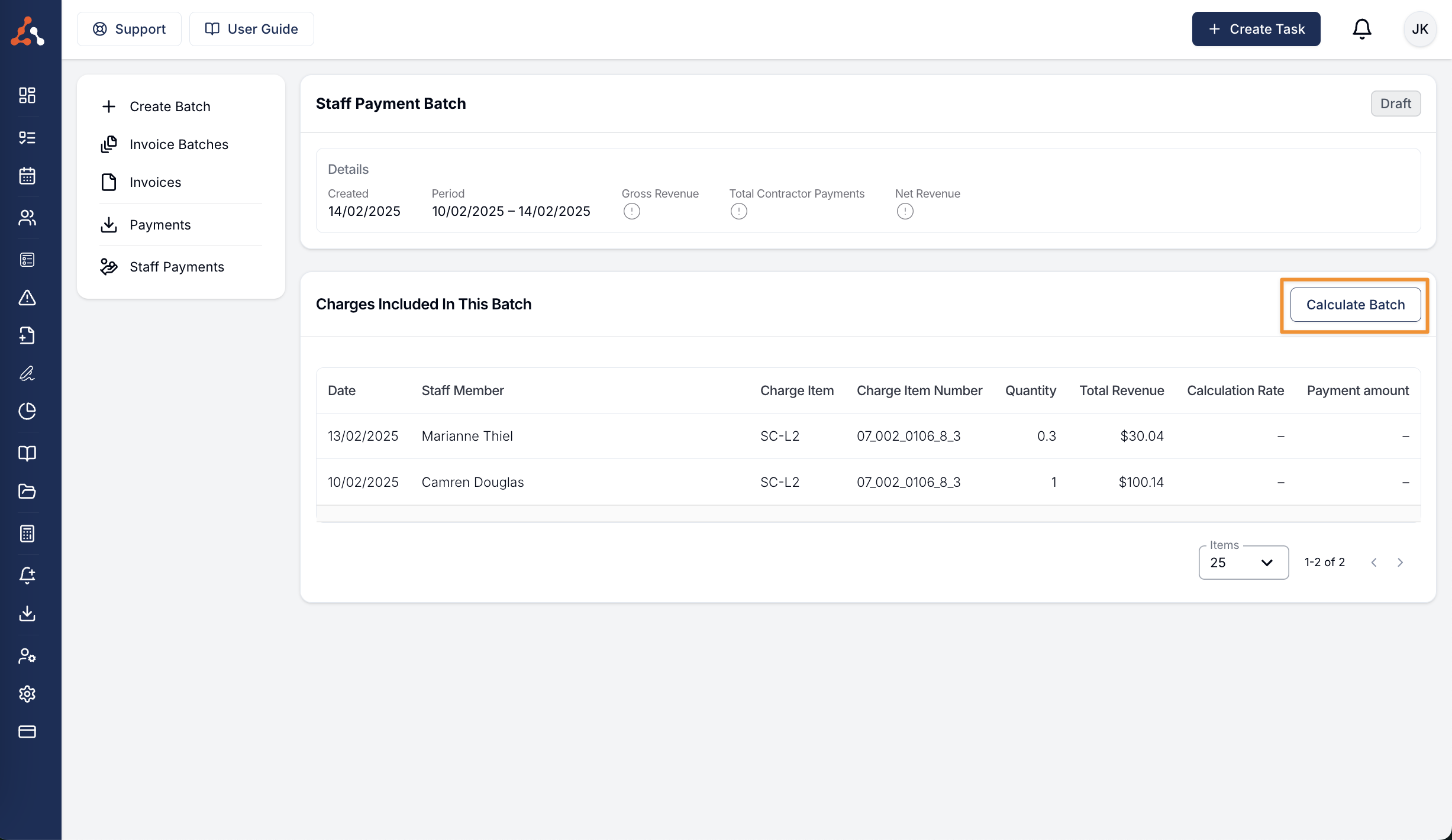
- Open the draft and select Calculate Batch, then confirm. Astalty applies the payment rate that covers each Task's delivery date.
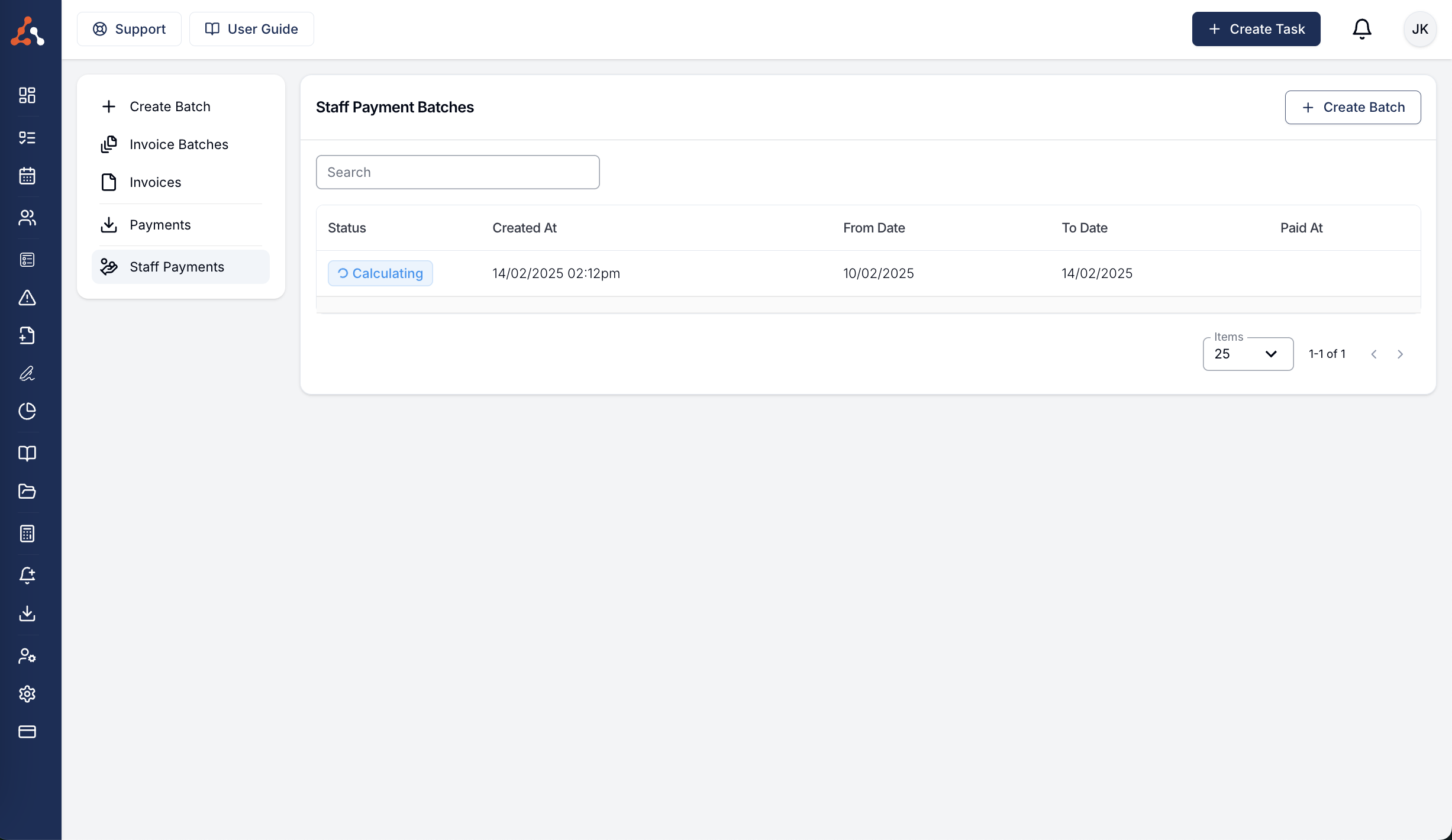
The batch calculates in the background. If a Charge Item has no payment rate for a Task's delivery date, Astalty keeps the batch in Draft and lists the Charge Items you need to fix.
- Open the Calculated batch and review Charges Included In This Batch.
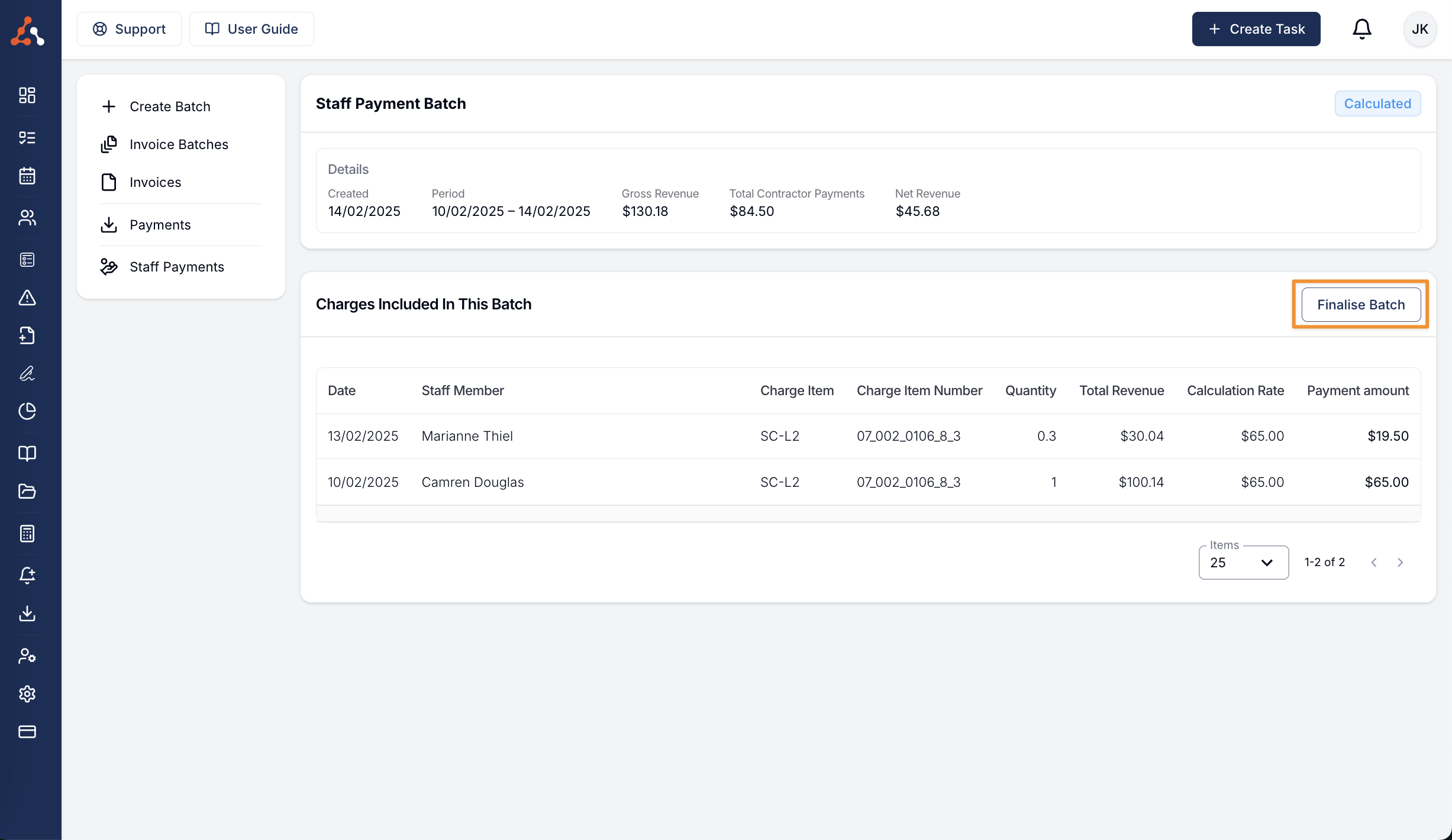
- Select Finalise Batch, then confirm.
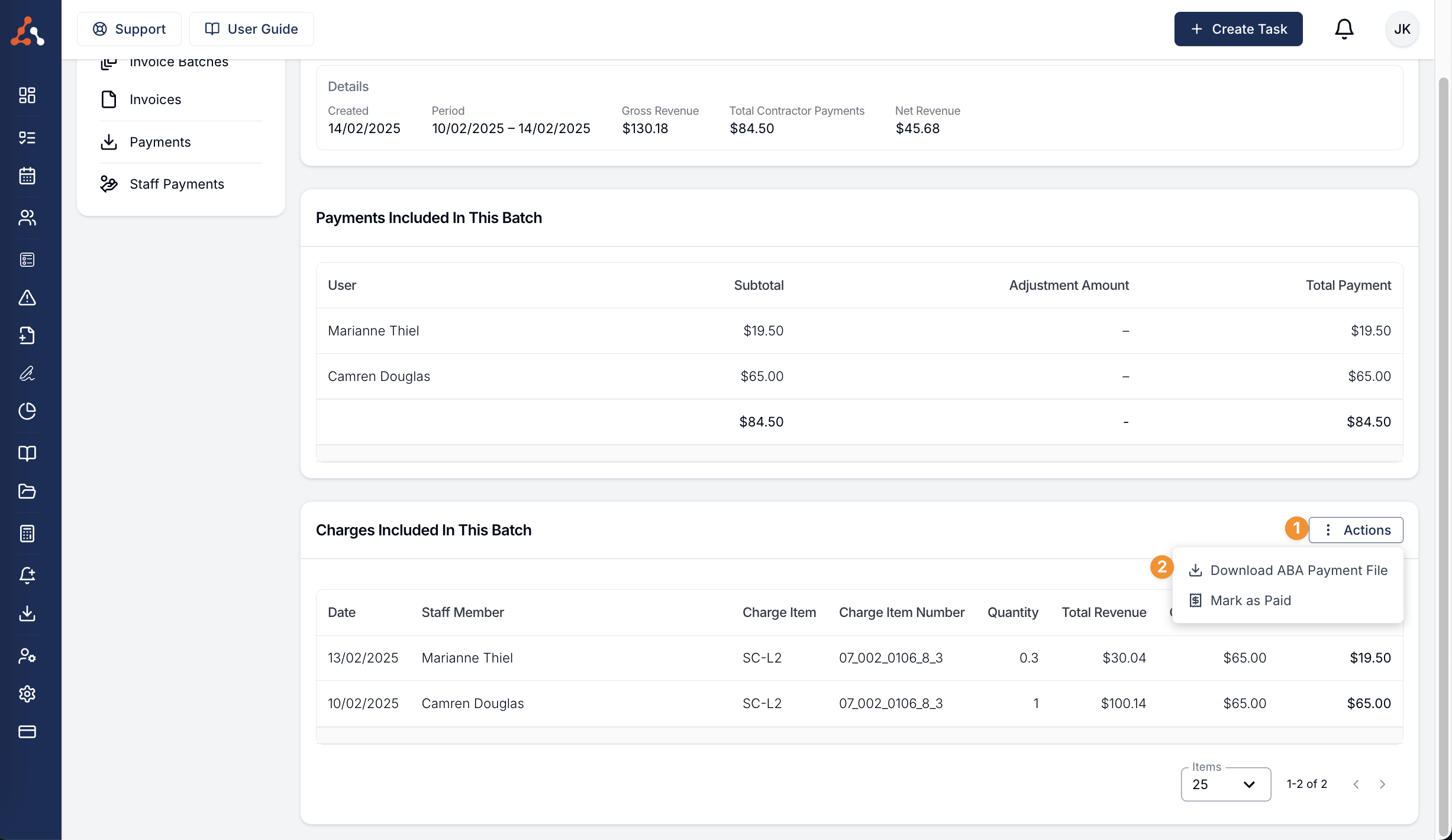
- To create the bank file, select Actions > Download ABA Payment File.
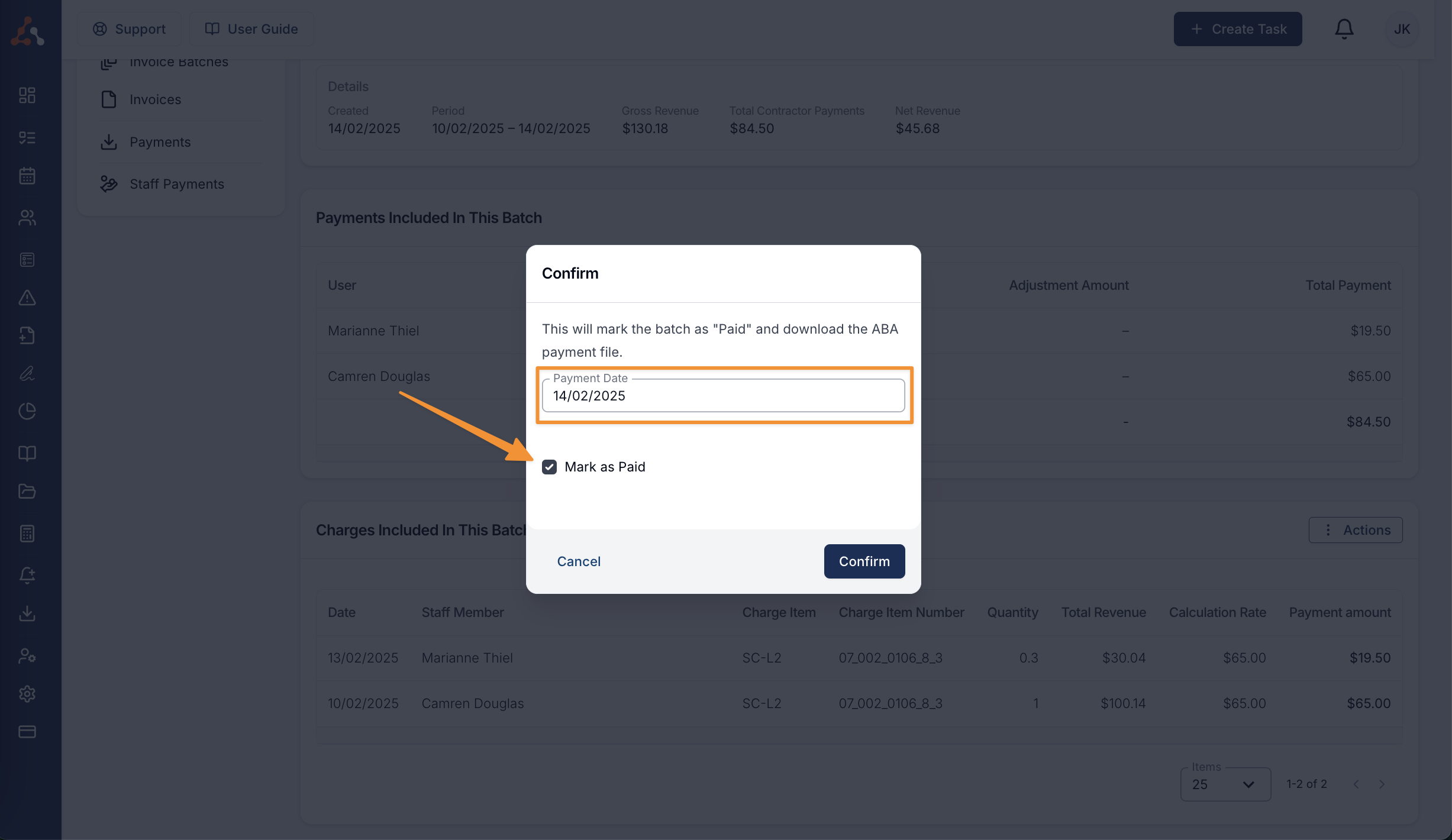
- Select the Payment Date. Leave Mark as Paid selected if this file represents the payment you will make.
Marking a Batch as Paid
The Actions button appears after a batch is Finalised.
There are two ways to mark a Finalised batch as paid, and the difference is the payment date:
- Download ABA Payment File lets you choose the Payment Date and mark the batch as paid at the same time.
- Actions > Mark as Paid records the payment using today's date. Use this if you paid contractors another way.
Only Paid batches appear in the related reports and Staff Payments export.
Once a batch is Paid, the Mark as Paid option disappears from the Actions menu and the checkbox drops out of the download dialog - a batch can only be paid once. Download ABA Payment File stays available, so you can still retrieve the file if you need it again.
Downloading Xero Bills CSV (Optional Feature)
If Astalty Support has enabled the Xero Bills CSV feature, you can download contractor bills from a Finalised or Paid batch.
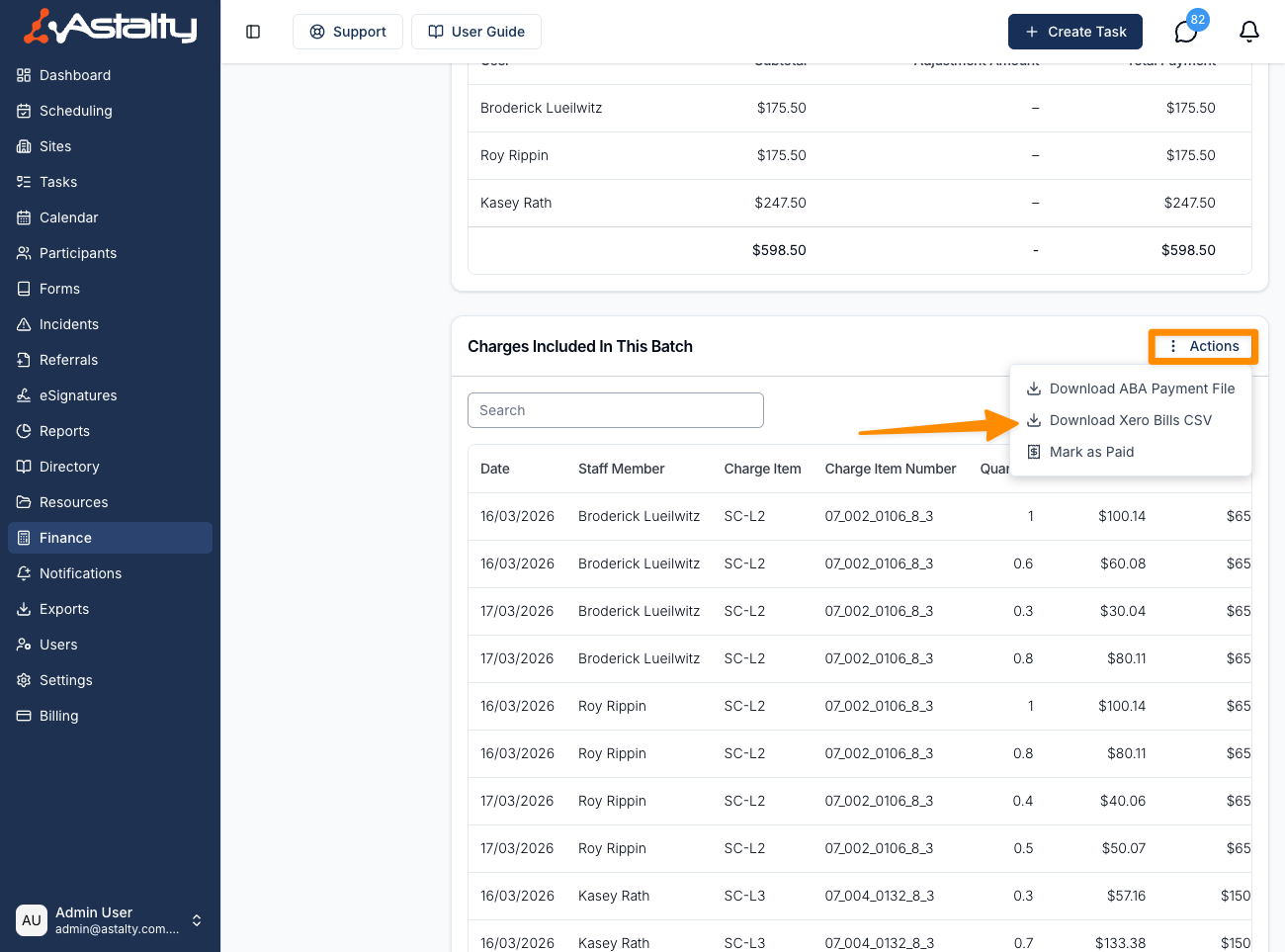
Select Actions > Download Xero Bills CSV. Import the file into Xero as Tax Exclusive, following Xero's bill import instructions. Xero creates draft bills for you to review and approve.
The file supplies the GST recorded for each line. When a line's quantity and a two-decimal unit price cannot reproduce its payment amount exactly, Astalty exports the line as quantity 1 at the full amount and adds the original quantity to the description, such as (7.75 units). Review the draft bills before approval, especially if a contractor's GST registration status changed after the batch was calculated.
Contact support@astalty.com.au if Download Xero Bills CSV is not available.
Voiding an Invoice and How This Affects a Processed Staff Payment Batch
Voiding an invoice does not change a Finalised or Paid Staff Payment Batch. If the charge is invoiced again and enters a later Staff Payment Batch, Astalty adds an adjustment during calculation to account for the earlier contractor payment. See Voiding an Invoice.
Staff Payment Reports and Exports
See Staff Payment Reports and Exports after you have marked a batch as paid.