- Finance
- Staff Payments
- Reports & Exports
Reports & Exports
Overview
This user guide article outlines the Staff Payment Export and related Report options. See the guide below for more details.
The Staff Payments export and report are available only to Admins with Finance access, and only when the Staff Payments feature is enabled. The My Payments report appears only for users whose employment type is Contractor.
Staff Payment Process Guides
The information with the Staff Payment Export and related Reports are a product of the Staff Payment process to learn more about these process' you can view the related user guide articles below;
Staff Payment - Set Up User Guide - Click here
Staff Payment - Processing Staff Payments User Guide - Click here
Staff Payment Export
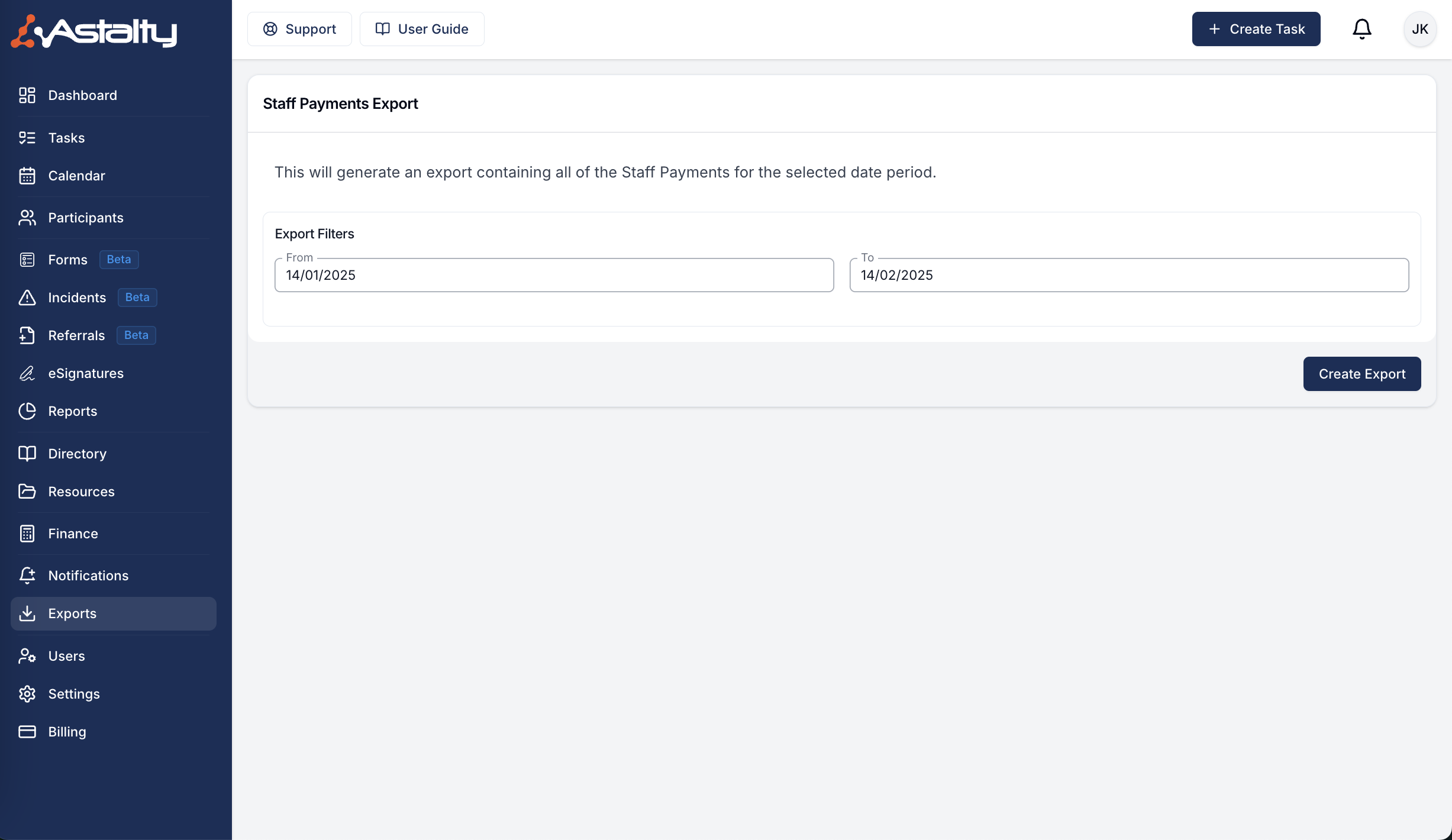
To access the Staff Payment Export, navigate to the Exports menu and select the Staff Payments option under the Finance heading. This will take you to the Staff Payments export configuration screen. On this screen you can select the date range that the export will adhere to.

Staff Payment Reports
Staff Payments
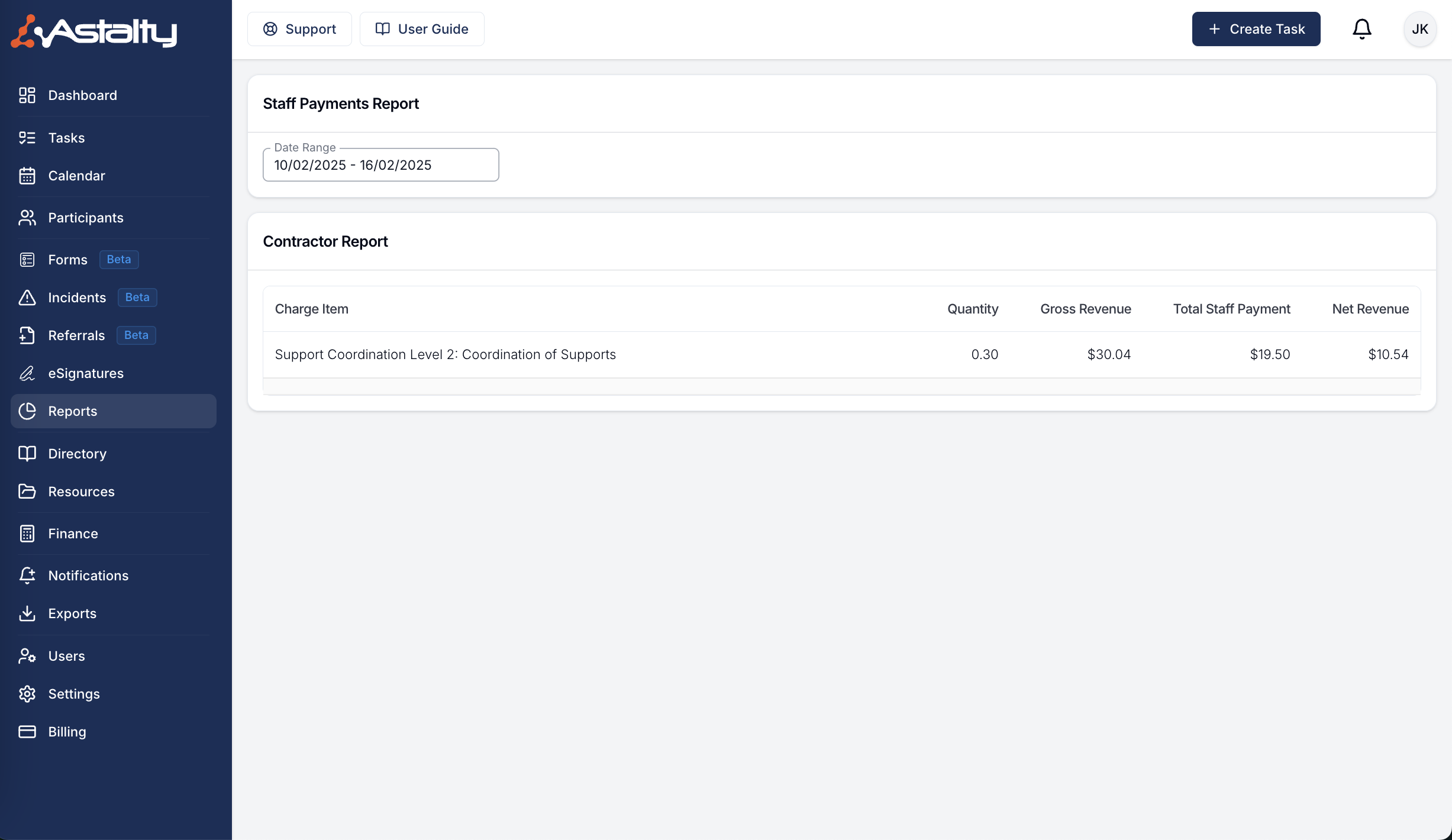
The Staff Payment report outlines payments made per Charge Item to users with the Contractor employment type. Only Admins with Finance access can view it. Navigate to the Reports menu and select Staff Payments under the Finance Reports tab.

My Payments
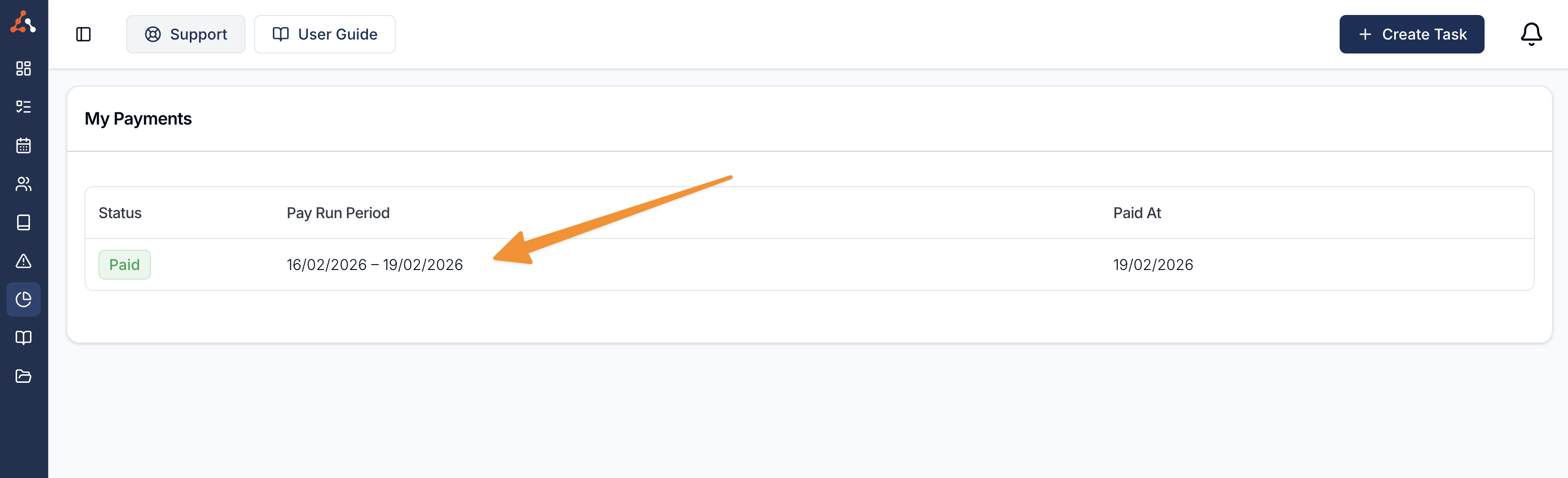
The My Payments Report is a report that users with the Contractor user type can see within their Reports menu. This report outlines the payments made per Charge Item to the user accessing the report. To access this report, navigate to the Reports menu and you will see the option My Payments under the Finance Reports tab.
The 'My Payments' page will display all available Payment Batches for the Contractor user. If you would like to view all the charges included in a batch, select a Payment Batch.

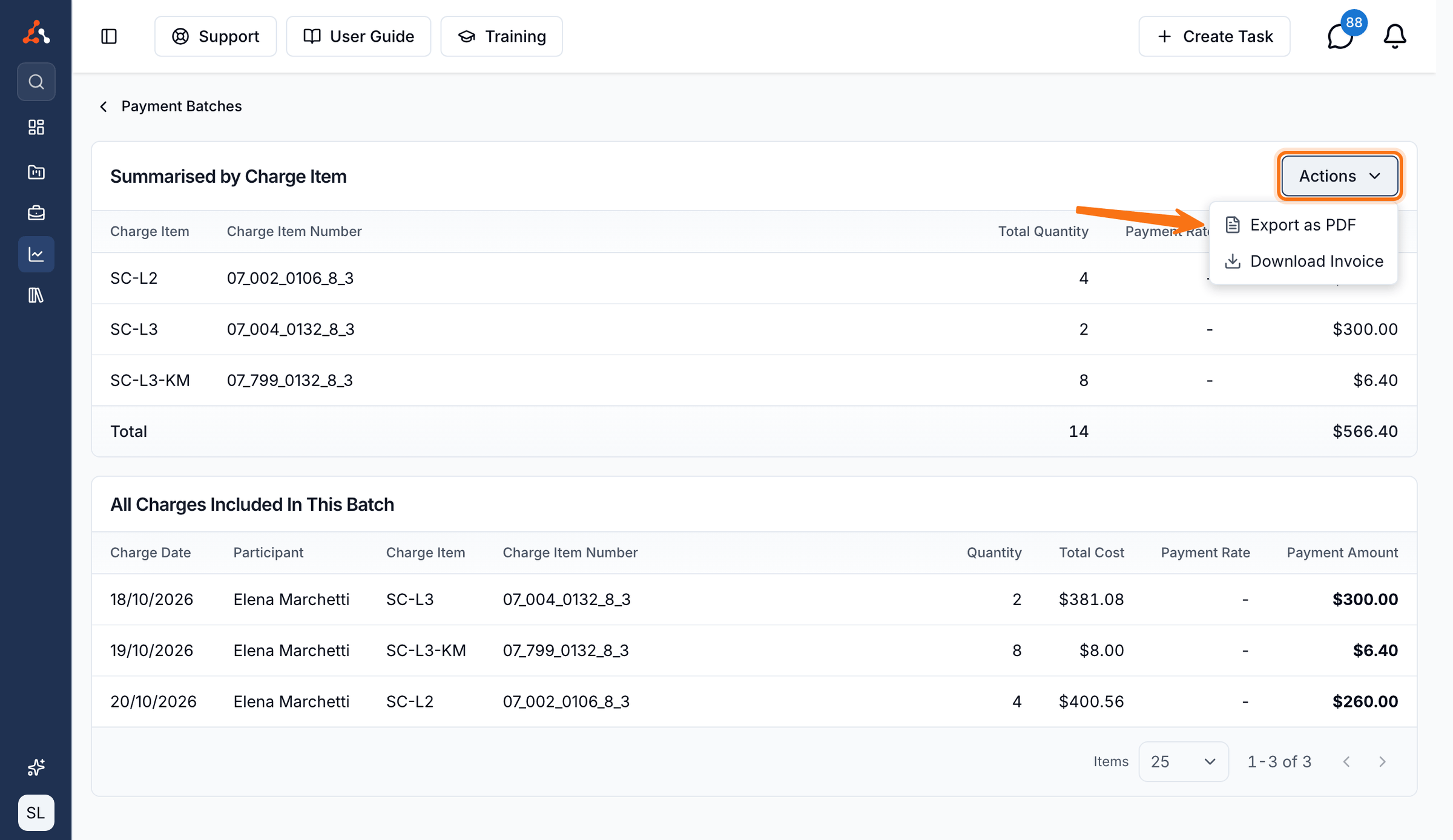
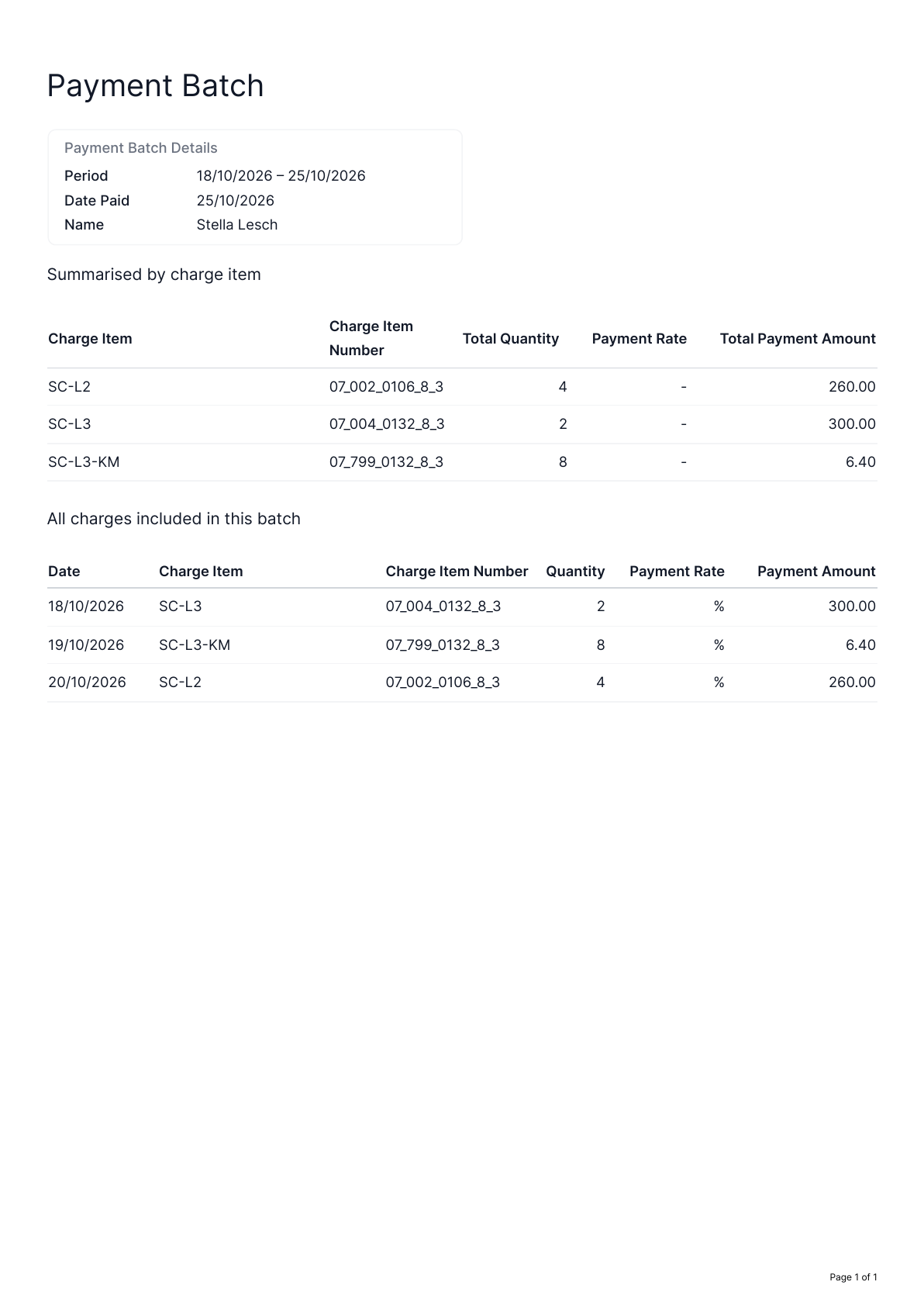
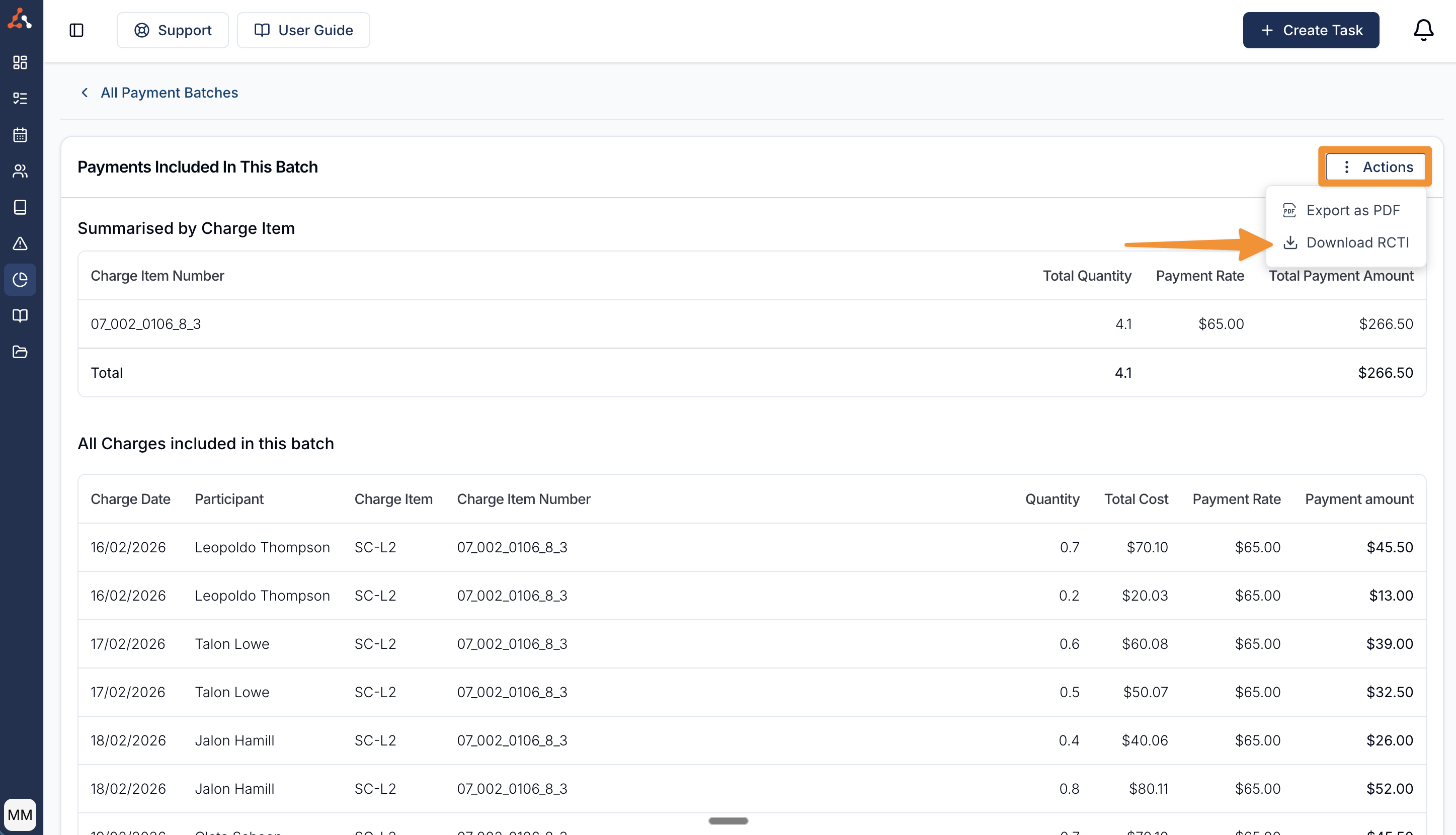
Selecting the Payment Batch will open to a page of payments included in this batch, which includes a summary by Participant, Charge Item, and all charges. If you would like to export the currently viewed payment batch, use the 'Actions' button in the top right and select 'Export as PDF' as shown in the example below.

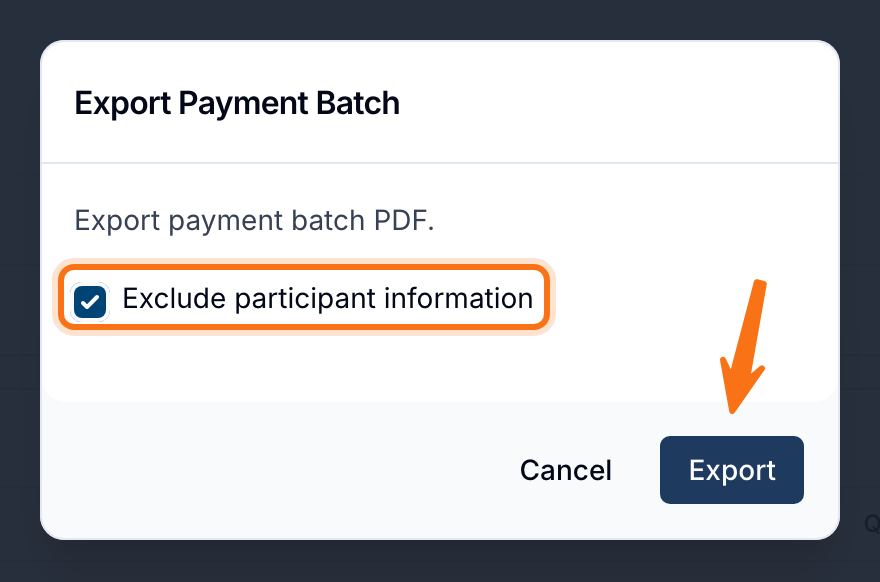
You can also choose to exclude Participant information from this export if necessary by selecting the option that appears when you Export as PDF.


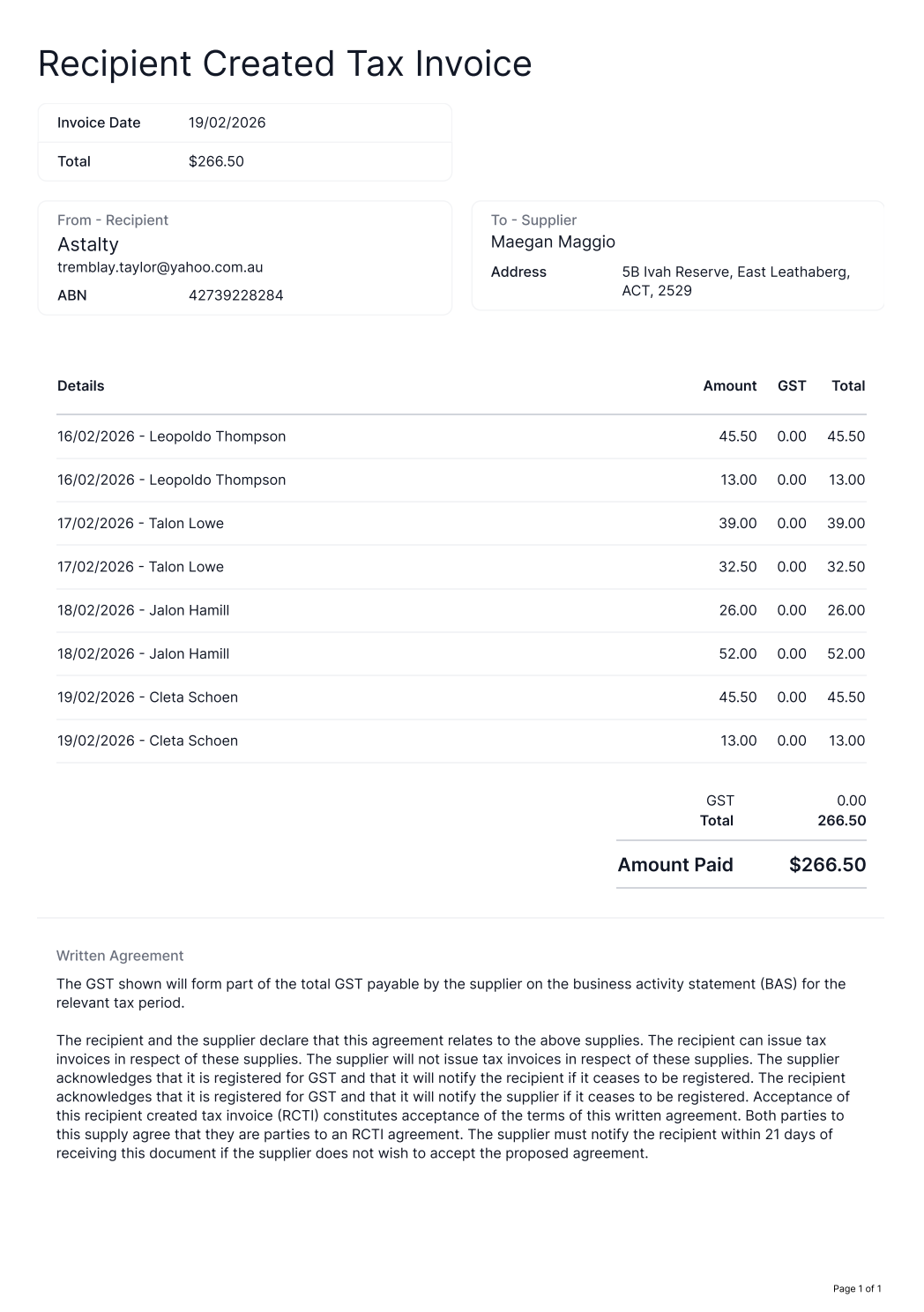
If you require a Recipient Created Tax Invoice (RCTI), you can also export this by clicking on Download RCTI in the Actions menu. You will have the same option to exclude Participant information before finalising the download.