RCTIs
Overview
A Recipient Created Tax Invoice (RCTI) is a tax invoice that your organisation issues on a contractor's behalf for the work you are paying them for, so the contractor does not need to send you their own invoice. With RCTIs turned on, Astalty creates an RCTI for each contractor in a Paid Staff Payment Batch. You can email each contractor their RCTI, export several at once, or download one. Contractors can also download their own.
Astalty labels RCTIs as Invoice in its menus, such as Send Invoices, Export Invoices and Download Invoice. These are separate from the invoices you send to Participants and funders.
RCTIs are available only after a batch is Paid. To create, finalise and pay a batch, see Processing.
What an RCTI Includes
Each RCTI covers one contractor's payments in one Paid batch. It shows:
- the Invoice Date, which is the date the batch was paid, and the Total
- From - Recipient: your organisation's name, accounts email address and ABN
- To - Supplier: the contractor's Entity Name (or their name if no Entity Name is recorded), along with their ABN and address
- one line per charge, with its date, Participant, Amount, GST and Total, plus a line for each adjustment in the batch
- the Amount Paid and a Written Agreement setting out the RCTI terms between your organisation and the contractor
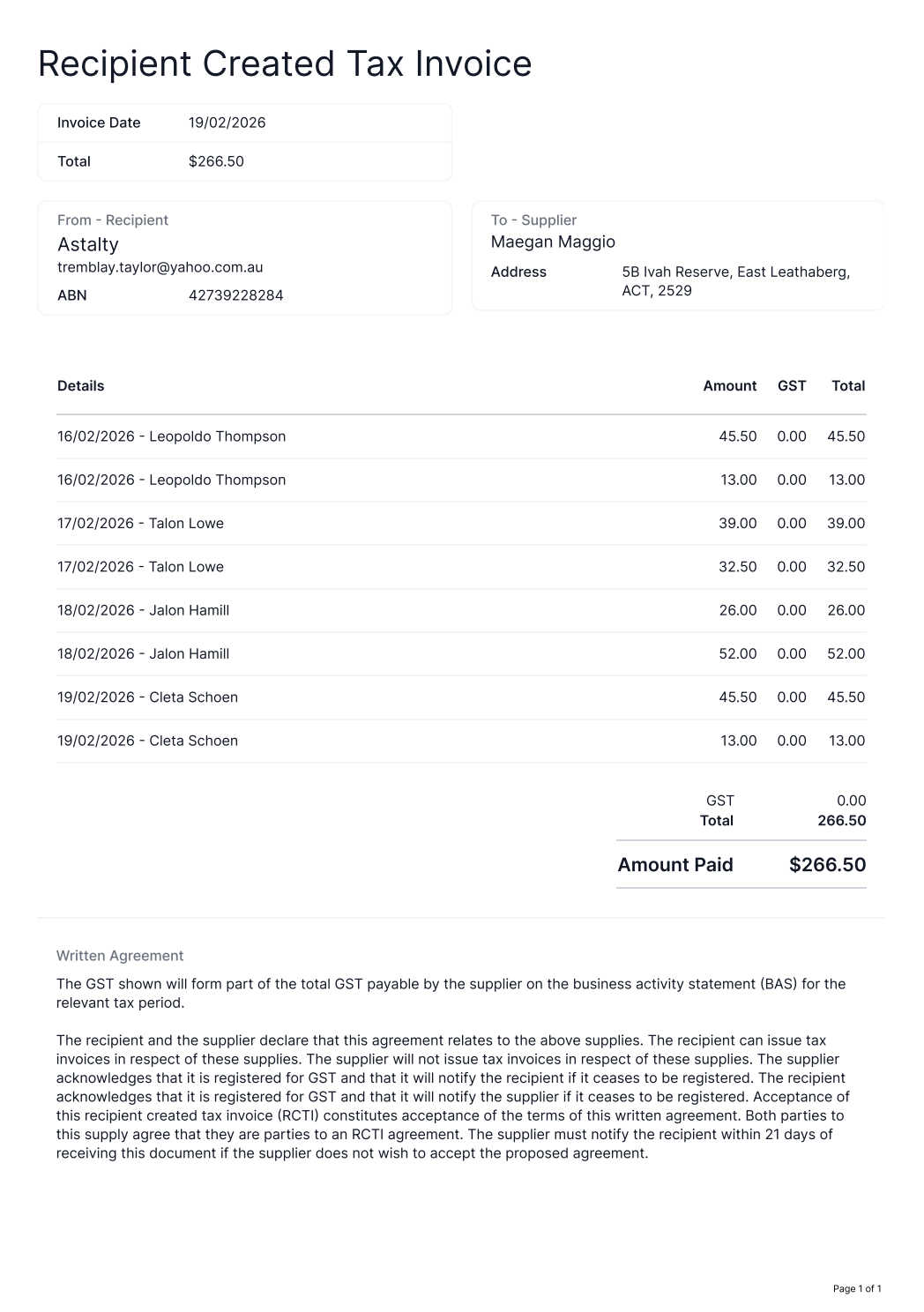
Check each contractor's ABN and Entity Name in their staff payment settings before you send RCTIs, because both appear on the invoice. See Staff Payment Settings.
Two other optional features change what appears on an RCTI:
- GST Registration Status adds GST to the lines of contractors marked as registered. Everyone else shows
0.00GST. - Superannuation adds a Statutory Superannuation (Paid Separately) amount for contractors marked as entitled.
Sending and Exporting RCTIs
- Open the Paid Staff Payment Batch.
- In Payments Included In This Batch, select Actions.
- Select Send Invoices to email RCTIs, or Export Invoices to download them.
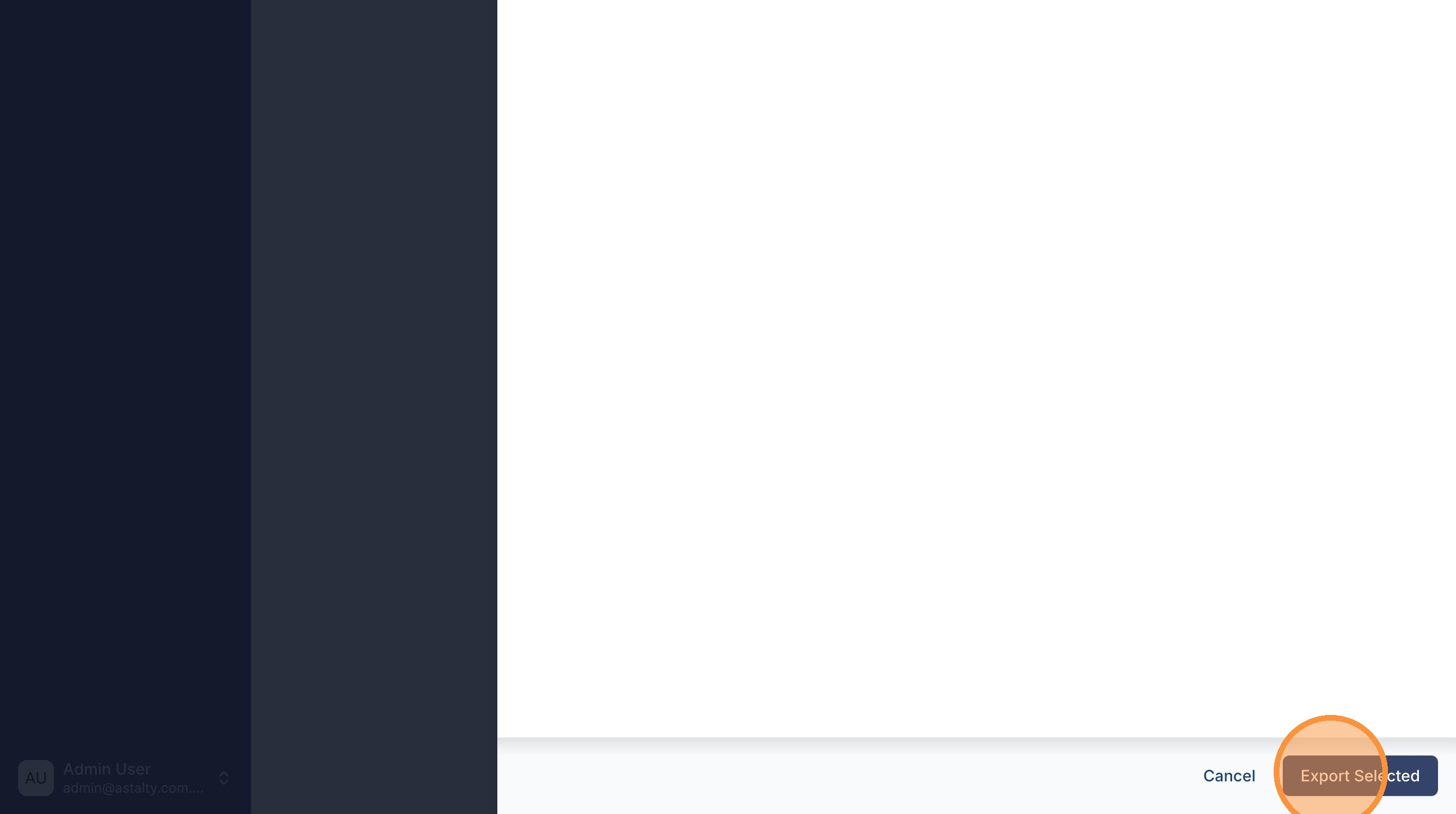
- In the drawer, every contractor in the batch is selected. Clear anyone you want to leave out.
- Select Send Selected or Export Selected.
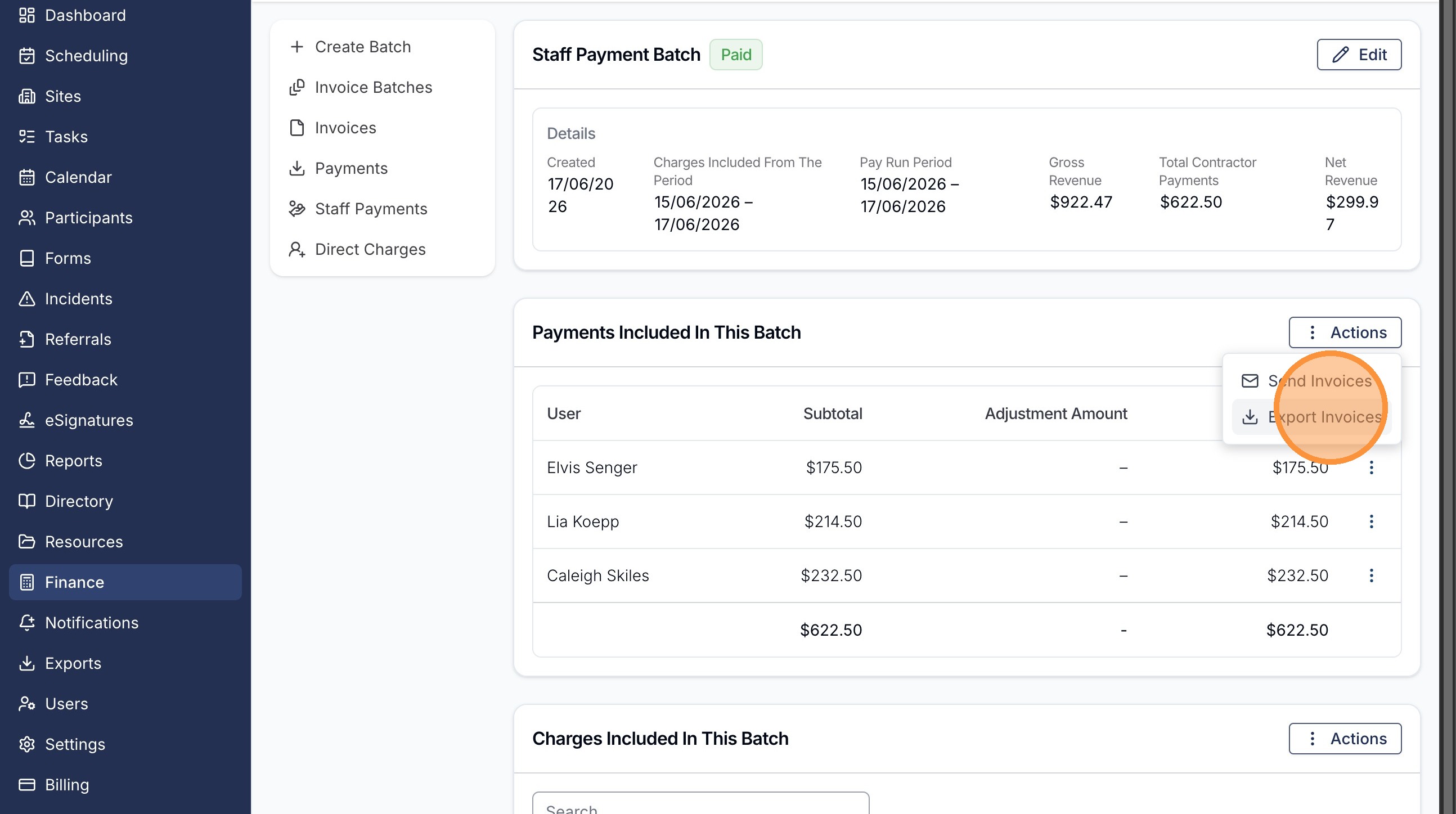
Send Invoices emails each selected contractor their own RCTI as a PDF attachment, using the email address recorded on their user profile. The email's subject is "Your RCTI" followed by the date the batch was paid.
Export Invoices creates a ZIP file that contains a separate PDF for each selected contractor. Astalty takes you to Exports, where you can download the ZIP when it is ready.
Downloading One Contractor's RCTI
In Payments Included In This Batch, open the action menu on the contractor's row and select Download Invoice. Astalty downloads their RCTI as a PDF.
Contractors Downloading Their Own RCTI
A contractor can download their own RCTI from Reports > Finance > My Payments. They open a Paid batch, select Actions > Download Invoice, and can choose to exclude Participant information from the PDF. See My Payments.
Using Ask Astalty
With AI access, you can ask Ask Astalty for a Paid batch's RCTIs. It links you to the batch, where you can download or export them. You can also ask it to send RCTIs to every contractor in the batch or to the contractors you name. Ask Astalty lists each recipient and their email address for you to approve before it sends anything.
A contractor with AI access can ask Ask Astalty for their own RCTI. It links them to their batch in My Payments, where they download it.
If the Invoice Actions Are Missing
- If the batch is not yet Paid, mark it as paid first. See Marking a Batch as Paid.
- If the batch is Paid and you still cannot see Send Invoices, Export Invoices or Download Invoice, RCTIs are not enabled for your organisation. Contact support@astalty.com.au.