GST Registration Status
Overview
Some contractors are registered for GST and some aren't. Once this feature is enabled, you can record each contractor's GST registration status on their user profile, and Astalty will automatically add 10% GST to the staff payments of contractors you have marked as Registered.
Recording a Contractor's GST Registration Status
By default, only Admins can update a contractor's financial details.
Navigate to the Users menu and select the contractor whose GST status you'd like to record. From their profile, open the Finance tab.
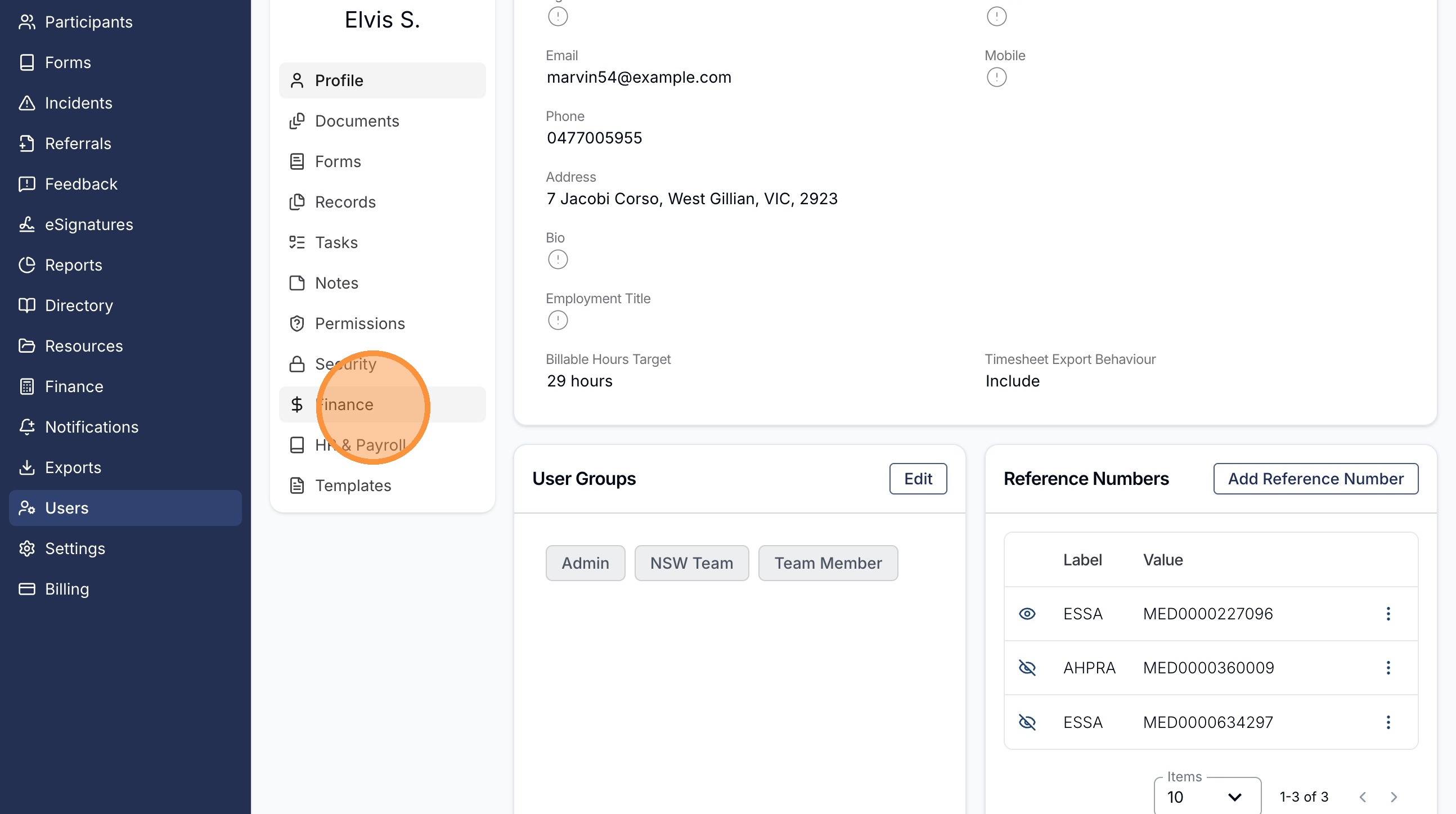
In the Other Financial Details card, click the 'Edit' button.
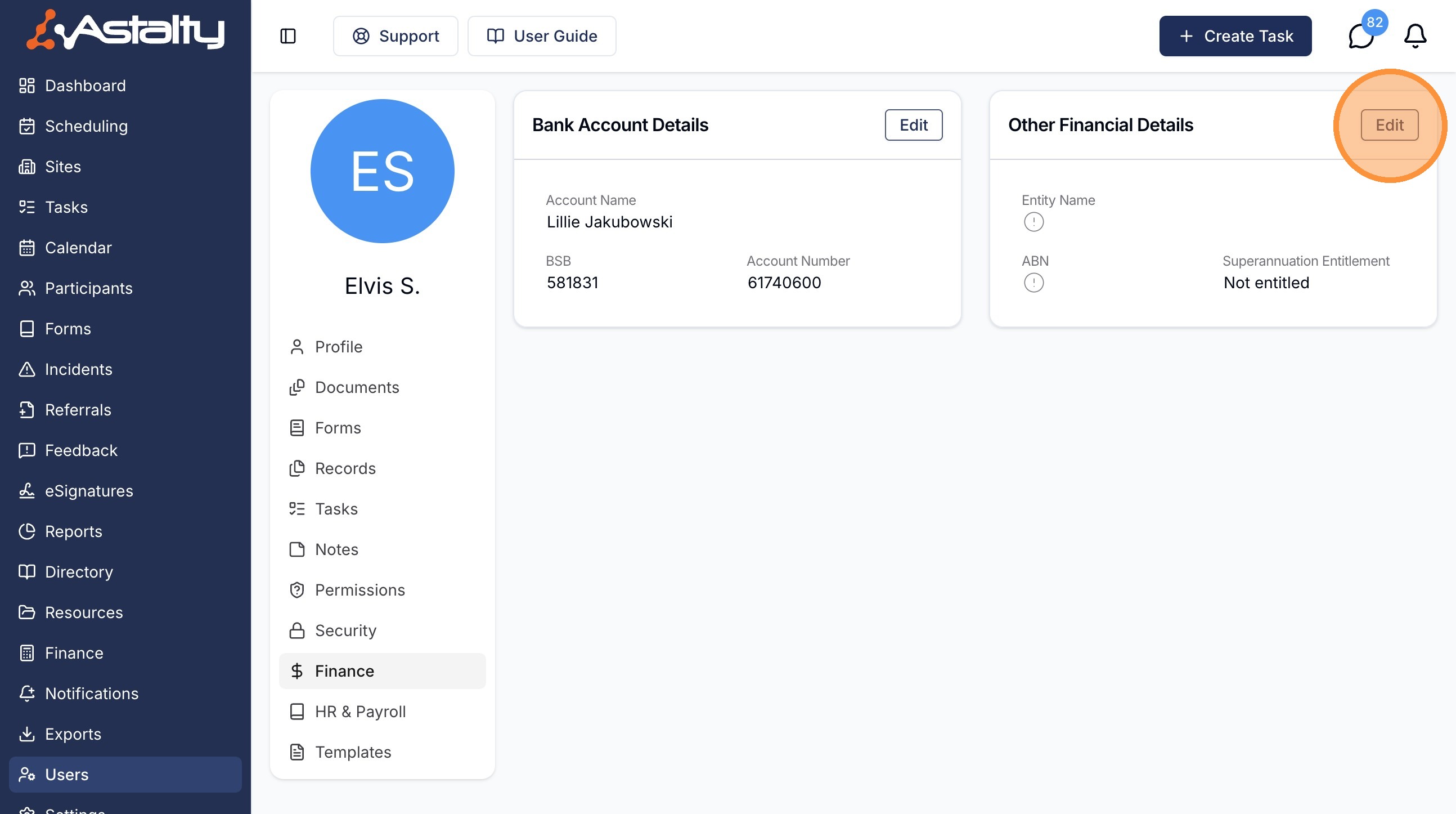
The card shows GST Registration Status after a status has been recorded. Before then it shows Entity Name, ABN and, when enabled, Superannuation Entitlement.
Clicking 'Edit' opens the Update Staff Payment Settings drawer. Underneath Entity Name and ABN you'll find the GST Registration Status dropdown. It stays greyed out until the contractor has an ABN recorded, so fill the ABN field in first if it's empty.
There are three options:
| Status | What it means |
|---|---|
| Registered | The contractor is registered for GST. Astalty adds 10% GST to their staff payments. |
| Not Registered | The contractor is not registered for GST. No GST is added. |
| Unknown | You haven't confirmed the contractor's GST status yet. No GST is added. |
Once you're happy, click 'Update' to save your changes. The status you chose then appears as a GST Registration Status row on the Other Financial Details card.
Processing the Staff Payment Batch
Once the status is recorded, process your Staff Payment Batch exactly as you normally would - create the batch, generate the draft, calculate it, finalise it, and mark it as paid. You can follow the full process step by step in our Processing guide.
GST is worked out when the batch is calculated, using each contractor's GST Registration Status at that moment. The GST amount is 10% of the contractor's payment amount.
Where GST Appears
The ABA File
Unlike Superannuation, GST is added to the amount the contractor is paid. The ABA payment file contains the contractor's payment amount plus their GST amount, so a GST-registered contractor is paid 10% more than their payment rate alone.
The Contractor's Invoice (RCTI)
Each contractor's Recipient Created Tax Invoice (RCTI) has a GST column against every line, plus a GST row in the totals. For a contractor marked Registered, these show the GST amounts; for everyone else they show 0.00.
You can download RCTIs from a finalised, paid batch by clicking 'Actions' and selecting 'Export Invoices'. Contractors can also download their own RCTI from the My Payments report - see our Reports & Exports guide.
These RCTI controls require the separate Staff Payment RCTI optional feature, which Astalty Support must enable for the provider.
The Xero Bill Export
If you also use the Staff Payment Xero bill export, a contractor's GST Registration Status sets the tax type on their bill lines:
- Registered →
GST on Expenses - Not Registered or Unknown →
GST Free Expenses
The CSV has no GST column. Its line amounts are the contractor's payment amounts, GST exclusive - Xero works out the 10% from the tax type when you import the file.