- Changelog
- 9 July 2026
9 July 2026
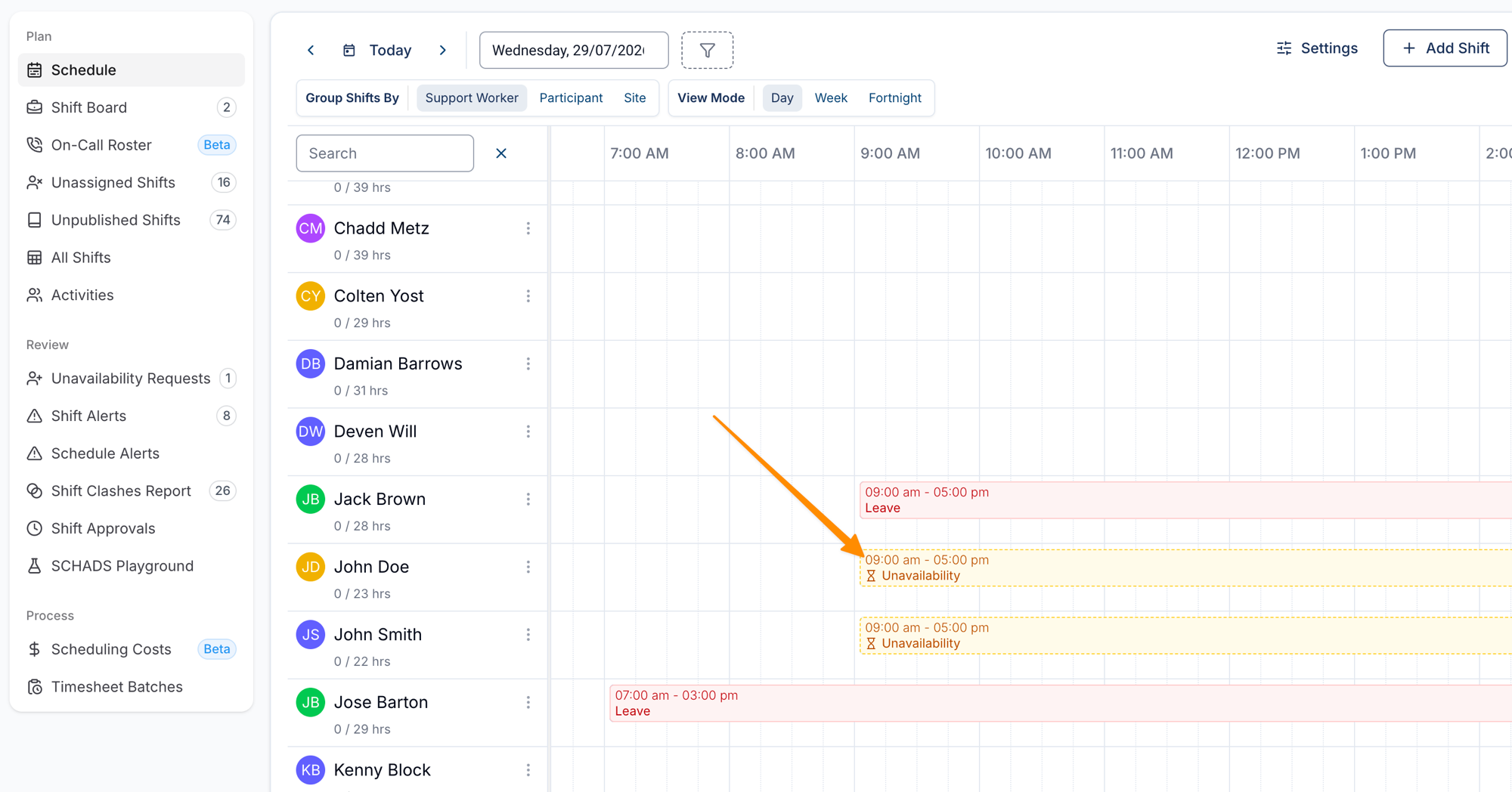
Pending Leave & Unavailability on the Schedule
Pending (unapproved) leave and unavailability requests now appear directly on the Schedule, so you can see what's still awaiting a decision while you plan and allocate supports - without switching across to the Unavailability Requests tab.
- Pending requests are shown with a distinct colour and a dashed outline (versus the solid block used for approved leave), and are marked with an hourglass icon and a Pending label so the status is clear at a glance
- Clicking a pending request opens the full review panel right on the Schedule, including any affected shifts, so it can be approved or declined without leaving the view
- A new account setting, Show Pending Leave on Schedule (Settings → Scheduling), controls this behaviour - it is on by default for all accounts, and providers who only want approved leave on the Schedule can switch it off
For more information, visit the Viewing the Schedule and Scheduling Settings guides.
Budget Funding Periods
You can now split a budget's total across multiple funding periods, each with its own dates and amount - useful when a Participant's funding is released in stages across their plan rather than all at once.
- Tick This budget has a funding schedule when creating a budget and set the Number of funding periods - this works for both Internal and External budgets
- As you add budget items, Astalty automatically calculates the periods and splits the total evenly; use Edit to fine-tune each period's end date and amount, or Redistribute Evenly to reset them
- The Periods Total must match the Budget Total before saving, so the periods always add up to the full budget
- Funding periods flow through to the Service Agreement's Schedule of Supports and to any Service you create from the budget
For more information, visit the Budget Functionality guide.
Clearing and Restoring Shift Clashes
Some shift clashes are intentional and safe - for example, back-to-back shifts where travel time is already built in. You can now clear these from the Shift Clashes Report so only the genuine clashes that need attention remain.
- Clear a clash from the three-dot menu on the report, optionally recording a reason
- Cleared clashes drop off the report and are no longer counted in the sidebar total, so real scheduling problems stand out
- Clearing only hides the clash - the shifts themselves are unchanged, and you can restore a cleared clash at any time from Actions → View Cleared Clashes
For more information, visit the Shift Clashes Report guide.
Clock In and Out in One Step from Shift Alerts
When clocking in from the Shift Alerts page, you can now record the clock out at the same time - handy when you're tidying up a shift after it has finished.
- Tick Also clock out at the same time in the Clock In pop-up, adjust the Clock Out Time if needed (it defaults to the scheduled end time) and add a reason
- Click Clock In & Out to complete both entries in a single step
- If the clock out fails for any reason, the clock in is still saved and can be completed separately from the shift row
For more information, visit the Shift Alerts guide.
Clock Location Variance Notifications
You can now automatically alert your team when a Support Worker clocks in or out too far from the Participant's service address, making it easier to stay on top of attendance and location compliance.
For more information, visit the Clock Location Variance Notifications guide.
Emailing Support Notes
You can now email the Support Worker notes recorded on a support as a PDF attachment directly from the Support Viewer - useful when a Participant, support coordinator, or allied health provider needs the notes from a shift, for example to support a funding review.
For more information, visit the Emailing Support Notes guide.
Additional Charges on Calendar Event Tasks
When creating a linked Task on a calendar event, you can now add extra Charge Items alongside the main session Charge Item - for example travel or kilometres on the same appointment.
- Add extras under the Additional charges section of the Task Details and set a quantity for each
- Additional charges are scoped to the selected Participant; changing the Participant clears the selections so you choose charges relevant to the new Participant
- For recurring appointments, additional charges are automatically copied to every session generated by the recurrence
For more information, visit the Calendar Events and Tasks guide.
Editable Charge Item Names, Prices and References
You can now edit the Name, Price and Reference on individual Charge Items within a Set - including preset Charge Item Sets, which previously only allowed the price to be changed.
- The Number and Unit stay locked so the Charge Item remains valid for claiming
- When you change a price, all charges before today are locked at the current price - the new price only applies to new charges
For more information, visit the Creating & Updating Charge Item Sets guide.
SMS Improvements
Several improvements make it easier to see who can and can't be texted, and to review SMS activity.
- An opt-out indicator now appears next to a Participant's Mobile number when they've opted out of SMS (by replying STOP), with the same warning shown when creating supports and calendar events; they can opt back in by replying START
- Reminders sent for a support now appear in its Audit Trail, on a new Reminders tab; Participant YES and NO replies remain in your SMS inbox
- The Can access the SMS inbox permission is now available on Admins, Managers and Team Members
For more information, visit the SMS Reminders guide.
Support Worker Contact Visibility
You can now choose which of a Participant's Contacts are shared with your Support Workers in the Astalty mobile app. Contacts are hidden by default - you opt each one in individually, so you stay in control of exactly which details Support Workers can see.
- Tick Visible to support workers on a Contact's relationship; shared Contacts are marked with a green eye icon in the Contacts table
- Support Workers see the Contact's name, relationship, organisation, mobile and phone, and can Call, SMS or Copy the details
- This setting is separate from Consent to share information, and inactive contacts never appear in the mobile app
For more information, visit the Contacts guide.
Cloning a Participant Risk
You can now clone an existing risk to record a variation without building it from scratch - most useful when the risk is largely the same but a few details differ, such as who the risk is to or the controls in place.
- Select Clone from the three-dot menu next to a risk to open the pre-filled Clone Risk drawer
- The cloned risk is a separate, standalone entry, and cloning copies within the same Participant's profile only
For more information, visit the Risks guide.
Merging Document Categories
If you end up with duplicate Document Categories, you can now merge them - all Documents are moved into the category you keep and the duplicate is archived.
For more information, visit the Merging Document Categories guide.
Inline Quoted Replies in Chat
You can now reply directly to a specific message in Chat, with the original message quoted above your reply so it's clear what you're responding to. Replies work in both direct messages and group channels.
- Hover a message and click the Reply icon; a Replying to preview appears above the compose area
- Click a quoted message to jump to the original, which is briefly highlighted
- Quotes stay in sync - they update when the original is edited and show Message deleted if it's removed
For more information, visit the Messaging guide.
Participants With Plan Manager Report
A new report lists every plan-managed Participant alongside their Plan Manager's contact details - including the invoice email - so you have it all in one place.
For more information, visit the Participants With Plan Manager report guide.
Site Filtering for Support Notes
You can now filter Support Notes by the Site the support or group support was scheduled at, in both the Support Notes Report and the Support Notes Export - handy for pulling every note for a SIL house (or any Site) in one view or file.
- Select one or more Sites; notes on supports with no Site set won't be included when a Site is selected
- The Site filter combines with the existing date range, Participant, tag, Created by and content filters
For more information, visit the Support Notes Report and Support Notes Export guides.
Incidents Export
You can now bulk export Participant and staff incidents as a CSV or PDF, with filters and a complete record suited to audits.
For more information, visit the Incidents Export guide.
New Columns in the Shifts Export
The Shifts Export now includes extra columns to give a fuller picture of each shift.
- Shift Type - distinguishes Support Shift, Group Support Shift, Internal Shift or Unpaid Break
- Status - whether the shift is Published or Unpublished
- Cost Code - the cost code assigned to the shift (shown only when cost codes are enabled)
For more information, visit the Shifts Export guide.
Time Column in the Tasks Export
The Tasks Export now includes a Time column showing how much time was allocated to each Task in hours, matching the Time shown in the on-screen Tasks Report. Ticking Include Unbillable adds unbillable Tasks and their time.
For more information, visit the Tasks Export guide.
SCHADS Interpretation FAQ
We've added a Frequently Asked Questions section to the SCHADS interpretation guide, covering common payroll questions - how overtime is calculated from ordinary-hours caps, how breaks between shifts differ from overtime, and how sleepovers are treated.
For more information, visit the SCHADS Interpretations in Astalty guide.