- Changelog
- 6 August 2026
6 August 2026
Commenting on Shift Broadcasts
You can now leave internal comments on a Shift Board broadcast, either against the broadcast as a whole or against an individual Support Worker's row, so the context behind a decision travels with the shift instead of sitting in a separate conversation.
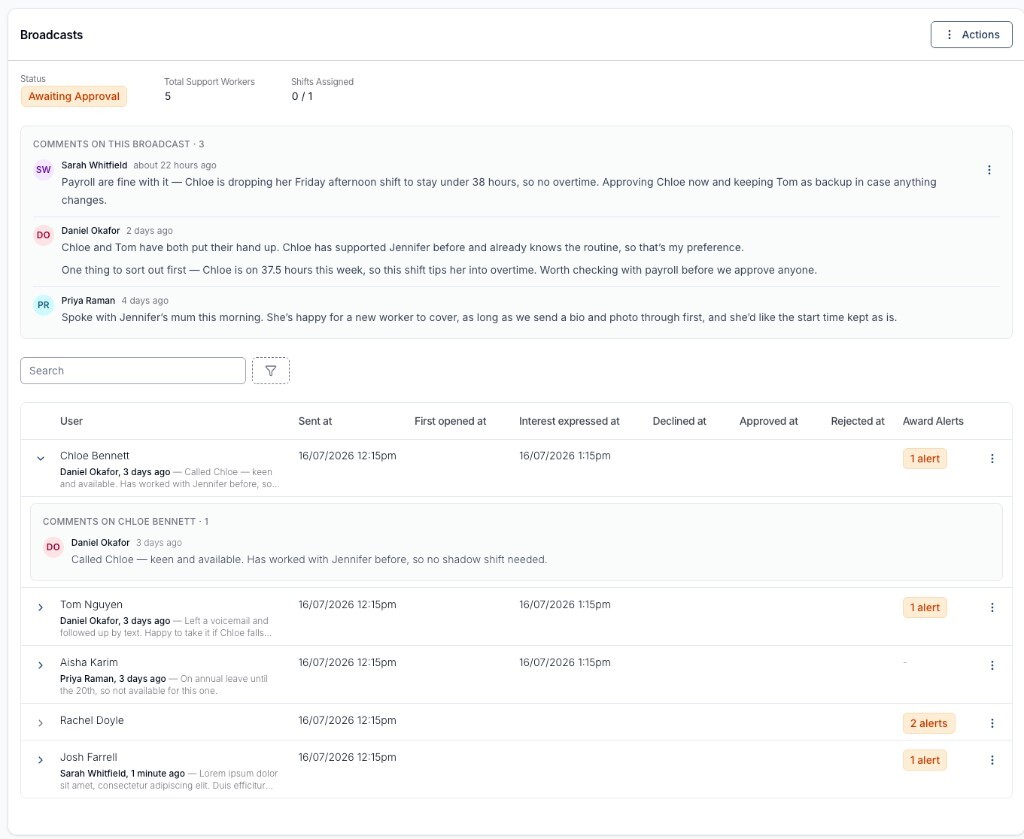
- Comment on the whole broadcast from Actions → Add Comment in the Broadcasts section, or on one worker using the three dots on their row
- Each worker's latest comment shows as a preview under their name with a count such as (3 comments), and a thread shows the three most recent with a Show N earlier comments link
- You can Edit Comment or Delete Comment only on comments you wrote - there's no administrator override, and deleting is permanent
- Reading comments needs permission to view Shift Board detail; adding, editing and deleting need permission to update the Shift Board
- Comments are internal only - Support Workers never see them, and adding one doesn't notify anybody
- Comments stay readable and addable on archived broadcasts
For more information, visit the Commenting on Shift Broadcasts guide.
Selecting All Workers on an Internal Shift
Rostering a whole organisation onto an internal shift - a go-live rehearsal, an all-staff meeting, a training day - no longer means ticking workers one at a time.
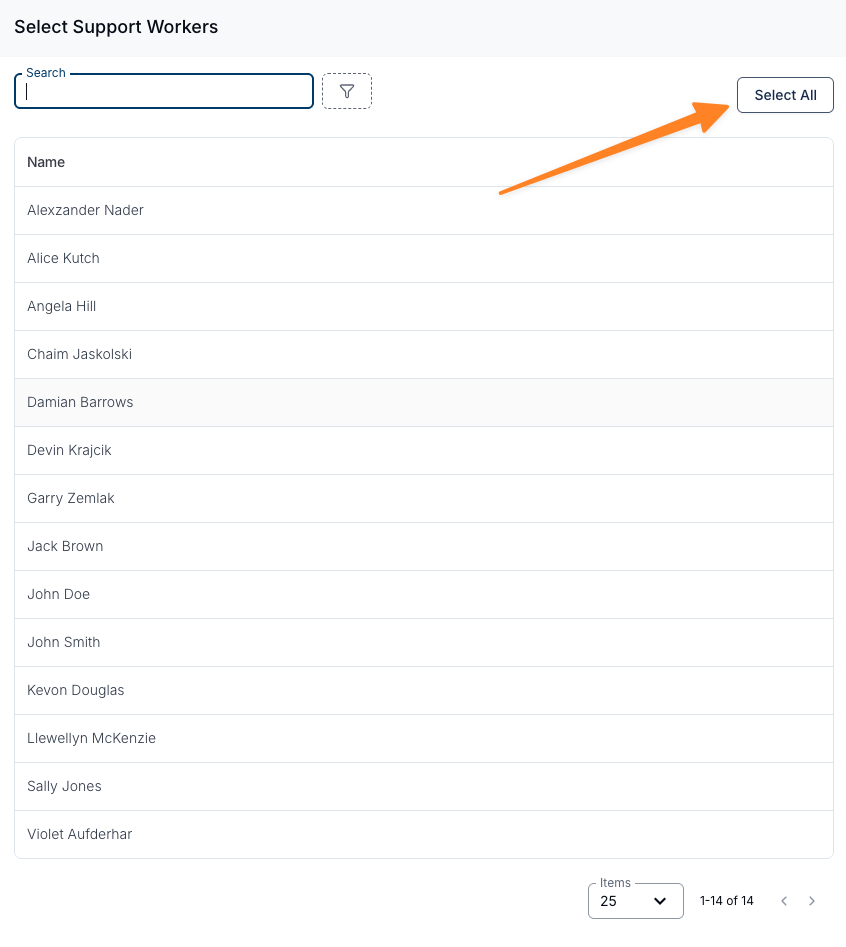
- Select All and Deselect All sit opposite the search box in the worker drawer, acting on the whole filtered set rather than just the visible page
- The internal shift worker cap has been lifted from 50 to 500 - at the cap unselected rows grey out, and Select All reports how many were added and how many were dropped
- The drawer also gains Team and Region filters, shown where those features and permissions already apply
- Selections survive a filter change, so you can build a selection up team by team, and each worker's pay group and cost code overrides are kept
- Deleting an internal event whose attendees have already clocked in and out now asks for confirmation, names how many attendees are affected and supports this and following - deletion is still refused if any attendee's shift sits in a timesheet batch
- Select All is on internal shifts only; group supports keep the one-at-a-time picker
For more information, visit the Adding a Shift (Internal or Non‑support) guide.
Setting a Role and User Groups When Inviting a User
You can now choose a new User's Role and add them to User Groups on the invite form itself, so their access is right from the moment they're invited rather than needing a second pass afterwards.
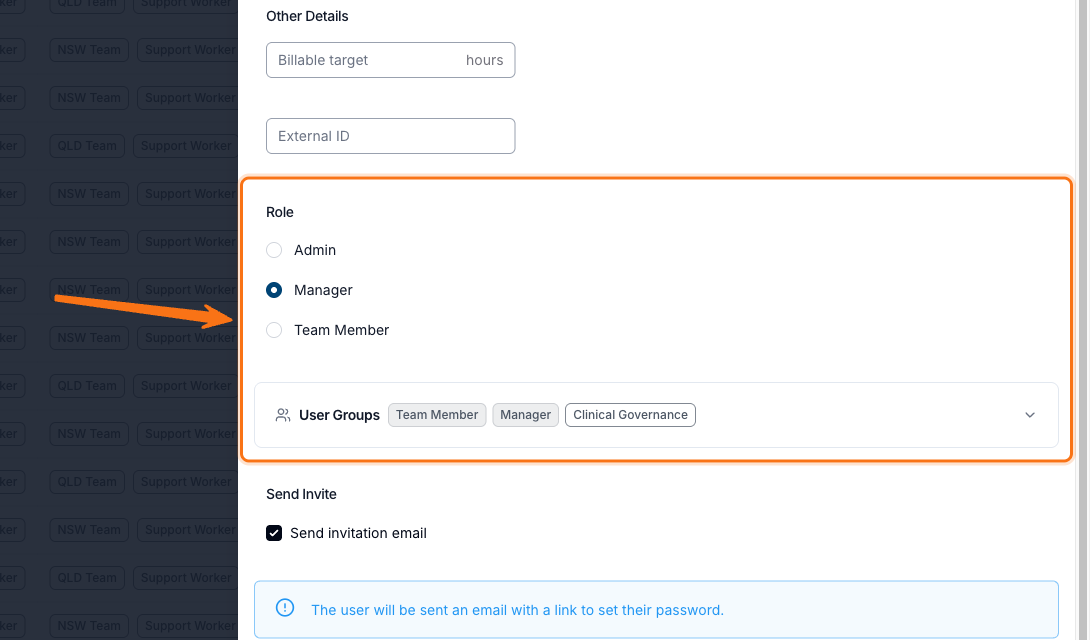
- Pick Admin, Manager or Team Member in the new Role section - leaving it unset invites the User as a Team Member
- The Role section only appears when the User Type is Standard and you have permission to update Roles and Permissions; Support Workers are always invited with the Support Worker role and Auditors with the read-only Auditor role
- The collapsed User Groups summary shows filled tags for the groups Astalty applies from the Role and outlined tags for the groups you've picked yourself
- Expanding it shows Based on role groups, which tick and untick themselves as you change the Role, and Custom groups, which you set yourself
- Reserved groups that come from Teams aren't offered here - a User joins those automatically once you add them to a Team
- Invite User now confirms the Role being used, and you can untick Send invitation email to create the User without emailing them yet
For more information, visit the Inviting Users guide.
Removing the Notional Unit Price from a Charge Item
If a Charge Item was ticked as notional by mistake, you can now fix it yourself instead of contacting support.
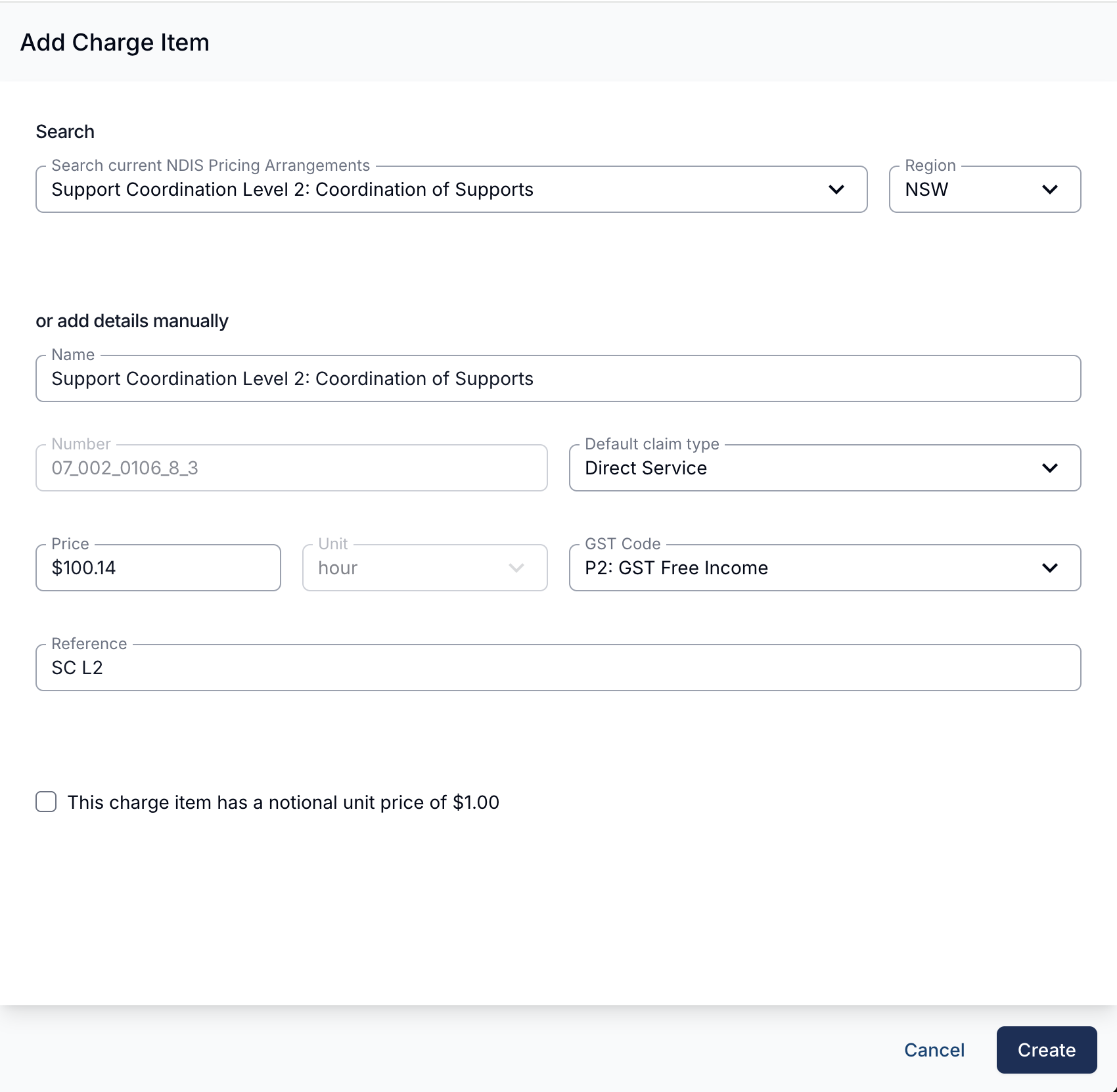
- Open the Charge Item from Settings → Charge Items, untick This charge item has a notional unit price of $1.00 and save - it can be changed at any time, including on a Charge Item already in use
- The normal unit price and quantity return on PDF invoices, the invoice screen (the N badge disappears), bulk upload files and NDIS payment requests
- Invoices raised earlier show the corrected figures the next time they're downloaded, emailed or resent - there's no need to void and reissue, and the total doesn't change
- The copy a Participant or Plan Manager already holds still shows the notional figures, so resend it if they need the corrected version
- An invoice already synced to Xero keeps the notional figures there, because Astalty sends each invoice to Xero once
- When editing a Charge Item from within a Charge Item Set, the notional option is only available on the two kilometre travel Charge Items
For more information, visit the Creating & Updating Charge Items guide.
Deactivated Employees Filter on Scheduling Costs
Scheduling Costs gains a Deactivated Employees Include/Exclude filter, mirroring the existing Archived Participants one. Deactivated staff have always been included in these figures — Exclude is a new option, not a correction to the old numbers.
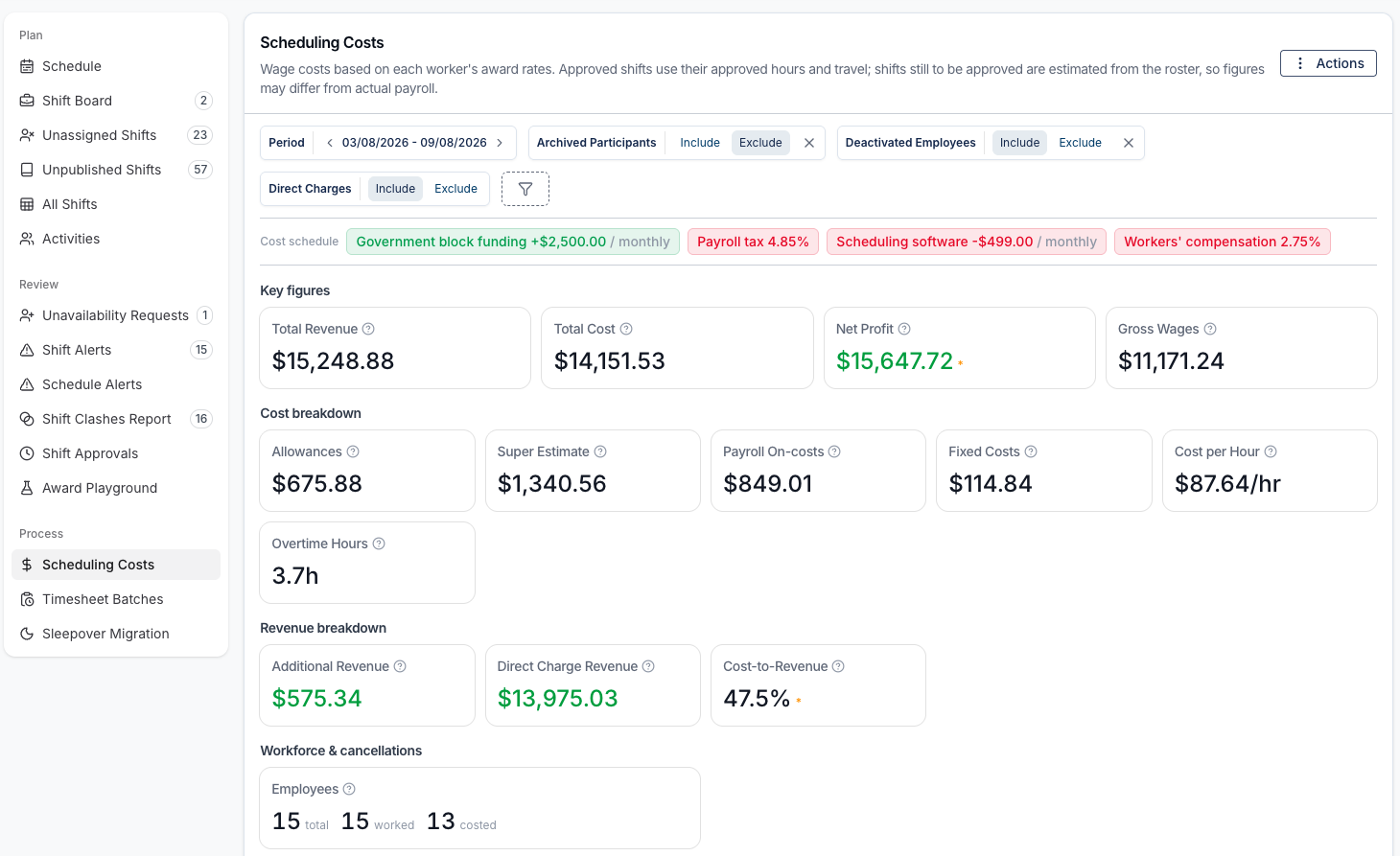
- It defaults to Include, so a report you ran before this filter existed still shows the same figures
- Exclude flows through the summary figures, the daily chart, Cost by Employee, Cost by Participant, unallocated cost, uncostable users, the paid cancellation tile and its drill-down, and the XLSX export
- Worth knowing: Exclude removes wage cost only - the revenue those employees delivered is still counted - so Net Profit and Cost-to-Revenue will look better than reality, and both carry an amber asterisk with a tooltip while the filter is active
- Employees with restricted access still count as current employees, and there's no new permission
For more information, visit the Scheduling Costs guide.