12 November 2026
Task Types
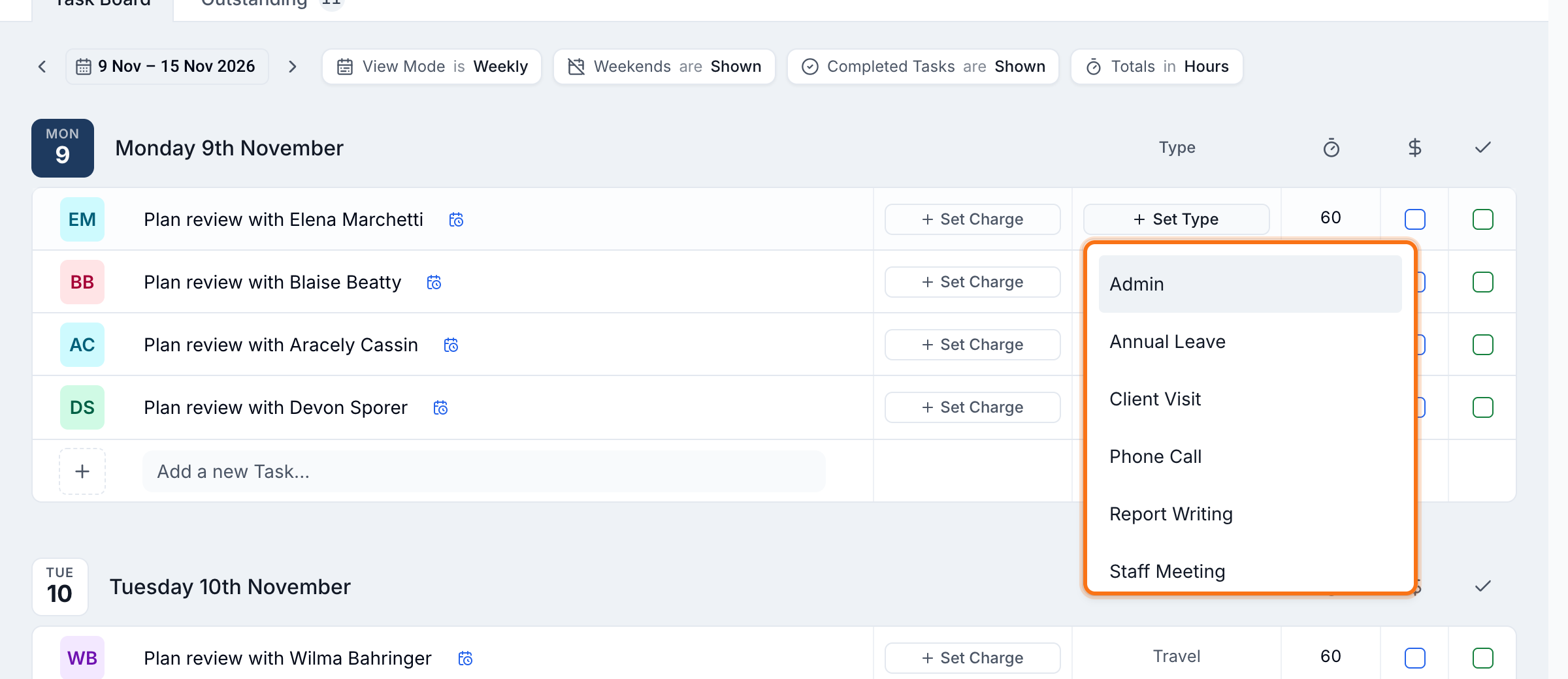
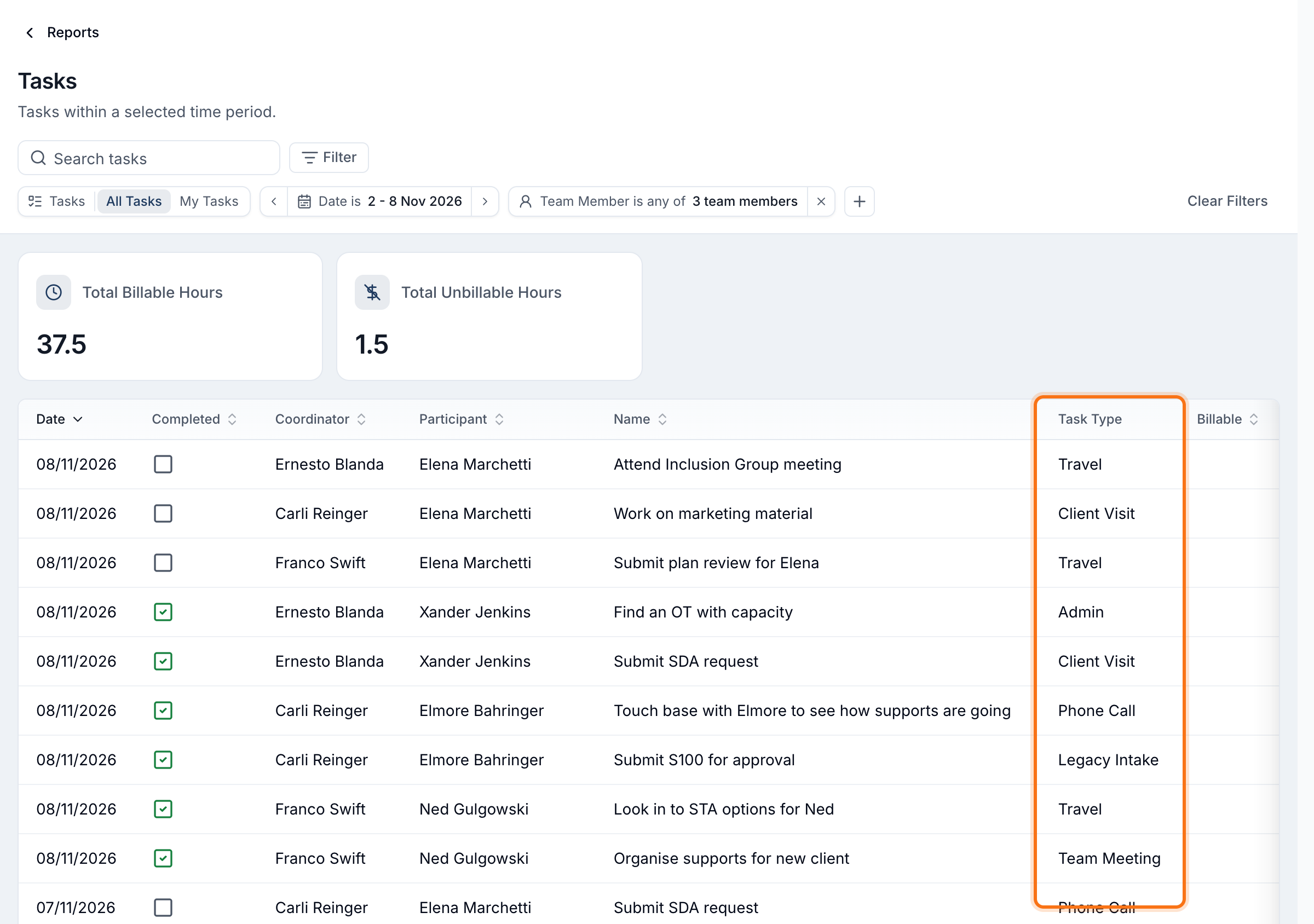
You can now label each task with the kind of work it records, such as Admin, Travel, Team Meeting or Annual Leave. You create your own list of types, your team picks one on each task from the Task Board, the task page or the Create Task form, and you can require a type when your team creates or clones tasks in the web app. The Tasks Report gains a Task Type column and filter, and the Tasks Export adds sheets that total hours by type and by team member. The Account Owner turns it on from Optional Features.
For more information, visit the Task Types guide.
Dashboard Widget Builder (Beta)
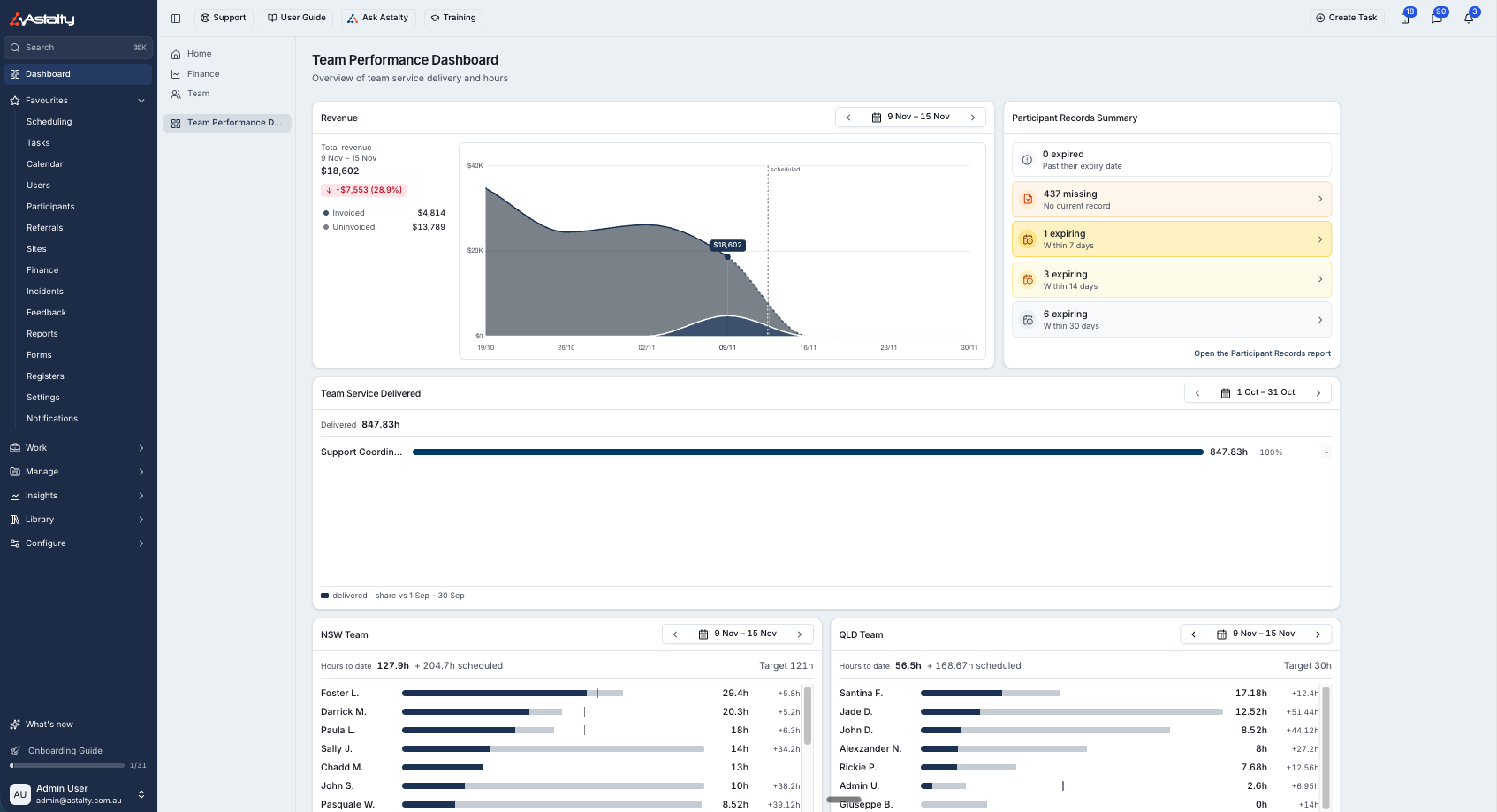
Admins can now build their own dashboards from widgets covering revenue, team hours, tasks, incidents and more, then share each one with chosen users, teams or user groups. You can also build a Participant dashboard that your team sees on Participant profiles. Shared dashboards appear by name under Dashboard in the main menu, and Admins manage them all from Settings > Dashboards. It's enabled per account while in beta; contact Astalty Support to discuss access.
For more information, visit the Dashboard Widget Builder guide.
Filling Out Forms From a Task
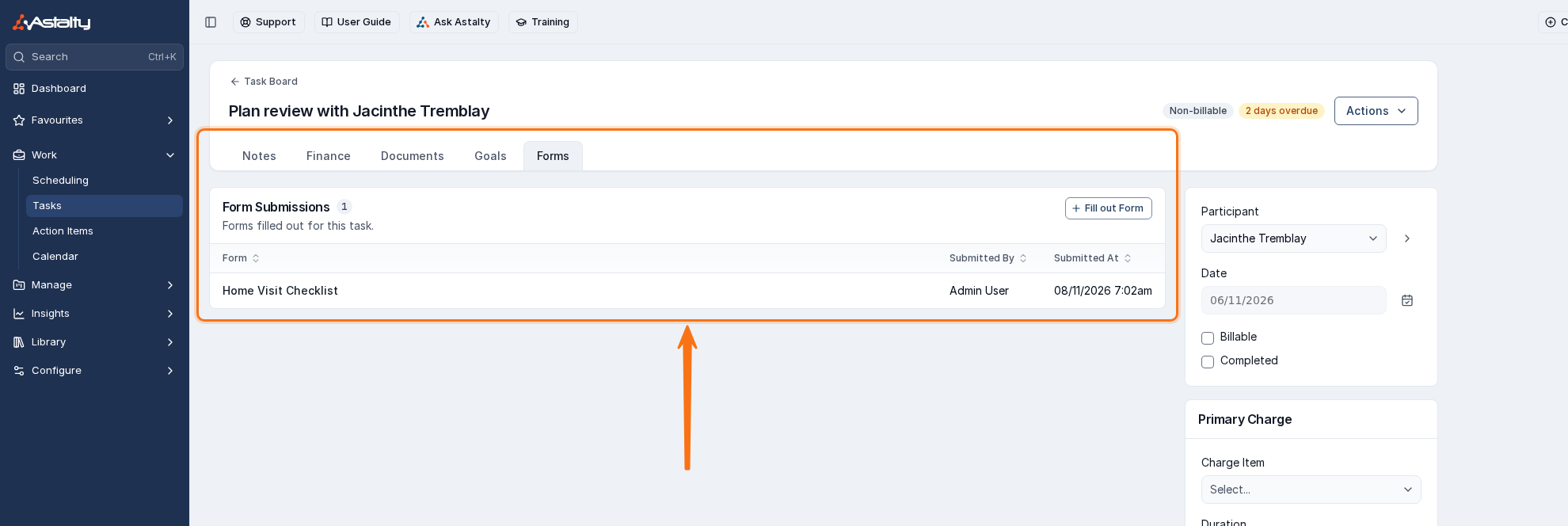
With Forms enabled on your Premium account, tasks have a new Forms tab that lists the form submissions completed for that task, such as a home visit checklist. Select Fill out Form to complete another one from the task, and it's linked to the task automatically. A linked submission also lists the task in its Associations panel, with a View Task option to jump back to it.
For more information, visit the Task Forms guide.
Texting the Signing Link (Beta)
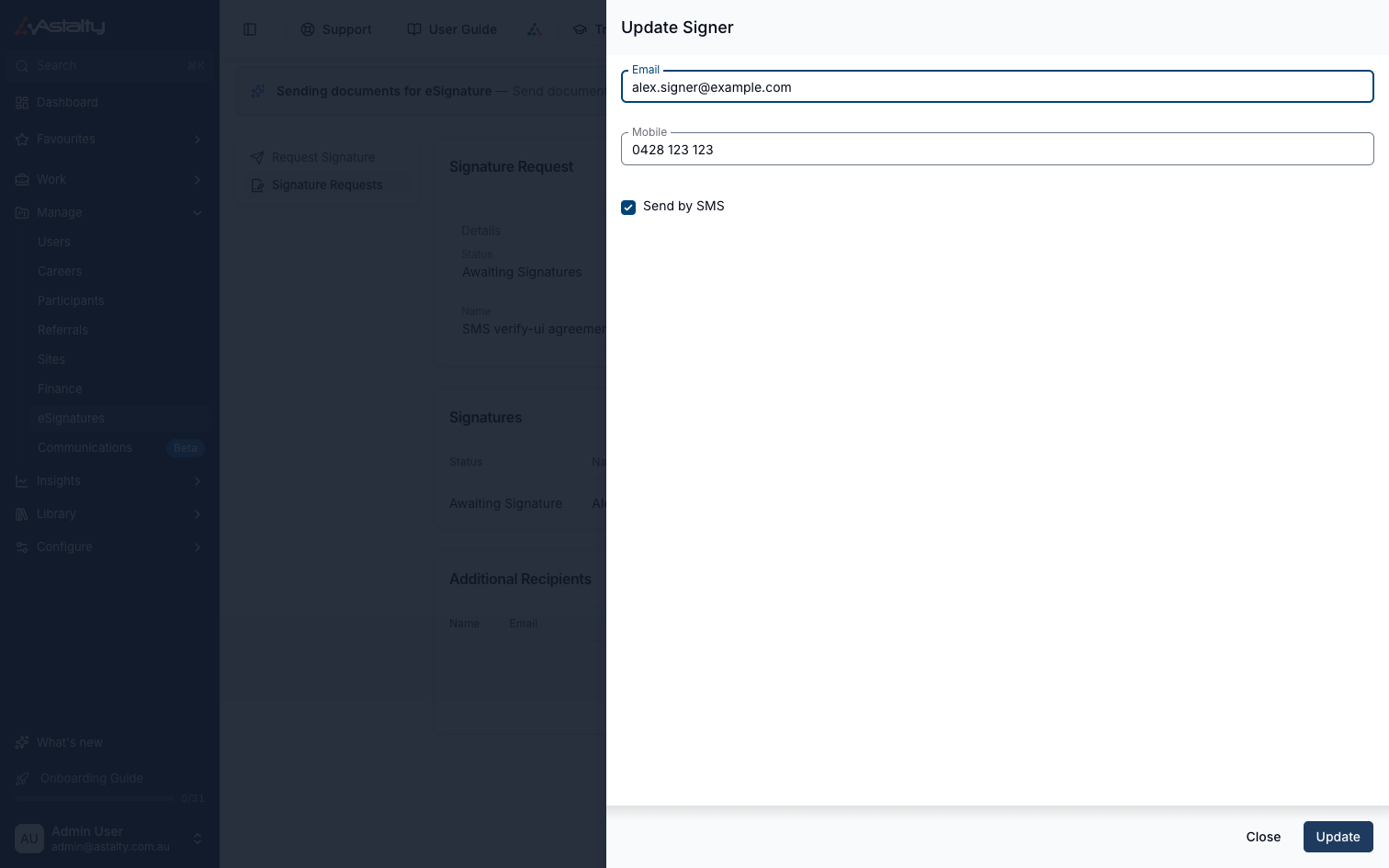
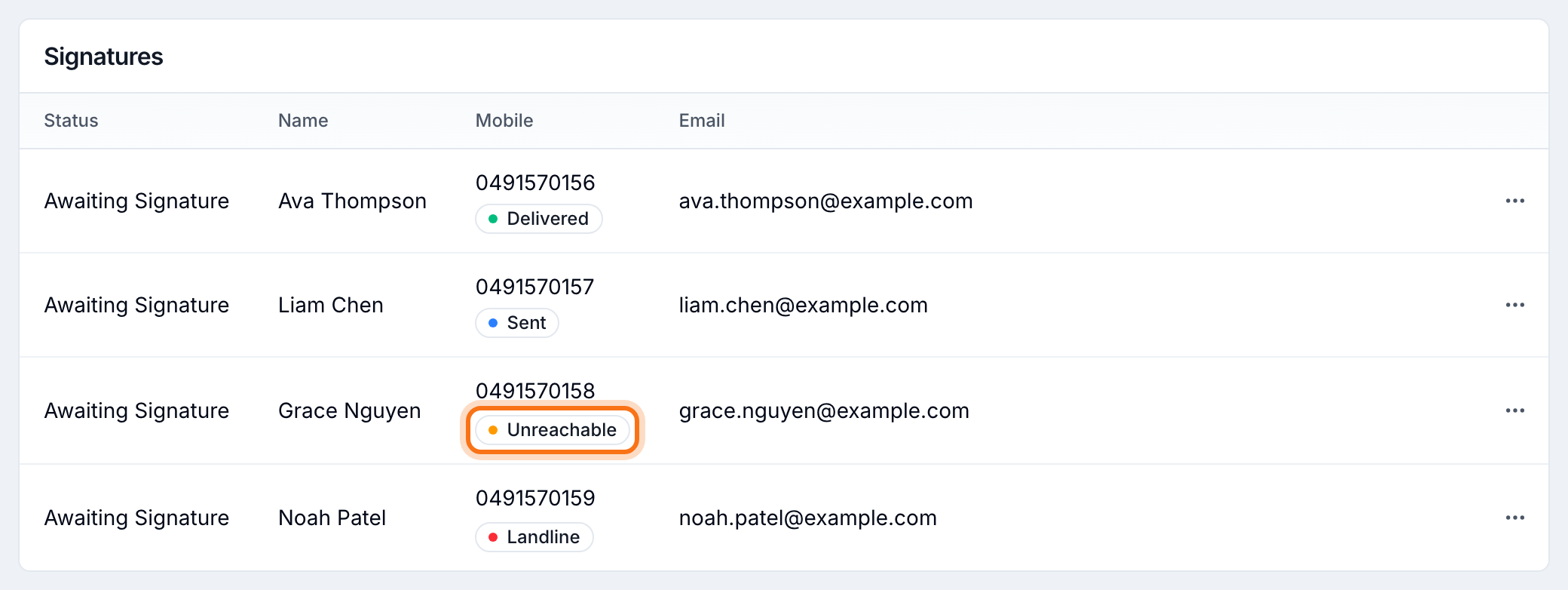
As well as emailing a signature request, you can now text each signer their signing link. Enter the signer's Mobile and tick Send by SMS. The Signatures table then shows whether each text was delivered, explains any failure, and lets you resend the text. It's in beta and needs Two-Way SMS with an active SMS number; contact Astalty Support to turn it on.
Each signing-link text Astalty sends, including reminders and resends, uses one SMS credit, billed at $0.10 with your other SMS usage and on top of the eSignature charge. We've also updated the Two-Way SMS guide to set out SMS charges: $15 per month for your SMS number and $0.10 for each outbound message segment.
For more information, visit the Requesting Signatures, Fixing Delivery Failures and Two-Way SMS guides.
Declining an Active Overnight Period
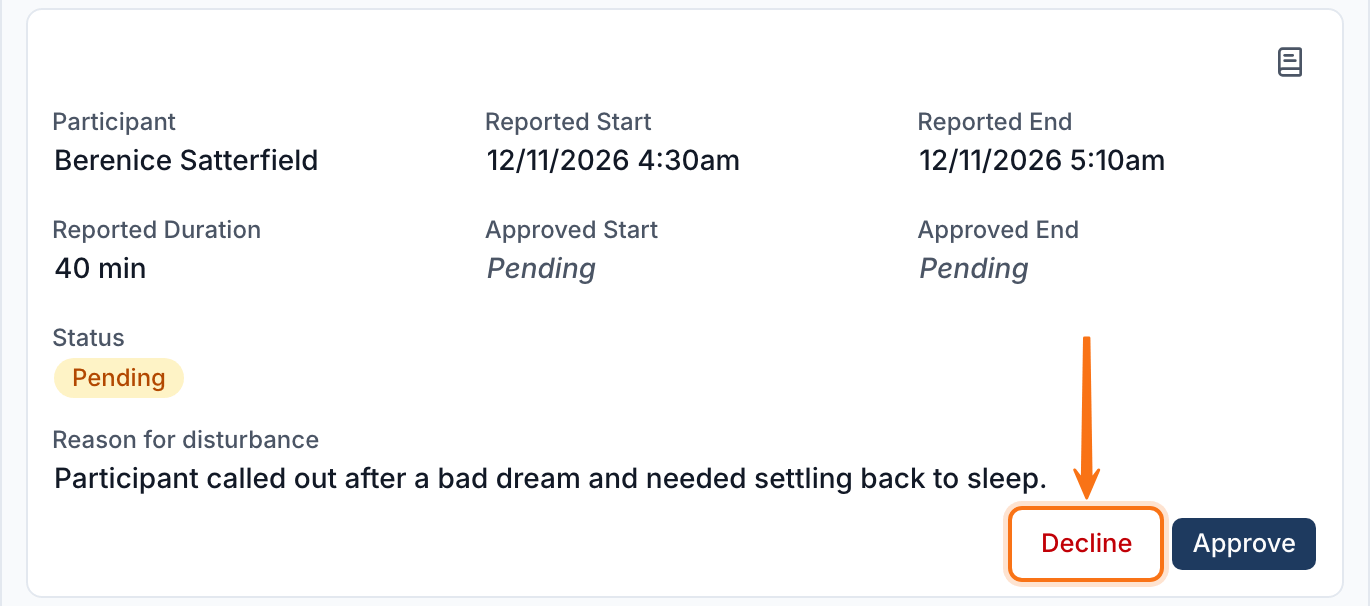
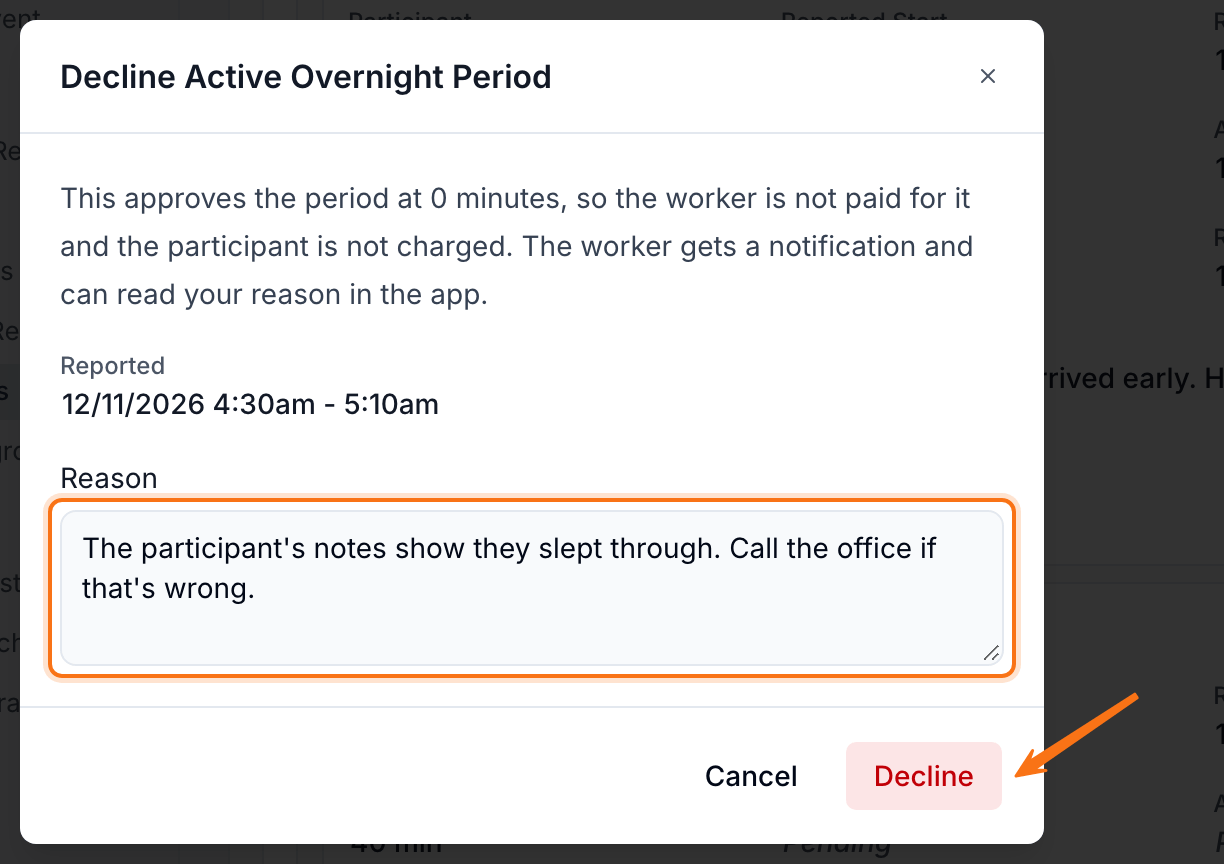
In Shift Approvals, you can now select Decline on a pending active overnight period and enter a reason - for example, when notes show the Participant slept through. Declining approves the period at 0 minutes, so the worker isn't paid for it and the Participant isn't charged. The worker gets a notification in the app.
For more information, visit the Creating a Sleepover or Active Overnight Support guide.
Creating Your Own Unavailability in the Web App
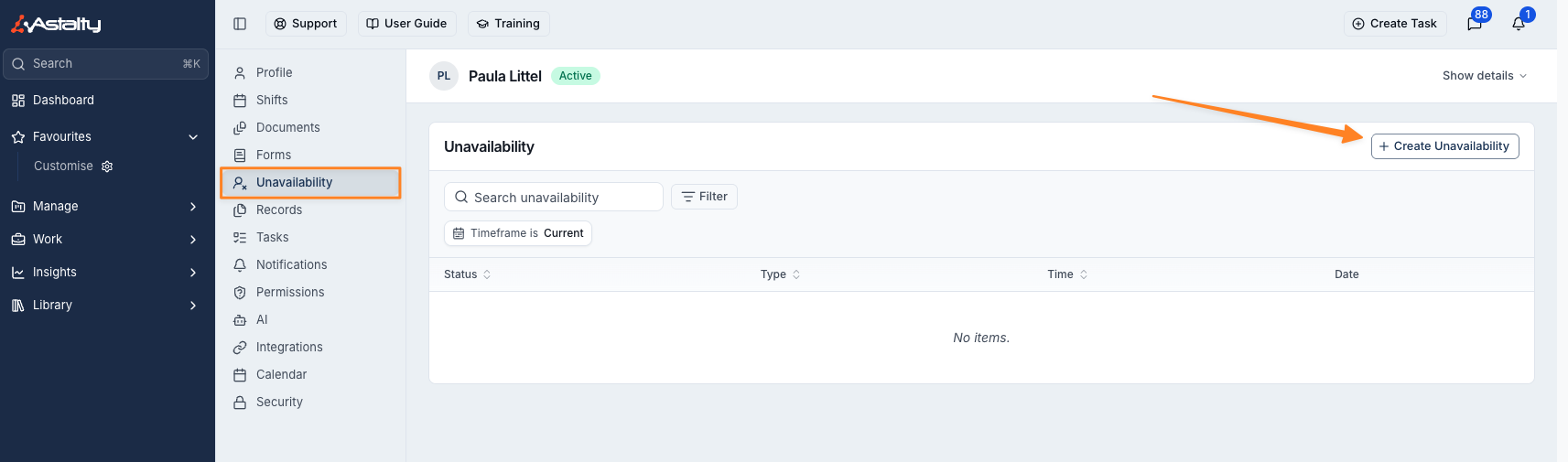
Team members who can request their own Availability and Leave can now do it from their own profile in the web app, not only in the Astalty App. Open My Profile, select Unavailability, then Create Unavailability. Your organisation's notice periods still apply.
For more information, visit the Managing Availability guide.
Four Beta Features Now Included with Premium
These features no longer need Astalty Support to switch them on. They're now available to every account subscribed to Premium:
- Charge Item record requirements - make a Record Type required on every Service that uses chosen Charge Items. See Participant Record Types.
- Clock In/Out Radius - for accounts using Scheduling, stop workers clocking in or out unless they're near the support's location. See Scheduling Settings.
- Staff Retention Report - starts, exits, churn and retention month by month. See Staff Retention Report.
- Webhooks - send Astalty events to your other systems as they happen. See Webhooks.
Exempting a Record Required by Charge Items
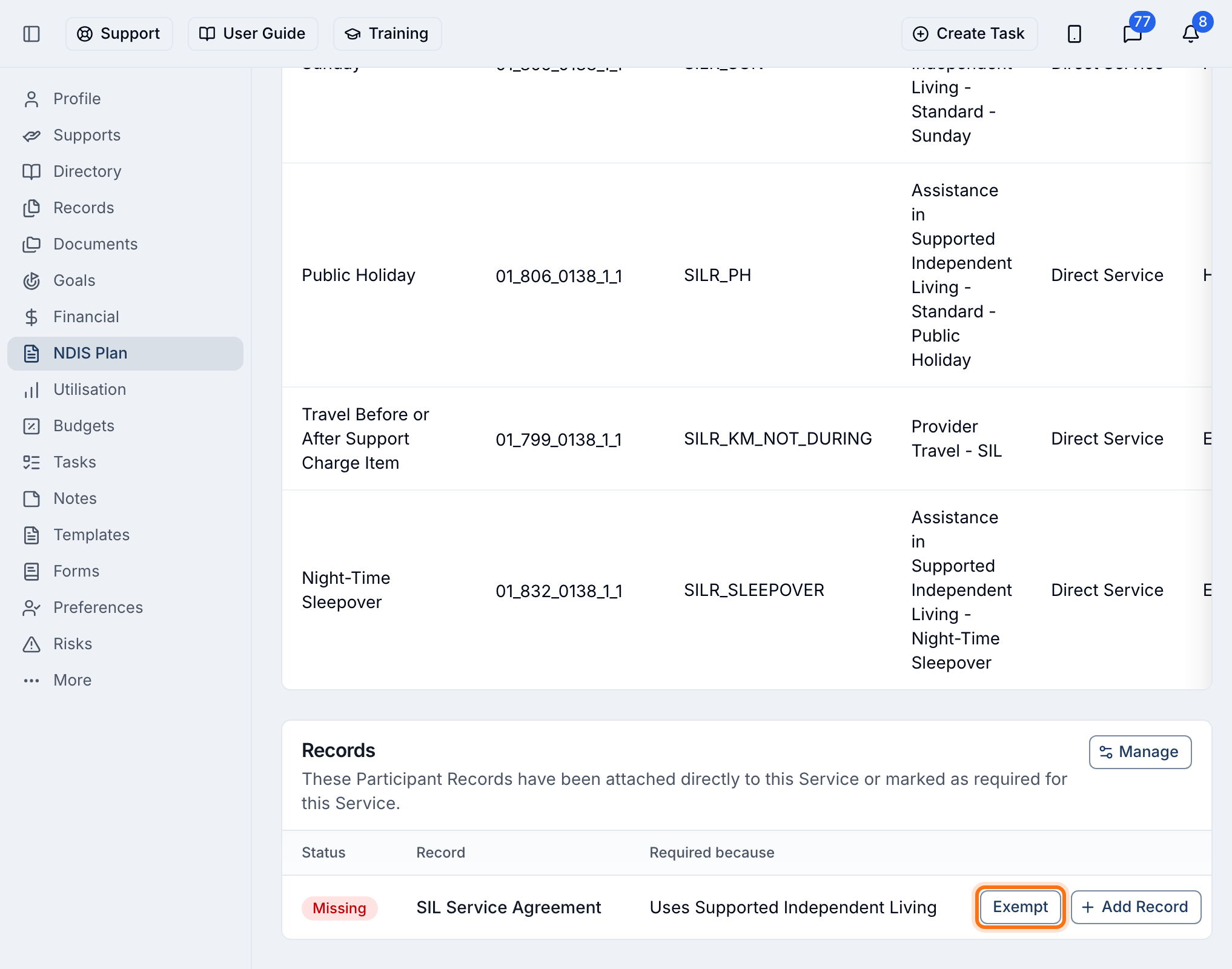
When a Record Type is required on a Service because of its Charge Items, but doesn't apply to that Service, you can now mark it exempt instead of adding a Record. On the Service's Records card, select Exempt on the Missing row and enter a reason. The row then shows an Exempt chip, and Undo brings the requirement back.
For more information, visit the Participant Records guide.
Requiring Site Records by Site Tag
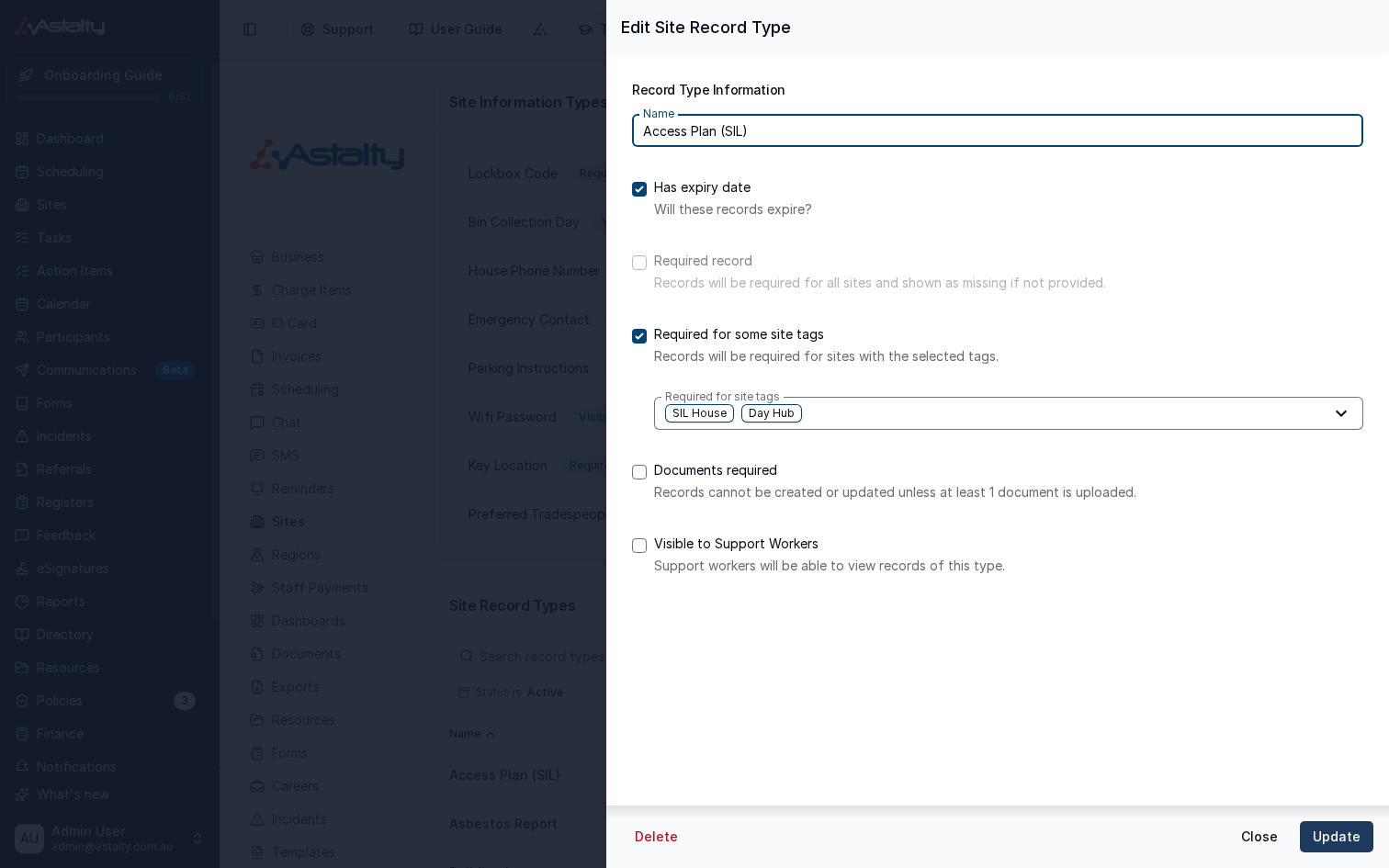
A Site Record Type can now be required only at Sites with certain Tags, instead of at every Site. Turn on Required for some site tags and choose the Tags under Required for site tags - any Site carrying one of them shows the record as missing until it's added.
For more information, visit the Sites Settings guide.
Vehicle Size Participant Preference
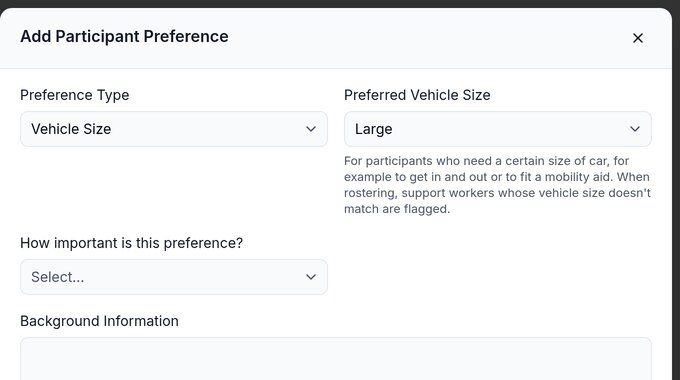
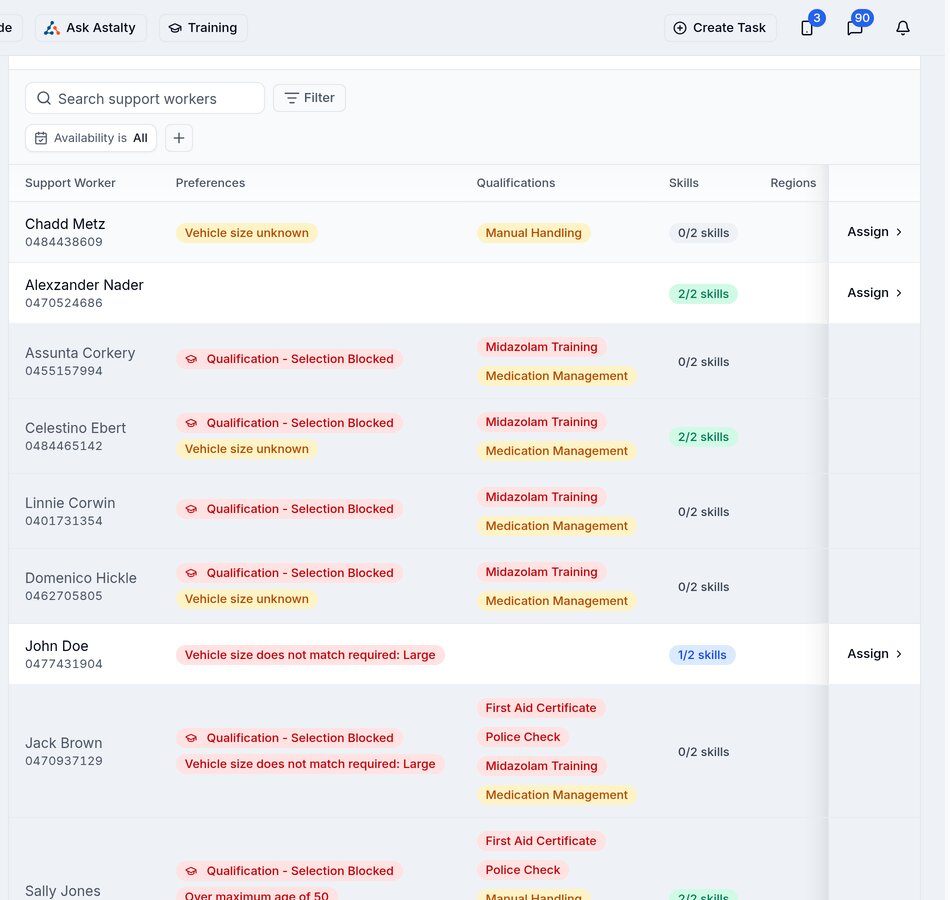
Participant Preferences have a new Vehicle Size type, for a Participant who needs a Small, Medium or Large car. It's compared against the vehicle size on each Support Worker's profile, so when you roster the Participant, a worker with a different size is flagged, and a worker with no size recorded is flagged as unknown.
For more information, visit the Participant Preferences guide.
Adding Other Claim Types With a Charge Item
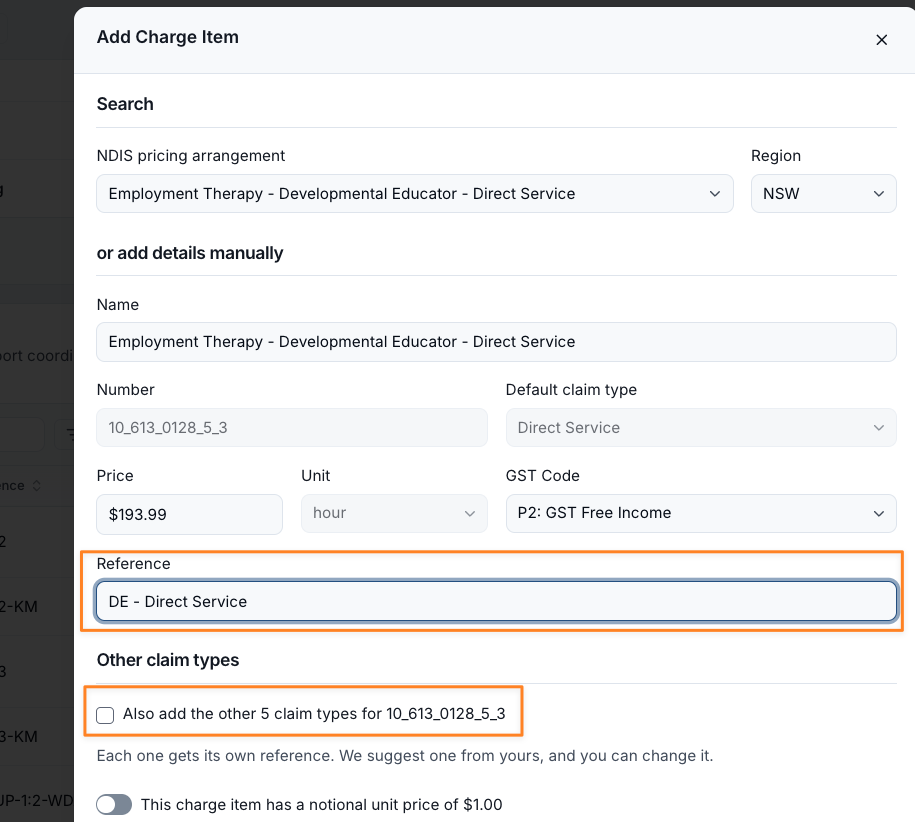
When you import a Direct Service item from the Price Guide that has other claim types - such as Cancellation, Non-Face-to-Face Services, Provider Travel or Telehealth Supports - you can now tick them under Other claim types and create them together with the main Charge Item. Claim types you already have are shown as Already added.
For more information, visit the Creating and Updating Charge Items guide.
Improved Daily Living Skills Charge Item Set Presets
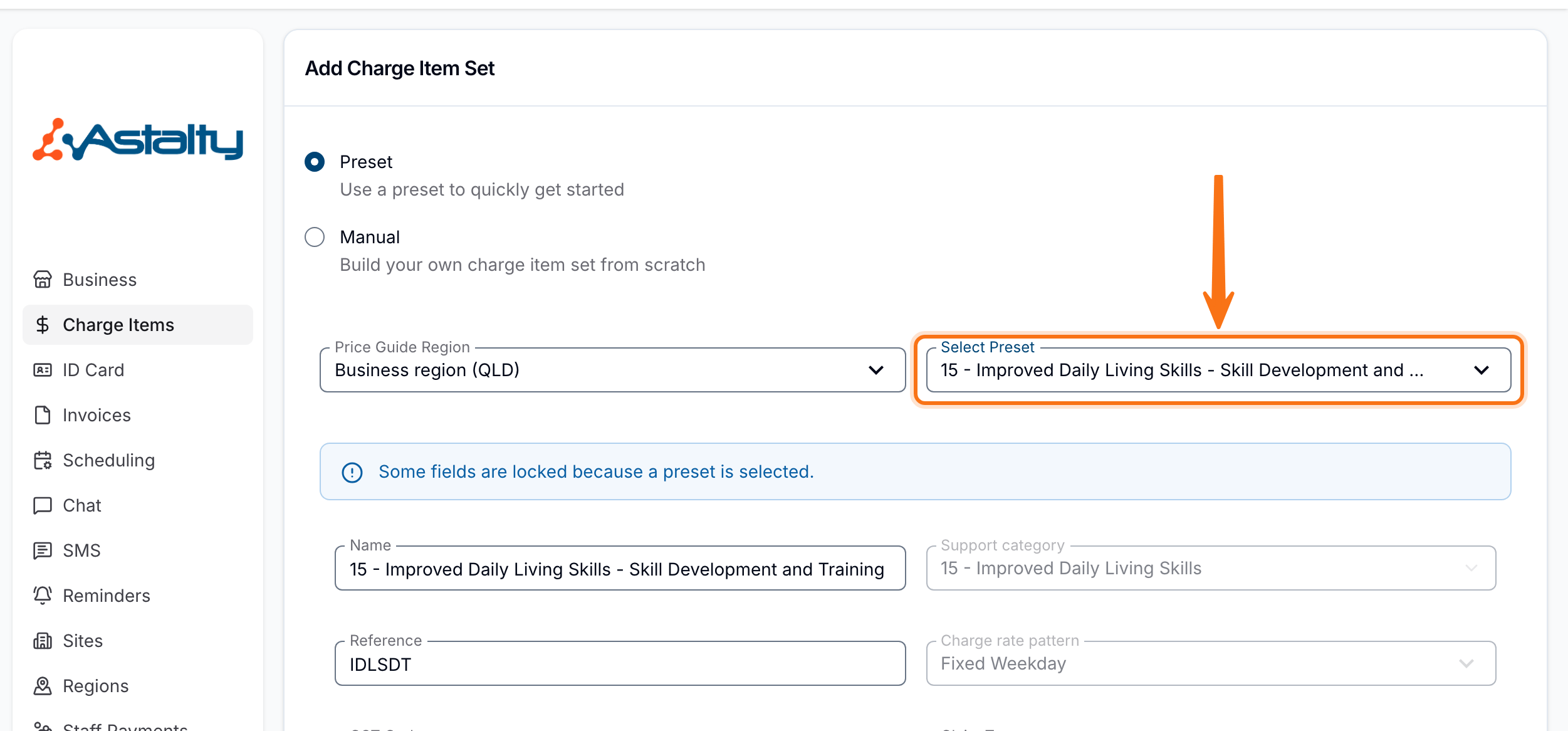
Two new Charge Item Set presets cover support category 15 - Improved Daily Living Skills: Skill Development and Training, and Training for Carers/Parents. Choose one from Select Preset when creating a Charge Item Set.
For more information, visit the Creating and Updating Charge Item Sets guide.
Setting a Profile Picture From a Referral
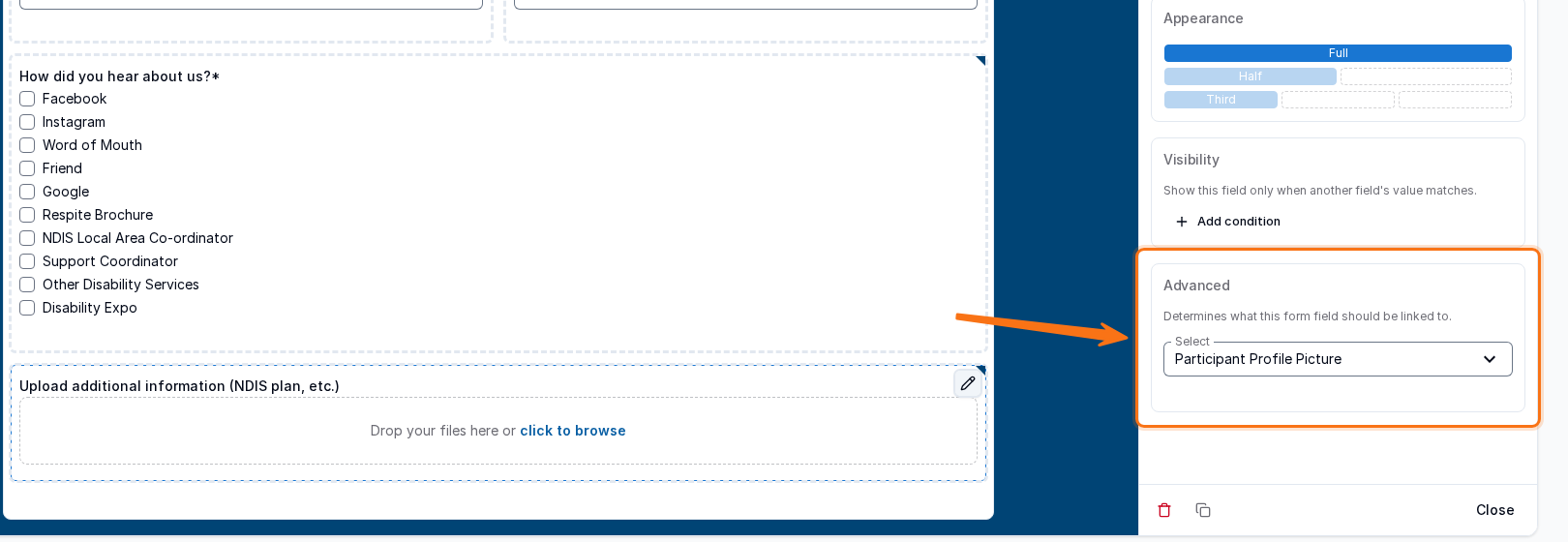
A referral form's File Upload field can now be matched to Participant Profile Picture. When you create a new Participant from the referral, the first uploaded file becomes their profile picture, as long as it's a JPG, JPEG or PNG.
For more information, visit the Referrals Overview guide.
AI & MCP Access (Beta)
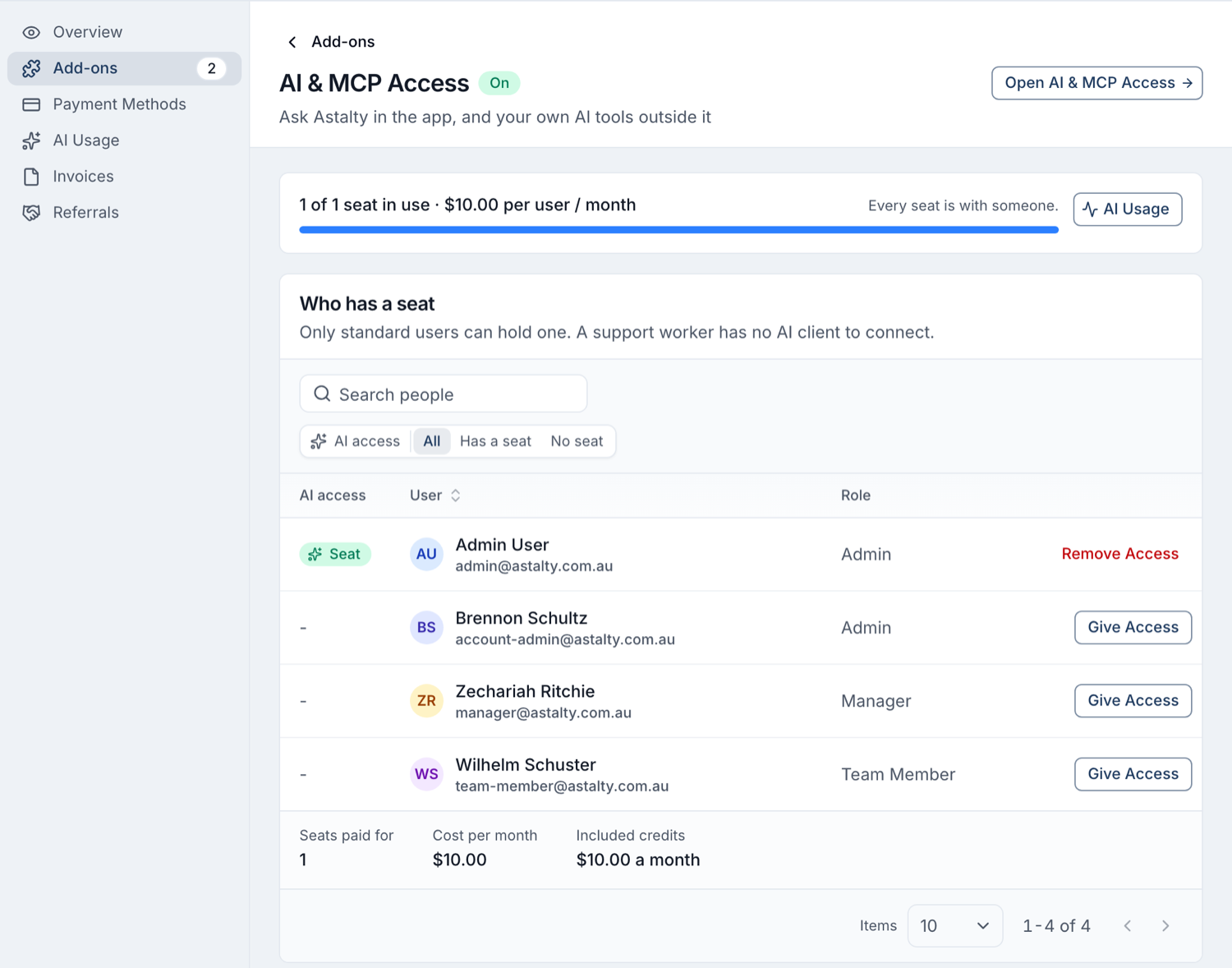
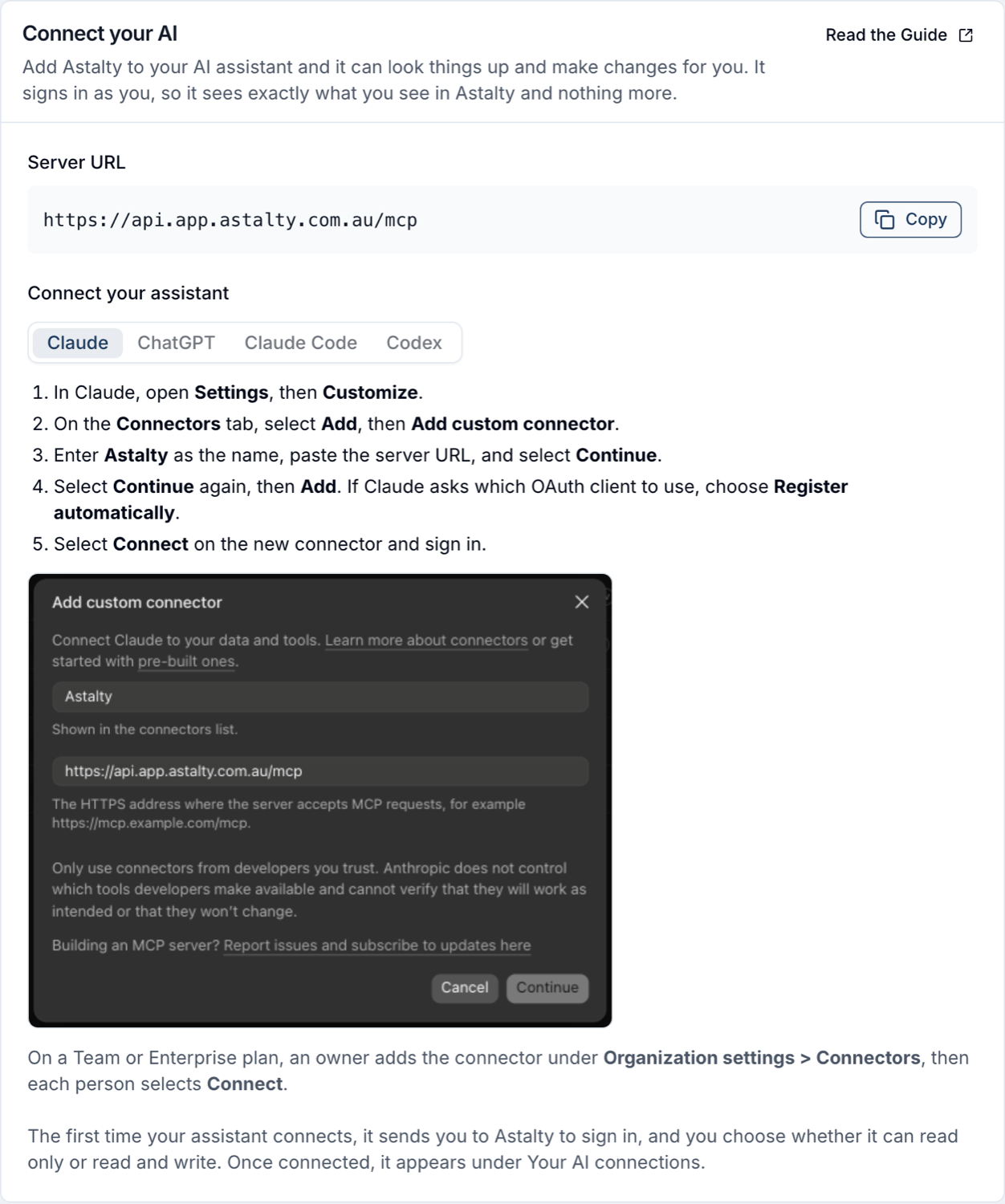
You can now give a user an AI seat so they can use Ask Astalty, the assistant inside Astalty. With MCP access as well, they can connect an AI assistant they already use, such as Claude or ChatGPT, to Astalty and ask it about their work in plain language. Either way, the assistant works as that user and sees only what they can see. The Account Owner gives seats from Billing > Add-ons > AI & MCP Access and turns on MCP access for each Admin who needs it. It's in beta; contact Astalty Support to discuss access.
For more information, visit the AI & MCP Access guide.
Choosing Where AI Requests Are Processed
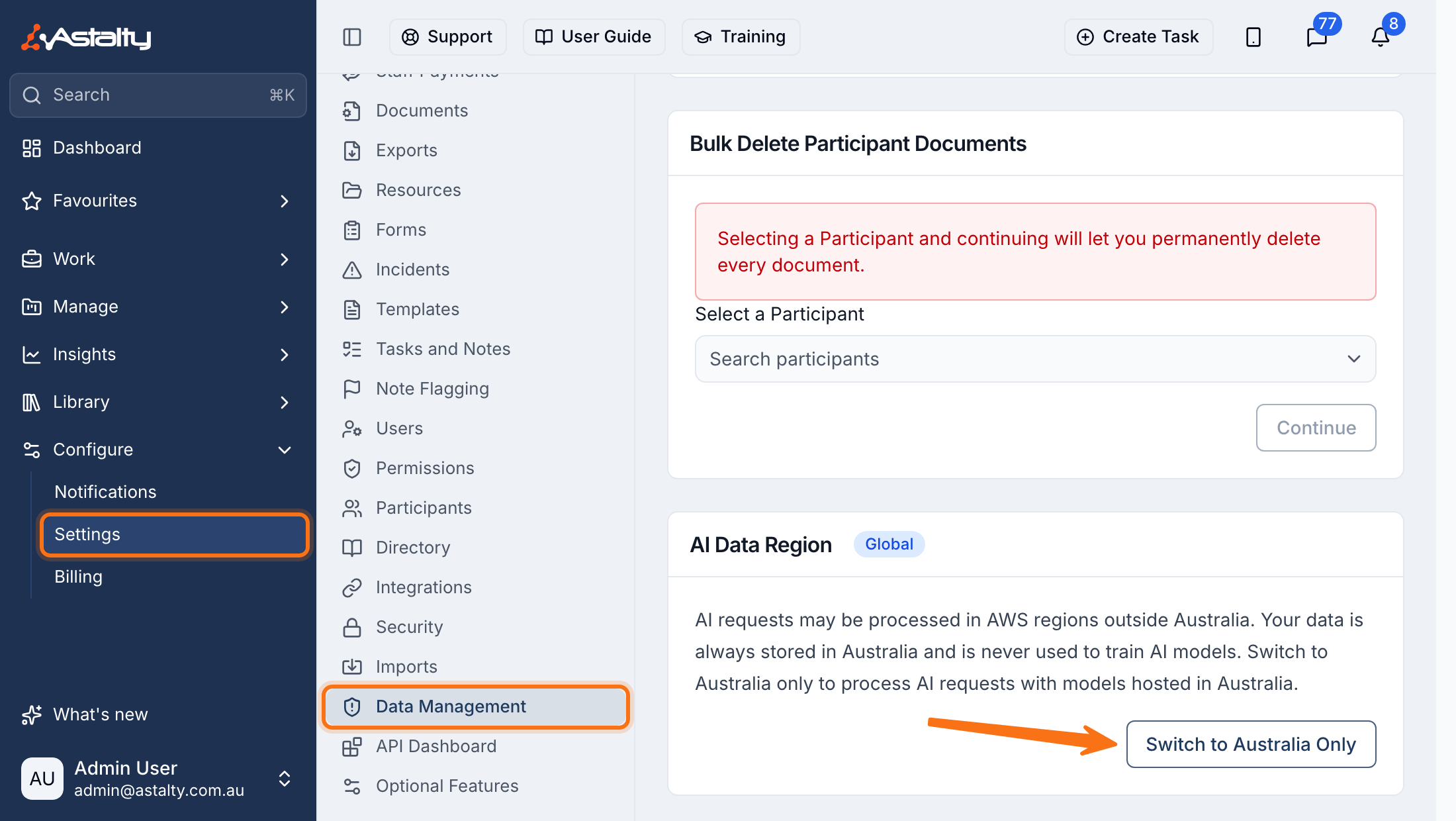
The Account Owner can now switch AI processing between Global and Australia only themselves, from the AI Data Region setting in Settings > Data Management, instead of emailing Astalty Support. Your account data is always stored in Australia, whichever region you choose.
For more information, visit the AI Privacy guide.
Plan Nominee and Contact Relationships in the Participants Export
The Participants Export now includes each Participant's Plan Nominee with their relationship, email, mobile and phone, plus Primary Contact Relationship and Emergency Contact Relationship columns. The new columns shift the order of the columns after them, so update any spreadsheet that reads the file by column position.
For more information, visit the Participants Export guide.
Shift Stage in the Shifts Export
The Shifts Export, as both CSV and PDF, now includes each shift's stage: Scheduled, Completed or Cancelled. This makes cancelled shifts easy to spot, because the existing Status column still shows them as Published or Unpublished.
For more information, visit the Shifts Export guide.
Quick-Copy Details on the Participant Profile
On the newer Participant profile layout, a Participant's NDIS number, Date of birth and Address sit together at the top of their profile, and each can be copied with one click. The newer layout is available as a beta; contact Astalty Support to have it switched on.
For more information, visit the Profile guide.