Fixing Delivery Failures
When a signature request email doesn't arrive
When Astalty can't deliver a signature request email, a label appears next to the signer's email address in the Signatures table of the request.
To find it, open Signature Requests and click into the request you're chasing up.
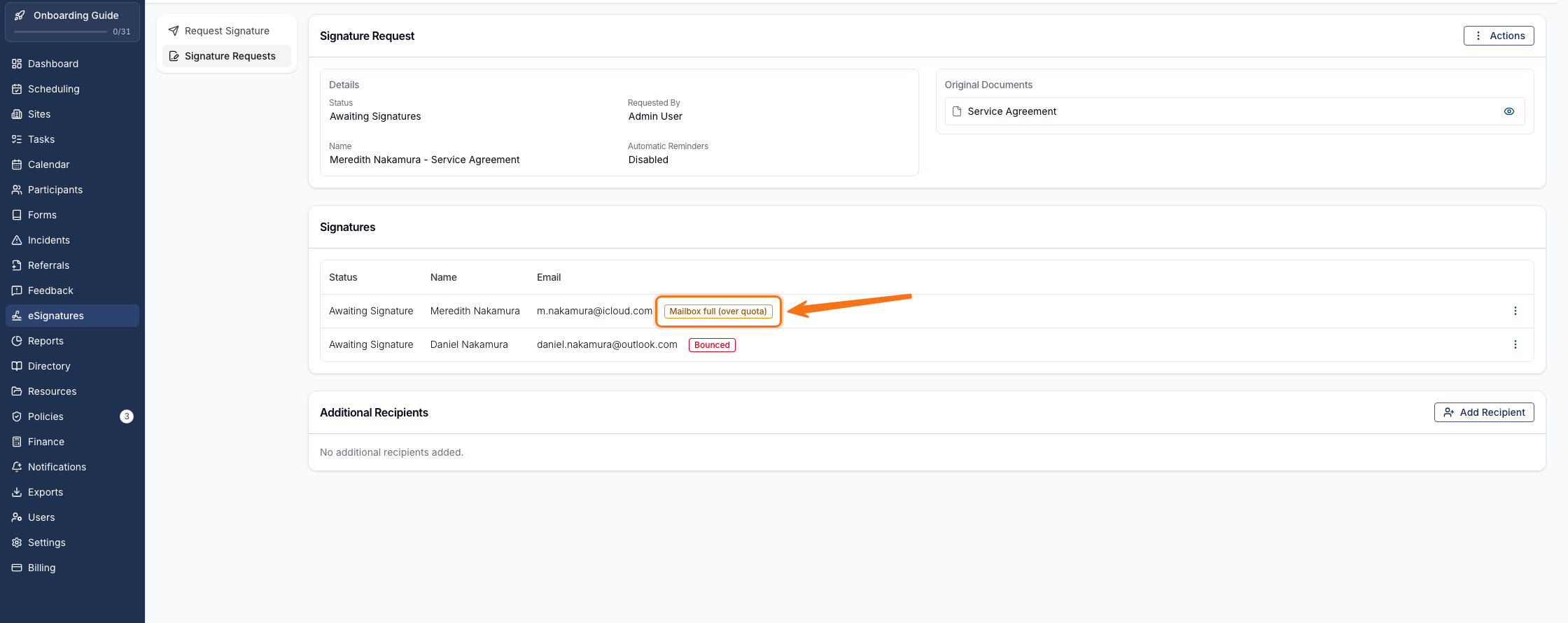
The colour of the label tells you what to do next:
- Amber - the problem may fix itself, so you can send to the same address again using Retry send.
- Red - the address won't work, so you'll need to Update Email to a different one.
Click or hover over the label to see when the email failed and a plain-English explanation.
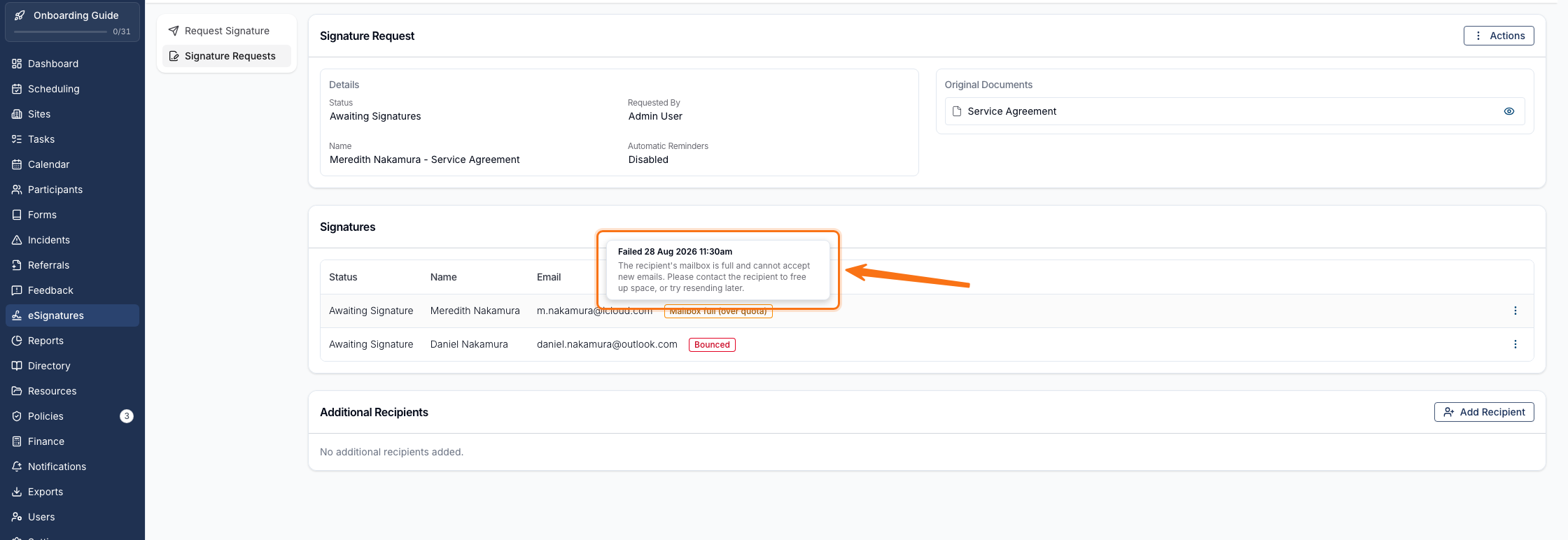
What each failure reason means
| Label | What it means | Can you retry the same address? |
|---|---|---|
| Mailbox full (over quota) | The recipient's mailbox is full and cannot accept new emails. | Yes - ask them to free up space first |
| Blocked by email provider | The recipient's email provider blocked the message due to content or reputation filters. | Yes |
| Message too old | The email could not be delivered within the retry window. | Yes |
| Delivery failed | The email could not be delivered, and no specific reason was given. | Yes - but check the address is correct |
| Bounced | The recipient's mail server rejected the email. The address may not exist. | No - use a different address |
| Suppressed (previously bounced) | The address was suppressed because it previously bounced. | No - contact Astalty support to have it removed from the suppression list |
| Suppressed (spam complaint) | The address was suppressed because the recipient previously marked emails as spam. | No - use a different address |
| Suppressed (unsubscribed) | The address was suppressed because the recipient unsubscribed. | No - use a different address |
| Blocked (blacklisted) | The email was blocked because the sending server is on a blacklist. | No - contact Astalty support for assistance |
Retry sending to the same address
If the failure is one that may resolve itself, you can send the request again without changing the email address.
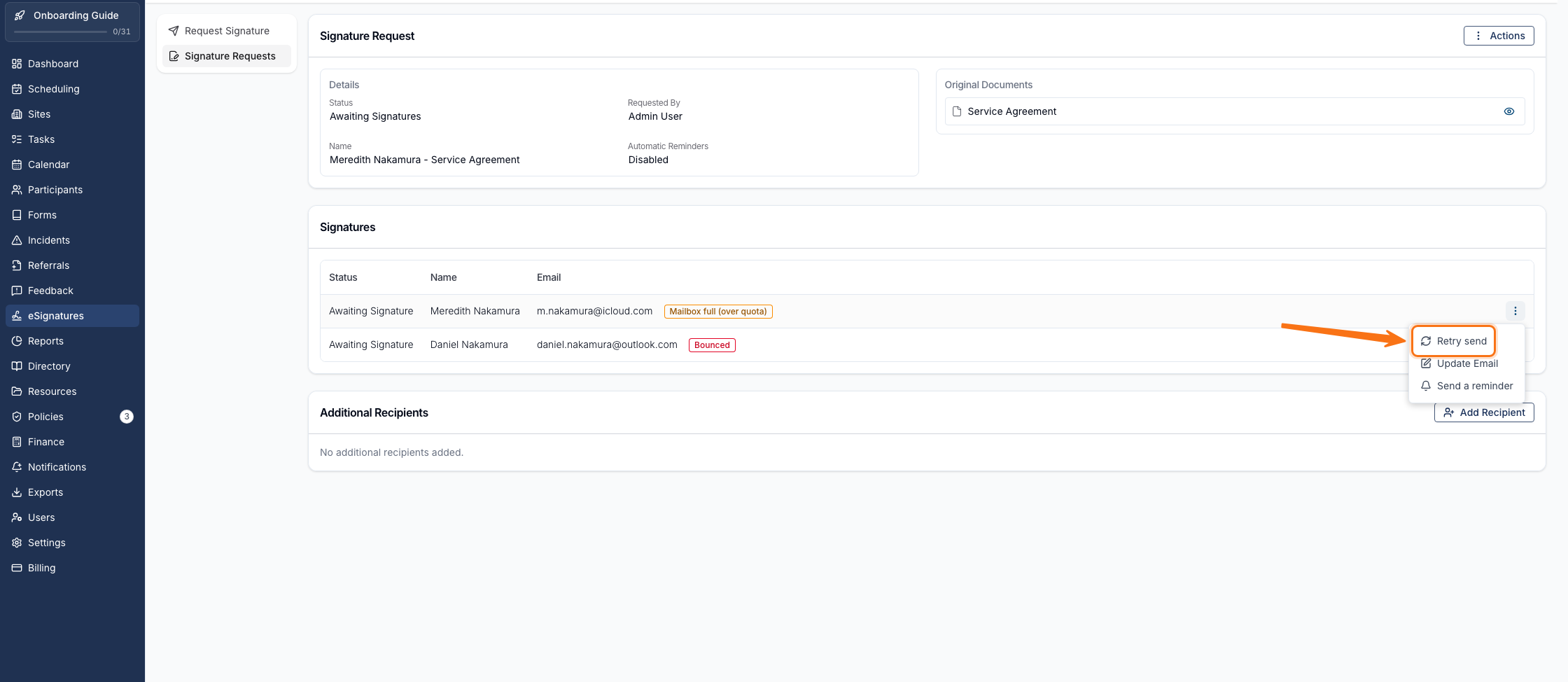
- Click the three dots to the right of the signer's row.
- Click Retry send.
- Check the reason for the last attempt in the confirmation window, then click Retry send to send it again.
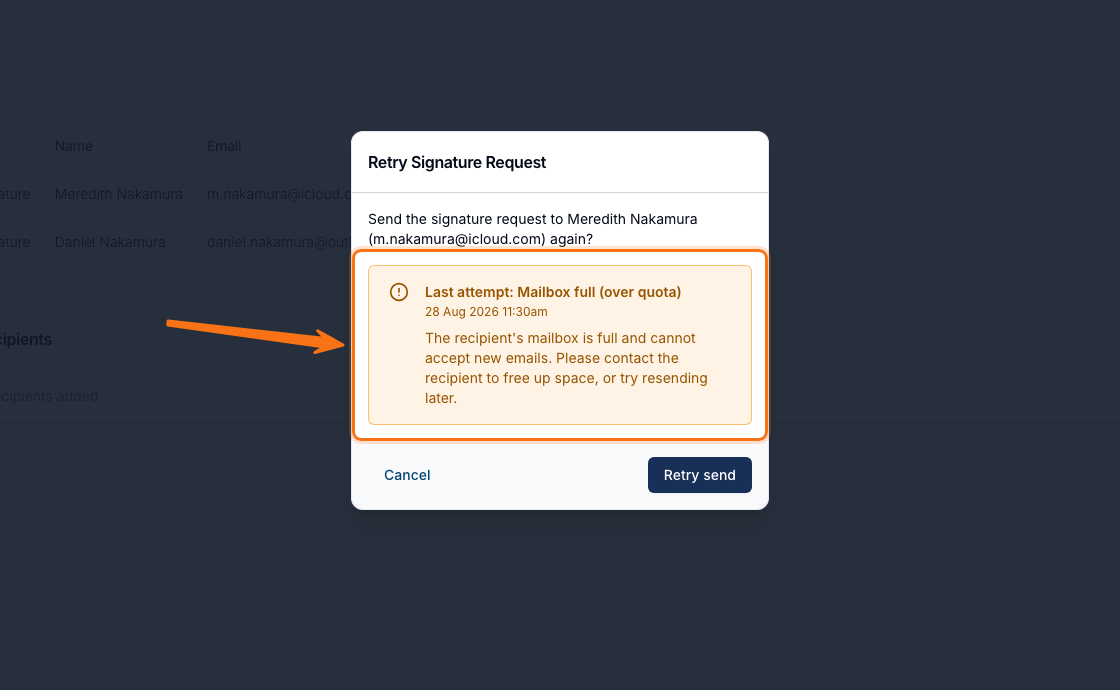
The signer is sent the same signature request email again, to the same address.
Retry send is unavailable when:
- The failure reason can't be fixed by resending - use Update Email instead.
- The signer has already signed.
- The signature request is no longer awaiting signatures (for example, it's been completed or cancelled).
Updating the email address instead
If the address itself is the problem, use Update Email in the same menu to send the request to a different address. You don't need a delivery failure to do this - Update Email is available for any signer who's still Awaiting Signature, so you can correct a typo as soon as you notice it.
You can learn more about updating a signer's email address in Requesting Signatures.
When the failure label disappears
The label stays on the signer's row until an email to that signer is actually delivered.
- Clicking Retry send doesn't clear the label on its own - it clears once the retried email is confirmed as delivered. A later reminder that gets delivered clears it too.
- Using Update Email clears the label straight away, because the request is being sent somewhere new.
How you'll know a request failed
As well as the label on the request, Astalty tells you about delivery failures in two other places:
- An email to the requester - whoever created the signature request is emailed to let them know it couldn't be delivered, including the reason.
- The activity log - the failure and its reason are recorded on the request, along with any retries and who sent them. Open the request, click Actions, then View Activity Log.