Overview
Overview
Feedback & Complaints provides a central register for capturing, tracking, and resolving feedback and complaints from Participants, families, advocates, and staff. A submission from a Feedback & Complaints form automatically appears in the register. See Introduction to Forms for how Astalty forms collect information.
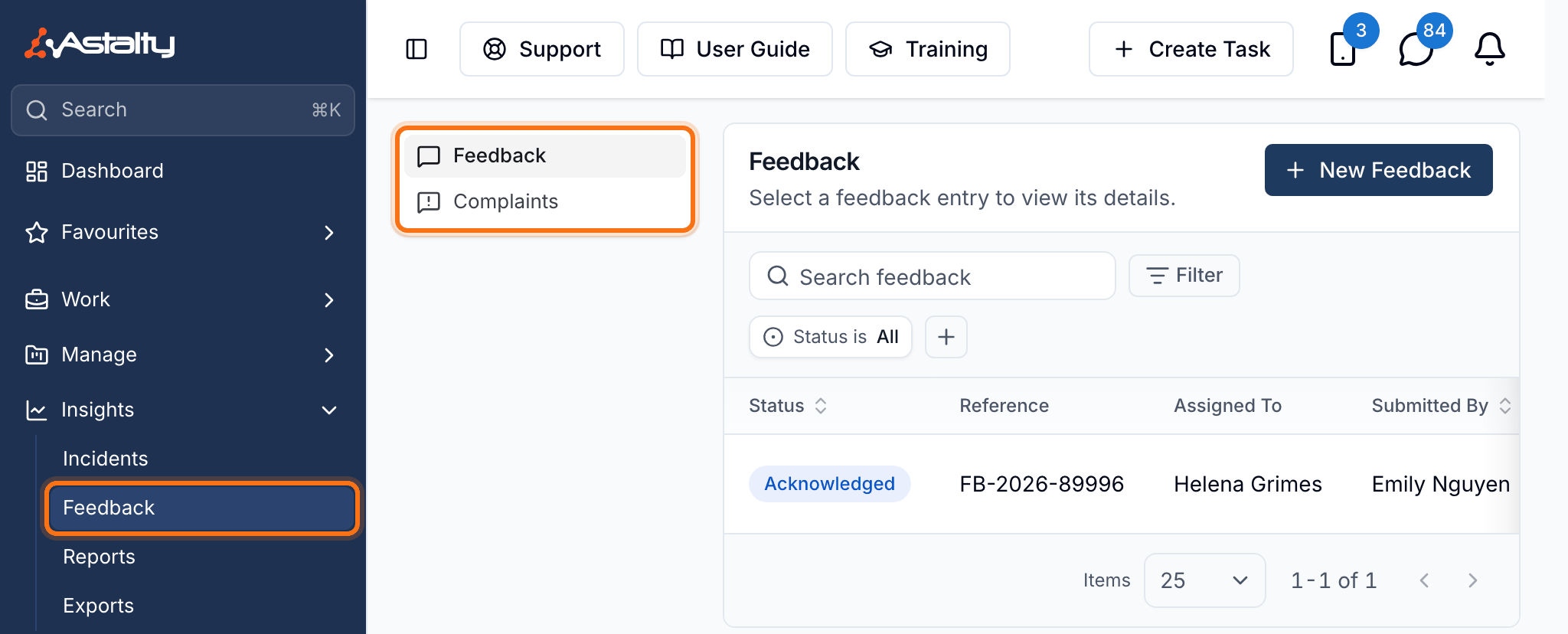
The Feedback & Complaints register is separated into two tabs:
- Feedback - for general feedback, compliments, and suggestions.
- Complaints - for formal complaints that require investigation and resolution.
How to Create a Feedback & Complaints Form
Start with the Feedback & Complaints Form template. Only forms created from this template can send submissions to the Feedback & Complaints register. Follow Create a Form to add the template and publish the form.
When using the template, the form will come pre-built with the following sections:
- Type of Feedback - whether the submission is feedback or a complaint.
- Sentiment - how the submitter would describe their experience (Positive, Neutral, or Negative). This field only appears when 'Feedback' is selected as the type.
- About You - contact details of the person submitting (these fields are optional to allow anonymous submissions).
- Service Experience - satisfaction and service quality ratings.
- Your Feedback - details of the experience, who it relates to, and what outcome the submitter is hoping for.
- Background - whether the matter has been raised before or reported to another organisation.
- Acknowledgement - confirmation that the information provided is accurate.
Recording Feedback or a Complaint in Astalty
You can submit the Feedback form from inside the register instead of opening its external link:
- Open the Feedback or Complaints tab.
- Click New Feedback or New Complaint.
- If more than one published Feedback form is available to you, select the form to complete. Astalty opens it automatically when only one is available.
- Complete the form, including the correct Type of Feedback value.
- Click Submit, or click Submit and Add Another to save the entry and clear the form for another response.
The entry appears in the register after the submission has been processed. The tab and button used to open the form do not set the entry's type; the Type of Feedback answer on the form determines whether it appears under Feedback or Complaints.
Embedding a Form on a Website
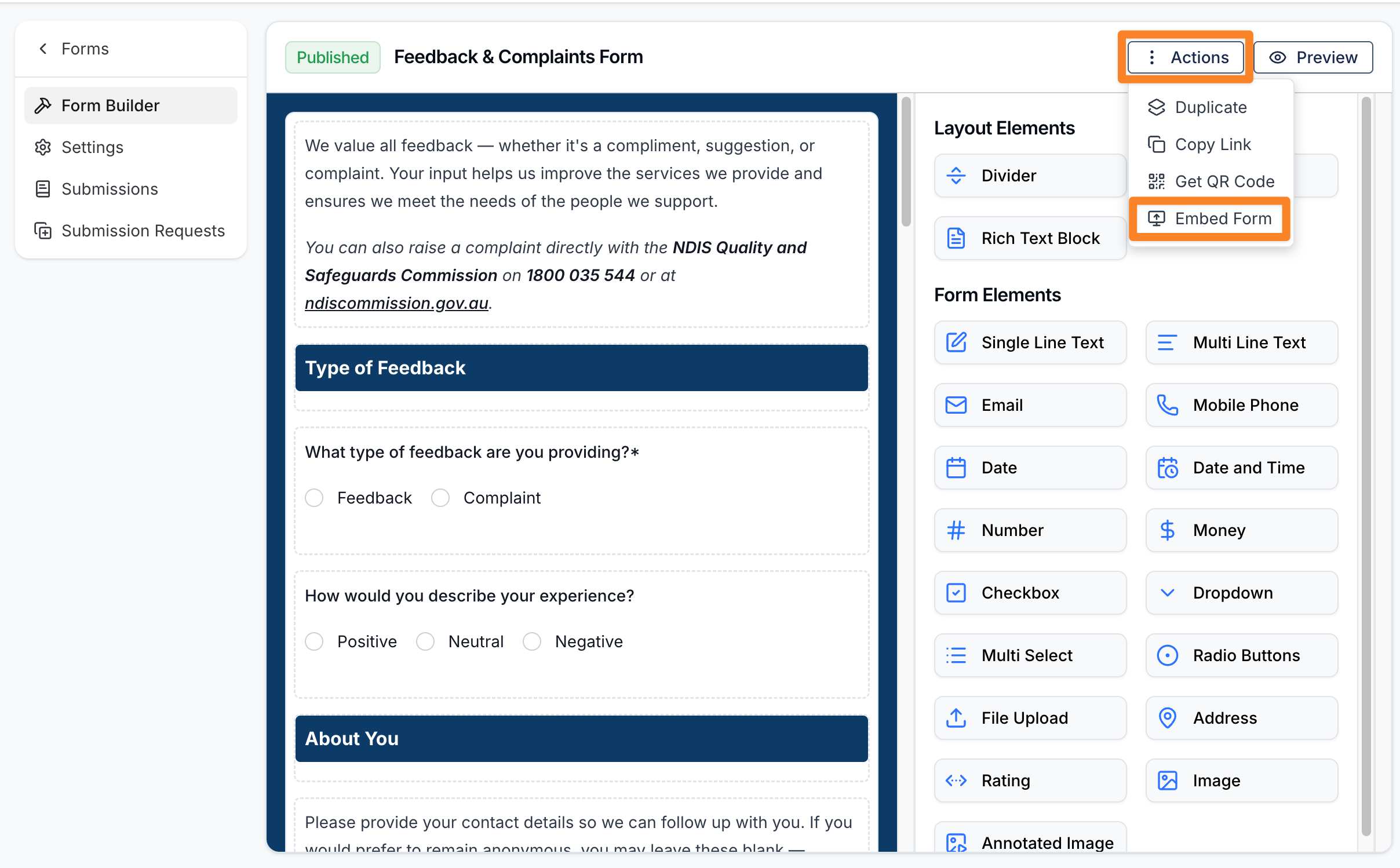
You can embed a published Feedback & Complaints form on your website. To do this, from within the form builder of the published form, select the Actions button and then Embed Form.
You will then have the option to embed your form via the EMBED option or the IFRAME option.
Submissions to the embedded form automatically create entries in your Astalty account. See Feedback and Complaint Follow Up to manage them.